Buy and Sell Zones MT5
- Indicators
-
Evgeniy Zhdan
 🚀 Products for MT4 & MT5. Only the best and truly useful tools for traders: https://www.mql5.com/en/users/trendhunter/seller
➖➖➖➖➖➖➖➖➖➖➖➖➖➖➖➖➖➖➖➖➖➖ - Version: 4.0
- Updated: 24 October 2026
- Activations: 20
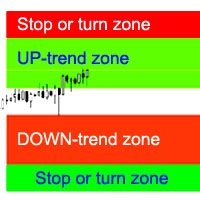
The indicator shows what state the market is in right now: uptrend, downtrend or flat (sideways movement). The state is highlighted as a colored zone directly on the price chart and repeated on an info panel.
MT4 version: https://www.mql5.com/ru/market/product/3793
How to read the chart
- Teal zone — uptrend.
- Red zone — downtrend.
- Gray-blue zone — flat.
- Two lines bound the zone. The thick line is the slow one, the thin line is the fast one. Both change color together with the market state.
- The state does not flicker at the boundary: the market has to move decisively into a new state before the color changes.
How to use
- Trade filter. Trade with the trend while the zone shows a trend color, and reduce activity or change tactics when a flat appears.
- Choosing a strategy. In a trend, entries in the direction of the move and on pullbacks fit best. In a flat, work from the range boundaries or wait for a breakout.
- Phase changes. A move from flat to trend often marks the start of a directional move. A move from trend to flat means slowdown and a possible end of the move.
- Multiple timeframes. Put the indicator on a higher and a working timeframe: the higher one gives context, the working one gives the entry timing.
- Strength control. If the strength scale on the panel declines, the move is running out of steam.
Settings
Trend / flat detection
- Fast period — period of the fast line. A smaller value reacts faster but gives more false switches.
- Slow period — period of the slow line. It sets the scale of the trend: a larger value means bigger, more stable trends.
- Method — smoothing method for both lines.
- Applied price — the price the lines are built on (Close, Open, High, Low and others).
- Volatility period — the period used to measure current market volatility. The flat threshold adapts to it automatically.
- Flat threshold (higher = more flat) — sensitivity to flat conditions. The higher the value, the more periods are classified as flat. The lower it is, the earlier a trend is declared.
- Hysteresis, % — protection against frequent switching. The higher the value, the more stable the state and the later the change occurs.
Signal lines
- Show signal lines — show two additional lines.
- Signal 1 period / Signal 1 method — period and method of the first signal line.
- Signal 2 period / Signal 2 method — period and method of the second, slower line.
Appearance
- Show zone fill — show the colored zone between the lines.
- Slow line width — thickness of the slow line.
- Trend up color / Trend down color / Flat color — colors for uptrend, downtrend and flat.
- Zone fill intensity, % — saturation of the fill. A lower value makes the zone subtler, a higher one makes it brighter.
Info panel
- Show info panel — show or hide the panel.
- Panel position — chart corner: Top left, Top right, Bottom left, Bottom right.
- Panel X offset / Panel Y offset — panel offset from the chosen corner, in pixels.
- Panel scale, % (0 = auto by screen DPI) — panel scale. With 0, the size is chosen automatically for your screen resolution.
- Start collapsed — start with the panel collapsed.
Alerts
- Alert — terminal pop-up window.
- Push notification — notification to the MetaTrader mobile app.
- Mail notification — e-mail to the address set in the terminal settings.
- Alert when flat starts — also alert when a flat begins. By default alerts are sent only when trends begin.
An alert is sent at the close of the bar on which the state changed, so it does not disappear or get redrawn.
Info panel
- Header (symbol and timeframe). Shows which chart the data refers to.
- State. ▲ UPTREND — uptrend, ▼ DOWNTREND — downtrend, ◆ FLAT — flat. The text color and the colored stripe on the left match the zone color on the chart.
- Strength (10-segment scale). Shows how decisively the market has left the flat condition. Few filled segments mean a weak move close to flat. A nearly full scale means a strong, pronounced trend. The scale helps you judge whether a move is gaining strength or fading.
- In state. How many consecutive bars the current state has lasted. It helps you see whether a move is fresh or extended, and compare the duration of trends and flats.
- Controls. Drag the panel by its header with the mouse. The “-” / “+” button collapses the panel to a single line with the state. The panel position and state are remembered.