
The complete guide to EVA Gold Engine for MetaTrader 5: installation, the panel, the six gold engines, the account guard, ASK EVA, Telegram and every setting, one by one.
Get EVA Gold Engine on the MQL5 Market: EVA Gold Engine
The complete manual in PDF, with every setting explained one by one, is attached to this post.
1. What EVA is
EVA is one expert advisor with three layers. Each layer works on its own, and switching off a layer never changes the ones below it.
| Layer | What it does | Where it runs |
|---|---|---|
| Panel and tools | The panel, manual trading by risk, the account guard, the broker cost | Live |
| Engines | Six rule-based gold engines with a real stop-loss and take-profit | Live and Strategy Tester, identical |
| AI assistant | Notes on every trade, a daily briefing, the ASK EVA chat, Telegram | Live only, optional |
The AI never opens, closes or changes a trade. The engines and you decide; the AI reads, explains and, when you ask it, proposes a settings change that is not applied until you confirm it.
EVA speaks 11 languages: English, Spanish, Portuguese, French, Italian, German, Russian, Turkish, Chinese, Japanese and Korean (section 5).
2. Installation and first start
- Attach EVA Gold Engine to an XAUUSD chart. Any timeframe works: the engines read M1, M5 and M15 on their own. M5 is a comfortable view. EVA gives the chart a clean look: no grid, no volume bars, green up candles and red down candles.
- Turn on Algo Trading in the MetaTrader toolbar.
- The panel appears, in the language of your MetaTrader. Press MENU, open QUICK START, pick a profile, press APPLY and then SAVE.
- Optional, for the AI and Telegram: in Tools > Options > Expert Advisors tick Allow WebRequest for listed URL and add the addresses you will use:
| Service | Address to allow |
|---|---|
| Google Gemini | https://generativelanguage.googleapis.com |
| Groq | https://api.groq.com |
| OpenRouter | https://openrouter.ai |
| OpenAI | https://api.openai.com |
| Anthropic Claude | https://api.anthropic.com |
| DeepSeek | https://api.deepseek.com |
| Mistral | https://api.mistral.ai |
| xAI Grok | https://api.x.ai |
| Telegram | https://api.telegram.org |
The broker GMT offset and daylight saving in London and New York are detected automatically. When the broker switches to or from daylight saving, EVA follows within a minute, without a restart. Gold symbols with other names (GOLD, XAUUSD.m, XAUUSDm and similar) are recognized.
Three ways to change the settings
All of EVA's settings (162) can be changed in three ways, with the same result:
- In MetaTrader's inputs window (F7): the names are always in English, because MetaTrader only accepts Latin letters in the inputs of Market products.
- From EVA's panel: MENU > SETTINGS > ALL SETTINGS. The names are in EVA's language and the changes are kept with SAVE (or on their own, with AUTOSAVE).
- By asking EVA, in ASK EVA or on Telegram: for example "lower the risk to 0.5%". EVA shows you the change and it is not applied until you confirm it (section 11).
Section 16 lists every setting with its name in F7 and on the panel (in English they are the same).
3. The panel
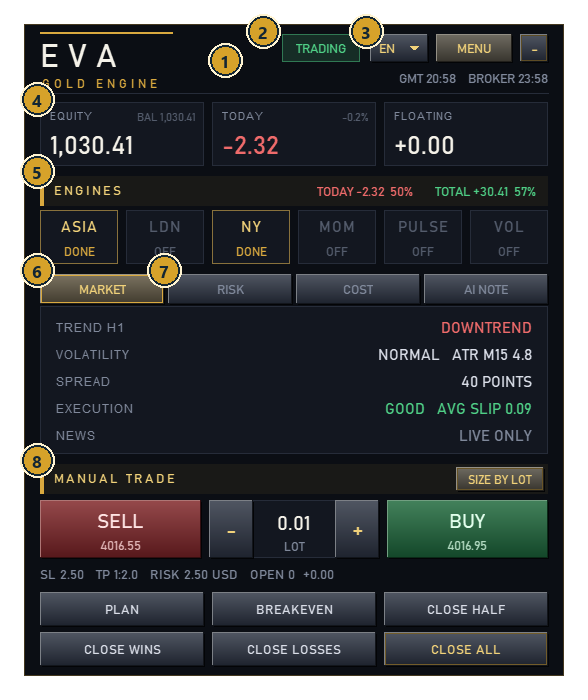
1 · The header
Top left, the EVA logo. On the right, the status pill, the language button, MENU and -, which folds the panel into a bar (another click opens it). Below, the GMT time and the broker time. The panel can be dragged by its header anywhere on the chart.
2 · The status pill
It always says what EVA is doing and, if it is not trading, why.
| Pill | Meaning |
|---|---|
| TRADING | Engines on, nothing is blocking them |
| LOW VOLATILITY | Gold is too quiet for a breakout (see the volatility filter). The engines wait |
| NEWS: ... | Inside an NFP, CPI or FOMC window |
| LIMIT WARNING | A loss limit is 80% used |
| DAILY LOSS LIMIT, WEEKLY LOSS LIMIT, MAX DRAWDOWN | A loss limit holds: no new trades until it resets |
| PROP TARGET REACHED | Prop firm mode: the profit target is reached, trading stops |
| WEEKEND | Friday close: positions were flattened before the weekend |
| ENGINES PAUSED | You paused the engines (panel or Telegram). The pause survives a restart |
| NOT GOLD: ENGINES OFF | The chart is not gold. The panel and the manual tools work, the engines stay off |
| ENGINES OFF | The engines are switched off in the settings |
3 · The language button
Next to MENU, the button with the language code (EN, ES, PT...) opens the list of the 11 languages. One click changes all of EVA.
4 · The account
Three boxes: EQUITY (with the balance next to it), TODAY (the day's result and its percentage) and FLOATING (the result of the open trades).
5 · The engines
One chip for each of the six engines (ASIA, LDN, NY, MOM, PULSE, VOL) with its state: WAITING for its session, ARMED with pending orders, IN TRADE, DONE for today, or OFF if it is switched off. Next to the title, TODAY and TOTAL show the result of EVA's trades and the win rate, commissions included.
6 · The four tabs
| Tab | What it shows |
|---|---|
| MARKET | TREND H1 (UPTREND, DOWNTREND or SIDEWAYS, from the 50-bar exponential average of H1), VOLATILITY (LOW, NORMAL or HIGH with the M15 ATR in USD), SPREAD in points (red when above the maximum), EXECUTION (EXCELLENT, GOOD, NORMAL or POOR from the average slippage of the last fills; MEASURING until there are 5), NEWS (the next event or the pause in progress) |
| RISK | DAY LOSS, WEEK LOSS and DRAWDOWN with how much of each limit is used, PROP TARGET when prop firm mode is on, ENGINE SIZE (the engines' lot or risk) and CONFLICT GUARD |
| COST | What the broker charged this month: SPREAD, SLIPPAGE, COMMISSION, PER TRADE and the month's total (section 10) |
| AI NOTE | The last AI note with its time. When there is a limit warning, it comes first |
The RISK tab turns amber when there is a warning or a limit holds.
7 · Conflict Guard
On the RISK tab. It says STOP MOVED BY ANOTHER PROGRAM when another program changed the stop of an EVA trade today, TRADE CLOSED OUTSIDE EVA when an EVA trade was closed from outside (another EA, the mobile app, a manual click), or how many trades of other programs are open on the same symbol. EVA also tells you on Telegram.
8 · Manual trading
The MANUAL TRADE section has the buttons of section 6: SELL, BUY, the lot with - and +, the SIZE BY LOT / SIZE BY RISK % button, PLAN, BREAKEVEN and the close buttons. Below them are the stop, the target, the risk and how many manual trades are open.
4. The screens (MENU)
MENU opens a screen over the whole chart. CLOSE or Esc goes back to the chart. The left column switches screens. Every screen has the language button next to CLOSE.
QUICK START
Three profiles; SELECT marks one and APPLY uses it:
| Profile | What it sets |
|---|---|
| RECOMMENDED | Asia and New York engines, 1% risk per trade, daily loss limit 5% and weekly 10%. The setup EVA was tested with |
| PROP FIRM | Asia and New York, 0.5% risk, prop firm mode on (target 8%, daily loss 4.5%, max drawdown 9.5%), account guard on, everything closed before the weekend |
| CONSERVATIVE | Asia and New York, 0.25% risk, daily loss 3%, max drawdown 10%, lot cap 0.50, everything closed before the weekend |
BACK TO MY INPUTS drops the changes and goes back to the EA inputs. ACTIVE NOW sums up what is in use: engines, sizing, limits, prop mode, account guard and the weekend close. Engines you paused are listed with PAUSED.
JOURNAL
EVA's trades on the account (engines and manual), closed in the period chosen with 30 DAYS, 90 DAYS or ALL: NET RESULT, TRADES, WIN RATE, PROFIT FACTOR, MAX DRAWDOWN, the CUMULATIVE RESULT curve, the result BY ENGINE and the LAST TRADES (time, engine, side, lot and result).
RISK CENTER
On the left (LIVE): the status and a bar per limit with how much is used (daily loss, weekly loss, prop drawdown, prop target) and the trading days. On the right (LIMITS), every limit with - and +: MAX DAILY LOSS %, MAX WEEKLY LOSS %, MAX DRAWDOWN %, WARN AT % OF LIMIT, DAILY PROFIT STOP %, LOT CAP, the ACCOUNT GUARD and PROP FIRM MODE switches, and with prop mode on PROP PROFIT TARGET %, PROP DAILY LOSS % and PROP MAX DRAWDOWN %.
NEWS
The MetaTrader economic calendar, last 2 hours and next 7 days: date and time, time left, impact, currency and event. The events that pause the engines carry the PAUSES ENGINES tag. Two filters at the top: USD ONLY or ALL CURRENCIES, and MEDIUM AND HIGH, ALL IMPACTS or HIGH IMPACT. UP / DOWN or the mouse wheel scroll the list. It is MetaTrader's calendar: it has no cryptocurrency news and works live only.
SETTINGS
The quick view has two columns:
- ENGINES: each of the six engines with ON / OFF.
- SIZING AND TRADING: ENGINE SIZING (fixed lot or risk %), FIXED LOT or RISK PER TRADE %, MAX OPEN TRADES, MAX SPREAD (POINTS), NEWS FILTER and CLOSE BEFORE WEEKEND.
BACK TO MY INPUTS drops the panel changes (it asks first, and UNDO brings them back). ALL SETTINGS opens the full list. AUTOSAVE ON / OFF, next to it, chooses how changes are kept (see SAVE, below).
ALL SETTINGS
Every EA input can be changed from the chart. On the left, the GROUPS, in the same order as in F7; on the right, the settings of the group (PREV / NEXT when they do not fit on one page).
- ON / OFF switches change with one click.
- Lists (AI provider, model, language, stop mode...) open with every option.
- Numbers and texts go in boxes: type or paste (Ctrl+V or right-click > Paste) and press Enter. Until you press Enter, the row says PRESS ENTER.
- API keys show as dots. The eye button shows them, the tag says KEY SET or EMPTY, and CLEAR (pressed twice, SURE?) removes the key.
- The Telegram bot and chat are set on the TELEGRAM screen only: here they show as a line with GO TO TELEGRAM.
- NEXT START marks the settings used when EVA restarts (panel size, volume engine timeframe, floating dashboard...). EA INPUTS ONLY marks the ones changed in F7 only (magic number and trade comment), so the open trades are never lost track of.
- A gold edge marks a value that differs from your EA inputs.
SAVE, SAVE AS and LOAD
A change works at once, but it is written to the settings file only with SAVE. SAVE asks before overwriting MQL5\Files\EVA_<account>_<symbol>.set, the file EVA reads every time it starts (YES, SAVE or CANCEL). SAVE AS writes a copy with the name you choose, and LOAD reads one back. Without SAVE, changes last until EVA restarts; closing the EVA screen with unsaved changes asks first (CLOSE WITHOUT SAVING). The buttons are on every screen that changes settings (QUICK START, RISK CENTER, NEWS, SETTINGS, TELEGRAM), and next to them you can read whether everything is saved.
AUTOSAVE: with AUTOSAVE ON (on SETTINGS and at the bottom of ALL SETTINGS), every change is written to the settings file within a second, as if you pressed SAVE, and the top bar reads Every change is saved at once. With AUTOSAVE OFF (the default), only SAVE writes it. The choice is kept for that account and symbol.
If you later change an input with F7, that input is used at the next start and every other saved setting is kept. Every change is written to the Experts log.
AI NOTES
CONNECTION: provider, model, key status, backup, calls today, daily briefing hour, language, tokens today, cost this month and status. TEST NOW checks the connection. Below, the steps to connect a provider. On the right, the last NOTES.
TELEGRAM
CONNECTION: the bot, the BOT TOKEN box (with CONNECT), the linked CHAT (with CHANGE CHAT), messages today, the last command and the engines' state. SEND TEST sends a message to your chat and PAUSE ENGINES / RESUME ENGINES works as on the panel. On the right, WHAT IS SENT (each one switches ON or OFF with a click), the commands and the LAST MESSAGES (section 12).
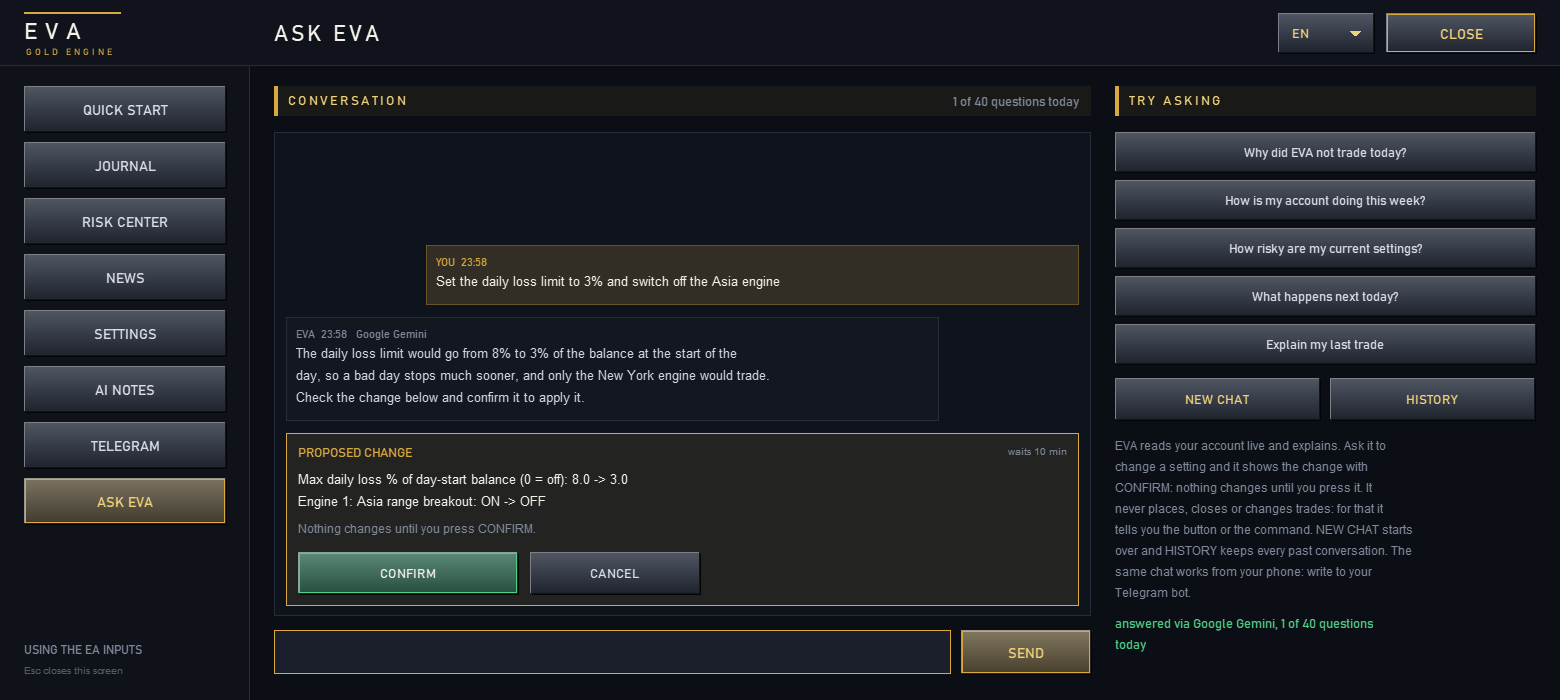
ASK EVA
The chat (section 11). TRY ASKING has ready questions for one click. NEW CHAT starts over and HISTORY opens past conversations. When EVA proposes a settings change, a card appears above the input box with CONFIRM and CANCEL (section 11).
5. Languages
EVA speaks English, Spanish, Portuguese, French, Italian, German, Russian, Turkish, Chinese, Japanese and Korean: the screens, the panel, Telegram and the AI answers.
- Automatic (the default) follows the language of your MetaTrader. If it is not one of the 11, EVA uses English.
- The language button next to MENU, on the panel and on every screen, changes it with one click. The same setting is Language of EVA in ALL SETTINGS > AI NOTES: PROVIDER. SAVE keeps it.
- The input names in F7 are always in English (section 2).
- The Experts log stays in English, so a message can be searched and shared the same way anywhere.
6. Manual trading
- BUY and SELL open at market. The size is a fixed lot or a percentage of the account at risk; the SIZE BY LOT / SIZE BY RISK % button switches between them, and - / + change the lot or the risk.
- The stop is placed at the engines' stop distance and the target at a multiple of the stop (2 by default; setting Manual take-profit as a multiple of the stop).
- PLAN draws three lines on the chart: entry, stop-loss and take-profit. Drag them: a stop below the entry is a buy, above is a sell. The panel shows the stop, the target and the money at risk, and BUY / SELL become CANCEL and a button named after the order (BUY, SELL LIMIT, BUY STOP...): press it to send. An entry away from the price becomes a pending order. While the lines do not make a valid trade, the button reads ADJUST LINES.
- BREAKEVEN moves the stop of your manual trades to entry plus 0.50 USD (setting Breakeven button: profit kept).
- CLOSE HALF, CLOSE WINS, CLOSE LOSSES, CLOSE ALL do what they say.
- Optional automatic breakeven and trailing stop for manual trades (group PANEL AND MANUAL TRADING).
- Manual trades use their own magic number: the engines never touch them. The engines' loss limits also block new manual trades.
7. The engines
The six engines
| Engine | Default | Idea |
|---|---|---|
| Asia Range | On | Range of the Asian night (00:00-07:00 GMT), pending stops above and below |
| New York Open | On | Range of the hour before the 09:30 New York open, pending stops above and below |
| London Open | Off | Same idea on the London open |
| M5 Momentum | Off | Breakout of the last 12 M5 bars on an expansion bar |
| M1 Pulse | Off | Continuation after a strong M1 impulse bar |
| M30 Volume Surge | Off | Bar with tick volume at least twice its average |

- The Asian range: The high and the low from 00:00 to 07:00 GMT.
- A BUY STOP above the high: If gold breaks up, EVA is in.
- A SELL STOP below the low: If it breaks down instead. The first fill cancels the other.
- Stop and target from the start: Every order carries a real stop-loss and take-profit.
Strategy Tester · XAUUSD M5 · 2026-06-16
Asia and New York are on because in our own testing on gold the other four added nothing over them. They are included so you can test them yourself.
The session engines (Asia, London, New York) have two modes (setting 0 = opening spike bracket, 1 = pre-open range breakout):
- 1, pre-open range breakout (default): EVA measures the session range (Asia: 00:00 to 07:00 GMT; London and New York: the hour before the open) and places one stop order above and one below.
- 0, opening spike bracket: places the stop orders around the last M1 bars before the open, to take the first move. In New York it can add a second bracket at 08:30 New York time, when US data comes out.
Every trade carries
- A real stop-loss (2.50 USD of gold price by default) and take-profit (8.00), clamped to the broker's minimum distance
- No grid, no martingale, no averaging. When one side of a range fills, the other is cancelled
- Breakeven: at +3.00 USD the stop moves to entry +0.50
- GoldLock: from a +4.00 USD peak the stop keeps 50% of the peak profit, and follows it
- Session trades are closed at 21:00 GMT, and everything is flattened on Friday at 21:00 GMT
The range filter
If the session range is smaller than 1.5 USD or wider than 60 USD the day is skipped. A range of 100 USD is not a range to break out of, it is a market that already moved.
The volatility filter
The engines only arm when ATR(M15) is at least 4 USD (setting Trade only when gold moves). We measured ten years of gold ticks: in calm markets the stop and the spread are large against the movement and the breakout lost money, so below that level EVA waits. Open trades are never touched by the filter. Set it to 0 to trade in any market.
Other symbols
The engines are calibrated for gold. On any other symbol they stay off and the pill says NOT GOLD: ENGINES OFF; the panel and the manual tools keep working. To run them anyway, switch on Let the engines trade symbols other than gold: distances then scale with the symbol's ATR.
8. Account guard and prop firm mode
| Limit | Setting | Default |
|---|---|---|
| Daily loss, % of the day-start balance | Max daily loss % | 8% |
| Weekly loss, % of the week-start balance | Max weekly loss % | off |
| Drawdown from the balance peak | Max drawdown % | off |
| Stop after a daily profit | Stop after +% daily profit | off |
| Warning when a limit is this % used | Warn once when a loss limit is this % used | 80% |
| Max spread to open a trade | Max spread (USD) | 0.60 USD |
| Max lot per trade | Max lot per trade | broker limit |
The day and week start balances are read from the account history, so a restart or a terminal crash never resets them. When a limit holds, EVA opens nothing new (engines and manual) and the pill shows the reason. With the account guard on, a loss limit also closes manual trades and other experts' trades on the account (off by default).
Prop firm mode: daily loss 4.5% and total drawdown 9.5% by default (a buffer below the usual 5% and 10%), a profit target that stops trading when reached (8%), an optional consistency rule and the trading days the firm requires. Everything is closed when a limit is hit.
9. News shield
Uses the MetaTrader economic calendar, live only. By default it pauses the engines around NFP (60 min before, 60 after), CPI (30 / 60) and FOMC (60 / 150), and deletes pending orders before the event. Open trades keep their stops unless you switch on Close open positions before news. Bond auctions are ignored (the calendar marks them high impact and they would block the New York open almost every day). Optionally EVA can also pause around every other high-impact USD event (30 min before and 15 after by default). The Strategy Tester has no calendar, so backtests run without the shield.
10. What your broker really costs
Every EVA fill (engines and manual) adds three costs in account money: the spread paid at entry, the slippage against the requested price (entries and exits) and the commission. Totals are kept per calendar month, survive restarts and show on the COST tab of the panel. Run EVA on two brokers for a month and compare.
11. AI notes and ASK EVA
- Notes: a short text when an engine order fills and when a trade closes (how it ended: stop, target, profit lock, or closed by EVA), and one market briefing a day at 07:00 GMT. They show on the AI NOTE tab, on the AI NOTES screen and on Telegram.
- ASK EVA: type a question on that screen or as a plain message to your Telegram bot. Every question carries the live state of your account, so the answer is about your account: why it is not trading, today's trades, the month's broker cost, what a setting does. The chat keeps the last few messages and starts over after 30 idle minutes. It explains and points to the button or command; it never opens, closes or changes trades.
- Changing settings from the chat: ask EVA for a change ("lower the risk to 0.5%", "switch off the Asia engine", "close everything on Friday at 18 GMT"). EVA explains it and shows a PROPOSED CHANGE card with each setting, its value now and the new one. Nothing changes until you press CONFIRM; CANCEL drops it. The card waits 10 minutes and goes with a new question or a NEW CHAT.
- Before showing it, EVA checks every value with the same rules as the panel: a setting that does not exist or a value out of range never shows. At most 5 changes at once.
- It never proposes the keys, the Telegram token or chat ID, the AI settings or the magic number: those are changed by hand.
- More risk (a bigger lot or risk, a looser or switched-off loss limit, the news filter or the weekend close switched off, an engine that is off by default, switching to sizing by risk): the card turns amber, says why, shows the lot of the engine trades before and after, and CONFIRM has to be pressed twice (SURE?).
- If the change would have no effect (for example a risk % while the engines trade a fixed lot), the card says so.
- Once applied, the card turns green (CHANGE APPLIED) with OK and UNDO. UNDO puts back only those settings, for 10 minutes and while nobody changed them again. The change works at once; SAVE (or AUTOSAVE) keeps it after a restart.
- It can be confirmed from Telegram too (section 12).
- History: every conversation is saved for this account. HISTORY lists them, a click opens one to read it, and DELETE THIS CHAT or DELETE ALL CHATS remove them (press twice to confirm). The newest 50 conversations are kept. CONTINUE THIS CHAT picks up a saved conversation where it stopped.
- Typing in the chat: press Enter or SEND to ask. To paste, use Ctrl+V or right-click > Paste. If you switch to another window while typing, the text stays in the box.
- Keys: pick the provider in ALL SETTINGS > AI NOTES: PROVIDER and paste the key in its box, or in F7. Each provider keeps its own key and model: switching back and forth never loses them. The model list is read live from the provider.
- Providers: Google Gemini (default) and Groq (default backup) work with free keys, from aistudio.google.com and console.groq.com/keys. OpenRouter gives free and paid models with one key. Paid providers: OpenAI, Anthropic Claude, DeepSeek, Mistral and xAI Grok. Any OpenAI-compatible URL also works, such as a local Ollama. Leave the model on AUTOMATIC and EVA picks one for the provider, free models first.
- What it costs: every answer reports the tokens it used. The AI NOTES screen shows the tokens of today and the cost of the month, notes and chat together. EVA carries a price list of the paid models (September 2026). Prices change: set your own in the two Paid models: USD per 1M tokens settings and EVA uses them for the main provider. Free keys show FREE.
- Backup: when the main provider is busy or fails, the backup answers. If both are busy, the note is retried after 1, 2 and 4 minutes. In ASK EVA, ask again a minute later.
- Limits: 30 note calls and 40 chat questions per day by default, to stay inside free tiers.
- Free model at its daily limit: free keys allow a set number of requests per model each day. With the model on AUTOMATIC, when Gemini or Groq answers that a model reached its daily limit, EVA moves at once to the next free model of the same provider (Gemini: Flash, then Flash-Lite and other Flash models) and keeps it for the rest of the day. The Experts log shows a line when it switches. A Gemini model that answers busy rests 10 minutes and the next free one answers, so the backup provider is only asked when none of them can.
- Language: the notes come in the language of EVA (section 5); ASK EVA answers in the language you write in.
- Telegram: a question sent from Telegram is answered in its language, and the change card and the messages about that change (/confirm, /undo) come in that language too, whatever the language of EVA.
12. Telegram
- In Telegram, talk to @BotFather, send /newbot and copy the token.
- Allow https://api.telegram.org in WebRequest (section 2).
- In EVA open MENU > TELEGRAM, paste the token in BOT TOKEN (Ctrl+V or right-click > Paste) and press CONNECT (or Enter).
- Open your bot in Telegram and press Start (or send it any message, if Start is gone). Within a few seconds EVA links your chat by itself, saves the token and the chat, and sends you a message. There is no chat ID to type.
The link waits 10 minutes after the token is entered: the first chat that writes to the bot in that time is linked, and from then on EVA ignores every other chat. To use another chat (a group, another account), press CHANGE CHAT and write to the bot from that chat within 10 minutes (meanwhile the current chat keeps working, and CANCEL keeps it); if the time ran out, LINK A CHAT opens it again. A new bot keeps the same chat: paste its token, press CONNECT and press Start in the new bot; EVA saves the new token as soon as the bot answers.
In F7 the token and the chat ID are inputs too: leave the chat ID empty and EVA links the chat that presses Start in the 10 minutes after the EA starts.
EVA sends trade opens and closes, guard alerts (limits, targets, weekend close), the AI notes and a daily summary at 21:00 GMT. Each of them switches on or off with a click in WHAT IS SENT on the TELEGRAM screen; the hour of the summary and the notification sound are in ALL SETTINGS > TELEGRAM. Commands, from your chat only (any other chat is ignored):
| Command | What it does |
|---|---|
| /status | Engines, pill, today's result |
| /positions | Open positions and pending orders |
| /today or /report | Today's closed trades and result |
| /note | The last AI note |
| /pause, /resume | Pause or resume the engines |
| /new | Start a new ASK EVA chat |
| /confirm <code> | Apply the change EVA proposed (the message carries the code) |
| /cancel | Drop the change proposed |
| /undo_<code> | Take back the change just applied (for 10 minutes) |
| /help | The list of commands |
Any other text is a question for ASK EVA.
When EVA proposes a settings change, the Telegram message carries the card as text and a 4-digit code that changes every time. A normal change is confirmed by tapping /confirm_1234; a riskier one only by typing /confirm 1234, so it never goes in with a stray tap. What you confirm, cancel or undo on one side shows on the other. With Answer commands from your chat (/status, /pause ...) off, the card asks you to confirm in MT5.
13. Testing EVA in the Strategy Tester
- Strategy Tester, Expert: EVA Gold Engine, Symbol XAUUSD, period M5.
- Modelling: Every tick based on real ticks. Deposit 100 USD or more; the default lot is 0.01.
- Press Start. Tick Visual mode to watch the panel while it trades.
The engines run exactly as they do live. The AI, Telegram, the news calendar and the settings file do not exist in the tester: it always uses the F7 inputs. Results depend heavily on gold's volatility: test several periods, not only the last year.
14. Why is it not trading
| Message in the Experts log | Meaning |
|---|---|
| [Asia Range] skip: volatility too low, ATR(M15) 3.10 USD under the 4.0 minimum | The volatility filter: gold is too quiet |
| [Asia Range] range 4300.71 - 4360.92 (60.21 USD) outside 1.5-60.0 USD | The range filter skipped the day |
| [New York Open] session window already over for today | The EA was attached after the window |
| [News shield] PAUSED for 'CPI m/m' | NFP, CPI or FOMC window |
| skip: spread | The spread is above the maximum spread |
| skip: exposure cap / skip: pending cap | Max open positions or pending orders reached |
| skip: not enough free margin | The account cannot hold the trade |
| Guard: daily loss limit reached, trading paused until next day | A loss limit holds |
| restored today's state after the restart | That engine already traded today and will not repeat it |
| Symbol guard: the engines are calibrated for gold | The chart is not gold |
Or ask EVA: "why did EVA not trade today?" on the ASK EVA screen or on Telegram.
15. Other details
- Floating engine dashboard: besides the engine block inside the panel, EVA can show a floating text dashboard with the engines' detail (group 7. DASHBOARD AND EXECUTION). It is off by default.
- Magic number: manual trades use the base number (71100) and the engines base+1 to base+6. If you put EVA on two charts of the same symbol on the same account, change the base on one of them (F7 only).
- Several charts: each account and symbol has its own settings file.
- Pause and restart: the engines' pause and what each engine already did that day survive a terminal restart.
16. All settings
The complete manual in PDF, with every setting explained one by one, is attached to this post.
Trading involves risk. Past results, including any backtest, do not guarantee future performance. Support: the comments section of the EVA Gold Engine page on MQL5.