Available on the MQL5 Market: JET Trade Assistant PRO
Continuation of the JET Trade Assistant PRO 7.00 user manual: chapters 9–14 and the MetaTrader 4 appendix. Chapters 1–8 are in Part 1.
9. TOOLS tab — pending tools, external trades, presets, notifications
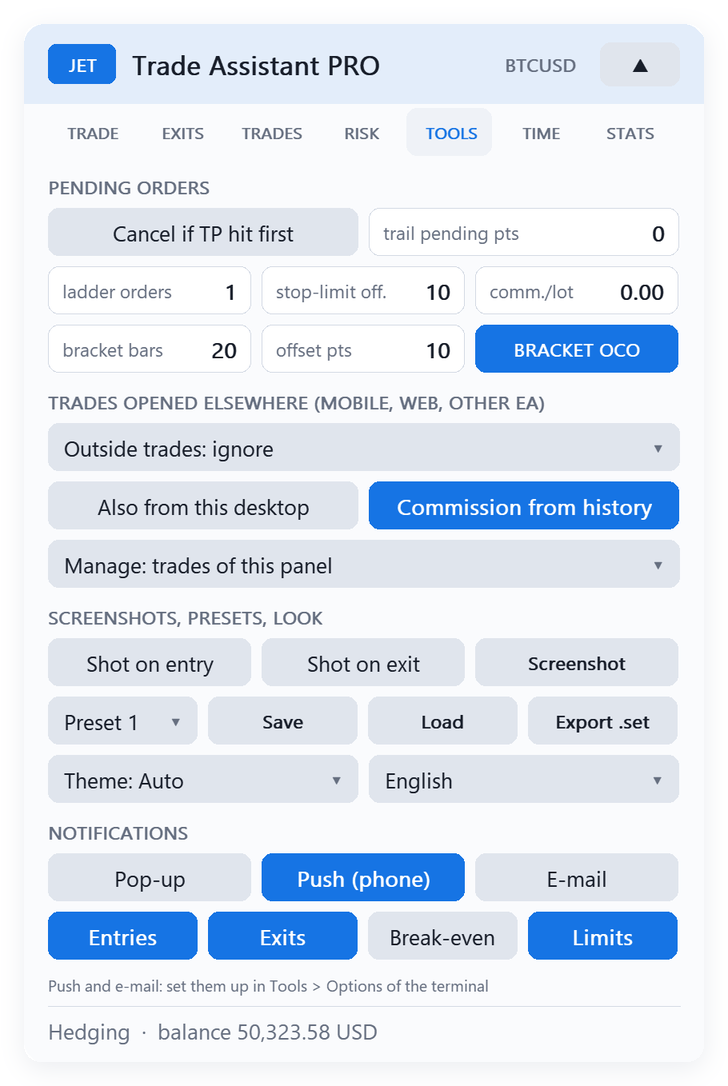
9.1 Pending orders
- Cancel if TP hit first: a pending order is deleted if the price reaches its take profit before the entry.
- trail pending pts: the pending order follows the price at this distance until it is filled (0 = off).
- ladder orders: number of orders of the ladder (section 4).
- stop-limit off.: distance between trigger and limit of stop-limit orders (ticks).
- comm./lot: commission per lot, round turn (when not read from the history).
- bracket bars / offset pts / BRACKET OCO: places a buy stop above the high and a sell stop below the low of the last N bars (+ offset), linked as OCO: when one is filled the other is cancelled.
9.2 Hidden stops and virtual orders
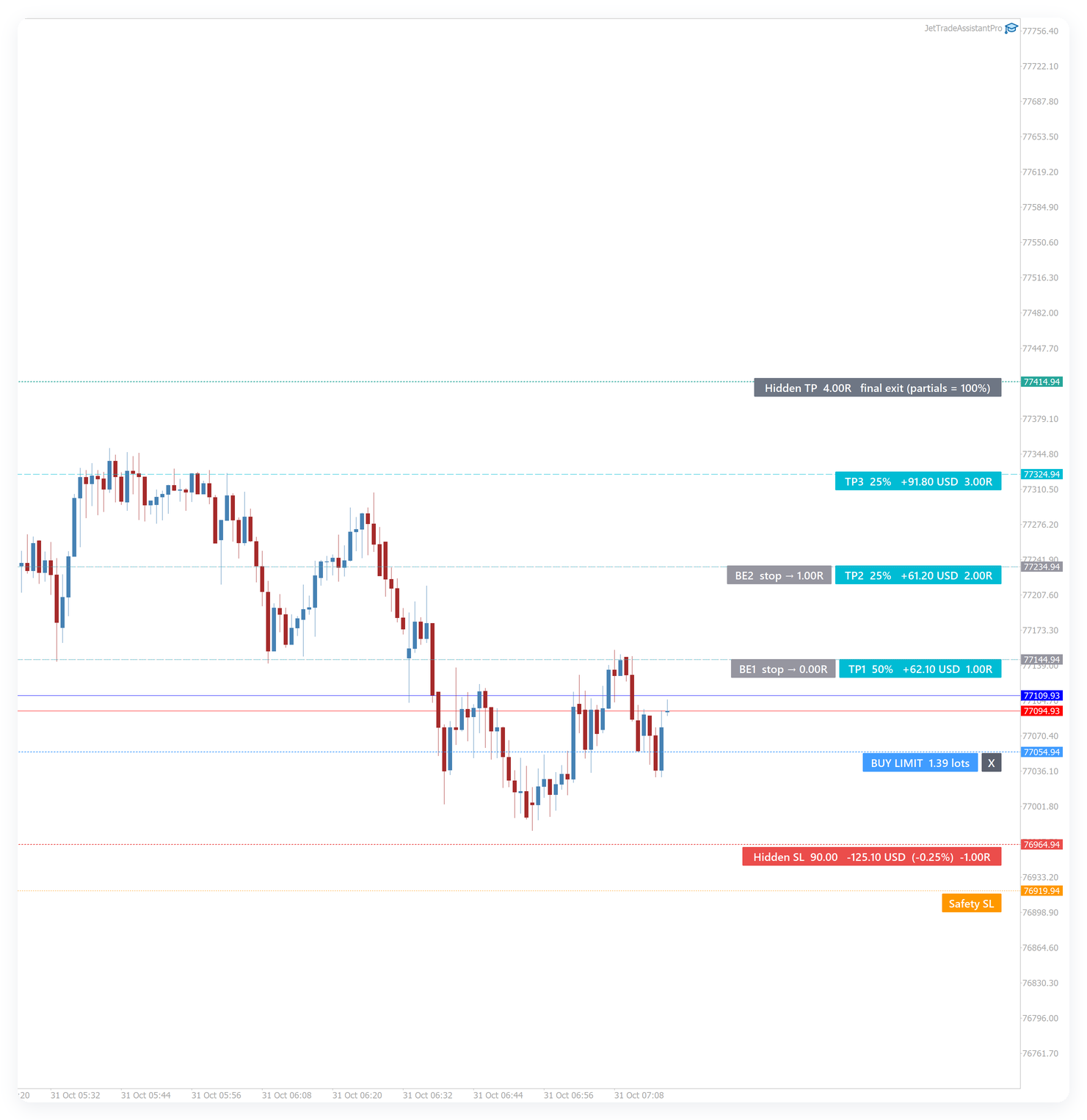
Hidden (TRADE tab): the stop loss and take profit are kept by the panel and the position is closed at market when they are reached. The broker only sees the safety SL, farther away. Hidden lines are dashed; the safety SL is dotted orange.
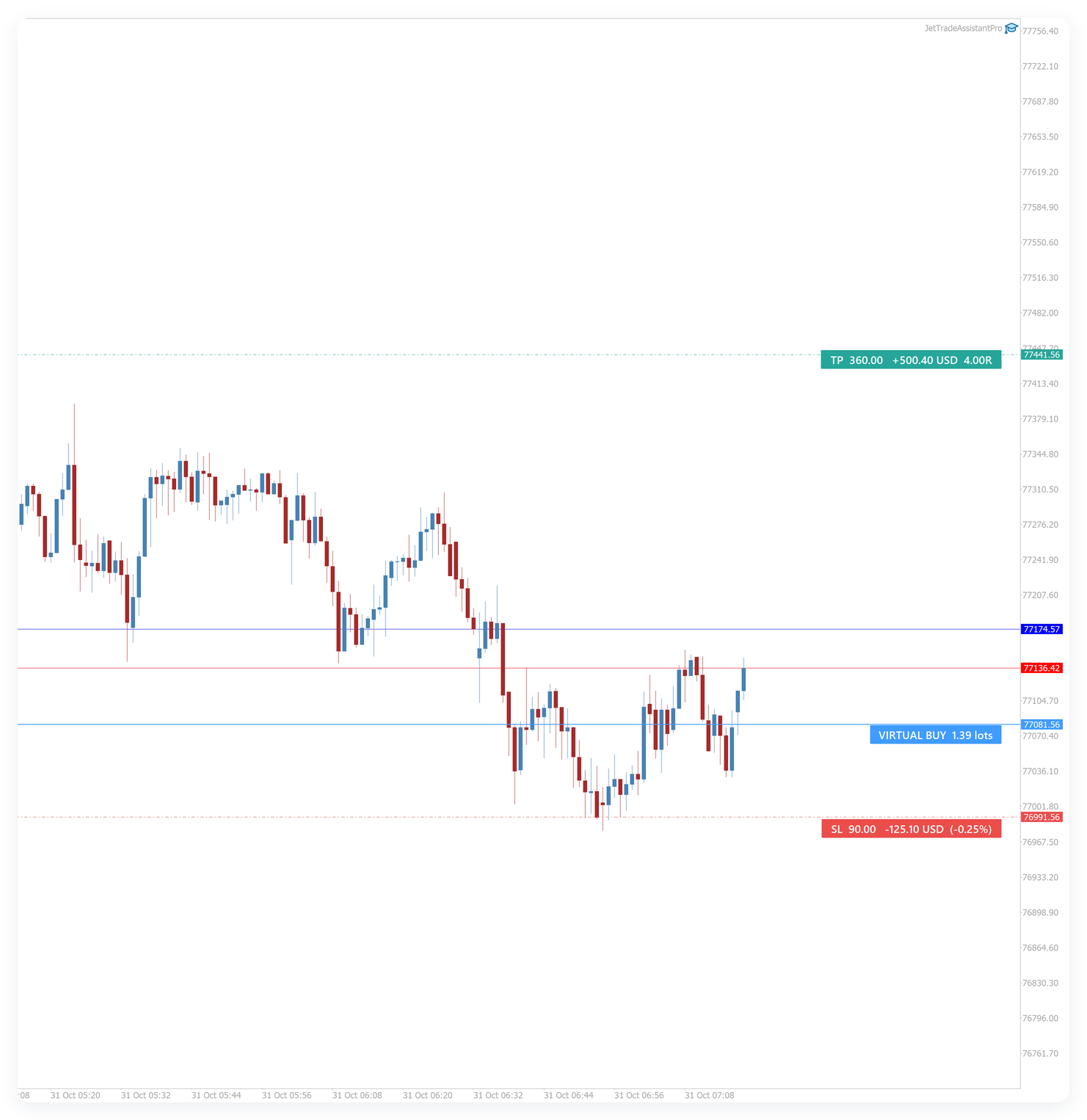
Virtual (TRADE tab): the pending order is not sent to the broker. The panel draws it (VIRTUAL BUY/SELL with its SL and TP) and sends a market order when the price reaches it. Useful to hide your intention and to avoid margin blocked by pending orders.
Both need the terminal running with the EA (a VPS is recommended). Executions at market can have slippage.
9.3 Trades opened outside the panel
TRADES OPENED ELSEWHERE (MOBILE, WEB, OTHER EA):
- Ignore — the panel does not touch them;
- Manage exits only — partials, break-even and trailing of the panel are applied;
- Size by risk and manage — the trade is resized to the panel risk (volume added or closed), the missing SL/TP are set and the exits are managed. Open a minimum-lot trade on your phone with a stop and the panel turns it into a trade with your risk.
Also from this desktop: applies the same to manual trades of this terminal. The scope selector (input Trades managed) selects which trades the panel manages: the trades of this panel, all trades of the symbol or all trades of the account.
9.4 Screenshots, presets, look
- Shot on entry / Shot on exit: saves a chart screenshot at every entry and exit (MQL5\Files\JetTA).
- Screenshot: manual screenshot.
- Presets 1–5: Save and Load complete panel settings.
- Export .set: writes a .set file with the current settings (load it in the inputs before migrating to a VPS).
- Theme and language.
Symbol presets
- Save <symbol> keeps the risk, stop and target, order type, partial exits and stops, break-even, trailing, hidden stops, LPO, max spread and max lot of the panel for this symbol (MQL5\Files\JetTA\symbol_<symbol>.set). Theme, language, notifications and rules are not part of it.
- Load <symbol> brings them back; the button is green while the settings in use are the ones of the preset. Delete removes the preset.
- Auto-load (on by default): a chart that opens the panel on the symbol without saved panel settings starts with the preset. The status line at the bottom shows preset <symbol>, or (changed) after you edit something.

9.5 Notifications
Channels: Pop-up (alert window of the terminal), Push (phone) and E-mail. Push needs your MetaQuotes ID in Tools → Options → Notifications of the terminal; e-mail needs the e-mail settings of the terminal. Events:
- Entries — every entry of the trades the panel manages (BUY 0.50 EURUSD @ 1.08500);
- Exits — partial exits and closed trades with the result (and SL / TP when it was the reason);
- Break-even — every automatic break-even move;
- Limits — prop-firm limits, daily profit target, basket target / stop and the start of a news window. A Reverse also sends Reversed SYMBOL: BUY 0.20 → SELL 0.20.
The terminal sends at most 10 push notifications per minute; extra messages are written to the Experts log.
Notifications: new events
In the TOOLS tab, section NOTIFICATIONS, there is a new row of switches below Entries / Exits / Break-even / Limits: Pending, Trailing, Day summary and News alert. The row below holds the fields trailing every min, summary at (hour and minute) and min before news. The new events use the same channels as the others (pop-up, push and e-mail) and start off.
- Pending: a message when a pending order is placed, filled, cancelled (also when you delete it yourself) or expires. This covers the orders of the panel, including LPO, ladder, bracket and virtual orders (marked VIRTUAL in the message), and follows the management scope, like the entry and exit messages. Several orders placed or cancelled at once on the same symbol arrive as a single message with the number of orders. A filled pending order sends one message only: with Pending on, it replaces the entry message; with it off, Entries works as before. An LPO that expires keeps its own message.
- Trailing: a message when the trailing stop moves the stop of a trade, for every trailing type (multi-level included) and also for hidden stops. The first move is sent at once; after that, each trade gets at most one message per interval set in trailing every min (default 15 minutes), with the latest stop and the number of moves since the previous message. Break-even moves keep their own switch, Break-even.
- Day summary: at the time set in summary at (server time, default 23:50), on the days of the input Day summary days (default Monday to Friday), one message with the trades closed that day, how many were won and lost, the realized result of the day in money and in % of the balance at the start of the day, and the open positions with their floating result. It follows the management scope. It is sent without a pop-up window, by push and/or e-mail. The terminal must be running at that time: a missed summary is not sent later. With the EA on several charts, each chart sends its own summary; to receive just one, turn it on in a single chart and choose Manage: whole account there.
- News alert (MetaTrader 5): a message before each release that passes the news filter (same currencies and impact), as many minutes ahead as set in min before news (default 15, from 1 to 240). It works even with the entry block of the filter turned off. If the EA is attached when a release is already closer than that, the message is sent right away. The economic calendar is not available in the Strategy Tester.
The message sent when the trading hours close goes out with the Limits switch.
10. TIME tab — time tasks, trading hours and news filter
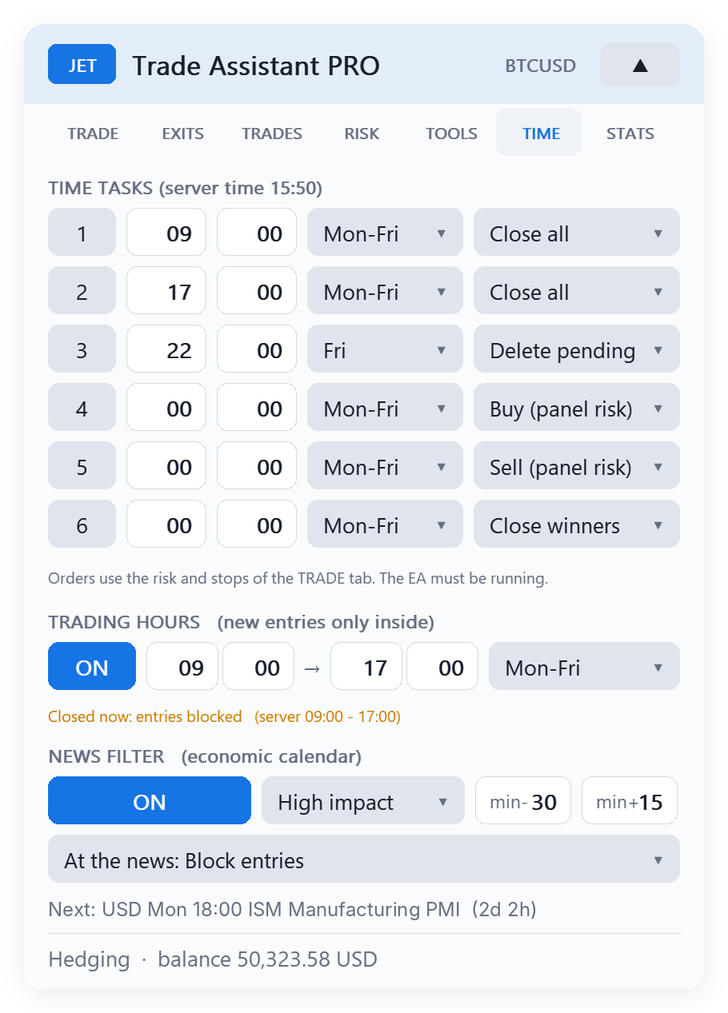
10.1 Time tasks
Six tasks in server time (TIME TASKS). For each: on/off, hour, minute, days (Monday–Friday, every day or one weekday) and action: buy, sell (using the risk and stops of the TRADE tab), close all, close buys, close sells, close winners or delete pending orders. Typical use: close everything before the end of the session, or delete pending orders on Friday night. The EA must be running at that time.
10.2 Trading hours
When ON, new entries are accepted only between the two times (server time) on the selected days (Monday–Friday, every day or one weekday). A window that passes midnight (for example 22:00 → 06:00) is accepted. Open trades keep being managed outside the window; use a time task to close them if you want. The line under the fields says whether the window is open now.
Trading hours: second window and action at the close
In the TIME tab, section TRADING HOURS (new entries only inside), two rows were added below the main window:
- Second window: the button 2 ON / 2 OFF with its start and end fields (hour and minute, server time). It uses the same days as the main window (same days). New entries are allowed inside either window, for example 09:00–12:00 and 14:00–17:00. The second window only counts when the main window is on, and a window may cross midnight (for example 22:00–02:00).
- At the close: … sets what happens when a window ends: Block entries (only blocks new entries, as before), Block + delete pending (also deletes the pending orders, virtual ones included) or Block + close positions (also closes the positions and deletes the pending orders). It acts on the trades of the management scope, like the time tasks.
- The action runs only when the clock reaches the end of a window. Turning the window on or off or changing its hours never closes or deletes anything. If the second window starts exactly when the first ends, nothing is done in between. When the hours close, a message reports how many pending orders were deleted and positions closed.
- The text below the section shows both windows when the second one is on.
10.3 News filter
Uses the economic calendar of MetaTrader 5 for the currencies of the symbol (for example EUR and USD on EURUSD, USD on US indices, BRL on B3 futures):
- High impact or High + medium — which news are filtered;
- min- / min+ — minutes before and after the news when new entries are blocked;
- At the news — Block entries, Block + delete pending (pending and virtual orders of the panel on the symbol are deleted when the window opens) or Block + close positions (the positions of the panel on the symbol are closed too).
The line under the selector shows the next news with its time, or BLOCKED with the end of the window. The calendar is read every 5 minutes. The economic calendar does not exist in the Strategy Tester, so the filter is off there.
News filter: currencies and next news on the chart (MetaTrader 5)
In the TIME tab, section NEWS FILTER (economic calendar), a new row appears below At the news: …:
- Currencies: symbol (…) / Currencies: list (…): click to switch between the currencies of the symbol (as before, for example EUR and USD on EURUSD) and your own list. The button shows the currencies in use. The list is edited in the input Currency list (list mode, e.g. USD,EUR,GBP); codes can be separated by commas, semicolons or spaces. An unknown code is ignored and reported in the status line, and an empty list falls back to the currencies of the symbol. The list helps on indices, metals and crypto, where the currencies of the symbol do not cover all the releases you follow.
- Next news on chart: a dotted vertical line at the time of the next release that passes the filter; hover over it to see the currency, the time and the name. While a news window is active, the line stays on that release. It needs the filter (ON) or News alert turned on. A time beyond the last bar is visible only with the chart shift turned on.
The news alert, the choice of currencies and the news line exist only in the MetaTrader 5 version.
11. STATS tab — journal and statistics
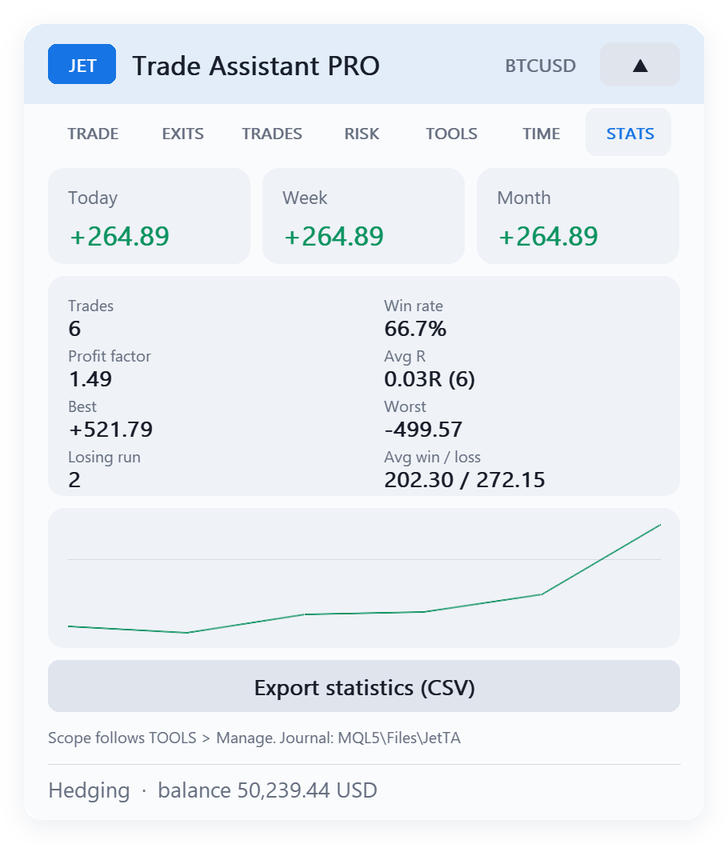
For Today, Week and Month: trades, win rate, profit factor, average R, average win / loss, best and worst trade, and the longest losing run. The equity curve appears after two closed trades. Export statistics (CSV) writes the data to MQL5\Files\JetTA. Every closed trade is written to the journal journal_<login>.csv in the same folder. The scope follows TOOLS → Scope.
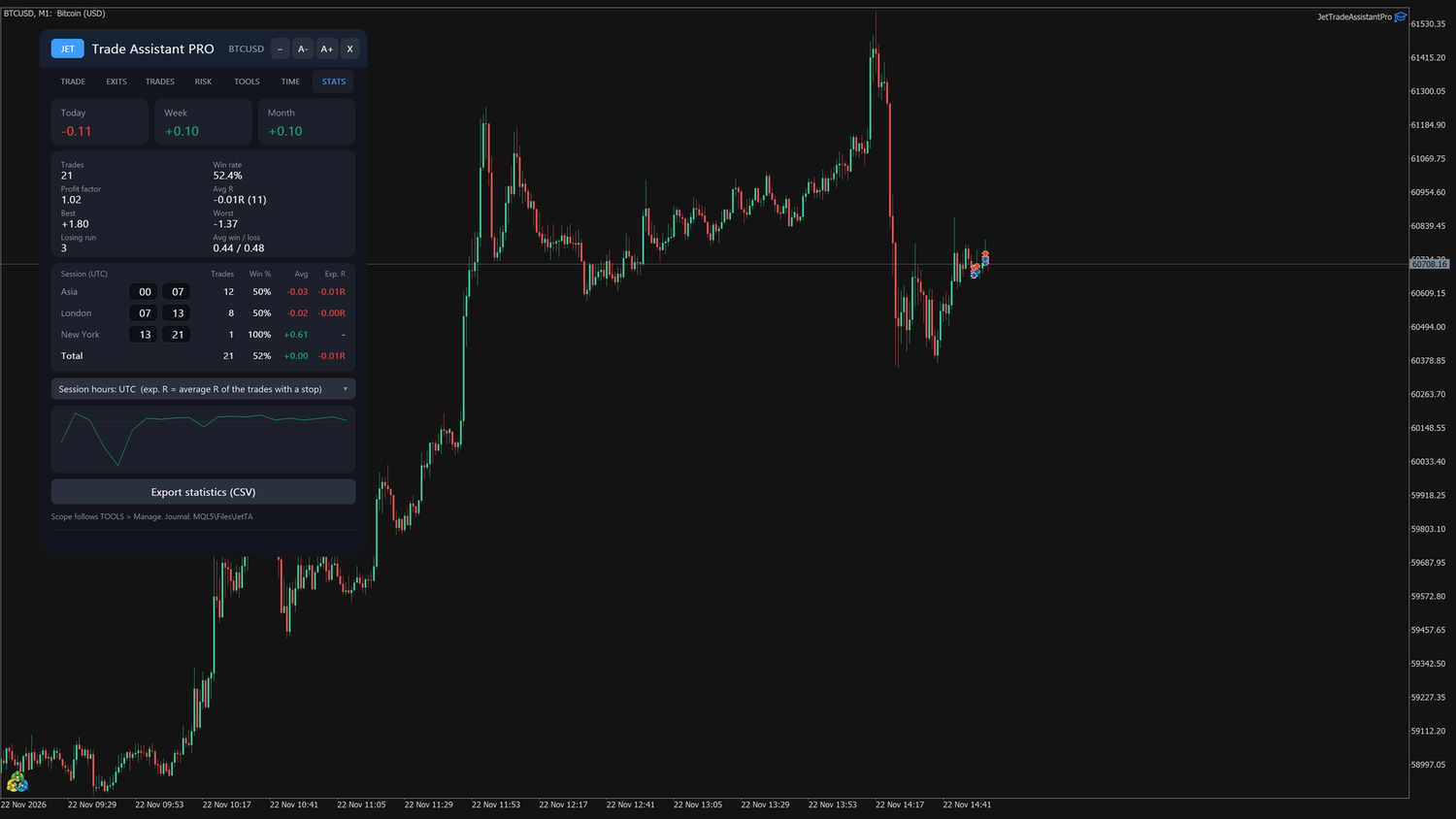
By session. The card under the statistics splits the closed trades by the hour they opened: Asia, London, New York and Total, with Trades, Win %, Avg (average result) and Exp. R (expectancy: the average result in R of the trades with a stop). The hours of each session can be edited in the card (from / to); the selector below switches between Session hours: UTC and server time. A trade counts in the first session that holds its opening hour.
12. Inputs (reference)
| Group | Main inputs |
|---|---|
| Position size | mode (% / money / lots / reward % / lots per 1000), risk %, risk money, fixed lots, risk base, trade the minimum lot when the risk is smaller, reward %, lots per 1000, risk reduction (on, day gain %, size %) |
| Stop and target | SL mode (points / ATR / bars), SL points, SL × ATR, bars, indent, ATR period, TP in R, RR lock |
| Reverse | reverse volume (same / recalculate from risk), hotkey letter |
| Orders | entry type away from price, stop-limit offset, commission, auto commission, max spread, max volume per order |
| Partial exits | TP1–TP4: on, R, % |
| Partial stops | SL1–SL4: on, -R, % |
| Break-even | BE1–BE4: on, trigger R, lock R; offset; offset = spread + commission |
| Trailing stop | type, start R, distance, step, ATR multiple, timeframe, MA period/method, bars, SAR step/max, indent, custom indicator and buffer |
| Hidden stops | hide SL/TP, safety SL % |
| Management | scope, external trades, size manual trades of this terminal |
| Basket protection | on, profit, loss, unit, all symbols |
| Prop-firm rules | on, day loss %, max DD %, DD type, starting balance, trades per day, open risk %, day reset hour |
| Daily profit target | mode (off / % of the day start balance / money), value, action (block / block + close / block + close + delete pending) |
| Pending tools | OCO, cancel when TP first, follow pending, ladder, bracket bars and offset, virtual pending |
| News filter | on, impact, minutes before, minutes after, action |
| Trading hours | on, from (hour, minute), to (hour, minute), days |
| Time tasks | 6 × (on, hour, minute, days, action) |
| Notifications | pop-up, push, e-mail; entries, exits, break-even, limits |
| Journal | screenshot on entry / exit |
| Panel | theme, language, font size, show levels, day breakeven line, open breakeven line (off / 2+ positions / always), cross alert, restore settings, hotkeys, panel X/Y, trade symbol, magic number |
12.1 New inputs
The inputs keep their English names in every language. All new options start off, so updating does not change how the EA works, and settings saved by earlier versions are restored.
NOTIFICATIONS
- Notify pending orders (placed, filled, cancelled, expired) (default: false): same as the Pending switch.
- Notify stop moves of the trailing (default: false): same as the Trailing switch.
- Trailing: minutes between messages of a trade (default: 15): 1 to 1440; same as the trailing every min field.
- Day summary (default: false): same as the Day summary switch.
- Day summary at (server hour) / Day summary at (minute) (default: 23 / 50): time of the summary (server); same as the summary at field.
- Day summary days (default: Monday to Friday): same options as the days of the trading hours.
- Notify news ahead (economic calendar) (MetaTrader 5) (default: false): same as the News alert switch.
- News ahead: minutes before (MetaTrader 5) (default: 15): 1 to 240; same as the min before news field.
- Notify limits (prop rules, basket, news, trading hours) (default: true): existing input; it now also covers the close of the trading hours.
TRADING HOURS (server time)
- Second window on (same days) (default: false): turns on the second window, with the days of the main window.
- Second window from (hour) / Second window from (minute) / Second window to (hour) / Second window to (minute) (default: 14 / 0 / 17 / 0): start and end of the second window (server).
- When the trading hours close (default: Block new entries only): options Block new entries only, Delete pending orders and Close positions and delete pending orders.
NEWS FILTER (MetaTrader economic calendar) (MetaTrader 5)
- Currencies filtered (default: Currencies of the symbol): or Currency list.
- Currency list (list mode, e.g. USD,EUR,GBP) (default: USD,EUR): used only in list mode.
- Mark the next news on the chart (default: true): the line only appears while the news filter or the news alert is on.
Version 7.00 (new groups at the end of the list; defaults in parentheses):
SL / TP SNAP (TRADE tab, order lines)
- Snap the stop / target to (default: Swing high / low)
- Swing: bars on each side of a high / low (3)
- Indent beyond a swing / level (points) (10)
- ATR multiple (1.5)
- ATR period (14)
- Round numbers every (points, 0 = automatic) (0)
PANIC BUTTON
- Panic: all symbols (false = chart symbol) (false)
- Panic: all trades (false = trades of this panel) (false)
SYMBOL PRESETS
- Load the preset of the symbol when the panel opens (true)
STATISTICS BY SESSION (hour the trade opened)
- Session hours in UTC (false = server time) (true)
- Asia from / to (hour) (0 / 7)
- London from / to (hour) (7 / 13)
- New York from / to (hour) (13 / 21)
CONFIRMATION
- Confirm orders with a second click (market, pending, reverse, lock, panic) (false)
13. Files
All files are in MQL5\Files\JetTA of your terminal: chart settings ( chart_<login>_<symbol>_<magic>.set ), trade plans ( book_*.csv , so partials and break-evens continue after a restart), journal, statistics, presets, exported .set files and screenshots.
14. Questions and troubleshooting
- Nothing happens when I click BUY / PLACE. Check that Algo Trading is on (green button) and that Allow Algo Trading is ticked in the EA properties. Read the status line at the bottom of the panel.
- "Rejected: invalid stops". The stop or target is too close to the price for the broker (stops level). Move it farther away.
- The volume is 0 / the order is not sent. The risk is below the minimum lot of the symbol. Increase the risk, use a shorter stop or turn on trade the minimum lot.
- My lines are not moving in the Strategy Tester. Use the visual mode; the panel drags its own lines with the mouse.
- Netting accounts. Partials and break-even work on the net position; partial exits (TP1–TP4, partial stops, ½) are sent as an opposite order of the partial volume, keeping the SL/TP of the position. Reverse closes and then opens.
- "Target reached … entries blocked until next day". The daily profit target of the RISK tab is reached; turn it off or raise it to trade again today.
- "Stop / target not moved …". The broker refused the stop or target you dragged; the line went back to the real level.
- Several exits at the same moment. When many partials, partial stops or break-evens are due together (several open trades), the panel sends at most two management orders at a time and refreshes the panel and the chart between them, so the screen never freezes; the remaining ones follow a fraction of a second later, even if the price has already moved back. Partial exits keep the order comment JTA#… of the position.
- Buttons that change many positions. SL at open BE, SL at PC, BE buys / BE sells, Break-even, SL line → all / TP line → all, Close 50% and ladder orders also go two orders at a time, in order; the button shows Sending n / N until the last one and another of these buttons waits (Wait: orders still being sent). Close all and the other close buttons send all orders at once and do not wait.
- Performance check for support. Create the empty file MQL5\Files\JTA_PERF.txt : every 10 s the panel writes its timings to the Experts log and to MQL5\Files\JTA_PERF.log . Delete the file to stop (it is off by default).
- Renko / custom charts. Set Trade symbol to the real symbol.
- After a restart the plans (partials, partial stops, break-evens, hidden stops) are read again from the file and the management continues.
- "Outside the trading hours" / "News …: entries blocked". The trading hours or the news filter of the TIME tab are blocking new entries; the status line says until when.
- The news filter says the calendar is not available. The terminal needs an internet connection to the MetaQuotes calendar; in the Strategy Tester the calendar does not exist.
- Updating from 2.00. Your saved panel settings are kept; the new features start with the values of the inputs (Reverse volume same, daily target off, open breakeven line 2+ positions).
Support: send a private message on MQL5 to the author.
Appendix — MetaTrader 4 edition (JET Trade Assistant PRO MT4 1.00)
JET Trade Assistant PRO MT4 1.00 is the MetaTrader 4 port of version 3.00 for MetaTrader 5. Panel, tabs, buttons, input names, status texts, order comments and chart tags are the same, so the rest of this manual applies. This appendix lists only what is different in MetaTrader 4.
A.1 Installation and folders
- Install from the Market tab of your MetaTrader 4 terminal and attach JET Trade Assistant PRO from Navigator → Expert Advisors → Market. Tick Allow live trading on the Common tab and turn on the AutoTrading button of the toolbar.
- Files are in MQL4\Files\JetTA (chart settings, trade plans, journal, statistics, presets, screenshots). The names are the same as in MetaTrader 5.
- Custom indicator trailing: the indicator must be in MQL4\Indicators.
- Trade symbol: use it for offline charts (Renko, range bars) built from a real symbol; set it to the real symbol of your broker.
- Account history: MetaTrader 4 only gives the EA the history shown in the terminal's Account History tab. Right-click that tab and choose All History; otherwise the automatic commission, the day/week/month balances, the day result, the journal and the statistics are calculated from a shorter period.
A.2 Inputs that exist on one platform only
| Input (MetaTrader 5) | MetaTrader 4 |
|---|---|
| News filter group: Block entries around the news, News filtered, Minutes before / after the news, At the news | Not present (see A.3). |
| Size by risk also manual trades of this terminal | Not present: in MetaTrader 4 every manual trade counts as "outside" (see A.6). |
| input group headers | Shown as separator lines ( ===== POSITION SIZE ===== …), because MetaTrader 4 has no input groups. |
| News inputs of version 6.00 (groups NOTIFICATIONS and NEWS FILTER): Notify news ahead (economic calendar), News ahead: minutes before, Currencies filtered, Currency list (list mode, e.g. USD,EUR,GBP), Mark the next news on the chart | Not present (see A.3). |
Changed wording only: Manual trades (magic 0) and other EAs (MT5: Trades opened on mobile / web / other EA), Notify limits (prop rules, basket, daily target, trading hours) (MT5: … news, trading hours), Trade symbol (offline / Renko charts …), Custom indicator (name in MQL4\Indicators). All other inputs have the same names, defaults and texts. Presets and .set files use the same keys; keys that do not exist in MetaTrader 4 are ignored.
A.3 No news filter
MetaTrader 4 has no economic calendar, so the news filter is not part of this edition: the TIME tab ends with Trading hours, there are no news inputs, entries are never blocked by news and the Limits notification has no news window. Use Trading hours or a time task (for example delete pending orders) to stay out of known release times.
Version 6.00 (MetaTrader 4: 4.00): the News alert switch, the choice of currencies and the line of the next news do not exist in MetaTrader 4 either. The other new notifications (Pending, Trailing, Day summary), the second trading window and the action when the trading hours close work as in MetaTrader 5 (sections 9.5 and 10.2).
A.4 Stop-limit orders (emulated by the panel)
MetaTrader 4 has no stop-limit order type. The Stop-limit button and the stop-limit off. field are kept; their tooltip says that the order is held by the panel.
What happens:
- PLACE with Stop-limit on and the entry beyond the price arms a panel order — nothing is sent to the broker. The status line shows BUY STOP LIMIT <volume> <symbol> @ <trigger> / <limit> .
- The chart shows the trigger line with the tag BUY STOP LIMIT <volume> lots → <limit> and its SL/TP; the TRADES tab lists it as a virtual order with an X to delete it.
- The limit price is the trigger plus stop-limit off. ticks in the direction of the trade (above the trigger for a buy, below for a sell).
- When the price reaches the trigger (Ask for buys, Bid for sells), the panel checks the limit: - price still at or inside the limit → a market order is sent at once; - price already beyond the limit (gap, fast move) → a limit order is placed at the limit price.
- Both orders carry the comment JTA#<n> STL … , with the number given when the order was armed, and the stops, partials and break-evens of the plan. The volume is the one calculated when it was armed. Prop rules, daily target, trading hours and maximum spread are checked again at the trigger, so a blocked entry is not sent (the status line says why).
Limits of the emulation: the terminal and the EA must be running (a VPS is recommended); the armed order is kept in memory and is not restored after the EA is removed, the terminal is restarted or the chart is reloaded; a market fill can have slippage; if the limit is closer to the price than the broker's stops level, the limit order is refused and the status line says why. With OCO on, the first filled order cancels the other orders of the group.
[NEW IMG: MT4 chart with an armed emulated stop-limit — trigger line tag "BUY STOP LIMIT … lots -> " and the matching row in the TRADES tab]
With Pending on (MetaTrader 4 4.00), these BUY STOP LIMIT / SELL STOP LIMIT orders also send the messages for placed, filled, cancelled and expired orders (section 9.5).
A.5 Account model: hedging only
MetaTrader 4 accounts are hedging accounts: every order is a separate position (ticket). Everything said about netting in this manual does not apply; the idle status line at the bottom of the panel shows only the balance (no "Hedging / Netting"). Buys and sells of the symbol can be open at the same time; the cover point and the BE OPEN line use the net result ("locked (net 0)" with equal volumes).
The panel has no special logic for brokers that apply FIFO or forbid hedging (some regulated accounts). There, Reverse, partial closes or opposite orders may be refused by the server; the reason is shown in the status line.
Version 5.00 (MT5 7.00): SL / TP snap, Reverse with one click, Lock, the panic button, symbol presets (MQL4\Files\JetTA\symbol_<symbol>.set), statistics by session and the two-click confirmation work as on MetaTrader 5. Lock is always available (hedging accounts).
A.6 Trades opened outside the panel
MetaTrader 4 does not report where an order came from (desktop, mobile, web). The TOOLS section is called TRADES NOT OPENED BY THE PANEL (MANUAL, OTHER EA) and has no Also from this desktop switch.
- The panel recognises its own orders by the magic number (input Magic number); the comment is not used for that.
- Size by risk and manage applies to every new manual trade (magic 0) on the panel's symbol, from any terminal, mobile or web — and to a manual pending order when it is filled. The panel sets the missing SL (default stop distance) and TP (TP R), then adds a market order ( JTA#<n> EXT … ) or closes part of the trade to reach the panel risk.
- Trades of other EAs (magic ≠ 0 and ≠ the panel magic) are never resized; with Manage exits only or Size by risk and manage, their partials, break-even and trailing are managed like manual trades.
- Trades already open when the EA starts are managed (exits) but not resized.
- New trades and closes are detected by comparing the open orders at every tick and timer cycle (MetaTrader 4 has no trade-transaction event), so the reaction comes with the next tick.
A.7 Partial closes, tickets and comments
- Partial exits, partial stops, ½ and the volume reduction of outside trades use a partial OrderClose. MetaTrader 4 closes that part and reopens the rest with a new ticket and the comment from #<old ticket> ; the panel moves the plan (remaining partials, break-evens, trailing, hidden stops) to the new ticket at once. If the partial happened while the EA was off, the plan follows the chain on the next start.
- The journal, the statistics and the prop rule trades per day join all the parts of one trade ( from # / to # links of the history), so a trade with two partials counts as one trade with its full volume.
- Order comments use the same format as MetaTrader 5, JTA#<n> <origin> <detail> (max. 31 characters; origins BUY, SELL, LIM, STP, STL, OCO, BRK, LAD, REV, TASK, EXT). After a partial close the server replaces the comment of the rest with from #… ; the TRADES list and the chart tags keep showing the original #n (it is saved in the plan file). Some brokers change or shorten comments; nothing depends on them except the closing reason shown in notifications ( [sl] , [tp] , so: written by the server).
- The order number n is counted per account and symbol in the terminal global variable JTA_seq_<login>_<symbol> .
A.8 Order execution
- Market execution symbols (ECN/STP): market orders are sent without SL/TP and the stops are set right after the fill (retried on the next cycles if the broker refuses them). In MetaTrader 5 this is done only when the symbol does not accept stops with the order.
- Market orders and closes use a maximum slippage of 30 points and are retried up to 3 times on requote, price changed, off quotes or busy trade context.
- Free margin is checked with the MetaTrader 4 margin check before sending.
- Pending orders are sent without expiration (good till cancelled).
- Error messages in the status line use the MetaTrader 4 trade errors (for example Rejected: invalid stops, Rejected: trade context busy).
A.9 Chart objects: code page and text length
The panel itself is drawn as an image and shows every language correctly. The lines, tags and tooltips on the chart are MetaTrader 4 chart objects, which store text in the Windows ANSI code page of the computer, not in Unicode.
- At start the panel tests which characters the objects keep. Symbols that would turn into "?" are replaced by ASCII: → becomes -> , ● * , ▼ / ▲ v / ^ , ½ 1/2 , · and — - , … ... . On a Windows whose code page has them, the original symbols are shown.
- Russian on a Windows without the Cyrillic code page: chart tags and tooltips are shown in English, the panel stays in Russian. Portuguese and Spanish tags use no accents, so they are not affected.
- 63 characters: a chart object shows at most 63 characters. Longer tags (for example the TP tag with partials and the plan total) are compacted: triple spaces become double and, if still too long, double spaces become single. The same rule is used in MetaTrader 5 3.00. Text still longer than 63 characters is cut by the terminal at the end.
- Objects are drawn in the order they were created: a line created after the panel can be drawn over it. Move the panel by its header if a line hides a field.
A.10 Strategy Tester
- MetaTrader 4 sends no timer events in the tester; the panel and the chart tags are refreshed on every tick instead.
- In the visual tester the lines and their buttons (PLACE, REV, MKT, PIN, X and the X of pending orders) are read on every tick, as in MetaTrader 5.
- In a non-visual test the panel places a demo trade every 24 bars, as in MetaTrader 5.
A.11 Troubleshooting (MetaTrader 4)
- The statistics or the day result look wrong / the commission is 0. Set the Account History tab to All History (A.1).
- A tag shows "->" instead of an arrow, or the chart tags are in English with the panel in Russian. Expected on a Windows without that code page (A.9).
- A stop-limit disappeared after restarting the terminal. Emulated stop-limit and virtual orders are not restored; arm them again (A.4).
- A market position has no SL/TP for a moment on an ECN account. Expected: the stops are set right after the fill (A.8). If the broker refuses them (stops level), the status line shows the reason and the panel tries again.
- "Rejected: trade context busy". Another EA was trading at the same moment; the panel retries up to 3 times.