My Trade History PRO
- Utilities
-
Bernhard Schweigert
 ⚜️ Elevate Your Trading Success with innovative Solutions ⚜️
Trading without the right tools is like navigating without a map. - Version: 3.1
- Updated: 26 October 2026
- Activations: 5
My Trade History PRO
Reviewing your trades is the first step to becoming a successful trader. Successful traders do not just trade - they review, analyse and learn from every position.
My Trade History PRO makes that review easy and visual. Whether you trade manually, follow a signal or run an EA, the indicator gives you a complete on-chart history of your trades together with practical analytics - for MetaTrader 4 and MetaTrader 5 with the same feature set.
MT4 version: https://www.mql5.com/en/market/product/50206
MT5 version: https://www.mql5.com/en/market/product/199179
Key Features
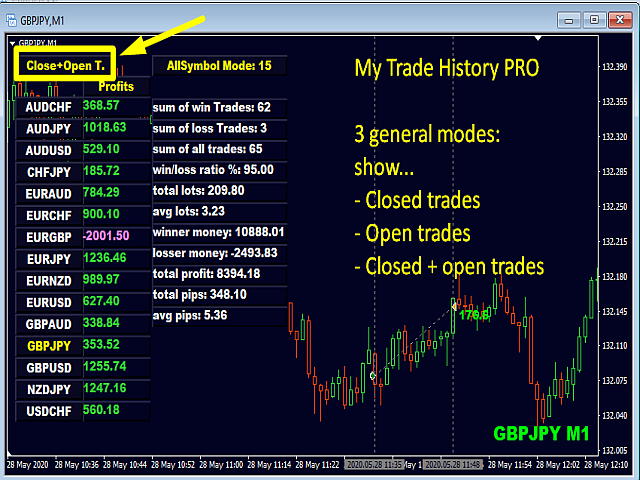
1. Three view modes
- Closed Trades - the history of your closed positions
- Open Trades - your currently running positions
- Close + Open Trades - both at a glance
Switch between the modes with one click on the mode button.
2. Three analysis levels
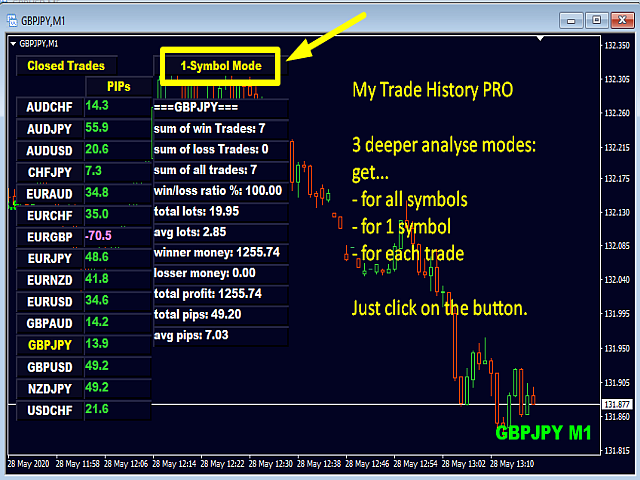
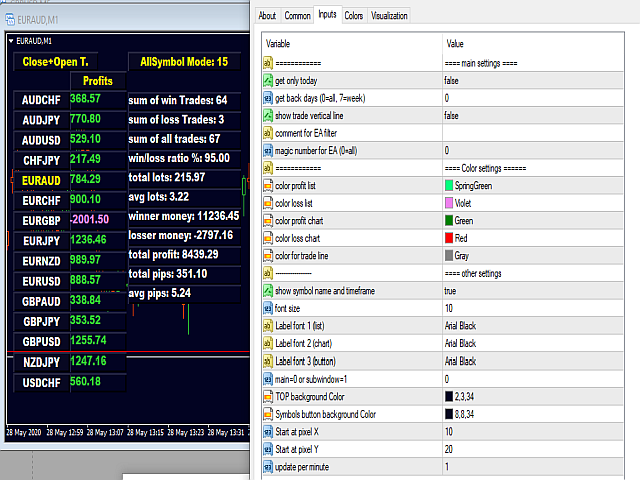
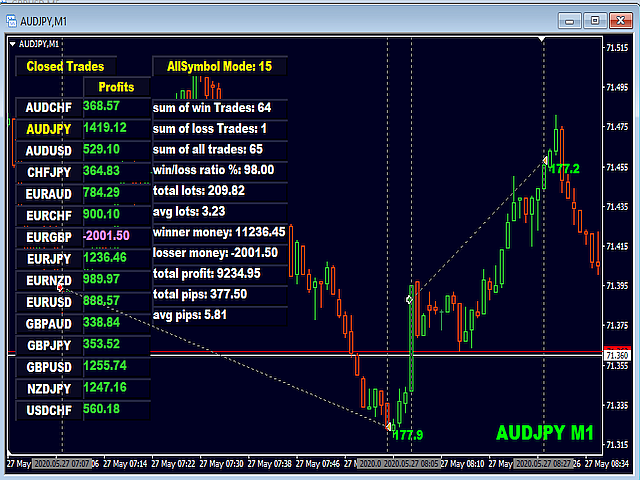
- All Symbol Mode - statistics across every symbol in your account
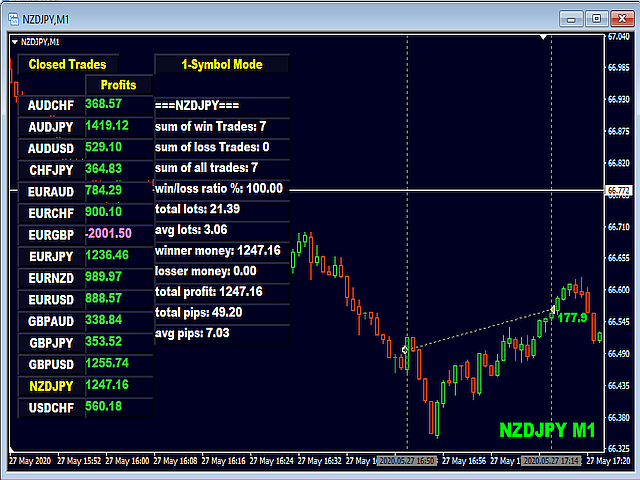
- 1-Symbol Mode - deeper look at one symbol
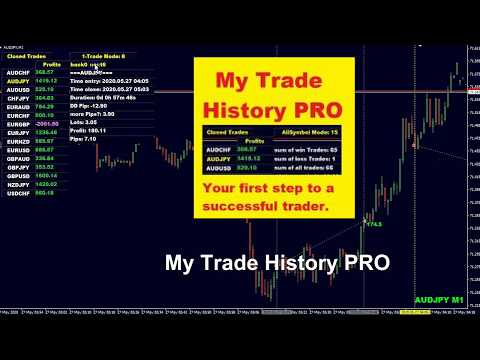
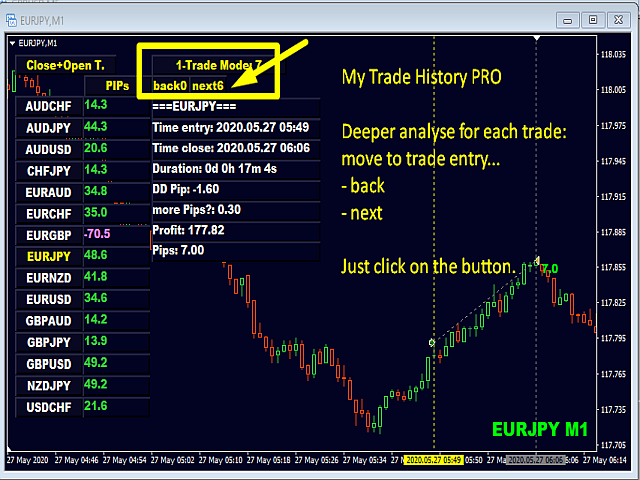
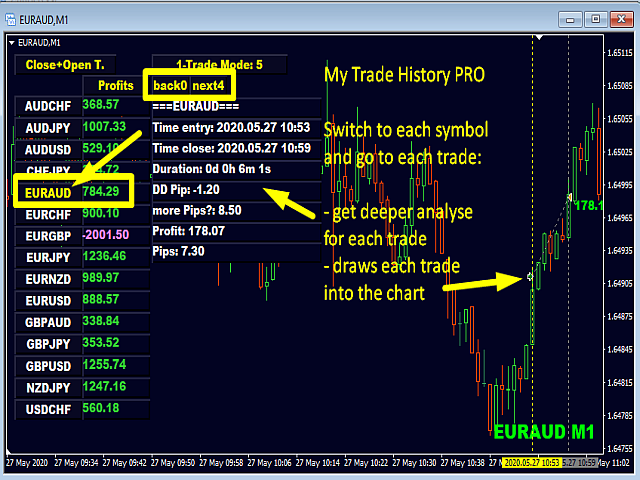
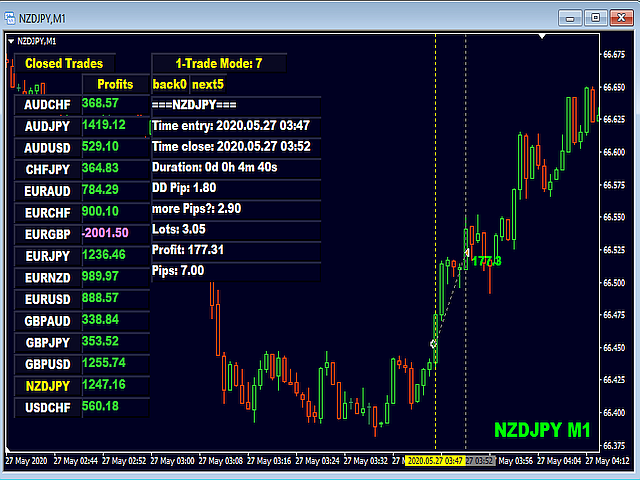
- 1-Trade Mode - one single trade with entry and exit time, duration, drawdown and "more pips" potential
In 1-Trade Mode use the back and next buttons to walk through the trades. The chart moves to the trade and the vertical line marks where it was opened. The same mode button also switches into 1-Trade Mode - one click per step: All Symbol, 1-Symbol, 1-Trade.
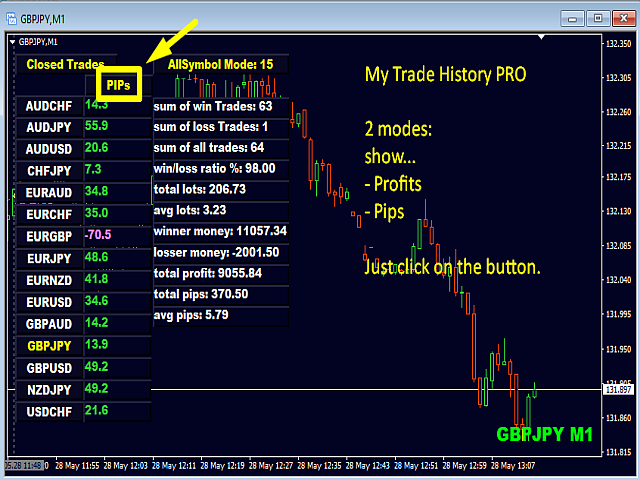
3. Profits or PIPs
One click switches the result columns and the chart labels between money and pips.
4. Analytics in the Experts tab
- Profit by hour of entry - find your strongest trading hours. The analysis uses the hour the trade was OPENED, not the close hour as backtests do: a trade is placed at its entry day and hour, not when it closes.
- Profit by weekday - see which days work for you
- Profit by comment/magic - compare different EAs or setups
5. Alerts for opening and closing trades
Get a message when a trade is opened or closed, including symbol and result. This works for manual trades, EA trades and signal trades alike.
6. Target chart
Clicking a symbol name can display the trade in a separate chart instead of your working chart. Your own indicators, drawings and templates stay in that chart, so the trade context is never disturbed. Two inputs control this: "Charts open in new window" and "Keep new charts in same window (Target)".
7. Hide and Show
One click or your own hotkey (default: H) hides the whole panel and shows a clean price chart. The state is remembered when you change timeframe or symbol.
8. Smart scrolling
When your symbol list is longer than the chart, arrow buttons appear and scroll the list up and down.
9. Hide money and lots
Hide monetary values and lot sizes when you take screenshots or share your chart.
10. Large screens and 4K
Buttons, labels and spacing follow the screen scaling (DPI) and stay fully visible on large and multi monitor setups. The spacing inputs are available for fine tuning.
Input Parameters
Main settings
- get only today - quick check of today's trades
- get back days (0=all, 7=week) - number of days to display
- comment for EA filter - filter by EA comment (MANUAL = manual trades only, NONE = trades without comment)
- magic number for EA (0=all) - filter by magic number
Alert settings
- Alert opening trades - notify when a trade is opened
- Alert closing trades - notify when a trade is closed
Analysis settings
- print profits by 24h in experts tab - hourly analysis by the hour the trade was opened (not the close hour as backtests do)
- print profits by comments in experts tab - comment and magic based analysis for EAs
Visual and layout settings
- show symbol name and timeframe - short note on the chart
- font size, label font 1 (list), label font 2 (chart), label font 3 (button) - adjust the display for your screen
- main=0 or subwindow=1 - place the panel in the main window or a subwindow
- Start at pixel X / Start at pixel Y - position of the panel
- Scroll number of rows list - rows per scroll step
- Hide money and lots, Open charts in new window, Font spacing X/Y (large screen)
Color settings
Panel background, text, borders, buttons, profit and loss colours and chart lines are freely adjustable.
Why traders keep it on the chart
- Everything is on the chart, exactly where you look at your trades
- 3 view modes, 3 analysis levels, 2 result displays
- EA friendly - filter by comment or magic number
- Manual friendly - show only your own trades
- Hotkeys, Hide/Show, target chart and large screen support
- Nothing to configure: install it on a chart and the history appears
Start reviewing
Open the chart of a symbol you trade, attach the indicator and switch through the three view modes. Start with the closed trades of the last weeks, look at your best hours and days, and compare your manual trades with your EA trades.
I wish you many green pips in the future.
Best Regards,
Bernhard
Questions? I am always happy to help.

















































I’m VERY happy with this purchase. Bernhard provided top-tier customer service, responding quickly to my messages and refining the indicator through multiple iterations. It’s rare to find this level of support. Highly recommend this seller, 5 stars.