AI Bolinger PRO
- Experts
- Saniyat Nabiyeva
- Version: 1.0
- Activations: 10
AI Bolinger Pro — Evolution of a Classic. It is from the AI PRO EA series, which means that the code is 100% designed and written by Artificial Intelligence, and is equipped with 24 different institutional-level position management functions, making it one of the leading (EAs) in terms of the variety of modes. The absence of the human factor in the creation of this advisor via (AI) has allowed the price to be minimized for users; similar functionality created by a real programmer would cost the buyer at least $15,000 for a similar (EA). This advisor functionality is fully suitable for Scalpers, Day Traders, Swing Traders, and Any traders who need to automate execution and risk management.
The robot's wide arsenal includes: Smart News Filter, four Stop Loss modes, three Trailing SL modes (including advanced High/Low Trailing), a Partial Close system with three variants (including the unique "By volume multiplier count" option), as well as two Volume Multiplier modes with flexible settings for deposit growth. Unique confirmation technology for the main signal using Price Action (Breakout) filters market noise, opening trades only during actual price movement. Also included are three Take Profit variants, including Trailing Profit.The advisor works on any timeframe and trading asset on MT5, with any account types, any Broker, and Prop Trading Firms.Flawless machine code eliminates human errors and emotions.This is the choice for professionals who need maximum reliability and flexibility. Trust your trading to pure digital intelligence.
====================================================================================
DETAILED USER GUIDE (AI Bolinger PRO v1.00)
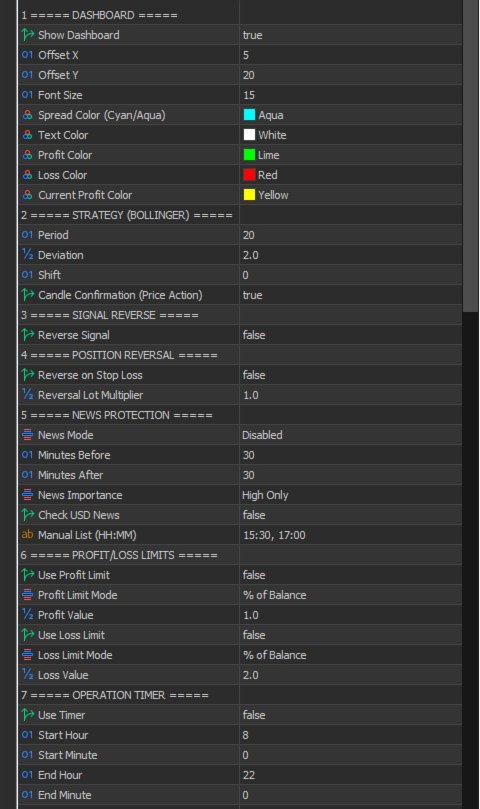
1 ===== DASHBOARD =====
Settings for the visual information panel displayed on the chart.
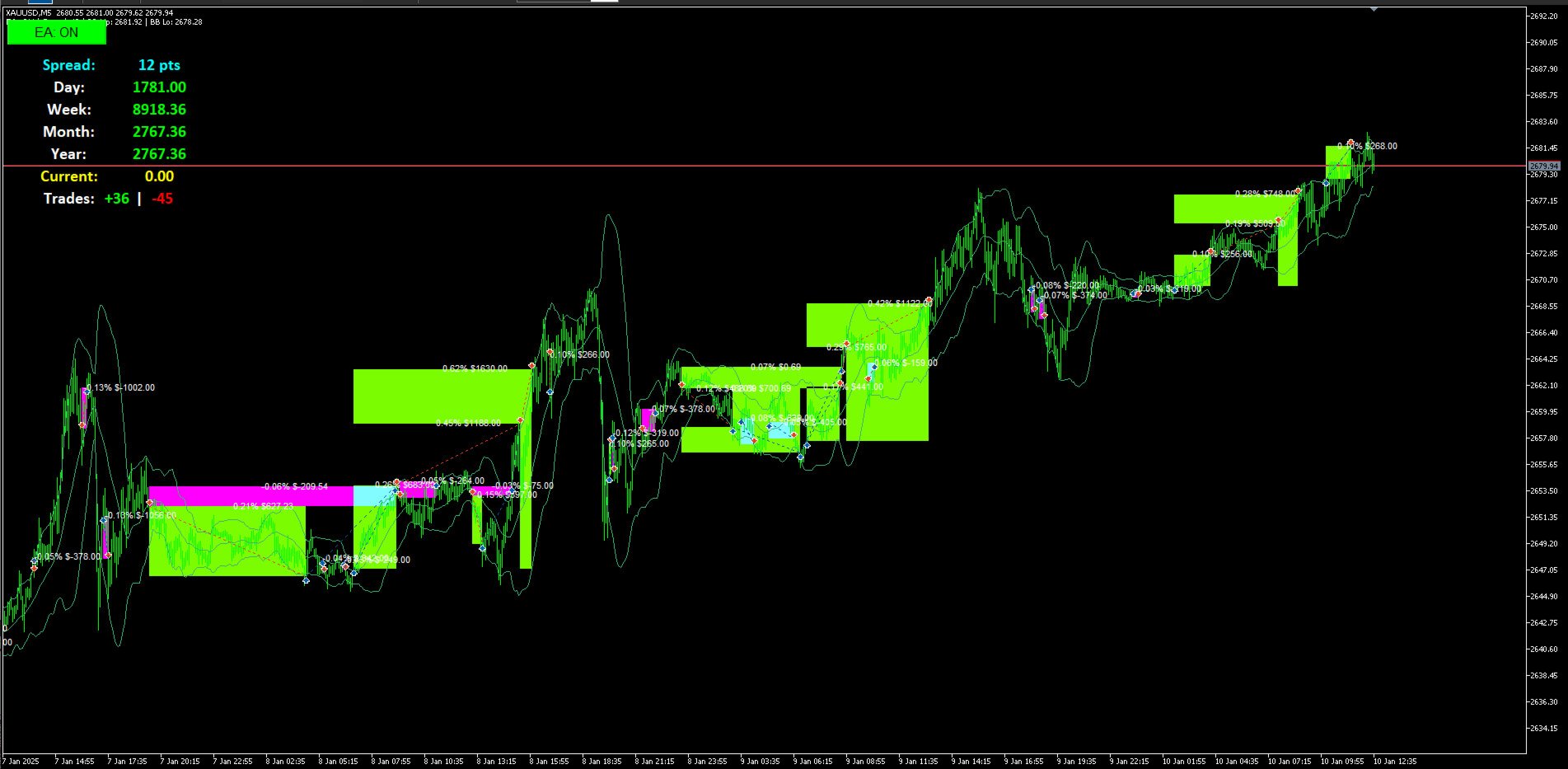
It shows the current spread, trading results for Day/Week/Month/Year, as well as current floating profit and the ratio of profitable/losing trades.
Tip: During optimization in the Strategy Tester, the panel works in visual mode, but for maximum mathematical optimization speed, it can be disabled (ShowDashboard = false).
2 ===== STRATEGY =====
(Important Section)
This section configures the market entry logic.
This section is responsible for configuring the Bollinger Bands technical indicator and the entry confirmation mode.
1. Bands_Period
-
What it is: The number of candles used to calculate the middle line of the indicator.
-
How it works:
-
Lower values (e.g., 10) make the indicator more sensitive to price changes; lines will be closer to the chart. More signals, but potentially less accurate.
-
Higher values (e.g., 50) make the indicator smoother. Fewer signals, but they carry more weight.
-
-
Default value: 20.
2. Bands_Deviation
-
What it is: The standard deviation multiplier that determines the width of the channel (distance of upper and lower bands from the middle line).
-
How it works:
-
2.0 is the standard value. It covers about 95% of price action.
-
Increasing the value (e.g., to 2.5 or 3.0) widens the channel. The price will touch the bands less frequently (only during strong moves).
-
Decreasing the value (e.g., to 1.5) narrows the channel. Touches will occur more frequently.
-
3. Bands_Shift
-
What it is: The shift of the indicator relative to the price chart in time.
-
How it works:
-
A positive value shifts the indicator lines to the right (into the future).
-
A negative value shifts the lines to the left (into the past).
-
Most strategies use 0 (no shift).
-
4. UseCandleConfirmation
-
What it is: A "Price Action" filter that prevents entering the market immediately when a signal appears.
-
How it works:
-
false (Disabled): The EA enters a trade immediately at the open of a new candle if the previous candle touched or crossed the Bollinger Band.
-
true (Enabled): The EA waits for confirmation by price movement.
-
Upon receiving a signal, the EA records the extreme point (High or Low) of the signal candle.
-
Market entry occurs only when the price actually breaks this extreme in the intended direction.
-
Example: If there is a Buy signal (price at the lower band), the EA waits until the price rises above the High of the candle that generated the signal.
-
-
3 ===== REVERSE SIGNAL =====
Inverses the indicator logic.
If enabled (true), then upon a Stochastic Buy signal (oversold), the advisor will open a Sell trade. Useful in strong trending markets where oscillators often give false reversal signals.
4 ===== POSITION REVERSAL =====
Direction switching tactic.
If enabled (true), when a position closes by Stop Loss, the advisor instantly opens a new trade in the opposite direction.
Note: The volume (lot) for this new trade is calculated according to the rules of Section 23 (Volume Multiplier).
5 ===== NEWS PROTECTION =====
Built-in news filter.
The advisor automatically pauses trading for the specified number of minutes before and after high-impact economic news releases (for the pair's currencies or only USD).
Important: Works only in real-time (Live) mode. News data is not available in the Strategy Tester.
6 ===== PROFIT/LOSS LIMITS =====
Global deposit protection.
Allows setting a profit target or loss limit (in % of balance or in points) for all open positions combined. When the limit is reached, all trades are closed, and the advisor stops working.
7 ===== OPERATION TIMER =====
Intraday time filter.
Sets rigid operating hours for the advisor (e.g., trade only from 08:00 to 20:00). Outside this time, new trades are not opened.
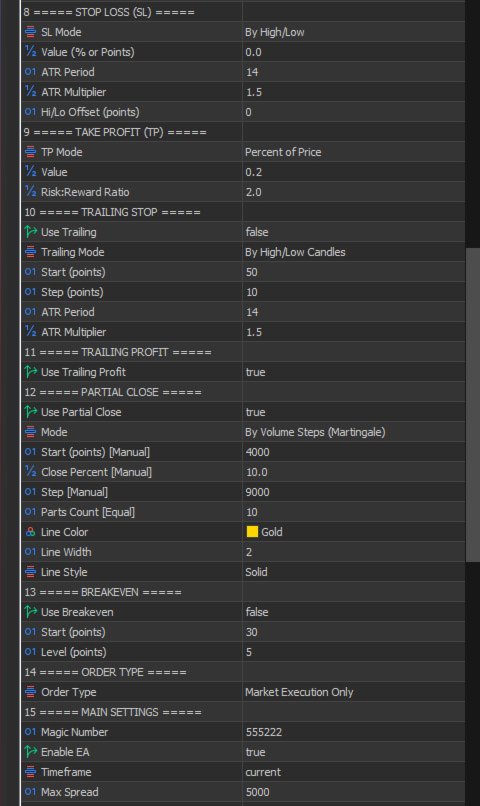
8 ===== STOP LOSS =====
Risk management for each trade.
SL_PERCENT: Stop Loss in % of the opening price.
SL_POINTS: Fixed Stop Loss in points.
SL_ATR: Dynamic Stop Loss based on market volatility (ATR).
SL_HI_LO: Smart Stop Loss placed behind the High or Low of the previous closed candle.
Broker stop levels – distances to SL and TP are checked against the broker's minimum requirements automatically.
9 ===== TAKE PROFIT =====
Profit taking settings.
Can be set in points, percent, or as a Risk:Reward Ratio (RRR). For example, if RRR=2.0, Take Profit will be 2 times larger than Stop Loss.
10 ===== TRAILING STOP =====
A powerful tool to protect secured profit by automatically pulling the Stop Loss level following price movement.
Parameter UseTrailing: Main switch (true/false).
Parameter Trail_Mode: Selection of the stop moving algorithm.
Available modes:
TRAIL_STANDARD: Classic trailing in points. Works with two parameters:
Trail_Start: Profit distance (in points) at which trailing is activated.
Trail_Step: Movement step. The advisor will move the Stop Loss every time the price moves the specified number of points in the profitable direction. Example: Start=50, Step=10. As soon as profit reaches 50 points, the stop moves to breakeven. If price goes another 10 points, the stop moves with it.
TRAIL_ATR (Volatility): Adaptive mode that adjusts to current market activity. Trailing distance is calculated based on the ATR (Average True Range) indicator.
If volatility is high, the stop is held further away to avoid being hit by random "noise".
If volatility is low, the stop tightens. Settings parameters: Trail_ATR_Period and Trail_ATR_Mult.
TRAIL_HI_LO (Candles): Professional mode for trend trading ("Shadow Trailing"). The advisor moves Stop Loss strictly along the extremes of closed candles:
For Buy: Stop is placed under the Low of the previous candle.
For Sell: Stop is placed above the High of the previous candle. This mode allows holding a position as long as possible while the trend maintains its structure (higher lows or lower highs) and exiting immediately upon trend reversal.
11 ===== TRAILING PROFIT =====
(New Unique Feature)
Smart loss recovery system via profit targets.
Logic: If enabled (UseTrailingProfit = true), the advisor remembers the loss percentage of trades closed in negative.
When opening a NEW trade, the advisor automatically increases its standard Take Profit by this accumulated loss percentage.
Goal: Recover past losses and close the entire series in net profit with one successful trade.
Reset: The accumulated percentage resets to 0% in two cases:
When any trade closes in net profit (fully).
When the advisor is turned off and on again via the button on the chart.
12 ===== PARTIAL CLOSE =====
(Detailed Unloading Settings)
Securing part of the profit ("Safe").
UsePartialClose: Main function switch.
Partial_Mode (Separation Variant):
MANUAL (Classic): The advisor closes part of the position when the price passes a fixed distance (PartialStart) in points. If a step is set (Partial_Close_Step > 0), it will continue closing parts every N points.
EQUAL PARTS: The advisor calculates levels itself. It takes the distance from Open Price to the final Take Profit and divides it into equal segments. The number of segments is set in Partial_Parts_Count (e.g., 10 parts). Volume is also split equally.
Unload Lines (Visualization):
The advisor draws horizontal lines on the chart showing exactly where the position will be unloaded.
Smart function: As soon as the price hits a line and a part is closed, that line is instantly removed from the chart so you only see remaining active targets.
-
(By Volume Steps)
How it works: This non-standard mode automatically creates (without your manual tuning and only when this option is selected) a "smart grid" for partial closing, which depends directly on how much the Martingale (Section 23) has increased the current trade's volume. Ultimately, the more the position volume is increased, the more unloading parts there will be for this position. The advisor automatically divides the distance from Open Price to Take Profit into equal parts.
Main Condition: Mode works only if Martingale is enabled (UseMartingale = true).
13 ===== BREAKEVEN =====
Moving Stop Loss to the opening price.
Triggered when price passes a specified number of points (BE_Start). Provides protection against loss if price reverses.
14 ===== ORDER TYPE =====
Choice of entry method. ENTRY_MARKET_ONLY is recommended for instant execution.
15 ===== MAIN SETTINGS =====
Basic parameters: Magic Number (so the advisor distinguishes its trades), Spread Filter (MaxSpread), and Slippage.
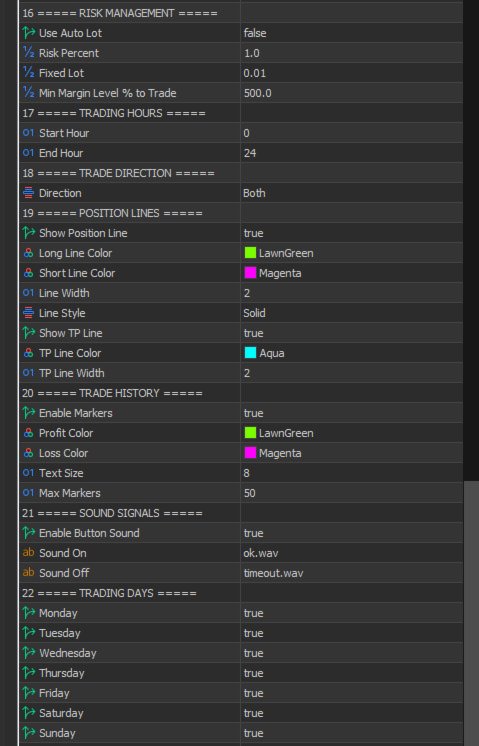
16 ===== RISK MANAGEMENT =====
Calculation of initial position volume (when there is no losing series).
FixedLot: Trading with a constant lot.
UseAutoLot: Automatic lot calculation as % of balance.
17 ===== TRADING HOURS =====
Additional time filter (Start Hour and End Hour) if you want to trade only specific sessions (e.g., London and New York).
18 ===== TRADE DIRECTION =====
Allows permitting the advisor to trade only in one direction (Only Buy or Only Sell) or both (Both).
19 ===== LINE MARKER =====
Visualization of Open levels and Take Profits on the chart with colored lines.
Cleanup logic – if a line is deleted, the associated order is also deleted; if an order is executed, the corresponding line is erased.
20 ===== TRADE MARKERS =====
History on chart. Draws arrows or markers where past trades were made and labels their result (profit/loss).
21 ===== SOUND SIGNALS =====
Audio alerts when turning the advisor on/off via the button or when operations are performed.
22 ===== TRADING DAYS =====
Filter by days of the week.
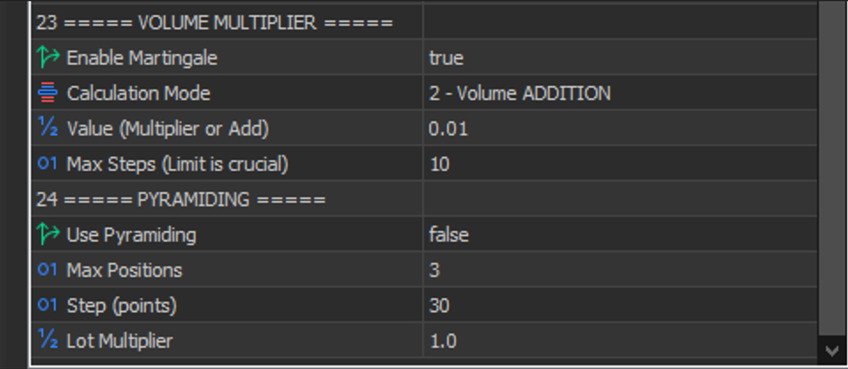
23 ===== VOLUME MULTIPLIER =====
(Very Important Section)
System for increasing lot size after losses (Martingale) for quick loss recovery.
Works only if switch UseMartingale = true.
How it works (Logic):
If a trade closes by Stop Loss (loss), the advisor increases the volume of the next trade. If the next one is also a loss, the volume grows again. As soon as any trade closes in profit (Take Profit), volume immediately resets to initial (from section 16).
Reset Condition: The cycle also resets if you turn the advisor off and on again via the button on the chart.
In MartingaleMode setting you choose the math of increase:
Variant 1: MULTIPLY
The lot of the previous losing trade is multiplied by the MartingaleValue number.
Example: Initial lot 0.1, Value 2.0.
Trade 1 (0.1 lot) -> Loss.
Trade 2 opens with volume: 0.2 (0.1 * 2). -> Loss.
Trade 3 opens with volume: 0.4 (0.2 * 2).
Variant 2: ADD
The number MartingaleValue is simply added to the lot of the previous losing trade (softer mode).
Example: Initial lot 0.1, Value 0.1.
Trade 1 (0.1 lot) -> Loss.
Trade 2 opens with volume: 0.2 (0.1 + 0.1).
Martingale_Max_Steps (Step Limit):
Safety setting. Determines how many times in a row the advisor is allowed to increase volume.
If 0: Infinite increase (classic martingale).
If 5: Volume grows for the first 5 losses. Starting from the 6th consecutive loss, volume stops growing and is fixed at the 5th step level until the series ends in profit.
Margin Check – before placing an order, the advisor automatically checks if there is enough free margin; if not, the trade is skipped.
24 ===== PYRAMIDING =====
(Advanced Profit Tactic)
Method for aggressively building up profit.
If a position goes into positive, the advisor can open additional orders in the same direction.
MaxPositions: Maximum number of simultaneously open orders in one direction.
PyramidStep: Step (in points) after which a new order is opened.
PyramidLotMult: Lot multiplier for additional orders. For example, if 1.0 — volume is the same; if 2.0 — add-on volume doubles.
===================================================================================
IMPORTANT TO CONSIDER FOR SETTINGS:
-
If the broker has 5 digits (1.12345), then 1 point = 0.00001.
If the broker has 3 digits (100.123 — Yen pairs), then 1 point = 0.001.
-
Important nuance: The advisor perceives settings (Stop Loss, Take Profit, Trailing) in points (Points), not in "old pips".
On a 5-digit account, a value of 50 in settings will equal 5 "old" pips (50 points).
On a 4-digit account, a value of 50 will equal 50 "old" pips.
You need to account for this when entering settings.
-
Does this advisor work with different account types?
-
Yes, it is universal, but with one caveat regarding Netting.
Detailed breakdown by types:
Hedging: Yes, full support.
The advisor code (especially Pyramiding functions UsePyramiding and position count limits MaxPositions) is originally designed for hedging, where multiple trades can be opened on one instrument simultaneously.
Netting: Works, but strategy changes.
There is a check in the code: if(AccountInfoInteger(ACCOUNT_MARGIN_MODE) == ACCOUNT_MARGIN_MODE_RETAIL_NETTING). The advisor understands it is on netting.
Limitation: On a netting account, you cannot physically have 3 different positions (as configured in MaxPositions = 3). When attempting to add (pyramiding), the advisor will simply average (add volume) into a single unique position. The "Partial Close" mode will also work with this total position.
Raw, Zero, ECN (Commission accounts): Yes, works correctly.
These accounts feature tight spreads but charge a commission per lot.
In profit calculation functions (CalcProfit, UpdateDashboard, UpdateMartingaleState), the advisor uses the formula: DealProfit + DealSwap + DealCommission
This means it sees and accounts for commission when calculating losses for martingale or trailing profit. It will not mistakenly consider a trade profitable if the profit is small but commission is large.
Cent, Micro, Standard, Premium: Yes, works.
The advisor reads the