Order Block Zones Pro Multi Timeframe Alerts
- Indicators
-
Yuki Nakayama
 I am Yuki, an independent developer in Japan. I build indicators and utilities for MetaTrader 5 and publish them here on the MQL5 Market. Every tool has a free edition, so you can see how it behaves on your own charts before you consider the paid one.
 - Version: 1.51
- Updated: 24 October 2026
- Activations: 5
Order Block Zones PRO shows in a single list how close price is to the fresh supply and demand zones of the symbols and timeframes you choose, and takes you to the chart of the zone you want to look at. An order block indicator for MetaTrader 5 built around the higher-timeframe map that Smart Money Concepts (SMC) and ICT style analysis rely on, it lets you trade on M15 or H1 while seeing the higher-timeframe order block zones, H4 and daily by default, on the same chart, each tagged with its timeframe, so you do not have to switch charts to know where the bigger zones sit. It also draws Fair Value Gaps (FVG), the three-candle imbalances left by fast moves, on the chart timeframe and on the higher timeframes it overlays, until price fills them, with optional alerts when price nears a gap and again when that gap is filled.
When price comes within your chosen distance of a fresh zone, PRO alerts you with a popup and, if you turn it on, a push notification on your phone, and the panel keeps a log of the last twenty alerts of the current session.
Order Block Zones PRO marks one specific candle pattern in the price data, the last opposite-colour candle before a strong move that breaks structure, draws it as a clean supply or demand zone, and extends the same rule across timeframes. Traders call these order blocks; the tool finds them by a fixed rule on the candles and does not see any actual institutional orders.
How a zone is found is transparent, not a black box. A bearish candle whose high is then broken upward by a displacement leg becomes a demand zone. A bullish candle whose low is then broken downward becomes a supply zone. Displacement is measured against ATR, so weak and noisy candles are ignored. A fresh zone is drawn with a bright border, strongest on the nearest chart-timeframe zone above and below the price; when a closed bar wicks into it the zone fades to mitigated, and it is removed as soon as the current price is beyond its far edge, checked on every refresh, so it can return if the candle closes back inside and is gone for good once a candle has closed through it. The board keeps the newest zones only: 8 on the chart timeframe, 3 from the first higher timeframe and 2 from the second by default, all adjustable.
PRO adds three things on top of the free zone and gap engine. Higher-timeframe order blocks are overlaid on your execution chart as dashed outline boxes with a timeframe tag, so you can watch the H4 zones, for example, while you trade H1. A second higher timeframe, daily by default, is overlaid next to it as a dashed outline box with its own tag, and duplicates are removed within each layer only. Touch alerts raise a popup and an optional push notification as price approaches a fresh supply or demand zone, within a distance you set (60 points by default), for the zones currently on the board. Each zone is announced once until the indicator is reloaded, and the alert text names the symbol, the chart timeframe, the zone's own timeframe for higher-timeframe zones, the price band and the distance in points. An Alert log on the panel keeps the last twenty alerts of the current session, with their time, symbol, zone timeframe, side, distance, price band and delivery result. Fair Value Gaps, the three-candle imbalances left by fast moves, are in both editions; PRO adds the gaps of the higher timeframes, H4 and daily by default, as dashed outlines with a timeframe tag (up to three each), and FVG alerts: once when price comes within the touch distance of an unfilled gap and once when that gap is filled, off by default.
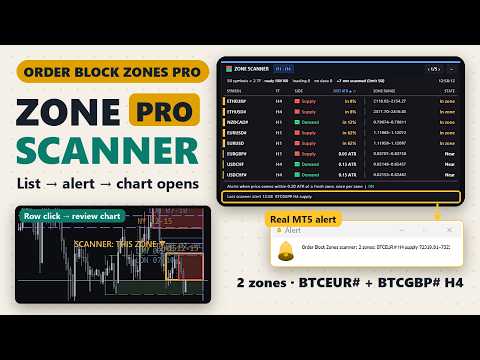
A compact dark panel — draggable, four sizes, English or Japanese — shows live counts of demand, supply and fresh zones, the nearest supply above and demand below (fresh or already tested) with the distance in points, the number of unfilled gaps per timeframe, a legend and the alert status. PRO also has a zone scanner: for every Market Watch symbol and chosen timeframe, one panel lists the nearest fresh demand and supply zone by distance, as an ATR ratio or in points, alerts once per zone, and a click on a row opens that zone on a review chart.
A History chip on the panel opens a sheet with the most recent twenty zone events: a new zone, its first touch, or the reason a zone left the chart, each row with the bar it was observed on, the origin candle, the timeframe, the side and the price band; rows from the higher-timeframe layer carry an HTF tag. Only "price broke through" means the zone failed; "replaced by newer zone", "pushed off the board" and "left the scan window" are housekeeping, and a zone that drops off and comes back stays on one row with a repeat count. The same events are written to the Experts log once per closed bar behind the input "Zone event journal", on by default. The list is kept in memory only and starts empty after every attach, timeframe change or settings change. PRO can share a chart with the free version: its chart objects use the prefix obzp_ by default, its panel position and size are saved separately, and it moves to another corner when the free panel is already on the chart. On a chart that already carried PRO before 1.46, set Chart object prefix to obzp_ or attach PRO again to see both panels.
Moving from the free Order Block Zones to PRO takes three steps: remove the free edition from the chart, attach PRO to the same chart, and click OK. If you had moved, resized, collapsed or re-cornered the free panel on that chart, PRO opens its panel in the same place, size and corner, once, and from then on keeps its own copy and leaves the free edition's saved values untouched. Input values do not carry over, because the terminal keeps the inputs of each indicator separately, so set them again in PRO: every input of the free edition exists in PRO under the same name, and PRO adds further inputs for the higher-timeframe layers, the Fair Value Gaps and the touch alerts. The History list and the notification memory start empty, as they do after any reload.
This is a display tool. There are no trade signals, no profit promises and no DLLs. Use the zones and gaps as context for your own method: for entries, for targets, or simply to see where not to chase.
Shared foundation
Order Block Zones PRO extends the same zone-detection rule used in the free version, whose listing and reviews are public on this Market. Every input and every row of the panel is explained in the user guide on the author's blog: Order Block Zones user guide
Buy once and every future version is yours for free. This tool is actively maintained, and its roadmap is shaped directly by user feedback, so the features keep growing after you buy. Tell me in the comments what you would add or change and it goes on the list.
When price comes within your chosen distance of a fresh zone, PRO alerts you with a popup and, if you turn it on, a push notification on your phone, and the panel keeps a log of the last twenty alerts of the current session.
Order Block Zones PRO marks one specific candle pattern in the price data, the last opposite-colour candle before a strong move that breaks structure, draws it as a clean supply or demand zone, and extends the same rule across timeframes. Traders call these order blocks; the tool finds them by a fixed rule on the candles and does not see any actual institutional orders.
How a zone is found is transparent, not a black box. A bearish candle whose high is then broken upward by a displacement leg becomes a demand zone. A bullish candle whose low is then broken downward becomes a supply zone. Displacement is measured against ATR, so weak and noisy candles are ignored. A fresh zone is drawn with a bright border, strongest on the nearest chart-timeframe zone above and below the price; when a closed bar wicks into it the zone fades to mitigated, and it is removed as soon as the current price is beyond its far edge, checked on every refresh, so it can return if the candle closes back inside and is gone for good once a candle has closed through it. The board keeps the newest zones only: 8 on the chart timeframe, 3 from the first higher timeframe and 2 from the second by default, all adjustable.
PRO adds three things on top of the free zone and gap engine. Higher-timeframe order blocks are overlaid on your execution chart as dashed outline boxes with a timeframe tag, so you can watch the H4 zones, for example, while you trade H1. A second higher timeframe, daily by default, is overlaid next to it as a dashed outline box with its own tag, and duplicates are removed within each layer only. Touch alerts raise a popup and an optional push notification as price approaches a fresh supply or demand zone, within a distance you set (60 points by default), for the zones currently on the board. Each zone is announced once until the indicator is reloaded, and the alert text names the symbol, the chart timeframe, the zone's own timeframe for higher-timeframe zones, the price band and the distance in points. An Alert log on the panel keeps the last twenty alerts of the current session, with their time, symbol, zone timeframe, side, distance, price band and delivery result. Fair Value Gaps, the three-candle imbalances left by fast moves, are in both editions; PRO adds the gaps of the higher timeframes, H4 and daily by default, as dashed outlines with a timeframe tag (up to three each), and FVG alerts: once when price comes within the touch distance of an unfilled gap and once when that gap is filled, off by default.
A compact dark panel — draggable, four sizes, English or Japanese — shows live counts of demand, supply and fresh zones, the nearest supply above and demand below (fresh or already tested) with the distance in points, the number of unfilled gaps per timeframe, a legend and the alert status. PRO also has a zone scanner: for every Market Watch symbol and chosen timeframe, one panel lists the nearest fresh demand and supply zone by distance, as an ATR ratio or in points, alerts once per zone, and a click on a row opens that zone on a review chart.
A History chip on the panel opens a sheet with the most recent twenty zone events: a new zone, its first touch, or the reason a zone left the chart, each row with the bar it was observed on, the origin candle, the timeframe, the side and the price band; rows from the higher-timeframe layer carry an HTF tag. Only "price broke through" means the zone failed; "replaced by newer zone", "pushed off the board" and "left the scan window" are housekeeping, and a zone that drops off and comes back stays on one row with a repeat count. The same events are written to the Experts log once per closed bar behind the input "Zone event journal", on by default. The list is kept in memory only and starts empty after every attach, timeframe change or settings change. PRO can share a chart with the free version: its chart objects use the prefix obzp_ by default, its panel position and size are saved separately, and it moves to another corner when the free panel is already on the chart. On a chart that already carried PRO before 1.46, set Chart object prefix to obzp_ or attach PRO again to see both panels.
Moving from the free Order Block Zones to PRO takes three steps: remove the free edition from the chart, attach PRO to the same chart, and click OK. If you had moved, resized, collapsed or re-cornered the free panel on that chart, PRO opens its panel in the same place, size and corner, once, and from then on keeps its own copy and leaves the free edition's saved values untouched. Input values do not carry over, because the terminal keeps the inputs of each indicator separately, so set them again in PRO: every input of the free edition exists in PRO under the same name, and PRO adds further inputs for the higher-timeframe layers, the Fair Value Gaps and the touch alerts. The History list and the notification memory start empty, as they do after any reload.
This is a display tool. There are no trade signals, no profit promises and no DLLs. Use the zones and gaps as context for your own method: for entries, for targets, or simply to see where not to chase.
Shared foundation
Order Block Zones PRO extends the same zone-detection rule used in the free version, whose listing and reviews are public on this Market. Every input and every row of the panel is explained in the user guide on the author's blog: Order Block Zones user guide
Buy once and every future version is yours for free. This tool is actively maintained, and its roadmap is shaped directly by user feedback, so the features keep growing after you buy. Tell me in the comments what you would add or change and it goes on the list.