
KT Support and Resistance Levels MT5
- Indicators
-
KEENBASE SOFTWARE SOLUTIONS
 Keenbase Trading develops professional MetaTrader 4 and MetaTrader 5 indicators and Expert Advisors designed to help traders make more informed trading decisions.
 - Version: 3.0
- Updated: 31 May 2026
- Activations: 10
KT Auto Support Resistance Levels: Multi-Timeframe S&R, Smart Zones and Levels Dashboard for MetaTrader 4/5
Swing highs. Pivots. Order blocks. Previous highs and lows. Every trader marks the market a little differently, and the chart pays the price. Stack enough methods on one screen and it stops being a map. It becomes noise.
KT Auto Support Resistance Levels fixes that. It scans the monthly, weekly, daily, and your current timeframe at once, then draws the levels that actually matter directly onto your MetaTrader chart, automatically. When the chart gets crowded, one click merges everything into clean Smart Zones. And a live panel always shows the nearest levels above and below price, so you are never hunting around.
Think of it as a chart analyst that never gets tired of marking levels.
What it does for you
- Finds and draws levels from multiple proven sources: swings, pivots, previous-period prices, and order block midpoints, across every timeframe.
- Merges nearby levels into clean Smart Zones whenever you want a simpler chart.
- Keeps a live panel showing the three nearest levels above price and the three nearest below.
- Tells you how old each level is and how often price has actually respected it.
- Alerts you the moment price reaches a level or zone you care about.
What it deliberately does not do
It does not open, close, or manage trades. It does not fire buy or sell signals. It does not claim to predict the market, and it will never promise you a reversal.
None of that is a limitation. A level is a decision area, not a crystal ball, and this tool is honest about that. Your trading plan and risk management stay yours, which is exactly how a tool like this should work.
Five kinds of level, one clean map
Each source answers a slightly different question about the market, and the indicator draws all of them automatically. No external ZigZag, fractal, or pivot indicators required.
Swing highs and lows: The real turning points in price, the same levels most traders draw by eye, marked for you automatically.
Pivots: Classic daily, weekly, and monthly pivot ladders, labelled like Daily P, Daily R1, or Weekly R2. Classic is on by default, with Camarilla, Woodie, Fibonacci, and DeMark a click away.
Previous-period prices: Yesterday's, last week's, and last month's high, low, open, and close (PDH, PWL, PMC and more). Price returns to these more often than most traders expect.
Order block levels: A clean line at the midpoint of a meaningful order-block candle, labelled like Daily Bull OB or Weekly Bear OB. Reference prices, not shaded boxes, so the chart stays readable.
Fractal levels: Significant fractal turning points on your current timeframe, picking out the ones that carry weight rather than cluttering the chart with every minor pivot.
Read the weight in one glance
Bigger timeframe, bigger level. That is most of what you need to know:
Monthly levels are Super Strong, the heavyweight prices the whole market watches. Weekly levels are Strong, the structure that frames the week and beyond. Daily levels are Moderate, dependable references for intraday and swing trades. Your timeframe levels are Short-Term, the most reactive, sitting closest to live price.
Lower-timeframe levels hide automatically on higher-timeframe charts, so a monthly view stays calm instead of drowning in detail. Monthly levels are important enough to show everywhere.
Smart Zones: from a cluttered chart to a clear one
This is the part most worth understanding, because it changes how the whole chart feels. You are always looking at the same structure, just through one of two lenses.
In Levels view, every level is drawn as its own line. Perfect for studying a chart closely and seeing exactly where each price sits.
In Smart Zones view, the indicator takes all those individual levels, notices where several of them cluster close together, and draws them as a single clean band instead. It weighs each zone by timeframe, method, and how price has behaved there, keeps the strongest and most relevant, and quietly sets the rest aside. When a chart starts feeling busy, this is the switch that brings it back to calm.
Each Smart Zone packs a full read into one short line. For example:
Weekly R1 (4 levels) | 11 months | Chance of reversal 80%
Read left to right, that is a resistance zone anchored at the Weekly R1 price, built from four levels stacked close together, around eleven months old, where price has turned away about eighty percent of the times it has been tested. A lot of context in one glance.
And the zones hold their ground. They will not twitch or jump every time the chart recalculates, but they redraw when the structure genuinely shifts. So when a zone moves, you know something actually changed.
Switching is instant. Two buttons on the dashboard, Levels and Smart Zones, and your choice syncs across every open chart.
The dashboard: every level you need, at a glance
The dark panel in the corner is the tool's quick-glance view, and for a lot of traders it becomes the part they use most. At any moment it answers one question: where are the nearest levels around price right now?
It reads top to bottom. The three closest levels overhead, with R1 nearest to price. The live price in the middle. The three closest levels underneath, with S1 nearest to price. No drawing, no scrolling, no second-guessing.
Every row carries four quick reads:
- Level: what the price level is and where it came from.
- Distance: how far price has to travel to reach it.
- Source: the method behind it, so you always know what you are looking at.
- Reversal chance: how often price has held there before, or Fresh if it has not been tested yet.
The panel always mirrors the chart. In Levels view it lists individual lines; in Smart Zones view it lists zones. And because the Levels and Smart Zones buttons live right here, this corner is also the fastest place to flip between the two views.
Know how every level has actually behaved
Most indicators draw a level and leave you guessing how much it matters. This one tells you. Behind the scenes it watches three things every time price meets a level: a touch (price comes back and reaches it), a hold (price reaches it and turns away), and a break (price pushes straight through).
From that, two simple reads appear on your levels and zones:
Reversal chance is how often a level has held out of all the times it has been touched, shown as a percentage. A higher number means price has tended to respect it.
Fresh means a level has not been tested yet in the history scanned. Do not read Fresh as weak. Untested levels can be some of the most reactive, precisely because no one has had the chance to trade through them yet.
Alongside those, age tells you how long a level has stood, such as eleven months. A level that has held for months usually deserves more respect than one that formed yesterday.
One thing to be clear about: reversal chance describes the past, not the future. An 80 percent level can still break on the very next touch. Use it to weigh your options, never as a promise.
Alerts that reach you, wherever you are
You do not have to sit and stare at the chart. The indicator can tap you on the shoulder the moment price reaches a level you care about, including the anchor line of a Smart Zone. It checks once on each new bar, so you get a clean signal rather than constant noise.
Pick whatever suits how you work: a sound from your terminal, an on-screen pop-up, an email to your inbox, or a push notification on the MetaTrader mobile app. Email and push need a one-time setup, and after that they just work.
Yours to tune, but ready out of the box
You can run the indicator perfectly well without touching a single setting. The defaults are chosen for everyday trading. When you are ready to make it yours, everything lives in the Inputs tab, sorted into tidy numbered groups so you are never hunting around.
Set Label Detail to Full when studying a chart, Compact for everyday use, or Minimal when you just want the lines. Switch pivot methods, toggle any level source on or off, adjust colors that adapt to light or dark charts, and decide whether you start in Levels or Smart Zones view. Chart feeling crowded? Three quick fixes: set labels to Minimal, turn on Smart Zones, or switch off a source you never use.
A simple way to use it, day to day
There is no single right way to use the tool, but if you are just getting started, this routine works well and takes only seconds.
Open your trading timeframe and glance at the dashboard. Now you know the nearest support and resistance without drawing a thing. Check their age and reversal chance, because the older, more-respected levels are the ones worth building a plan around. If the chart looks busy, flip to Smart Zones and let the clutter fall away. Plan your entry, stop, and target around those levels, then hand the decision back to your own rules and risk.
That is really the spirit of it. The tool keeps the chart organized and watches the levels for you, so your attention is free for the part that actually needs you: the trading decision.
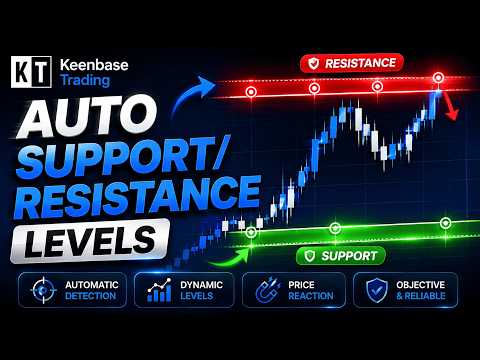












































Yes we know that prices react at important levels.And this tool help me to mark them in the right way