Udock MT4
- Utilities
-
ERIANUX, LLC
 Dedicated Full-Stack Developer blending a strong foundational education with practical expertise in modern software engineering. Proficient across the entire development lifecycle—from crafting intuitive, user-centric interfaces with React and Vue to architecting robust backend systems using Python
- Version: 1.2
- Updated: 23 October 2026
- Activations: 20
Udock adds a slim toolbar to the MetaTrader 4 chart you already use. It doesn't replace anything: MT4's own candles, indicators, subwindows and objects all stay where they are.
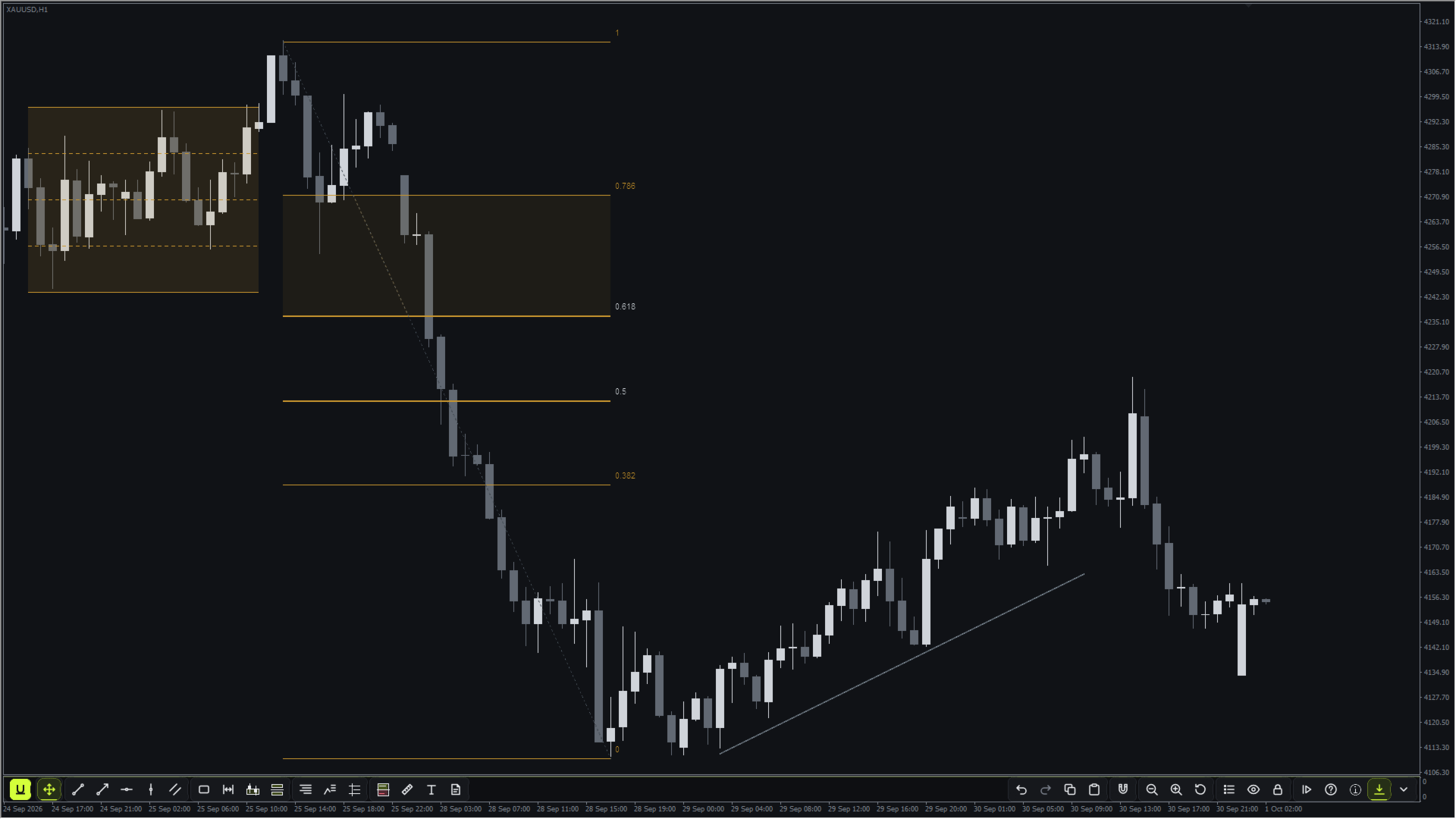
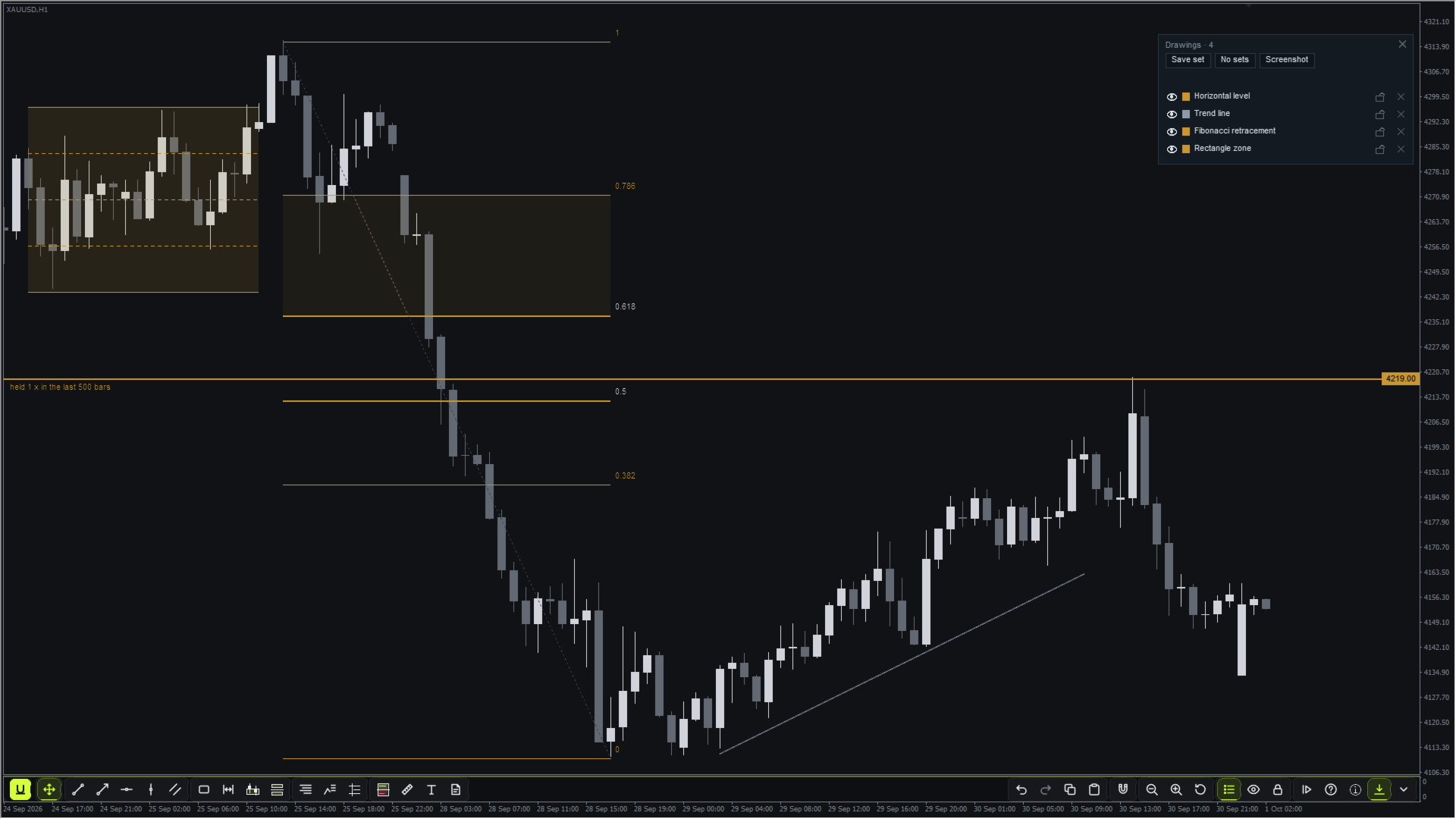
16 drawing tools
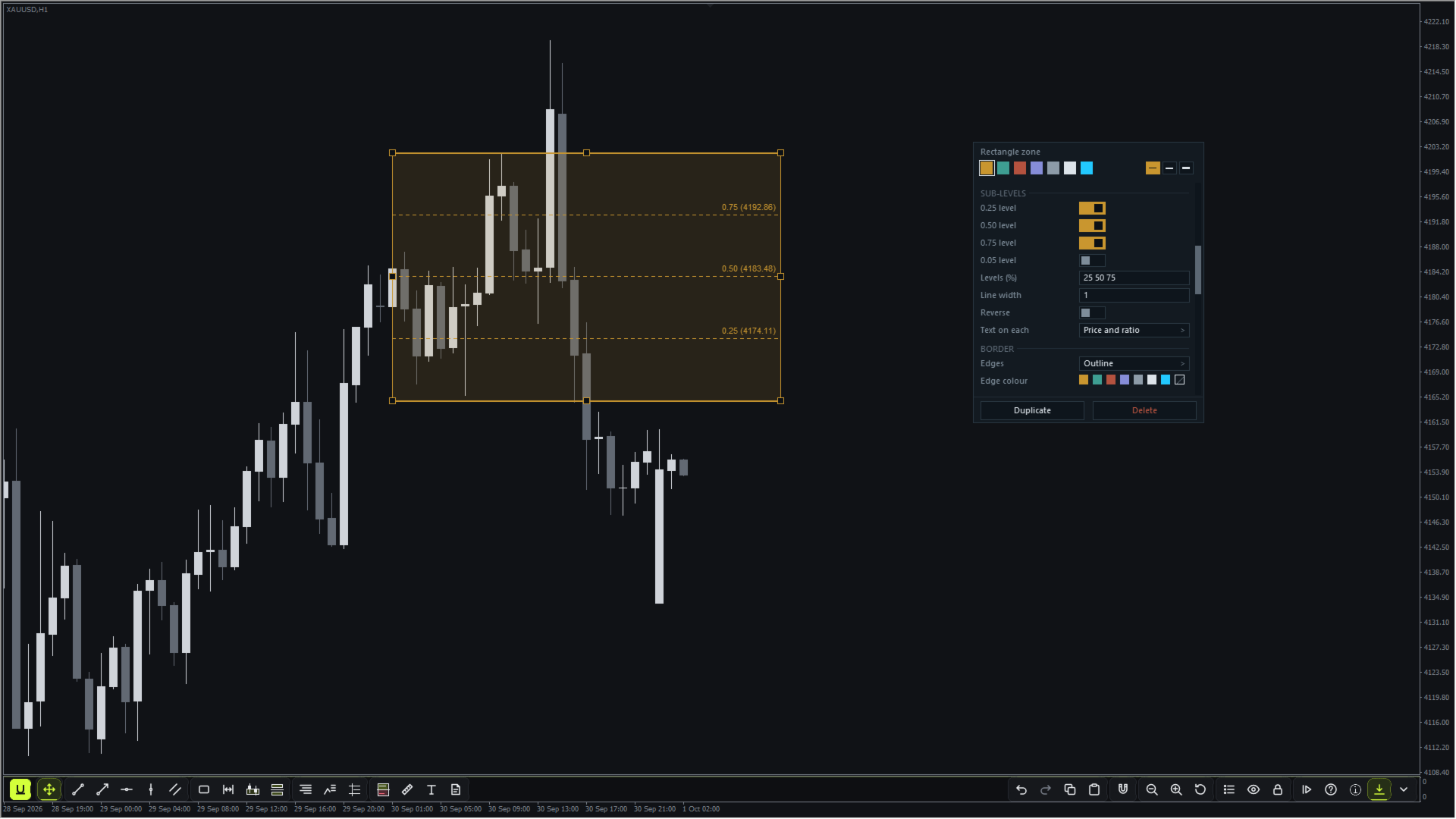
Trend line, ray, horizontal level, time marker, parallel channel, rectangle zone, session / killzone, order block, fair value gap, Fibonacci retracement, swing Fibonacci, previous day / week levels, risk / reward, price and time measure, text and note.
- Every tool has its own key. Press it, then click on the chart to place the drawing.
- A double-click opens a drawing's editor, so MT4's own right-click menu is left alone: colours, widths, timeframe visibility, layer, templates and alerts. Long editors and the drawing list scroll with their scrollbar or the arrow, Page Up / Page Down and Home / End keys.
- Undo and redo (U / Y), copy and paste at the pointer (C / V), multi-select, clone by Ctrl-drag, and an OHLC magnet (S).
- Drawings are saved per symbol and appear in every Udock window of that symbol, with the crosshair shared between them.
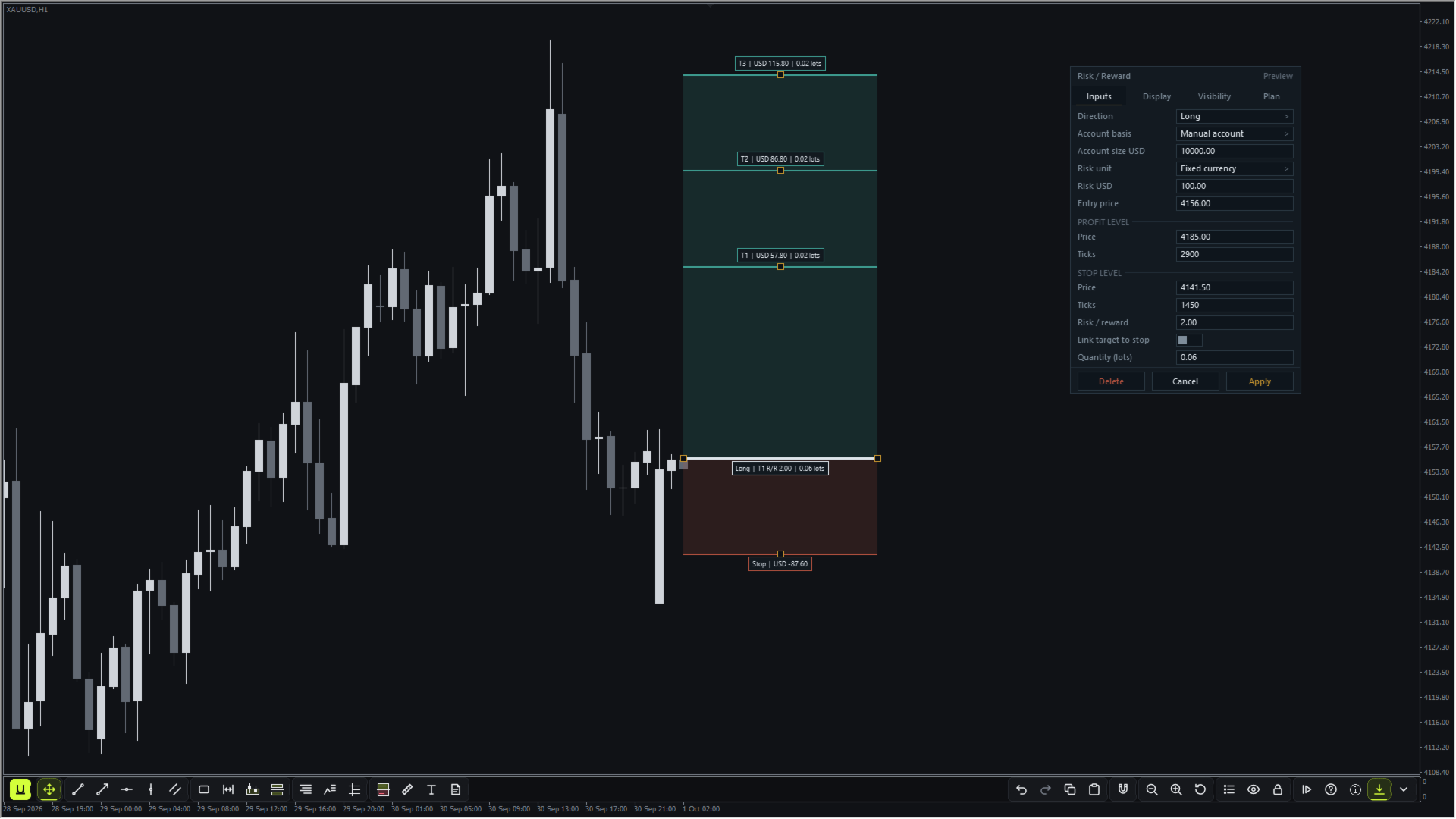
Risk / reward planner
- Size by fixed money, percent of account or fixed lots, from a manual account size, live balance or live equity.
- Up to three targets with their own shares, linked targets that keep their ratio when you move the stop, and fees and slippage entered per lot.
- A Plan tab with the risk budget, actual stop risk after lot rounding, reward net of costs and net reward / risk.
- Lot sizes follow the broker's lot step and minimum, and never round up past your risk.
- It only plans the trade. It never places orders.
Chart control
- Pan drags time and price together in any direction, and the candles follow your hand.
- Zoom with the toolbar's labeled Zoom slider, - and + buttons, or MT4's own minus and plus keys. Both step through MT4's six zoom levels. MetaTrader 4 does not pass the mouse wheel to programs, so Udock has no wheel zoom on MT4.
- MT4's own keyboard navigation (Page Up / Page Down, Home / End, arrows, minus / plus) keeps working with Udock on the chart, except while one of Udock's editors, the drawing list or the tour is open. Those keys then scroll the open editor or list.
- Reset returns to the latest bars and automatic price scaling.
- The toolbar sits at the bottom or top of the chart and hides with one key (Shift+H).
Paper bar replay
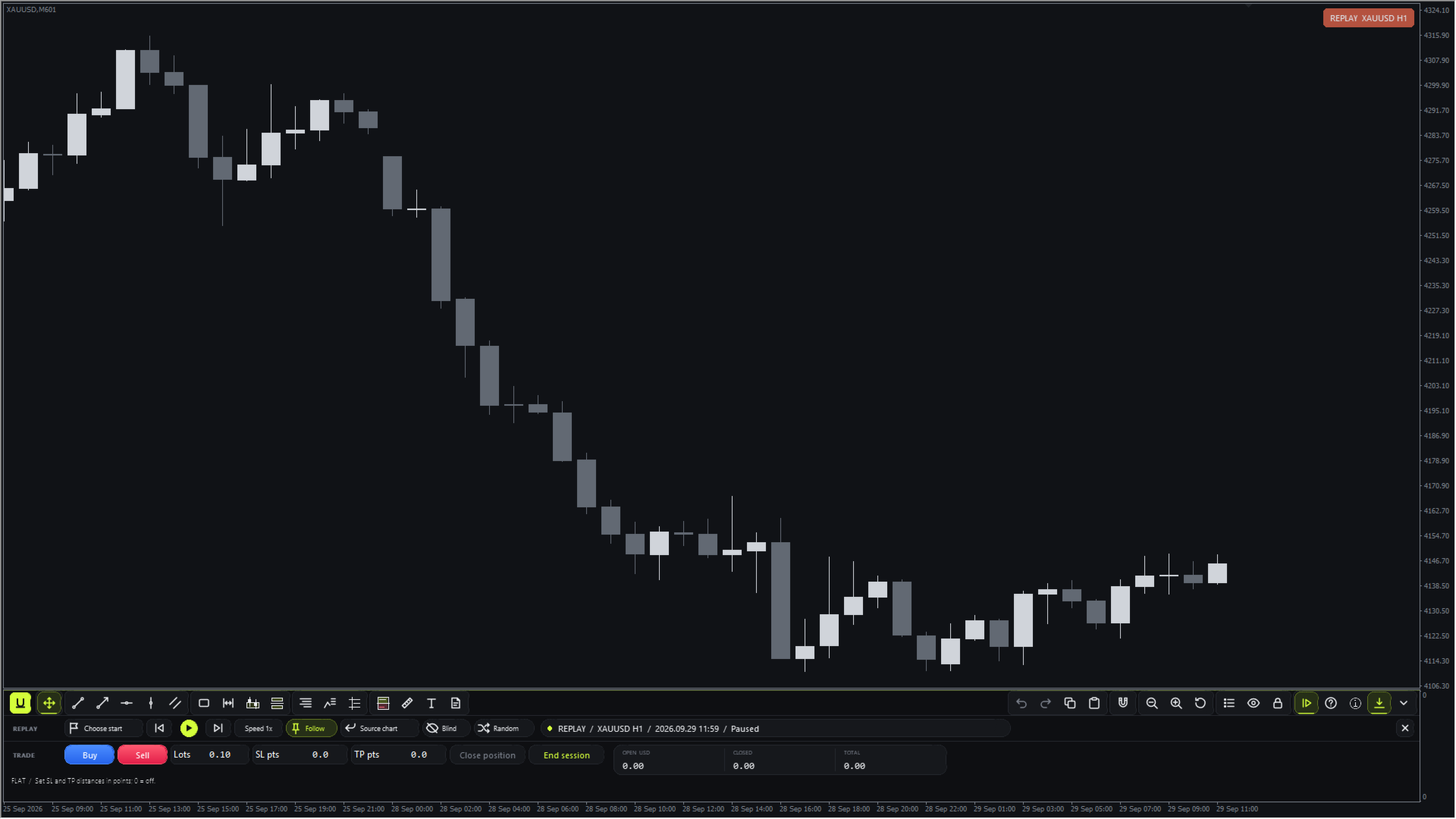
- Pick a start candle by clicking it, type a date, or let Random choose one. History then plays forward on a separate offline practice chart of the same symbol, and your real chart is left alone.
- MT4 needs a code timeframe for the practice chart, so its title shows one (for example EURUSD,M51 when you replay EURUSD M5). A "REPLAY EURUSD M5" chip in the chart corner and the replay strip show the real symbol and timeframe.
- Replay runs from M1, M5, M15, M30, H1, H4 and D1 charts, one timeframe per practice session.
- Play, pause, step and speed controls.
- Buy, sell and close with lots, stop loss and take profit in points. The stop and target lines can be dragged on the chart.
- When the session ends you get a summary, and a TXT and CSV report is saved in the terminal's data folder under MQL4 / Files / Udock / Replay / Reports.
- Blind mode hides the dates, and every reveal is logged.
- Replay is a paper simulation. It never sends orders to your account.
Alerts
Touch and close-beyond alerts on any drawing. They appear in the terminal, and can also go out by MT4 push or email once the terminal's notification settings are filled in.
Diagnostics
The Diagnostics toolbar button shows the product and terminal versions, chart state, replay and paper state, timing, and recent problems. Write report saves a plain-text support report under MQL4 / Files / Udock / Diagnostics. Review the report before sending it through MQL5 support.
Guide
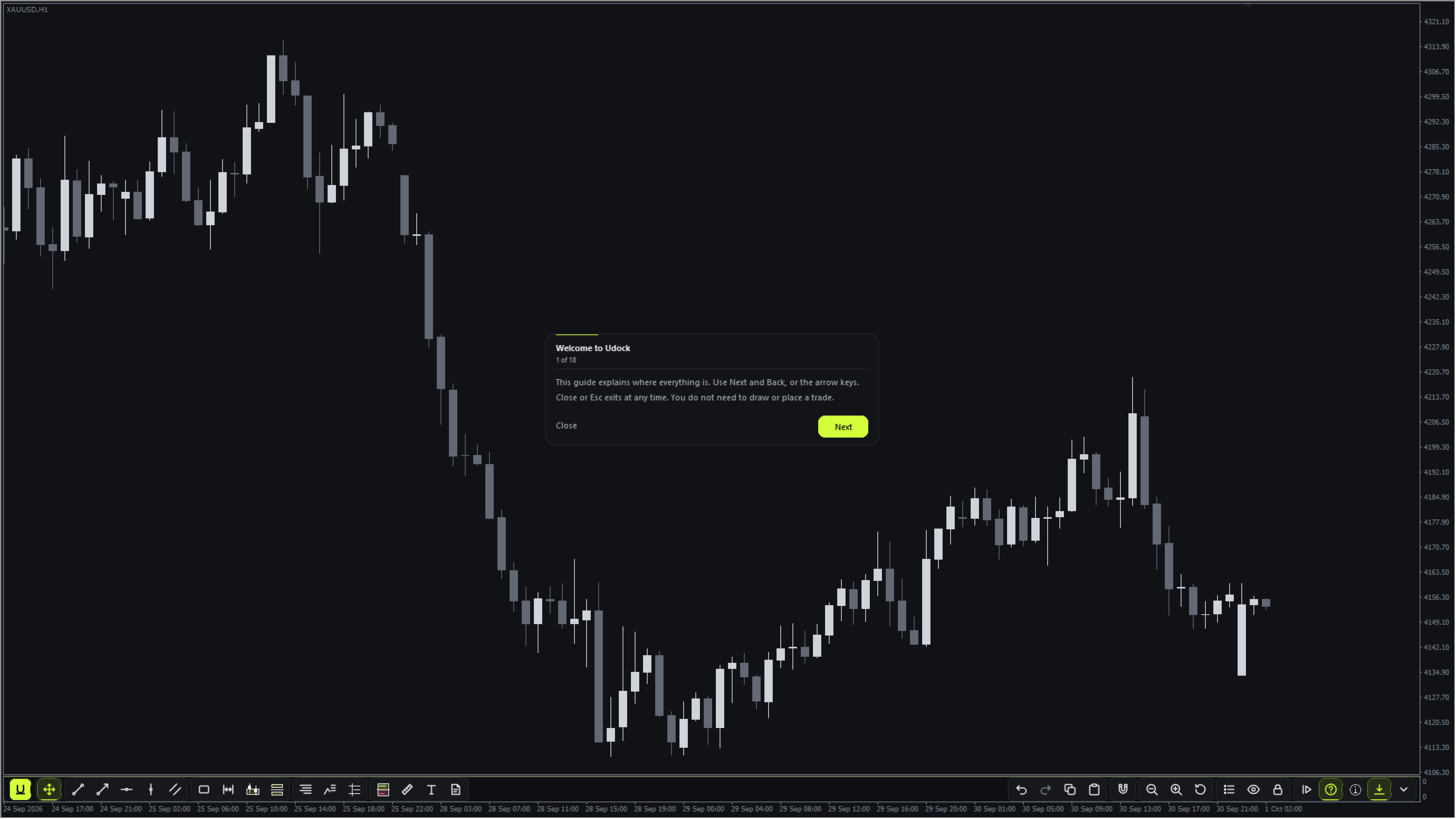
A built-in tour explains every tool, menu and shortcut on first use. You can open it again from the toolbar.
Good to know
- Replay needs the broker's M1 history for the chosen dates. The terminal's Max bars setting and the broker's history limit how far back you can go.
- Replay fills are simulated from M1 bars. Spread, commissions, slippage and swap are not modelled in replay. Results use the instrument profit currency without account-currency conversion. Paper trading covers Forex- and CFD-type symbols. Futures-type symbols are refused with a message.
- Replay keeps one small practice file per symbol in the terminal's history folder and reuses it for the next session.
- Up to eight practice sessions for M1, or nine for each other supported timeframe, per symbol.
- The risk / reward money figures use the broker's tick values.
- Udock is for live and offline charts. In the Strategy Tester it stays idle.
- One Udock per chart.
Support and updates
Questions go through MQL5 messages. If buyers ask for something that fits Udock, it goes into an update.