

Como simplificar o teste manual de estratégias com MQL5: construindo seu próprio conjunto de ferramentas
 291
291
 6
6

Introdução
O teste de estratégias de trading em dados históricos é um dos pilares do trading bem-sucedido, mas automatizar cada ideia que surge pode transmitir uma sensação de limitação, enquanto o teste manual muitas vezes carece de estrutura e precisão. E se você pudesse unir o controle do trading manual à potência do Testador de Estratégias do MetaTrader 5? Neste artigo, apresentamos um EA personalizado em MetaQuotes Language 5 (MQL5) que transforma o teste manual baseado em dados históricos em um processo intuitivo e eficiente, oferecendo a você um conjunto de ferramentas para testar estratégias nas condições que você definir. Vamos seguir estas etapas:
- Plano: Desenvolvimento de um conjunto de ferramentas para teste manual em dados históricos
- Implementação em MQL5: Apresentação do conjunto de ferramentas ao público
- Teste em dados históricos em ação: Uso do conjunto de ferramentas
- Conclusão
Ao final deste trabalho, você terá uma solução prática para testar em dados históricos com rapidez e confiança, além de aprimorar suas ideias de trading no Testador de Estratégias.
Plano: Desenvolvimento de um conjunto de ferramentas para teste manual em dados históricos
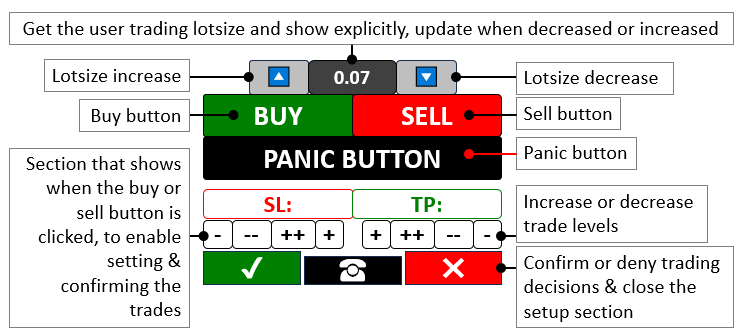
Nosso objetivo é criar um conjunto de ferramentas que combine o controle manual com a alta velocidade do teste em dados históricos no Testador de Estratégias do MetaTrader 5 e permita contornar a lentidão do avanço tick a tick em tempo real do teste manual tradicional. Desenvolveremos um programa com botões no gráfico para abrir operações de compra ou venda, ajustar o tamanho do lote, definir os níveis de stop loss (SL) e take profit (TP), além de um botão de emergência para fechar todas as posições. O programa se integrará totalmente a qualquer estratégia, desde indicadores e padrões de velas japonesas até price action, e tudo isso funcionará no ritmo acelerado do Testador. Essa configuração flexível nos permitirá testar com rapidez e precisão qualquer abordagem de trading em modo interativo, o que simplifica o refinamento da estratégia em um ambiente simulado. Em resumo, aqui está uma visualização do que buscamos:
Implementação em MQL5: Apresentação do conjunto de ferramentas ao público
Para criar o programa em MQL5, precisaremos definir os metadados do programa, depois alguns parâmetros de entrada do usuário e, por fim, incluir os arquivos de biblioteca que permitirão executar operações de trading.
//+------------------------------------------------------------------+
//|                       Manual backtest toolkit in Strategy Tester |
//|                        Copyright 2025, Forex Algo-Trader, Allan. |
//|                                 "https://t.me/Forex_Algo_Trader" |
//+------------------------------------------------------------------+
#property copyright "Forex Algo-Trader, Allan"
#property link      "https://t.me/Forex_Algo_Trader"
#property version   "1.00"
#property description "This EA Enables manual backtest in the strategy tester"
#property strict //--- Enforce strict coding rules to catch errors early

#define BTN_BUY "BTN BUY" //--- Define the name for the Buy button
#define BTN_SELL "BTN SELL" //--- Define the name for the Sell button
#define BTN_P "BTN P" //--- Define the name for the button that increase lot size
#define BTN_M "BTN M" //--- Define the name for the button that decrease lot size
#define BTN_LOT "BTN LOT" //--- Define the name for the lot size display button
#define BTN_CLOSE "BTN CLOSE" //--- Define the name for the button that close all positions
#define BTN_SL "BTN SL" //--- Define the name for the Stop Loss display button
#define BTN_SL1M "BTN SL1M" //--- Define the name for the button that slightly lower Stop Loss
#define BTN_SL2M "BTN SL2M" //--- Define the name for the button that greatly lower Stop Loss
#define BTN_SL1P "BTN SL1P" //--- Define the name for the button that slightly raise Stop Loss
#define BTN_SL2P "BTN SL2P" //--- Define the name for the button that greatly raise Stop Loss
#define BTN_TP "BTN TP" //--- Define the name for the Take Profit display button
#define BTN_TP1M "BTN TP1M" //--- Define the name for the button that slightly lower Take Profit
#define BTN_TP2M "BTN TP2M" //--- Define the name for the button that greatly lower Take Profit
#define BTN_TP1P "BTN TP1P" //--- Define the name for the button that slightly raise Take Profit
#define BTN_TP2P "BTN TP2P" //--- Define the name for the button that greatly raise Take Profit
#define BTN_YES "BTN YES" //--- Define the name for the button that confirm a trade
#define BTN_NO "BTN NO" //--- Define the name for the button that cancel a trade
#define BTN_IDLE "BTN IDLE" //--- Define the name for the idle button between Yes and No
#define HL_SL "HL SL" //--- Define the name for the Stop Loss horizontal line
#define HL_TP "HL TP" //--- Define the name for the Take Profit horizontal line

#include <Trade/Trade.mqh> //--- Bring in the Trade library needed for trading functions
CTrade obj_Trade; //--- Create a trading object to handle trade operations

bool tradeInAction = false; //--- Track whether a trade setup is currently active
bool isHaveTradeLevels = false; //--- Track whether Stop Loss and Take Profit levels are shown

input double init_lot = 0.03;
input int slow_pts = 10;
input int fast_pts = 100;
Aqui começaremos definindo um conjunto de botões interativos, como BTN_BUY e BTN_SELL, usando a diretiva #define, permitindo iniciar operações a qualquer momento, o que nos dá controle direto sobre os pontos de entrada, enquanto BTN_P e BTN_M permitem ajustar o tamanho de init_lot, inicialmente definido em 0.03, para aumentar ou diminuir, de acordo com nossa tolerância ao risco. Além disso, incluímos BTN_CLOSE como uma saída de emergência, uma forma rápida de fechar todas as posições em um instante, e também contamos com tradeInAction para acompanhar se a operação está em configuração, e com isHaveTradeLevels para indicar a atividade dos marcadores visuais de Stop Loss e Take Profit.
Em seguida, usamos a classe CTrade de <Trade/Trade.mqh> para criar o objeto obj_Trade, com o objetivo de executar operações de trading de forma consistente e eficiente. Para garantir ainda mais flexibilidade, adicionamos parâmetros de entrada configuráveis, como slow_pts definido em 10 e fast_pts definido em 100, para que possamos ajustar os níveis de Stop Loss e Take Profit dinamicamente, garantindo que nosso conjunto de ferramentas se adapte a qualquer estratégia que estejamos testando. Agora, como precisamos criar botões no painel, vamos criar uma função com todos os parâmetros necessários para reutilização e ajuste.
//+------------------------------------------------------------------+
//| Create button function                                           |
//+------------------------------------------------------------------+
void CreateBtn(string objName,int xD,int yD,int xS,int yS,string txt,
               int fs=13,color clrTxt=clrWhite,color clrBg=clrBlack,
               color clrBd=clrBlack,string font="Calibri"){
   ObjectCreate(0,objName,OBJ_BUTTON,0,0,0); //--- Create a new button object on the chart
   ObjectSetInteger(0,objName,OBJPROP_XDISTANCE, xD); //--- Set the button's horizontal position
   ObjectSetInteger(0,objName,OBJPROP_YDISTANCE, yD); //--- Set the button's vertical position
   ObjectSetInteger(0,objName,OBJPROP_XSIZE, xS); //--- Set the button's width
   ObjectSetInteger(0,objName,OBJPROP_YSIZE, yS); //--- Set the button's height
   ObjectSetInteger(0,objName,OBJPROP_CORNER, CORNER_LEFT_UPPER); //--- Position the button from the top-left corner
   ObjectSetString(0,objName,OBJPROP_TEXT, txt); //--- Set the text displayed on the button
   ObjectSetInteger(0,objName,OBJPROP_FONTSIZE, fs); //--- Set the font size of the button text
   ObjectSetInteger(0,objName,OBJPROP_COLOR, clrTxt); //--- Set the color of the button text
   ObjectSetInteger(0,objName,OBJPROP_BGCOLOR, clrBg); //--- Set the background color of the button
   ObjectSetInteger(0,objName,OBJPROP_BORDER_COLOR,clrBd); //--- Set the border color of the button
   ObjectSetString(0,objName,OBJPROP_FONT,font); //--- Set the font style of the button text

   ChartRedraw(0); //--- Refresh the chart to show the new button
}
Aqui definimos a função CreateBtn para criar no gráfico cada botão, como BTN_BUY ou BTN_SELL, recebendo parâmetros como objName, que identifica o botão, xD e yD, que definem suas posições horizontal e vertical, xS e yS para sua largura e altura, além de txt para o rótulo que queremos exibir, como BUY ou SELL. Para isso, usamos a função ObjectCreate para colocar no gráfico um novo objeto OBJ_BUTTON, definindo por simplicidade seu ponto de referência nas coordenadas (0,0,0). Em seguida, posicionamos esse objeto com ObjectSetInteger, ajustando OBJPROP_XDISTANCE para xD e OBJPROP_YDISTANCE para yD, garantindo que ele fique exatamente onde precisamos, e redimensionamos o botão com OBJPROP_XSIZE para xS e OBJPROP_YSIZE para yS, para que ele se encaixe no nosso layout.
Vamos fixá-lo no canto superior esquerdo, definindo OBJPROP_CORNER como CORNER_LEFT_UPPER, o que garante consistência ao layout, e usamos ObjectSetString para atribuir OBJPROP_TEXT como txt, para que a função do botão fique clara. Quanto ao estilo, alteramos OBJPROP_FONTSIZE para fs, com padrão 13, OBJPROP_COLOR para clrTxt, branco por padrão, para o texto, OBJPROP_BGCOLOR para clrBg, preto por padrão, para o fundo, e OBJPROP_BORDER_COLOR para clrBd, preto por padrão, para a borda, enquanto OBJPROP_FONT recebe o valor font, Calibri por padrão, para uma aparência nítida. Por fim, usamos a função ChartRedraw para atualizar o gráfico com ID de janela 0, exibindo imediatamente nosso novo botão, com o qual poderemos interagir no Testador de Estratégias. Agora podemos chamar essa função sempre que quisermos criar um botão, e começaremos fazendo isso no manipulador de eventos OnInit.
//+------------------------------------------------------------------+
//| Expert initialization function                                   |
//+------------------------------------------------------------------+
int OnInit(){
   CreateBtn(BTN_P,150,45,40,25,CharToString(217),15,clrBlack,clrWhite,clrBlack,"Wingdings"); //--- Make the button to increase lot size with an up arrow
   CreateBtn(BTN_LOT,190,45,60,25,string(init_lot),12,clrWhite,clrGray,clrBlack); //--- Make the button showing the current lot size
   CreateBtn(BTN_M,250,45,40,25,CharToString(218),15,clrBlack,clrWhite,clrBlack,"Wingdings"); //--- Make the button to decrease lot size with a down arrow
   CreateBtn(BTN_BUY,110,70,110,30,"BUY",15,clrWhite,clrGreen,clrBlack); //--- Make the Buy button with a green background
   CreateBtn(BTN_SELL,220,70,110,30,"SELL",15,clrWhite,clrRed,clrBlack); //--- Make the Sell button with a red background
   CreateBtn(BTN_CLOSE,110,100,220,30,"PANIC BUTTON (X)",15,clrWhite,clrBlack,clrBlack); //--- Make the emergency button to close all trades

   return(INIT_SUCCEEDED); //--- Tell the system the EA start up successfully
}
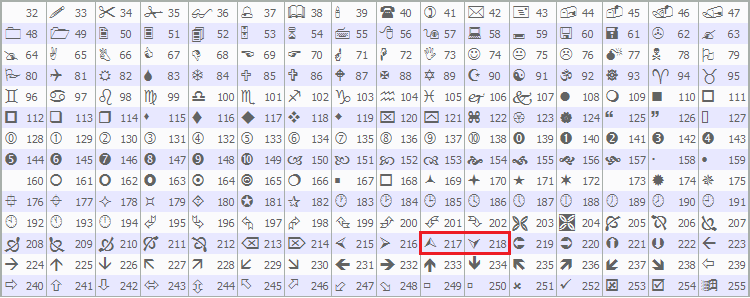
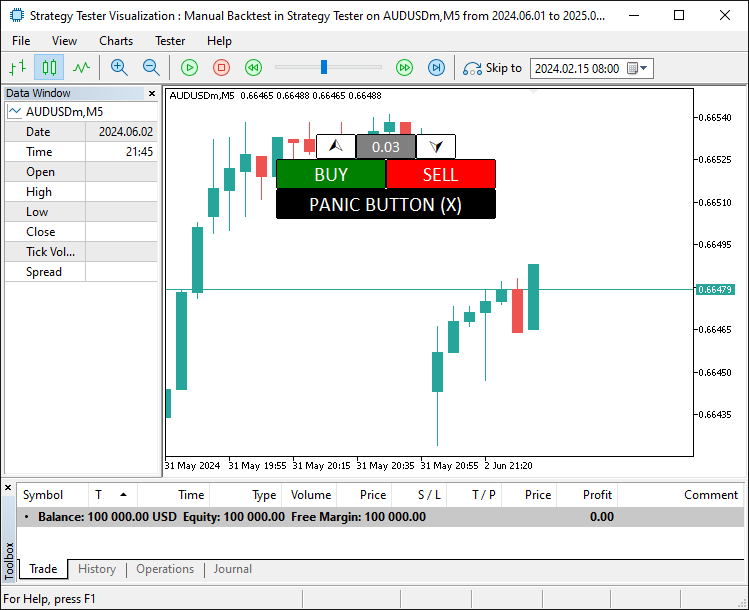
Aqui iniciamos nosso conjunto de ferramentas para teste em dados históricos por meio do manipulador de eventos OnInit, configurando sua interface no Testador de Estratégias. Usamos a função CreateBtn para posicionar BTN_P em xD 150 e yD 45 com uma seta para cima de CharToString(217) em Wingdings, BTN_LOT em xD 190, exibindo init_lot, e BTN_M em xD 250 com uma seta para baixo de CharToString(218), todos compondo o bloco de controle do tamanho do lote. Em seguida, adicionamos BTN_BUY em xD 110 e yD 70 com o texto BUY em clrGreen, BTN_SELL em xD 220 com o texto SELL em clrRed e BTN_CLOSE em xD 110 e yD 100 como botão de pânico PANIC BUTTON (X) em clrBlack, antes de sinalizar a conclusão bem-sucedida com return e INIT_SUCCEEDED. A fonte Wingdings usada nos ícones vem da tabela de símbolos já disponível em MQL5, mostrada abaixo.
Ao iniciar o programa, obtemos o seguinte resultado.
Como já configuramos a interface básica, precisamos ler os estados dos botões para poder usá-los nas operações. Para isso, também precisamos de algumas funções.
int GetState(string Name){return (int)ObjectGetInteger(0,Name,OBJPROP_STATE);} //--- Get whether a button is pressed or not
string GetValue(string Name){return ObjectGetString(0,Name,OBJPROP_TEXT);} //--- Get the text shown on an object
double GetValueHL(string Name){return ObjectGetDouble(0,Name,OBJPROP_PRICE);} //--- Get the price level of a horizontal line
Aqui definiremos a função GetState para verificar os cliques nos botões. Nela, usamos a função ObjectGetInteger com OBJPROP_STATE para retornar true quando o botão Name é pressionado, GetValue para extrair o texto de Name com ObjectGetString e OBJPROP_TEXT, e GetValueHL para obter os níveis de preço do objeto Name com ObjectGetDouble, usando OBJPROP_PRICE para controle preciso das operações. Agora podemos usar essas funções para obter os estados dos botões no manipulador de eventos OnTick, já que não podemos usar diretamente o manipulador de eventos OnChartEvent no Testador de Estratégias. Veja como fazemos isso.
//+------------------------------------------------------------------+
//| Expert tick function                                             |
//+------------------------------------------------------------------+
void OnTick(){
   double Ask = NormalizeDouble(SymbolInfoDouble(_Symbol,SYMBOL_ASK),_Digits); //--- Get the current Ask price and adjust it to the right decimal places
   double Bid = NormalizeDouble(SymbolInfoDouble(_Symbol,SYMBOL_BID),_Digits); //--- Get the current Bid price and adjust it to the right decimal places

   if (GetState(BTN_BUY)==true || GetState(BTN_SELL)){ //--- Check if either the Buy or Sell button is clicked
      tradeInAction = true; //--- Set trade setup to active
   }
}
Aqui usamos o manipulador de eventos OnTick para gerenciar as ações do nosso conjunto de ferramentas em tempo real no Testador de Estratégias. Aplicamos a função NormalizeDouble com SymbolInfoDouble para atribuir a Ask o preço atual de SYMBOL_ASK e a Bid o preço de SYMBOL_BID, ambos ajustados para _Digits para garantir precisão, e, se GetState indicar que BTN_BUY ou BTN_SELL for true, definimos tradeInAction como true para começar a definir a operação. É nesse momento que precisamos de níveis adicionais de trading para definir e ajustar esses níveis dinamicamente. Para isso, vamos criar a função correspondente.
//+------------------------------------------------------------------+
//| Create high low function                                         |
//+------------------------------------------------------------------+
void createHL(string objName,datetime time1,double price1,color clr){
   if (ObjectFind(0,objName) < 0){ //--- Check if the horizontal line doesn’t already exist
      ObjectCreate(0,objName,OBJ_HLINE,0,time1,price1); //--- Create a new horizontal line at the specified price
      ObjectSetInteger(0,objName,OBJPROP_TIME,time1); //--- Set the time property (though not critical for HLINE)
      ObjectSetDouble(0,objName,OBJPROP_PRICE,price1); //--- Set the price level of the horizontal line
      ObjectSetInteger(0,objName,OBJPROP_COLOR,clr); //--- Set the color of the line (red for SL, green for TP)
      ObjectSetInteger(0,objName,OBJPROP_STYLE,STYLE_DASHDOTDOT); //--- Set the line style to dash-dot-dot
      ChartRedraw(0); //--- Refresh the chart to display the new line
   }
}
Primeiro, definimos a função createHL para desenhar linhas horizontais no gráfico para o nosso conjunto de ferramentas no Testador de Estratégias. Nela, usamos a função ObjectFind para verificar se objName existe. Se o valor retornado for menor que 0, usamos a função ObjectCreate para criar um OBJ_HLINE em time1 e price1, usamos a função ObjectSetInteger para definir OBJPROP_TIME como time1 e OBJPROP_COLOR como clr, enquanto OBJPROP_STYLE recebe STYLE_DASHDOTDOT, usamos a função ObjectSetDouble para definir OBJPROP_PRICE como price1, e usamos a função ChartRedraw, para atualizar o gráfico com 0 e exibi-lo. Em seguida, integramos essa função a outra função para criar os níveis de trading de forma direta, como mostrado abaixo.
//+------------------------------------------------------------------+
//| Create trade levels function                                     |
//+------------------------------------------------------------------+
void CreateTradeLevels(){
   double Ask = NormalizeDouble(SymbolInfoDouble(_Symbol,SYMBOL_ASK),_Digits); //--- Get unnoticed the current Ask price, adjusted for digits
   double Bid = NormalizeDouble(SymbolInfoDouble(_Symbol,SYMBOL_BID),_Digits); //--- Get the current Bid price, adjusted for digits

   string level_SL,level_TP; //--- Declare variables to hold SL and TP levels as strings
   if (GetState(BTN_BUY)==true){ //--- Check if the Buy button is active
      level_SL = string(Bid-100*_Point); //--- Set initial Stop Loss 100 points below Bid for Buy
      level_TP = string(Bid+100*_Point); //--- Set initial Take Profit 100 points above Bid for Buy
   }
   else if (GetState(BTN_SELL)==true){ //--- Check if the Sell button is active
      level_SL = string(Ask+100*_Point); //--- Set initial Stop Loss 100 points above Ask for Sell
      level_TP = string(Ask-100*_Point); //--- Set initial Take Profit 100 points below Ask for Sell
   }

   createHL(HL_SL,0,double(level_SL),clrRed); //--- Create a red Stop Loss line at the calculated level
   createHL(HL_TP,0,double(level_TP),clrGreen); //--- Create a green Take Profit line at the calculated level

   CreateBtn(BTN_SL,110,135,110,23,"SL: "+GetValue(HL_SL),13,clrRed,clrWhite,clrRed); //--- Make a button showing the Stop Loss level
   CreateBtn(BTN_TP,220,135,110,23,"TP: "+GetValue(HL_TP),13,clrGreen,clrWhite,clrGreen); //--- Make a button showing the Take Profit level

   CreateBtn(BTN_SL1M,110,158,27,20,"-",17,clrBlack,clrWhite,clrGray); //--- Make a button to slightly lower Stop Loss
   CreateBtn(BTN_SL2M,137,158,27,20,"--",17,clrBlack,clrWhite,clrGray); //--- Make a button to greatly lower Stop Loss
   CreateBtn(BTN_SL2P,164,158,27,20,"++",17,clrBlack,clrWhite,clrGray); //--- Make a button to greatly raise Stop Loss
   CreateBtn(BTN_SL1P,191,158,27,20,"+",17,clrBlack,clrWhite,clrGray); //--- Make a button to slightly raise Stop Loss

   CreateBtn(BTN_TP1P,222,158,27,20,"+",17,clrBlack,clrWhite,clrGray); //--- Make a button to slightly raise Take Profit
   CreateBtn(BTN_TP2P,249,158,27,20,"++",17,clrBlack,clrWhite,clrGray); //--- Make a button to greatly raise Take Profit
   CreateBtn(BTN_TP2M,276,158,27,20,"--",17,clrBlack,clrWhite,clrGray); //--- Make a button to greatly lower Take Profit
   CreateBtn(BTN_TP1M,303,158,27,20,"-",17,clrBlack,clrWhite,clrGray); //--- Make a button to slightly lower Take Profit

   CreateBtn(BTN_YES,110,178,70,30,CharToString(254),20,clrWhite,clrDarkGreen,clrWhite,"Wingdings"); //--- Make a green checkmark button to confirm the trade
   CreateBtn(BTN_NO,260,178,70,30,CharToString(253),20,clrWhite,clrDarkRed,clrWhite,"Wingdings"); //--- Make a red X button to cancel the trade
   CreateBtn(BTN_IDLE,180,183,80,25,CharToString(40),20,clrWhite,clrBlack,clrWhite,"Wingdings"); //--- Make a neutral button between Yes and No
}
Aqui definimos a função CreateTradeLevels para configurar nossos níveis de trading, em que usamos a função NormalizeDouble com SymbolInfoDouble para atribuir a Ask o valor de SYMBOL_ASK e a Bid o valor de SYMBOL_BID, ambos ajustados para _Digits, e declaramos level_SL e level_TP como variáveis do tipo string. Se GetState indicar BTN_BUY como true, definimos level_SL como Bid-100_Point e level_TP como Bid+100_Point, mas, se BTN_SELL estiver como true, definimos level_SL como Ask+100_Point e level_TP como Ask-100_Point.
Usamos a função createHL para desenhar HL_SL no nível double(level_SL) em clrRed e HL_TP no nível double(level_TP) em clrGreen. Em seguida, usamos a função CreateBtn para criar botões como BTN_SL com o texto GetValue(HL_SL), BTN_TP com o texto GetValue(HL_TP), além dos botões de ajuste BTN_SL1M, BTN_SL2M, BTN_SL2P, BTN_SL1P, BTN_TP1P, BTN_TP2P, BTN_TP2M e BTN_TP1M com símbolos como - e +, além de BTN_YES, BTN_NO e BTN_IDLE com CharToString para as opções de confirmação, cancelamento e estado neutro em Wingdings. Com essa função, podemos chamá-la ao pressionar os botões de compra ou venda para iniciar a definição dos níveis de trading.
if (!isHaveTradeLevels){ //--- Check if trade levels aren't already on the chart
   CreateTradeLevels(); //--- Add Stop Loss and Take Profit levels and controls to the chart
   isHaveTradeLevels = true; //--- Mark that trade levels are now present
}
Aqui verificamos se isHaveTradeLevels é false com !isHaveTradeLevels e, se esse for o caso, usamos a função CreateTradeLevels para colocar no gráfico os controles de ajuste de Stop Loss e Take Profit, e depois atualizamos isHaveTradeLevels para true para indicar que eles estão ativos. Após a compilação, teremos o seguinte resultado.
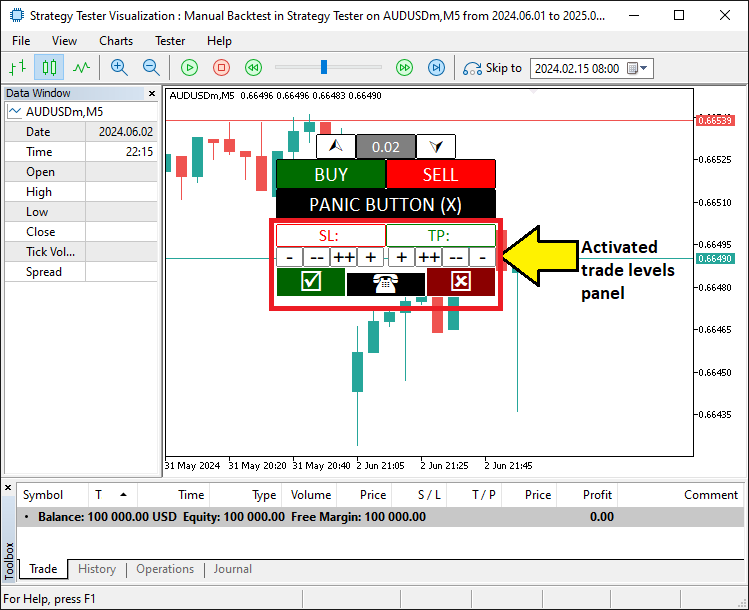
Em seguida, precisamos fazer os botões dos níveis passarem a responder aos comandos e executar as funções necessárias. Veja como fazemos isso.
if (tradeInAction){ //--- Continue if a trade setup is active

   // SL SLOW/FAST BUTTONS
   if (GetState(BTN_SL1M)){ //--- Check if the small Stop Loss decrease button is clicked
      ObjectSetDouble(0,HL_SL,OBJPROP_PRICE,GetValueHL(HL_SL)-slow_pts*_Point); //--- Move the Stop Loss down by a small amount
      ObjectSetInteger(0,BTN_SL1M,OBJPROP_STATE,false); //--- Turn off the button press state
      ChartRedraw(0); //--- Refresh the chart to show the change
   }
   if (GetState(BTN_SL2M)){ //--- Check if the large Stop Loss decrease button is clicked
      ObjectSetDouble(0,HL_SL,OBJPROP_PRICE,GetValueHL(HL_SL)-fast_pts*_Point); //--- Move the Stop Loss down by a large amount
      ObjectSetInteger(0,BTN_SL2M,OBJPROP_STATE,false); //--- Turn off the button press state
      ChartRedraw(0); //--- Refresh the chart to show the change
   }
   if (GetState(BTN_SL1P)){ //--- Check if the small Stop Loss increase button is clicked
      ObjectSetDouble(0,HL_SL,OBJPROP_PRICE,GetValueHL(HL_SL)+slow_pts*_Point); //--- Move the Stop Loss up by a small amount
      ObjectSetInteger(0,BTN_SL1P,OBJPROP_STATE,false); //--- Turn off the button press state
      ChartRedraw(0); //--- Refresh the chart to show the change
   }
   if (GetState(BTN_SL2P)){ //--- Check if the large Stop Loss increase button is clicked
      ObjectSetDouble(0,HL_SL,OBJPROP_PRICE,GetValueHL(HL_SL)+fast_pts*_Point); //--- Move the Stop Loss up by a large amount
      ObjectSetInteger(0,BTN_SL2P,OBJPROP_STATE,false); //--- Turn off the button press state
      ChartRedraw(0); //--- Refresh the chart to show the change
   }

   // TP SLOW/FAST BUTTONS
   if (GetState(BTN_TP1M)){ //--- Check if the small Take Profit decrease button is clicked
      ObjectSetDouble(0,HL_TP,OBJPROP_PRICE,GetValueHL(HL_TP)-slow_pts*_Point); //--- Move the Take Profit down by a small amount
      ObjectSetInteger(0,BTN_TP1M,OBJPROP_STATE,false); //--- Turn off the button press state
      ChartRedraw(0); //--- Refresh the chart to show the change
   }
   if (GetState(BTN_TP2M)){ //--- Check if the large Take Profit decrease button is clicked
      ObjectSetDouble(0,HL_TP,OBJPROP_PRICE,GetValueHL(HL_TP)-fast_pts*_Point); //--- Move the Take Profit down by a large amount
      ObjectSetInteger(0,BTN_TP2M,OBJPROP_STATE,false); //--- Turn off the button press state
      ChartRedraw(0); //--- Refresh the chart to show the change
   }
   if (GetState(BTN_TP1P)){ //--- Check if the small Take Profit increase button is clicked
      ObjectSetDouble(0,HL_TP,OBJPROP_PRICE,GetValueHL(HL_TP)+slow_pts*_Point); //--- Move the Take Profit up by a small amount
      ObjectSetInteger(0,BTN_TP1P,OBJPROP_STATE,false); //--- Turn off the button press state
      ChartRedraw(0); //--- Refresh the chart to show the change
   }
   if (GetState(BTN_TP2P)){ //--- Check if the large Take Profit increase button is clicked
      ObjectSetDouble(0,HL_TP,OBJPROP_PRICE,GetValueHL(HL_TP)+fast_pts*_Point); //--- Move the Take Profit up by a large amount
      ObjectSetInteger(0,BTN_TP2P,OBJPROP_STATE,false); //--- Turn off the button press state
      ChartRedraw(0); //--- Refresh the chart to show the change
   }

}
Aqui gerenciamos as configurações dos níveis de Stop Loss e Take Profit no nosso conjunto de ferramentas quando tradeInAction for true. Para isso, usamos a função GetState para verificar se botões como BTN_SL1M, BTN_SL2M, BTN_SL1P ou BTN_SL2P foram pressionados e ajustamos HL_SL por slow_pts_Point ou fast_pts_Point com a função ObjectSetDouble, usando OBJPROP_PRICE e GetValueHL. Depois, usamos a função ObjectSetInteger para redefinir OBJPROP_STATE como false e a função ChartRedraw para atualizar o gráfico. Aplicamos o mesmo tratamento a BTN_TP1M, BTN_TP2M, BTN_TP1P ou BTN_TP2P para os ajustes de HL_TP. Por fim, assim que os níveis forem definidos, poderemos confirmar a ordem e abrir as posições correspondentes, e então limpar a configuração dos níveis de trading, mas antes precisaremos da função para remover o painel de configuração dos níveis.
//+------------------------------------------------------------------+
//| Delete objects function                                          |
//+------------------------------------------------------------------+
void DeleteObjects_SLTP(){
   ObjectDelete(0,HL_SL); //--- Remove the Stop Loss line from the chart
   ObjectDelete(0,HL_TP); //--- Remove the Take Profit line from the chart
   ObjectDelete(0,BTN_SL); //--- Remove the Stop Loss display button
   ObjectDelete(0,BTN_TP); //--- Remove the Take Profit display button
   ObjectDelete(0,BTN_SL1M); //--- Remove the small Stop Loss decrease button
   ObjectDelete(0,BTN_SL2M); //--- Remove the large Stop Loss decrease button
   ObjectDelete(0,BTN_SL1P); //--- Remove the small Stop Loss increase button
   ObjectDelete(0,BTN_SL2P); //--- Remove the large Stop Loss increase button
   ObjectDelete(0,BTN_TP1P); //--- Remove the small Take Profit increase button
   ObjectDelete(0,BTN_TP2P); //--- Remove the large Take Profit increase button
   ObjectDelete(0,BTN_TP2M); //--- Remove the large Take Profit decrease button
   ObjectDelete(0,BTN_TP1M); //--- Remove the small Take Profit decrease button
   ObjectDelete(0,BTN_YES); //--- Remove the confirm trade button
   ObjectDelete(0,BTN_NO); //--- Remove the cancel trade button
   ObjectDelete(0,BTN_IDLE); //--- Remove the idle button

   ChartRedraw(0); //--- Refresh the chart to show all objects removed
}
Aqui limpamos os elementos do nosso conjunto de ferramentas com a função DeleteObjects_SLTP, em que usamos a função ObjectDelete para remover do gráfico HL_SL, HL_TP, BTN_SL, BTN_TP, BTN_SL1M, BTN_SL2M, BTN_SL1P, BTN_SL2P, BTN_TP1P, BTN_TP2P, BTN_TP2M, BTN_TP1M, BTN_YES, BTN_NO e BTN_IDLE, e depois usamos a função ChartRedraw com o valor 0 para atualizar e exibir todos os objetos removidos. Agora podemos usar essa função em nossa lógica de envio de ordens.
// BUY ORDER PLACEMENT
if (GetState(BTN_BUY) && GetState(BTN_YES)){ //--- Check if both Buy and Yes buttons are clicked
   obj_Trade.Buy(double(GetValue(BTN_LOT)),_Symbol,Ask,GetValueHL(HL_SL),GetValueHL(HL_TP)); //--- Place a Buy order with set lot size, SL, and TP
   DeleteObjects_SLTP(); //--- Remove all trade level objects from the chart
   isHaveTradeLevels = false; //--- Mark that trade levels are no longer present
   ObjectSetInteger(0,BTN_YES,OBJPROP_STATE,false); //--- Turn off the Yes button press state
   ObjectSetInteger(0,BTN_BUY,OBJPROP_STATE,false); //--- Turn off the Buy button press state
   tradeInAction = false; //--- Mark the trade setup as complete
   ChartRedraw(0); //--- Refresh the chart to reflect changes
}
// SELL ORDER PLACEMENT
else if (GetState(BTN_SELL) && GetState(BTN_YES)){ //--- Check if both Sell and Yes buttons are clicked
   obj_Trade.Sell(double(GetValue(BTN_LOT)),_Symbol,Bid,GetValueHL(HL_SL),GetValueHL(HL_TP)); //--- Place a Sell order with set lot size, SL, and TP
   DeleteObjects_SLTP(); //--- Remove all trade level objects from the chart
   isHaveTradeLevels = false; //--- Mark that trade levels are no longer present
   ObjectSetInteger(0,BTN_YES,OBJPROP_STATE,false); //--- Turn off the Yes button press state
   ObjectSetInteger(0,BTN_SELL,OBJPROP_STATE,false); //--- Turn off the Sell button press state
   tradeInAction = false; //--- Mark the trade setup as complete
   ChartRedraw(0); //--- Refresh the chart to reflect changes
}
else if (GetState(BTN_NO)){ //--- Check if the No button is clicked to cancel
   DeleteObjects_SLTP(); //--- Remove all trade level objects from the chart
   isHaveTradeLevels = false; //--- Mark that trade levels are no longer present
   ObjectSetInteger(0,BTN_NO,OBJPROP_STATE,false); //--- Turn off the No button press state
   ObjectSetInteger(0,BTN_BUY,OBJPROP_STATE,false); //--- Turn off the Buy button press state
   ObjectSetInteger(0,BTN_SELL,OBJPROP_STATE,false); //--- Turn off the Sell button press state
   tradeInAction = false; //--- Mark the trade setup as canceled
   ChartRedraw(0); //--- Refresh the chart to reflect changes
}
Realizamos operações com nosso conjunto de ferramentas no Testador de Estratégias, onde usamos a função GetState para verificar se BTN_BUY e BTN_YES forem true e, em seguida, usamos o método obj_Trade.Buy com double(GetValue(BTN_LOT)), _Symbol, Ask, GetValueHL(HL_SL) e GetValueHL(HL_TP) para enviar uma ordem de compra ou, se BTN_SELL e BTN_YES forem true, usamos obj_Trade.Sell usando Bid em vez de Ask, e, em qualquer um dos casos, usamos a função DeleteObjects_SLTP para limpar os objetos, definimos isHaveTradeLevels e tradeInAction como false, usamos a função ObjectSetInteger para redefinir OBJPROP_STATE de BTN_YES, BTN_BUY ou BTN_SELL como false e usamos a função ChartRedraw para atualizar o gráfico, mas, se BTN_NO for true, cancelamos a operação removendo os objetos e redefinindo os estados da mesma forma. Da mesma forma, tratamos os botões de aumento e redução do volume de trading assim.
if (GetState(BTN_P)==true){ //--- Check if the lot size increase button is clicked
   double newLot = (double)GetValue(BTN_LOT); //--- Get the current lot size as a number
   double lotStep = SymbolInfoDouble(_Symbol,SYMBOL_VOLUME_STEP); //--- Get the minimum lot size change allowed
   newLot += lotStep; //--- Increase the lot size by one step
   newLot = NormalizeDouble(newLot,2); //--- Round the new lot size to 2 decimal places
   newLot = newLot > 0.1 ? lotStep : newLot; //--- Ensure lot size doesn't exceed 0.1, otherwise reset to step
   ObjectSetString(0,BTN_LOT,OBJPROP_TEXT,string(newLot)); //--- Update the lot size display with the new value
   ObjectSetInteger(0,BTN_P,OBJPROP_STATE,false); //--- Turn off the increase button press state
   ChartRedraw(0); //--- Refresh the chart to show the new lot size
}
if (GetState(BTN_M)==true){ //--- Check if the lot size decrease button is clicked
   double newLot = (double)GetValue(BTN_LOT); //--- Get the current lot size as a number
   double lotStep = SymbolInfoDouble(_Symbol,SYMBOL_VOLUME_STEP); //--- Get the minimum lot size change allowed
   newLot -= lotStep; //--- Decrease the lot size by one step
   newLot = NormalizeDouble(newLot,2); //--- Round the new lot size to 2 decimal places
   newLot = newLot < lotStep ? lotStep : newLot; //--- Ensure lot size doesn't go below minimum, otherwise set to step
   ObjectSetString(0,BTN_LOT,OBJPROP_TEXT,string(newLot)); //--- Update the lot size display with the new value
   ObjectSetInteger(0,BTN_M,OBJPROP_STATE,false); //--- Turn off the decrease button press state
   ChartRedraw(0); //--- Refresh the chart to show the new lot size
}
Aqui ajustamos o tamanho do lote, começando pelo aumento, em que usamos a função GetState para verificar se BTN_P for true, depois usamos GetValue para ler o valor de BTN_LOT em newLot, usamos a função SymbolInfoDouble para obter de SYMBOL_VOLUME_STEP o valor de lotStep, somamos lotStep a newLot e usamos NormalizeDouble para arredondar para 2 casas decimais, limitando o resultado a lotStep quando necessário, antes de usar a função ObjectSetString para atualizar OBJPROP_TEXT, usar ObjectSetInteger para redefinir OBJPROP_STATE de BTN_P como false, e então ChartRedraw para atualizar.
Para reduzir, usamos GetState para verificar BTN_M, subtraímos lotStep de newLot depois de obter o valor da mesma forma, garantimos que esse valor não fique abaixo de lotStep e executamos as mesmas etapas com as funções ObjectSetString, ObjectSetInteger e ChartRedraw para atualizar o valor de BTN_LOT e redefinir o estado de BTN_M. Quanto ao botão de pânico, precisamos definir uma função para fechar todas as posições abertas quando ele for pressionado.
//+------------------------------------------------------------------+
//| Close all positions function                                     |
//+------------------------------------------------------------------+
void closeAllPositions(){
   for (int i=PositionsTotal()-1; i>=0; i--){ //--- Loop through all open positions, starting from the last one
      ulong ticket = PositionGetTicket(i); //--- Get the ticket number of the current position
      if (ticket > 0){ //--- Check if the ticket is valid
         if (PositionSelectByTicket(ticket)){ //--- Select the position by its ticket number
            if (PositionGetString(POSITION_SYMBOL)==_Symbol){ //--- Check if the position is for the current chart symbol
               obj_Trade.PositionClose(ticket); //--- Close the selected position
            }
         }
      }
   }
}
Tratamos o fechamento de todas as posições com a função closeAllPositions, em que usamos a função PositionsTotal para criar um loop de i partindo da última posição menos 1 até 0, usamos a função PositionGetTicket para obter o valor de ticket de cada índice i, e, se o ticket for válido, usamos PositionSelectByTicket para selecioná-lo e, em seguida, usamos PositionGetString para verificar se POSITION_SYMBOL corresponde a _Symbol, antes de usar o método obj_Trade.PositionClose para fechar a posição pelo ticket. Depois, podemos chamar essa função ao pressionar o botão de pânico para fechar todas as posições.
if (GetState(BTN_CLOSE)==true){ //--- Check if the close all positions button is clicked
   closeAllPositions(); //--- Close all open trades
   ObjectSetInteger(0,BTN_CLOSE,OBJPROP_STATE,false); //--- Turn off the close button press state
   ChartRedraw(0); //--- Refresh the chart to reflect closed positions
}
Para controlar o fechamento de todas as operações, usamos a função GetState para verificar se BTN_CLOSE for true, e, se esse for o caso, usamos a função closeAllPositions para fechar todas as posições abertas, depois usamos a função ObjectSetInteger para definir OBJPROP_STATE de BTN_CLOSE como false e a função ChartRedraw com 0 para atualizar o gráfico. Após compilar e executar o programa, obtivemos o seguinte resultado.
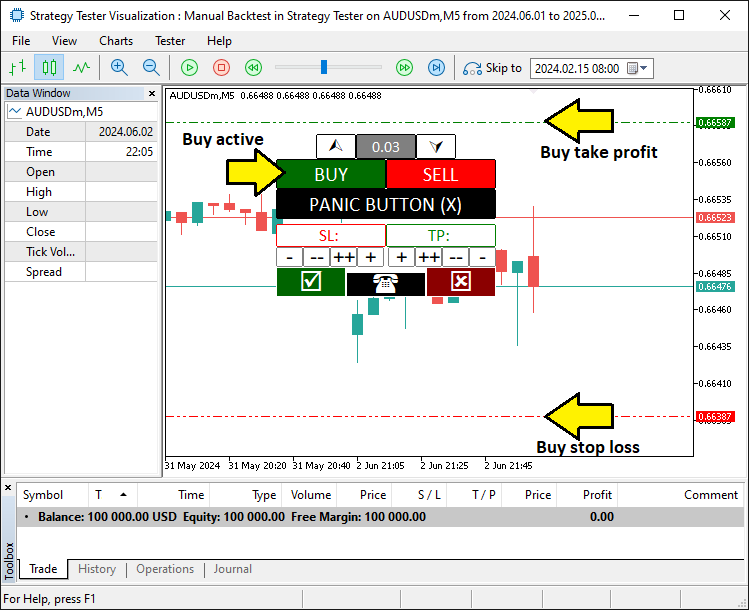
Na imagem, vemos que ajustamos os níveis operacionais e podemos abrir posições dinamicamente, alcançando nosso objetivo. Agora só falta testar o programa de forma criteriosa, e é disso que trata a próxima seção.
Teste em dados históricos em ação: Uso do conjunto de ferramentas
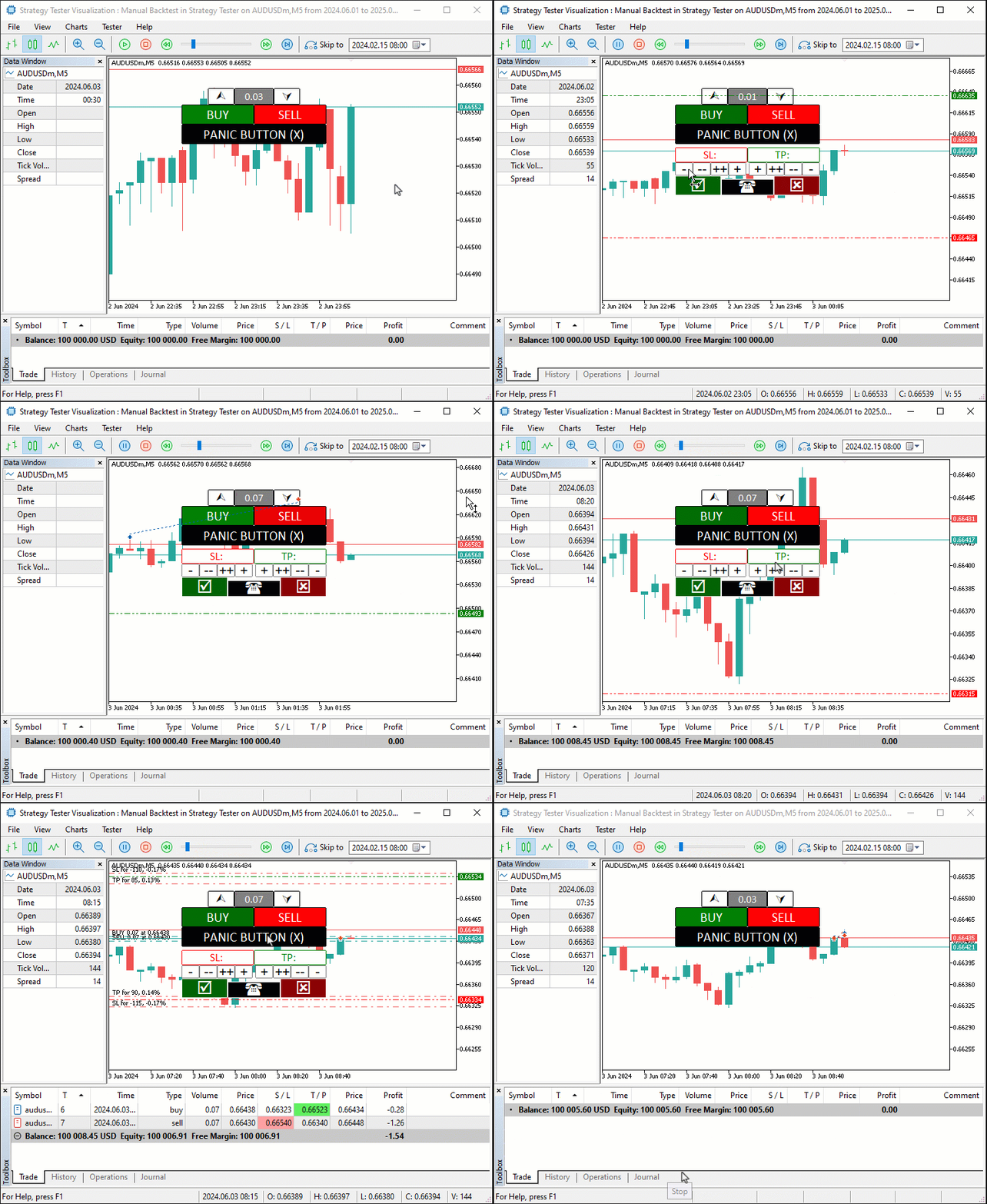
Testamos nosso conjunto de ferramentas no Testador de Estratégias do MetaTrader 5 carregando o programa, escolhendo nossas configurações e executando-o. Veja no GIF abaixo os botões Buy (compra), Sell (venda) e Adjustment (ajuste dos níveis) em ação, com grande rapidez. Clique em Buy ou Sell, ajuste os níveis de Stop Loss, Take Profit e o tamanho do lote e, em seguida, confirme clicando em Yes ou cancele com No, e o botão de pânico (Panic) permitirá fechar rapidamente todas as operações. Aqui está.
Conclusão
Em conclusão, criamos um conjunto de ferramentas para teste manual em dados históricos que combina controle prático com a velocidade do Testador de Estratégias, usando MQL5, simplificando o teste de ideias de trading. Mostramos como projetá-lo, escrever seu código e usá-lo para ajustar as operações por meio de botões, tudo desenvolvido especificamente para uma simulação rápida e precisa. Você pode adaptar esse conjunto de ferramentas às suas necessidades e, com ele, aprimorar o teste em dados históricos.
Traduzido do Inglês pela MetaQuotes Ltd.
Artigo original: https://www.mql5.com/en/articles/17751
Aviso: Todos os direitos sobre esses materiais pertencem à MetaQuotes Ltd. É proibida a reimpressão total ou parcial.
Esse artigo foi escrito por um usuário do site e reflete seu ponto de vista pessoal. A MetaQuotes Ltd. não se responsabiliza pela precisão das informações apresentadas nem pelas possíveis consequências decorrentes do uso das soluções, estratégias ou recomendações descritas.

 Estratégias de trading de rompimento: análise dos principais métodos
 Uma Nova Abordagem para Critérios Personalizados em Otimizações (Parte 1): Exemplos de Funções de Ativação
 De Iniciante a Especialista: Indicador de Força de Suporte e Resistência (SRSI)
 Introdução às curvas ROC (Receiver Operating Characteristic)

- Aplicativos de negociação gratuitos
- 8 000+ sinais para cópia
- Notícias econômicas para análise dos mercados financeiros
Você concorda com a política do site e com os termos de uso
E quanto aos diferentes períodos de tempo?
Olá. No momento, apenas um período de tempo. Talvez você possa tentar isso em um futuro próximo.
Obrigado, é uma ferramenta útil
Claro, seja bem-vindo e obrigado também pelo feedback.
Gostaria de saber como converter o indicador mq4 em mq5
Confira o novo artigo: Manual Backtesting Made Easy: Construindo um kit de ferramentas personalizado para o Strategy Tester em MQL5.
Autor: Allan Munene Mutiiria