

Pruebas retrospectivas manuales simplificadas: herramientas personalizadas en MQL5 para el Probador de Estrategias
 447
447
 6
6

Introducción
La prueba retrospectiva de estrategias de trading es un pilar del trading exitoso, pero automatizar cada idea puede resultar limitante, mientras que las pruebas manuales suelen carecer de estructura y precisión. ¿Y si pudieras combinar el control del trading manual con la potencia del Probador de Estrategias de MetaTrader 5? En este artículo presentamos un Asesor Experto (Expert Advisor, EA) personalizado MetaQuotes Language 5 (MQL5) que transforma el backtesting manual en un proceso intuitivo y eficiente, proporcionándole un conjunto de herramientas para probar estrategias según sus propios criterios. Cubriremos estos pasos en este orden:
- El plan: Diseñar un kit de herramientas para el backtesting manual
- Implementación en MQL5: dando vida al kit de herramientas
- Backtesting en acción: uso del kit de herramientas
- Conclusión
Al final, dispondrá de una solución práctica para realizar backtests y perfeccionar sus ideas de trading de forma rápida y segura en el Probador de Estrategias.
El plan: Diseñar un kit de herramientas para el backtesting manual
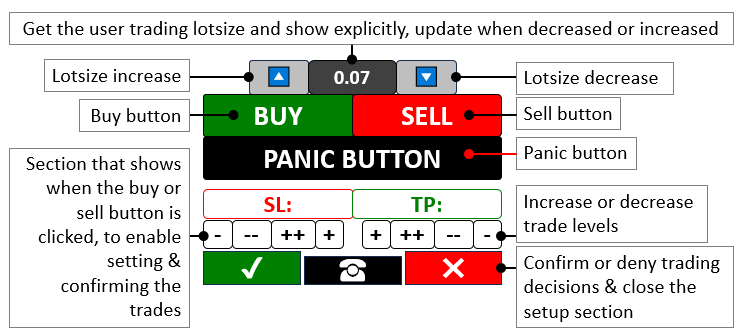
Nuestro objetivo es crear un conjunto de herramientas que combine el control manual con la rápida velocidad de backtesting del Probador de Estrategias en MetaTrader 5, evitando los lentos ticks en tiempo real de las pruebas manuales tradicionales. Diseñaremos el programa con botones en el gráfico para activar operaciones de compra o venta, ajustar el tamaño de los lotes, establecer los niveles de Stop Loss (SL) y Take Profit (TP), y cerrar todas las posiciones mediante un botón de pánico, totalmente integrable con cualquier estrategia, desde indicadores y patrones de velas japonesas hasta la acción del precio, todo ello funcionando al ritmo acelerado del Probador. Esta configuración flexible nos permitirá probar cualquier enfoque comercial de forma interactiva, con rapidez y precisión, optimizando el perfeccionamiento de la estrategia en un entorno simulado. En pocas palabras, aquí hay una visualización de lo que pretendemos:
Implementación en MQL5: dando vida al kit de herramientas
Para crear el programa en MQL5, tendremos que definir los metadatos del programa y, a continuación, definir algunos parámetros de entrada del usuario y, por último, incluir algunos archivos de biblioteca que nos permitirán realizar la actividad de trading.
//+------------------------------------------------------------------+
//|                       Manual backtest toolkit in Strategy Tester |
//|                        Copyright 2025, Forex Algo-Trader, Allan. |
//|                                 "https://t.me/Forex_Algo_Trader" |
//+------------------------------------------------------------------+
#property copyright "Forex Algo-Trader, Allan"
#property link      "https://t.me/Forex_Algo_Trader"
#property version   "1.00"
#property description "This EA Enables manual backtest in the strategy tester"
#property strict //--- Enforce strict coding rules to catch errors early

#define BTN_BUY "BTN BUY" //--- Define the name for the Buy button
#define BTN_SELL "BTN SELL" //--- Define the name for the Sell button
#define BTN_P "BTN P" //--- Define the name for the button that increase lot size
#define BTN_M "BTN M" //--- Define the name for the button that decrease lot size
#define BTN_LOT "BTN LOT" //--- Define the name for the lot size display button
#define BTN_CLOSE "BTN CLOSE" //--- Define the name for the button that close all positions
#define BTN_SL "BTN SL" //--- Define the name for the Stop Loss display button
#define BTN_SL1M "BTN SL1M" //--- Define the name for the button that slightly lower Stop Loss
#define BTN_SL2M "BTN SL2M" //--- Define the name for the button that greatly lower Stop Loss
#define BTN_SL1P "BTN SL1P" //--- Define the name for the button that slightly raise Stop Loss
#define BTN_SL2P "BTN SL2P" //--- Define the name for the button that greatly raise Stop Loss
#define BTN_TP "BTN TP" //--- Define the name for the Take Profit display button
#define BTN_TP1M "BTN TP1M" //--- Define the name for the button that slightly lower Take Profit
#define BTN_TP2M "BTN TP2M" //--- Define the name for the button that greatly lower Take Profit
#define BTN_TP1P "BTN TP1P" //--- Define the name for the button that slightly raise Take Profit
#define BTN_TP2P "BTN TP2P" //--- Define the name for the button that greatly raise Take Profit
#define BTN_YES "BTN YES" //--- Define the name for the button that confirm a trade
#define BTN_NO "BTN NO" //--- Define the name for the button that cancel a trade
#define BTN_IDLE "BTN IDLE" //--- Define the name for the idle button between Yes and No
#define HL_SL "HL SL" //--- Define the name for the Stop Loss horizontal line
#define HL_TP "HL TP" //--- Define the name for the Take Profit horizontal line

#include <Trade/Trade.mqh> //--- Bring in the Trade library needed for trading functions
CTrade obj_Trade; //--- Create a trading object to handle trade operations

bool tradeInAction = false; //--- Track whether a trade setup is currently active
bool isHaveTradeLevels = false; //--- Track whether Stop Loss and Take Profit levels are shown

input double init_lot = 0.03;
input int slow_pts = 10;
input int fast_pts = 100;
Aquí comenzamos definiendo un conjunto de botones interactivos como «BTN_BUY» y «BTN_SELL» utilizando la palabra clave #define para iniciar operaciones cuando queramos, lo que nos permite controlar directamente los puntos de entrada, mientras que «BTN_P» y «BTN_M» nos permiten ajustar el tamaño de «init_lot» (establecido inicialmente en 0,03) al alza o a la baja para adaptarlo a nuestra tolerancia de riesgo. También incluimos «BTN_CLOSE» como nuestra salida de emergencia, una forma rápida de cerrar todas las posiciones en un instante, y confiamos en «tradeInAction» para controlar si estamos en medio de la configuración de una operación y «isHaveTradeLevels» para indicar cuándo están activos los indicadores visuales de Stop Loss y Take Profit.
A continuación, accedemos a la clase «CTrade» desde «<Trade/Trade.mqh>» para crear un objeto «obj_Trade» que gestione la ejecución de las operaciones de forma fluida y eficiente. Para tener aún más flexibilidad, añadimos entradas ajustables como «slow_pts» a 10 y «fast_pts» a 100, de modo que podemos ajustar nuestros niveles de Stop Loss y Take Profit sobre la marcha, asegurándonos de que nuestro kit de herramientas se adapta a cualquier estrategia que estemos probando. Ahora, dado que tendremos que crear los botones del panel, creemos una función con todas las entradas posibles para poder reutilizarla y personalizarla.
//+------------------------------------------------------------------+
//| Create button function                                           |
//+------------------------------------------------------------------+
void CreateBtn(string objName,int xD,int yD,int xS,int yS,string txt,
               int fs=13,color clrTxt=clrWhite,color clrBg=clrBlack,
               color clrBd=clrBlack,string font="Calibri"){
   ObjectCreate(0,objName,OBJ_BUTTON,0,0,0); //--- Create a new button object on the chart
   ObjectSetInteger(0,objName,OBJPROP_XDISTANCE, xD); //--- Set the button's horizontal position
   ObjectSetInteger(0,objName,OBJPROP_YDISTANCE, yD); //--- Set the button's vertical position
   ObjectSetInteger(0,objName,OBJPROP_XSIZE, xS); //--- Set the button's width
   ObjectSetInteger(0,objName,OBJPROP_YSIZE, yS); //--- Set the button's height
   ObjectSetInteger(0,objName,OBJPROP_CORNER, CORNER_LEFT_UPPER); //--- Position the button from the top-left corner
   ObjectSetString(0,objName,OBJPROP_TEXT, txt); //--- Set the text displayed on the button
   ObjectSetInteger(0,objName,OBJPROP_FONTSIZE, fs); //--- Set the font size of the button text
   ObjectSetInteger(0,objName,OBJPROP_COLOR, clrTxt); //--- Set the color of the button text
   ObjectSetInteger(0,objName,OBJPROP_BGCOLOR, clrBg); //--- Set the background color of the button
   ObjectSetInteger(0,objName,OBJPROP_BORDER_COLOR,clrBd); //--- Set the border color of the button
   ObjectSetString(0,objName,OBJPROP_FONT,font); //--- Set the font style of the button text

   ChartRedraw(0); //--- Refresh the chart to show the new button
}
Aquí definimos la función «CreateBtn» para crear todos los botones (como «BTN_BUY» o «BTN_SELL») del gráfico, tomando entradas como «objName» para la identidad del botón, «xD» e «yD» para sus posiciones horizontal y vertical, «xS» e «yS» para su anchura y altura, y «txt» para la etiqueta que queremos mostrar, como «BUY» o «SELL». Para ello, utilizamos la función ObjectCreate para colocar un nuevo objeto OBJ_BUTTON en el gráfico, estableciendo su base en las coordenadas (0,0,0) para simplificar. A continuación, lo posicionamos con precisión con ObjectSetInteger para ajustar «OBJPROP_XDISTANCE» a «xD» y «OBJPROP_YDISTANCE» a «yD», asegurándonos de que quede exactamente donde lo necesitamos, y le damos tamaño utilizando «OBJPROP_XSIZE» para «xS» y «OBJPROP_YSIZE» para «yS» para que se ajuste a nuestro diseño.
Lo anclamos a la esquina superior izquierda con «OBJPROP_CORNER» establecido en CORNER_LEFT_UPPER, lo que hace que el diseño sea coherente, y utilizamos ObjectSetString para asignar «OBJPROP_TEXT» como «txt», de modo que el botón muestre claramente su finalidad. Para el estilo, ajustamos «OBJPROP_FONTSIZE» a «fs» (por defecto 13), «OBJPROP_COLOR» a «clrTxt» (por defecto, blanco) para el texto, OBJPROP_BGCOLOR a «clrBg» (por defecto, negro) para el fondo y «OBJPROP_BORDER_COLOR» a «clrBd» (por defecto, negro) para el contorno, mientras que «OBJPROP_FONT» obtiene «font» (por defecto, «Calibri») para un aspecto limpio. Por último, utilizamos la función ChartRedraw para actualizar el gráfico con «0» como ID de ventana, mostrando al instante nuestro nuevo botón para que podamos interactuar con él en el Probador de Estrategias. Ahora podemos llamar a la función cada vez que queramos crear un botón, y comenzaremos llamándola en el controlador de eventos OnInit.
//+------------------------------------------------------------------+
//| Expert initialization function                                   |
//+------------------------------------------------------------------+
int OnInit(){
   CreateBtn(BTN_P,150,45,40,25,CharToString(217),15,clrBlack,clrWhite,clrBlack,"Wingdings"); //--- Make the button to increase lot size with an up arrow
   CreateBtn(BTN_LOT,190,45,60,25,string(init_lot),12,clrWhite,clrGray,clrBlack); //--- Make the button showing the current lot size
   CreateBtn(BTN_M,250,45,40,25,CharToString(218),15,clrBlack,clrWhite,clrBlack,"Wingdings"); //--- Make the button to decrease lot size with a down arrow
   CreateBtn(BTN_BUY,110,70,110,30,"BUY",15,clrWhite,clrGreen,clrBlack); //--- Make the Buy button with a green background
   CreateBtn(BTN_SELL,220,70,110,30,"SELL",15,clrWhite,clrRed,clrBlack); //--- Make the Sell button with a red background
   CreateBtn(BTN_CLOSE,110,100,220,30,"PANIC BUTTON (X)",15,clrWhite,clrBlack,clrBlack); //--- Make the emergency button to close all trades

   return(INIT_SUCCEEDED); //--- Tell the system the EA start up successfully
}
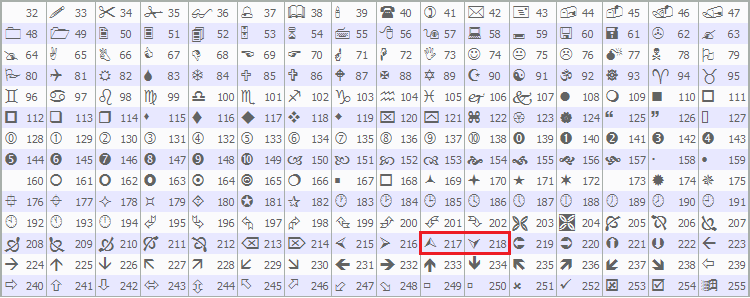
Aquí, iniciamos nuestro kit de herramientas de backtesting manual con el controlador de eventos OnInit, configurando su interfaz en el Probador de Estrategias. Utilizamos la función «CreateBtn» para colocar «BTN_P» en «xD» 150, «yD» 45 con una flecha hacia arriba desde CharToString(217) en «Wingdings», «BTN_LOT» en «xD» 190 mostrando «init_lot» y «BTN_M» en «xD» 250 con una flecha hacia abajo de «CharToString(218)», todo ello con estilo para el control del tamaño del lote. A continuación, añadimos «BTN_BUY» en «xD» 110, «yD» 70 con «BUY» en «clrGreen», «BTN_SELL» en «xD» 220 con «SELL» en «clrRed» y «BTN_CLOSE» en «xD» 110, «yD» 100 como «PANIC BUTTON (X)» en «clrBlack», antes de indicar el éxito con «return» e INIT_SUCCEEDED. La fuente Wingdings que utilizamos para los iconos de la tabla de caracteres ya definida de MQL5 es la siguiente.
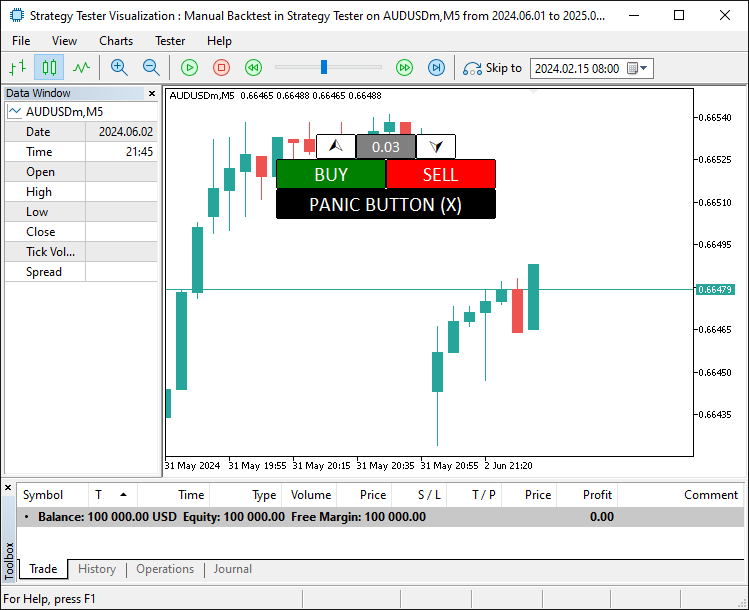
Cuando ejecutamos el programa, obtenemos el siguiente resultado.
Una vez establecidos los fundamentos, debemos leer los estados de los botones y los valores para poder utilizarlos con fines comerciales. Por lo tanto, también necesitamos algunas funciones para eso.
int GetState(string Name){return (int)ObjectGetInteger(0,Name,OBJPROP_STATE);} //--- Get whether a button is pressed or not
string GetValue(string Name){return ObjectGetString(0,Name,OBJPROP_TEXT);} //--- Get the text shown on an object
double GetValueHL(string Name){return ObjectGetDouble(0,Name,OBJPROP_PRICE);} //--- Get the price level of a horizontal line
Aquí definimos la función «GetState» para comprobar los clics en los botones, donde utilizamos la función ObjectGetInteger con «OBJPROP_STATE» para devolver si se pulsa «Name», «GetValue» para obtener el texto de «Name» utilizando «ObjectGetString» con «OBJPROP_TEXT», y «GetValueHL» para obtener los niveles de precio de «Name» con ObjectGetDouble utilizando OBJPROP_PRICE para un control preciso de las operaciones. Ahora podemos utilizar las funciones para obtener los estados de los botones en el controlador de eventos OnTick, ya que no podemos utilizar directamente el controlador de eventos OnChartEvent en el Probador de Estrategias. Así es como lo conseguimos.
//+------------------------------------------------------------------+
//| Expert tick function                                             |
//+------------------------------------------------------------------+
void OnTick(){
   double Ask = NormalizeDouble(SymbolInfoDouble(_Symbol,SYMBOL_ASK),_Digits); //--- Get the current Ask price and adjust it to the right decimal places
   double Bid = NormalizeDouble(SymbolInfoDouble(_Symbol,SYMBOL_BID),_Digits); //--- Get the current Bid price and adjust it to the right decimal places

   if (GetState(BTN_BUY)==true || GetState(BTN_SELL)){ //--- Check if either the Buy or Sell button is clicked
      tradeInAction = true; //--- Set trade setup to active
   }
}
Aquí, utilizamos el controlador de eventos OnTick para impulsar las acciones en tiempo real de nuestro kit de herramientas en el Probador de Estrategias, donde utilizamos la función NormalizeDouble con SymbolInfoDouble para establecer «Ask» en el precio actual «SYMBOL_ASK» y «Bid» al precio SYMBOL_BID, ambos ajustados a _Digits para mayor precisión, y si «GetState» muestra «BTN_BUY» o «BTN_SELL» como verdadero, establecemos «tradeInAction» como verdadero para iniciar nuestra configuración de operaciones. Este es el punto en el que necesitamos niveles comerciales adicionales que nos permitan establecer los niveles y ajustarlos dinámicamente. Hagamos una función para eso.
//+------------------------------------------------------------------+
//| Create high low function                                         |
//+------------------------------------------------------------------+
void createHL(string objName,datetime time1,double price1,color clr){
   if (ObjectFind(0,objName) < 0){ //--- Check if the horizontal line doesn’t already exist
      ObjectCreate(0,objName,OBJ_HLINE,0,time1,price1); //--- Create a new horizontal line at the specified price
      ObjectSetInteger(0,objName,OBJPROP_TIME,time1); //--- Set the time property (though not critical for HLINE)
      ObjectSetDouble(0,objName,OBJPROP_PRICE,price1); //--- Set the price level of the horizontal line
      ObjectSetInteger(0,objName,OBJPROP_COLOR,clr); //--- Set the color of the line (red for SL, green for TP)
      ObjectSetInteger(0,objName,OBJPROP_STYLE,STYLE_DASHDOTDOT); //--- Set the line style to dash-dot-dot
      ChartRedraw(0); //--- Refresh the chart to display the new line
   }
}
En primer lugar, definimos la función «createHL» para dibujar líneas horizontales para nuestro kit de herramientas en el Probador de Estrategias, donde utilizamos la función ObjectFind para comprobar si «objName» existe y, si es menor que 0, utilizamos la función ObjectCreate para crear un «OBJ_HLINE» en «time1» y «price1». utilizamos la función ObjectSetInteger para establecer «OBJPROP_TIME» en «time1», «OBJPROP_COLOR» en «clr» y «OBJPROP_STYLE» en «STYLE_DASHDOTDOT», utilizamos la función ObjectSetDouble para establecer «OBJPROP_PRICE» en «price1», y utilizamos la función ChartRedraw para actualizar el gráfico con «0» y mostrarlo. A continuación, integramos esta función en otra función para crear los niveles comerciales de forma fluida, como se muestra a continuación.
//+------------------------------------------------------------------+
//| Create trade levels function                                     |
//+------------------------------------------------------------------+
void CreateTradeLevels(){
   double Ask = NormalizeDouble(SymbolInfoDouble(_Symbol,SYMBOL_ASK),_Digits); //--- Get unnoticed the current Ask price, adjusted for digits
   double Bid = NormalizeDouble(SymbolInfoDouble(_Symbol,SYMBOL_BID),_Digits); //--- Get the current Bid price, adjusted for digits

   string level_SL,level_TP; //--- Declare variables to hold SL and TP levels as strings
   if (GetState(BTN_BUY)==true){ //--- Check if the Buy button is active
      level_SL = string(Bid-100*_Point); //--- Set initial Stop Loss 100 points below Bid for Buy
      level_TP = string(Bid+100*_Point); //--- Set initial Take Profit 100 points above Bid for Buy
   }
   else if (GetState(BTN_SELL)==true){ //--- Check if the Sell button is active
      level_SL = string(Ask+100*_Point); //--- Set initial Stop Loss 100 points above Ask for Sell
      level_TP = string(Ask-100*_Point); //--- Set initial Take Profit 100 points below Ask for Sell
   }

   createHL(HL_SL,0,double(level_SL),clrRed); //--- Create a red Stop Loss line at the calculated level
   createHL(HL_TP,0,double(level_TP),clrGreen); //--- Create a green Take Profit line at the calculated level

   CreateBtn(BTN_SL,110,135,110,23,"SL: "+GetValue(HL_SL),13,clrRed,clrWhite,clrRed); //--- Make a button showing the Stop Loss level
   CreateBtn(BTN_TP,220,135,110,23,"TP: "+GetValue(HL_TP),13,clrGreen,clrWhite,clrGreen); //--- Make a button showing the Take Profit level

   CreateBtn(BTN_SL1M,110,158,27,20,"-",17,clrBlack,clrWhite,clrGray); //--- Make a button to slightly lower Stop Loss
   CreateBtn(BTN_SL2M,137,158,27,20,"--",17,clrBlack,clrWhite,clrGray); //--- Make a button to greatly lower Stop Loss
   CreateBtn(BTN_SL2P,164,158,27,20,"++",17,clrBlack,clrWhite,clrGray); //--- Make a button to greatly raise Stop Loss
   CreateBtn(BTN_SL1P,191,158,27,20,"+",17,clrBlack,clrWhite,clrGray); //--- Make a button to slightly raise Stop Loss

   CreateBtn(BTN_TP1P,222,158,27,20,"+",17,clrBlack,clrWhite,clrGray); //--- Make a button to slightly raise Take Profit
   CreateBtn(BTN_TP2P,249,158,27,20,"++",17,clrBlack,clrWhite,clrGray); //--- Make a button to greatly raise Take Profit
   CreateBtn(BTN_TP2M,276,158,27,20,"--",17,clrBlack,clrWhite,clrGray); //--- Make a button to greatly lower Take Profit
   CreateBtn(BTN_TP1M,303,158,27,20,"-",17,clrBlack,clrWhite,clrGray); //--- Make a button to slightly lower Take Profit

   CreateBtn(BTN_YES,110,178,70,30,CharToString(254),20,clrWhite,clrDarkGreen,clrWhite,"Wingdings"); //--- Make a green checkmark button to confirm the trade
   CreateBtn(BTN_NO,260,178,70,30,CharToString(253),20,clrWhite,clrDarkRed,clrWhite,"Wingdings"); //--- Make a red X button to cancel the trade
   CreateBtn(BTN_IDLE,180,183,80,25,CharToString(40),20,clrWhite,clrBlack,clrWhite,"Wingdings"); //--- Make a neutral button between Yes and No
}
Aquí definimos la función «CreateTradeLevels» para configurar nuestros niveles de negociación, donde utilizamos la función NormalizeDouble con SymbolInfoDouble para establecer «Ask» en «SYMBOL_ASK» y «Bid» en «SYMBOL_BID», ajustado por _Digits, y declaramos «level_SL» y «level_TP» como cadenas. Si «GetState» muestra «BTN_BUY» como verdadero, establecemos «level_SL» en «Bid-100_Point» y «level_TP» en «Bid+100_Point», pero si «BTN_SELL» es verdadero, establecemos «level_SL» en «Ask+100_Point» y «level_TP» en «Ask-100_Point».
Utilizamos la función «createHL» para dibujar «HL_SL» en «double(level_SL)» en «clrRed» y «HL_TP» en «double(level_TP)» en «clrGreen», y luego utilizamos la función «CreateBtn» para crear botones como «BTN_SL» con el texto «GetValue(HL_SL)», «BTN_TP» con «GetValue(HL_TP)» y botones de ajuste «BTN_SL1M», «BTN_SL2M», «BTN_SL2P», «BTN_SL1P», «BTN_TP1P», «BTN_TP2P», «BTN_TP2M» y «BTN_TP1M» con símbolos como «-» y «+», además de «BTN_YES», «BTN_NO» y «BTN_IDLE» utilizando CharToString para las opciones de confirmar, cancelar y neutral en «Wingdings». Con esta función, podemos activarla cuando se pulsa el botón de compra o venta para inicializar la configuración del nivel de negociación.
if (!isHaveTradeLevels){ //--- Check if trade levels aren't already on the chart
   CreateTradeLevels(); //--- Add Stop Loss and Take Profit levels and controls to the chart
   isHaveTradeLevels = true; //--- Mark that trade levels are now present
}
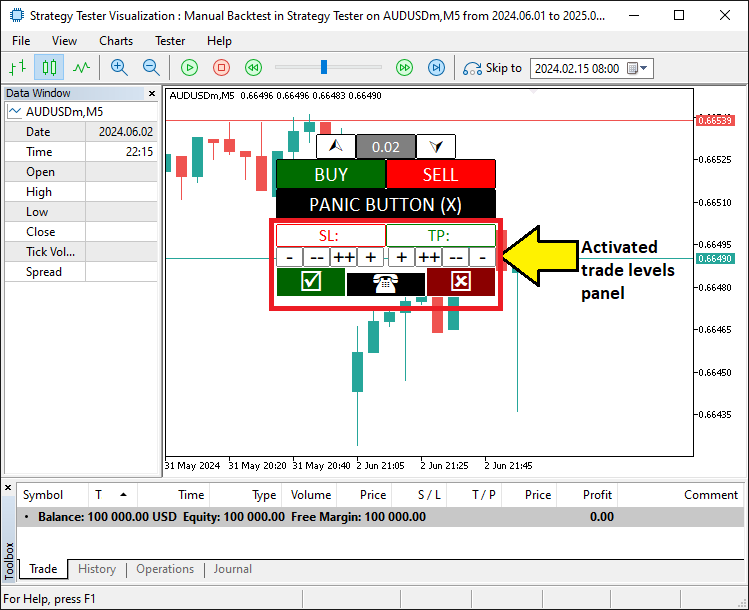
Aquí configuramos una comprobación en la que verificamos si «isHaveTradeLevels» es falso con «!isHaveTradeLevels» y, cuando lo es, utilizamos la función «CreateTradeLevels» para colocar controles Stop Loss y Take Profit en el gráfico, y luego actualizamos «isHaveTradeLevels» a verdadero para mostrar que están activos. Tras la compilación, obtenemos el siguiente resultado.
A continuación debemos dar vida a los botones de los niveles comerciales haciéndolos interactivos y asegurándonos de que funcionen correctamente. Así es como lo conseguimos.
if (tradeInAction){ //--- Continue if a trade setup is active

   // SL SLOW/FAST BUTTONS
   if (GetState(BTN_SL1M)){ //--- Check if the small Stop Loss decrease button is clicked
      ObjectSetDouble(0,HL_SL,OBJPROP_PRICE,GetValueHL(HL_SL)-slow_pts*_Point); //--- Move the Stop Loss down by a small amount
      ObjectSetInteger(0,BTN_SL1M,OBJPROP_STATE,false); //--- Turn off the button press state
      ChartRedraw(0); //--- Refresh the chart to show the change
   }
   if (GetState(BTN_SL2M)){ //--- Check if the large Stop Loss decrease button is clicked
      ObjectSetDouble(0,HL_SL,OBJPROP_PRICE,GetValueHL(HL_SL)-fast_pts*_Point); //--- Move the Stop Loss down by a large amount
      ObjectSetInteger(0,BTN_SL2M,OBJPROP_STATE,false); //--- Turn off the button press state
      ChartRedraw(0); //--- Refresh the chart to show the change
   }
   if (GetState(BTN_SL1P)){ //--- Check if the small Stop Loss increase button is clicked
      ObjectSetDouble(0,HL_SL,OBJPROP_PRICE,GetValueHL(HL_SL)+slow_pts*_Point); //--- Move the Stop Loss up by a small amount
      ObjectSetInteger(0,BTN_SL1P,OBJPROP_STATE,false); //--- Turn off the button press state
      ChartRedraw(0); //--- Refresh the chart to show the change
   }
   if (GetState(BTN_SL2P)){ //--- Check if the large Stop Loss increase button is clicked
      ObjectSetDouble(0,HL_SL,OBJPROP_PRICE,GetValueHL(HL_SL)+fast_pts*_Point); //--- Move the Stop Loss up by a large amount
      ObjectSetInteger(0,BTN_SL2P,OBJPROP_STATE,false); //--- Turn off the button press state
      ChartRedraw(0); //--- Refresh the chart to show the change
   }

   // TP SLOW/FAST BUTTONS
   if (GetState(BTN_TP1M)){ //--- Check if the small Take Profit decrease button is clicked
      ObjectSetDouble(0,HL_TP,OBJPROP_PRICE,GetValueHL(HL_TP)-slow_pts*_Point); //--- Move the Take Profit down by a small amount
      ObjectSetInteger(0,BTN_TP1M,OBJPROP_STATE,false); //--- Turn off the button press state
      ChartRedraw(0); //--- Refresh the chart to show the change
   }
   if (GetState(BTN_TP2M)){ //--- Check if the large Take Profit decrease button is clicked
      ObjectSetDouble(0,HL_TP,OBJPROP_PRICE,GetValueHL(HL_TP)-fast_pts*_Point); //--- Move the Take Profit down by a large amount
      ObjectSetInteger(0,BTN_TP2M,OBJPROP_STATE,false); //--- Turn off the button press state
      ChartRedraw(0); //--- Refresh the chart to show the change
   }
   if (GetState(BTN_TP1P)){ //--- Check if the small Take Profit increase button is clicked
      ObjectSetDouble(0,HL_TP,OBJPROP_PRICE,GetValueHL(HL_TP)+slow_pts*_Point); //--- Move the Take Profit up by a small amount
      ObjectSetInteger(0,BTN_TP1P,OBJPROP_STATE,false); //--- Turn off the button press state
      ChartRedraw(0); //--- Refresh the chart to show the change
   }
   if (GetState(BTN_TP2P)){ //--- Check if the large Take Profit increase button is clicked
      ObjectSetDouble(0,HL_TP,OBJPROP_PRICE,GetValueHL(HL_TP)+fast_pts*_Point); //--- Move the Take Profit up by a large amount
      ObjectSetInteger(0,BTN_TP2P,OBJPROP_STATE,false); //--- Turn off the button press state
      ChartRedraw(0); //--- Refresh the chart to show the change
   }

}
Aquí, gestionamos los ajustes de Stop Loss y Take Profit en nuestro kit de herramientas cuando «tradeInAction» es verdadero, donde utilizamos la función «GetState» para comprobar si se han pulsado botones como «BTN_SL1M», «BTN_SL2M», «BTN_SL1P» o «BTN_SL2P» y ajustamos «HL_SL» mediante «slow_pts_Point» o «fast_pts_Point» utilizando la función ObjectSetDouble con «OBJPROP_PRICE» y «GetValueHL», luego utiliza la función ObjectSetInteger para restablecer OBJPROP_STATE a falso y la función ChartRedraw para actualizar el gráfico, y de manera similar maneja «BTN_TP1M», «BTN_TP2M», «BTN_TP1P» o «BTN_TP2P» para los ajustes «HL_TP». Por último, una vez establecidos los niveles, podemos confirmar la colocación y abrir las posiciones respectivas, y luego limpiar la configuración del nivel de negociación, pero primero necesitaremos una función para eliminar el panel de configuración de niveles.
//+------------------------------------------------------------------+
//| Delete objects function                                          |
//+------------------------------------------------------------------+
void DeleteObjects_SLTP(){
   ObjectDelete(0,HL_SL); //--- Remove the Stop Loss line from the chart
   ObjectDelete(0,HL_TP); //--- Remove the Take Profit line from the chart
   ObjectDelete(0,BTN_SL); //--- Remove the Stop Loss display button
   ObjectDelete(0,BTN_TP); //--- Remove the Take Profit display button
   ObjectDelete(0,BTN_SL1M); //--- Remove the small Stop Loss decrease button
   ObjectDelete(0,BTN_SL2M); //--- Remove the large Stop Loss decrease button
   ObjectDelete(0,BTN_SL1P); //--- Remove the small Stop Loss increase button
   ObjectDelete(0,BTN_SL2P); //--- Remove the large Stop Loss increase button
   ObjectDelete(0,BTN_TP1P); //--- Remove the small Take Profit increase button
   ObjectDelete(0,BTN_TP2P); //--- Remove the large Take Profit increase button
   ObjectDelete(0,BTN_TP2M); //--- Remove the large Take Profit decrease button
   ObjectDelete(0,BTN_TP1M); //--- Remove the small Take Profit decrease button
   ObjectDelete(0,BTN_YES); //--- Remove the confirm trade button
   ObjectDelete(0,BTN_NO); //--- Remove the cancel trade button
   ObjectDelete(0,BTN_IDLE); //--- Remove the idle button

   ChartRedraw(0); //--- Refresh the chart to show all objects removed
}
Aquí, gestionamos la limpieza en nuestro kit de herramientas con la función «DeleteObjects_SLTP», donde utilizamos la función ObjectDelete para eliminar «HL_SL», «HL_TP», «BTN_SL», «BTN_TP», «BTN_SL1M», «BTN_SL2M», «BTN_SL1P», «BTN_SL2P», «BTN_TP1P», «BTN_TP2P», «BTN_TP2M», «BTN_TP1M», «BTN_YES», «BTN_NO» y «BTN_IDLE» del gráfico, y luego utilizamos la función ChartRedraw con «0» para actualizar y mostrar todo borrado. Ahora podemos utilizar esta función en nuestra lógica de colocación de órdenes.
// BUY ORDER PLACEMENT
if (GetState(BTN_BUY) && GetState(BTN_YES)){ //--- Check if both Buy and Yes buttons are clicked
   obj_Trade.Buy(double(GetValue(BTN_LOT)),_Symbol,Ask,GetValueHL(HL_SL),GetValueHL(HL_TP)); //--- Place a Buy order with set lot size, SL, and TP
   DeleteObjects_SLTP(); //--- Remove all trade level objects from the chart
   isHaveTradeLevels = false; //--- Mark that trade levels are no longer present
   ObjectSetInteger(0,BTN_YES,OBJPROP_STATE,false); //--- Turn off the Yes button press state
   ObjectSetInteger(0,BTN_BUY,OBJPROP_STATE,false); //--- Turn off the Buy button press state
   tradeInAction = false; //--- Mark the trade setup as complete
   ChartRedraw(0); //--- Refresh the chart to reflect changes
}
// SELL ORDER PLACEMENT
else if (GetState(BTN_SELL) && GetState(BTN_YES)){ //--- Check if both Sell and Yes buttons are clicked
   obj_Trade.Sell(double(GetValue(BTN_LOT)),_Symbol,Bid,GetValueHL(HL_SL),GetValueHL(HL_TP)); //--- Place a Sell order with set lot size, SL, and TP
   DeleteObjects_SLTP(); //--- Remove all trade level objects from the chart
   isHaveTradeLevels = false; //--- Mark that trade levels are no longer present
   ObjectSetInteger(0,BTN_YES,OBJPROP_STATE,false); //--- Turn off the Yes button press state
   ObjectSetInteger(0,BTN_SELL,OBJPROP_STATE,false); //--- Turn off the Sell button press state
   tradeInAction = false; //--- Mark the trade setup as complete
   ChartRedraw(0); //--- Refresh the chart to reflect changes
}
else if (GetState(BTN_NO)){ //--- Check if the No button is clicked to cancel
   DeleteObjects_SLTP(); //--- Remove all trade level objects from the chart
   isHaveTradeLevels = false; //--- Mark that trade levels are no longer present
   ObjectSetInteger(0,BTN_NO,OBJPROP_STATE,false); //--- Turn off the No button press state
   ObjectSetInteger(0,BTN_BUY,OBJPROP_STATE,false); //--- Turn off the Buy button press state
   ObjectSetInteger(0,BTN_SELL,OBJPROP_STATE,false); //--- Turn off the Sell button press state
   tradeInAction = false; //--- Mark the trade setup as canceled
   ChartRedraw(0); //--- Refresh the chart to reflect changes
}
Ejecutamos operaciones en nuestro kit de herramientas dentro del Probador de Estrategias, donde utilizamos la función «GetState» para comprobar si «BTN_BUY» y «BTN_YES» son verdaderos y, a continuación, utilizamos el método «obj_Trade. Buy» con «double(GetValue(BTN_LOT))», _Symbol, «Ask», «GetValueHL(HL_SL)» y «GetValueHL(HL_TP)» para colocar una orden de compra, o si «BTN_SELL» y «BTN_YES» son verdaderos, utilizamos «obj_Trade. Sell» con «Bid» en su lugar, y en cualquier caso, utilizamos la función «DeleteObjects_SLTP» para borrar objetos, establecemos «isHaveTradeLevels» y «tradeInAction» en falso, utilizamos la función ObjectSetInteger para restablecer OBJPROP_STATE en «BTN_YES», «BTN_BUY» o «BTN_SELL» en falso, y utilizamos la función ChartRedraw para actualizar el gráfico, pero si «BTN_NO» es verdadero, cancelamos borrando los objetos y restableciendo los estados de forma similar. Del mismo modo, gestionamos el aumento o la disminución de los botones de volumen de negociación de la siguiente manera.
if (GetState(BTN_P)==true){ //--- Check if the lot size increase button is clicked
   double newLot = (double)GetValue(BTN_LOT); //--- Get the current lot size as a number
   double lotStep = SymbolInfoDouble(_Symbol,SYMBOL_VOLUME_STEP); //--- Get the minimum lot size change allowed
   newLot += lotStep; //--- Increase the lot size by one step
   newLot = NormalizeDouble(newLot,2); //--- Round the new lot size to 2 decimal places
   newLot = newLot > 0.1 ? lotStep : newLot; //--- Ensure lot size doesn't exceed 0.1, otherwise reset to step
   ObjectSetString(0,BTN_LOT,OBJPROP_TEXT,string(newLot)); //--- Update the lot size display with the new value
   ObjectSetInteger(0,BTN_P,OBJPROP_STATE,false); //--- Turn off the increase button press state
   ChartRedraw(0); //--- Refresh the chart to show the new lot size
}
if (GetState(BTN_M)==true){ //--- Check if the lot size decrease button is clicked
   double newLot = (double)GetValue(BTN_LOT); //--- Get the current lot size as a number
   double lotStep = SymbolInfoDouble(_Symbol,SYMBOL_VOLUME_STEP); //--- Get the minimum lot size change allowed
   newLot -= lotStep; //--- Decrease the lot size by one step
   newLot = NormalizeDouble(newLot,2); //--- Round the new lot size to 2 decimal places
   newLot = newLot < lotStep ? lotStep : newLot; //--- Ensure lot size doesn't go below minimum, otherwise set to step
   ObjectSetString(0,BTN_LOT,OBJPROP_TEXT,string(newLot)); //--- Update the lot size display with the new value
   ObjectSetInteger(0,BTN_M,OBJPROP_STATE,false); //--- Turn off the decrease button press state
   ChartRedraw(0); //--- Refresh the chart to show the new lot size
}
Aquí ajustamos los tamaños de lote comenzando con el aumento, donde utilizamos la función «GetState» para comprobar si «BTN_P» es verdadero, luego utilizamos «GetValue» para establecer «newLot» desde «BTN_LOT», utilizamos SymbolInfoDouble para obtener «lotStep» desde SYMBOL_VOLUME_STEP, añadimos «lotStep» a «newLot» y utilizamos NormalizeDouble para redondearlo a 2 decimales, limitándolo a «lotStep» si es superior a 0,1 antes de utilizar ObjectSetString para actualizar «OBJPROP_TEXT» de «BTN_LOT» y «ObjectSetInteger» para restablecer «OBJPROP_STATE» de «BTN_P» a falso, seguido de ChartRedraw para actualizar.
Para la disminución, utilizamos «GetState» para comprobar «BTN_M», restamos «lotStep» de «newLot» después de obtenerlo de la misma manera, lo mantenemos al menos en «lotStep» y aplicamos los mismos pasos de función ObjectSetString, «ObjectSetInteger» y «ChartRedraw» para actualizar «BTN_LOT» y restablecer «BTN_M». En cuanto al botón de pánico, tendremos que definir una función para cerrar todas las posiciones abiertas cuando se pulse.
//+------------------------------------------------------------------+
//| Close all positions function                                     |
//+------------------------------------------------------------------+
void closeAllPositions(){
   for (int i=PositionsTotal()-1; i>=0; i--){ //--- Loop through all open positions, starting from the last one
      ulong ticket = PositionGetTicket(i); //--- Get the ticket number of the current position
      if (ticket > 0){ //--- Check if the ticket is valid
         if (PositionSelectByTicket(ticket)){ //--- Select the position by its ticket number
            if (PositionGetString(POSITION_SYMBOL)==_Symbol){ //--- Check if the position is for the current chart symbol
               obj_Trade.PositionClose(ticket); //--- Close the selected position
            }
         }
      }
   }
}
Nos encargamos de cerrar todas las posiciones con la función «closeAllPositions», donde utilizamos la función PositionsTotal para realizar un bucle desde «i» como la última posición menos 1 hasta 0, utilizamos la función PositionGetTicket para obtener el «ticket» de cada índice «i» y, si el «ticket» es válido, utilizamos PositionSelectByTicket para seleccionarlo, luego utilizamos PositionGetString para comprobar si POSITION_SYMBOL coincide con _Symbol antes de utilizar el método «obj_Trade.PositionClose» para cerrar la posición con «ticket». Entonces podemos llamar a esta función cuando se pulsa el botón de pánico para cerrar todas las posiciones.
if (GetState(BTN_CLOSE)==true){ //--- Check if the close all positions button is clicked
   closeAllPositions(); //--- Close all open trades
   ObjectSetInteger(0,BTN_CLOSE,OBJPROP_STATE,false); //--- Turn off the close button press state
   ChartRedraw(0); //--- Refresh the chart to reflect closed positions
}
Para gestionar el cierre de todas las operaciones, utilizamos la función «GetState» para comprobar si «BTN_CLOSE» es verdadero y, y, si es así, utilizamos la función «closeAllPositions» para cerrar todas las posiciones abiertas, y luego utilizamos la función ObjectSetInteger para establecer OBJPROP_STATE de «BTN_CLOSE» en falso y la función ChartRedraw con «0» para actualizar el gráfico. Tras compilar y ejecutar el programa, obtenemos el siguiente resultado.
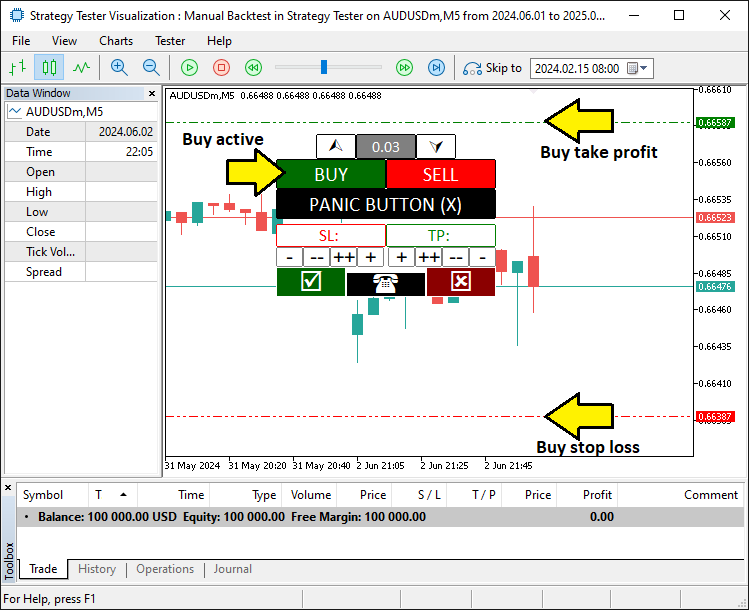
En la imagen podemos ver que hemos establecido los niveles de negociación y que podemos abrir posiciones de forma dinámica, logrando así nuestro objetivo. Ahora solo queda probar el programa a fondo, lo cual se aborda en el siguiente tema.
Backtesting en acción: uso del kit de herramientas
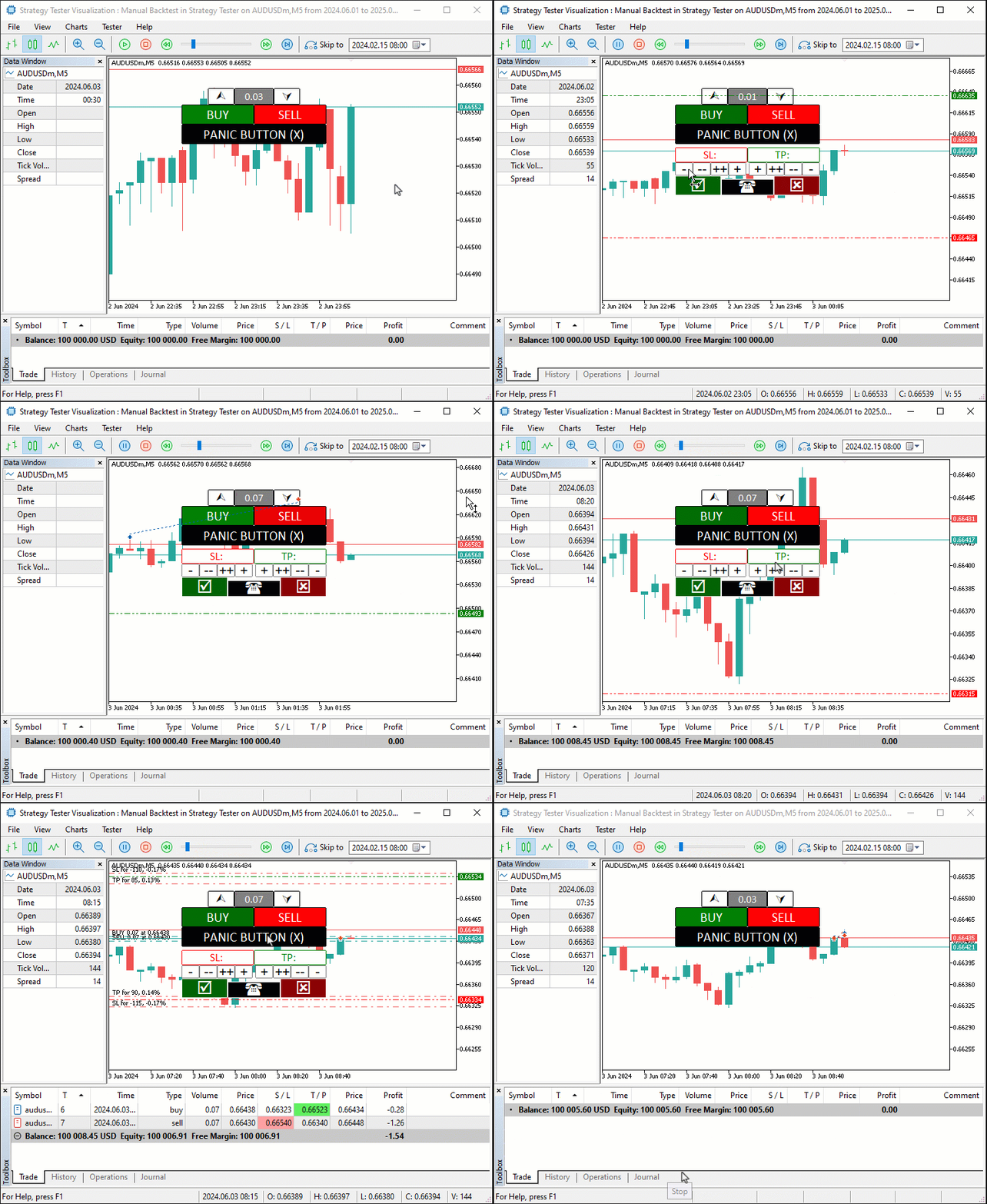
Probamos nuestro kit de herramientas en el Probador de Estrategias de MetaTrader 5 cargando el programa, seleccionando nuestra configuración e iniciándolo. Vea el Graphics Interchange Format (GIF) a continuación para ver los botones Comprar, Vender y Ajustar en acción a la velocidad del rayo. Haga clic en Comprar o Vender, ajuste el Stop Loss, el Take Profit y el tamaño del lote, luego confirme con Sí o cancele con No, con el botón de pánico listo para cerrar todas las operaciones rápidamente. Aquí lo tienes.
Conclusión
En conclusión, hemos creado un kit de herramientas de backtesting manual que combina el control práctico con la velocidad del Probador de Estrategias en MQL5, simplificando la forma en que probamos las ideas de trading. Hemos mostrado cómo diseñarlo, programarlo y utilizarlo para ajustar las operaciones con botones, todo ello adaptado para realizar simulaciones rápidas y precisas. Puede adaptar este kit de herramientas a sus necesidades y mejorar su experiencia de backtesting con él.
Traducción del inglés realizada por MetaQuotes Ltd.
Artículo original: https://www.mql5.com/en/articles/17751
Advertencia: todos los derechos de estos materiales pertenecen a MetaQuotes Ltd. Queda totalmente prohibido el copiado total o parcial.
Este artículo ha sido escrito por un usuario del sitio web y refleja su punto de vista personal. MetaQuotes Ltd. no se responsabiliza de la exactitud de la información ofrecida, ni de las posibles consecuencias del uso de las soluciones, estrategias o recomendaciones descritas.

 Redes neuronales en el trading: Actor—Director—Crítico (Actor—Director—Critic)
 Optimización de arrecifes de coral — Coral Reefs Optimization (CRO)
 Formulación de un Asesor Experto Multipar Dinámico (Parte 2): Diversificación y optimización de carteras
 Trading con algoritmos: La IA y su camino hacia las alturas doradas

- Aplicaciones de trading gratuitas
- 8 000+ señales para copiar
- Noticias económicas para analizar los mercados financieros
Usted acepta la política del sitio web y las condiciones de uso
¿Qué pasa con los distintos plazos?
Hola. Actualmente sólo un marco de tiempo. Tal vez tratar de que en un futuro próximo.
Gracias, es una herramienta útil.
Claro. Bienvenido y gracias también por el comentario.
me preguntaba como convertir un indicador mq4 a mq5
Eche un vistazo al nuevo artículo: Manual Backtesting Made Easy: Building a Custom Toolkit for Strategy Tester in MQL5.
Autor: Allan Munene Mutiiria