 MetaTrader 5
 Experts
 Indicators
 Libraries
 Utilities
 Widgets
 Rules
Rules
Watch the Market tutorial videos on YouTube
How to buy а trading robot or an indicator
Run your EA on
virtual hosting
virtual hosting
Test аn indicator/trading robot before buying
Want to earn in the Market?
How to present a product for a sell-through
Trading Robots for MetaTrader 5
 Expert Advisors analyze quotes of financial instruments, as well as execute trade operations on the Forex and stock markets.
Test free and paid Expert Advisors to automate your trading and make it more profitable.
Expert Advisors analyze quotes of financial instruments, as well as execute trade operations on the Forex and stock markets.
Test free and paid Expert Advisors to automate your trading and make it more profitable. 
PROP FIRM READY! ( download SETFILE ) WARNING: Only a few copies left at current price! Final price: 990$ Get 1 EA for free (for 3 trade accounts) -> contact me after purchase Ultimate Combo Deal -> click here JOIN PUBLIC GROUP: Click here
Live Signal Client Signal YouTube Reviews LATEST MANUAL
Welcome to the Gold Reaper! Build on the very succesfull Goldtrade Pro, this EA has been designed to run on multiple timeframes at the same time, and has the option to set the trade frequency fro

The Legend Continues. The Queen Evolves. Welcome to Quantum Queen X — the next generation of the legendary GOLD trading system that builds upon the proven success of Quantum Queen. Quantum Queen X is built on the same proven core engine as Quantum Queen, introducing a powerful new Custom Mode that allows traders to choose exactly which strategies to enable or disable. Every strategy has been individually reviewed, refined, and optimized to deliver even better performance and adaptability across

The Quantum ecosystem is entering a new battlefield—and a new Commander is taking control. Developed exclusively for the US30 index, Quantum Commander is the fully automated Expert Advisor built for one of the world’s most dynamic markets.
In a world saturated with GOLD EAs, Quantum Commander stands apart. After several GOLD-focused releases, we are advancing into new territory with US30—a new instrument, a different strategy, and a powerful opportunity to bring true diversification to the Qua

Bringing institutional-grade trading to the Quantum ecosystem, Quantum Titan sets a new standard for precision, discipline, and proven live-market performance. Developed for traders who expect more from a GOLD Expert Advisor, Titan represents the next evolution of Quantum trading technology.
Availability is strictly limited to 1,000 lifetime licenses worldwide. Once all 1,000 copies have been claimed, Quantum Titan will no longer be available.
Special launch discount price. Final price $1999

AIKON — AUTOMATED TRADING. CONVERSATIONAL CONTROL. AIKON is an AI-powered Expert Advisor (EA) for MetaTrader 5. Once configured and enabled, it can analyze markets, open trades and manage positions automatically within your chosen settings and risk controls. Ask Aikon gives you a direct way to understand and control your trading system—in plain language. Build your setup. Ask why a market did or did not trade. Review your exposure. Prepare changes from your desktop or through Telegram on your ph

FROM $349 TO $299 FINAL 14 COPIES.
ONCE THESE 20 ARE SOLD, MOONDOG WILL NO LONGER BE AVAILABLE FOR SALE. EXISTING CUSTOMERS WILL CONTINUE TO RECEIVE FUTURE UPDATES AND SUPPORT.
OFFICIAL LIVE SIGNALS
VIEW THE MAIN MOONDOG LIVE SIGNAL VIEW THE SECOND MOONDOG LIVE SIGNAL
START HERE — USER GUIDE OPEN THE COMPLETE MOONDOG V4.18 USER GUIDE Please read the guide before using MoonDog. It explains the installation, trading modes, risk settings, MoonLock, news protection, dashboard and chart control

AI-DRIVEN GOLD TRADING REVOLUTION -------------------------------------------------------------------------------- My AI Gold is not just another automated trading tool—it is the culmination of advanced neural network engineering, proprietary custom architecture, and rigorous real-world optimization. Built from the ground up utilizing cutting-edge repositories and state-of-the-art machine learning frameworks from GitHub, My AI Gold harnesses deep data analysis to decode the complexities of the

IMPORTANT : This package will only be sold at current price for a very limited number of copies. Price will go to 1999$ soon! + 300 Strategies included and more coming!
BONUS : choose 5 of my other EA's for free! ALL SET FILES + COMPLETE SETUP AND OPTIMIZATION GUIDE VIDEO GUIDE LIVE SIGNALS REVIEW (3rd party)
NEW - 44-STRATEGIES LIVE SIGNAL
Welcome to the ULTIMATE BREAKOUT SYSTEM! I'm pleased to present the Ultimate Breakout System, a sophisticated and proprietary Expert Advisor (EA)

Scalping Robot Pro is a professional trading system designed specifically for fast and precise scalping on XAUUSD using the M1 timeframe. The system is built to capture short term market movements with accurate execution and controlled risk management. It focuses on real time price behavior, momentum shifts, short term volatility, and selective grid based trade management techniques to identify high probability trading opportunities in the gold market. Scalping Robot Pro is optimized for traders

No Grid / No Martingale / No Recovery / No Hedging / Single Entry with SL / One Shot
Smart Gold Hunter is an Expert Advisor for XAUUSD / Gold trading on MetaTrader 5. It is designed for traders who prefer a Gold EA with no grid, no martingale, real Stop Loss and Take Profit logic, and controlled risk management.
You can check the live signal before making a decision:
Live Main Signal :
https://www.mql5.com/en/signals/2365400?source=Site
Smart Gold Hunter is not a grid EA and it is not a m

Ghost Scalper MT5 4.0 is a fully automated Expert Advisor for XAUUSD / Gold on MetaTrader 5 . Ghost was developed for selective breakout and momentum movements in the gold market. The EA waits for the conditions of its four independent strategies and does not open trades constantly. Version 4.0 adds different trailing profiles, an automatic Auto Offset system for Dynamic Fast, enhanced execution and broker monitoring, and additional dashboard analysis features. LIVE SIGNALS Ghost is publicly tra

Smarter Control. Refined Precision.
Welcome to Quantum Athena X — the next generation of the focused GOLD trading system that builds upon the precision, efficiency, and disciplined execution of Quantum Athena.
Quantum Athena X is built on the same streamlined core engine and the same 6 carefully selected strategies as Quantum Athena. Each strategy has been individually refined and optimized for current GOLD market conditions, while the new powerful Custom Mode allows traders to choose exactly

ThunderGold Scalper ThunderGold Scalper is an Expert Advisor developed for automated gold trading on MetaTrader 5. The EA is designed for XAUUSD and GOLD on the M15 timeframe. It uses a proprietary multi-factor decision engine to identify qualified trading opportunities and manage positions automatically. The system combines market structure, trend direction, candle quality, volume, momentum and execution controls. It is designed to wait for suitable conditions instead of opening trades continuo

10 LICENSES LEFT AT $ 249 / $ 299 NEXT / $ 399 final price. The earlier you decide, the less you pay.
Check the live signal / Read the manual / Why are the back-test numbers that good - is it real or over-fitted? One shot. One target. Zero recovery. GoldenShot is a single-position gold EA built for controlled, long-term trading. It waits for a qualified setup, takes one clean shot with a real stop loss, and if the idea does not work, it manages the trade instead of rescuing it.
No

LIVE SIGNAL
SPECIAL PROMOTION: PRICE WILL INCREASE to 499 $ on 01.10 . 22 Gold Trading Strategies. One Coordinated System. PHILOSOPHER is the flagship XAUUSD Expert Advisor in my Roman EA Series, developed for MetaTrader 5. Gold can trend, consolidate, break out and reverse within the same trading session. PHILOSOPHER brings together 22 specialized strategy models to evaluate different types of opportunity, with shared rules for execution, position sizing and basket management. Choose a broker

Quantum iGold MT5 – Advanced AI Trading System (XAUUSD)
Quantum iGold MT5 is a fully automated trading system built using advanced Artificial Intelligence techniques. It employs a hybrid neural architecture that integrates LSTM and Transformer models to analyze price behavior on XAUUSD . This structure enables the system to detect market patterns, adapt to volatility changes, and generate technically refined trading signals in real time. After purchase, please contact me via MQL5 private messa

Now $499 — Only 10 Copies Available
Secure your copy at $499 before the next price increase to $699.
DeMoore Expert Advisor is a high-precision scalping Expert Advisor developed exclusively for XAUUSD (Gold) on the M5 timeframe. The De Moore Expert Advisor performs market analysis based on trend-following and price action concepts. The analysis is also based on multi-timeframe analysis. Live Signal How De Moore EA Works for You
Buy the EA on MQL5 Market Install on MetaTrader 5 Run on a 24

PRICE INCREASE SOON! If you value honesty and a real trading system built for live trading, not just a perfect-looking straight-line backtest that can end up blowing your account, then this might be for you. Prop Firm Ready! No Martingale / No Grid 23 Months Live Signal +300% Live Growth [Live Signal] | [FTMO Results] | [Main Portfolio] | [Backtest Guide] Why Range Breakout EA is so Stable ? Range Breakout EA is based on a well-known market behaviour: changes in volatility between trading

AXIO GOLD EA MT5 Live Signal Reference on MQL5 https://www.mql5.com/en/signals/2378982?source=Site+Signals+My AXIO GOLD EA MT5 is an automated trading system developed for XAUUSD Gold on MetaTrader 5. This EA uses the same logic and execution rules as the verified live signal shown on MQL5. When used with the recommended, optimized settings on a reputable ECN/RAW-spread broker such as TMGM , the EA's live trading behavior is designed to closely align with the trade structure and execution charac
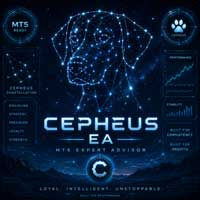
LAST 72H 249$ | 399$ FINAL PRICE User manual Live signals
Cepheus Loyalty Cepheus Ultimate (both breakout engines
Cepheus Discipline Two Synergistic Engines. Zero Grid. Zero Martingale. Defined Risk. Cepheus is a dual-engine algorithmic trading system developed specifically for XAUUSD (Gold) . Instead of relying on a single trading model, Cepheus combines two independent strategies designed to identify different types of market opportunities. Each engine has its own entry logic, filters, exe

Adaptive Gold Scalper Important Pre-notice: This strategy requires a long period of practical verification, and favorable trading returns cannot be guaranteed in the short run. Traders must select brokers with ultra-low order latency, minimal slippage and zero/low stop level requirement; poor broker conditions will lead to disastrous trading results.
I have over 14 years of professional trading experience. With proper brokerage conditions and sufficient running time, this fully automated scalpi

100K Real Signal: https://www.mql5.com/en/signals/2386516
No gimmicks. No empty claims. Iron Stops caters to traders focused on one crucial aspect: consistency. Whether you’re working through a prop challenge or overseeing client funds, this EA keeps within set boundaries and delivers reliable results. Positions close within 36 hours. Run it on a single chart: Simply apply it to XAUUSD using the M30 timeframe. That’s all you need. One chart. One powerful tool.
Proper configuration is essenti

A WEAK ENTRY SHOULD NOT BE SAVED BY A HUGE STOP LOSS.
GHOST XAU was built differently: no grid, no averaging, TP = SL — a true 1:1 ratio.
The EA was developed with a strong focus on broker-neutral logic , so its decisions depend on the market rather than the specifics of one particular broker.
Every entry is evaluated by 3 models, 620 decision trees and 120+ market features.
If the required quality is not there — there is simply no trade.
YOU SEE MORE THAN A TRADE — YOU SEE THE DECISION
GH

Live Signal: https://www.mql5.com/en/signals/2382857 Live Signal-2: https://www.mql5.com/en/signals/2390825 Live Signal Setfile (Risk 2% per trade) IMPORTANT - READ BEFORE CHOOSING A MODE: full backtest of all 11 Trading Modes → https://www.mql5.com/en/blogs/post/775822 You've watched Gold rip 1500 points in a straight line and felt your stomach drop - not because you were wrong about the direction, but because you were still staring at your phone, half a second too slow to click. You've set a

Quantum King EA — Intelligent Power, Refined for Every Trader
IMPORTANT! After the purchase please send me a private message to receive the installation manual and the setup instructions.
Special Launch Price Live Signal: CLICK HERE
MT4 version : CLICK HERE
Quantum King channel: Click Here
***Buy Quantum King MT5 and you could get Quantum StarMan for free !*** Ask in private for more details!
Rule your trading with precision and discipline.
Quantum King EA brings the strength of

SixtyNine EA – A Gold Expert Advisor for MetaTrader 5, featuring 6 integrated strategy layers, predefined Stop Loss on every trade, and a clean trading structure without Martingale, Recovery systems, or Grid trading. Public Live Signal: $500 Start, Fixed 0.02 Lot, 500%+ Growth, 20 Weeks Live
The public live signal is the central proof point of SixtyNine EA . The account started with a $500 balance , used a fixed 0.02 lot size per trade , and has been active for more than 20 weeks of live tradin

Real Trading Account — LIVE SIGNAL | IC MARKETS: https://www.mql5.com/en/signals/2339082 GoldWave Ultra uses the same core trading logic and execution framework as the verified live signal shown above on MQL5. When running the EA with the recommended optimized settings on a reputable ECN/RAW-spread broker ( e.g., TMGM ), its live trading behavior is designed to closely follow the trade structure, risk management, and execution characteristics demonstrated by the live signal. Please note that ind

Dynamic Liquidity Intelligence is an Expert Advisor designed to analyze market structure and execute trades using pending orders. The system calculates recent highs and lows based on market volatility to place Buy Stop and Sell Stop orders at potential breakout levels. The EA manages each position individually. It does not utilize Grid, Martingale, or position averaging strategies. Every order is executed with a strictly predefined Stop Loss and Take Profit. Live Monitoring Live Signal Fix 0.01

Introducing Quantum Emperor EA , the groundbreaking MQL5 expert advisor that's transforming the way you trade the prestigious GBPUSD pair! Developed by a team of experienced traders with trading experience of over 13 years. IMPORTANT! After the purchase please send me a private message to receive the installation manual and the setup instructions. ***Buy Quantum Emperor EA and you could get Quantum StarMan for free !*** Ask in private for more details Verified Signal: Click Here
MT4 Version

TITANFORGE EA MT5 ALGORITHMIC IMPULSE SWING SYSTEM FOR XAUUSD H1 TitanForge EA is an automated trading system developed specifically for Gold on the H1 timeframe. The strategy focuses on directional momentum, volatility expansion and controlled position management. It is designed to wait for selected market conditions rather than remain permanently exposed to the market. No Grid. No Martingale. No uncontrolled averaging. Every position is opened with predefined protection, including a hard Stop

The Yen Master
The Yen Master is an Expert Advisor for USDJPY that runs twelve independent breakout strategies on one chart. Each strategy has its own levels, stop loss, take profit and trade management.
Live monitoring: the Expert Advisor runs on a public signal , so you can compare its live trading with the backtest. Prise will be raised while demand grows the final price is: 999$
How it trades The Expert Advisor trades breakouts of support and resistance levels on USDJPY. It finds swing h

No gimmicks. No empty claims. Silent Exit is crafted for traders focused on a single goal: steady performance.
All Major pairs included: EURUSD,USDCAD,USDJPY,NZDUSD,USDCHF,AUDUSD,GBPUSD
Whether you are pushing through a prop trading challenge or handling client funds, this EA maintains discipline — and produces results.
SIGNAL Link: https://www.mql5.com/en/signals/2388541 remember this is a 100k darwinex zero account and i didnt deposit 100k its only for showing live results.
How the Stra

Live Trading Signal
Public real-time monitoring of trading activity:
https://www.mql5.com/en/signals/2391560
Official Information
Seller profile
Official channel
User Manual
Setup instructions and usage guidelines:
View user manual
This Expert Advisor is built around one of the simplest and most recognizable trading concepts: Pivot Breakout.
The strategy focuses on identifying potential trading opportunities when the price breaks through predefined pivot levels, which may indicate the

Gold Snap — A Fast Profit Capture System for Gold Gold Snap v2. 1 Launch Offer: The first 10 perpetual licenses ( only 7 remaining) are available for just $ 599 each, with a complimentary in- house EA for personal use. The offer ends when all promotional licenses are sold. Regular price: $ 999. Live Signal:
https://www.mql5.com/en/signals/2362714
Live Signal2:
https://www.mql5.com/en/signals/2372603 Live Signal 3:
https://www.mql5.com/en/signals/2379945 Important:
After purchase, please conta

Gold Beaver - limited offer $350 instead of $450. 10 copies at this price. Live signal
GOLD BEAVER MT5 — XAUUSD EA One-click setup. Drag onto an XAUUSD M1 chart and it trades. Defaults are ready to run, no tuning required. Not HFT. No low-latency connection required. Trades are evaluated on M15 boundary candles, so OHLC testing is sufficient. 12 selectable strategies, developed with a custom JIT-compiled Python research engine independent of the MT5 tester. They are not hand-tuned and n

ASIC Gold — XAUUSD Price Action EA — No grid. No martingale. Real stop loss on every trade. Signal of ASIC Strategy: ASIC H1 Trend Drive Special Launch Offer: Only $149 for the first 20 copies! Resources & Documentation Resource Description ASIC Gold Official Channel Latest updates, set files, and announcements ASIC Gold Manual Every setting explained, with quick-start steps How to Set Up ASIC Gold Step-by-step installation guide Understanding the Trading Strategy ASIC Gold is a fully automat

Smart Golden Portfolio is an XAUUSD Expert Advisor designed for traders who want a stable strategy that can remain part of a trading portfolio for the long term. Live IC Markets Signal You can follow the live IC Markets signal results from today here:
https://www.mql5.com/en/signals/2389307 The core strategy was developed before 2025 as part of a much larger research process involving thousands of generated and tested strategies. From that pool, only a small number were selected for extended for

[ IMPORTANT ] REAL CLIENT FEEDBACK : https://www.mql5.com/en/market/product/127498/comments#comment_58814415 [ IMPORTANT ] UPDATED (1 YEAR PERFORMANCE): https://www.mql5.com/en/market/product/127498/comments#comment_59233853
[ IMPORTANT ] UPDATED (1 YEAR 6 MONTHS PERFORMANCE): https://www.mql5.com/en/market/product/127498/comments#comment_60000067 [ IMPORTANT ] UPDATED (2026/09): https://www.mql5.com/en/market/product/127498/comments/page2#comment_60389797 Follow the channel for the l

BONUS FOR EVERY CUSTOMER: Every customer who purchases this bot will receive a free GRABBER BOT : This offer is available for a limited time only. So hurry! No hype, No reckless risk. Trading with minimal drawdown: One Man Army is a multi-currency trading system built for both personal and prop-firm trading. It follows a strategy of scalping short- and medium-term corrections and market reversals, trading through pending limit orders. This trading bot doesn’t guess the direction — it enters the

What is Lizard? Lizard is a fully automated Expert Advisor for XAUUSD (Gold) on MetaTrader 5. It uses a multi-strategy swing breakout system: the Expert Advisor identifies key structural levels on the chart and places pending stop orders at calculated entry points. No martingale, no grid, no averaging into losses. Every trade is opened with a defined stop loss and take profit and is then managed by a multi-layer exit system, around the clock and without manual intervention. Support For support,

SomaOil is a multi-strategy breakout Expert Advisor for MetaTrader 5, built exclusively for WTI crude oil (XTIUSD). One chart, one EA, 20 independent strategies running together as a single diversified portfolio. Live Signal v1.0 Live Signal v2.0 - Conservative To make it accessible at launch, I am using a transparent ramping-price model: Launch price: 100 USD (48 hours) Starting from Monday the price increases by 100 USD for every 10 copies sold Price increases happen at most once per day, even

Edge Boost Pro is a professional Support and Resistance (SnR) trading system designed to identify important market levels and trade both breakouts and rebounds from these areas. It continuously analyzes current market structure, calculates the most relevant Support and Resistance levels, and combines them with advanced market filters to identify high-probability trading opportunities.
Take advantage of the current launch promo price . ONLY 10 copies of Edge Boost Pro are available at $499. Pric

Live Trading Signal
Public real-time monitoring of trading activity:
https://www.mql5.com/en/signals/2378119
Official Information
Seller profile
Official channel
User Manual
Setup instructions and usage guidelines:
View user manual
Mavrik Scalper represents a new generation of AI-driven trading systems built around a Hybrid Attention neural network architecture.
Unlike conventional algorithmic strategies that rely primarily on fixed technical indicators or predefined market rules, Mav

EA DRIFTER EA DRIFTER is an Expert Advisor for automated gold trading on MetaTrader 5. It combines internally filtered entry selection, market execution and basket-based position management in one interface. The system waits for a valid signal before starting a trade. If price moves against the basket, it may add positions according to its grid rules and execution controls. Exits are managed through a basket-level target in points, calculated from the volume-weighted average entry price. There i

Prop Firm Ready! Chiroptera is a non-martingale, non-grid, multi-currency Expert Advisor that operates in the quiet hours of the night. It uses single-placed trades (of all 28 pairs!) with tactically placed Take Profits and Stop Losses, that are continuously adjusted to maximize gains and minimize losses. It keeps track of past and upcoming news reports to ensure impacts are minimized and carefully measures real-time volatility to prevent impacts due to unpredictable geo-political disturbances c

PROP FIRM READY! --> DOWNLOAD ALL SET FILES WARNING: Only a few copies left at current price! Final price: 990$ NEW (from 399$ only) : Choose 1 EA for Free! (limited to 2 trade accounts numbers, any of my EAs except UBS) Ultimate Combo Deal -> click here JOIN PUBLIC GROUP: Click here Live Signal Live Signal 2
!! THE GOLD PHANTOM IS HERE !!
After the massive success of The Gold Reaper, I'm extremely proud to introduce its powerful brother:
The Gold Phantom , a pure, no-nonsense breako

BTC Master Pro – Your trusted partner in disciplined Bitcoin trading. The new version is now enhanced with OpenAI artificial intelligence , delivering smarter execution and improved trade filtering in volatile crypto conditions. This professional Expert Advisor is built specifically for Bitcoin (BTCUSD) trading on MetaTrader 5 , focusing on structured execution, controlled exposure, and intelligent risk management.
Price: $699 → Next: $999 → Final: $999 LIVE SIGNAL HERE
OpenAI-Powered Exec

Fewer trades. Better trades. Consistency above all. • Live Signal Mode 1
Live Signal Mode 2
Twister Pro EA is a high-precision scalping Expert Advisor developed exclusively for XAUUSD (Gold) on the M15 timeframe. It trades less — but when it does, it trades with purpose. Every entry passes through 5 independent validation layers before a single order is placed, resulting in an extremely high win rate on the Default configuration. TWO MODES: • Mode 1 (recommended) — Very high assertiveness, fe

The GBPUSD Robot Pro is an advanced automated trading system developed specifically for the unique dynamics of the GBP/USD currency pair. Using advanced technical analysis, the robot continuously analyzes historical and real-time market data to identify trends, key support and resistance levels, price momentum, volatility, and other important market conditions specific to GBP/USD. The Robot opens positions every day, from Monday to Friday, and all positions are secured with Take Profit, Stop Los

Scalper speed with sniper entries. Built for Gold. Last couple of licenses - 399 USD only instead of 499 USD Tired of all the fake EAs that eventually disappear? Most authors just create another EA when it fails - I wanted to do it differently.
Wave Rider is my personal project built out of passion - honest, transparent EA without any fake AI or manipulated back-test that's been continuously updated for more than 6 months, that I am using myself from very first day. Check the Manual or Broker

VIRA EA — Multi-Logic XAUUSD Expert Advisor VIRA EA combines multiple independent Gold trading logics in one Expert Advisor. Different modules use their own entry, timing and trade-management rules, while every position is opened with predefined SL and TP. No Martingale, Grid, Averaging, Arbitrage, Machine Learning or Neural Networks. Fixed lot / % risk, DD control, news filter and automatic trade management. Built on the GReap core. Real Live Signal . Launch price: $99. Future updates and perso

INSTITUTIONAL SMC ROBOT Advanced Smart Money Concepts Trading System for MetaTrader 5 Executive Overview Institutional SMC Robot is an automated trading solution engineered for modern financial markets. Built around elite Smart Money Concepts (SMC) architecture, the algorithm identifies and executes high-probability trades based on institutional order flow, market structure shifts, and liquidity dynamics. Advanced News Protection: Integrated high-impact news filter designed to automatically pa

Neo Delta is an automated Expert Advisor for MetaTrader 5 that trades exclusively on Gold (XAUUSD). Its decisions are based on volume-delta momentum – the balance between buying and selling pressure inside each candle. A machine-learning filter reviews every potential entry before a position is opened. Support For support, please read the profile info! https://www.mql5.com/de/users/masthetics Live Signal Follow the live performance of this EA on our verified MQL5 signal:
View Live Signal → 5m Lo

Are you ready to power up your Gold trading?
Impulse by Starpoint Trading — A six-strategy gold EA that waits for the perfect shot. Come chat with us in our public MQL5 channel! https://www.mql5.com/en/channels/starpoint Read my analysis of Impulse compared to similar grid systems: https://www.mql5.com/en/blogs/post/773192 Impulse v2.00 is here! The biggest update in Impulse's history has arrived. Version 2.00 takes everything that made Impulse a disciplined, patient Gold trading system and e

The XG Gold Robot MT5 is specially designed for Gold. We decided to include this EA in our offering after extensive testing . XG Gold Robot and works perfectly with the XAUUSD, GOLD, XAUEUR pairs. XG Gold Robot has been created for all traders who like to Trade in Gold and includes additional a function that displays weekly Gold levels with the minimum and maximum displayed in the panel as well as on the chart, which will help you in manual trading. It’s a strategy based on Price Action, Cycle S

Scalping Index Pro is a professional trading system designed specifically for fast and precise scalping on US30 and DE40 using the M1 timeframe . The system has been developed specifically for the unique behavior of major stock indices, focusing on short term price movements, rapid momentum changes, market volatility, and selective grid based trade management techniques to identify high probability trading opportunities . Scalping Index Pro is optimized for traders who prefer dynamic trading wit

AETHERION ZENITH AI EA The Evolution of Precision Gold Automation Public live signal for real-time monitoring: https://www.mql5.com/ru/signals/2381671 Limited Launch Offer The first 7 copies are available for only $259 . Once these copies are sold, the price will increase immediately by $100 — to $359 . This introductory offer is intended for traders who want to join Aetherion Zenith AI EA at the earliest stage and follow the evolution of the system through public live monitoring from the beginn

No Grid /No Martingale/ No Dca /No rocovery Smart Gold Impulse is now available in a special early launch phase. You can follow the signal results here for informational purposes, https://www.mql5.com/en/signals/2390103 . Results can significantly change between brokers, account types, slippage, spread conditions, and VPS setups.Set files of the current running signal account and live chat access link will be shared only with Smart Gold Impulse buyers after the buyer sends a short comment from t

Built to dominate the gold market. Official Information Seller profile Official channel User Guide LIMITED PRICE — $799 Aura Gold Pro Edition is available for $799 until the end of September . Starting October 1 , the price will increase to $999 — secure your copy before the price goes up. Live Trading Signals Roboforex https://www.mql5.com/en/signals/2366593 FPMarkets https://www.mql5.com/en/signals/2358523 ICTrading https://www.mql5.com/en/signals/2380859 Description Aura Gold PRO Edition is

Welcome to Big Gold Wins ! This is a Fully automated GOLD Trading System with 9 uniq strategies! We don't use "AI", We don't use "Machine Learning ", We don't use "ChatGPT", We don't use Martingale, We don't use Non-Realistic Backtests! Each trade has a Fixed TakeProfit and Stop Loss . Each strategy has its own Algorithm for Tracking Profitable Positions. Big Gold Wins contains 9 separate different strategies within itself, each of them with its own logic and profit-taking mechanism. Live P er

LIMITED COPIES AT CURRENT PRICE! Simple Plug & Play Setup No Risky Martingale/Grid Live Signal | FTMO Results | Public Community Final Price: $999 The Strategy
Prop Firm Gold EA is a multi-strategy trading system designed specifically for Gold (XAUUSD) on the MT5 platform.
The system combines multiple logics, using breakout-based concepts to capture the dominant intraday direction, together with intraday price patterns.
This allows it to adapt to different intraday market conditions rathe

Duelist is a dual-module Expert Advisor designed to trade EURUSD and AUDCAD from a single EURUSD chart. Each module uses its own pair-specific trading logic and operates independently, with separate Magic Numbers, direction controls, lot sizing, trading schedules and protection settings. You can enable EURUSD, AUDCAD or both modules according to your preferred configuration.
Duelist uses a managed basket and grid approach . When its strategy conditions are met, a directional basket may contain

The GoldCycle trading system represents a sophisticated approach to automated trading specifically tailored for a daily trade in the GOLD instrument. Current price $599. Final price $1499. Performance I: https://www.mql5.com/en/signals/2388353 Performance II: ROBOFOREX Performance III: PROP PASS & Management (<5% Daily DD, <%10 Max Overall trailing) Performance IV New 10K: https://www.mql5.com/en/signals/2388331
GOLDCYCLEs ' core strength is its ability to dynamically adapt to market co

AI Scalping EA for EURUSD and BTCUSD [Important - 1] Real profit feedback from a customer
https://www.mql5.com/en/market/product/185641/comments#comment_60455381
Promo Price The EA is currently available at a discounted price. Only 3 slots are left at this price. After the discount period, the regular price will be $1999 . JOIN GROUP: Click here Input Guide: Open the input guide Setfile: Download the recommended setfile Live signal: [ Click Here ] Other EAs you may like: AI Aurum Pivot | Vega B

PRICE INCREASE SOON! NOT MADE TO HAVE A PERFECT STRAIGHT LINE FAKE BACKTEST. Made For Actual Real Live Long Term Trading. No Martingale / No Grid / No Bullshit Live Results: Live Signal | Main Portfolio | FTMO Results | Public Community Prop Firm Ready! What is Market Anomalies EA ?
Market Anomalies EA is designed exclusively for USDJPY and is built for the MT5 platform.
It uses a multi-strategy approach, applying breakout logic to capture the dominant intraday trend of the day, combined

PRICE INCREASE SOON! The main goal of this system is long-term live performance without using any risky martingale or grid. VERY LIMITED COPIES AT CURRENT PRICE Final Price $1499 [Live Signal] | [Backtest Results] | [Setup Guide] | [FTMO Results] A Different Approach to Trading Pulse Engine does not use any indicators or specific timeframes. It has a very unique approach that is not used by any other trading system on MQL5. It trades intraday directional patterns. These patterns have bee

Vortex - your investment in the future
The Vortex Gold EA expert Advisor made specifically for trading gold (XAU/USD) on the Metatrader platform. Built using proprietary indicators and secret author's algorithms, this EA employs a comprehensive trading strategy designed to capture profitable movements in the gold market. Key components of its strategy include classic indicators as CCI and Parabolic Indicator, which work together to accurately signal ideal entry and exit points. At the heart of V

PolyGold Scalper is a short-term scalping system for XAUUSD that can make trading decisions based on integration with Polymarket API. Live Signal: CLICK HERE All trading is done within MetaTrader and does not require API keys or a Polymarket account. The chart includes a panel that mirrors the data feed from Polymarket and refreshes every few seconds.
The EA only enters single-shot positions and manages them without the use of grid or martingale. Exits are based on a dynamic virtual stop loss an

Live Signal
Angels Eye Manual
Best Broker to use with Angels Eye After purchasing send me a message for community link. Angels Eye is a fully automated Expert Advisor developed for Gold (XAUUSD) trading. It combines multiple price-action and breakout-based strategies across several timeframes to identify trading opportunities in different market conditions. The EA includes automatic lot management, basket-based trailing stop logic, news protection, configurable trading windows and advanced

One Gold - Future of Trading
Introducing One Gold EA, a sophisticated trading robot for gold on the Meta Trader platform, developed to assist traders with advanced market analysis. Our proprietary technology leverages neural networks and data-driven algorithms to analyze both historical and real-time gold market data, providing insights that can aid in decision-making. Unlike traditional manual strategies, One Gold EA operates with minimal intervention, streamlining the trading process and aimin
123456789101112131415161718192021222324252627282930313233343536373839404142434445464748495051525354555657585960616263646566676869707172737475767778798081828384858687888990919293949596979899100101102103104105106107108109110111112113114115116117118119120121122123124125126127128129130131132133134135136137138139140141142143144145146147148149150151152153154155156157158159160161162163164165166167168169170171172173174175176177178179180181182183184185186187188189190191192193194195196197198199200201202203204205206207208209210211212213214215216217218219220221222223224225226227228229230231232
The MetaTrader Market is the only store where you can download a free demo trading robot for testing and optimization using historical data.
Read the application overview and reviews from other customers, download it right to your terminal and test a trading robot before you buy. Only on the MetaTrader Market you can test an application absolutely free of charge.

You are missing trading opportunities:
- Free trading apps
- Over 8,000 signals for copying
- Economic news for exploring financial markets
Registration
Log in
You agree to website policy and terms of use
If you do not have an account, please register