
Take a Break Indicator MT5
- Indicators
-
Eric Emmrich
 Looking for help with Take a Break? Check out the 24/7 Support Assistant at https://trading.custom-solutions.it/support
 - Version: 26.9
- Updated: 18 September 2026
Take a Break Indicator gives any chart its own protection rules: pause before news, stop after a daily loss, trade only during your hours, or pause when your own indicator condition is true. News filter, drawdown protection, time filter and custom indicator rules per chart. It is the free companion of the Take a Break EA, which does the pausing for the whole account.
Rules you can set per chart
- Custom indicator rules (MetaTrader 5): put any indicator on the chart and write a condition. RSI>70, Close<MA(200), ADX<20, or MySignal[1]>0 from your own indicator. Combine with AND / OR. Pause new trades, close BUY or close SELL. If you can code it as an indicator, Take a Break can act on it.
- News filter: pause windows per impact level, "before,after" in minutes, "day" for the whole day, special events by name. Currencies are detected from the chart symbol, also for gold, indices and stocks.
- Profit and loss limits: in money or percent, a soft level that pauses new trades first, a cooldown after trades were closed.
- Trading times: trading hours per weekday, close trades outside those hours, maximum trade duration.
- Market filters: maximum spread, volatility, daily change.
- Order limits: maximum open orders, maximum total lots.
- Trade scope: which trades count for this chart: additional symbols, magic numbers, comments, order types.
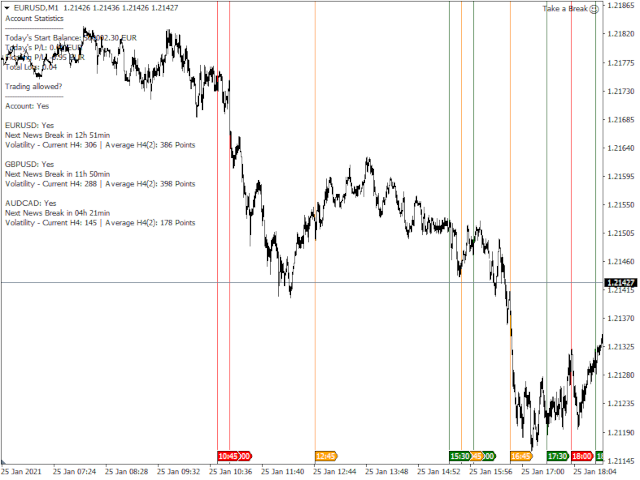
- Info panel: current state, next news event with countdown, pause reason. Compact mode available.
- AI assess buttons: a verdict on a trade idea before you enter.
Setup
- Run the Take a Break EA (or the free demo) on any M1 chart. The URL https://trading.custom-solutions.it must be in the allowed WebRequest list (CTRL+O, tab Expert Advisors).
- Add the indicator to every chart that should have its own rules.
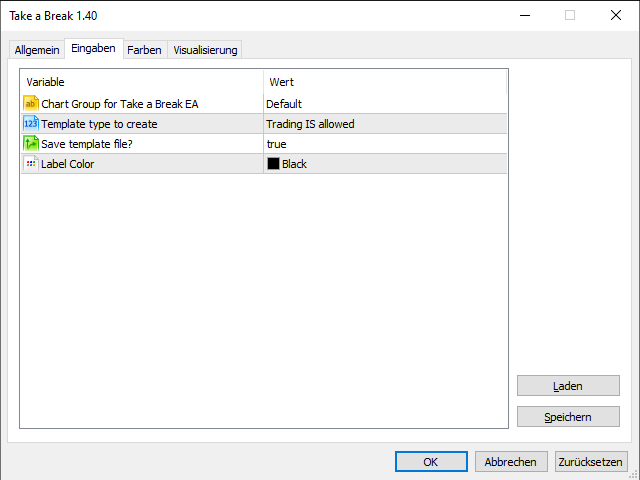
- Set the rules in the indicator's settings. Done. The chart is protected by its own rules on top of the EA's account protection.
Good to know
- Requires the Take a Break EA, version 26.09 or newer. Update both together.
- Custom indicator rules (MT5 only).
- Guide with examples and screenshots: Take a Break 26.09: trade by your own rules
- Older setups with Chart Groups keep working until v27, see the v26 walkthrough.
Questions? Ask the Support Assistant at trading.custom-solutions.it/support (24/7) or contact me.





































Great EA and complimentary Indicator! Most important features for me are News Filter and Equity Control - amazing to have both functions in one EA. Now I can sleep well with EAs running 24/7 and be assured that no big negative impact will happen. Another important point is that Eric responses almost immediately and clearly guides on any questions. 5 stars for the product and support!