Take a Break v26 is the biggest update in the product's history — an almost completely rebuilt engine, more than 200 improvements big and small, and one clean idea holding it all together: the EA protects your account, the indicator protects a chart.
This post walks through what's new, what it means for your existing setup (short version: nothing changes until you say so), and answers the questions this update is most likely to raise.
First things first: what happens to my current setup?
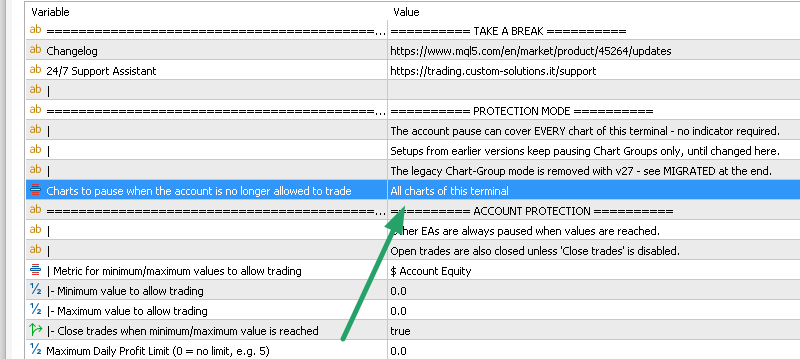
Nothing. If you set up Take a Break before v26, it keeps doing exactly what you configured — Chart Groups, templates, limits, all of it. The new behaviour is opt-in: a new dropdown at the top of the EA's settings — "Charts to pause when the account is no longer allowed to trade", in the PROTECTION MODE section — lets you switch when you're ready, and switch back if you change your mind.
New installations start in the new mode right away.
⚠️ One deadline to know: the legacy Chart-Group mode is removed with v27, the first release of 2027. You have all of 2026 to make the switch — it just takes two steps:
- In the EA's settings, set "Charts to pause when the account is no longer allowed to trade" (top of the dialog, PROTECTION MODE section) to All charts of this terminal.
- In the indicator's settings on each chart, clear the Chart Group field (at the very bottom of the inputs — or simply reset all indicator settings; an empty Chart Group IS the new per-chart mode).
The switch itself does not touch your EA settings — it only changes what gets paused. The indicator's per-chart rules start from their defaults, so go through them once per chart.
One thing you WILL notice: the version number jumped from 10.20 to 26.08. That's not a typo — from now on the version is simply year.month (26.08 = August 2026), so you can always tell how current your copy is.
📌 Please update both products: the EA and the indicator work as a pair.
The EA now protects the ACCOUNT — the whole account
Here is the old version's real weakness: the EA could only reach charts that carried the Take a Break indicator. By default it watched all Chart Groups — nothing to configure — but a chart without the indicator belonged to no group at all. So when your daily loss limit was hit, that chart simply kept trading as if nothing had happened.
v26 closes that gap for good. In the new protection mode, the EA acts on every chart in the terminal — no indicator required. Whenever the account is no longer allowed to trade — a daily limit, an equity limit, your time filter — every chart is paused. And when the account may trade again (the daily limits reset, the equity recovers), everything resumes automatically. No manual cleanup, no forgotten frozen charts the next morning.
Just as important: everything you configure in the EA now applies account-wide. Loss limits, trade filters, time windows — set once, valid for every chart.
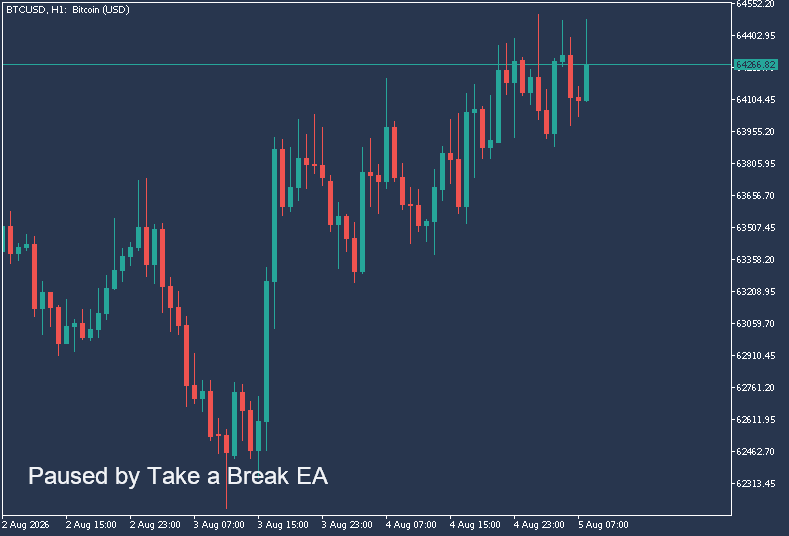

The new dropdown has three positions:
- Automatic — new installs get all charts; existing setups stay unchanged
- All charts of this terminal — the new mode, explicitly
- Chart Group charts only (as before) — the old behaviour, explicitly
⚠️ One practical note: run one Take a Break EA per terminal. With the account-wide pause, two of them would interfere with each other — the EA warns you if it detects this.
NEW: per-chart protection profiles — on top
Account-wide rules are the foundation — but your XAUUSD scalper and your EURUSD swing chart don't necessarily want the same rules. That is the indicator's new job. It used to be required plumbing; now it is the fine-tuning layer: drop the Take a Break indicator on a chart, and that chart gets its own additional rules.
- News protection — pause windows per impact level, each with its own before/after minutes
- Profit / loss limits — in $ or %, with an optional cooldown pause after a limit closes trades
- Order limits — maximum open orders, maximum total lots
- Market filters — maximum spread, volatility (candle range), daily change
- Trading times — hours, weekdays, days of the year, and a daily close time
- Scope — which trades count for this chart: additional symbols, magic numbers, order comments, order types
Every chart can have different rules. Your XAUUSD scalper gets a tight news filter and a spread cap; your EURUSD swing chart gets loss limits and trading hours; a chart you trade manually gets just the news pause. No groups, no cross-referencing — what you see on the chart is what applies to it.
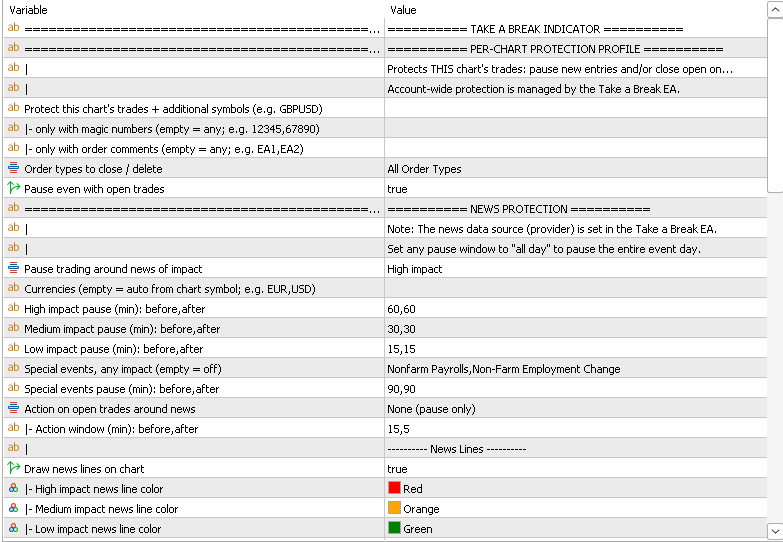
The two layers in one sentence: the EA's settings protect the whole account; the indicator's settings protect that one chart — on top, never instead.
News protection, rebuilt
The news filter got the most requested upgrades in one go:
- Compact setup. One field per impact level, in "before,after" minutes: "60,60" pauses 60 minutes before and after the event. What used to be a column of inputs is now a single line each.
- "all day" — write it into any window and the entire day of the event is paused. Useful for NFP Fridays or rate decision days.
- Special events get their own window. Name an event — Nonfarm Payrolls is preset — and it gets its own pause window, no matter how the calendar rates its impact. Add your own, e.g. interest rate decisions.
- Remove only the SL — or only the TP. The Remove SL/TP action (take the stops off during the spike, restore them right after) can now strip just one side: shield your stop loss from a news wick while keeping the profit target — or the other way round.
- See what's coming. The news lines on the chart are now backed by the info panel: it names the next relevant event and counts down to it — including what the chart will do when it hits.
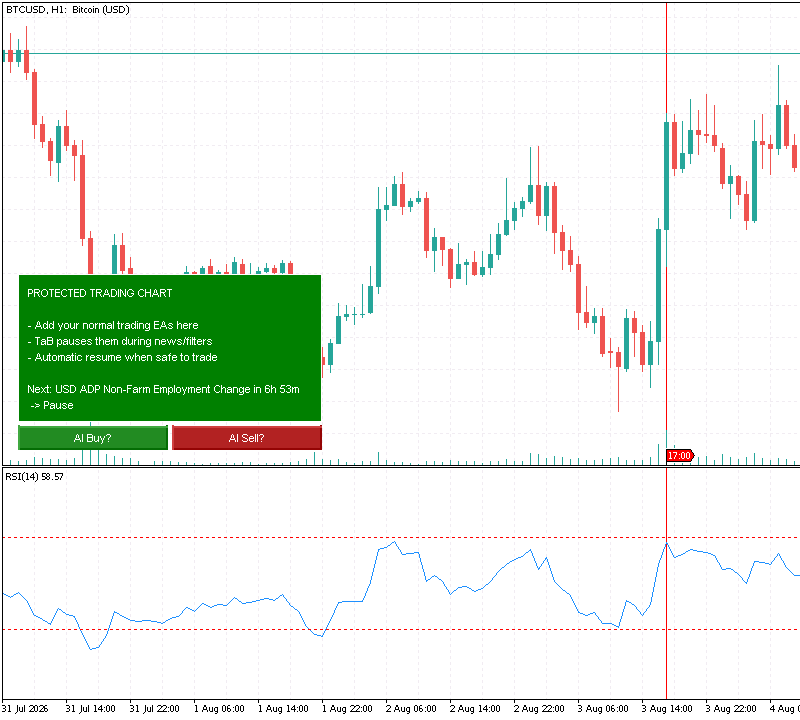
Two things worth knowing: the per-chart news action defaults to pause only — it does not close or touch your trades unless you tell it to. And if you do choose the Close action, pending orders are now deleted as soon as the pause begins, not only inside the action window. An open position gets time to run to its target — a pending can only fill, and filling mid-event is exactly what the pause is there to prevent.
Fewer inputs, a cleaner dialog
Not everything new in v26 is a feature — a lot of work went into removing clutter. The settings dialogs are reorganised into named sections, ordered by what you actually touch; rarely-used switches moved to the bottom; and many input rows collapsed into compact one-liners — the news windows above are one example, one "before,after" field per impact level instead of a whole column of numbers. Labels carry examples wherever a format isn't obvious. Same power, fewer knobs to get wrong.
Ask the AI before you take the trade
The AI trade assessment used to run after a position opened. v26 adds what many of you asked for: assess buttons right on the chart. Set up your trade idea, press the button, and get a verdict — Good / Acceptable / Poor entry, with reasoning, risk notes and suggested improvements — before any position exists.
💡 No position needed: the button assesses the chart in front of you — your indicators, your custom instructions, your trade idea — without putting a cent on the line. Press, read the verdict, adjust, press again. It's also the quickest way to get a feel for the verdicts before enabling the automatic assessment on real entries.

Also new:
- The full assessment now runs in MetaTrader 4 too — automatic verdicts on new entries and the assess buttons alike (both used to be MT5-only)
- Custom instructions per chart — tell the AI how to read this specific chart ("the green line is my trend filter", "I only trade London session")
- Required margin is included in the analysis
- Grace period for Poor entries — instead of closing immediately, give the trade X minutes to prove itself, then breakeven or close
One honest limitation: the AI assessment is not available on the MetaTrader VPS. If you run there, the EA says so plainly instead of failing silently.
The info panel
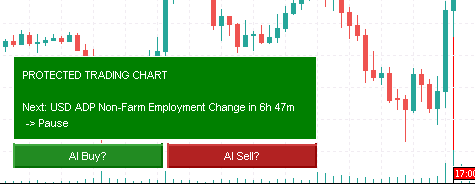
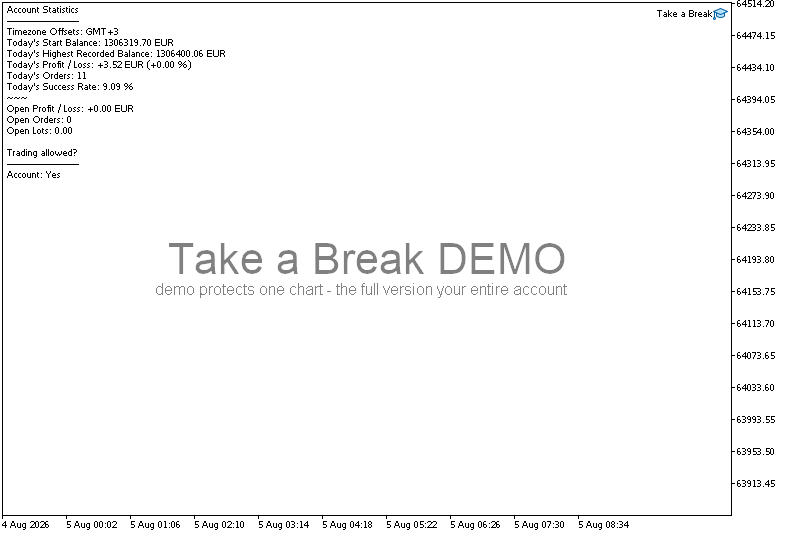
The info panel on each indicator chart shows what the chart is doing right now, why it's paused if it's paused, the next news event with a countdown, and the remaining cooldown after a loss limit. New in v26: Compact mode — if you find the full panel too chatty, it shrinks to just the status line.
MetaTrader VPS: now supported
Earlier versions said "MetaTrader VPS: not supported". I've tested the full chain on the hosted environment — news download, chart pausing, push notifications — and it works. v26 officially supports the MetaTrader VPS, with three things worth knowing — none of them fixable from the EA's side:
- A chart is migrated only if an EA runs on it. A chart carrying just the Take a Break indicator stays behind — that is how the MetaTrader VPS works. If a chart seems unprotected on the VPS, check this first.
- Only each chart's current state is migrated. Other chart states — e.g. a custom "trading is not allowed" state carrying its own EAs — exist locally only and are never carried over: whatever a chart happens to show at the moment of migration is what it will be on the host, permanently, and no error appears anywhere. So migrate only while every chart is in its "trading allowed" state; if a pause is active, let it end locally, then migrate once more.
- The AI Trade Assessment does not run there (a limitation of the hosted environment). The EA reports this in plain words instead of failing on every trade.
Changes in the free version
The free version now protects out of the box: a fixed -5% daily loss brake is always active, resetting at midnight. When it triggers, the demo pauses one chart — the full version pauses your entire account.
⚠️ Important if you already use the free version: the demo no longer takes your own limit values. If you had configured a tighter limit than -5% (or a fixed money amount), that setting no longer applies — the demo now always brakes at -5%. If you rely on stricter limits, the full version is where you set your own. Profit targets and equity limits are also full-version-only now.
Unchanged: one chart/symbol, one multi-symbol alert per day, 5 AI assessments.
Questions you might have after updating
"Do my Chart Groups still work?"
Yes — setups from before v26 keep the Chart-Group behaviour untouched until you switch the new dropdown, and you can switch back at any time.
"Do I need the indicator on every chart now?"
No — the opposite. Account protection no longer needs the indicator at all: in the new mode, the EA pauses every chart by itself. The indicator goes only on charts that should carry their own rules on top.
"Will v26 touch my pending orders during news?"
Only if you choose the Close action and "Order types to close / delete" covers pendings — then pending orders are deleted as soon as the pause window starts (new in v26). The default news action, None (pause only), touches nothing.
"Do I have to update both products?"
Yes. The EA protects the account, the indicator adds the per-chart rules — v26 needs both sides speaking the same language, so update EA and indicator together.
"My charts are not paused anymore after the update!"
Once you have migrated all your charts to the new per-chart profiles, make sure you set "Charts to pause when the account is no longer allowed to trade" to "All charts of this terminal" (the new mode) in the EA — otherwise your charts won't get paused when an account limit is hit (daily loss/profit, equity).
Get it
MetaTrader 5
- Take a Break EA: https://www.mql5.com/en/market/product/45264
- Take a Break Indicator: https://www.mql5.com/en/market/product/51828
MetaTrader 4
- Take a Break EA: https://www.mql5.com/en/market/product/28252
- Take a Break Indicator: https://www.mql5.com/en/market/product/51832
Update both — and if you have questions, just ask: I read every comment here and answer personally. For an instant answer at any hour, the support assistant is there 24/7.
Trade safe — and take a break when the rules say so. That's the whole point. 😉