TS Parameter Advisor MT4
- Indicators
-
Mariusz Franciszek Szczepanczyk
 I have been trading since 2005. Over the years I have built my own set of tools because I could not find what I actually needed on the market. Not magic entry signals. Not promises. Just clean, reliable trade management that works while I am away from the screen.
 - Version: 1.2
- Updated: 10 August 2026
- Activations: 5
TS Parameter Advisor MT4 – Automatic Trailing Stop Parameter Calculator for One Click B3 MT4
TS Parameter Advisor MT4 is a lightweight support indicator that analyzes recent price behavior on any instrument and automatically calculates ready-to-use Trailing Stop parameters. It does not open, close, or manage any trades itself. Its only job is to measure how "nervous" or how "calm" the market currently is, and turn that measurement into concrete pip values that can be fed directly into the One Click B3 MT4 Expert Advisor's Trailing Stop engine.
Instead of guessing Trailing Stop settings by trial and error, or manually re-adjusting them every time volatility changes, this tool watches the market for you and keeps the numbers ready and up to date.
IMPORTANT – THIS IS NOT A STANDALONE INDICATOR
This tool does NOT manage Stop Loss or Take Profit by itself and does NOT execute any trading logic independently.
It is designed exclusively to work in combination with One Click B3 MT4 Expert Advisor.
Without One Click B3 MT4 running on the same symbol, this indicator will only display the button and will NOT control SL/TP functionality.
If you do not own or use One Click B3 MT4, this product will not provide any trading functionality.
WHAT THE INDICATOR ACTUALLY DOES
The indicator looks back over a number of recent candles that you choose yourself, on a timeframe that you choose yourself, and measures two things for every candle in that history: how large the candle's full range was, and how large the price correction (pullback) inside that candle was. From this it builds two separate sets of Trailing Stop parameters:
Column 1 – "Nervous Market" parameters, based on the average behavior of recent candles. These react faster and are suited to more volatile, choppy conditions.
Column 2 – "Calm Market" parameters, based on the 90th percentile of recent candle ranges, filtering out the noise of the most extreme spikes. These are suited to quieter, more orderly market conditions.
Each column produces three values:
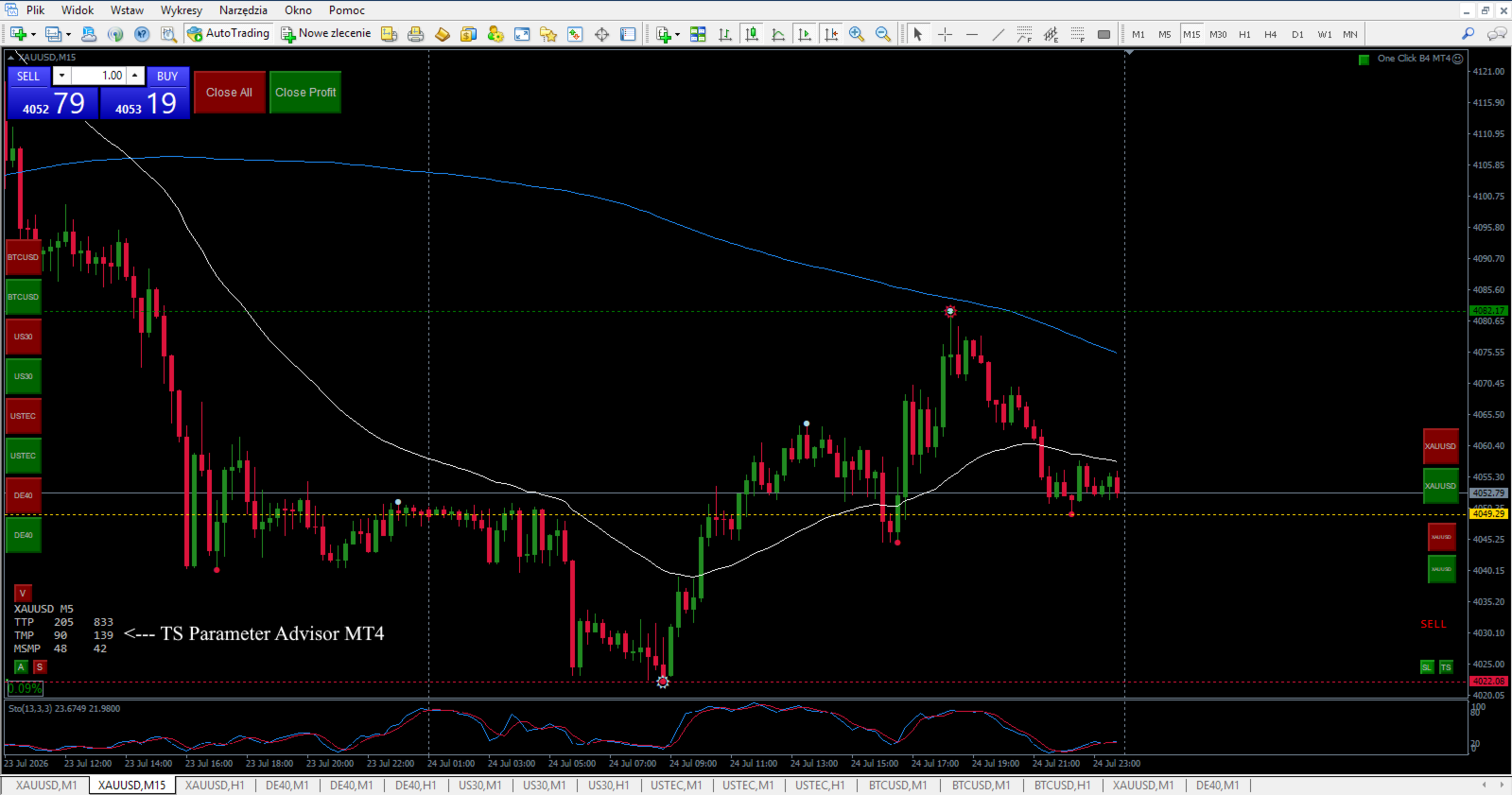
TTP (Trailing Trigger Pips) – how far the price must move in profit before the trailing stop starts adjusting.
TMP (Trailing Move Pips) – the step size used when moving the trailing stop.
MSMP (Min SL Move Pips) – the minimum pip distance required before a new Stop Loss modification is sent.
These values are written automatically into global variables and are picked up by One Click B3 MT5 through its TSAdvisor_Column and EnableTSAdvisor parameters, so you don't have to copy any numbers by hand.
CHOOSE YOUR OWN ANALYSIS WINDOW
Two inputs give you full control over how the market is measured:
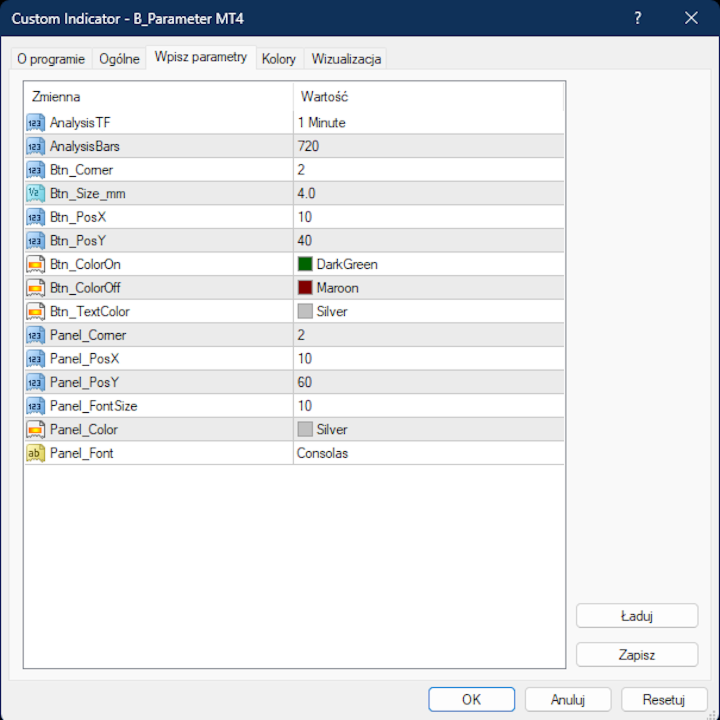
AnalysisTF – the timeframe used for the analysis (e.g. M1, M5, M15, M30, H1, H4).
AnalysisBars – how many recent candles are analyzed.
By changing these two settings you decide what "recent market character" means for your trading style: a short window on a low timeframe reacts quickly to sudden changes in volatility, while a longer window on a higher timeframe produces steadier, more stable parameters. This lets you tune the indicator to scalping, intraday or swing conditions on any instrument, without touching a single line of code.
ON-CHART PANEL AND BUTTON
A small button is placed directly on the chart, letting you show or hide a compact information panel with one click. The panel displays the current MSMP, TMP and TTP values for both the Nervous Market and Calm Market columns, along with the symbol and timeframe being analyzed, so you can see at a glance what the indicator is currently recommending.
Both the button and the panel are fully customizable:
– corner of the chart where they are anchored
– X and Y position
– button size (in millimeters, so it looks consistent across different screens and resolutions)
– button colors for the ON and OFF state
– text color
– panel font, font size and text color
The values are calculated and written to the global variables even while the panel is hidden, so you can keep your chart clean and still have One Click B3 MT4 fed with fresh parameters at all times.
PERFORMANCE
The indicator recalculates only once per new candle close on the selected AnalysisTF, not on every tick. This keeps CPU usage minimal, even when running on many charts at once, and makes it perfectly safe to leave running permanently on a VPS alongside One Click B3 MT4.
COMPATIBLE PLATFORMS
Designed for MetaTrader 5. Works on any instrument and any broker where One Click B3 MT4 is used, including XAUUSD, indices, crypto and forex symbols.
TROUBLESHOOTING
Before anything else — after setting your final parameters, save a chart template with the instrument name so you can restore everything instantly if needed.
If the indicator behaves unexpectedly, this is typically caused by accumulated data from previous chart configurations stored in the platform, not by the indicator itself:
Go to Tools → Global Variables → delete all variables.
Go to File → Open Data Folder.
Close MetaTrader completely.
In the data folder, open the Logs folder and delete everything inside.
In the data folder, open the Bases folder, then your broker folder, then the History folder, and delete everything inside.
Close the data folder and reopen MetaTrader — everything will work correctly.
If problems persist, contact me directly. I respond to every message.
PARAMETERS SPECIFICATION
Analysis Settings
AnalysisTF – timeframe used to measure recent candle ranges and corrections.
AnalysisBars – number of recent candles included in the analysis.
Button Settings
Btn_Corner – chart corner anchor for the show/hide panel button.
Btn_Size_mm – button size in millimeters.
Btn_PosX – button X position from the corner.
Btn_PosY – button Y position from the corner.
Btn_ColorOn – button background color when the panel is visible.
Btn_ColorOff – button background color when the panel is hidden.
Btn_TextColor – button text color.
Panel Settings
Panel_Corner – chart corner anchor for the information panel.
Panel_PosX – panel X position from the corner.
Panel_PosY – panel Y position from the corner.
Panel_FontSize – font size used in the panel.
Panel_Color – text color used in the panel.
Panel_Font – font used in the panel.