One Click B3 MT5
- Experts
-
Mariusz Franciszek Szczepanczyk
 I have been trading since 2005. Over the years I have built my own set of tools because I could not find what I actually needed on the market. Not magic entry signals. Not promises. Just clean, reliable trade management that works while I am away from the screen.
 - Version: 1.38
- Updated: 11 October 2026
- Activations: 5
This is not just an EA for quickly closing positions, regardless of how many trades or instruments are open. This is also an EA for controlling, protecting, and achieving maximum percentage profit from all open positions when the platform is closed. This is an EA that allows peaceful sleep and rest. This is an EA that keeps working even when you're enjoying your brief privilege of freedom, using what you've earned from this work. Look closely, invest time just once to set the parameters according to your own expectations, and practice this profession stress-free.
One Click B3 MT5 – One-Click Trade Management Panel with Trailing Stop, Auto TP and Signal Lines
One Click B3 MT5 is a trade management Expert Advisor for MetaTrader 5. It does not open positions on its own. All entries are made manually or by other EAs. This tool takes over from the
moment a position is open and manages Stop Loss, Trailing Stop, Take Profit and closing actions according to your settings.
It is designed for traders who want to define their risk plan once, set the parameters, and then step away from the screen. If you run it on a VPS it will watch your trades between sessions without interruption. During normal trading hours the built-in sound system reports what matters: a new position detected, SL moved, TP set, position closed. If you hear nothing, nothing important is happening.
This tool is also effective for scalping. It can protect any number of open positions across any number of instruments simultaneously and close all of them, or only profitable ones, with a single click on the selected symbol button.
Please verify before use that your MetaTrader 5 installation includes the sound files order-filled.wav and order-submitted.wav. These are standard MT5 sounds and should be present by default.
STRATEGY TESTER
Visual elements such as buttons, panels and signal lines are not displayed in the Strategy Tester. This is a MetaTrader 5 platform limitation. Order execution, Stop Loss and Take Profit management, Auto TP, Trailing Stop logic, profit calculations and all internal trading mechanisms work normally in the tester. For full visual testing use a demo account.
CONTROL PANELS
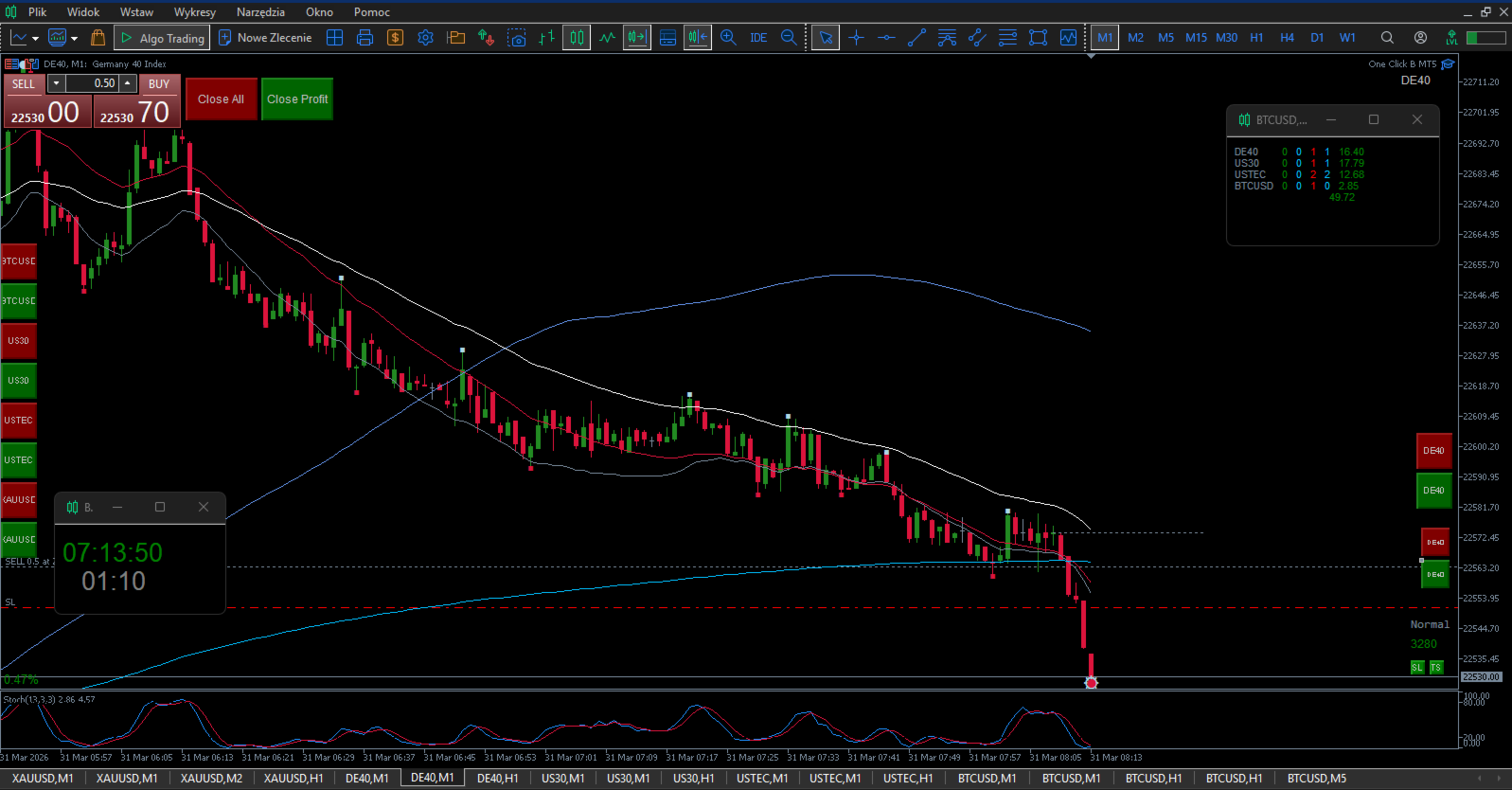
The EA provides two independent panels. The Main Panel has two buttons: Close Profit closes all profitable positions across the entire platform, Close All closes every open position across the entire platform. The Instrument Panel is generated automatically from the PanelSymbols parameter. You enter up to 20 symbol names separated by commas. The EA creates a pair of buttons for each symbol: one to close all positions on that instrument, one to close only profitable positions on that instrument. Net profit calculation includes swap and manual commission defined per symbol using Commission_1 to Commission_20. Panel position, button size, spacing, colors and corner anchoring are fully configurable. Individual X and Y coordinates can be set separately for each of the 20 symbol slots. If not defined the panel arranges automatically.
THIRD PANEL (LAST POSITION CONTROL)
In addition to the main panels, the EA has a Third Panel designed for precise, surgical outputs. This panel is also automatically generated from the PanelSymbols parameter. For each specific symbol, it creates a pair of small buttons: one to close the last open position on the instrument if it is currently profitable, and the other to close the last free position if it is on the track. This allows you to quickly manage the latest entry without affecting older positions on the same instrument. Panel position, button sizes, spacing, colors, and font size are fully customizable. Individual X and Y coordinates can be set separately for each predefined symbol slot. If not defined, the panel is arranged
STOP LOSS AND TRAILING STOP
The EA monitors all open positions on the current instrument. When a position reaches the profit distance defined by TriggerPips, the EA places an initial Stop Loss at breakeven offset by SL_Offset_Pips. This is the most important parameter pair. SL_Offset_Pips defines how many pips from the open price the SL is placed. Include your transaction cost and expected slippage in this value. For XAUUSD with a commission of 4.5 USD per lot a safe value is 80 to 120 pips. TriggerPips defines how far the position must travel in profit before the SL is activated. For XAUUSD with longer holds a safe value is 250 to 300 pips. All parameters must be identical on every chart of the same instrument. After the initial SL is set, Trailing Stop takes over if enabled. The small TS square button on the chart toggles trailing on and off. Its color reflects the current state. Trailing settings cover trigger distance, step size, minimum movement and minimum time between modifications. The system uses Global Variables to synchronize state across charts and prevent duplicate modifications.
VIRTUAL STOP LOSS (VIRTUAL STOP LOSS (VSL)
For traders who prefer to completely hide their risk management from the broker, the EA includes a full-featured Virtual Stop Loss (VSL) and Virtual Trailing Stop system. When enabled, the EA keeps track of the Stop Loss and Trailing Stop levels internally in its memory instead of placing physical stop orders on the broker's server.
The key advantages of a virtual SL are absolute invisibility for the broker and the complete elimination of the broker's slippage during Stop Loss execution. Since the broker cannot see the exit levels, they cannot manipulate or trigger your stops beforehand. Once the market price reaches the virtual level, the EA sends a market order to close the position, executing the exit on your terms. The system also includes a maximum spread filter to prevent premature closures
To enable or disable Virtual SL, a small button with the letter "V" is placed on the graph. This button can be freely moved and placed anywhere on the chart, in any of the four corners. Its size, position, and colors (for ON/OFF states) are fully customizable in the settings. When VSL is active, the physical SL and Trailing Stop functions are disabled to prevent duplicate orders. The system uses global variables to synchronize the state of VSL across all charts
AUTOMATIC TAKE PROFIT
When EnableAutoTP is active the EA sets Take Profit automatically for every newly opened position that does not already have one. The distance is defined by AutoTP_Pips. Auto TP is applied once per position. If you remove it manually it will not be reapplied. The calculation adapts to the pip structure of the symbol.
GRAY AND GREEN SIGNAL LINES
The EA draws a two-stage signal structure on the chart based on price action analyzed on the SignalTF timeframe. The Gray line marks the initial impulse. It appears when a candle closes with its body fully beyond the body of the previous candle, confirming directional momentum. The line is placed at the opposite edge of the signal candle body. The Green line marks the corrective entry zone. After the impulse completes, the EA tracks the retracement. When price enters the 50 to 61.8 percent Fibonacci zone of the impulse and then closes back in the direction of the original move, the Green line is placed at the extreme of the retracement within that zone. A Green line cannot exist without an active Gray line. If the Gray structure is invalidated the Green is automatically removed. Lines are restored after timeframe change or chart refresh. The entire structure resets automatically every defined number of hours. Colors, styles and widths are configurable separately for Buy and Sell. The entire logic can be disabled with EnableGrayGreenLogic = false.
TECHNICAL DETAILS
The EA supports hedging accounts. Up to 100 positions are tracked simultaneously. Modification locks prevent duplicate trailing operations. Button states and panel positions are saved locally and restored after platform restart. All trade operations include margin validation before execution.
IAmMaster – designates this chart as the Master for SL/TS/TP modifications on this instrument. Set true on one chart only, false on all others running the same instrument. Example: If you use 3 charts of the same instrument (e.g. XAUUSD), set IAmMaster = true on one chart and IAmMaster = false on the remaining two. The Master chart handles all SL, Trailing Stop and sound notifications. Non-master charts can still open and close positions normally. Note: If you run the EA on a VPS and a laptop simultaneously on the same account, set IAmMaster = true only on the VPS charts and IAmMaster = false on all laptop charts. We write the names of instrument symbols in the EA exactly as the broker describes them.
TROUBLESHOOTING
Before anything else — after setting up the indicator and saving your final parameters, create a chart template with the instrument name. This way you can restore everything in seconds if needed.
If the indicator behaves unexpectedly or causes platform slowdowns, please note: these issues are not caused by this indicator. They are caused by accumulated data from previous chart configurations stored in your platform.
Follow these steps:
-
Go to Tools → Global Variables → delete all variables.
-
Go to File → Open Data Folder.
-
Close MetaTrader completely.
-
In the data folder open the Logs folder and delete everything inside.
-
In the data folder open the Bases folder, then open your broker folder, then open the History folder and delete everything inside.
-
Close the data folder.
-
Reopen MetaTrader — everything will work correctly.
If problems persist, contact me directly. I respond to every message.
PARAMETERS SPECIFICATION
General Settings
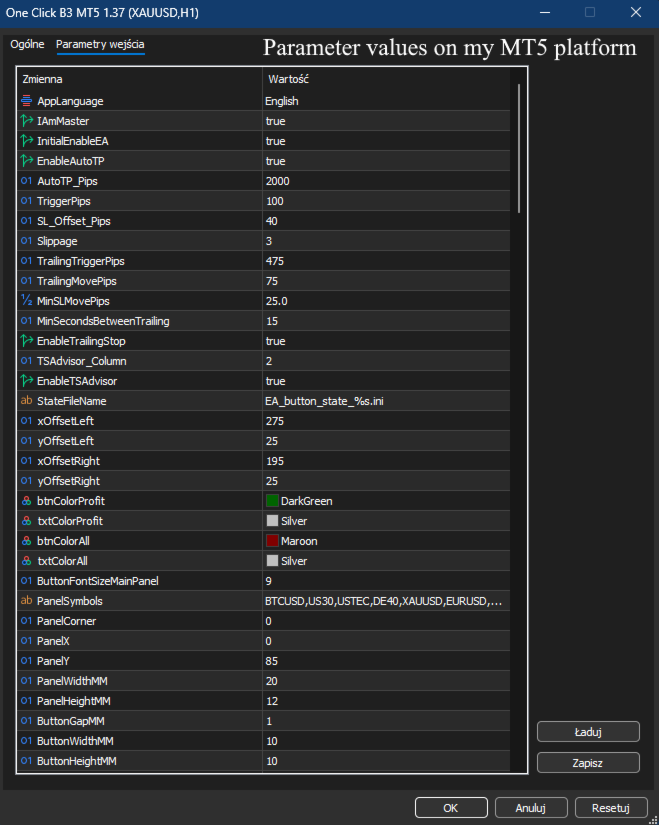
AppLanguage – selects interface language (Polish/English/German/Russian/Spanish) for labels and messages.
IAmMaster – designates this chart as the Master for SL/TS modifications on this instrument. Set true on one chart only, false on all others running the same instrument.
InitialEnableEA – EA starts enabled/disabled on chart attach.
Stop Loss, Trailing Stop & Auto TP Settings
EnableAutoTP – enables/disables automatic TP for new positions.
AutoTP_Pips – distance in pips from open price for automatic Take Profit placement.
TriggerPips – profit pips threshold after which initial protective SL is placed.
SL_Offset_Pips – offset pips from open price for initial breakeven SL.
Slippage – max price slippage pips for modify/close.
TrailingTriggerPips – pips in profit from price to trigger TS update.
TrailingMovePips – pip steps for SL moves during trailing.
MinSLMovePips – min pip difference for SL modification. Check what minimum level of stop orders your broker accepts.
MinSecondsBetweenTrailing – min seconds between SL updates.
EnableTrailingStop – global toggle for trailing stop.
TSAdvisor_Column – column number for external TS Advisor integration.
EnableTSAdvisor – enables/disables external TS Advisor integration.
Panel 1 & 2 Settings (Main & Instrument Panels)
StateFileName – template for EA on/off state INI per symbol.
xOffsetLeft – X position of main Close Profit button.
yOffsetLeft – Y position of main Close Profit button.
xOffsetRight – X position of main Close All button.
yOffsetRight – Y position of main Close All button.
btnColorProfit – background color for Close Profit button.
txtColorProfit – text color for Close Profit button.
btnColorAll – background color for Close All button.
txtColorAll – text color for Close All button.
ButtonFontSizeMainPanel – font size for main panel buttons.
PanelSymbols – comma-separated symbol names for individual instrument buttons.
PanelCorner – anchor corner for symbols panel.
PanelX – base X offset for symbols panel.
PanelY – base Y offset for symbols panel.
PanelWidthMM – main panel button width in mm.
PanelHeightMM – main panel button height in mm.
ButtonGapMM – spacing between panel buttons in mm.
ButtonWidthMM – per-symbol button width in mm.
ButtonHeightMM – per-symbol button height in mm.
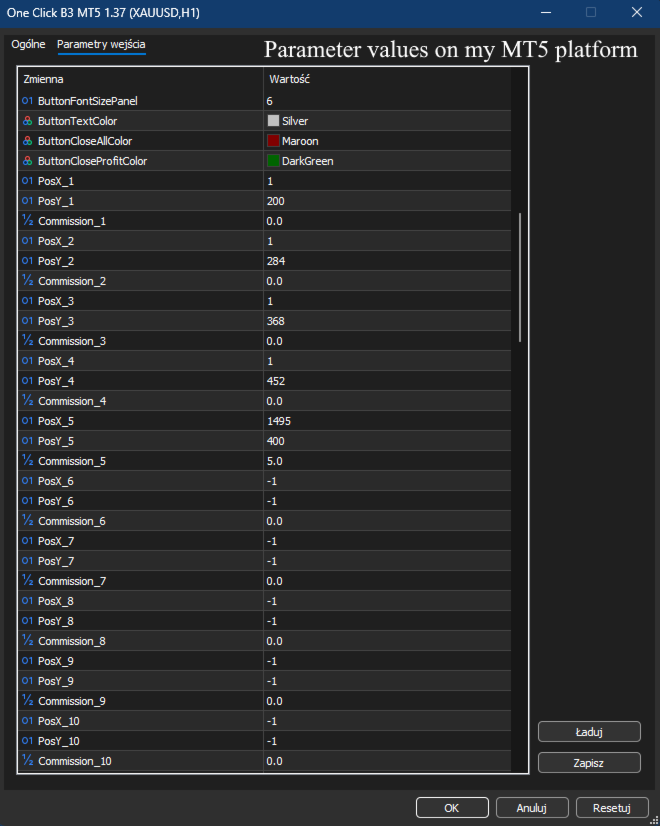
ButtonFontSizePanel – font size for per-symbol buttons.
ButtonTextColor – text color for symbol buttons.
ButtonCloseAllColor – background color for Close All in panel.
ButtonCloseProfitColor – background color for Close Profit in panel.
BTCUSD_PosX – custom X position for BTCUSD button.
BTCUSD_PosY – custom Y position for BTCUSD button.
US30_PosX – custom X position for US30 button.
US30_PosY – custom Y position for US30 button.
USTEC_PosX – custom X position for USTEC button.
USTEC_PosY – custom Y position for USTEC button.
DE40_PosX – custom X position for DE40 button.
DE40_PosY – custom Y position for DE40 button.
XAUUSD_PosX – custom X position for XAUUSD button.
XAUUSD_PosY – custom Y position for XAUUSD button.
Commission_BTCUSD – per-lot commission for BTCUSD.
Commission_US30 – per-lot commission for US30.
Commission_USTEC – per-lot commission for USTEC.
Commission_DE40 – per-lot commission for DE40.
Commission_XAUUSD – per-lot commission for XAUUSD.
Signal Lines Settings
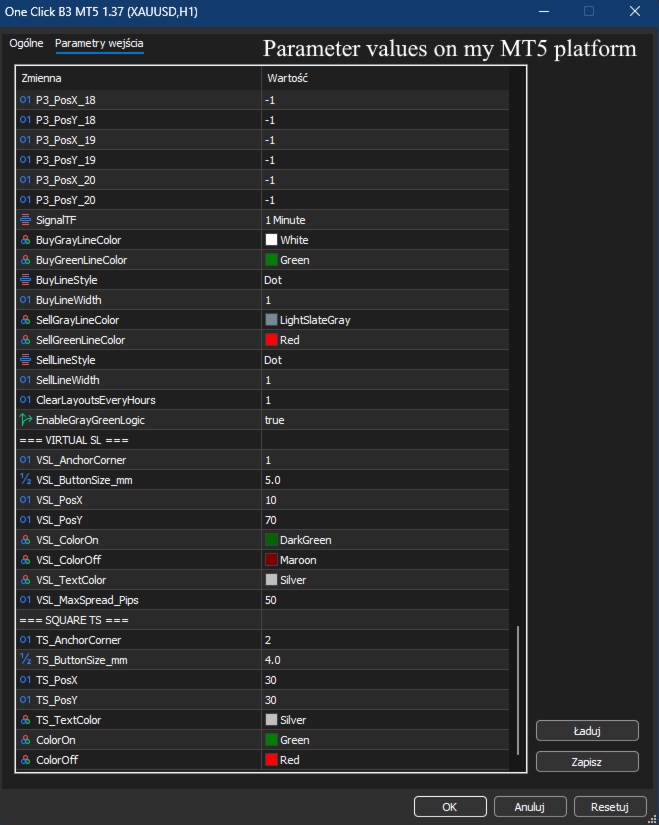
SignalTF – timeframe for Gray/Green signal analysis.
BuyGrayLineColor – color of Gray Buy signal line.
BuyGreenLineColor – color of Green Buy signal line.
BuyLineStyle – line style for Buy signals.
BuyLineWidth – width of Buy signal lines.
SellGrayLineColor – color of Gray Sell signal line.
SellGreenLineColor – color of Green Sell signal line.
SellLineStyle – line style for Sell signals.
SellLineWidth – width of Sell signal lines.
ClearLayoutsEveryHours – hours interval to auto-clear signal lines (0=disabled).
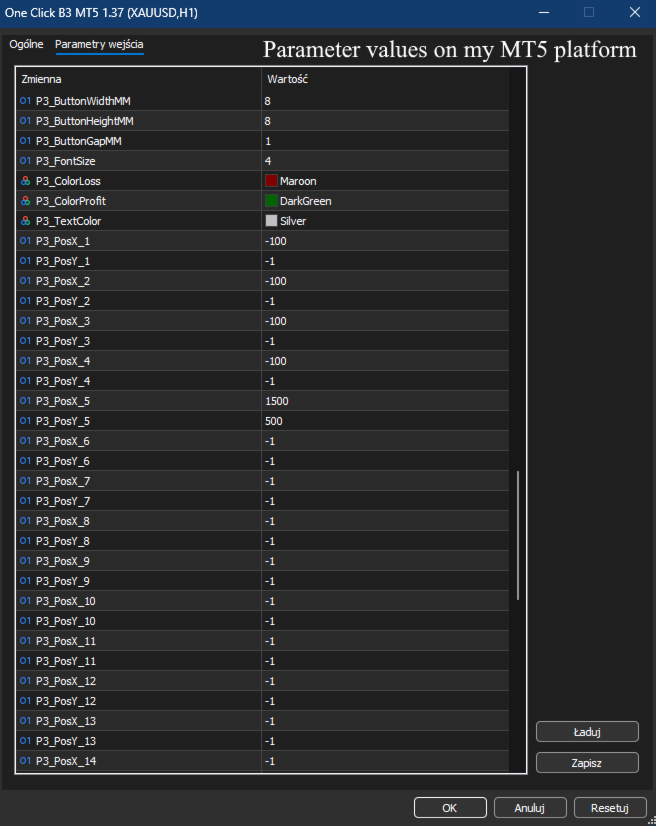
Panel 3 Settings (Last Position Control)
P3_Corner – anchor corner for Third Panel.
P3_X – base X offset for Third Panel.
P3_Y – base Y offset for Third Panel.
P3_ButtonWidthMM – button width in mm for Third Panel.
P3_ButtonHeightMM – button height in mm for Third Panel.
P3_ButtonGapMM – spacing between buttons in the Third Panel.
P3_FontSize – font size for Third Panel buttons.
P3_ColorLoss – background color for closing last loss position.
P3_ColorProfit – background color for closing last profit position.
P3_TextColor – text color for Third Panel buttons.
P3_BTCUSD_PosX – custom X position for BTCUSD button in Panel 3.
P3_BTCUSD_PosY – custom Y position for BTCUSD button in Panel 3.
P3_US30_PosX – custom X position for US30 button in Panel 3 (use -100 for auto).
P3_US30_PosY – custom Y position for US30 button in Panel 3 (use -1 for auto).
P3_USTEC_PosX – custom X position for USTEC button in Panel 3 (use -100 for auto).
P3_USTEC_PosY – custom Y position for USTEC button in Panel 3 (use -1 for auto).
P3_DE40_PosX – custom X position for DE40 button in Panel 3 (use -100 for auto).
P3_DE40_PosY – custom Y position for DE40 button in Panel 3 (use -1 for auto).
P3_XAUUSD_PosX – custom X position for XAUUSD button in Panel 3 (use -100 for auto).
P3_XAUUSD_PosY – custom Y position for XAUUSD button in Panel 3 (use -1 for auto).
Technical Signal Master Switch
EnableGrayGreenLogic – enables/disables Gray/Green signal lines drawing.
Virtual SL (VSL) Settings
VSL_AnchorCorner – chart corner anchor for the "V" (Virtual SL) button.
VSL_ButtonSize_mm – "V" button size in mm.
VSL_PosX – "V" button X position from corner.
VSL_PosY – "V" button Y position from corner.
VSL_ColorOn – "V" button background when Virtual SL is ON.
VSL_ColorOff – "V" button background when Virtual SL is OFF.
VSL_TextColor – "V" text color on button.
Trailing Stop (TS) Button Settings
TS_AnchorCorner – chart corner anchor for TS button.
TS_ButtonSize_mm – TS button size in mm.
TS_PosX – TS button X position from corner.
TS_PosY – TS button Y position from corner.
TS_TextColor – TS text color on button.
ColorOn – TS button background when ON.
ColorOff – TS button background when OFF.
Bots will only bring success when you have access to unlimited capital. Only "eyes and mind" will turn your account green, and simple, clean, fast, and efficient tools will help you achieve that.
Real success requires YOUR brain making decisions. My tools are not bots - they are instruments for traders who think.
Previous day's closing price acts like a magnet → High Low Close MT5
Asian Session sets the direction for London and New York sessions → Asia Session Levels
If you scalp multiple instruments:
One Click B3 MT5, Symbol Positions Panel, SL TP Toggle Button, Zoom MT5 B, Volume Delta MT5, Volume Delta Scanner MT5
If you scalp one instrument:
One Click B3 MT5, Symbol Positions Panel, SL TP Toggle Button, Pips Label Last Trade, Zoom MT5 B, Volume Delta MT5, Volume Delta Scanner MT5
If you invest long-term across multiple instruments:
One Click B3 MT5, Symbol Positions Panel, Volume Delta MT5, Volume Delta Scanner MT5
If you've read the descriptions and need clarification - contact me. I'll explain every function, setting, and use case to assure you that these tools fit your trading strategy.