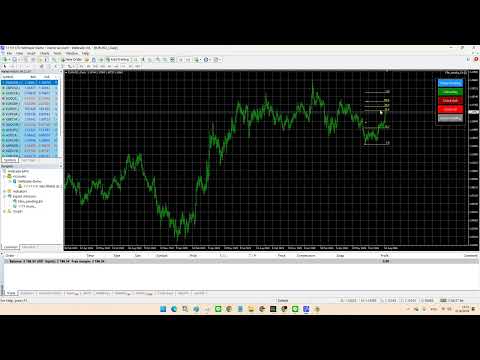
Fibo pending EA
- Utilities
- Version: 4.10
- Updated: 21 August 2026
- Activations: 5

Fibo Pending EA turns any Fibonacci Retracement you draw on the chart into a fully managed grid of pending orders — with one click.
Draw your Fibo, set the levels you want to trade, and press Place Pending. The EA reads the retracement directly from the chart, calculates Buy Limit or Sell Limit prices for each level you've enabled, and sends the orders. Stop Loss and Take Profit are then applied automatically based on the Fibo levels you choose — no manual order entry, no manual SL/TP dragging.
Key Features
-
Places pending orders from any Fibonacci Retracement object already on your chart — no separate drawing tool required.
-
Up to 10 configurable entry levels (e.g. 0.786, 0.886, 1.0 …), each independently switched on/off.
-
One-click Place Pending button — orders are sent only when you decide, not automatically the moment a Fibo appears on the chart.
-
Automatic Stop Loss and Take Profit assignment, taken from the Fibo levels you configure.
-
Auto Delete Pending: once one of your entries is filled and later closes, the EA automatically cancels the remaining unfilled pending orders for that setup.
-
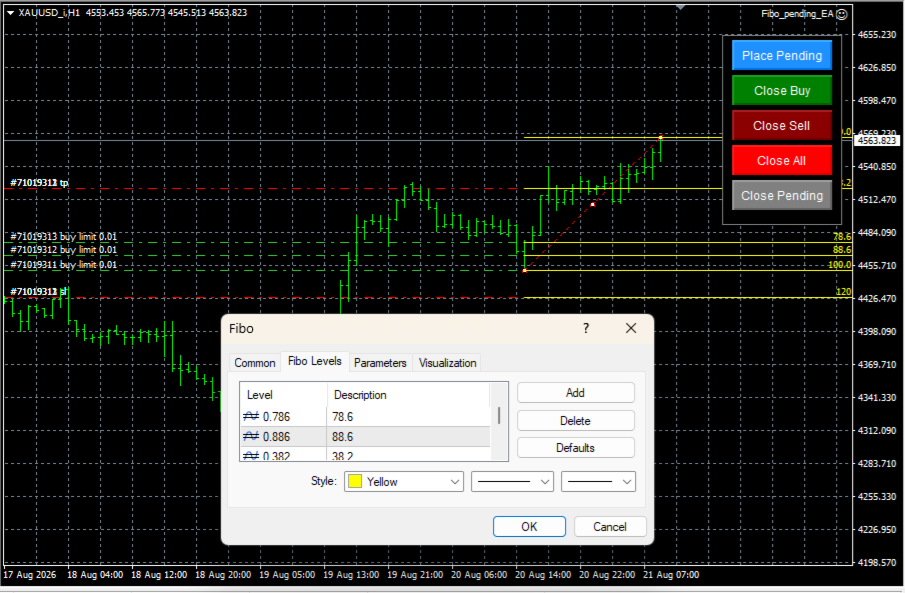
On-chart control panel with Place Pending / Close Buy / Close Sell / Close All / Close Pending buttons, each with an optional confirmation pop-up.
-
Unique Magic Number — the EA only ever manages its own orders, so your manual trades and other EAs on the same symbol are never touched.
-
Built-in broker stop-level/freeze-level check before sending an order, plus automatic retry and error logging if a trade action fails.
How It Works
-
Draw a Fibonacci Retracement on the chart as you normally would.
-
In the Fibo tool's own properties, make sure it includes the level values you've entered in the EA's entry, Take Profit and Stop Loss settings (see below).
-
Set your Lots, entry levels, and Take Profit / Stop Loss levels in the EA inputs.
-
Click the Place Pending button on the chart when you're ready — the EA sends Buy Limit or Sell Limit orders for every enabled level that hasn't already been placed.
-
The EA keeps applying Stop Loss / Take Profit to any order still missing one, and (if enabled) deletes the remaining pending orders once one position in the set has closed.
Inputs
-
Lots — trade volume for every pending order.
-
MagicNumber — identifies this EA's own orders so it never manages manual trades or other EAs' orders.
-
Slippage — allowed slippage (points) for close/modify operations.
-
UseAutoDeletePending = true/false — enable/disable automatic cancellation of the remaining pending orders once a filled order from the same set has closed.
-
AutoPlacePendingOnFibo = true/false — off by default. Leave this off to place orders manually with the Place Pending button; set to true only if you want the EA to place orders automatically as soon as a matching Fibo level appears.
-
EntryTrade_FiboLv1 … EntryTrade_FiboLv10 — up to 10 Fibonacci levels to enter at. Set any of them to 0 to disable that level.
-
Takrprofit_FiboLv / Stoploss_FiboLv — the Fibo level values used to calculate Take Profit and Stop Loss. These values must also exist as levels on the Fibo object you draw on the chart.
-
OnPlacePendingAlert / OnCloseBuyAlert / OnCloseSellAlert / OnCloseAllAlert / OnClosePendingAlert — show a confirmation pop-up before each button action fires. Disable any of these in the EA settings if you don't want the confirmation prompt.
Important Notes
-
The Take Profit, Stop Loss, and entry level values must be added to the properties of the Fibonacci Retracement tool itself on the chart — the EA reads levels directly from the drawn object, it does not add levels for you.
-
Pending orders are only sent when you press Place Pending (unless AutoPlacePendingOnFibo is enabled), giving you full control over when the EA acts on a new Fibo drawing.
-
As with any automated trading tool, please test thoroughly on a demo account before running it on a live account. Past performance does not guarantee future results, and trading involves risk of loss.