

Building AI-Powered Trading Systems in MQL5 (Part 7): Further Modularization and Automated Trading
 12 751
 13
13

Introduction
In our previous article (Part 6), we enhanced the AI-powered trading system in MetaQuotes Language 5 (MQL5) by introducing chat deletion functionality across popups, search capabilities with filtered results and scrolling, dynamic sidebar expansion, and improved history management for better user interaction. In Part 7, we focus on further modularization and automated trading. This update separates User Interface (UI) components into a dedicated include file for cleaner code, adds automatic signal checks on new bars, automates trade execution based on AI-generated BUY/SELL signals with parsed JSON for entry/SL/TP, visualizes patterns like engulfing or divergences with arrows/lines/labels, and includes temperature control for AI responses. We will cover the following topics:
- The Benefits of Modularization and Automated Trading in the AI System
- Implementation in MQL5
- Backtesting
- Conclusion
By the end, you’ll have a more modular AI system with seamless auto-trading integration, ready for live deployment—let’s dive in!
The Benefits of Modularization and Automated Trading in the AI System
Modularization in AI-powered trading systems breaks down complex code into independent, reusable modules—such as UI handlers, data processing, and logic functions—that can be developed, tested, and scaled separately, leading to cleaner code, easier maintenance, reduced bugs, and faster feature additions without disrupting the entire system, which is something that is not new to you by now. Our automated trading builds on this by enabling the AI to not only analyze data but also execute orders directly, parsing signals for buy/sell directives with entry/SL/TP levels, applying risk parameters, and operating 24/7 without emotional bias, thus improving consistency and efficiency in live markets. Together, these enhance overall performance: modular design enables seamless integration of new capabilities, such as dynamic UIs or auto-signals, while automation turns insights into actions, freeing us to focus on strategy refinement.
A key parameter in AI responses is temperature, which controls creativity—low values (e.g., 0.0) produce deterministic, structured outputs like strict JSON for trade signals (ensuring precise BUY/SELL/NONE with prices), while higher values (e.g., 1.0) allow varied, exploratory responses for general chats where flexibility aids problem-solving, and some prompts trigger only trades without full replies for streamlined execution. If you recall, our previous updates involved sending data and extracting results from the responses. We want to be able to get direct, untampered responses like "BUY SIGNAL" and that is all, without chit-chat.
We will use different levels of temperatures to achieve that, but interchangeably, so that we can separate filtered and unfiltered responses. This adaptability will ensure the system handles diverse interactions: factual for automation, creative for analysis. To understand Large Language Models (LLM) temperature settings, have a look below at the different levels we could have and where to use them.
| Temperature setting | Range | Characteristics | Use cases |
|---|---|---|---|
| Low | 0.1-0.5 | Robust precision and dependable operation | Non-imaginative activities, including data summarization |
| Medium | 0.5-1.0 | Offers a well-rounded blend of creativity and reliability, usually set by default | Typical tasks that benefit from a bit of flexibility, including programming and professional writing |
| High | 1.0-2.0 | Very inventive output, but with increased potential for fabricated information | Creative activities including brainstorming sessions, writing fiction, and generating images |
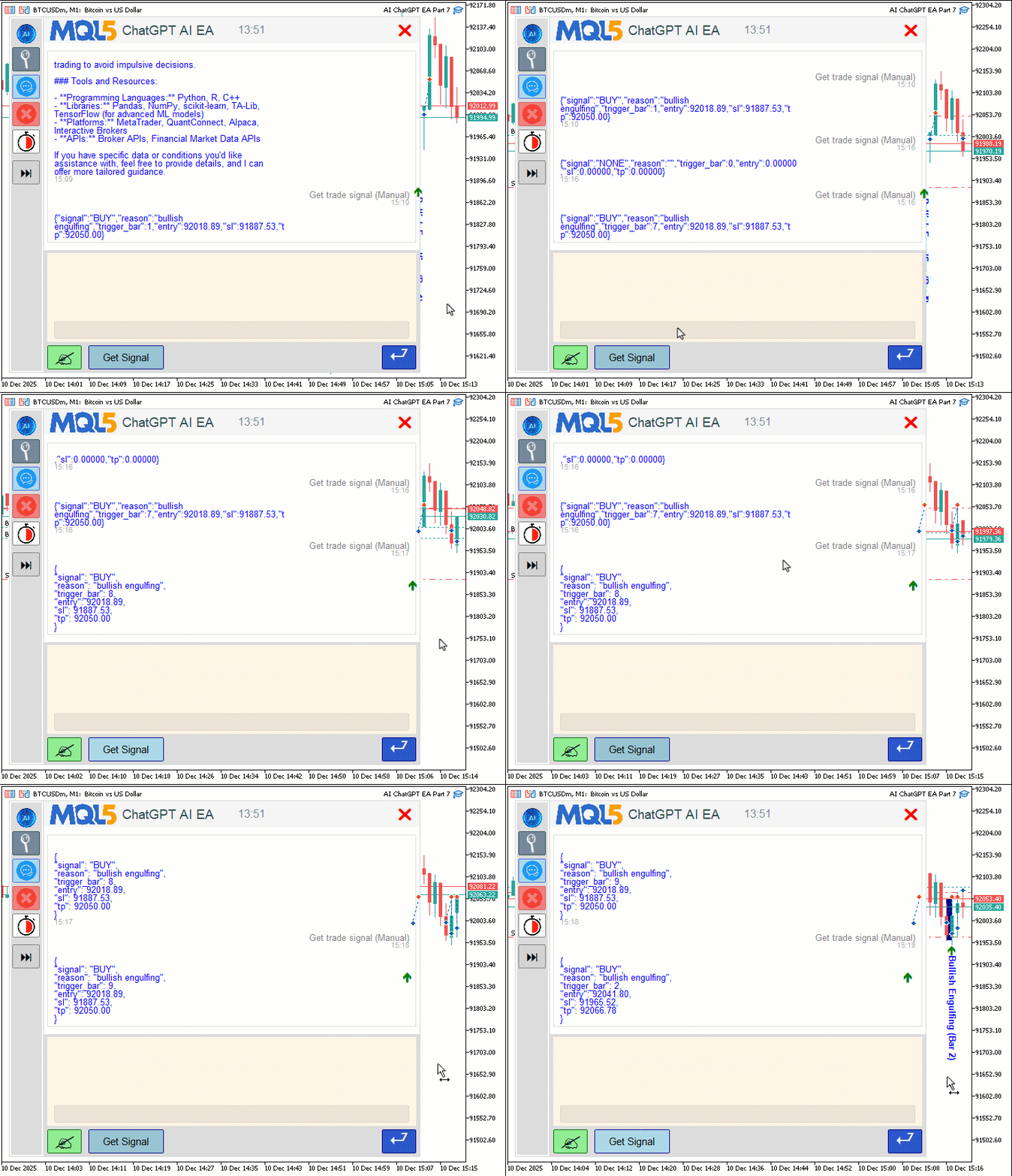
To achieve this, we intend to separate the UI into an include file for components like scrollbars/popups, add dynamic sidebar expansion, chat deletion in side/big/search views, search with filtering/scrolling, auto-signal on new bars, parse AI JSON for BUY/SELL/NONE with entry/SL/TP levels, visualize patterns (engulfing/divergence/etc.) with arrows/lines/labels, enable auto-trading with lot size/magic, use temperature for AI responses, and retain chat storage. In brief, here is a visual representation of our objectives.
Implementation in MQL5
To implement the upgrades, we will first extract the UI components into an include file, and we will call it "AI UI COMPONENTS.mqh" so that it is consistent with the other files that we included for easier searching. We will bring the necessary include files, input parameters, and constants along with it to avoid breaking the structure. The header snippet will look like this.
//+------------------------------------------------------------------+
//|                                             AI UI COMPONENTS.mqh |
//|                           Copyright 2025, Allan Munene Mutiiria. |
//|                                   https://t.me/Forex_Algo_Trader |
//+------------------------------------------------------------------+
#property copyright "Copyright 2025, Allan Munene Mutiiria."
#property link "https://t.me/Forex_Algo_Trader"
#property strict

#include "AI CREATE OBJECTS FNS.mqh"

enum ENUM_SCROLLBAR_MODE
{
   SCROLL_DYNAMIC_ALWAYS,
   SCROLL_DYNAMIC_HOVER,
   SCROLL_WHEEL_ONLY
};
input ENUM_SCROLLBAR_MODE ScrollbarMode = SCROLL_DYNAMIC_HOVER;

//---
Now, we will redefine the resources for separation so that the main file contains the resources and the include file contains the definitions, since we need them here instead of defining all as external variables. You can define them if you want, but that would be unnecessary repetition. So now the files contain the separated variables like this.
// MAIN FILE
//+------------------------------------------------------------------+
//|                                         AI ChatGPT EA Part 7.mq5 |
//|                           Copyright 2025, Allan Munene Mutiiria. |
//|                                   https://t.me/Forex_Algo_Trader |
//+------------------------------------------------------------------+
#property copyright "Copyright 2025, Allan Munene Mutiiria."
#property link "https://t.me/Forex_Algo_Trader"
#property version "1.00"
#property strict

#property icon "1. Forex Algo-Trader.ico"
#resource "AI MQL5.bmp"
#resource "AI LOGO.bmp"
#resource "AI NEW CHAT.bmp"
#resource "AI CLEAR.bmp"
#resource "AI HISTORY.bmp"
#include "AI JSON FILE.mqh"
#include "AI UI COMPONENTS.mqh"

// INCLUDE FILE
#define resourceImg "::AI MQL5.bmp"
#define resourceImgLogo "::AI LOGO.bmp"
#define resourceNewChat "::AI NEW CHAT.bmp"
#define resourceClear "::AI CLEAR.bmp"
#define resourceHistory "::AI HISTORY.bmp"
There are changes that we will need to do in the UI elements file. The first is adding the extra "Get Signal" button that we need so that we can click on it and get the redefined results for actual trading. We will also redo the buttons for independency so that the buttons in the footer can have different values and sizes based on whether they have icons that save space or default texts since it is becoming overloaded.
int chartButtonW = 50;
int signalButtonW = 110;
int sendButtonW = 50;  // Smaller for icon-only

color signal_button_bg = clrLightBlue;
color signal_button_darker_bg;
bool signal_hover = false;
Here, we declare several global variables for UI button dimensions and hover effects: "chartButtonW" set to 50 (reduced from 140) for the chart button width, "signalButtonW" to 110 for the signal button, and "sendButtonW" to 50 (reduced from 140) for a compact icon-only send button. We define "signal_button_bg" as light blue for the signal button's normal background, initialize "signal_button_darker_bg" for its hover state (calculated later), and set "signal_hover" to false to track mouse interaction with the signal button. The other change that we will do is to reduce the y-distance from 30 to 20 pixels, so it moves up a bit. You can choose to keep the default. We just felt we had extra space we could make use of.
// BEFORE
int g_mainY = 30;

// AFTER
int g_mainY = 20;
With that done, we can now update the dashboard creation function so that the changes take effect for the newly added or altered components.
void CreateDashboard() {
   objCount = 0;
   g_mainHeight = g_headerHeight + 2 * g_padding + g_displayHeight + g_footerHeight;
   int displayX = g_mainContentX + g_sidePadding;
   int displayY = g_mainY + g_headerHeight + g_padding;
   int displayW = g_mainWidth - 2 * g_sidePadding;
   int footerY = displayY + g_displayHeight + g_padding;
   int promptY = footerY + g_margin;
   int buttonsY = promptY + g_promptHeight + g_margin;
   int chartX = g_mainContentX + g_sidePadding;
   int sendX = g_mainContentX + g_mainWidth - g_sidePadding - sendButtonW;
   dashboardObjects[objCount++] = "ChatGPT_MainContainer";
   createRecLabel("ChatGPT_MainContainer", g_mainContentX, g_mainY, g_mainWidth, g_mainHeight, clrWhite, 1, clrLightGray);
   dashboardObjects[objCount++] = "ChatGPT_HeaderBg";
   createRecLabel("ChatGPT_HeaderBg", g_mainContentX, g_mainY, g_mainWidth, g_headerHeight, clrWhiteSmoke, 0, clrNONE);
   string logo_resource = (StringLen(g_scaled_image_resource) > 0) ? g_scaled_image_resource : resourceImg;
   dashboardObjects[objCount++] = "ChatGPT_HeaderLogo";
   createBitmapLabel("ChatGPT_HeaderLogo", g_mainContentX + g_sidePadding, g_mainY + (g_headerHeight - 40)/2, 104, 40, logo_resource, clrWhite, CORNER_LEFT_UPPER);
   string title = "ChatGPT AI EA";
   string titleFont = "Arial Rounded MT Bold";
   int titleSize = 14;
   TextSetFont(titleFont, titleSize);
   uint titleWid, titleHei;
   TextGetSize(title, titleWid, titleHei);
   int titleY = g_mainY + (g_headerHeight - (int)titleHei) / 2 - 4;
   int titleX = g_mainContentX + g_sidePadding + 104 + 5;
   dashboardObjects[objCount++] = "ChatGPT_TitleLabel";
   createLabel("ChatGPT_TitleLabel", titleX, titleY, title, clrDarkSlateGray, titleSize, titleFont, CORNER_LEFT_UPPER, ANCHOR_LEFT_UPPER);
   string dateStr = TimeToString(TimeTradeServer(), TIME_MINUTES);
   string dateFont = "Arial";
   int dateSize = 12;
   TextSetFont(dateFont, dateSize);
   uint dateWid, dateHei;
   TextGetSize(dateStr, dateWid, dateHei);
   int dateX = g_mainContentX + g_mainWidth / 2 - (int)(dateWid / 2) + 20;
   int dateY = g_mainY + (g_headerHeight - (int)dateHei) / 2 - 4;
   dashboardObjects[objCount++] = "ChatGPT_DateLabel";
   createLabel("ChatGPT_DateLabel", dateX, dateY, dateStr, clrSlateGray, dateSize, dateFont, CORNER_LEFT_UPPER, ANCHOR_LEFT_UPPER);
   int closeWidth = 32;
   int closeX = g_mainContentX + g_mainWidth - closeWidth - g_sidePadding;
   int closeY = g_mainY + 4;
   dashboardObjects[objCount++] = "ChatGPT_CloseButton";
   createButton("ChatGPT_CloseButton", closeX, closeY, closeWidth, g_headerHeight - 8, "r", clrRed, 20, close_original_bg, clrWhiteSmoke, "Webdings");
   dashboardObjects[objCount++] = "ChatGPT_ResponseBg";
   createRecLabel("ChatGPT_ResponseBg", displayX, displayY, displayW, g_displayHeight, clrWhite, 1, clrGainsboro, BORDER_FLAT, STYLE_SOLID);
   dashboardObjects[objCount++] = "ChatGPT_FooterBg";
   createRecLabel("ChatGPT_FooterBg", g_mainContentX, footerY, g_mainWidth, g_footerHeight, clrGainsboro, 0, clrNONE);
   dashboardObjects[objCount++] = "ChatGPT_PromptBg";
   createRecLabel("ChatGPT_PromptBg", displayX, promptY, displayW, g_promptHeight, g_promptBg, 1, g_promptBg, BORDER_FLAT, STYLE_SOLID);
   int editY = promptY + g_promptHeight - g_editHeight - 5;
   int editX = displayX + g_textPadding;
   g_editW = displayW - 2 * g_textPadding;
   dashboardObjects[objCount++] = "ChatGPT_PromptEdit";
   createEdit("ChatGPT_PromptEdit", editX, editY, g_editW, g_editHeight, "", clrBlack, 13, DarkenColor(g_promptBg,0.93), DarkenColor(g_promptBg,0.87),"Calibri");
   ObjectSetInteger(0, "ChatGPT_PromptEdit", OBJPROP_BORDER_TYPE, BORDER_FLAT);

   dashboardObjects[objCount++] = "ChatGPT_GetChartButton";
   createButton("ChatGPT_GetChartButton", chartX, buttonsY, chartButtonW, g_buttonHeight, "?", clrBlack, 25, chart_button_bg, clrDarkGreen, "Wingdings");

   int signalX = chartX + chartButtonW + 10;
   createButton("ChatGPT_GetSignalButton", signalX, buttonsY, signalButtonW, g_buttonHeight, "Get Signal", clrBlack, 11, signal_button_bg, clrDarkBlue);
   dashboardObjects[objCount++] = "ChatGPT_GetSignalButton";

   dashboardObjects[objCount++] = "ChatGPT_SendPromptButton";
   createButton("ChatGPT_SendPromptButton", sendX, buttonsY, sendButtonW, g_buttonHeight, "@", clrWhite, 23, button_original_bg, clrDarkBlue, "Wingdings 3");

   ChartRedraw();
}
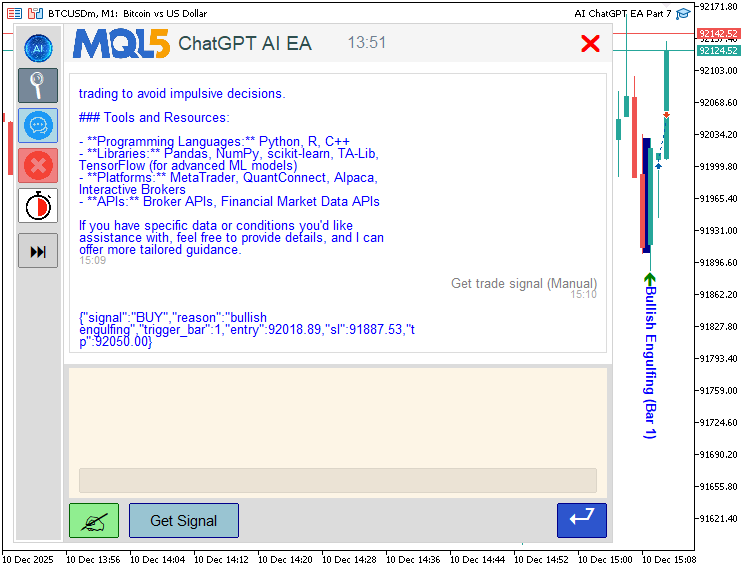
In the "CreateDashboard" function, which constructs the main user interface elements for the AI chat system, ensuring a structured layout with headers, display areas, prompts, and buttons, we update the widths of the buttons. Specifically, we set the close button width to 32, X as main content plus width minus width minus side padding, Y as main Y plus 4, and create the button with "r" text in red at size 20, white smoke background, and white smoke border using Webdings font. This gets rid of the subtle "Close" text that was there initially. We have highlighted the specific changes for clarity.
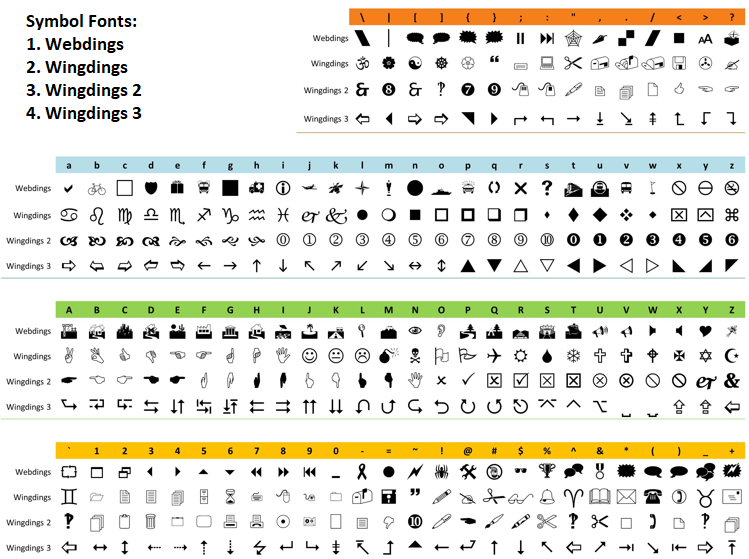
Then, we create the get chart button with "?" text in black at 25, light green background, dark green border using Wingdings, signal button with "Get Signal" text in black at 11, light blue background, dark blue border, and send prompt button with "@" text in white at 23, royal blue background, dark blue border using "Wingdings 3". We redraw the chart with ChartRedraw to display all elements. The different fonts that we used with respective values can be found and switched appropriately from the visualization of the symbol fonts table below.
On compilation, we get the following outcome.
With those changes done on the main dashboard creation, we will need to take the changes to the function for updating the dashboard positions when the sidebar changes, so they can be seamless, taking into account the independent buttons integration that we did.
void UpdateDashboardPositions() {
   ObjectSetInteger(0, "ChatGPT_DashboardBg", OBJPROP_XSIZE, g_dashboardWidth);
   ObjectSetInteger(0, "ChatGPT_SidebarBg", OBJPROP_XSIZE, g_sidebarWidth - 2 - 1);
   int diff = g_mainContentX - (g_dashboardX + (sidebarExpanded ? contractedSidebarWidth : expandedSidebarWidth));
   for (int i = 0; i < objCount; i++) {
      string obj = dashboardObjects[i];
      if (ObjectFind(0, obj) >= 0) {
         long curX = ObjectGetInteger(0, obj, OBJPROP_XDISTANCE);
         ObjectSetInteger(0, obj, OBJPROP_XDISTANCE, curX + diff);
      }
   }
   uint date_wid, date_hei;
   string dateStr = TimeToString(TimeTradeServer(), TIME_MINUTES);
   TextSetFont("Arial", 12);
   TextGetSize(dateStr, date_wid, date_hei);
   int dateX = g_mainContentX + g_mainWidth / 2 - (int)(date_wid / 2) + 20;
   int dateY = (int)ObjectGetInteger(0, "ChatGPT_DateLabel", OBJPROP_YDISTANCE);
   ObjectSetInteger(0, "ChatGPT_DateLabel", OBJPROP_XDISTANCE, dateX);
   int closeWidth = 32;
   int closeX = g_mainContentX + g_mainWidth - closeWidth - g_sidePadding;
   ObjectSetInteger(0, "ChatGPT_CloseButton", OBJPROP_XDISTANCE, closeX);
   int promptW = g_mainWidth - 2 * g_sidePadding;
   int editX = g_mainContentX + g_sidePadding + g_textPadding;
   g_editW = promptW - 2 * g_textPadding;
   ObjectSetInteger(0, "ChatGPT_PromptEdit", OBJPROP_XDISTANCE, editX);
   ObjectSetInteger(0, "ChatGPT_PromptEdit", OBJPROP_XSIZE, g_editW);

   int chartX = g_mainContentX + g_sidePadding;
   int sendX = g_mainContentX + g_mainWidth - g_sidePadding - sendButtonW;

   ObjectSetInteger(0, "ChatGPT_GetChartButton", OBJPROP_XDISTANCE, chartX);
   ObjectSetInteger(0, "ChatGPT_SendPromptButton", OBJPROP_XDISTANCE, sendX);

   int signalX = chartX + chartButtonW + 10;
   ObjectSetInteger(0, "ChatGPT_GetSignalButton", OBJPROP_XDISTANCE, signalX);

   int displayX = g_mainContentX + g_sidePadding;
   int displayW = g_mainWidth - 2 * g_sidePadding;
   ObjectSetInteger(0, "ChatGPT_ResponseBg", OBJPROP_XDISTANCE, displayX);
   ObjectSetInteger(0, "ChatGPT_ResponseBg", OBJPROP_XSIZE, displayW);
   ObjectSetInteger(0, "ChatGPT_PromptBg", OBJPROP_XDISTANCE, displayX);
   ObjectSetInteger(0, "ChatGPT_PromptBg", OBJPROP_XSIZE, displayW);
   int footerY = g_mainY + g_headerHeight + g_padding + g_displayHeight + g_padding;
   ObjectSetInteger(0, "ChatGPT_FooterBg", OBJPROP_XDISTANCE, g_mainContentX);
   ObjectSetInteger(0, "ChatGPT_FooterBg", OBJPROP_XSIZE, g_mainWidth);
   if (ObjectFind(0, "ChatGPT_PromptPlaceholder") >= 0) {
      int labelY = (int)ObjectGetInteger(0, "ChatGPT_PromptPlaceholder", OBJPROP_YDISTANCE);
      ObjectSetInteger(0, "ChatGPT_PromptPlaceholder", OBJPROP_XDISTANCE, editX + 2);
   }
   if (scroll_visible) {
      int displayY = g_mainY + g_headerHeight + g_padding;
      int scrollbar_x = displayX + displayW - 16;
      int button_size = 16;
      ObjectSetInteger(0, SCROLL_LEADER, OBJPROP_XDISTANCE, scrollbar_x);
      ObjectSetInteger(0, SCROLL_UP_REC, OBJPROP_XDISTANCE, scrollbar_x);
      ObjectSetInteger(0, SCROLL_UP_LABEL, OBJPROP_XDISTANCE, scrollbar_x + 2);
      ObjectSetInteger(0, SCROLL_DOWN_REC, OBJPROP_XDISTANCE, scrollbar_x);
      ObjectSetInteger(0, SCROLL_DOWN_LABEL, OBJPROP_XDISTANCE, scrollbar_x + 2);
      ObjectSetInteger(0, SCROLL_SLIDER, OBJPROP_XDISTANCE, scrollbar_x);
      UpdateSliderPosition();
   }
   if (p_scroll_visible) {
      int promptX = g_mainContentX + g_sidePadding;
      int promptY = footerY + g_margin;
      int promptW = g_mainWidth - 2 * g_sidePadding;
      int scrollbar_x = promptX + promptW - 16;
      int button_size = 16;
      ObjectSetInteger(0, P_SCROLL_LEADER, OBJPROP_XDISTANCE, scrollbar_x);
      ObjectSetInteger(0, P_SCROLL_UP_REC, OBJPROP_XDISTANCE, scrollbar_x);
      ObjectSetInteger(0, P_SCROLL_UP_LABEL, OBJPROP_XDISTANCE, scrollbar_x + 2);
      ObjectSetInteger(0, P_SCROLL_DOWN_REC, OBJPROP_XDISTANCE, scrollbar_x);
      ObjectSetInteger(0, P_SCROLL_DOWN_LABEL, OBJPROP_XDISTANCE, scrollbar_x + 2);
      ObjectSetInteger(0, P_SCROLL_SLIDER, OBJPROP_XDISTANCE, scrollbar_x);
      UpdatePromptSliderPosition();
   }
}
In the "UpdateDashboardPositions" function, we set X for the get chart button to "chartX", send prompt to "sendX", signal to "signalX = chartX + chartButtonW + 10". We update X and size for response bg, prompt bg, footer bg to match new "displayX" and "displayW = g_mainWidth - 2 * g_sidePadding", with footer X to "g_mainContentX" and size to "g_mainWidth". If the prompt placeholder exists, we get its Y, set X to "editX + 2". The other logic remains, and that marks the full updates that we need for the UI components. The other critical updates for automated trading will be handled in the main file as below.
input bool DeleteLogsOnChatDelete = true; // Clear logs when deleting chats?
input bool AutoTrade = true; // Automatically open trades on AI signals
input double LotSize = 0.01; // Lot size for auto-trades
input int MagicNumber = 12345; // Magic number for trades
input bool EnableAutoSignal = false; // Enable automatic signal check on new closed bar

CTrade obj_Trade;
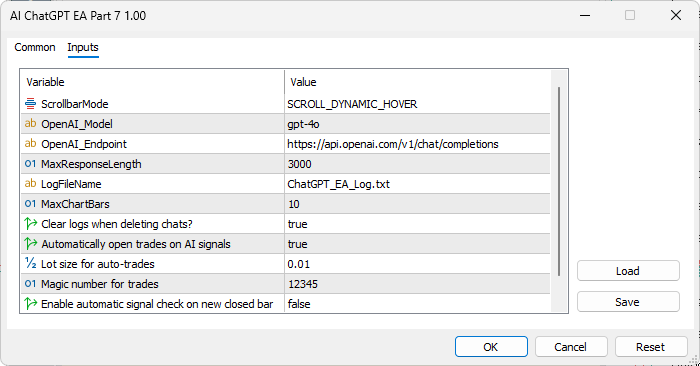
In the main file, we first define several input parameters to control logging and trading behavior: "DeleteLogsOnChatDelete" as a boolean defaulting to true to optionally clear associated log entries when deleting chats as before, "AutoTrade" true to enable automatic order execution on AI signals, "LotSize" at 0.01 for the fixed lot size in auto-trades, "MagicNumber" as 12345 to uniquely identify trades, just an arbitrary value we thought of, and "EnableAutoSignal" false to toggle automatic signal checks on each new closed bar. We then declare "obj_Trade" as a global instance of the CTrade class from the included trade library to manage all order operations, such as opening buys/sells with specified lots, levels, and comments. Now our input parameters window looks like this.
With trade-ready logic done, we can set the magic number in the program initialization to just mark our trades.
int OnInit() {
   obj_Trade.SetExpertMagicNumber(MagicNumber);

   //--- OTHER INIT LOGIC REMAINS THE SAME

}
In the OnInit event handler, we just set the expert magic number to mark all our trades for uniqueness. We will now need to define some new functions for acquiring the chart data, which we will instruct the AI to give some defined signals using. Let us first add the function to get the chart data. We don't need to store this since it is one-time use data.
//+------------------------------------------------------------------+
//|                                                                  |
//+------------------------------------------------------------------+
string GetChartDataString() {
   string symbol = Symbol();
   ENUM_TIMEFRAMES tf = (ENUM_TIMEFRAMES)_Period;
   string timeframe = PeriodToString(tf);
   long visibleBarsLong = ChartGetInteger(0, CHART_VISIBLE_BARS);
   int visibleBars = (int)visibleBarsLong;
   MqlRates rates[];
   int copied = CopyRates(symbol, tf, 1, MaxChartBars, rates);
   if (copied != MaxChartBars) {
      Print("Failed to copy rates: ", GetLastError());
      return "";
   }
   ArraySetAsSeries(rates, true);
   string data = "Chart Details: Symbol=" + symbol + ", Timeframe=" + timeframe + ", Visible Bars=" + IntegerToString(visibleBars) + "\n";
   data += "Recent Bars Data (Bar 1 is latest COMPLETE bar):\n";
   for (int i = 0; i < copied; i++) {
      data += "Bar " + IntegerToString(i + 1) + ": Date=" + TimeToString(rates[i].time, TIME_DATE | TIME_MINUTES) +
              ", Open=" + DoubleToString(rates[i].open, _Digits) +
              ", High=" + DoubleToString(rates[i].high, _Digits) +
              ", Low=" + DoubleToString(rates[i].low, _Digits) +
              ", Close=" + DoubleToString(rates[i].close, _Digits) +
              ", Volume=" + IntegerToString((int)rates[i].tick_volume) + "\n";
   }
   return data;
}
Here, we define the "GetChartDataString" function to compile a string containing current chart details and recent bar data, which can be appended to AI prompts for context-aware responses. We start by retrieving the symbol with Symbol into "symbol" and the timeframe as an ENUM_TIMEFRAMES cast from _Period into "tf", converting it to a string like "H1" using "PeriodToString" into "timeframe". Here is the function snippet responsible for that.
string PeriodToString(ENUM_TIMEFRAMES period) {
   switch(period) {
   case PERIOD_M1:
      return "M1";
   case PERIOD_M5:
      return "M5";
   case PERIOD_M15:
      return "M15";
   case PERIOD_M30:
      return "M30";
   case PERIOD_H1:
      return "H1";
   case PERIOD_H4:
      return "H4";
   case PERIOD_D1:
      return "D1";
   case PERIOD_W1:
      return "W1";
   case PERIOD_MN1:
      return "MN1";
   default:
      return IntegerToString(period);
   }
}
We get the number of visible bars on the chart with ChartGetInteger using CHART_VISIBLE_BARS into "visibleBarsLong", casting to int as "visibleBars". We declare an array "rates[]" of MqlRates, copy the last "MaxChartBars" completed bars (starting from shift 1) with CopyRates into "copied" — if not equal to "MaxChartBars", we log failure with Print and GetLastError, returning an empty string.
We set the array as a series with ArraySetAsSeries true, so index 0 is the newest bar. We build the data string beginning with "Chart Details: Symbol=..." including timeframe and visible bars, then append "Recent Bars Data (Bar 1 is latest COMPLETE bar):" followed by a loop over "copied" bars: for each i, we add "Bar " plus i+1, date with TimeToString in date-minutes format, open/high/low/close normalized to _Digits with DoubleToString, and volume as int from "tick_volume". We return the completed "data" string for use in prompts. To send this data, we will need to predetermine the temperature since we now want different responses. Here is the logic we adapted to achieve that.
// Added temperature param, default to 1.0 (balanced creativity)
string GetChatGPTResponse(string prompt, double temperature = 1.0) {
   string messages = BuildMessagesFromHistory(prompt);
   Print("Messages JSON: " + messages);
   FileWrite(logFileHandle, "Messages JSON: " + messages);
// Added temperature to request
   string requestData = "{\"model\":\"" + OpenAI_Model + "\",\"messages\":" + messages +
                        ",\"max_tokens\":" + IntegerToString(MaxResponseLength) +
                        ",\"temperature\":" + DoubleToString(temperature, 2) + "}";
   Print("Request data (temp=" + DoubleToString(temperature, 2) + "): " + requestData);
   FileWrite(logFileHandle, "Request data (temp=" + DoubleToString(temperature, 2) + "): " + requestData);
   char postData[];

   //--- NEXT LOGIC REMAINS SIMILAR
}
We modify the "GetChatGPTResponse" function to include an optional temperature parameter defaulting to 1.0, allowing control over the AI's response creativity—lower values for deterministic outputs like structured JSON, higher for varied replies. We build the messages array from history with "BuildMessagesFromHistory" passing in the prompt, print, and log the JSON messages. We then construct the request data as a JSON string including the model from "OpenAI_Model", the messages, max tokens from "MaxResponseLength", and the temperature normalized to 2 decimals with the DoubleToString function.
We print and log this request data with the temperature value, then convert it to a char array "postData" using StringToCharArray, excluding the null terminator by resizing, keeping the subsequent WebRequest logic similar for sending the POST to the API. We will also simplify the appending of the chart data to prompts by removing the I/O overhead for faster append as follows.
void GetAndAppendChartData() {
   string data = GetChartDataString();
   if (StringLen(data) == 0) return;
   Print("Chart data appended to prompt: \n" + data);
   FileWrite(logFileHandle, "Chart data appended to prompt: \n" + data);
   if (StringLen(currentPrompt) > 0) {
      currentPrompt += "\n";
   }
   currentPrompt += data;
   DeletePlaceholder();
   UpdatePromptDisplay();
   p_scroll_pos = MathMax(0, p_total_height - p_visible_height);
   if (p_scroll_visible) {
      UpdatePromptSliderPosition();
      UpdatePromptButtonColors();
   }
   ChartRedraw();
}
In the function, we just add a new snippet to append the data directly. With these modified functions now, we can get the responses and trade based on them, but first, we will work on visualization, so we know what signal we are dealing with.
// Prefix for signal objects (easy to clean up)
#define SIGNAL_OBJ_PREFIX "AI_Signal_"
// Function to delete previous signal objects
void DeleteSignalObjects() {
   int total = ObjectsTotal(0, 0, OBJ_ARROW | OBJ_HLINE | OBJ_TEXT | OBJ_RECTANGLE | OBJ_TREND);
   for (int i = total - 1; i >= 0; i--) {
      string name = ObjectName(0, i, 0, OBJ_ARROW | OBJ_HLINE | OBJ_TEXT | OBJ_RECTANGLE | OBJ_TREND);
      if (StringFind(name, SIGNAL_OBJ_PREFIX) == 0) {
         ObjectDelete(0, name);
      }
   }
   ChartRedraw();
}

//+------------------------------------------------------------------+
//|                                                                  |
//+------------------------------------------------------------------+
void VisualizeSignal(string signal, string reason, int triggerBar, double entry, double sl, double tp) {
// DeleteSignalObjects(); // Comment out to retain objects

// Unique ID for this signal to avoid name conflicts
   static int sigId = 0;
   sigId++;
   string prefix = SIGNAL_OBJ_PREFIX + IntegerToString(sigId) + "_";

// Get rates: Start from COMPLETE bars (shift=triggerBar, e.g. 1=last closed)
   MqlRates rates[];
   int barsToCopy = 5; // Increased for multi-bar patterns like Three Soldiers
   if (CopyRates(Symbol(), Period(), triggerBar, barsToCopy, rates) < barsToCopy) {
      Print("Failed to get rates for complete bar ", triggerBar);
      return;
   }
   ArraySetAsSeries(rates, true); // rates[0] = trigger bar (complete), rates[1] = previous complete
   datetime triggerTime = rates[0].time;
   datetime prevTime = rates[1].time;
   double triggerHigh = rates[0].high, triggerLow = rates[0].low;
   double prevHigh = rates[1].high, prevLow = rates[1].low;
   double triggerOpen = rates[0].open, triggerClose = rates[0].close;
   double prevOpen = rates[1].open, prevClose = rates[1].close;

   bool isBuy = (StringFind(signal, "BUY") >= 0);
   int arrowCode = isBuy ? 233 : 234;
   color arrowColor = isBuy ? clrGreen : clrRed;
   double arrowPrice = isBuy ? triggerLow : triggerHigh;
   int arrowAnchor = isBuy ? ANCHOR_TOP : ANCHOR_BOTTOM;
   string arrowName = prefix + "Arrow_" + TimeToString(triggerTime);
   ObjectCreate(0, arrowName, OBJ_ARROW, 0, triggerTime, arrowPrice);
   ObjectSetInteger(0, arrowName, OBJPROP_ARROWCODE, arrowCode);
   ObjectSetInteger(0, arrowName, OBJPROP_COLOR, arrowColor);
   ObjectSetInteger(0, arrowName, OBJPROP_ANCHOR, arrowAnchor);
   ObjectSetInteger(0, arrowName, OBJPROP_BACK, false);

   string lowerReason = reason;
   StringToLower(lowerReason);
   string patternLabel = reason + " (Bar " + IntegerToString(triggerBar) + ")";
   color labelColor = clrBlack;
   if (StringFind(lowerReason, "engulfing") >= 0) {
      bool isBullish = (StringFind(lowerReason, "bullish") >= 0) || (StringFind(signal, "BUY") >= 0);
      color engulfColor = isBullish ? clrDarkBlue : clrDarkRed;
      ObjectCreate(0, prefix + "EngulfRect", OBJ_RECTANGLE, 0, prevTime, prevLow, triggerTime + (PeriodSeconds() / 2), triggerHigh);
      ObjectSetInteger(0, prefix + "EngulfRect", OBJPROP_COLOR, engulfColor);
      ObjectSetInteger(0, prefix + "EngulfRect", OBJPROP_FILL, true);
      ObjectSetInteger(0, prefix + "EngulfRect", OBJPROP_BACK, true);
      ObjectSetInteger(0, prefix + "EngulfRect", OBJPROP_WIDTH, 1);
      patternLabel = (isBullish ? "Bullish " : "Bearish ") + "Engulfing (Bar " + IntegerToString(triggerBar) + ")";
      labelColor = clrBlue;
   } else if (StringFind(lowerReason, "pin bar") >= 0 || StringFind(lowerReason, "hammer") >= 0 || StringFind(lowerReason, "shooting star") >= 0) {
      color pinColor = isBuy ? clrGreen : clrRed;
      ObjectCreate(0, prefix + "PinLine", OBJ_TREND, 0, triggerTime, triggerOpen, triggerTime + PeriodSeconds(), triggerClose);
      ObjectSetInteger(0, prefix + "PinLine", OBJPROP_COLOR, pinColor);
      ObjectSetInteger(0, prefix + "PinLine", OBJPROP_WIDTH, 2);
      ObjectSetInteger(0, prefix + "PinLine", OBJPROP_RAY_RIGHT, false);
      string patName = StringFind(lowerReason, "hammer") >= 0 ? "Hammer" : StringFind(lowerReason, "shooting star") >= 0 ? "Shooting Star" : "Pin Bar";
      patternLabel = patName + " (Bar " + IntegerToString(triggerBar) + ")";
      labelColor = pinColor;
   } else if (StringFind(lowerReason, "inside bar") >= 0) {
      color insideColor = clrYellow;
      ObjectCreate(0, prefix + "InsideRect", OBJ_RECTANGLE, 0, triggerTime, triggerLow, triggerTime + PeriodSeconds(), triggerHigh);
      ObjectSetInteger(0, prefix + "InsideRect", OBJPROP_COLOR, insideColor);
      ObjectSetInteger(0, prefix + "InsideRect", OBJPROP_FILL, false);
      ObjectSetInteger(0, prefix + "InsideRect", OBJPROP_BACK, true);
      ObjectSetInteger(0, prefix + "InsideRect", OBJPROP_STYLE, STYLE_DASH);
      patternLabel = "Inside Bar (Bar " + IntegerToString(triggerBar) + ")";
      labelColor = clrOrange;
   } else if (StringFind(lowerReason, "doji") >= 0) {
      color dojiColor = clrMagenta;
      ObjectCreate(0, prefix + "DojiMark", OBJ_TEXT, 0, triggerTime, (triggerHigh + triggerLow)/2);
      ObjectSetString(0, prefix + "DojiMark", OBJPROP_FONT, "Wingdings");
      ObjectSetInteger(0, prefix + "DojiMark", OBJPROP_FONTSIZE, 12);
      ObjectSetString(0, prefix + "DojiMark", OBJPROP_TEXT, CharToString((uchar)108)); // Cross symbol
      ObjectSetInteger(0, prefix + "DojiMark", OBJPROP_COLOR, dojiColor);
      patternLabel = "Doji (Bar " + IntegerToString(triggerBar) + ")";
      labelColor = dojiColor;
   } else if (StringFind(lowerReason, "three white soldiers") >= 0 || StringFind(lowerReason, "three black crows") >= 0) {
      bool isBullish = StringFind(lowerReason, "white soldiers") >= 0;
      color soldiersColor = isBullish ? clrLimeGreen : clrCrimson;
      datetime startTime = rates[2].time; // N-2
      ObjectCreate(0, prefix + "SoldiersRect", OBJ_RECTANGLE, 0, startTime, rates[2].low, triggerTime + PeriodSeconds(), rates[0].high);
      ObjectSetInteger(0, prefix + "SoldiersRect", OBJPROP_COLOR, soldiersColor);
      ObjectSetInteger(0, prefix + "SoldiersRect", OBJPROP_FILL, true);
      ObjectSetInteger(0, prefix + "SoldiersRect", OBJPROP_BACK, true);
      ObjectSetInteger(0, prefix + "SoldiersRect", OBJPROP_WIDTH, 1);
      patternLabel = (isBullish ? "Three White Soldiers" : "Three Black Crows") + " (Bars " + IntegerToString(triggerBar - 2) + "-" + IntegerToString(triggerBar) + ")";
      labelColor = soldiersColor;
   } else if (StringFind(lowerReason, "double bottom") >= 0 || StringFind(lowerReason, "double top") >= 0) {
      bool isBottom = StringFind(lowerReason, "bottom") >= 0;
      double level = isBottom ? MathMin(rates[1].low, triggerLow) : MathMax(rates[1].high, triggerHigh);
      color doubleColor = isBottom ? clrAqua : clrFuchsia;
      ObjectCreate(0, prefix + "DoubleLine", OBJ_TREND, 0, rates[1].time, level, triggerTime + PeriodSeconds() * 3, level);
      ObjectSetInteger(0, prefix + "DoubleLine", OBJPROP_COLOR, doubleColor);
      ObjectSetInteger(0, prefix + "DoubleLine", OBJPROP_STYLE, STYLE_DOT);
      ObjectSetInteger(0, prefix + "DoubleLine", OBJPROP_WIDTH, 2);
      ObjectSetInteger(0, prefix + "DoubleLine", OBJPROP_RAY_RIGHT, true);
      patternLabel = (isBottom ? "Double Bottom" : "Double Top") + " (Bar " + IntegerToString(triggerBar) + ") at " + DoubleToString(level, _Digits);
      labelColor = doubleColor;
   } else if (StringFind(lowerReason, "breakout") >= 0) {
      double breakLevel = isBuy ? MathMax(prevHigh, triggerHigh) : MathMin(prevLow, triggerLow);
      ObjectCreate(0, prefix + "BreakLine", OBJ_TREND, 0, prevTime, breakLevel, triggerTime + PeriodSeconds() * 5, breakLevel);
      ObjectSetInteger(0, prefix + "BreakLine", OBJPROP_COLOR, clrGray);
      ObjectSetInteger(0, prefix + "BreakLine", OBJPROP_STYLE, STYLE_DOT);
      ObjectSetInteger(0, prefix + "BreakLine", OBJPROP_WIDTH, 2);
      ObjectSetInteger(0, prefix + "BreakLine", OBJPROP_RAY_RIGHT, true);
      patternLabel = "Breakout (Bar " + IntegerToString(triggerBar) + ") at " + DoubleToString(breakLevel, _Digits);
      labelColor = clrBlue;
   } else if (StringFind(lowerReason, "divergence") >= 0 || StringFind(lowerReason, "rsi") >= 0) {
      int rsiHandle = iRSI(Symbol(), Period(), 14, PRICE_CLOSE);
      double rsiValue[1];
      if (CopyBuffer(rsiHandle, 0, triggerBar, 1, rsiValue) == 1) {
         patternLabel = "RSI Divergence (Bar " + IntegerToString(triggerBar) + ", RSI=" + IntegerToString((int)rsiValue[0]) + ")";
      }
      labelColor = clrDarkBlue;
      IndicatorRelease(rsiHandle);
   } else {
      // Fallback: Simple highlight + short label
      ObjectCreate(0, prefix + "Highlight", OBJ_RECTANGLE, 0, triggerTime, triggerLow, triggerTime + PeriodSeconds(), triggerHigh);
      ObjectSetInteger(0, prefix + "Highlight", OBJPROP_COLOR, clrLightGray);
      ObjectSetInteger(0, prefix + "Highlight", OBJPROP_FILL, true);
      ObjectSetInteger(0, prefix + "Highlight", OBJPROP_BACK, true);
      patternLabel = reason + " (Bar " + IntegerToString(triggerBar) + ")";
      labelColor = clrBlack;
   }
   datetime labelTime = triggerTime;
   double labelPrice = arrowPrice;

   int direction = isBuy ? 1 : -1;
   ENUM_ANCHOR_POINT labelAnchor = (direction > 0) ? ANCHOR_LEFT : ANCHOR_LEFT;
   double labelAngle = (direction > 0) ? -90 : 90;
   string labelText = "    " + patternLabel;

   CreateTextLabel(prefix + "PatternLabel", labelTime, labelPrice, labelText, labelColor, labelAnchor, labelAngle);
   Print("Anchored viz drawn: Arrow at ", (isBuy ? "low" : "high"), ", Label: ", patternLabel);
   ChartRedraw();
}

//+------------------------------------------------------------------+
//|                                                                  |
//+------------------------------------------------------------------+
void CreateHLine(string name, double price, color clr, ENUM_LINE_STYLE style, string tooltip) {
   ObjectCreate(0, name, OBJ_HLINE, 0, 0, price);
   ObjectSetInteger(0, name, OBJPROP_COLOR, clr);
   ObjectSetInteger(0, name, OBJPROP_STYLE, style);
   ObjectSetInteger(0, name, OBJPROP_WIDTH, 1);
   ObjectSetString(0, name, OBJPROP_TEXT, tooltip);
}

//+------------------------------------------------------------------+
//|                                                                  |
//+------------------------------------------------------------------+
void CreateTextLabel(string name, datetime time, double price, string text, color clr, ENUM_ANCHOR_POINT anchor, double angle = 0) {
   ObjectCreate(0, name, OBJ_TEXT, 0, time, price);
   ObjectSetString(0, name, OBJPROP_TEXT, text);
   ObjectSetInteger(0, name, OBJPROP_COLOR, clr);
   ObjectSetInteger(0, name, OBJPROP_FONTSIZE, 10);
   ObjectSetString(0, name, OBJPROP_FONT, "Arial Bold");
   ObjectSetInteger(0, name, OBJPROP_ANCHOR, anchor);
   ObjectSetInteger(0, name, OBJPROP_SELECTABLE, false);
   ObjectSetDouble(0, name, OBJPROP_ANGLE, angle);
}
For visualization, we first define the "SIGNAL_OBJ_PREFIX" constant as "AI_Signal_" to easily identify and manage signal-related chart objects for cleanup. We then implement the "DeleteSignalObjects" function to remove previous signal visuals from the chart, just in case you want that, but in our case, we will keep them. We get the total objects of types arrow, horizontal line, text, rectangle, and trend line with ObjectsTotal, loop backward, fetch each name using ObjectName, and if it starts with the prefix via StringFind returning 0, delete it with ObjectDelete, then redraw the chart.
Then, we define the "VisualizeSignal" function to draw pattern-specific visuals for the AI signal on the chart. We comment out "DeleteSignalObjects" to optionally retain prior visuals, use a static "sigId" to create a unique prefix like "AI_Signal_1_". We copy "barsToCopy" (5) rates starting from "triggerBar" with CopyRates, return if failed, set as series so index 0 is the trigger bar. We determine if buy from signal string containing "BUY", set arrow code (233 for buy, 234 for sell), color (green for buy, red for sell), price (low for buy, high for sell), anchor (top for buy, bottom for sell), create the arrow object with ObjectCreate as OBJ_ARROW, set its code, color, anchor, and foreground.
We convert reason to lower case with StringToLower into "lowerReason", build "patternLabel" as reason plus bar number. We check for specific patterns: if "engulfing", determine bullish from reason or signal, set color dark blue for bullish or dark red for bearish, create a rectangle highlighting the two bars with ObjectCreate as OBJ_RECTANGLE from previous time at low to half bar ahead at high, set fill, back, width 1; update label.
For "pin bar", "hammer", or "shooting star", set color green for buy or red for sell, create a trend line from open to close with width 2, no right ray; update label with pattern name. For "inside bar", set yellow rectangle outline dashed without fill. For "doji", place a Wingdings cross at the bar midpoint in magenta. For "three white soldiers" or "three black crows", set a lime green or crimson rectangle over three bars with fill. For "double bottom" or "double top", draw a dotted horizontal line at the level of the ray right in aqua or fuchsia. For "breakout", a gray dotted horizontal line with a ray. For "divergence" or "RSI", get RSI value at trigger bar with iRSI and CopyBuffer, update label with RSI reading, and release indicator. For fallback, a light gray-filled rectangle on the trigger bar.
We position the pattern label at trigger time and arrow price, with anchor left and angle -90 for buy or 90 for sell, call "CreateTextLabel" with black color unless overridden. We implement the "CreateHLine" function to draw a horizontal line: create OBJ_HLINE at price, set color, style, width 1, and tooltip text. We define the "CreateTextLabel" function for custom text: create OBJ_TEXT at time and price, set text, color, font Arial Bold at 10, anchor, selectable false, angle. For opening trades, we define a function to house the logic as well.
void OpenTrade(string signal, double entry, double sl, double tp) {
   ENUM_ORDER_TYPE type = (StringFind(signal, "BUY") >= 0) ? ORDER_TYPE_BUY : (StringFind(signal, "SELL") >= 0) ? ORDER_TYPE_SELL : (ENUM_ORDER_TYPE)-1;
   if (type == (ENUM_ORDER_TYPE)-1) return;
   double price = 0; // Market order
   string comment = "AI Signal: " + signal;
   int result = obj_Trade.PositionOpen(Symbol(), type, LotSize, price, sl, tp, comment);
   if (result == -1) {
      Print("Trade open failed: ", obj_Trade.ResultRetcodeDescription());
      Alert("Failed to open trade.");
   } else {
      Print("Trade opened: Ticket #", obj_Trade.ResultOrder());
   }
}
We define the "OpenTrade" function to automatically execute market orders based on parsed AI signals, handling buy or sell types with predefined risk parameters. We start by determining the order type: we check if the signal string contains "BUY" with StringFind to set "type" to ORDER_TYPE_BUY, or "SELL" for ORDER_TYPE_SELL, defaulting to an invalid enum value -1 and returning early if neither matches. We set the price to 0 for market execution, comment as "AI Signal: " plus the signal string. We call "obj_Trade.PositionOpen" with symbol, type, "LotSize", price 0, sl, tp, and comment — storing the result. If -1 (failure), we log the retcode description and alert "Failed to open trade."; if successful, we log "Trade opened: Ticket #" plus the order number from "obj_Trade.ResultOrder". We can now use this logic to open the detected positions as below.
void GetTradeSignal(bool isAuto = false) {
   string modeStr = isAuto ? " (Auto-mode)" : " (Manual)";
   Print("Starting signal analysis" + modeStr);
   string chartData = GetChartDataString();
   if (StringLen(chartData) == 0) {
      Alert("Failed to get chart data.");
      return;
   }
   string prompt = "You are a JSON-only trading analyst. Respond with EXACTLY one valid JSON object matching this schema. NO OTHER TEXT:\n"
                   "{\n"
                   " \"signal\": \"BUY\", \"SELL\", or \"NONE\",\n"
                   " \"reason\": \"exact pattern e.g. 'bullish engulfing' (only if matches definition)\",\n"
                   " \"trigger_bar\": integer 1-10 (1=most recent COMPLETE bar (Bar 1 in data), 2=older; estimate only if exact match)\n"
                   " \"entry\": decimal price (5 digits),\n"
                   " \"sl\": decimal price,\n"
                   " \"tp\": decimal price\n"
                   "}\n"
                   "Patterns must match exactly (prioritize strongest signals; if multiple, choose one):\n"
                   "[Your existing patterns list here...]\n"
                   "If no exact match, use 'NONE'. Example bullish engulfing on bar 1: {\"signal\":\"BUY\",\"reason\":\"bullish engulfing\",\"trigger_bar\":1,\"entry\":1.10100,\"sl\":1.09900,\"tp\":1.10500}\n"
                   "Data (Bar 1=recent complete):\n"
                   "Remember: Bar 1 is the most recent (rightmost on chart), Bar 10 is oldest (leftmost). Analyze patterns from recent (Bar 1) backward to older bars.\n" + chartData;
   string response = GetChatGPTResponse(prompt, 0.0); // Strict for JSON
   Print("Raw AI Response: ", response);
// Extract JSON substring (handle extra text like "Here's: {JSON}")
   int jsonStart = StringFind(response, "{");
   int jsonEnd = StringFind(response, "}", jsonStart);
   if (jsonStart >= 0 && jsonEnd > jsonStart) {
      response = StringSubstr(response, jsonStart, jsonEnd - jsonStart + 1); // Isolate { ... }
   }
// Parse JSON (primary); fallback to text
   string signal = "", reason = "";
   int triggerBar = 1;
   double entry = 0, sl = 0, tp = 0;
   bool parsed = false;
   JsonValue jsonResp;
   int index = 0;
   char charArray[];
   int len = StringToCharArray(response, charArray, 0, WHOLE_ARRAY, CP_UTF8);
   if (jsonResp.DeserializeFromArray(charArray, len, index)) {
      signal = jsonResp["signal"].ToString();
      reason = jsonResp["reason"].ToString();
      triggerBar = (int)jsonResp["trigger_bar"].ToInteger();
      entry = jsonResp["entry"].ToDouble();
      sl = jsonResp["sl"].ToDouble();
      tp = jsonResp["tp"].ToDouble();
      parsed = true;
   } else {
      // Fallback text parse (enhanced: ignore case, trim)
      Print("JSON failed; text fallback.");
      string lines[];
      StringSplit(response, '\n', lines);
      for (int i = 0; i < ArraySize(lines); i++) {
         string line = lines[i];
         StringTrimLeft(line);
         StringTrimRight(line); // Clean
         StringToUpper(line); // Case-insensitive
         if (StringFind(line, "SIGNAL:") == 0) {
            signal = StringSubstr(lines[i], StringFind(lines[i], ":") + 1); // Original case
         } else if (StringFind(line, "REASON:") == 0) {
            reason = StringSubstr(lines[i], StringFind(lines[i], ":") + 1);
         } else if (StringFind(line, "TRIGGER_BAR:") == 0) {
            triggerBar = (int)StringToInteger(StringSubstr(lines[i], StringFind(lines[i], ":") + 1));
         } else if (StringFind(line, "ENTRY:") == 0) {
            entry = StringToDouble(StringSubstr(lines[i], StringFind(lines[i], ":") + 1));
         } else if (StringFind(line, "SL:") == 0) {
            sl = StringToDouble(StringSubstr(lines[i], StringFind(lines[i], ":") + 1));
         } else if (StringFind(line, "TP:") == 0) {
            tp = StringToDouble(StringSubstr(lines[i], StringFind(lines[i], ":") + 1));
         }
      }
   }
// Validation: Allow NONE without prices; else require basics
   if (signal == "") {
      Alert("No signal detected. Raw: " + response); // Debug aid
      return;
   }
   if (signal != "NONE" && (entry == 0 || sl == 0 || tp == 0)) {
      Alert("Incomplete prices for " + signal + ". Raw: " + response); // Specific debug
      return;
   }
   if (triggerBar < 1 || triggerBar > 10) triggerBar = 1; // Clamp to data
// Append to history
   string timestamp = TimeToString(TimeCurrent(), TIME_MINUTES);
   string fullReason = reason + " (Bar " + IntegerToString(triggerBar) + ")";
   conversationHistory += "You: Get trade signal" + modeStr + "\n" + timestamp + "\nAI: " + response + "\n" + timestamp + "\n\n";
   UpdateCurrentHistory();
   UpdateResponseDisplay();
   scroll_pos = MathMax(0, g_total_height - g_visible_height);
   if (scroll_visible) {
      UpdateSliderPosition();
      UpdateButtonColors();
   }
   ChartRedraw();
// Visualize (skip if NONE)
   if (signal != "NONE") {
      VisualizeSignal(signal, fullReason, triggerBar, entry, sl, tp);
   } else {
      Print("No signal (NONE)—skipping viz/trade.");
   }
// Auto-trade
   if (AutoTrade && signal != "NONE") {
      OpenTrade(signal, entry, sl, tp);
   }
}
Here, we define the "GetTradeSignal" function to request and process a trading signal from the AI, with an optional boolean "isAuto" defaulting to false for manual calls or true for automatic on new bars. We set "modeStr" to " (Auto-mode)" if auto or " (Manual)" otherwise, print "Starting signal analysis" plus mode. This will differentiate the logs so we know what kind of analysis is being done. See logs below for clarity.
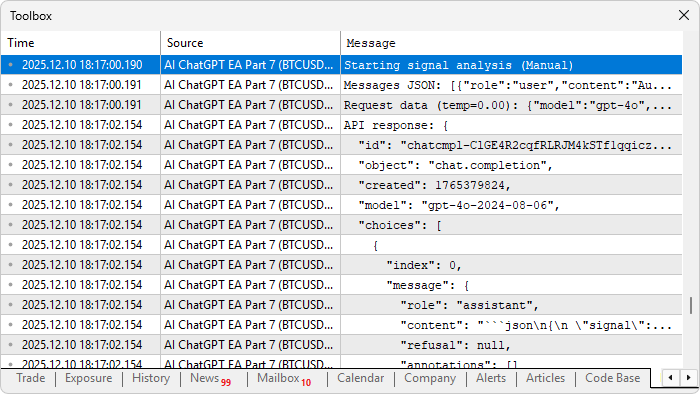
Then, we call "GetChartDataString" to compile chart data into "chartData", alerting and returning if empty. We construct a detailed prompt string instructing the AI as a JSON-only analyst, defining the exact schema for signal (BUY/SELL/NONE), reason (exact pattern), trigger_bar (1-10 with 1 recent complete), entry/sl/tp as decimals, emphasizing exact pattern matches from a list (placeholder "[Your existing patterns list here...]"), NONE if no match, an example JSON, and the chart data with reminders on bar ordering.
We send the prompt to "GetChatGPTResponse" with temperature 0.0 for strict JSON, and print the raw response. We extract the JSON substring by finding "{" and "}" with StringFind, isolating it if present with the StringSubstr function. We attempt to parse as JSON: declare "jsonResp" as JsonValue, convert response to char array with StringToCharArray, deserialize with "DeserializeFromArray" — if successful, extract signal/reason as strings, triggerBar as int from "ToInteger", entry/sl/tp as doubles from "ToDouble", set "parsed" true. If JSON fails, we fallback to text parsing: print "JSON failed; text fallback", split response into lines with StringSplit, loop and trim each with StringTrimLeft/StringTrimRight, upper case for comparison, extract values after ":" using StringSubstr and "StringFind", converting to appropriate types.
We validate: if no signal, alert with raw response and return; if not NONE but missing prices, alert incomplete and return; clamp triggerBar to 1-10. We append to history: get timestamp with TimeToString in minutes, add "You: Get trade signal" plus mode, timestamp, "AI: " plus response, timestamp, newlines; call "UpdateCurrentHistory", "UpdateResponseDisplay", set scroll_pos to max (total height minus visible) for bottom, if scroll visible update slider and buttons, redraw chart. If signal NONE, call "VisualizeSignal" with signal, reason, plus bar, triggerBar, entry, sl, tp. If "AutoTrade" is true and signal NONE, call "OpenTrade" with parameters. We can call this function now when needed. We will first call it for the manual button and later per tick.
void OnChartEvent(const int id, const long &lparam, const double &dparam, const string &sparam) {

//--- EXISTING LOGIC

else if (id == CHARTEVENT_OBJECT_CLICK && sparam == "ChatGPT_GetSignalButton") {
   GetTradeSignal();
}

//--- REST OF EXISTING LOGIC

}
In the OnChartEvent event handler, we call the "GetTradeSignal" function when the respective button is clicked. We can now do the heavy lifting in the tick event handler.
void OnTick() {
   static datetime prevBarTime = 0; // Tracks the time of the last processed bar

   datetime currentBarTime[1];
   if (CopyTime(Symbol(), Period(), 0, 1, currentBarTime) != 1) {
      Print("Failed to copy current bar time: ", GetLastError());
      return;
   }

// Check if a new bar has started (previous bar closed)
   if (currentBarTime[0] != prevBarTime && EnableAutoSignal) {
      prevBarTime = currentBarTime[0];

      // Optional: Log for debugging
      Print("New bar detected at ", TimeToString(prevBarTime, TIME_DATE | TIME_MINUTES),
            ". Running auto signal check...");

      GetTradeSignal(true);
   }
}
In the OnTick event handler, we use a static "prevBarTime" to track the open time of the last processed bar. We declare a "currentBarTime" array, copy the current bar's open time (shift 0) with CopyTime — if not 1, we log failure with "Print" and GetLastError, returning early, to just make sure we run once per bar because we don't want to overwhelm the system and deplete our tokens. We then check if the current bar time differs from "prevBarTime" and "EnableAutoSignal" is true: if so, update "prevBarTime" to the new time, log "New bar detected at " with TimeToString in date-minutes format plus "Running auto signal check...", and call "GetTradeSignal" with true for auto mode. This triggers AI analysis only on closed bars, optimizing performance. When auto mode is enabled, we get the following outcome.
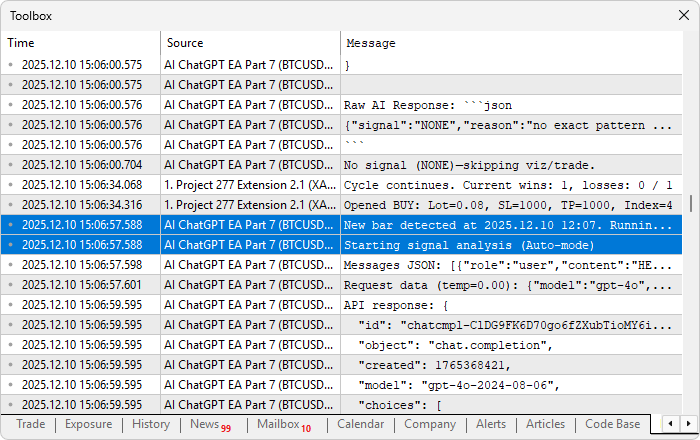
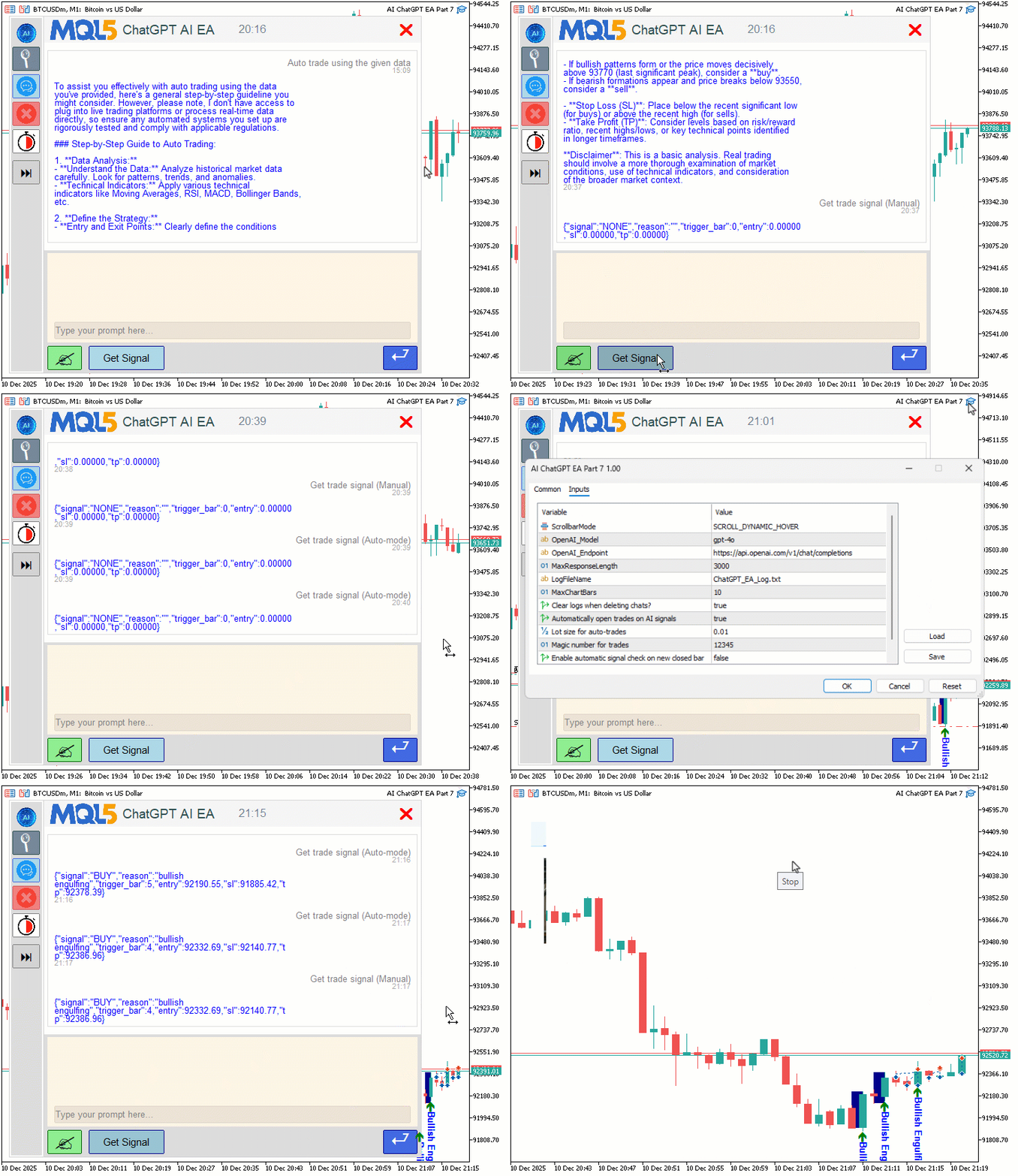
From the visualization, we can see that we are able to upgrade the program by adding or adjusting the new UI elements and trading automatically, hence achieving our objectives. The thing that remains is backtesting the program, and that is handled in the next section.
Backtesting
We did the testing, and below is the compiled visualization in a single Graphics Interchange Format (GIF) bitmap image format.
Conclusion
In conclusion, we’ve further modularized our AI-powered trading system in MQL5 by separating UI components into a dedicated include file for cleaner organization, while integrating temperature control for tailored AI responses. The system now automates trade execution on parsed JSON signals with entry/SL/TP, visualizes patterns like engulfing or divergences with customizable elements, and supports optional auto-checks on new bars, lot sizing, and magic numbers for seamless live operation. These enhancements make the assistant more robust and user-friendly, paving the way for advanced features in future parts, such as multi-symbol monitoring and risk management automation. Stay tuned.
Attachments
| S/N | Name | Type | Description |
|---|---|---|---|
| 1 | AI_JSON_FILE.mqh | JSON Class Library | Class for handling JSON serialization and deserialization |
| 2 | AI_CREATE_OBJECTS_FNS.mqh | Object Functions Library | Functions for creating visualization objects like labels and buttons |
| 3 | AI_UI_COMPONENTS.mqh | User Interface Components Library | File containing the User Interface components and their organization |
| 4 | AI_ChatGPT_EA_Part_7.mq5 | Main Expert Advisor File | Main Expert Advisor for handling AI integration |
Warning: All rights to these materials are reserved by MetaQuotes Ltd. Copying or reprinting of these materials in whole or in part is prohibited.
This article was written by a user of the site and reflects their personal views. MetaQuotes Ltd is not responsible for the accuracy of the information presented, nor for any consequences resulting from the use of the solutions, strategies or recommendations described.

 From Novice to Expert: Automating Trade Discipline with an MQL5 Risk Enforcement EA
 Codex Pipelines, from Python to MQL5, for Indicator Selection: A Multi-Quarter Analysis of the XLF ETF with Machine Learning
 Introduction to MQL5 (Part 32): Mastering API and WebRequest Function in MQL5 (VI)
 The View and Controller components for tables in the MQL5 MVC paradigm: Resizable elements

- Free trading apps
- Over 8,000 signals for copying
- Economic news for exploring financial markets
You agree to website policy and terms of use
**An Earnest Appeal to All**
With folded hands and a heart full of respect, I address each one of you.
I have read every article, from Part 2 all the way through Part 7. Sir Allan is truly an expert, and the work he has done is nothing short of incredible—the EA's performance, as shown, is absolutely astounding.
But I must confess, with a heavy heart, that I am not like him. Perhaps it is my lack of knowledge in coding or MQL5. I have tried so very hard, pouring my soul into every attempt, yet each time, I meet with failure. I simply do not know how to get this magnificent EA to work on my own system. The process described in Part 2—with a single file to copy, compile, and run—was clear. But now, with multiple files in these later parts, I am completely lost and overwhelmed.
With utmost humility, I make two small requests, if I may:
1. Could Sir Allan kindly provide all the `.bmp` resource files in one place? I may have missed them, and having them together would be a great help for everyone.
2. Would it be possible to have a simple guide—an `Instructions.txt`—that explains exactly where to save each file and image within MT5? This would be a blessing for people like me, who lack technical knowledge but are eager to learn.
I know I am asking for more, and I apologize if this seems like too much. But my eagerness comes from a place of deep need. I have lost significant capital in trading, and my hope is pinned on finding a system that works. This EA feels like that beacon of hope.
If I have made any mistake in my words, I beg your forgiveness. I implore you all, from the depths of my being, to show a little mercy to a struggling learner.
Thank you for your patience and kindness. I await your supportive guidance with hopeful anticipation.
**With sincere gratitude and respect,**
*A fellow trader*
**An Earnest Appeal to All**
With folded hands and a heart full of respect, I address each one of you.
I have read every article, from Part 2 all the way through Part 7. Sir Allan is truly an expert, and the work he has done is nothing short of incredible—the EA's performance, as shown, is absolutely astounding.
But I must confess, with a heavy heart, that I am not like him. Perhaps it is my lack of knowledge in coding or MQL5. I have tried so very hard, pouring my soul into every attempt, yet each time, I meet with failure. I simply do not know how to get this magnificent EA to work on my own system. The process described in Part 2—with a single file to copy, compile, and run—was clear. But now, with multiple files in these later parts, I am completely lost and overwhelmed.
With utmost humility, I make two small requests, if I may:
1. Could Sir Allan kindly provide all the `.bmp` resource files in one place? I may have missed them, and having them together would be a great help for everyone.
2. Would it be possible to have a simple guide—an `Instructions.txt`—that explains exactly where to save each file and image within MT5? This would be a blessing for people like me, who lack technical knowledge but are eager to learn.
I know I am asking for more, and I apologize if this seems like too much. But my eagerness comes from a place of deep need. I have lost significant capital in trading, and my hope is pinned on finding a system that works. This EA feels like that beacon of hope.
If I have made any mistake in my words, I beg your forgiveness. I implore you all, from the depths of my being, to show a little mercy to a struggling learner.
Thank you for your patience and kindness. I await your supportive guidance with hopeful anticipation.
**With sincere gratitude and respect,**
*A fellow trader*
then go to google and type in .png to .bmp and you can find a free converter.
then in your main working folder where you have the mq5 file place the
named correctly everything should compile fine. a side note. if when you compile it says your missing a .mqh file make sure to remove all the "_" from the file names and make it how it is shown throughout the .mq5 and the .mqh file and it should compile fine.
simple go to google. and find an icon webpage then download an image for each one of the .bmp that you need.
then go to google and type in .png to .bmp and you can find a free converter.
then in your main working folder where you have the mq5 file place the
named correctly everything should compile fine. a side note. if when you compile it says your missing a .mqh file make sure to remove all the "_" from the file names and make it how it is shown throughout the .mq5 and the .mqh file and it should compile fine.
Dear Ricks Creations
Still Not compile. I follows all steps but still not done please guide me
Thanks with regards
Dear all
This is humble request, please HELP me
with folded hands
Hello everyone,
Today is a very proud and special moment for me. One of the members of our community came to me like an angel and helped me successfully run this EA on MT5.
I would like to express my heartfelt thanks to Mr. Alejandro Agudelo. He is truly a genius and supported me in every possible way.
Please see the results of his efforts.