Strifor Chart Sync
- Utilities
-
Strifor (Mauritius) Ltd
 Welcome to Strifor!
Our mission is to promote a culture of conscious trading in the financial markets. - Version: 1.17
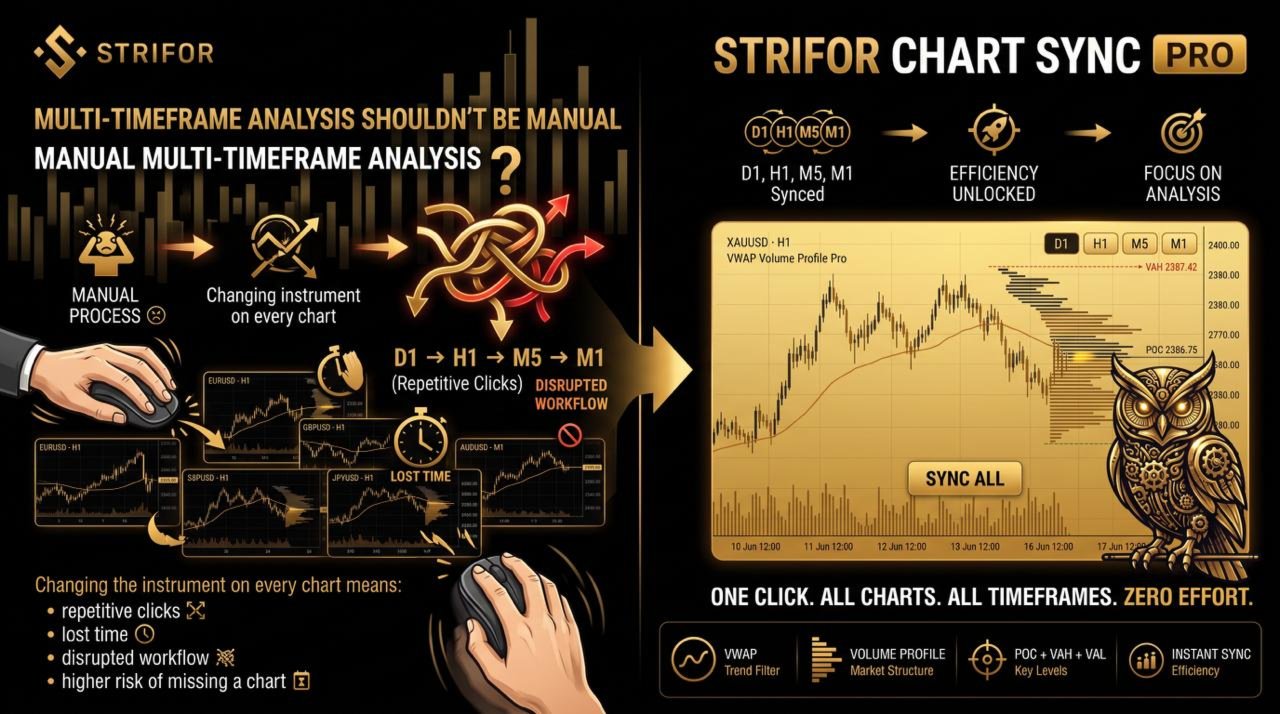
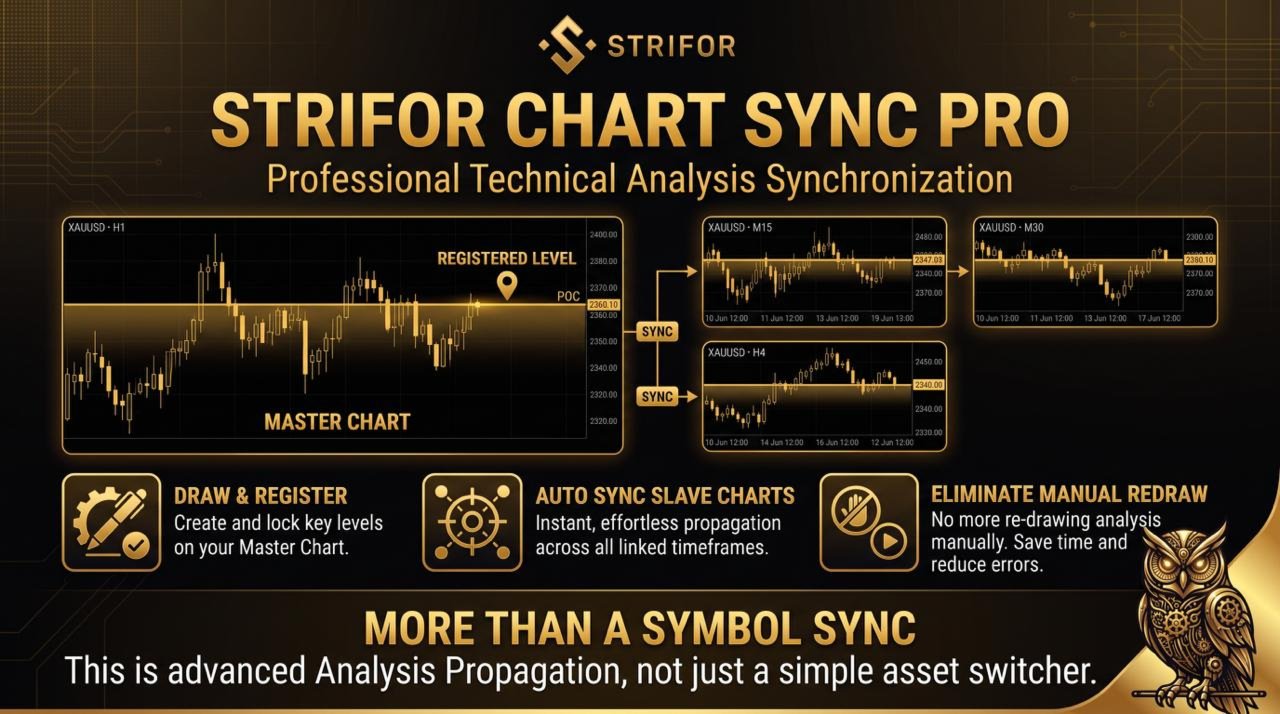
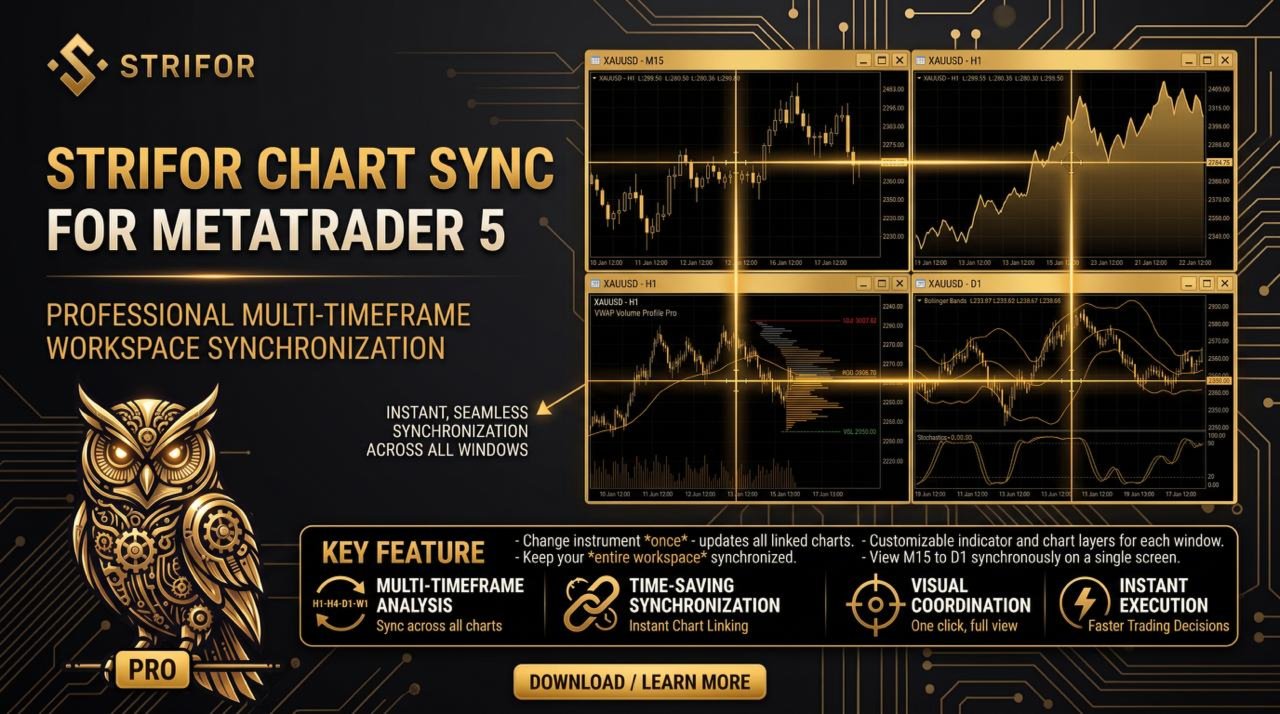
Strifor Chart Sync is a MetaTrader 5 Expert Advisor designed to synchronize multiple charts and simplify multi-timeframe analysis of the same instrument.
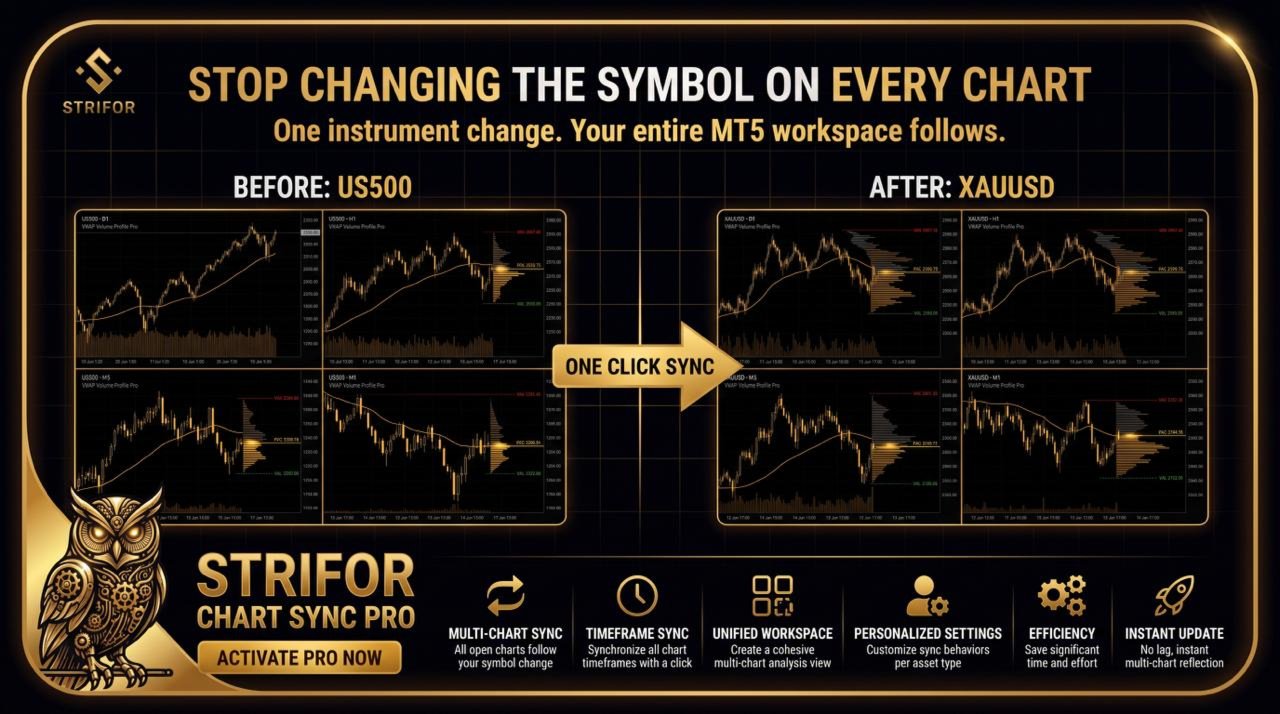
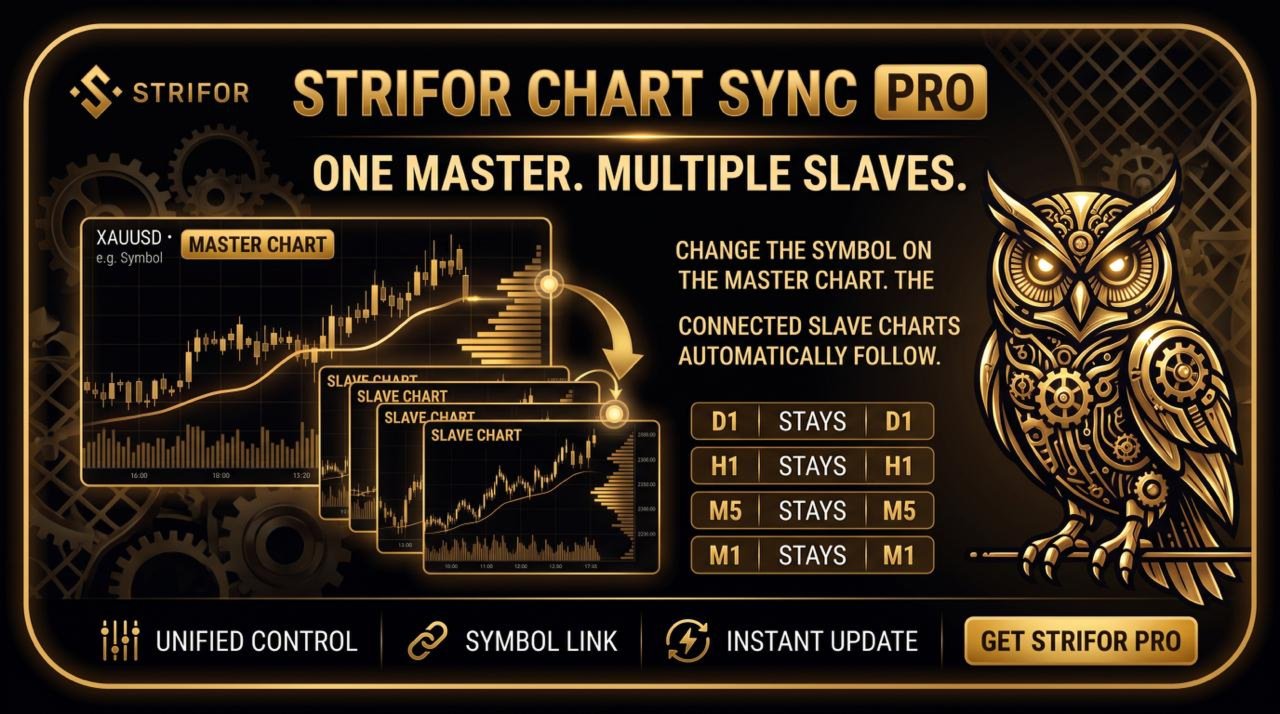
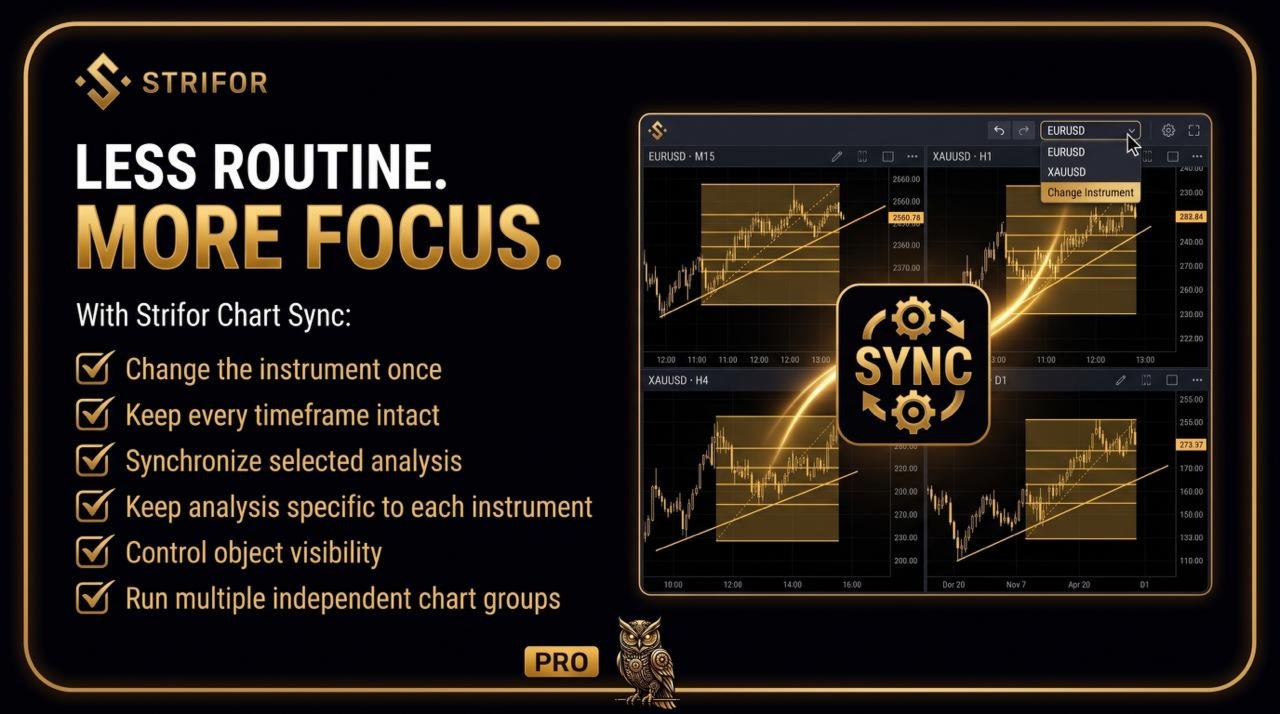
Instead of manually changing the symbol on every open chart, simply change the instrument on the Master chart. All connected Slave charts will automatically switch to the same symbol while keeping their individual timeframes.
For example, you can work with:
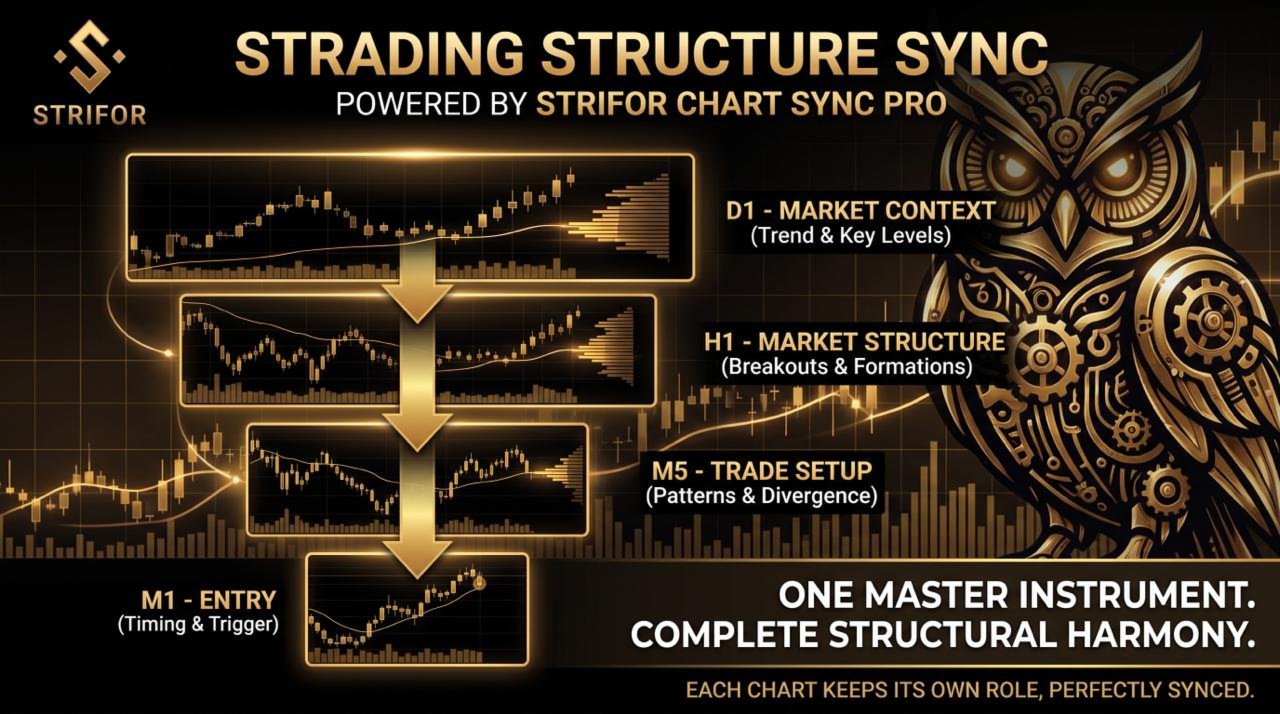
- D1 — overall market context
- H1 — local market structure
- M5 — trade setup
- M1 — entry point
If you change the instrument on the Master chart from US500 to XAUUSD, all connected charts will automatically switch to XAUUSD:
- D1 remains D1
- H1 remains H1
- M5 remains M5
- M1 remains M1
This allows you to build a structured multi-timeframe workspace and switch between instruments without manually updating every chart.
One of the key features of Strifor Chart Sync is the synchronization of selected chart objects.
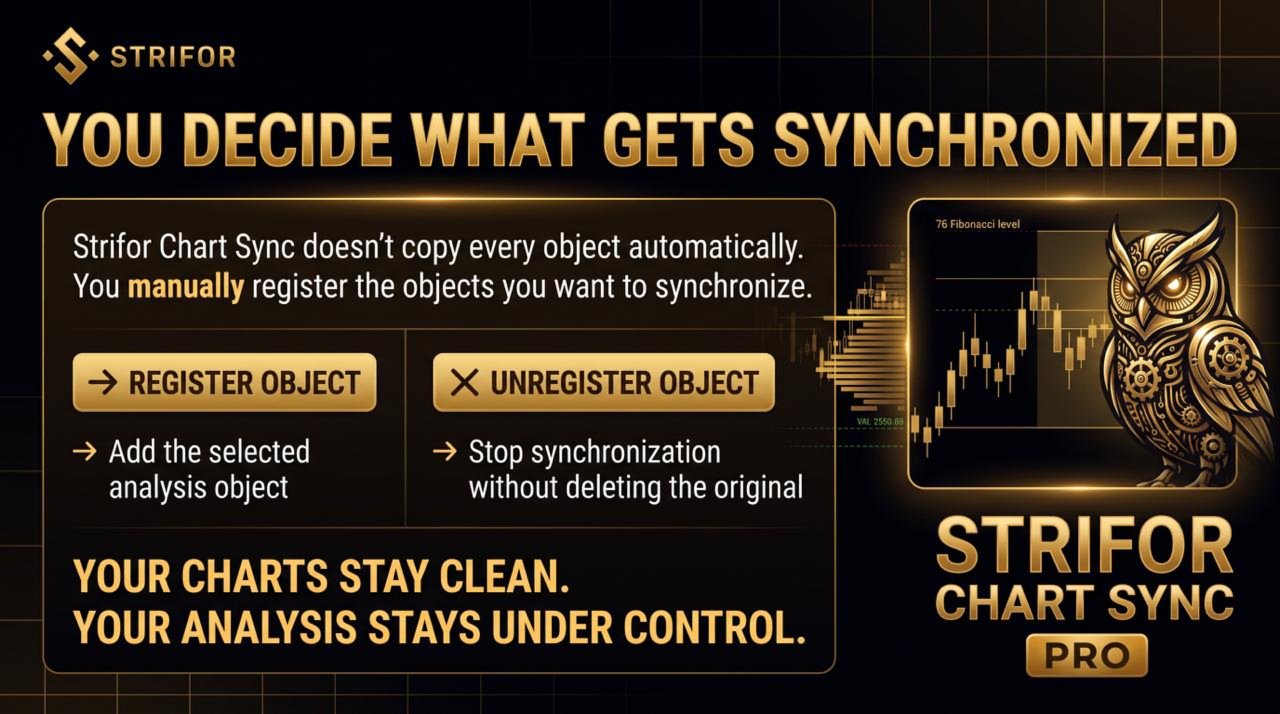
The Expert Advisor does not automatically copy every object created on a chart. This is intentional, as other indicators and tools may create Pivot levels, VWAPs, zones, lines, profiles, and other graphical elements.
Instead, Strifor Chart Sync uses manual object registration.
To synchronize an object:
- Create a standard MetaTrader 5 graphical object.
- Select the object on the Master chart.
- Click REGISTER OBJECT.
The selected object is then added to the synchronization system and can be displayed on the appropriate Slave charts.
The Expert Advisor supports synchronization of user-defined technical analysis objects, including:
- Horizontal Lines
- Trend Lines
- and other supported MetaTrader 5 graphical objects
When a registered object is moved on the Master chart, its position is automatically updated on the corresponding Slave charts.
To stop synchronizing an object, select it and click UNREGISTER OBJECT.
The original object remains on the Master chart but is no longer synchronized.
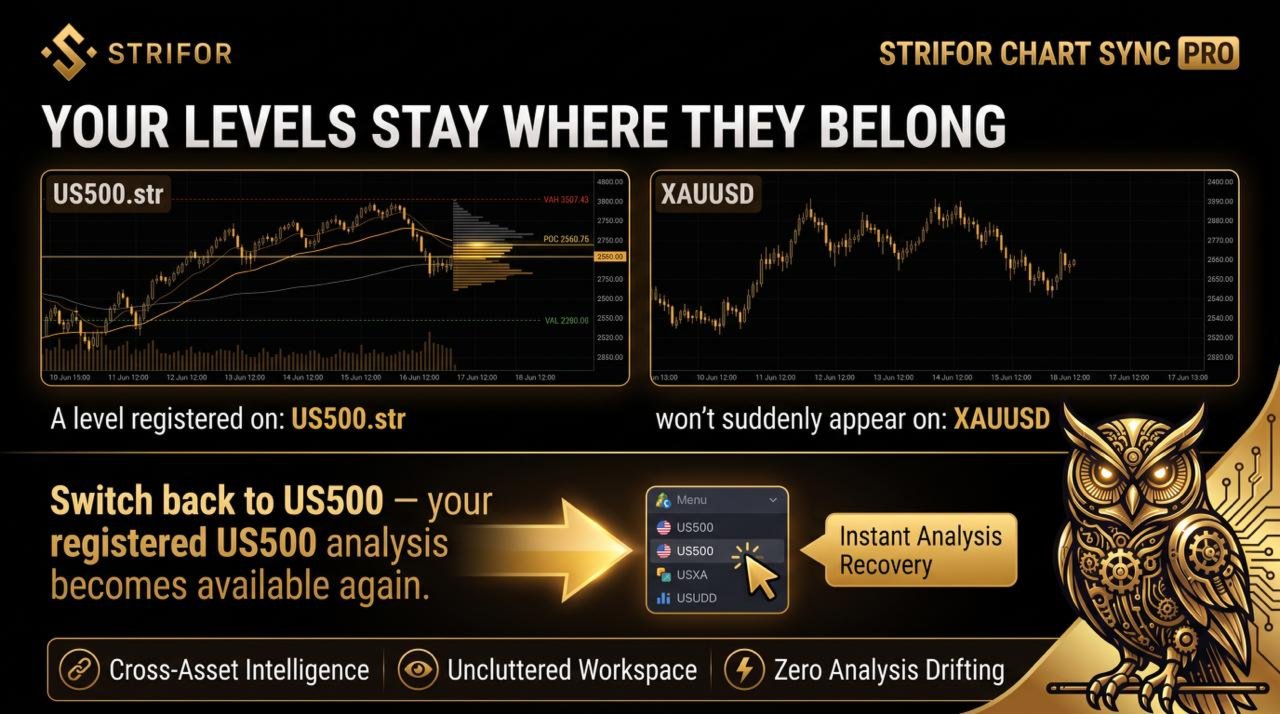
Each registered object is associated with the exact instrument on which it was created.
For example, if a horizontal level is registered on:
US500.str
it will only be synchronized with charts using the corresponding US500.str symbol within the relevant group.
When the group switches to XAUUSD, US500 levels are not transferred to the gold charts, even if the price values happen to fall within a similar numerical range.
When the group switches back to US500, the previously registered US500 technical analysis becomes available again.
This allows you to maintain separate technical analysis for each instrument.
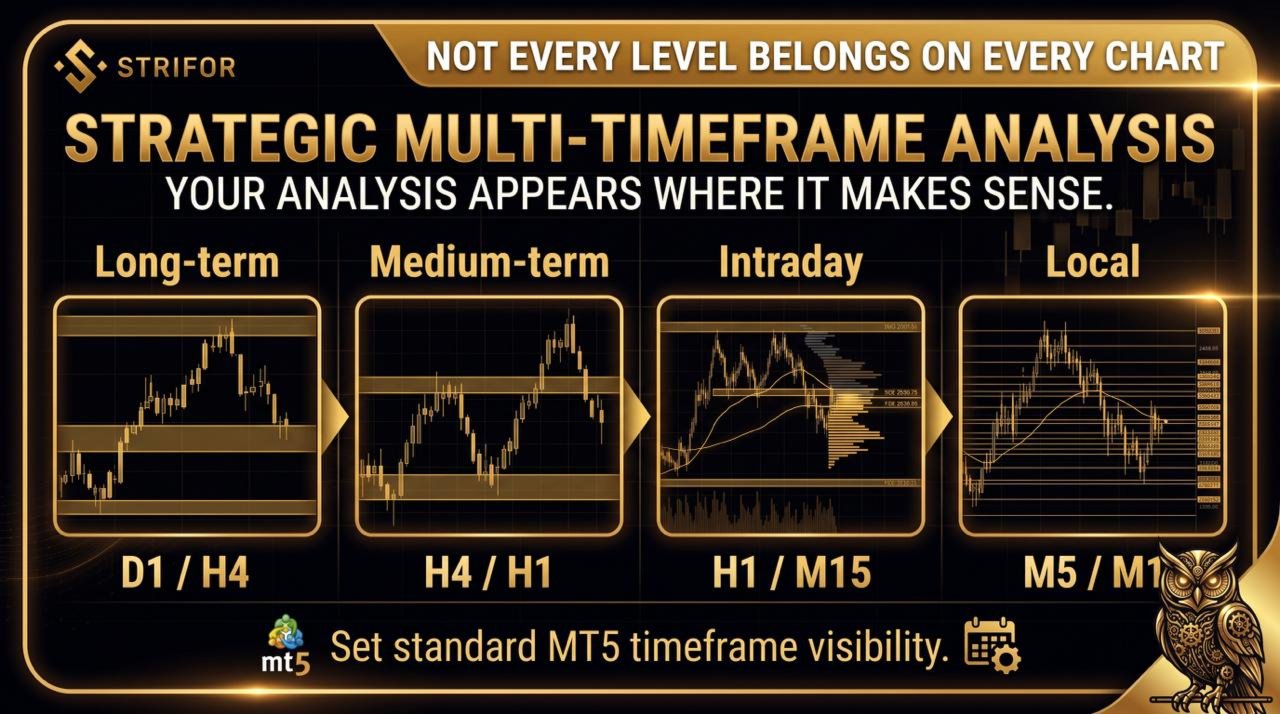
Strifor Chart Sync respects the standard MetaTrader 5 "Visibility on timeframes" setting for registered objects.
For example, you can configure a level to be visible only on:
- D1
- H4
- M5
and hidden on:
- H1
- M1
In this case, the registered object will not appear on the US500 H1 Slave chart even though that chart belongs to the same synchronization group.
This makes it possible to organize technical analysis by market scale:
- Long-term levels: D1 / H4
- Medium-term levels: H4 / H1
- Intraday levels: H1 / M15 / M5
- Local levels: M5 / M1
Each synchronization group consists of:
- Master — the controlling chart
- Slave — connected charts that follow the Master
The Master chart controls the symbol for the group.
When the instrument is changed on the Master, all Slave charts in the same group automatically receive the new symbol while keeping their individual timeframes.
Example
Before switching:
Master
US500 — D1
Slave
US500 — H1
US500 — M5
US500 — M1
After switching the Master to XAUUSD:
Master
XAUUSD — D1
Slave
XAUUSD — H1
XAUUSD — M5
XAUUSD — M1
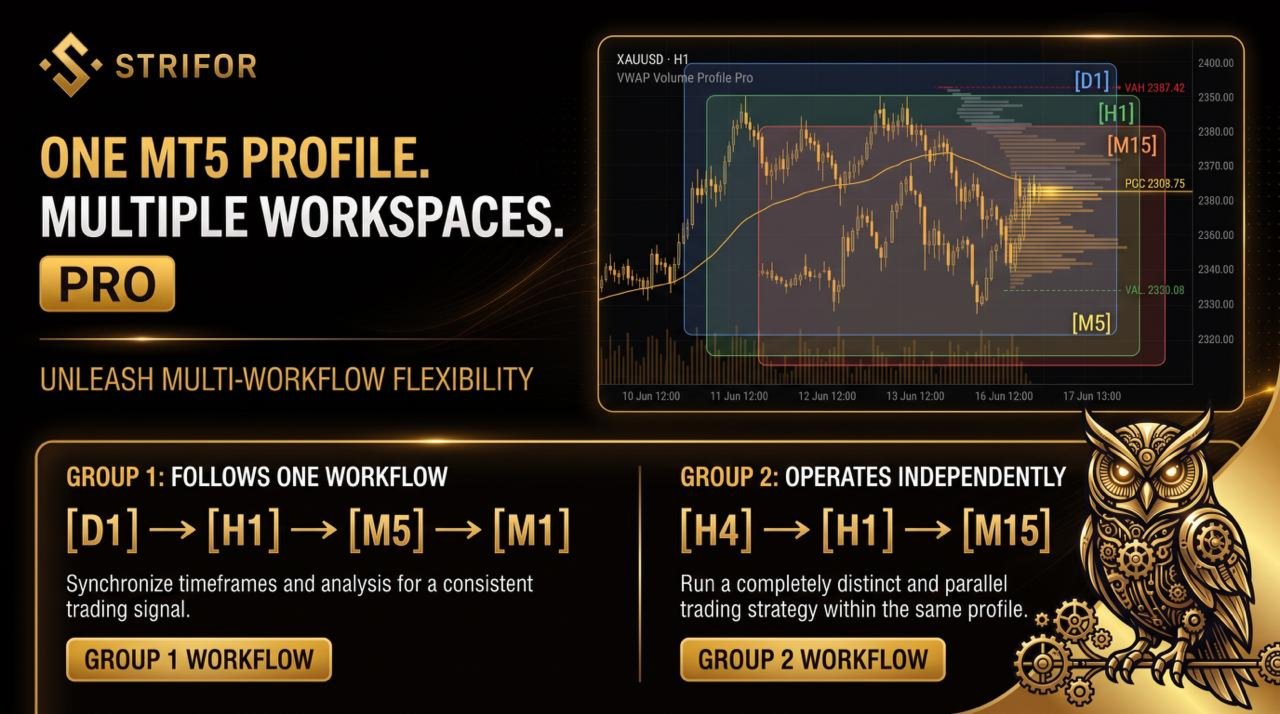
Strifor Chart Sync supports multiple independent synchronization groups.
For example:
Group 1
- D1 — Master
- H1 — Slave
- M5 — Slave
- M1 — Slave
Group 2
- H4 — Master
- H1 — Slave
- M15 — Slave
Changing the instrument in Group 1 does not affect Group 2.
This allows you to create several independent multi-chart workspaces within the same MetaTrader 5 profile.
Strifor Chart Sync must be installed on every chart that should participate in the synchronization system.
Setup steps
- Open the required number of charts.
- Set the desired timeframe for each chart.
- Attach Strifor Chart Sync to each chart.
- Assign the same SyncGroup number to all charts that should work together.
- Set one chart as Master.
- Set the remaining charts as Slave.
- Make sure EnableSync = true.
- Enable SyncSymbol.
After setup, you only need to change the instrument on the Master chart.
Example
- Chart 1 — D1 — Master
- Chart 2 — H1 — Slave
- Chart 3 — M5 — Slave
- Chart 4 — M1 — Slave
All four charts:
SyncGroup = 1
To synchronize a technical analysis object:
- Create a Horizontal Line, Trend Line, or another supported graphical object on the Master chart.
- Select the object.
- Click REGISTER OBJECT.
- The object will be synchronized with the appropriate Slave charts.
- If necessary, adjust the object's standard Visibility on timeframes settings.
The Expert Advisor takes into account:
- Instrument
- Synchronization group
- Allowed timeframes
- Object position
- Main visual properties
To stop synchronization
Select the registered object and click UNREGISTER OBJECT.
The original object will remain on the Master chart but will no longer be synchronized with Slave charts.
EnableSync
Enables or disables synchronization for the current chart.
Values:
true / false
SyncGroup
Defines the synchronization group number.
All charts belonging to the same group must use the same value.
Examples:
1
2
3
...
ChartRole
Defines the role of the current chart.
Values:
- Master
- Slave
Each synchronization group should have one Master chart.
SyncSymbol
Enables synchronization of the trading instrument between Master and Slave charts.
Values:
true / false
KeepChartTimeframe
Keeps each chart's individual timeframe when the symbol is changed.
For standard operation, the recommended setting is:
true
SymbolMappingMode
Defines how symbols are matched between charts.
For operation within the same MetaTrader 5 terminal, exact symbol matching is recommended:
Exact
Example:
US500.str = US500.str
SlaveManualChangeMode
Defines how a Slave chart behaves when its symbol is changed manually.
Depending on the selected mode, the Slave can temporarily keep the manually selected symbol or return to the Master symbol when the next synchronization event occurs.
SyncObjects
Enables synchronization of registered graphical objects.
Values:
true / false
ExactSymbolMatch
Requires the registered object to be displayed only for the exact symbol on which it was registered.
Recommended:
true
UseSymbolMapping
Allows additional mapping between different symbol names representing the same instrument.
For standard operation, the recommended setting is:
false
REGISTER OBJECT
Registers the currently selected graphical object and adds it to the synchronization system.
UNREGISTER OBJECT
Removes the selected object from the synchronization system without deleting the original object from the Master chart.
Additional Settings
The Expert Advisor also includes parameters for panel and internal system functions:
- ShowStatusPanel
- ShowGroupNumber
- ShowChartRole
- EnableNotifications
- PanelCorner
- AutoShiftChart
- ChartShiftPercent
- UpdateIntervalMs
- InitialSyncDelayMs
- ObjectGuardMs
- ObjectLostConfirmMs
- DebugMode
These parameters control:
- Information panel visibility
- Synchronization group display
- Master/Slave role display
- System notifications
- Panel position
- Chart shift
- Internal update frequency
- Initial synchronization delay
- Object protection
- Object-loss confirmation
- Debug mode
For normal operation, the default values of these technical parameters are recommended.
Additional Synchronization Features
The Expert Advisor also includes optional functionality for additional chart synchronization:
- SyncTimeframe
- SyncVerticalLine
- SyncCrosshair
- SyncScrollPosition
- SyncChartShift
These features provide additional ways for charts to interact with each other and can be enabled or disabled according to your workflow.
The core Strifor Chart Sync functionality does not require them.
Example Trading Workspace
A typical setup can look like this:
Group 1
- D1 — Master
- H1 — Slave
- M5 — Slave
- M1 — Slave
The trader performs higher-timeframe analysis on D1 and registers the required technical analysis objects.
For example:
Long-term level:
D1
H4
H1
Local level:
M15
M5
M1
The Expert Advisor automatically distributes registered objects to the charts where they are configured to be visible.
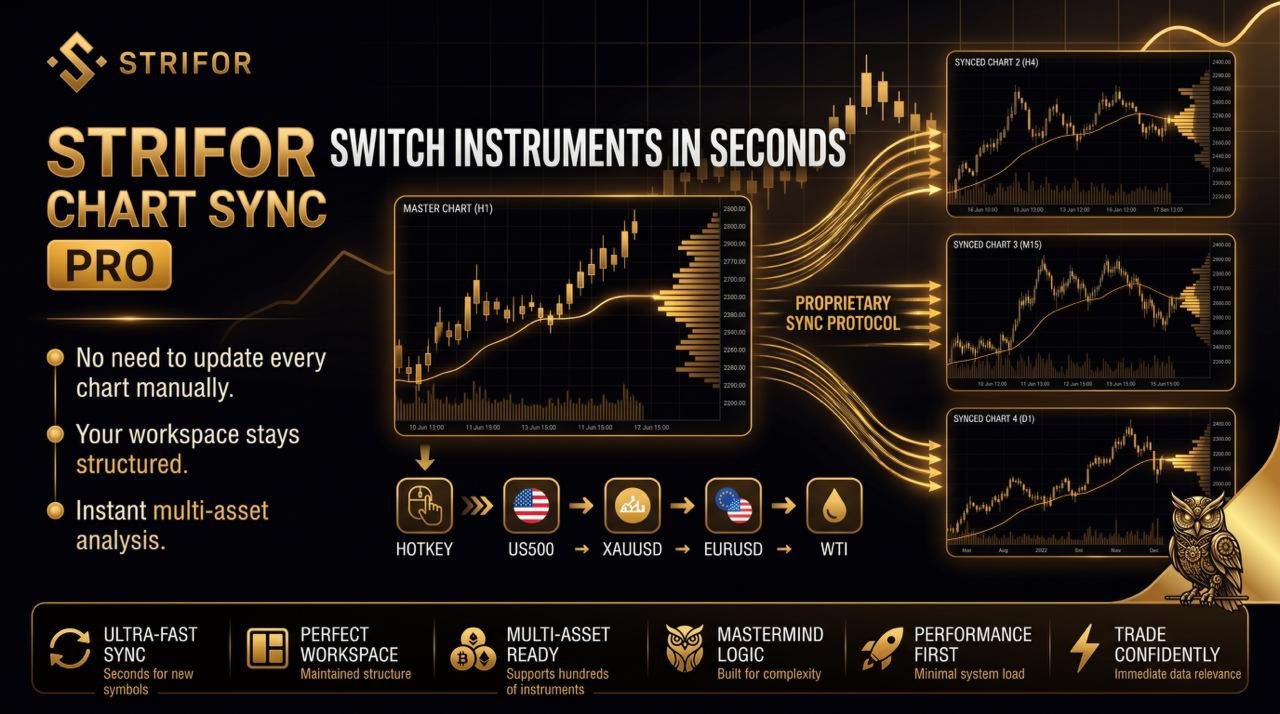
When switching between:
US500 → XAUUSD → EURUSD → WTI
all charts in the group automatically follow the Master chart, while the registered technical analysis remains associated with the relevant instrument.
Key Features
Strifor Chart Sync allows you to build a complete multi-timeframe trading workspace in MetaTrader 5 without manually changing the instrument on every open chart.
The Expert Advisor combines:
- Symbol synchronization
- Independent Master/Slave groups
- Individual timeframe preservation
- Manual registration of technical analysis objects
- Technical analysis synchronization
- Instrument-specific analysis
- Timeframe-based object visibility
- Automatic updates of registered levels
- Multiple independent workspaces
The result is a structured multi-timeframe environment where you control the instrument from a single Master chart while the connected Slave charts automatically maintain the required analysis structure.
Change the instrument once. Keep your entire workspace synchronized.