Professional Renko Chart MT5
- Indicators
-
Elham Afsharpour
 I am an experienced trading software developer with 8 years of programming experience, especially in Python, C++, and MQL5. During the last 2 years, I have focused mainly on developing Expert Advisors, custom indicators, trading tools, and automation systems for MetaTrader.
 - Version: 1.2
- Updated: 23 July 2026
- Activations: 5
Professional Renko Chart MT5
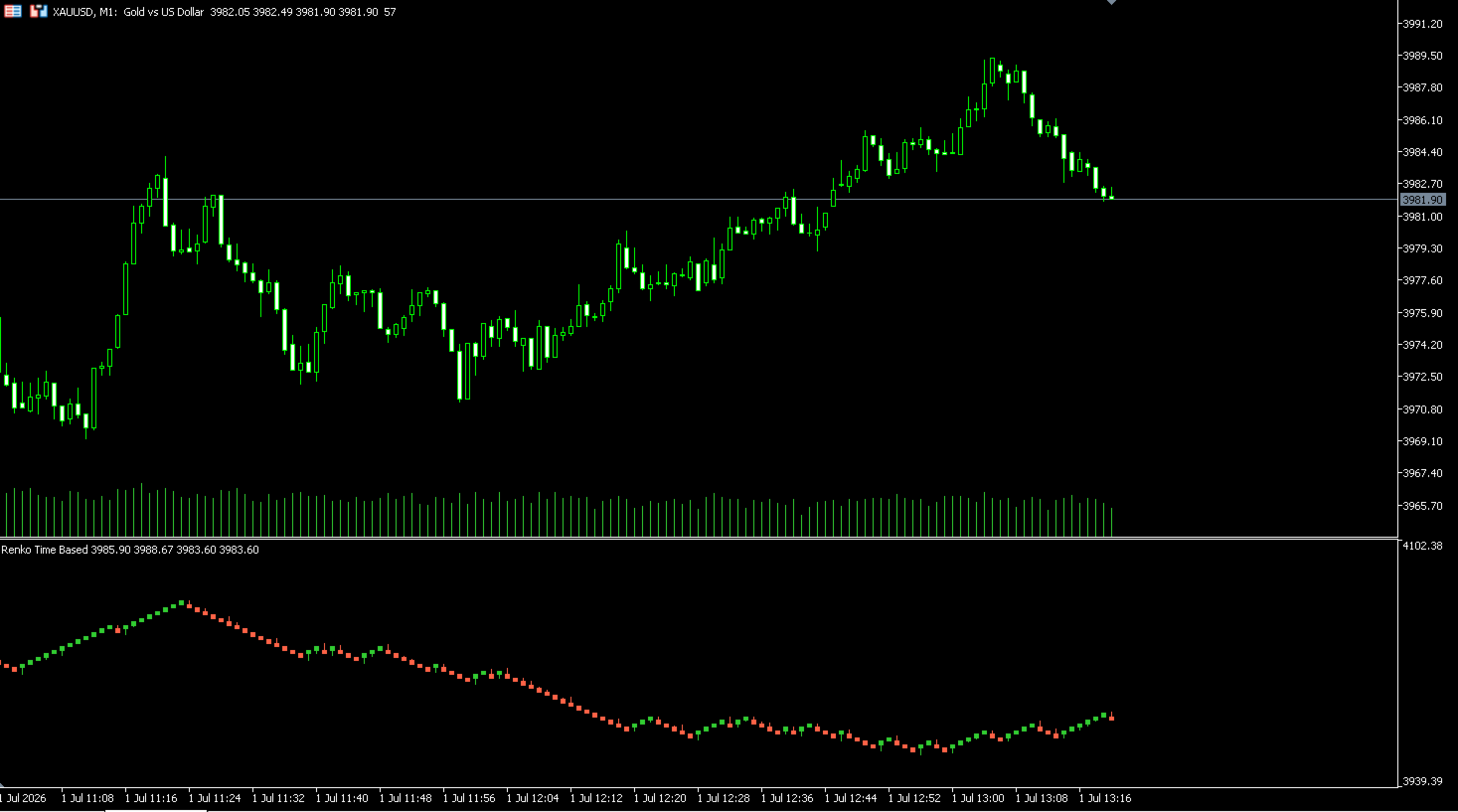
Professional Renko Chart MT5 is a clean MetaTrader 5 Renko chart indicator designed to display Renko bricks in a separate indicator window, with optional Renko box visualization directly on the main price chart.
The indicator is built for traders who want a familiar Renko chart style inside MetaTrader 5, similar to the Renko chart visualization available on popular modern charting platforms such as TradingView. It converts normal time-based candles into Renko bricks and displays the result in a simple, clear, and practical format.
Several normal chart candles may create one Renko brick. Professional Renko Chart MT5 can also show Renko boxes on the main price chart and display how many normal candles were used to form each Renko brick.
This indicator is not an Expert Advisor. It does not open, close, or manage trades. It is a visual charting and market-analysis tool only. It can be used for manual analysis, Renko-based chart reading, trend observation, price movement filtering, and market structure review.
Main Features
-
Displays Renko bricks in a separate MT5 indicator window
-
Renko visualization style similar to modern charting platforms
-
Supports Traditional, ATR, and Percentage Renko box size methods
-
Supports Close-based and OHLC-based Renko calculation sources
-
Optional Renko-style wicks
-
Optional current candle projection bricks
-
Optional Renko boxes directly on the main price chart
-
Shows how many normal candles created each Renko brick
-
Click a Renko brick to highlight the related source candles on the main chart
-
Automatically moves the chart to the related candle area when the clicked Renko brick source candles are outside the visible chart area
-
Separate colors for normal up/down bricks and projection bricks
-
Popup and push alerts for Renko direction changes
-
Clean grouped inputs for easier use
How It Works
Professional Renko Chart MT5 reads the price data from the current chart and creates Renko bricks only when the selected box-size condition is completed.
For example, if the Traditional box size is set to 10.0, a new Renko brick is created only after the price moves enough to complete that box size. Depending on the market movement, one normal candle may create no Renko brick, one Renko brick, or several Renko bricks.
The separate Renko chart helps reduce the noise of normal time-based candles and focuses more on price movement. The optional main-chart Renko boxes help users understand exactly where each Renko brick was created on the original price chart.
Input Settings
Renko Settings
Box Size Assignment
Selects the Renko box size calculation method.
Available methods:
Average True Range
Uses ATR to calculate the Renko box size dynamically.
Traditional Fixed Box Size
Uses a fixed box size entered by the user.
Percentage LTP
Calculates the Renko box size as a percentage of the latest traded price.
Source
Selects which price source is used for Renko calculation.
Close
Uses candle close prices for Renko construction.
OHLC
Uses candle open, high, low, and close movement for Renko construction.
Traditional Box Size
Sets the fixed Renko box size in price units when Traditional mode is selected.
Example: on XAUUSD, 5.0 means a 5-dollar Renko box.
ATR Length
Sets the ATR period used when the ATR box size method is selected.
Percentage
Sets the percentage value used when Percentage LTP mode is selected.
Round Box To Tick
If enabled, the box size is rounded to the symbol tick size for cleaner price alignment.
Calculation Settings
Max History Bars
Sets how many chart bars are used to build the Renko history.
Max Generated Bricks
Sets a safety limit for the maximum number of Renko bricks that can be generated.
Max Bricks To Draw
Sets how many of the latest Renko bricks are displayed on the chart.
Show Wicks
If enabled, the Renko bricks include Renko-style wick information.
Drawing Settings
Use Equal Size Renko Display
If enabled, Renko bricks are displayed with equal visual width in the subwindow. This creates a clean Renko chart view.
Split Multiple Bricks In One Candle
If enabled, when several Renko bricks are created from one normal price candle, the bricks are visually separated instead of overlapping. This setting is used when equal-size display mode is disabled.
Brick Border Width
Sets the border width of Renko brick bodies.
Wick Width
Sets the width of Renko wick lines.
Draw Bodies In Front
If enabled, Renko brick bodies are drawn in front of the background objects.
Price Chart Renko Boxes
Show Price Chart Renko Boxes
If enabled, Renko boxes are also drawn on the main price chart. These boxes show where each Renko brick was created on the original time-based chart.
Price Chart Up Box Color
Sets the color of bullish Renko boxes on the main chart.
Price Chart Down Box Color
Sets the color of bearish Renko boxes on the main chart.
Price Chart Projection Up Box Color
Sets the color of bullish projection boxes on the main chart.
Price Chart Projection Down Box Color
Sets the color of bearish projection boxes on the main chart.
Price Chart Box Text Color
Sets the text color for the candle-count number shown inside main-chart Renko boxes.
Price Chart Box Alpha
Sets the opacity of the main-chart Renko boxes.
0 means fully transparent.
255 means fully solid.
Brick Click Candle Highlight
Enable Brick Click Candle Highlight
If enabled, clicking a Renko brick in the Renko subwindow highlights the normal price candles that created that Renko brick on the main chart.
Click the same brick again to hide the highlight.
Click another brick to remove the previous highlight and show the newly selected brick source candles.
If the related candles are outside the visible chart area, the main chart automatically moves so that the related candle area becomes visible near the center of the chart.
Colors
Up Brick Color
Sets the color of bullish Renko bricks in the Renko subwindow.
Down Brick Color
Sets the color of bearish Renko bricks in the Renko subwindow.
Projection Up Color
Sets the color of bullish projection bricks.
Projection Down Color
Sets the color of bearish projection bricks.
Alert Settings
Enable Popup Alert
If enabled, the indicator shows a popup alert when a Renko reversal is detected.
Enable Push Alert
If enabled, the indicator sends a mobile push notification when a Renko reversal is detected. Push notifications must be configured correctly in MetaTrader 5.
Alert On Projection
If enabled, alerts can also be triggered by projection bricks. If disabled, alerts are triggered only by confirmed Renko bricks.
Important Notes
Professional Renko Chart MT5 is a technical analysis indicator only. It does not provide financial advice and does not guarantee any trading result. Renko charts can help visualize price movement, but trading decisions should always be based on the user’s own analysis, risk management, and testing.
The indicator does not trade automatically. It does not open positions, close positions, manage stop loss, manage take profit, or control account risk.
For best results, test different box-size settings on the symbol and timeframe you trade, because each market has different volatility and price behavior.