
SkdonSeriesMulti
- Experts
-
Igor Bulyshev
 Умный, красивый, в меру упитанный и талантливый трейдер-программист в полном расцвете сил!!))
 - Version: 7.1
- Updated: 27 September 2026
The Expert Advisor is designed for long‑term (lifetime) multi‑currency trading on 28 currency pairs simultaneously (the list of pairs is fixed in the code) on the M30 timeframe. List of currency pairs: EURUSD, GBPUSD, AUDUSD, USDCAD, USDJPY, USDCHF, GBPJPY, EURJPY, AUDCAD, AUDJPY, CHFJPY, EURCHF, EURGBP, NZDJPY, NZDUSD, CADJPY, AUDCHF, AUDNZD, CADCHF, EURAUD, EURCAD, EURNZD, GBPAUD, GBPCHF, GBPCAD, GBPNZD, NZDCAD, NZDCHF.
Its goal is to capture trending movements and manage risks using special averaging mechanisms, locking orders, and emergency protection.
The core strategy is trend‑following, using my Skdon2 indicator which generates a BUY or SELL signal on every closed bar.
When the signal changes, the EA closes old positions according to a specific rule and places a series of 4 (configurable) pending orders (BUYSTOP or SELLSTOP) in the direction of the new signal.
1. What the EA does overall
It analyses each currency pair on the 30‑minute timeframe using its built‑in indicator.
When the indicator gives a buy or sell signal, the EA opens a series of orders: one market order (immediately at the current price) and several pending orders (above the market for buys, below for sells) with a step set in the settings. The number of pending orders is set by the parameter InpPendingCount (default 4, but in the tester it is forcibly reduced to 2 to avoid limit errors).
If the signal changes to the opposite, the EA closes the old series (fully or partially) and opens a new one in the new direction.
Thus, it follows the trend, constantly reversing when the signal changes.
2. Operating modes
The EA has three main modes:
-
Mode 0 – Normal. The EA operates at full capacity: opens new series, manages them, uses compensation and trailing. This is the main mode for everyday trading.
-
Mode 1 – Exit market. No new series are opened. Existing series continue to be managed (trailing, averaging, locks), but once they are closed, no new ones will be opened. Used when you want to exit the market smoothly without closing everything abruptly.
-
Liquidation mode (automatic). Activated automatically if on any pair the loss exceeds a set percentage of the balance (default 5%). Upon activation:
-
Opening of new series is prohibited.
-
Only profitable series are closed to accumulate profit and reduce the overall loss.
-
The mode is deactivated when the total loss falls below the set percentage (default 4%) or when no market orders remain. After that, normal operation resumes.
-
3. How series are opened and closed
The Skdon2 indicator signal is calculated on each new M30 bar. If the signal changes (e.g., from "buy" to "sell"), the EA considers that the trend has reversed.
If no series exists yet, upon a signal the EA opens:
-
1 market order (Buy or Sell) immediately, and
-
several pending orders (Buy Stop or Sell Stop) at a distance of StepDistance from each other. Their number is set by the PendingCount parameter.
If a series already exists and the signal changes to the opposite:
-
All pending orders are closed (deleted) first.
-
Then market orders are closed according to the following rules:
-
If the total profit of the series is positive – all market orders of the series are closed.
-
If the total profit is negative – only those orders that are in profit are closed, while losing ones remain (to avoid locking in the loss).
-
-
After that, a new series is opened in the new direction.
4. Compensation mode (averaging and locks)
When a loss accumulates on a pair exceeding 2.5% of the balance, the EA activates compensation mode for that pair. In this mode, the following work:
-
Averaging. The most unprofitable order on that pair is identified. When the price moves away from the last averaging order by AveragingStepPoints , a new order is opened in the same direction as the loss‑making one. This lowers the average entry price. The lot of each subsequent averaging is increased by the multiplier AveragingMultiplier , but fractionally (the initial lot is taken as starting_lot / FractionSize). This gives a smooth increase in lots rather than a sharp one. As soon as the total profit of this compensation series (target order + all averaging orders) reaches the target value (starting_lot * 250), the entire series is closed at a profit.
-
Locking orders. Opened when the loss exceeds 3% and there is an imbalance between the total volume of Buys and Sells (difference greater than 0.01 lot). A lock order is opened against the prevailing direction (if there are more Buys, a Sell is opened, and vice versa). This partially hedges the position. The lock lot = imbalance * LockLotPercent / 100. After opening a lock, the imbalance decreases, and the next lock will have a smaller volume.
-
New locks are opened only in the direction that improves the previous one:
-
For Sell locks – when the price falls (improves the Sell position).
-
For Buy locks – when the price rises.
-
The distance between locks is LockStepPoints . This prevents frequent opening of locks at the same level. Locks are also managed with a trailing stop (trailing stop is applied to all orders on the pair where compensation mode is active, except averaging orders).
-
Trailing Stop. Works only on pairs in compensation mode. For each order (except averaging ones), trailing is activated when the price has moved from the opening price by no less than TrailingActivation points. The stop‑loss is then moved to TrailingStopDist points from the current price, but no more often than with a TrailingStep step. This allows locking in profit as the price moves further.
5. Additional protective mechanisms
-
Gap Protection. When a new M30 bar opens, it checks whether a gap (sharp price jump) occurred between the close of the previous bar and the open of the current one. If the gap size exceeds GapThreshold , the EA deletes all pending orders on that pair, and closes market orders (if total profit is positive – all; if negative – only profitable ones). After a “cooling” period of 40 seconds, the signal is recalculated, and if it has changed, a new series is opened.
-
Closing old losing orders. Every 8 minutes, market orders that have been open for more than 35 hours and are in loss are checked. For the “worst” losing order, the EA looks for profitable series on other pairs and closes them until enough profit is accumulated to cover the loss plus a small buffer. Then the old losing order itself is closed.
-
Closing opposite orders. If on the same pair there are profitable Buys and losing Sells (or vice versa), and the profit of one side covers the loss of the most losing order in the series with a buffer, then the profitable orders are closed together with the most losing order to reduce overall risk.
6. Information panel
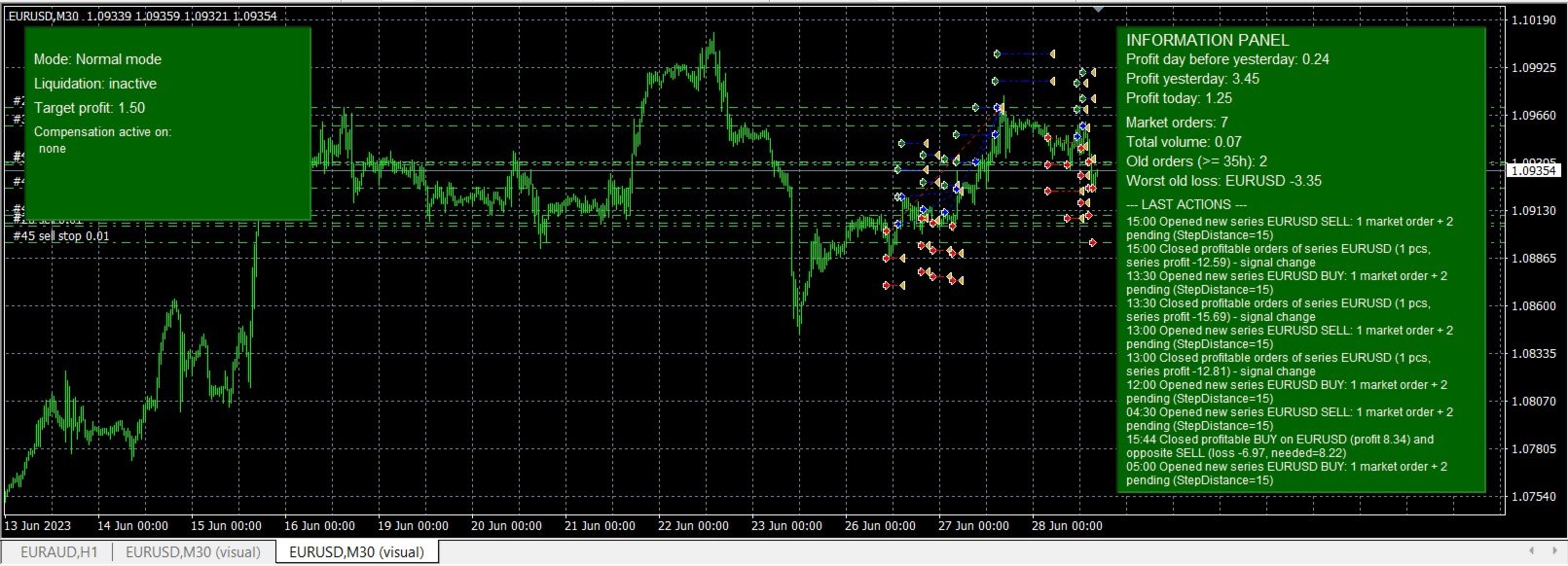
A panel is displayed on the chart with two blocks:
-
Left panel: current mode, liquidation status, target profit, list of currency pairs in compensation mode.
-
Right panel: profit for recent days, number of orders, volumes, old losses, recent actions of the trading robot.
7. Description of all settings (input parameters)
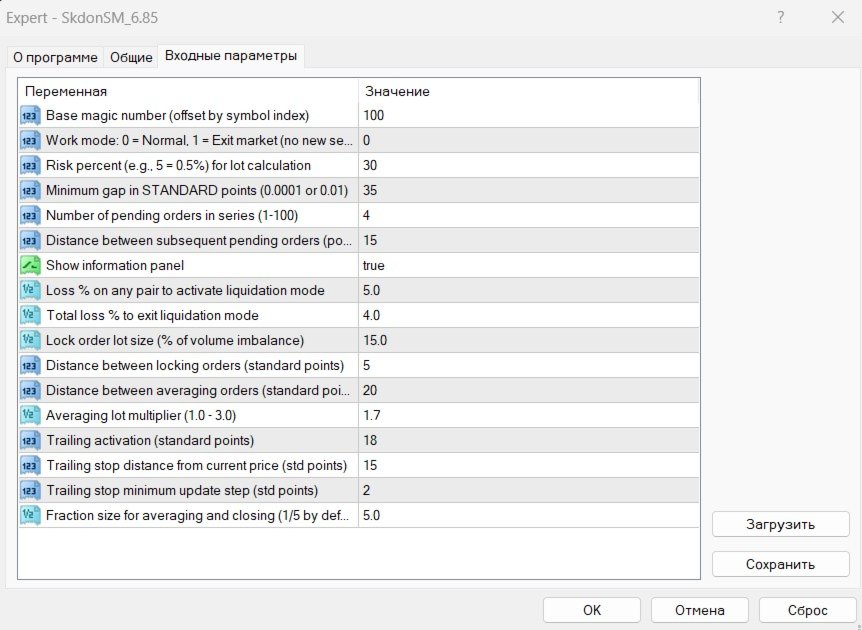
Group 1: Main settings
-
Base magic number=100 – Identifier for all EA orders. If you have several copies on different accounts, change this number so they do not interfere with each other.
-
Work mode=0 – 0: normal mode; 1: exit mode (no new series opened). Used for manual shutdown.
-
Risk percent=30 – Affects lot size. The higher the number, the larger the lot. For example, at 30 the base lot = balance * 0.003 / 10000 (empirical formula). Recommended to adjust to your risk.
-
Minimum gap=35 – Minimum gap size in standard points at which gap protection triggers. For JPY pairs, point = 0.01; for others, point = 0.0001.
-
Pending orders count=4 – How many pending orders to add to each market order when opening a series. More means a deeper grid.
-
Distance between pendings=15 – Step between pending orders in points. Affects grid density.
-
Show info panel=true – Display the information panel on the chart. Can be turned off to save resources and during testing.
Group 2: Liquidation mode
-
Loss % to activate=5.0 – If loss on any pair exceeds this percentage of balance, liquidation mode is activated.
-
Loss % to exit=4.0 – When total loss across all currency pairs falls below this percentage, liquidation mode is turned off.
Group 3: Compensation and trailing
-
Lock lot percent=15.0 – Percentage of the volume imbalance used to calculate the lock order lot.
-
Lock step points=5 – Step between locking orders in points. A new lock is opened only when the price moves this distance in the improving direction.
-
Averaging step points=20 – Step between averaging orders. A new averaging order is opened when the price moves this distance from the previous averaging order.
-
Averaging multiplier=1.7 – Factor by which the lot of each subsequent averaging is increased. A value >1 increases lot sizes.
-
Trailing activation=18 – How many points the price must move from the open to activate the trailing stop.
-
Trailing stop distance=15 – Distance from the current price to set the stop‑loss during trailing. Must be less than activation so that the stop is in profit.
-
Trailing step=2 – Minimum change in stop‑loss when updating. Protects against frequent modifications.
Group 4: Fractional closing
-
Profit factor=250.0 – Used in the auxiliary mechanism for closing opposite orders.
-
Fraction size=5.0 – Fractional size for averaging. The first averaging lot = starting_lot / FractionSize. A smaller number means a larger first averaging lot.
8. Important practical tips
-
Start with a demo account to understand the EA's behaviour with your settings.
-
Make sure TrailingStopDist is always less than TrailingActivation , otherwise trailing will set a stop‑loss in loss.
-
In high volatility, increase GapThreshold and the steps ( StepDistance , LockStepPoints , AveragingStepPoints ) to avoid frequent triggers.
-
For aggressive trading, increase LockLotPercent and AveragingMultiplier , and decrease the steps.
-
Liquidation mode is an extreme protection. If it triggers often, the risk is too high – reduce RiskPercent or increase activation thresholds.
-
The EA is fully automatic but requires a stable internet connection and that all 28 pairs are present in the symbol list.
Advantages of the EA
-
Multi‑currency – 28 currency pairs. High diversification reduces dependence on a single currency.
-
Automatic portfolio cleaning – The robot itself liquidates old losses and opposing positions, requiring no manual control.
-
Global profit target – Regular locking of the overall result, making the equity curve smoother.
-
High fault tolerance – Retry attempts on errors, protection against lack of bars, trading permission checks are all implemented.
Risks and their mitigation
-
Market risk (trend reverses sharply, large losses). Partial position closing on signal change + global target + clearing old losing orders. Losing orders are not held for weeks or months.
-
Gaps (weekends, major news). A special protection algorithm: if gap ≥35 points (threshold set in settings), pending orders on that pair are closed, after 40 seconds (cooling period) the indicator state is analysed and work continues.
-
Technical failure (power outage, reboot). All states are restored upon restart: series direction is read from existing orders, the indicator state for each pair is constantly saved and compared with the state after system restart.
-
Drawdown after a series of losses. Thanks to the global profit target algorithm and the mechanism for placing opposite orders, losses are compensated by profits from the dominant sides.
-
Operating period: 24/5 from Monday to Friday.
-
The EA is fully automatic and does not require manual intervention.
Good luck in trading!
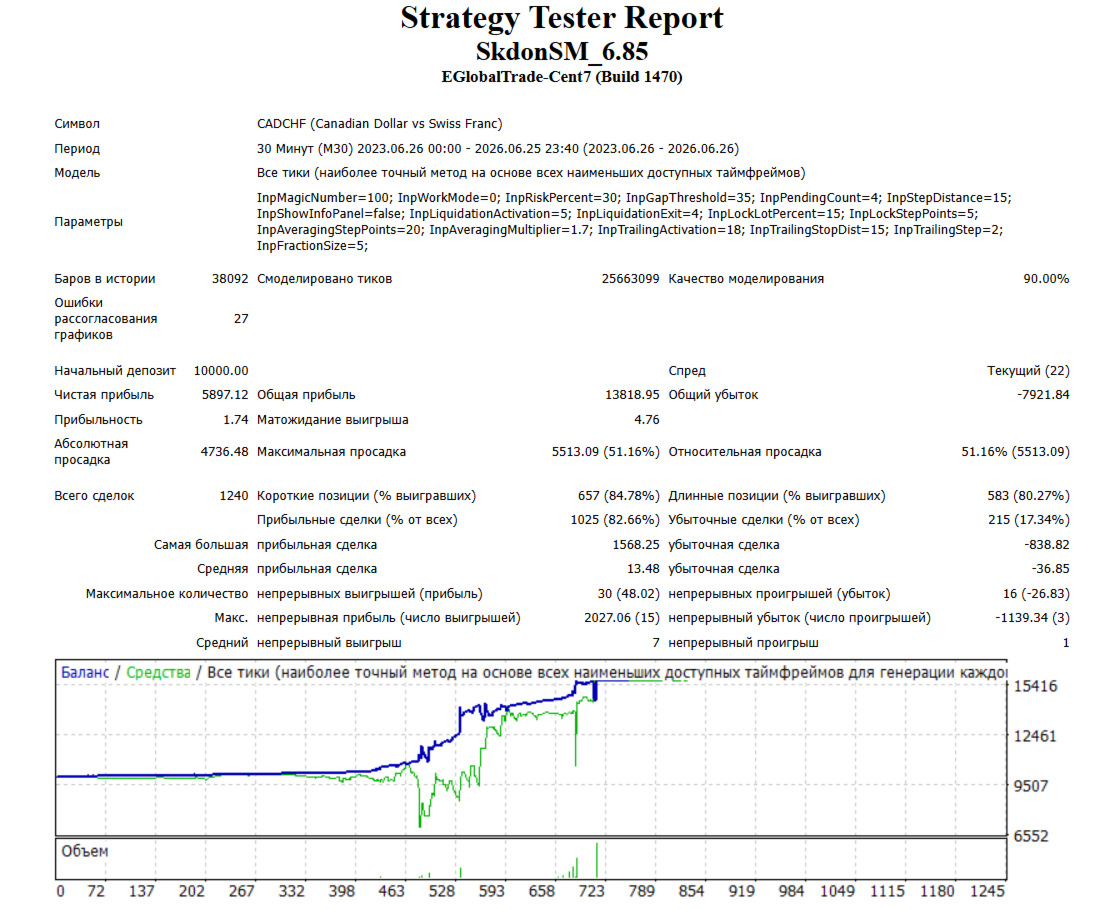
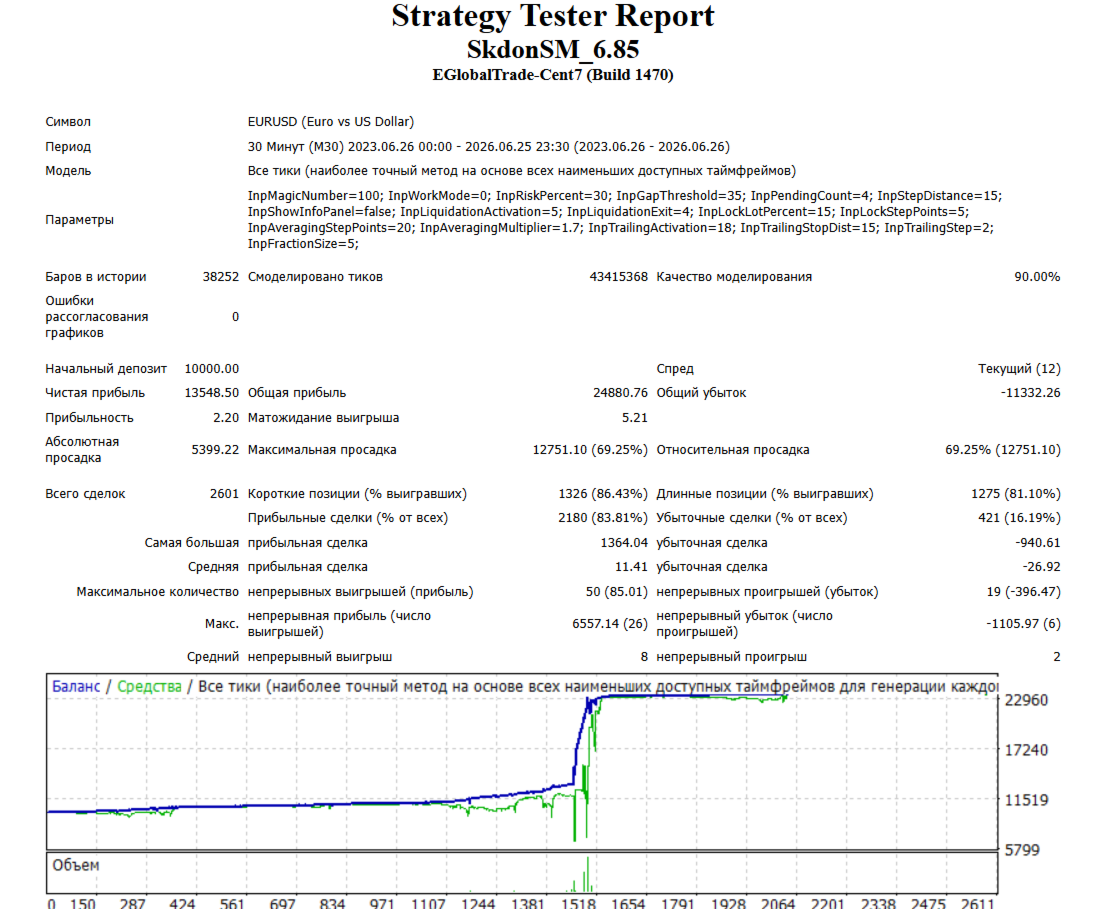
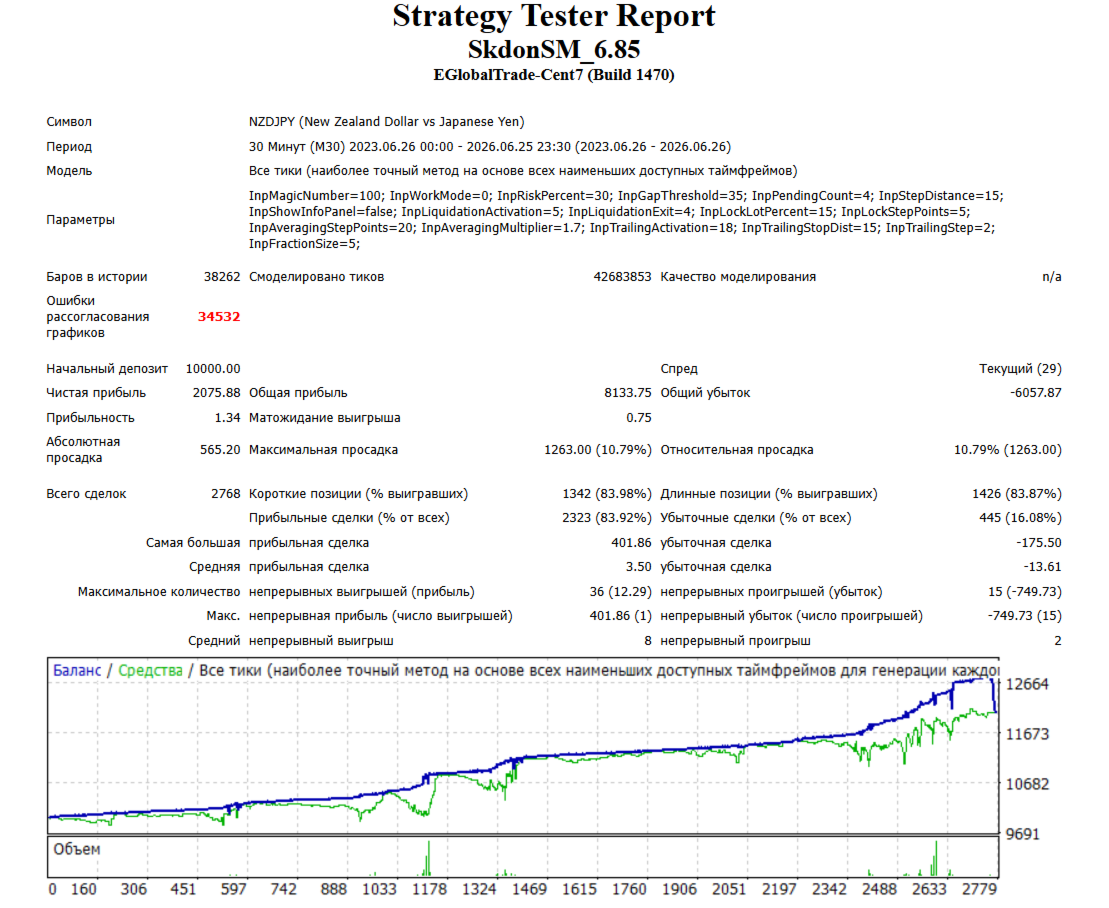
The screenshots provide test reports of the EA on various currency pairs over 3 years. Testing used default settings. Please also note that since this is a multi‑currency trading robot, when testing in the Strategy Tester on a single selected currency pair, the algorithm for closing old losing orders using profits from order series on other pairs does not work.
Specifics of working in the tester
For successful backtesting, the EA automatically limits the number of pending orders to 2 and the total number of open orders to 30. This is done to prevent error 148 (exceeding the order limit).












































поставил на центовый . пока всё идёт хорошо .понравилась живучая я бы сказал агрессивная логика советника .цена крутит но и советник тоже кручёный ...