

Herramientas de trading de MQL5 (Parte 1): Creación de una herramienta interactiva de asistencia para operaciones con órdenes pendientes
 391
391
 1
1

Introducción
El desarrollo de herramientas de trading eficaces es esencial para simplificar las complejas tareas del mercado de divisas; sin embargo, la creación de interfaces intuitivas que mejoren la toma de decisiones sigue siendo un reto. ¿Y si pudiera diseñar una herramienta visual e interactiva que agilizara la colocación de órdenes pendientes en MetaTrader 5? En este artículo, presentamos un asesor experto (EA) personalizado escrito en MetaQuotes Language 5 (MQL5) que pone a disposición de los operadores una herramienta de asistencia para operar, la cual combina precisión gráfica con controles intuitivos para colocar órdenes stop y limit de compra/venta de manera eficiente. Abordaremos estos pasos en este orden:
- Diseño conceptual y objetivos de la herramienta de asistencia para operar
- Implementación en MQL5
- Backtesting
- Conclusión
Al finalizar, comprenderás claramente cómo construir y probar esta herramienta, lo que allanará el camino para mejoras avanzadas en las siguientes partes.
Diseño conceptual y objetivos de la herramienta de asistencia para operar
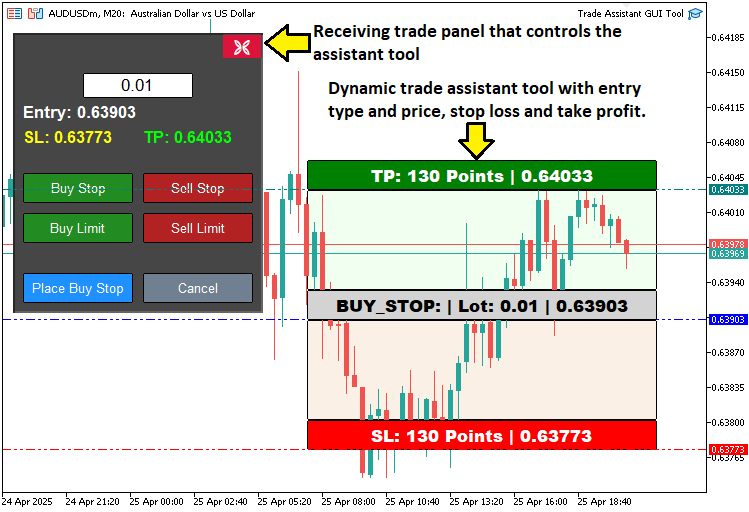
Nuestro objetivo es desarrollar una herramienta de asistencia para operar que nos ofrezca una experiencia fluida y eficiente, simplificando el proceso de colocación de órdenes pendientes en el mercado de divisas. Concebimos la herramienta como una interfaz gráfica de usuario (GUI) que se integra directamente con MetaTrader 5, lo que nos permite configurar órdenes de Buy Stop, Sell Stop, Buy Limit y Sell Limit a través de un panel de control intuitivo. Nuestro diseño prevé la inclusión de botones para seleccionar el tipo de orden deseado y un campo de entrada para especificar el tamaño del lote. Damos prioridad a la interacción visual, lo que nos permite definir los niveles de precio de entrada, stop-loss (SL) y take-profit (TP) arrastrando elementos interactivos sobre el gráfico, lo que ofrece información inmediata sobre los niveles de precios y las diferencias entre ellos.
Nuestro objetivo es garantizar que la herramienta sea accesible y se adapte a las necesidades de los usuarios. Diseñaremos una interfaz adaptativa que nos permita ajustar los precios con precisión y confirmar las órdenes con un solo clic, lo que reducirá al mínimo el tiempo dedicado a la configuración. Además, incorporaremos opciones para cancelar o cerrar la interfaz, lo que nos proporcionará flexibilidad para adaptarnos rápidamente a las condiciones cambiantes del mercado. Con la creación de una herramienta visualmente atractiva y adaptativa, pretendemos mejorar nuestra toma de decisiones, reducir los errores en la colocación de órdenes y sentar las bases para futuras mejoras, como funciones avanzadas de gestión de riesgos, que exploraremos en versiones posteriores. En pocas palabras, aquí tienen una representación de lo que nos proponemos crear.
Implementación en MQL5
Para crear el programa en MQL5, tendremos que definir los metadatos del programa; a continuación, definir algunas constantes de nombres de objetos y, por último, incluir algunos archivos de biblioteca que nos permitirán realizar operaciones de trading.
//+------------------------------------------------------------------+
//|                                         TRADE ASSISTANT GUI TOOL |
//|      Copyright 2025, ALLAN MUNENE MUTIIRIA. #@Forex Algo-Trader. |
//|                           https://youtube.com/@ForexAlgo-Trader? |
//+------------------------------------------------------------------+
#property copyright "Copyright 2025, ALLAN MUNENE MUTIIRIA. #@Forex Algo-Trader"
#property link      "https://youtube.com/@ForexAlgo-Trader?"
#property version   "1.00"

#include <Trade/Trade.mqh> //--- Include the Trade library for trading operations

// Control panel object names
#define PANEL_BG       "PANEL_BG"         //--- Define constant for panel background object name
#define LOT_EDIT       "LOT_EDIT"         //--- Define constant for lot size edit field object name
#define PRICE_LABEL    "PRICE_LABEL"      //--- Define constant for price label object name
#define SL_LABEL       "SL_LABEL"         //--- Define constant for stop-loss label object name
#define TP_LABEL       "TP_LABEL"         //--- Define constant for take-profit label object name
#define BUY_STOP_BTN   "BUY_STOP_BTN"     //--- Define constant for buy stop button object name
#define SELL_STOP_BTN  "SELL_STOP_BTN"    //--- Define constant for sell stop button object name
#define BUY_LIMIT_BTN  "BUY_LIMIT_BTN"    //--- Define constant for buy limit button object name
#define SELL_LIMIT_BTN "SELL_LIMIT_BTN"   //--- Define constant for sell limit button object name
#define PLACE_ORDER_BTN "PLACE_ORDER_BTN" //--- Define constant for place order button object name
#define CANCEL_BTN     "CANCEL_BTN"       //--- Define constant for cancel button object name
#define CLOSE_BTN      "CLOSE_BTN"        //--- Define constant for close button object name

#define REC1 "REC1" //--- Define constant for rectangle 1 (TP) object name
#define REC2 "REC2" //--- Define constant for rectangle 2 object name
#define REC3 "REC3" //--- Define constant for rectangle 3 (Entry) object name
#define REC4 "REC4" //--- Define constant for rectangle 4 object name
#define REC5 "REC5" //--- Define constant for rectangle 5 (SL) object name

#define TP_HL "TP_HL" //--- Define constant for take-profit horizontal line object name
#define SL_HL "SL_HL" //--- Define constant for stop-loss horizontal line object name
#define PR_HL "PR_HL" //--- Define constant for price (entry) horizontal line object name

double Get_Price_d(string name) { return ObjectGetDouble(0, name, OBJPROP_PRICE); }                          //--- Function to get price as double for an object
string Get_Price_s(string name) { return DoubleToString(ObjectGetDouble(0, name, OBJPROP_PRICE), _Digits); } //--- Function to get price as string with proper digits
string update_Text(string name, string val) { return (string)ObjectSetString(0, name, OBJPROP_TEXT, val); }  //--- Function to update text of an object

int
   xd1, yd1, xs1, ys1, //--- Variables for rectangle 1 position and size
   xd2, yd2, xs2, ys2, //--- Variables for rectangle 2 position and size
   xd3, yd3, xs3, ys3, //--- Variables for rectangle 3 position and size
   xd4, yd4, xs4, ys4, //--- Variables for rectangle 4 position and size
   xd5, yd5, xs5, ys5; //--- Variables for rectangle 5 position and size

// Control panel variables
bool tool_visible = false;       //--- Flag to track if trading tool is visible
string selected_order_type = ""; //--- Variable to store selected order type
double lot_size = 0.01;          //--- Default lot size for trades
CTrade obj_Trade;                //--- Trade object for executing trading operations
int panel_x = 10, panel_y = 30;  //--- Panel position coordinates
En este punto, sentamos las bases de nuestra herramienta de asistencia para operar definiendo los componentes, variables y funciones esenciales que permiten las funcionalidades gráficas y de trading de la herramienta. Comenzamos incluyendo la biblioteca «Trade.mqh», que proporciona la clase «CTrade» para realizar operaciones, como la colocación de órdenes pendientes. A continuación, definimos una serie de constantes mediante #define para asignar nombres únicos a los elementos de la interfaz gráfica de usuario, como «PANEL_BG» para el fondo del panel de control, «LOT_EDIT» para el campo de entrada para el tamaño del lote, y botones como «BUY_STOP_BTN» y «SELL_STOP_BTN» para la selección del tipo de orden, entre muchos otros.
Implementamos tres funciones de utilidad para gestionar las propiedades de los objetos de gráfico: la función «Get_Price_d» recupera el precio de un objeto como un valor de tipo double, la función «Get_Price_s» convierte este precio a una cadena formateada con el número adecuado de decimales utilizando la función DoubleToString, y la función «update_Text» actualiza el texto de un objeto utilizando la función ObjectSetString para mostrar información sobre los precios en tiempo real.
Para gestionar la posición y el tamaño de los rectángulos interactivos, declaramos conjuntos de variables enteras como «xd1», «yd1», «xs1» y «ys1» para cada rectángulo (de «REC1» a «REC5»), que representan su distancia en el eje X, su distancia en el eje Y, su tamaño en el eje X y su tamaño en el eje Y en el gráfico.
Por último, definimos las variables clave del panel de control: «tool_visible» como un valor booleano para controlar la visibilidad de la herramienta, «selected_order_type» como una cadena de caracteres para almacenar el tipo de orden seleccionado, «lot_size» como un número de doble precisión inicializado en 0,01 para el volumen de la operación, «obj_Trade» como un objeto «CTrade» para ejecutar operaciones, y «panel_x» y «panel_y» como números enteros para establecer la posición del panel de control en las coordenadas (10, 30).
En conjunto, estos elementos constituyen la columna vertebral de la interfaz interactiva y las funciones de negociación de nuestra herramienta. Así pues, ya podemos pasar a crear el panel de control, pero antes necesitaremos una función para crear un botón personalizado.
//+------------------------------------------------------------------+
//| Create button                                                    |
//+------------------------------------------------------------------+
bool createButton(string objName, string text, int xD, int yD, int xS, int yS,
                  color clrTxt, color clrBG, int fontsize = 12,
                  color clrBorder = clrNONE, bool isBack = false, string font = "Calibri") {
   ResetLastError();                                                               //--- Reset last error code
   if(!ObjectCreate(0, objName, OBJ_BUTTON, 0, 0, 0)) {                            //--- Create button object
      Print(__FUNCTION__, ": Failed to create Btn: Error Code: ", GetLastError()); //--- Print error message
      return false;                                                                //--- Return failure
   }
   ObjectSetInteger(0, objName, OBJPROP_XDISTANCE, xD);             //--- Set button x-position
   ObjectSetInteger(0, objName, OBJPROP_YDISTANCE, yD);             //--- Set button y-position
   ObjectSetInteger(0, objName, OBJPROP_XSIZE, xS);                 //--- Set button width
   ObjectSetInteger(0, objName, OBJPROP_YSIZE, yS);                 //--- Set button height
   ObjectSetInteger(0, objName, OBJPROP_CORNER, CORNER_LEFT_UPPER); //--- Set button corner
   ObjectSetString(0, objName, OBJPROP_TEXT, text);                 //--- Set button text
   ObjectSetInteger(0, objName, OBJPROP_FONTSIZE, fontsize);        //--- Set font size
   ObjectSetString(0, objName, OBJPROP_FONT, font);                 //--- Set font
   ObjectSetInteger(0, objName, OBJPROP_COLOR, clrTxt);             //--- Set text color
   ObjectSetInteger(0, objName, OBJPROP_BGCOLOR, clrBG);            //--- Set background color
   ObjectSetInteger(0, objName, OBJPROP_BORDER_COLOR, clrBorder);   //--- Set border color
   ObjectSetInteger(0, objName, OBJPROP_BACK, isBack);              //--- Set background/foreground
   ObjectSetInteger(0, objName, OBJPROP_STATE, false);              //--- Reset button state
   ObjectSetInteger(0, objName, OBJPROP_SELECTABLE, false);         //--- Disable selection
   ObjectSetInteger(0, objName, OBJPROP_SELECTED, false);           //--- Disable selected state

   ChartRedraw(0); //--- Redraw chart
   return true;    //--- Return success
}
Definimos la función «createButton» para crear botones personalizables para nuestra herramienta. Acepta parámetros como «objName» para el nombre del botón, «text» para su etiqueta, «xD» y «yD» para la posición, «xS» y «yS» para el tamaño, «clrTxt» y «clrBG» para los colores del texto y del fondo, «fontsize» (por defecto 12), «clrBorder» (por defecto «clrNONE»), «isBack» (por defecto false) y «font» (por defecto «Calibri»).
Utilizamos la función ResetLastError para borrar los códigos de error y, a continuación, la función ObjectCreate para crear un OBJ_BUTTON. Si falla, llamamos a la función Print con __FUNCTION__ y GetLastError para registrar el error y devolver «false».
Si la operación se realiza correctamente, establecemos propiedades como la posición, el tamaño y los colores mediante las funciones ObjectSetInteger y ObjectSetString, desactivamos el estado y la selección, y llamamos a la función ChartRedraw para actualizar el gráfico, devolviendo «true». Esto nos permitirá crear botones interactivos. Así pues, con esta función, podemos crear la función del panel de control.
//+------------------------------------------------------------------+
//| Create control panel                                             |
//+------------------------------------------------------------------+
void createControlPanel() {
   // Background rectangle
   ObjectCreate(0, PANEL_BG, OBJ_RECTANGLE_LABEL, 0, 0, 0);        //--- Create panel background rectangle
   ObjectSetInteger(0, PANEL_BG, OBJPROP_XDISTANCE, panel_x);      //--- Set background x-position
   ObjectSetInteger(0, PANEL_BG, OBJPROP_YDISTANCE, panel_y);      //--- Set background y-position
   ObjectSetInteger(0, PANEL_BG, OBJPROP_XSIZE, 250);              //--- Set background width
   ObjectSetInteger(0, PANEL_BG, OBJPROP_YSIZE, 280);              //--- Set background height
   ObjectSetInteger(0, PANEL_BG, OBJPROP_BGCOLOR, C'070,070,070'); //--- Set background color
   ObjectSetInteger(0, PANEL_BG, OBJPROP_BORDER_COLOR, clrWhite);  //--- Set border color
   ObjectSetInteger(0, PANEL_BG, OBJPROP_BACK, false);             //--- Set background to foreground

   createButton(CLOSE_BTN, CharToString(203), panel_x + 209, panel_y + 1, 40, 25, clrWhite, clrCrimson, 12, C'070,070,070', false, "Wingdings"); //--- Create close button

   // Lot size input
   ObjectCreate(0, LOT_EDIT, OBJ_EDIT, 0, 0, 0); //--- Create lot size edit field
   ObjectSetInteger(0, LOT_EDIT, OBJPROP_XDISTANCE, panel_x + 70); //--- Set edit field x-position
   ObjectSetInteger(0, LOT_EDIT, OBJPROP_YDISTANCE, panel_y + 40); //--- Set edit field y-position
   ObjectSetInteger(0, LOT_EDIT, OBJPROP_XSIZE, 110);              //--- Set edit field width
   ObjectSetInteger(0, LOT_EDIT, OBJPROP_YSIZE, 25);               //--- Set edit field height
   ObjectSetString(0, LOT_EDIT, OBJPROP_TEXT, "0.01");             //--- Set default lot size text
   ObjectSetInteger(0, LOT_EDIT, OBJPROP_COLOR, clrBlack);         //--- Set text color
   ObjectSetInteger(0, LOT_EDIT, OBJPROP_BGCOLOR, clrWhite);       //--- Set background color
   ObjectSetInteger(0, LOT_EDIT, OBJPROP_BORDER_COLOR, clrBlack);  //--- Set border color
   ObjectSetInteger(0, LOT_EDIT, OBJPROP_ALIGN, ALIGN_CENTER);     //--- Center text
   ObjectSetString(0, LOT_EDIT, OBJPROP_FONT, "Arial");            //--- Set font
   ObjectSetInteger(0, LOT_EDIT, OBJPROP_FONTSIZE, 13);            //--- Set font size
   ObjectSetInteger(0, LOT_EDIT, OBJPROP_BACK, false);             //--- Set to foreground

   // Entry price label
   ObjectCreate(0, PRICE_LABEL, OBJ_LABEL, 0, 0, 0);                  //--- Create entry price label
   ObjectSetInteger(0, PRICE_LABEL, OBJPROP_XDISTANCE, panel_x + 10); //--- Set label x-position
   ObjectSetInteger(0, PRICE_LABEL, OBJPROP_YDISTANCE, panel_y + 70); //--- Set label y-position
   ObjectSetInteger(0, PRICE_LABEL, OBJPROP_XSIZE, 230);              //--- Set label width
   ObjectSetString(0, PRICE_LABEL, OBJPROP_TEXT, "Entry: -");         //--- Set default text
   ObjectSetString(0, PRICE_LABEL, OBJPROP_FONT, "Arial Bold");       //--- Set font
   ObjectSetInteger(0, PRICE_LABEL, OBJPROP_FONTSIZE, 13);            //--- Set font size
   ObjectSetInteger(0, PRICE_LABEL, OBJPROP_COLOR, clrWhite);         //--- Set text color
   ObjectSetInteger(0, PRICE_LABEL, OBJPROP_ALIGN, ALIGN_CENTER);     //--- Center text
   ObjectSetInteger(0, PRICE_LABEL, OBJPROP_BACK, false); //--- Set to foreground

   // SL and TP labels
   ObjectCreate(0, SL_LABEL, OBJ_LABEL, 0, 0, 0);                  //--- Create stop-loss label
   ObjectSetInteger(0, SL_LABEL, OBJPROP_XDISTANCE, panel_x + 10); //--- Set label x-position
   ObjectSetInteger(0, SL_LABEL, OBJPROP_YDISTANCE, panel_y + 95); //--- Set label y-position
   ObjectSetInteger(0, SL_LABEL, OBJPROP_XSIZE, 110);              //--- Set label width
   ObjectSetString(0, SL_LABEL, OBJPROP_TEXT, "SL: -");            //--- Set default text
   ObjectSetString(0, SL_LABEL, OBJPROP_FONT, "Arial Bold");       //--- Set font
   ObjectSetInteger(0, SL_LABEL, OBJPROP_FONTSIZE, 12);            //--- Set font size
   ObjectSetInteger(0, SL_LABEL, OBJPROP_COLOR, clrYellow);        //--- Set text color
   ObjectSetInteger(0, SL_LABEL, OBJPROP_ALIGN, ALIGN_CENTER);     //--- Center text
   ObjectSetInteger(0, SL_LABEL, OBJPROP_BACK, false);             //--- Set to foreground

   ObjectCreate(0, TP_LABEL, OBJ_LABEL, 0, 0, 0);                   //--- Create take-profit label
   ObjectSetInteger(0, TP_LABEL, OBJPROP_XDISTANCE, panel_x + 130); //--- Set label x-position
   ObjectSetInteger(0, TP_LABEL, OBJPROP_YDISTANCE, panel_y + 95);  //--- Set label y-position
   ObjectSetInteger(0, TP_LABEL, OBJPROP_XSIZE, 110);               //--- Set label width
   ObjectSetString(0, TP_LABEL, OBJPROP_TEXT, "TP: -");             //--- Set default text
   ObjectSetString(0, TP_LABEL, OBJPROP_FONT, "Arial Bold");        //--- Set font
   ObjectSetInteger(0, TP_LABEL, OBJPROP_FONTSIZE, 12);             //--- Set font size
   ObjectSetInteger(0, TP_LABEL, OBJPROP_COLOR, clrLime);           //--- Set text color
   ObjectSetInteger(0, TP_LABEL, OBJPROP_ALIGN, ALIGN_CENTER);      //--- Center text
   ObjectSetInteger(0, TP_LABEL, OBJPROP_BACK, false);              //--- Set to foreground

   // Order type buttons
   createButton(BUY_STOP_BTN, "Buy Stop", panel_x + 10, panel_y + 140, 110, 30, clrWhite, clrForestGreen, 10, clrBlack, false, "Arial");    //--- Create Buy Stop button
   createButton(SELL_STOP_BTN, "Sell Stop", panel_x + 130, panel_y + 140, 110, 30, clrWhite, clrFireBrick, 10, clrBlack, false, "Arial");   //--- Create Sell Stop button
   createButton(BUY_LIMIT_BTN, "Buy Limit", panel_x + 10, panel_y + 180, 110, 30, clrWhite, clrForestGreen, 10, clrBlack, false, "Arial");  //--- Create Buy Limit button
   createButton(SELL_LIMIT_BTN, "Sell Limit", panel_x + 130, panel_y + 180, 110, 30, clrWhite, clrFireBrick, 10, clrBlack, false, "Arial"); //--- Create Sell Limit button

   // Place Order and Cancel buttons
   createButton(PLACE_ORDER_BTN, "Place Order", panel_x + 10, panel_y + 240, 110, 30, clrWhite, clrDodgerBlue, 10, clrBlack, false, "Arial"); //--- Create Place Order button
   createButton(CANCEL_BTN, "Cancel", panel_x + 130, panel_y + 240, 110, 30, clrWhite, clrSlateGray, 10, clrBlack, false, "Arial");           //--- Create Cancel button
}
Aquí definimos la función «createControlPanel» para crear la interfaz gráfica de usuario (GUI) principal de nuestra herramienta de asistencia para operar. Comenzamos utilizando la función ObjectCreate para crear un rectángulo de fondo denominado «PANEL_BG» con el tipo OBJ_RECTANGLE_LABEL, situado en «panel_x» y «panel_y» (establecidos en 10 y 30), con un tamaño de 250 x 280 píxeles, un fondo gris oscuro («C'070,070,070'»), un borde blanco («clrWhite») y la posición en primer plano (OBJPROP_BACK establecida en false).
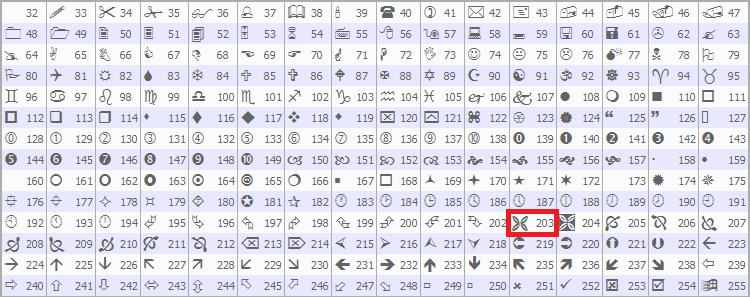
A continuación, llamamos a la función «createButton» para añadir un botón de cierre («CLOSE_BTN») en la esquina superior derecha, que muestra un símbolo de cruz (el carácter 203 de «Wingdings») con un estilo de color carmesí. La entrada se define en la documentación de MQL5 tal y como se indica a continuación, pero puede utilizar la que prefiera.
Para introducir el tamaño del lote, utilizamos la función ObjectCreate para crear un campo de edición («LOT_EDIT») de tipo OBJ_EDIT en «panel_x + 70», «panel_y + 40», con un tamaño de 110 x 25 píxeles, inicializado con «0,01» y con un estilo de texto negro, fondo blanco y fuente Arial centrada, utilizando las funciones ObjectSetInteger y ObjectSetString.
Creamos tres etiquetas para mostrar la información de la operación utilizando la función «ObjectCreate»: «PRICE_LABEL» para el precio de entrada en «panel_x + 10», «panel_y + 70», con una extensión de 230 píxeles y el texto predeterminado «Entry: -»; «SL_LABEL» para el stop-loss en «panel_x + 10», «panel_y + 95», con texto en amarillo y el valor predeterminado «SL: -»; y «TP_LABEL» para el take-profit en «panel_x + 130», «panel_y + 95», con texto en color lima y el texto predeterminado «TP: -», todas ellas utilizando la fuente Arial en negrita y alineación centrada.
Por último, utilizamos la función «createButton» para añadir los botones de tipo de orden —«BUY_STOP_BTN» y «SELL_STOP_BTN» en «panel_y + 140», «BUY_LIMIT_BTN» y «SELL_LIMIT_BTN» en «panel_y + 180» —en verde y rojo, respectivamente, y los botones de acción «PLACE_ORDER_BTN» y «CANCEL_BTN» en «panel_y + 240» en azul y gris, todos con un tamaño de 110 x 30 píxeles y la fuente Arial. Esta configuración constituye el panel de control interactivo de nuestra herramienta. Podemos llamar a la función en el controlador de eventos OnInit para inicializar el panel.
//+------------------------------------------------------------------+
//| Expert initialization function                                   |
//+------------------------------------------------------------------+
int OnInit() {

// Create control panel
   createControlPanel();   //--- Call function to create the control panel
   ChartRedraw(0);         //--- Redraw chart to display panel
   return(INIT_SUCCEEDED); //--- Return successful initialization
}
En el controlador de eventos OnInit, llamamos a la función «createControlPanel» para crear la interfaz gráfica de usuario, configurando el panel de control con botones, etiquetas y campos de entrada. A continuación, utilizamos la función ChartRedraw para actualizar el gráfico, asegurándonos de que el panel se muestre de inmediato. Por último, devolvemos INIT_SUCCEEDED para indicar que la inicialización se ha realizado correctamente. Tras la compilación, obtenemos el siguiente resultado.
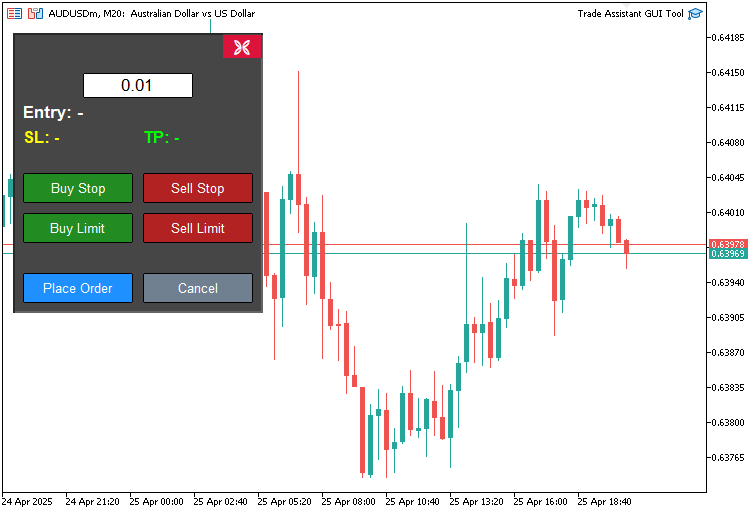
En la imagen podemos ver que hemos creado el panel de control. Lo que tenemos que crear ahora es el panel auxiliar que nos permita obtener dinámicamente los precios del gráfico, introducirlos automáticamente en el panel de control y operar en función de ellos. Para ello será necesario integrar la escala del gráfico y la escala de la pantalla, pero no se preocupe, nosotros nos encargamos. Lo que haremos es incluirlo todo en una función. A continuación, añadiremos detectores de eventos que activarán las funciones correspondientes cuando se interactúe con el botón de control.
//+------------------------------------------------------------------+
//| Expert onchart event function                                    |
//+------------------------------------------------------------------+
void OnChartEvent(
   const int id,         //--- Event ID
   const long& lparam,   //--- Long parameter (e.g., x-coordinate for mouse)
   const double& dparam, //--- Double parameter (e.g., y-coordinate for mouse)
   const string& sparam  //--- String parameter (e.g., object name)
) {
   if(id == CHARTEVENT_OBJECT_CLICK) {     //--- Handle object click events
      // Handle order type buttons
      if(sparam == BUY_STOP_BTN) {         //--- Check if Buy Stop button clicked
         selected_order_type = "BUY_STOP"; //--- Set order type to Buy Stop
      }
   }
}
Aquí implementamos el controlador de eventos OnChartEvent para gestionar las interacciones del usuario con la herramienta. La función recibe los siguientes parámetros: «id» para el tipo de evento, «lparam» para datos como las coordenadas x, «dparam» para datos como las coordenadas y, y «sparam» para datos de tipo cadena, como los nombres de los objetos. Comprobamos si «id» es igual a CHARTEVENT_OBJECT_CLICK para detectar clics en objetos, y si «sparam» coincide con «BUY_STOP_BTN», establecemos la variable «selected_order_type» en «BUY_STOP», lo que nos permite registrar la selección del usuario de una orden de compra con límite de stop. Si ese es el caso, necesitaremos una función para mostrar la herramienta.
//+------------------------------------------------------------------+
//| Show main tool                                                   |
//+------------------------------------------------------------------+
void showTool() {
   // Hide panel
   ObjectSetInteger(0, PANEL_BG, OBJPROP_BACK, false);        //--- Hide panel background
   ObjectSetInteger(0, LOT_EDIT, OBJPROP_BACK, false);        //--- Hide lot edit field
   ObjectSetInteger(0, PRICE_LABEL, OBJPROP_BACK, false);     //--- Hide price label
   ObjectSetInteger(0, SL_LABEL, OBJPROP_BACK, false);        //--- Hide SL label
   ObjectSetInteger(0, TP_LABEL, OBJPROP_BACK, false);        //--- Hide TP label
   ObjectSetInteger(0, BUY_STOP_BTN, OBJPROP_BACK, false);    //--- Hide Buy Stop button
   ObjectSetInteger(0, SELL_STOP_BTN, OBJPROP_BACK, false);   //--- Hide Sell Stop button
   ObjectSetInteger(0, BUY_LIMIT_BTN, OBJPROP_BACK, false);   //--- Hide Buy Limit button
   ObjectSetInteger(0, SELL_LIMIT_BTN, OBJPROP_BACK, false);  //--- Hide Sell Limit button
   ObjectSetInteger(0, PLACE_ORDER_BTN, OBJPROP_BACK, false); //--- Hide Place Order button
   ObjectSetInteger(0, CANCEL_BTN, OBJPROP_BACK, false);      //--- Hide Cancel button
   ObjectSetInteger(0, CLOSE_BTN, OBJPROP_BACK, false);       //--- Hide Close button

   // Create main tool 150 pixels from the right edge
   int chart_width = (int)ChartGetInteger(0, CHART_WIDTH_IN_PIXELS); //--- Get chart width
   int tool_x = chart_width - 400 - 50;                              //--- Calculate tool x-position (400 is REC1 width, 50 is margin)

   if(selected_order_type == "BUY_STOP" || selected_order_type == "BUY_LIMIT") { //--- Check for buy orders
      // Buy orders: TP at top, entry in middle, SL at bottom
      createButton(REC1, "", tool_x, 20, 350, 30, clrWhite, clrGreen, 13, clrBlack, false, "Arial Black"); //--- Create TP rectangle

      xd1 = (int)ObjectGetInteger(0, REC1, OBJPROP_XDISTANCE); //--- Get REC1 x-distance
      yd1 = (int)ObjectGetInteger(0, REC1, OBJPROP_YDISTANCE); //--- Get REC1 y-distance
      xs1 = (int)ObjectGetInteger(0, REC1, OBJPROP_XSIZE);     //--- Get REC1 x-size
      ys1 = (int)ObjectGetInteger(0, REC1, OBJPROP_YSIZE);     //--- Get REC1 y-size

      xd2 = xd1;       //--- Set REC2 x-distance
      yd2 = yd1 + ys1; //--- Set REC2 y-distance
      xs2 = xs1;       //--- Set REC2 x-size
      ys2 = 100;       //--- Set REC2 y-size

      xd3 = xd2;       //--- Set REC3 x-distance
      yd3 = yd2 + ys2; //--- Set REC3 y-distance
      xs3 = xs2;       //--- Set REC3 x-size
      ys3 = 30;        //--- Set REC3 y-size

      xd4 = xd3;       //--- Set REC4 x-distance
      yd4 = yd3 + ys3; //--- Set REC4 y-distance
      xs4 = xs3;       //--- Set REC4 x-size
      ys4 = 100;       //--- Set REC4 y-size

      xd5 = xd4;       //--- Set REC5 x-distance
      yd5 = yd4 + ys4; //--- Set REC5 y-distance
      xs5 = xs4;       //--- Set REC5 x-size
      ys5 = 30;        //--- Set REC5 y-size
   }
   else { //--- Handle sell orders
      // Sell orders: SL at top, entry in middle, TP at bottom
      createButton(REC5, "", tool_x, 20, 350, 30, clrWhite, clrRed, 13, clrBlack, false, "Arial Black"); //--- Create SL rectangle

      xd5 = (int)ObjectGetInteger(0, REC5, OBJPROP_XDISTANCE); //--- Get REC5 x-distance
      yd5 = (int)ObjectGetInteger(0, REC5, OBJPROP_YDISTANCE); //--- Get REC5 y-distance
      xs5 = (int)ObjectGetInteger(0, REC5, OBJPROP_XSIZE);     //--- Get REC5 x-size
      ys5 = (int)ObjectGetInteger(0, REC5, OBJPROP_YSIZE);     //--- Get REC5 y-size

      xd2 = xd5;       //--- Set REC2 x-distance
      yd2 = yd5 + ys5; //--- Set REC2 y-distance
      xs2 = xs5;       //--- Set REC2 x-size
      ys2 = 100;       //--- Set REC2 y-size

      xd3 = xd2;       //--- Set REC3 x-distance
      yd3 = yd2 + ys2; //--- Set REC3 y-distance
      xs3 = xs2;       //--- Set REC3 x-size
      ys3 = 30;        //--- Set REC3 y-size

      xd4 = xd3;       //--- Set REC4 x-distance
      yd4 = yd3 + ys3; //--- Set REC4 y-distance
      xs4 = xs3;       //--- Set REC4 x-size
      ys4 = 100;       //--- Set REC4 y-size

      xd1 = xd4;       //--- Set REC1 x-distance
      yd1 = yd4 + ys4; //--- Set REC1 y-distance
      xs1 = xs4;       //--- Set REC1 x-size
      ys1 = 30;        //--- Set REC1 y-size
   }

   datetime dt_tp = 0, dt_sl = 0, dt_prc = 0;        //--- Variables for time
   double price_tp = 0, price_sl = 0, price_prc = 0; //--- Variables for price
   int window = 0;                                   //--- Chart window

   ChartXYToTimePrice(0, xd1, yd1 + ys1, window, dt_tp, price_tp);   //--- Convert REC1 coordinates to time and price
   ChartXYToTimePrice(0, xd3, yd3 + ys3, window, dt_prc, price_prc); //--- Convert REC3 coordinates to time and price
   ChartXYToTimePrice(0, xd5, yd5 + ys5, window, dt_sl, price_sl);   //--- Convert REC5 coordinates to time and price

   createHL(TP_HL, dt_tp, price_tp, clrTeal);   //--- Create TP horizontal line
   createHL(PR_HL, dt_prc, price_prc, clrBlue); //--- Create entry horizontal line
   createHL(SL_HL, dt_sl, price_sl, clrRed);    //--- Create SL horizontal line

   if(selected_order_type == "BUY_STOP" || selected_order_type == "BUY_LIMIT") {                              //--- Check for buy orders
      createButton(REC2, "", xd2, yd2, xs2, ys2, clrWhite, clrHoneydew, 12, clrBlack, true);                  //--- Create REC2
      createButton(REC3, "", xd3, yd3, xs3, ys3, clrBlack, clrLightGray, 13, clrBlack, false, "Arial Black"); //--- Create REC3
      createButton(REC4, "", xd4, yd4, xs4, ys4, clrWhite, clrLinen, 12, clrBlack, true);                     //--- Create REC4
      createButton(REC5, "", xd5, yd5, xs5, ys5, clrWhite, clrRed, 13, clrBlack, false, "Arial Black");       //--- Create REC5
   }
   else { //--- Handle sell orders
      createButton(REC2, "", xd2, yd2, xs2, ys2, clrWhite, clrHoneydew, 12, clrBlack, true);                  //--- Create REC2
      createButton(REC3, "", xd3, yd3, xs3, ys3, clrBlack, clrLightGray, 13, clrBlack, false, "Arial Black"); //--- Create REC3
      createButton(REC4, "", xd4, yd4, xs4, ys4, clrWhite, clrLinen, 12, clrBlack, true);                     //--- Create REC4
      createButton(REC1, "", xd1, yd1, xs1, ys1, clrWhite, clrGreen, 13, clrBlack, false, "Arial Black");     //--- Create REC1
   }

   update_Text(REC1, "TP: " + DoubleToString(MathAbs((Get_Price_d(TP_HL) - Get_Price_d(PR_HL)) / _Point), 0) + " Points | " + Get_Price_s(TP_HL)); //--- Update REC1 text
   update_Text(REC3, selected_order_type + ": | Lot: " + DoubleToString(lot_size, 2) + " | " + Get_Price_s(PR_HL));                                //--- Update REC3 text
   update_Text(REC5, "SL: " + DoubleToString(MathAbs((Get_Price_d(PR_HL) - Get_Price_d(SL_HL)) / _Point), 0) + " Points | " + Get_Price_s(SL_HL)); //--- Update REC5 text
   update_Text(PRICE_LABEL, "Entry: " + Get_Price_s(PR_HL)); //--- Update entry label text
   update_Text(SL_LABEL, "SL: " + Get_Price_s(SL_HL));       //--- Update SL label text
   update_Text(TP_LABEL, "TP: " + Get_Price_s(TP_HL));       //--- Update TP label text

   tool_visible = true;                              //--- Set tool visibility flag
   ChartSetInteger(0, CHART_EVENT_MOUSE_MOVE, true); //--- Enable mouse move events
   ChartRedraw(0);                                   //--- Redraw chart
}
Para mostrar la herramienta de precios del gráfico, implementamos la función «showTool» y comenzamos ocultando el panel de control mediante la función ObjectSetInteger, estableciendo OBJPROP_BACK en false para objetos como «PANEL_BG», «LOT_EDIT», «PRICE_LABEL», «SL_LABEL», «TP_LABEL», «BUY_STOP_BTN», «SELL_STOP_BTN», «BUY_LIMIT_BTN», «SELL_LIMIT_BTN», «PLACE_ORDER_BTN», «CANCEL_BTN» y «CLOSE_BTN».
Calculamos la posición x de la herramienta mediante la función ChartGetInteger para obtener CHART_WIDTH_IN_PIXELS, fijando «tool_x» a 450 píxeles del borde derecho. Para las órdenes «BUY_STOP» o «BUY_LIMIT», utilizamos la función «createButton» para crear «REC1» (TP) en «tool_x», y=20, con un tamaño de 350x30 en color verde, y establecemos las variables «xd1», «yd1», «xs1», «ys1» mediante «ObjectGetInteger»; a continuación, colocamos «REC2» a «REC5» verticalmente (TP, entrada, SL) con «xd2» a «xd5», «yd2» a «yd5», «xs2» a «xs5» y «ys2» a «ys5».
En el caso de las órdenes de venta, creamos «REC5» (SL) en rojo y configuramos «REC2» a «REC1» (SL, entrada, TP).
Declaramos «dt_tp», «dt_sl» y «dt_prc» para el tiempo, «price_tp», «price_sl» y «price_prc» para los precios, y «window» para el gráfico, utilizando la función ChartXYToTimePrice para convertir las coordenadas de «REC1», «REC3» y «REC5» a precio y tiempo. Llamamos a la función «createHL» para dibujar «TP_HL», «PR_HL» y «SL_HL» en verde azulado, azul y rojo.
En función del valor de «selected_order_type», utilizamos «createButton» para crear los rectángulos restantes («REC2», «REC3», «REC4», «REC5» para la compra; «REC2», «REC3», «REC4», «REC1» para la venta) con los colores correspondientes. Actualizamos el texto mediante la función «update_Text» para «REC1», «REC3», «REC5», «PRICE_LABEL», «SL_LABEL» y «TP_LABEL», calculando las diferencias de puntos con «Get_Price_d», «Get_Price_s», DoubleToString y MathAbs.
Por último, establecemos «tool_visible» en «true», habilitamos los eventos del ratón con ChartSetInteger y llamamos a ChartRedraw para mostrar la herramienta. Para crear las líneas horizontales, utilizamos la siguiente función.
//+------------------------------------------------------------------+
//| Create horizontal line                                           |
//+------------------------------------------------------------------+
bool createHL(string objName, datetime time1, double price1, color clr) {
   ResetLastError();                                                              //--- Reset last error code
   if(!ObjectCreate(0, objName, OBJ_HLINE, 0, time1, price1)) {                   //--- Create horizontal line
      Print(__FUNCTION__, ": Failed to create HL: Error Code: ", GetLastError()); //--- Print error message
      return false; //--- Return failure
   }
   ObjectSetInteger(0, objName, OBJPROP_TIME, time1);             //--- Set line time
   ObjectSetDouble(0, objName, OBJPROP_PRICE, price1);            //--- Set line price
   ObjectSetInteger(0, objName, OBJPROP_COLOR, clr);              //--- Set line color
   ObjectSetInteger(0, objName, OBJPROP_BACK, false);             //--- Set to foreground
   ObjectSetInteger(0, objName, OBJPROP_STYLE, STYLE_DASHDOTDOT); //--- Set line style

   ChartRedraw(0); //--- Redraw chart
   return true;    //--- Return success
}
En este caso, simplemente creamos el objeto OBJ_HLINE y configuramos los parámetros necesarios, tal y como hicimos anteriormente con la función para crear botones. También necesitaremos una función para mostrar el panel como se indica a continuación.
//+------------------------------------------------------------------+
//| Show control panel                                               |
//+------------------------------------------------------------------+
void showPanel() {
   // Show panel
   ObjectSetInteger(0, PANEL_BG, OBJPROP_BACK, false);        //--- Show panel background
   ObjectSetInteger(0, LOT_EDIT, OBJPROP_BACK, false);        //--- Show lot edit field
   ObjectSetInteger(0, PRICE_LABEL, OBJPROP_BACK, false);     //--- Show price label
   ObjectSetInteger(0, SL_LABEL, OBJPROP_BACK, false);        //--- Show SL label
   ObjectSetInteger(0, TP_LABEL, OBJPROP_BACK, false);        //--- Show TP label
   ObjectSetInteger(0, BUY_STOP_BTN, OBJPROP_BACK, false);    //--- Show Buy Stop button
   ObjectSetInteger(0, SELL_STOP_BTN, OBJPROP_BACK, false);   //--- Show Sell Stop button
   ObjectSetInteger(0, BUY_LIMIT_BTN, OBJPROP_BACK, false);   //--- Show Buy Limit button
   ObjectSetInteger(0, SELL_LIMIT_BTN, OBJPROP_BACK, false);  //--- Show Sell Limit button
   ObjectSetInteger(0, PLACE_ORDER_BTN, OBJPROP_BACK, false); //--- Show Place Order button
   ObjectSetInteger(0, CANCEL_BTN, OBJPROP_BACK, false);      //--- Show Cancel button
   ObjectSetInteger(0, CLOSE_BTN, OBJPROP_BACK, false);       //--- Show Close button

   // Reset panel state
   update_Text(PRICE_LABEL, "Entry: -");              //--- Reset entry label text
   update_Text(SL_LABEL, "SL: -");                    //--- Reset SL label text
   update_Text(TP_LABEL, "TP: -");                    //--- Reset TP label text
   update_Text(PLACE_ORDER_BTN, "Place Order");       //--- Reset Place Order button text
   selected_order_type = "";                          //--- Clear selected order type
   tool_visible = false;                              //--- Hide tool
   ChartSetInteger(0, CHART_EVENT_MOUSE_MOVE, false); //--- Disable mouse move events
   ChartRedraw(0);                                    //--- Redraw chart
}
Definimos la función «showPanel» para mostrar nuestro panel de control. Utilizamos la función ObjectSetInteger para establecer «OBJPROP_BACK» en «false» para «PANEL_BG», «LOT_EDIT», «PRICE_LABEL», «SL_LABEL», «TP_LABEL», «BUY_STOP_BTN», «SELL_STOP_BTN», «BUY_LIMIT_BTN», «SELL_LIMIT_BTN», «PLACE_ORDER_BTN», «CANCEL_BTN» y «CLOSE_BTN», haciéndolos visibles.
Restablecemos el estado con la función «update_Text», estableciendo «PRICE_LABEL» en «Entry: -», «SL_LABEL» en «SL: -», «TP_LABEL» en «TP: -» y «PLACE_ORDER_BTN» en «Place Order», borramos «selected_order_type», establecemos «tool_visible» en falso, desactivamos los eventos del ratón mediante ChartSetInteger y llamamos a ChartRedraw para actualizar el gráfico.
Para eliminar la herramienta y el panel, utilizamos las siguientes funciones, llamando a la función ObjectDelete en los objetos correspondientes.
//+------------------------------------------------------------------+
//| Delete main tool objects                                         |
//+------------------------------------------------------------------+
void deleteObjects() {
   ObjectDelete(0, REC1);  //--- Delete REC1 object
   ObjectDelete(0, REC2);  //--- Delete REC2 object
   ObjectDelete(0, REC3);  //--- Delete REC3 object
   ObjectDelete(0, REC4);  //--- Delete REC4 object
   ObjectDelete(0, REC5);  //--- Delete REC5 object
   ObjectDelete(0, TP_HL); //--- Delete TP horizontal line
   ObjectDelete(0, SL_HL); //--- Delete SL horizontal line
   ObjectDelete(0, PR_HL); //--- Delete entry horizontal line
   ChartRedraw(0);         //--- Redraw chart
}

//+------------------------------------------------------------------+
//| Delete control panel objects                                     |
//+------------------------------------------------------------------+
void deletePanel() {
   ObjectDelete(0, PANEL_BG);        //--- Delete panel background
   ObjectDelete(0, LOT_EDIT);        //--- Delete lot edit field
   ObjectDelete(0, PRICE_LABEL);     //--- Delete price label
   ObjectDelete(0, SL_LABEL);        //--- Delete SL label
   ObjectDelete(0, TP_LABEL);        //--- Delete TP label
   ObjectDelete(0, BUY_STOP_BTN);    //--- Delete Buy Stop button
   ObjectDelete(0, SELL_STOP_BTN);   //--- Delete Sell Stop button
   ObjectDelete(0, BUY_LIMIT_BTN);   //--- Delete Buy Limit button
   ObjectDelete(0, SELL_LIMIT_BTN);  //--- Delete Sell Limit button
   ObjectDelete(0, PLACE_ORDER_BTN); //--- Delete Place Order button
   ObjectDelete(0, CANCEL_BTN);      //--- Delete Cancel button
   ObjectDelete(0, CLOSE_BTN);       //--- Delete Close button
   ChartRedraw(0);                   //--- Redraw chart
}
Para enviar los pedidos al hacer clic en el botón correspondiente, utilizamos la siguiente función.
//+------------------------------------------------------------------+
//| Place order based on selected type                               |
//+------------------------------------------------------------------+
void placeOrder() {
   double price = Get_Price_d(PR_HL);               //--- Get entry price
   double sl = Get_Price_d(SL_HL);                  //--- Get stop-loss price
   double tp = Get_Price_d(TP_HL);                  //--- Get take-profit price
   string symbol = Symbol();                        //--- Get current symbol
   datetime expiration = TimeCurrent() + 3600 * 24; //--- Set 24-hour order expiration

   // Validate lot size
   if(lot_size <= 0) {                       //--- Check if lot size is valid
      Print("Invalid lot size: ", lot_size); //--- Print error message
      return;                                //--- Exit function
   }

   // Validate prices
   if(price <= 0 || sl <= 0 || tp <= 0) {                                                          //--- Check if prices are valid
      Print("Invalid prices: Entry=", price, ", SL=", sl, ", TP=", tp, " (all must be positive)"); //--- Print error message
      return;                                                                                      //--- Exit function
   }

   // Validate price relationships based on order type
   if(selected_order_type == "BUY_STOP" || selected_order_type == "BUY_LIMIT") {                     //--- Check for buy orders
      if(sl >= price) {                                                                              //--- Check if SL is below entry
         Print("Invalid SL for ", selected_order_type, ": SL=", sl, " must be below Entry=", price); //--- Print error message
         return;                                                                                     //--- Exit function
      }
      if(tp <= price) {                                                                              //--- Check if TP is above entry
         Print("Invalid TP for ", selected_order_type, ": TP=", tp, " must be above Entry=", price); //--- Print error message
         return;                                                                                     //--- Exit function
      }
   }
   else if(selected_order_type == "SELL_STOP" || selected_order_type == "SELL_LIMIT") {              //--- Check for sell orders
      if(sl <= price) {                                                                              //--- Check if SL is above entry
         Print("Invalid SL for ", selected_order_type, ": SL=", sl, " must be above Entry=", price); //--- Print error message
         return;                                                                                     //--- Exit function
      }
      if(tp >= price) {                                                                              //--- Check if TP is below entry
         Print("Invalid TP for ", selected_order_type, ": TP=", tp, " must be below Entry=", price); // AMPK--- Print error message
         return;                                                                                     //--- Exit function
      }
   }
   else {                                                 //--- Handle invalid order type
      Print("Invalid order type: ", selected_order_type); //--- Print error message
      return;                                             //--- Exit function
   }

   // Place the order
   if(selected_order_type == "BUY_STOP") {                                                              //--- Handle Buy Stop order
      if(!obj_Trade.BuyStop(lot_size, price, symbol, sl, tp, ORDER_TIME_DAY, expiration)) {             //--- Attempt to place Buy Stop order
         Print("Buy Stop failed: Entry=", price, ", SL=", sl, ", TP=", tp, ", Error=", GetLastError()); //--- Print error message
      }
      else {                                                                //--- Order placed successfully
         Print("Buy Stop placed: Entry=", price, ", SL=", sl, ", TP=", tp); //--- Print success message
      }
   }
   else if(selected_order_type == "SELL_STOP") {                                                         //--- Handle Sell Stop order
      if(!obj_Trade.SellStop(lot_size, price, symbol, sl, tp, ORDER_TIME_DAY, expiration)) {             //--- Attempt to place Sell Stop order
         Print("Sell Stop failed: Entry=", price, ", SL=", sl, ", TP=", tp, ", Error=", GetLastError()); //--- Print error message
      }
      else {                                                                 //--- Order placed successfully
         Print("Sell Stop placed: Entry=", price, ", SL=", sl, ", TP=", tp); //--- Print success message
      }
   }
   else if(selected_order_type == "BUY_LIMIT") {                                                         //--- Handle Buy Limit order
      if(!obj_Trade.BuyLimit(lot_size, price, symbol, sl, tp, ORDER_TIME_DAY, expiration)) {             //--- Attempt to place Buy Limit order
         Print("Buy Limit failed: Entry=", price, ", SL=", sl, ", TP=", tp, ", Error=", GetLastError()); //--- Print error message
      }
      else {                                                                 //--- Order placed successfully
         Print("Buy Limit placed: Entry=", price, ", SL=", sl, ", TP=", tp); //--- Print success message
      }
   }
   else if(selected_order_type == "SELL_LIMIT") {                                                         //--- Handle Sell Limit order
      if(!obj_Trade.SellLimit(lot_size, price, symbol, sl, tp, ORDER_TIME_DAY, expiration)) {             //--- Attempt to place Sell Limit order
         Print("Sell Limit failed: Entry=", price, ", SL=", sl, ", TP=", tp, ", Error=", GetLastError()); //--- Print error message
      }
      else {                                                                  //--- Order placed successfully
         Print("Sell Limit placed: Entry=", price, ", SL=", sl, ", TP=", tp); //--- Print success message
      }
   }
}
Implementamos la función «placeOrder» para ejecutar las órdenes pendientes de nuestra herramienta y comenzamos recuperando el precio de entrada («price»), el stop-loss («sl») y el take-profit («tp») mediante la función «Get_Price_d» para «PR_HL», «SL_HL» y «TP_HL», obtenemos el «symbol» actual con la función Symbol y establecemos un «expiration» de 24 horas utilizando la función TimeCurrent.
Validamos «lot_size» (>0) y nos aseguramos de que «price», «sl» y «tp» sean valores positivos; si no cumplen estos requisitos, salimos de la función Print. En el caso de «BUY_STOP» o «BUY_LIMIT», comprobamos que «sl» sea inferior a «price» y que «tp» sea superior; y en el caso de «SELL_STOP» o «SELL_LIMIT», que «sl» sea superior y «tp» sea inferior, utilizando «Print» para registrar los errores y salir si no se cumplen las condiciones. Si «selected_order_type» no es válido, salimos del programa mostrando un mensaje de «Print».
A continuación, utilizamos los métodos de «obj_Trade» —«BuyStop», «SellStop», «BuyLimit» o «SellLimit»— para realizar la orden, registrando si se ha realizado correctamente o si ha fallado mediante «Print» y GetLastError en caso de fallo. Una vez que disponemos de estas funciones, podemos invocarlas al hacer clic en los botones correspondientes, tal y como se muestra a continuación.
if(id == CHARTEVENT_OBJECT_CLICK) {                    //--- Handle object click events
   // Handle order type buttons
   if(sparam == BUY_STOP_BTN) {                        //--- Check if Buy Stop button clicked
      selected_order_type = "BUY_STOP";                //--- Set order type to Buy Stop
      showTool();                                      //--- Show trading tool
      update_Text(PLACE_ORDER_BTN, "Place Buy Stop");  //--- Update place order button text
   }
   else if(sparam == SELL_STOP_BTN) {                  //--- Check if Sell Stop button clicked
      selected_order_type = "SELL_STOP";               //--- Set order type to Sell Stop
      showTool();                                      //--- Show trading tool
      update_Text(PLACE_ORDER_BTN, "Place Sell Stop"); //--- Update place order button text
   }
   else if(sparam == BUY_LIMIT_BTN) {                  //--- Check if Buy Limit button clicked
      selected_order_type = "BUY_LIMIT";               //--- Set order type to Buy Limit
      showTool();                                      //--- Show trading tool
      update_Text(PLACE_ORDER_BTN, "Place Buy Limit"); //--- Update place order button text
   }
   else if(sparam == SELL_LIMIT_BTN) {                 //--- Check if Sell Limit button clicked
      selected_order_type = "SELL_LIMIT";              //--- Set order type to Sell Limit
      showTool();                                      //--- Show trading tool
      update_Text(PLACE_ORDER_BTN, "Place Sell Limit");//--- Update place order button text
   }
   else if(sparam == PLACE_ORDER_BTN) {                //--- Check if Place Order button clicked
      placeOrder();                                    //--- Execute order placement
      deleteObjects();                                 //--- Delete tool objects
      showPanel();                                     //--- Show control panel
   }
   else if(sparam == CANCEL_BTN) {                     //--- Check if Cancel button clicked
      deleteObjects();                                 //--- Delete tool objects
      showPanel();                                     //--- Show control panel
   }
   else if(sparam == CLOSE_BTN) {                      //--- Check if Close button clicked
      deleteObjects();                                 //--- Delete tool objects
      deletePanel();                                   //--- Delete control panel
   }
   ObjectSetInteger(0, sparam, OBJPROP_STATE, false);  //--- Reset button state
   ChartRedraw(0);                                     //--- Redraw chart
}
Tras la compilación, obtenemos el siguiente resultado.
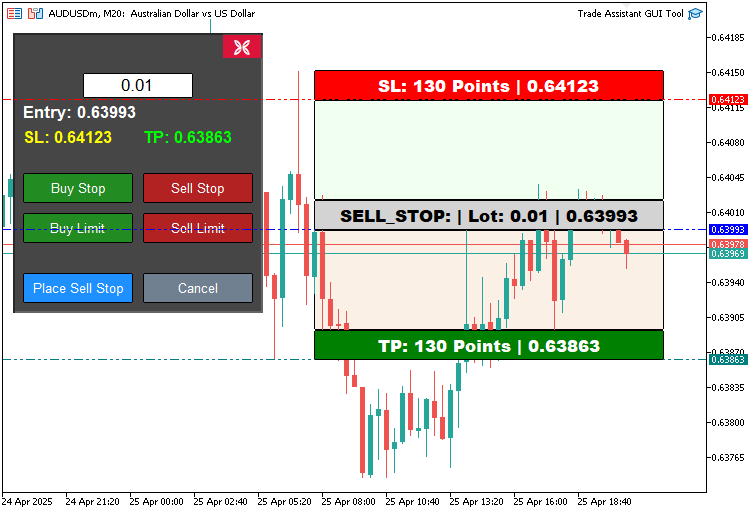
En la imagen podemos ver que es posible crear dinámicamente la herramienta correspondiente para el gráfico de precios. Lo que tenemos que hacer a continuación es hacer que la herramienta sea manejable, de modo que podamos moverla por el gráfico. Esta es la lógica que aplicamos en el controlador de eventos OnChartEvent.
//+------------------------------------------------------------------+
//| Chart event handler                                              |
//+------------------------------------------------------------------+
int prevMouseState = 0; //--- Variable to track previous mouse state

int mlbDownX1 = 0, mlbDownY1 = 0, mlbDownXD_R1 = 0, mlbDownYD_R1 = 0; //--- Variables for mouse down coordinates for REC1
int mlbDownX2 = 0, mlbDownY2 = 0, mlbDownXD_R2 = 0, mlbDownYD_R2 = 0; //--- Variables for mouse down coordinates for REC2
int mlbDownX3 = 0, mlbDownY3 = 0, mlbDownXD_R3 = 0, mlbDownYD_R3 = 0; //--- Variables for mouse down coordinates for REC3
int mlbDownX4 = 0, mlbDownY4 = 0, mlbDownXD_R4 = 0, mlbDownYD_R4 = 0; //--- Variables for mouse down coordinates for REC4
int mlbDownX5 = 0, mlbDownY5 = 0, mlbDownXD_R5 = 0, mlbDownYD_R5 = 0; //--- Variables for mouse down coordinates for REC5

bool movingState_R1 = false; //--- Flag for REC1 movement state
bool movingState_R3 = false; //--- Flag for REC3 movement state
bool movingState_R5 = false; //--- Flag for REC5 movement state
En primer lugar, definimos las variables para la función OnChartEvent con el fin de habilitar la función de arrastrar y soltar en nuestra herramienta Trade Assistant. «prevMouseState» registra los cambios en el estado del ratón, mientras que «mlbDownX1», «mlbDownY1», «mlbDownXD_R1», «mlbDownYD_R1» (y similares para «REC2» a «REC5») almacenan las coordenadas del ratón y del rectángulo para «REC1» (TP), «REC3» (entrada) y «REC5» (SL) durante los clics. Los indicadores booleanos «movingState_R1», «movingState_R3» y «movingState_R5» indican si estos rectángulos se están arrastrando. A continuación, podemos utilizar estas variables de control para definir el movimiento de la herramienta de precios.
if(id == CHARTEVENT_MOUSE_MOVE && tool_visible) { //--- Handle mouse move events when tool is visible
   int MouseD_X = (int)lparam; //--- Get mouse x-coordinate
   int MouseD_Y = (int)dparam; //--- Get mouse y-coordinate
   int MouseState = (int)sparam; //--- Get mouse state

   int XD_R1 = (int)ObjectGetInteger(0, REC1, OBJPROP_XDISTANCE); //--- Get REC1 x-distance
   int YD_R1 = (int)ObjectGetInteger(0, REC1, OBJPROP_YDISTANCE); //--- Get REC1 y-distance
   int XS_R1 = (int)ObjectGetInteger(0, REC1, OBJPROP_XSIZE);     //--- Get REC1 x-size
   int YS_R1 = (int)ObjectGetInteger(0, REC1, OBJPROP_YSIZE);     //--- Get REC1 y-size

   int XD_R2 = (int)ObjectGetInteger(0, REC2, OBJPROP_XDISTANCE); //--- Get REC2 x-distance
   int YD_R2 = (int)ObjectGetInteger(0, REC2, OBJPROP_YDISTANCE); //--- Get REC2 y-distance
   int XS_R2 = (int)ObjectGetInteger(0, REC2, OBJPROP_XSIZE);     //--- Get REC2 x-size
   int YS_R2 = (int)ObjectGetInteger(0, REC2, OBJPROP_YSIZE);     //--- Get REC2 y-size

   int XD_R3 = (int)ObjectGetInteger(0, REC3, OBJPROP_XDISTANCE); //--- Get REC3 x-distance
   int YD_R3 = (int)ObjectGetInteger(0, REC3, OBJPROP_YDISTANCE); //--- Get REC3 y-distance
   int XS_R3 = (int)ObjectGetInteger(0, REC3, OBJPROP_XSIZE);     //--- Get REC3 x-size
   int YS_R3 = (int)ObjectGetInteger(0, REC3, OBJPROP_YSIZE);     //--- Get REC3 y-size

   int XD_R4 = (int)ObjectGetInteger(0, REC4, OBJPROP_XDISTANCE); //--- Get REC4 x-distance
   int YD_R4 = (int)ObjectGetInteger(0, REC4, OBJPROP_YDISTANCE); //--- Get REC4 y-distance
   int XS_R4 = (int)ObjectGetInteger(0, REC4, OBJPROP_XSIZE);     //--- Get REC4 x-size
   int YS_R4 = (int)ObjectGetInteger(0, REC4, OBJPROP_YSIZE);     //--- Get REC4 y-size

   int XD_R5 = (int)ObjectGetInteger(0, REC5, OBJPROP_XDISTANCE); //--- Get REC5 x-distance
   int YD_R5 = (int)ObjectGetInteger(0, REC5, OBJPROP_YDISTANCE); //--- Get REC5 y-distance
   int XS_R5 = (int)ObjectGetInteger(0, REC5, OBJPROP_XSIZE);     //--- Get REC5 x-size
   int YS_R5 = (int)ObjectGetInteger(0, REC5, OBJPROP_YSIZE);     //--- Get REC5 y-size

   if(prevMouseState == 0 && MouseState == 1) { //--- Check for mouse button down
      mlbDownX1 = MouseD_X; //--- Store mouse x-coordinate for REC1
      mlbDownY1 = MouseD_Y; //--- Store mouse y-coordinate for REC1
      mlbDownXD_R1 = XD_R1; //--- Store REC1 x-distance
      mlbDownYD_R1 = YD_R1; //--- Store REC1 y-distance

      mlbDownX2 = MouseD_X; //--- Store mouse x-coordinate for REC2
      mlbDownY2 = MouseD_Y; //--- Store mouse y-coordinate for REC2
      mlbDownXD_R2 = XD_R2; //--- Store REC2 x-distance
      mlbDownYD_R2 = YD_R2; //--- Store REC2 y-distance

      mlbDownX3 = MouseD_X; //--- Store mouse x-coordinate for REC3
      mlbDownY3 = MouseD_Y; //--- Store mouse y-coordinate for REC3
      mlbDownXD_R3 = XD_R3; //--- Store REC3 x-distance
      mlbDownYD_R3 = YD_R3; //--- Store REC3 y-distance

      mlbDownX4 = MouseD_X; //--- Store mouse x-coordinate for REC4
      mlbDownY4 = MouseD_Y; //--- Store mouse y-coordinate for REC4
      mlbDownXD_R4 = XD_R4; //--- Store REC4 x-distance
      mlbDownYD_R4 = YD_R4; //--- Store REC4 y-distance

      mlbDownX5 = MouseD_X; //--- Store mouse x-coordinate for REC5
      mlbDownY5 = MouseD_Y; //--- Store mouse y-coordinate for REC5
      mlbDownXD_R5 = XD_R5; //--- Store REC5 x-distance
      mlbDownYD_R5 = YD_R5; //--- Store REC5 y-distance

      if(MouseD_X >= XD_R1 && MouseD_X <= XD_R1 + XS_R1 && //--- Check if mouse is within REC1 bounds
         MouseD_Y >= YD_R1 && MouseD_Y <= YD_R1 + YS_R1) {
         movingState_R1 = true;                            //--- Enable REC1 movement
      }
      if(MouseD_X >= XD_R3 && MouseD_X <= XD_R3 + XS_R3 && //--- Check if mouse is within REC3 bounds
         MouseD_Y >= YD_R3 && MouseD_Y <= YD_R3 + YS_R3) {
         movingState_R3 = true;                            //--- Enable REC3 movement
      }
      if(MouseD_X >= XD_R5 && MouseD_X <= XD_R5 + XS_R5 && //--- Check if mouse is within REC5 bounds
         MouseD_Y >= YD_R5 && MouseD_Y <= YD_R5 + YS_R5) {
         movingState_R5 = true;                            //--- Enable REC5 movement
      }
   }
   if(movingState_R1) {                                                                        //--- Handle REC1 (TP) movement
      ChartSetInteger(0, CHART_MOUSE_SCROLL, false);                                           //--- Disable chart scrolling
      bool canMove = false;                                                                    //--- Flag to check if movement is valid
      if(selected_order_type == "BUY_STOP" || selected_order_type == "BUY_LIMIT") {            //--- Check for buy orders
         if(YD_R1 + YS_R1 < YD_R3) {                                                           //--- Ensure TP is above entry for buy orders
            canMove = true;                                                                    //--- Allow movement
            ObjectSetInteger(0, REC1, OBJPROP_YDISTANCE, mlbDownYD_R1 + MouseD_Y - mlbDownY1); //--- Update REC1 y-position
            ObjectSetInteger(0, REC2, OBJPROP_YDISTANCE, YD_R1 + YS_R1);                       //--- Update REC2 y-position
            ObjectSetInteger(0, REC2, OBJPROP_YSIZE, YD_R3 - (YD_R1 + YS_R1));                 //--- Update REC2 y-size
         }
      }
      else {                                                                                   //--- Handle sell orders
         if(YD_R1 > YD_R3 + YS_R3) {                                                           //--- Ensure TP is below entry for sell orders
            canMove = true;                                                                    //--- Allow movement
            ObjectSetInteger(0, REC1, OBJPROP_YDISTANCE, mlbDownYD_R1 + MouseD_Y - mlbDownY1); //--- Update REC1 y-position
            ObjectSetInteger(0, REC4, OBJPROP_YDISTANCE, YD_R3 + YS_R3);                       //--- Update REC4 y-position
            ObjectSetInteger(0, REC4, OBJPROP_YSIZE, YD_R1 - (YD_R3 + YS_R3));                 //--- Update REC4 y-size
         }
      }

      if(canMove) {           //--- If movement is valid
         datetime dt_TP = 0;  //--- Variable for TP time
         double price_TP = 0; //--- Variable for TP price
         int window = 0;      //--- Chart window

         ChartXYToTimePrice(0, XD_R1, YD_R1 + YS_R1, window, dt_TP, price_TP); //--- Convert chart coordinates to time and price
         ObjectSetInteger(0, TP_HL, OBJPROP_TIME, dt_TP);                      //--- Update TP horizontal line time
         ObjectSetDouble(0, TP_HL, OBJPROP_PRICE, price_TP);                   //--- Update TP horizontal line price

         update_Text(REC1, "TP: " + DoubleToString(MathAbs((Get_Price_d(TP_HL) - Get_Price_d(PR_HL)) / _Point), 0) + " Points | " + Get_Price_s(TP_HL)); //--- Update REC1 text
         update_Text(TP_LABEL, "TP: " + Get_Price_s(TP_HL));                                                                                             //--- Update TP label text
      }

      ChartRedraw(0); //--- Redraw chart
   }

   if(movingState_R5) {                                                                        //--- Handle REC5 (SL) movement
      ChartSetInteger(0, CHART_MOUSE_SCROLL, false);                                           //--- Disable chart scrolling
      bool canMove = false;                                                                    //--- Flag to check if movement is valid
      if(selected_order_type == "BUY_STOP" || selected_order_type == "BUY_LIMIT") {            //--- Check for buy orders
         if(YD_R5 > YD_R4) {                                                                   //--- Ensure SL is below entry for buy orders
            canMove = true;                                                                    //--- Allow movement
            ObjectSetInteger(0, REC5, OBJPROP_YDISTANCE, mlbDownYD_R5 + MouseD_Y - mlbDownY5); //--- Update REC5 y-position
            ObjectSetInteger(0, REC4, OBJPROP_YDISTANCE, YD_R3 + YS_R3);                       //--- Update REC4 y-position
            ObjectSetInteger(0, REC4, OBJPROP_YSIZE, YD_R5 - (YD_R3 + YS_R3));                 //--- Update REC4 y-size
         }
      }
      else {                                                                                   //--- Handle sell orders
         if(YD_R5 + YS_R5 < YD_R3) {                                                           //--- Ensure SL is above entry for sell orders
            canMove = true;                                                                    //--- Allow movement
            ObjectSetInteger(0, REC5, OBJPROP_YDISTANCE, mlbDownYD_R5 + MouseD_Y - mlbDownY5); //--- Update REC5 y-position
            ObjectSetInteger(0, REC2, OBJPROP_YDISTANCE, YD_R5 + YS_R5);                       //--- Update REC2 y-position
            ObjectSetInteger(0, REC2, OBJPROP_YSIZE, YD_R3 - (YD_R5 + YS_R5));                 //--- Update REC2 y-size
         }
      }

      if(canMove) {           //--- If movement is valid
         datetime dt_SL = 0;  //--- Variable for SL time
         double price_SL = 0; //--- Variable for SL price
         int window = 0;      //--- Chart window

         ChartXYToTimePrice(0, XD_R5, YD_R5 + YS_R5, window, dt_SL, price_SL); //--- Convert chart coordinates to time and price
         ObjectSetInteger(0, SL_HL, OBJPROP_TIME, dt_SL);                      //--- Update SL horizontal line time
         ObjectSetDouble(0, SL_HL, OBJPROP_PRICE, price_SL);                   //--- Update SL horizontal line price

         update_Text(REC5, "SL: " + DoubleToString(MathAbs((Get_Price_d(PR_HL) - Get_Price_d(SL_HL)) / _Point), 0) + " Points | " + Get_Price_s(SL_HL)); //--- Update REC5 text
         update_Text(SL_LABEL, "SL: " + Get_Price_s(SL_HL));                                                                                             //--- Update SL label text
      }

      ChartRedraw(0); //--- Redraw chart
   }

   if(movingState_R3) {                                                                  //--- Handle REC3 (Entry) movement
      ChartSetInteger(0, CHART_MOUSE_SCROLL, false);                                     //--- Disable chart scrolling
      ObjectSetInteger(0, REC3, OBJPROP_XDISTANCE, mlbDownXD_R3 + MouseD_X - mlbDownX3); //--- Update REC3 x-position
      ObjectSetInteger(0, REC3, OBJPROP_YDISTANCE, mlbDownYD_R3 + MouseD_Y - mlbDownY3); //--- Update REC3 y-position

      ObjectSetInteger(0, REC1, OBJPROP_XDISTANCE, mlbDownXD_R1 + MouseD_X - mlbDownX1); //--- Update REC1 x-position
      ObjectSetInteger(0, REC1, OBJPROP_YDISTANCE, mlbDownYD_R1 + MouseD_Y - mlbDownY1); //--- Update REC1 y-position

      ObjectSetInteger(0, REC2, OBJPROP_XDISTANCE, mlbDownXD_R2 + MouseD_X - mlbDownX2); //--- Update REC2 x-position
      ObjectSetInteger(0, REC2, OBJPROP_YDISTANCE, mlbDownYD_R2 + MouseD_Y - mlbDownY2); //--- Update REC2 y-position

      ObjectSetInteger(0, REC4, OBJPROP_XDISTANCE, mlbDownXD_R4 + MouseD_X - mlbDownX4); //--- Update REC4 x-position
      ObjectSetInteger(0, REC4, OBJPROP_YDISTANCE, mlbDownYD_R4 + MouseD_Y - mlbDownY4); //--- Update REC4 y-position

      ObjectSetInteger(0, REC5, OBJPROP_XDISTANCE, mlbDownXD_R5 + MouseD_X - mlbDownX5); //--- Update REC5 x-position
      ObjectSetInteger(0, REC5, OBJPROP_YDISTANCE, mlbDownYD_R5 + MouseD_Y - mlbDownY5); //--- Update REC5 y-position

      datetime dt_PRC = 0, dt_SL1 = 0, dt_TP1 = 0;        //--- Variables for time
      double price_PRC = 0, price_SL1 = 0, price_TP1 = 0; //--- Variables for price
      int window = 0;                                     //--- Chart window

      ChartXYToTimePrice(0, XD_R3, YD_R3 + YS_R3, window, dt_PRC, price_PRC); //--- Convert REC3 coordinates to time and price
      ChartXYToTimePrice(0, XD_R5, YD_R5 + YS_R5, window, dt_SL1, price_SL1); //--- Convert REC5 coordinates to time and price
      ChartXYToTimePrice(0, XD_R1, YD_R1 + YS_R1, window, dt_TP1, price_TP1); //--- Convert REC1 coordinates to time and price

      ObjectSetInteger(0, PR_HL, OBJPROP_TIME, dt_PRC);    //--- Update entry horizontal line time
      ObjectSetDouble(0, PR_HL, OBJPROP_PRICE, price_PRC); //--- Update entry horizontal line price

      ObjectSetInteger(0, TP_HL, OBJPROP_TIME, dt_TP1);    //--- Update TP horizontal line time
      ObjectSetDouble(0, TP_HL, OBJPROP_PRICE, price_TP1); //--- Update TP horizontal line price

      ObjectSetInteger(0, SL_HL, OBJPROP_TIME, dt_SL1);    //--- Update SL horizontal line time
      ObjectSetDouble(0, SL_HL, OBJPROP_PRICE, price_SL1); //--- Update SL horizontal line price

      update_Text(REC1, "TP: " + DoubleToString(MathAbs((Get_Price_d(TP_HL) - Get_Price_d(PR_HL)) / _Point), 0) + " Points | " + Get_Price_s(TP_HL)); //--- Update REC1 text
      update_Text(REC3, selected_order_type + ": | Lot: " + DoubleToString(lot_size, 2) + " | " + Get_Price_s(PR_HL));                                //--- Update REC3 text
      update_Text(REC5, "SL: " + DoubleToString(MathAbs((Get_Price_d(PR_HL) - Get_Price_d(SL_HL)) / _Point), 0) + " Points | " + Get_Price_s(SL_HL)); //--- Update REC5 text
      update_Text(PRICE_LABEL, "Entry: " + Get_Price_s(PR_HL));                                                                                       //--- Update entry label text
      update_Text(SL_LABEL, "SL: " + Get_Price_s(SL_HL));                                                                                             //--- Update SL label text
      update_Text(TP_LABEL, "TP: " + Get_Price_s(TP_HL));                                                                                             //--- Update TP label text

      ChartRedraw(0); //--- Redraw chart
   }

   if(MouseState == 0) {                            //--- Check if mouse button is released
      movingState_R1 = false;                       //--- Disable REC1 movement
      movingState_R3 = false;                       //--- Disable REC3 movement
      movingState_R5 = false;                       //--- Disable REC5 movement
      ChartSetInteger(0, CHART_MOUSE_SCROLL, true); //--- Enable chart scrolling
   }
   prevMouseState = MouseState;                     //--- Update previous mouse state
}
En este caso, ampliamos la función OnChartEvent para gestionar el movimiento del ratón al arrastrar objetos del gráfico en nuestra herramienta cuando «tool_visible» es verdadero y «id» es CHARTEVENT_MOUSE_MOVE. Extraemos «MouseD_X», «MouseD_Y» y «MouseState» de «lparam», «dparam» y «sparam», y utilizamos la función ObjectGetInteger para obtener la posición y el tamaño («XD_R1», «YD_R1», «XS_R1», «YS_R1» para «REC1», y de forma similar para «REC2» a «REC5»).
Al hacer clic con el ratón (pasando de «prevMouseState» 0 a «MouseState» 1), almacenamos las coordenadas del ratón en «mlbDownX1», «mlbDownY1» y las posiciones de los rectángulos en «mlbDownXD_R1», «mlbDownYD_R1» (y para «REC2» a «REC5»), estableciendo «movingState_R1», «movingState_R3» o «movingState_R5» en verdadero si el clic se produce dentro de los límites de «REC1», «REC3» o «REC5».
Para «movingState_R1» (TP), desactivamos el desplazamiento con ChartSetInteger, validamos la posición de TP (por encima de la entrada para «BUY_STOP»/«BUY_LIMIT», por debajo para la venta), actualizamos «REC1» y «REC2»/« REC4» y los tamaños con ObjectSetInteger, convertimos las coordenadas a precio utilizando ChartXYToTimePrice, actualizamos «TP_HL» con ObjectSetDouble y actualizamos el texto con «update_Text», «Get_Price_d», «Get_Price_s», DoubleToString y MathAbs.
Del mismo modo, para «movingState_R5» (SL), ajustamos «REC5» y «REC4»/«REC2», actualizamos «SL_HL» y actualizamos el texto. En el caso de «movingState_R3» (entrada), movemos todos los rectángulos y actualizamos «PR_HL», «TP_HL», «SL_HL» y el texto.
Al soltar el botón del ratón («MouseState» 0), restablecemos los indicadores «movingState», habilitamos el desplazamiento y actualizamos «prevMouseState», llamando a ChartRedraw para reflejar los cambios. Por último, lo que debemos hacer es eliminar los objetos por completo al desinstalar el programa y actualizar el tamaño del lote en el tick para que los cambios se reflejen, aunque puede dejarlo tal cual, ya que no es muy necesario.
//+------------------------------------------------------------------+
//| Expert deinitialization function                                 |
//+------------------------------------------------------------------+
void OnDeinit(const int reason) {
   deleteObjects(); //--- Delete tool objects
   deletePanel();   //--- Delete control panel objects
}

//+------------------------------------------------------------------+
//| Expert tick function                                             |
//+------------------------------------------------------------------+
void OnTick() {
   // Update lot size from edit field
   string lot_text = ObjectGetString(0, LOT_EDIT, OBJPROP_TEXT); //--- Get lot size text from edit field
   double new_lot = StringToDouble(lot_text);                    //--- Convert lot size text to double
   if(new_lot > 0) lot_size = new_lot;                           //--- Update lot size if valid
}
Aquí implementamos dos controladores de eventos esenciales para nuestra herramienta: OnDeinit y OnTick. En la función OnDeinit, que se activa cuando se elimina el asesor experto del gráfico, llamamos a la función «deleteObjects» para eliminar objetos del gráfico como «REC1» a «REC5», «TP_HL», «SL_HL» y «PR_HL», y la función «deletePanel» para eliminar objetos del panel de control como «PANEL_BG», «LOT_EDIT» y botones como «BUY_STOP_BTN», garantizando así una salida limpia.
En la función OnTick, que se ejecuta con cada cambio de cotización, utilizamos la función ObjectGetString para recuperar el texto del campo «LOT_EDIT», lo convertimos en un valor de tipo double mediante la función StringToDouble y actualizamos la variable «lot_size» si el valor de «new_lot» es positivo, manteniendo así el tamaño del lote de nuestra herramienta sincronizado con la entrada del usuario.
Tras la compilación, obtenemos el siguiente resultado.
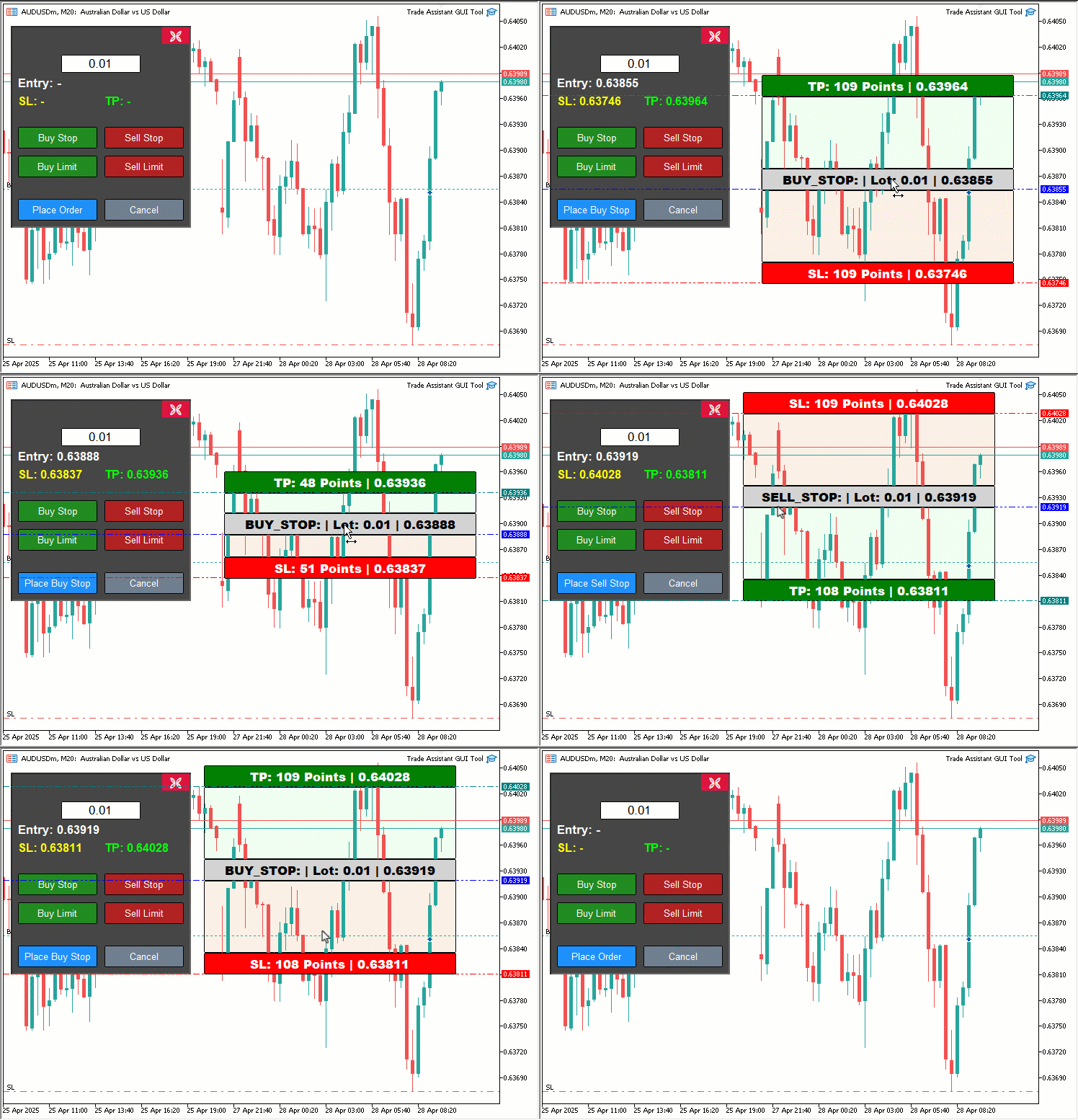
A partir de la visualización, podemos observar que, al hacer clic en cualquiera de los botones de operación, se genera la herramienta de precios correspondiente y, al arrastrarla, se actualiza en tiempo real; los precios se reflejan en el panel de operaciones, listos para ser utilizados con fines de negociación; cuando se hace clic en el botón «Realizar operación», las operaciones correspondientes se ejecutan de forma dinámica. Esto confirma que hemos alcanzado nuestro objetivo; lo que queda por hacer es probar el panel para asegurarnos de que funciona a la perfección, y eso se aborda en la siguiente sección.
Backtesting
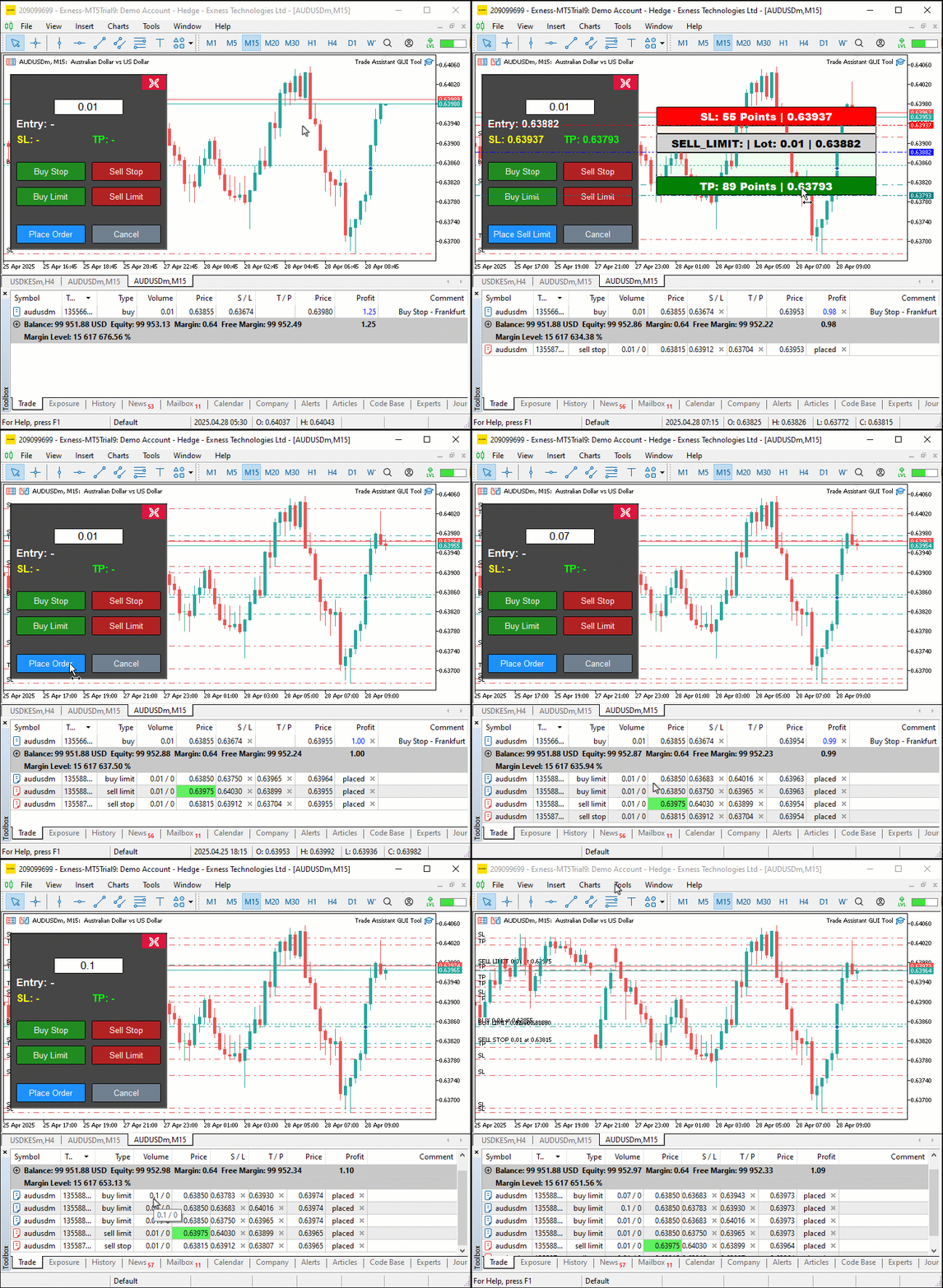
Hemos realizado las pruebas y a continuación se muestra la visualización compilada en un único archivo GIF (Graphics Interchange Format).
Conclusión
En conclusión, hemos desarrollado una herramienta interactiva de asistencia para operaciones en MQL5 que combina precisión visual con controles intuitivos, lo que agiliza el proceso de colocación de órdenes pendientes. Hemos mostrado cómo diseñar su interfaz gráfica de usuario (GUI), fácil de usar; cómo implementarla con funciones como «createControlPanel» y «placeOrder»; y cómo garantizar su fiabilidad mediante una implementación estructurada y procesos de validación. Puede personalizar esta herramienta para adaptarla a su estilo de negociación, mejorando así la eficiencia en la colocación de órdenes. No se pierda las próximas entregas, en las que presentaremos funciones avanzadas como la gestión de riesgos y los paneles arrastrables. Manténganse atentos.
Traducción del inglés realizada por MetaQuotes Ltd.
Artículo original: https://www.mql5.com/en/articles/17931
Advertencia: todos los derechos de estos materiales pertenecen a MetaQuotes Ltd. Queda totalmente prohibido el copiado total o parcial.
Este artículo ha sido escrito por un usuario del sitio web y refleja su punto de vista personal. MetaQuotes Ltd. no se responsabiliza de la exactitud de la información ofrecida, ni de las posibles consecuencias del uso de las soluciones, estrategias o recomendaciones descritas.

 Simulación de mercado: iniciando SQL en MQL5 (II)
 Simulación de mercado: Iniciando SQL en MQL5 (I)
 Del básico al intermedio: Eventos de mouse
 Simulación de mercado (Parte 24): Iniciando SQL (VII)

- Aplicaciones de trading gratuitas
- 8 000+ señales para copiar
- Noticias económicas para analizar los mercados financieros
Usted acepta la política del sitio web y las condiciones de uso
Nuevo artículo MQL5 Trading Tools (Part 1): building an interactive visual pending order trading assistant tool ha sido publicado:
Por Allan Munene Mutiiria