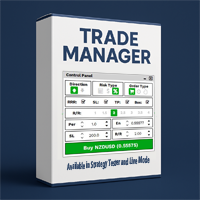
Trading Simulator in StrategyTester
- Utilities
-
Sandro Begashvili
 Sandro Begashvili - MQL5, MQL4, Python and Pine Script developer
I build trading software for MetaTrader 4 and MetaTrader 5: Expert Advisors, custom indicators and graphical trade panels. Describe your idea and I will turn it into working, documented code.
WHAT I BUILD - Version: 1.6
- Updated: 24 September 2026
- Activations: 5
Rhino Trade Manager is a trade manager for MetaTrader 5 that works on live charts and inside the Strategy Tester in visual mode. You place and manage orders in the tester with the same panel you use on a real account, so manual backtesting on historical data and live trading are done with one tool. It is intended for discretionary traders who want risk-based position sizing, clear stop loss and take profit levels on the chart, and a record of their results.
The panel calculates the lot size from your risk settings, shows the money value of every stop loss and take profit before the order is sent, lets you edit open trades from the same controls, and keeps trade statistics by day, week, month and account history.
Trade manager features
Live and tester mode. The same panel runs on a live chart and in the Strategy Tester, with the same windows and buttons.
Order types. Instant, limit and stop orders. The entry price of a pending order is set in the panel or on the chart.
Risk management. Stop loss, take profit and a risk-reward ratio can each be switched on or off. With the ratio on, the take profit follows the stop loss.
Lot size calculation. The volume is set as a fixed lot, as an amount of money at risk, or as a percentage of the balance. Risk-based volume is rounded down, so the risk is never above your setting.
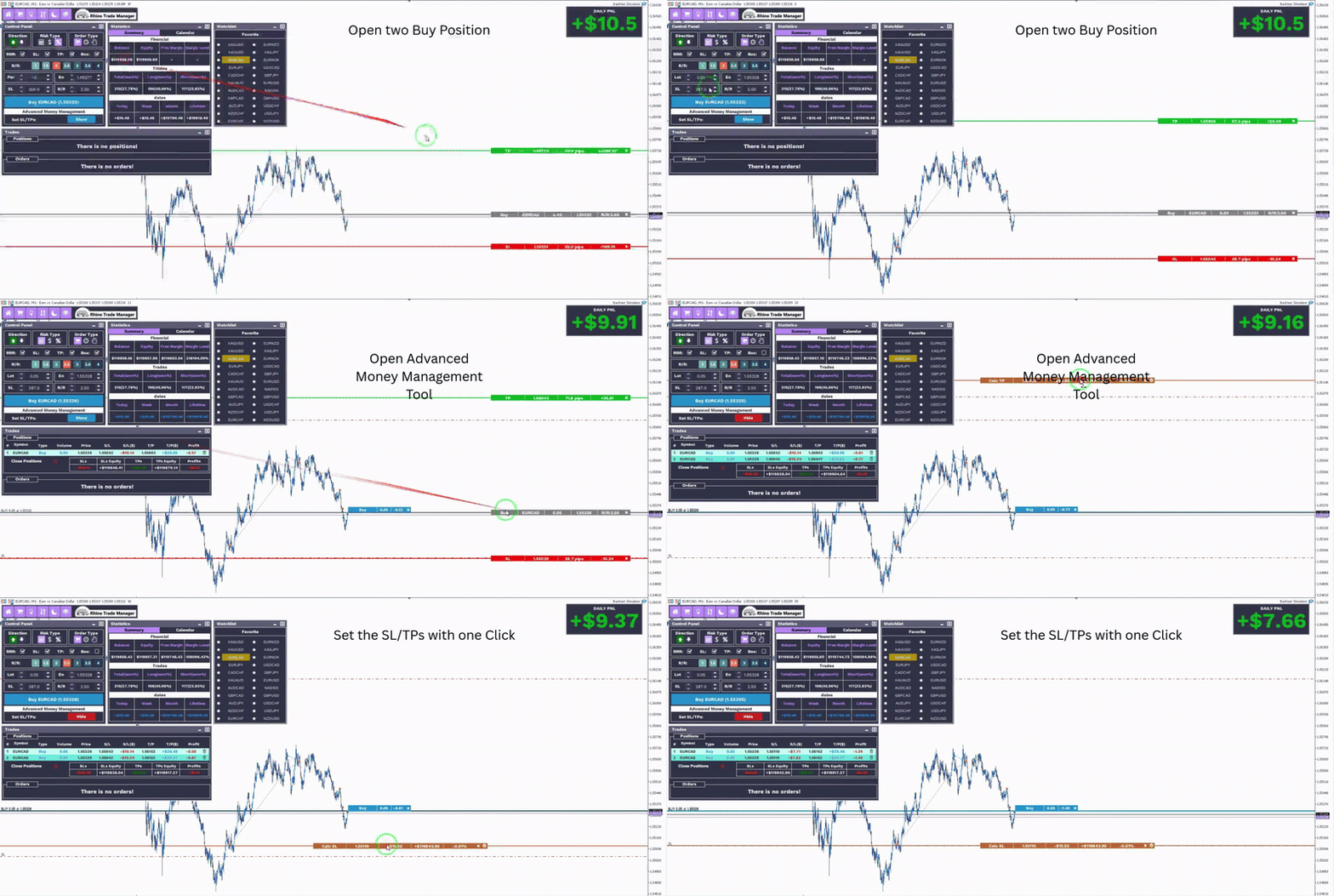
Trade Box. Entry, stop loss and take profit are drawn on the chart with price, distance in pips and money value. The levels are moved by dragging them, on live charts and in the tester.
Edit Mode. The stop loss and take profit of an open position, and the price and levels of a pending order, are changed in the Control Panel and confirmed with Apply or discarded with Cancel. It works in live trading and in the Strategy Tester. A stop loss can be placed in profit, and the levels are checked against the minimum stop distance of the broker.
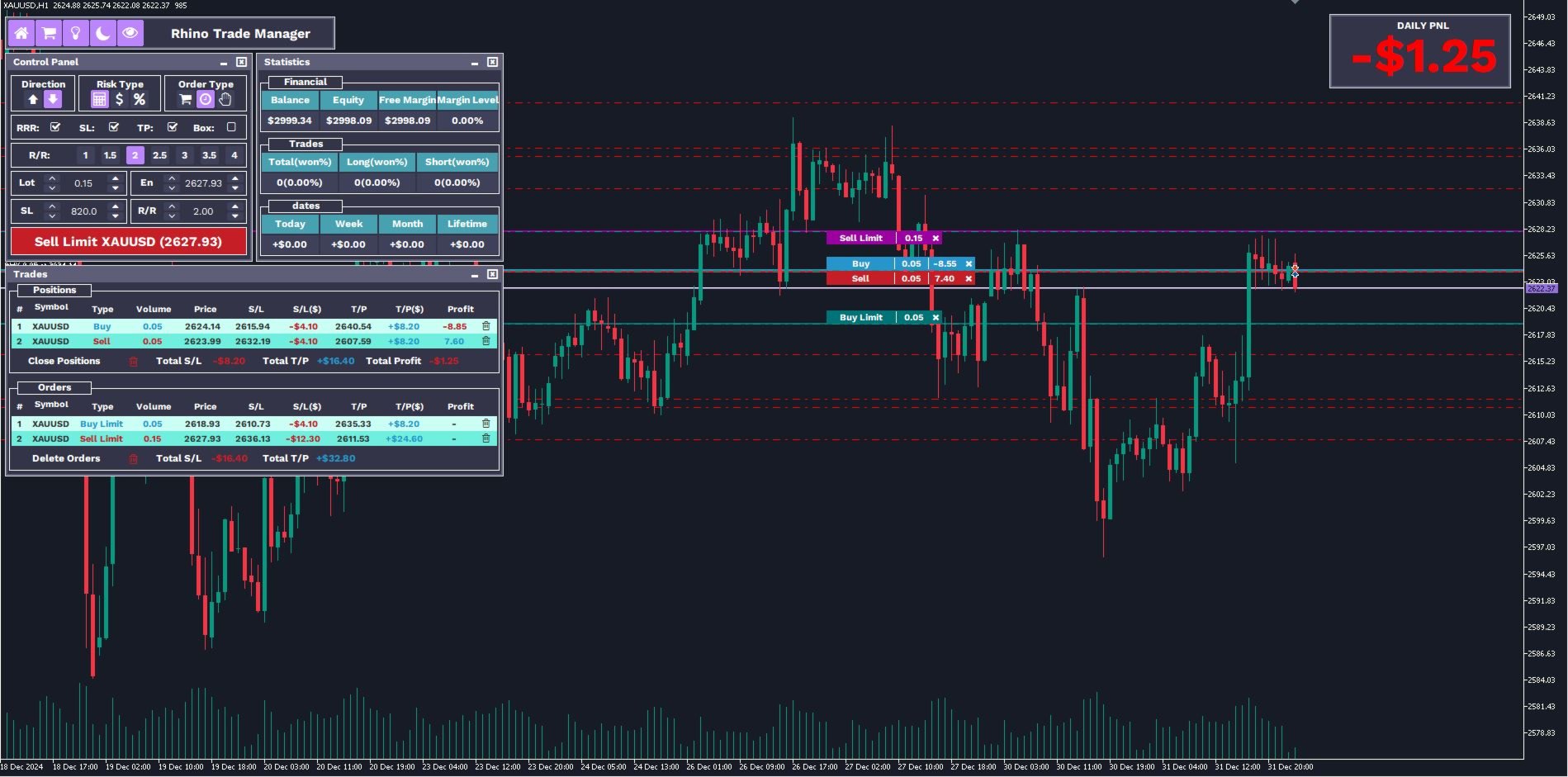
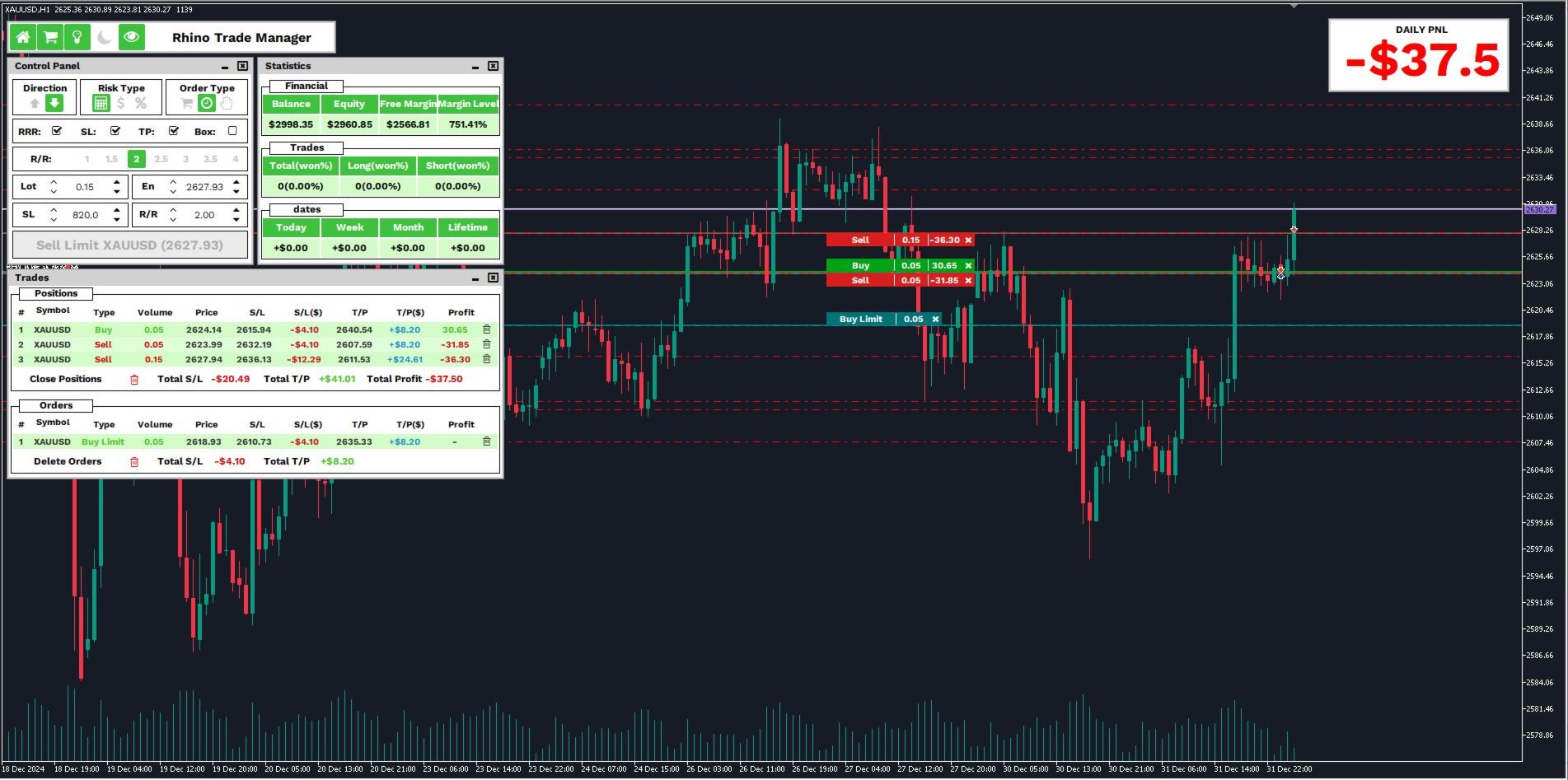
Trades window. Positions and pending orders with volume, entry, stop loss, take profit and current result. Trades are closed one by one or all at once, and each row has an edit button.
Chart labels. Each trade is marked on the chart with its entry line, volume and result, with buttons to edit or close it.
Trade statistics. Account figures, win rate by direction, net profit by period and a calendar of daily results.
P/L box. A separate box shows the result of the current day, week, month or the whole history; the period is chosen from its drop-down list.
Themes. Light and dark color schemes with five accent colors.
No installation steps. All icons are built into the product. No fonts or libraries have to be installed.
| Window | Contents |
|---|---|
| Main panel | Opens and closes the other windows, switches the theme and the accent colour, shows or hides the chart labels |
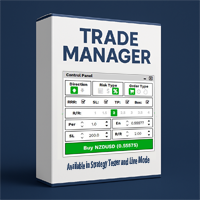
| Control Panel | Direction, volume mode, order type, stop loss, take profit, risk-reward ratio, entry price and the order button; Apply and Cancel in Edit Mode |
| Trade Box | Entry, stop loss and take profit lines on the chart with pips and money value |
| Trades window | Positions and pending orders, edit and close buttons, closing of all trades, totals if all stops or all targets are reached |
| Statistics window | Account figures, trade counts, win rate, net profit by period and the calendar of daily results |
| P/L box | Daily, weekly, monthly or lifetime result |
| Watchlist window | Bid and ask prices of the Market Watch symbols with chart switching, on live charts |
| Chart labels | Entry line, volume and current result of each trade, with edit and close buttons |
Live trading and Strategy Tester
| Function | Live trading | Strategy Tester |
|---|---|---|
| Instant, limit and stop orders | Yes | Yes |
| Stop loss, take profit, risk-reward ratio | Yes | Yes |
| Lot size from risk in money or percent | Yes | Yes |
| Edit Mode for positions and pending orders | Yes | Yes |
| Moving entry, stop loss and take profit on the chart | Yes | Yes, by the dotted line of the level |
| Trades window, chart labels, closing all trades | Yes | Yes |
| Statistics, calendar and P/L box | Yes | Yes |
| Themes and accent colours | Yes | Yes |
| Watchlist window | Yes | No, the tester works with one symbol |
| Setting values | Keyboard or arrow buttons | Arrow buttons, one step or ten steps |
Input parameters
The inputs set the state of the panel when it starts. Every value can be changed in the Control Panel afterwards.
| Input | Default | Description |
|---|---|---|
| Order Direction | Buy | Direction selected when the panel starts |
| Risk type | Percentage | Volume mode: lot size, fixed amount or percentage of the balance |
| Order Type | Instant | Instant, limit or stop order |
| Risk Reward Ratio (ON/OFF) | ON | Take profit follows the stop loss at the set ratio |
| Default Percentage Risk | 1.0 | Risk per trade as a percentage of the balance |
| Default Budget Risk | 100.0 | Risk per trade in the account currency |
| Default LotSize | 0.05 | Volume used in lot size mode |
| Default Stoploss (Points) | 200 | Stop loss distance in points |
| Default Takeprofit (Points) | 400 | Take profit distance in points |
| Default Risk Reward Ratio (RRR) | 2.0 | Ratio of take profit to stop loss |
Getting started
- Attach the product to a chart, or select it in the Strategy Tester and enable visual mode.
- In the Control Panel choose buy or sell, the volume mode and the order type.
- Switch on the stop loss, take profit and risk-reward ratio you need, and set the levels with the arrow buttons or by dragging them on the chart.
- Check the money value of the stop loss and take profit in the Trade Box and send the order.
- To change a trade, press its edit button in the Trades window or on its chart label, adjust the levels and press Apply.
- Follow the result in the Statistics window and in the P/L box.
Questions and answers
- Does it work in the Strategy Tester? Yes. Orders, risk settings, Edit Mode, statistics and chart labels are available while the tester runs in visual mode.
- Can I change the stop loss and take profit of an open trade in the tester? Yes. Open the trade in Edit Mode, move the levels and press Apply.
- Do I have to install fonts? No. Since version 1.6 all icons are part of the product.
- Can I use my own indicators while testing? Yes. Save the chart template under the name tester.tpl and the indicators are loaded when the tester starts.
- Which symbols and timeframes are supported? All symbols and timeframes of your broker, on hedging and netting accounts.
- Does the panel trade by itself? No. It contains no trading strategy and opens a trade only when you press the order button.
- A step-by-step manual is published in my mql5.com blog.
- Version 1.6 adds Edit Mode, the period selector of the P/L box, accent colors, dragging of the levels in the tester and built-in icons.
- Results obtained in the Strategy Tester are a simulation on historical data and do not represent real trading. Past performance does not indicate future results.
- Questions and suggestions: please use the Comments tab of this product, or send me a private message on mql5.com.










































This EA is so helpful for my backtesting trading. Using this tool improved my strategy testing. I like it.