KT MTF Order Blocks MT5
- Indicators
-
KEENBASE SOFTWARE SOLUTIONS
 Keenbase Trading develops professional MetaTrader 4 and MetaTrader 5 indicators and Expert Advisors designed to help traders make more informed trading decisions.
 - Version: 1.1
- Activations: 10
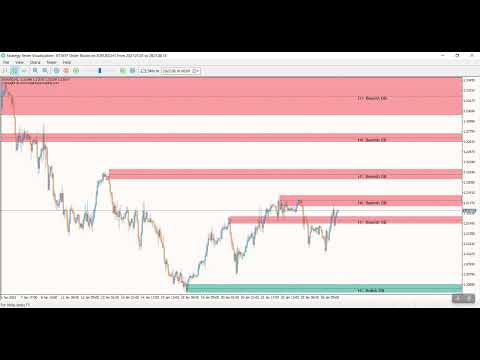
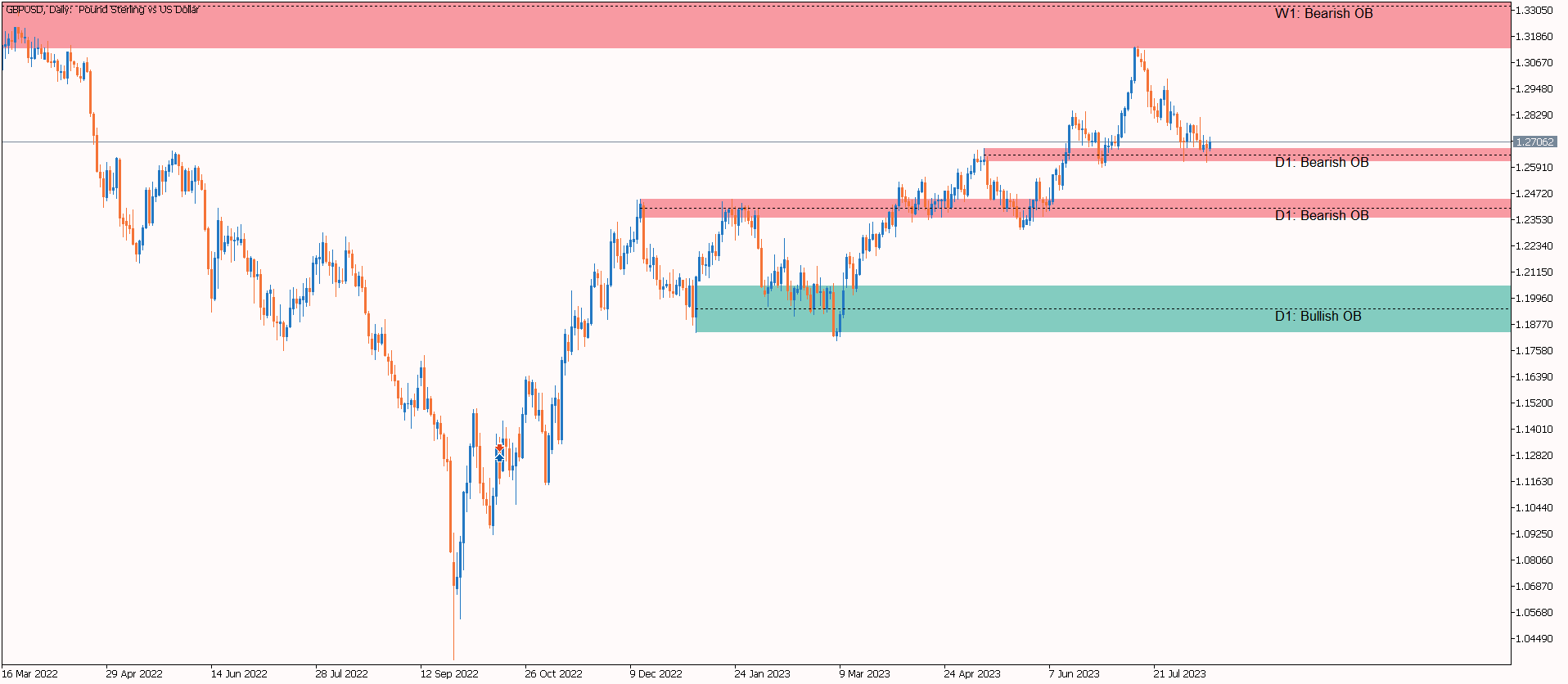
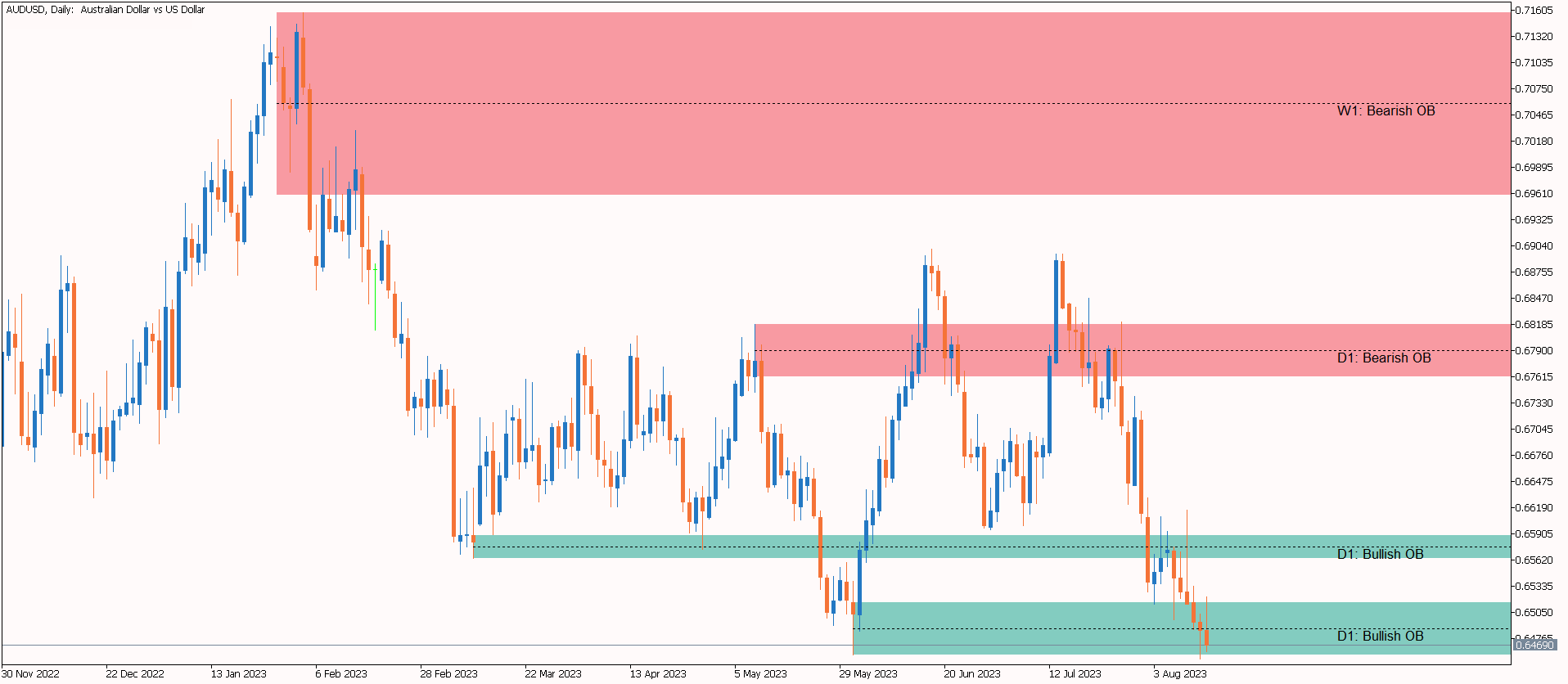
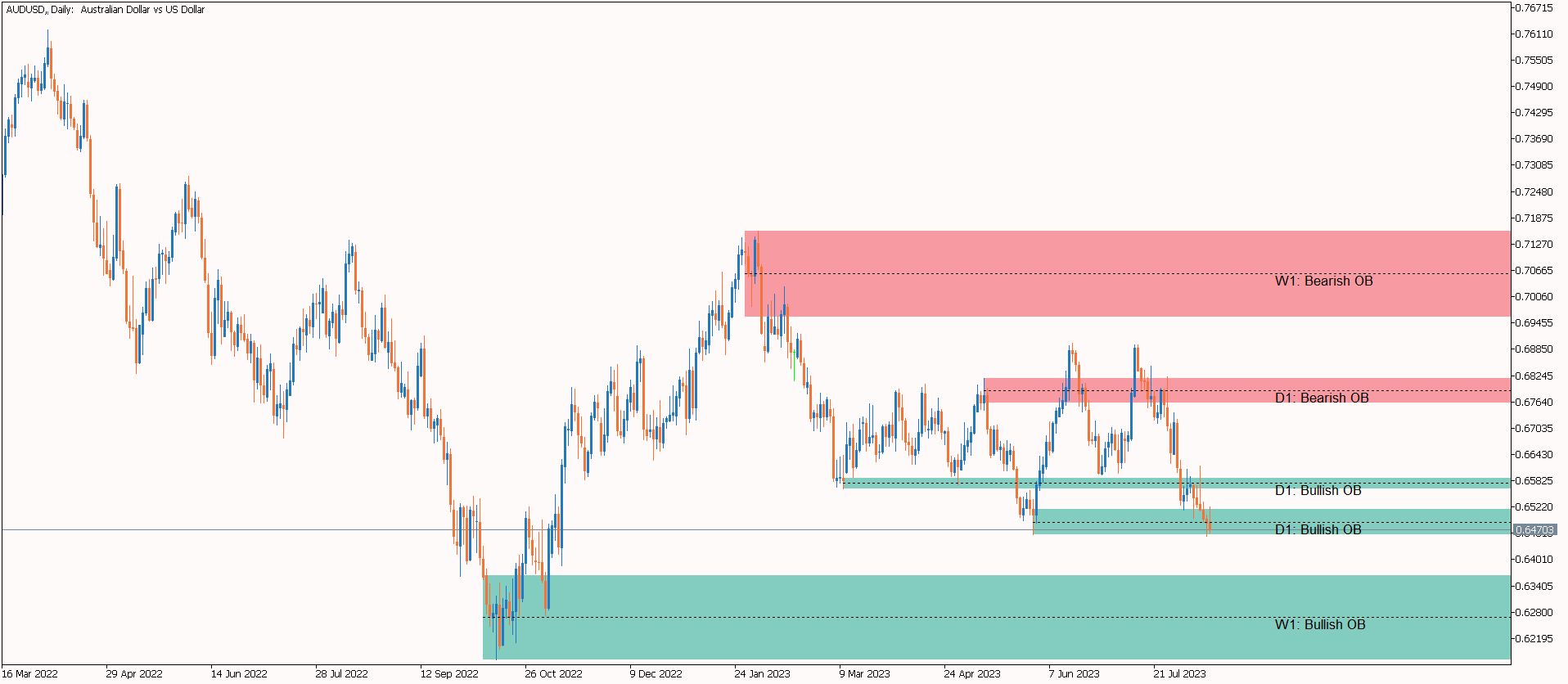
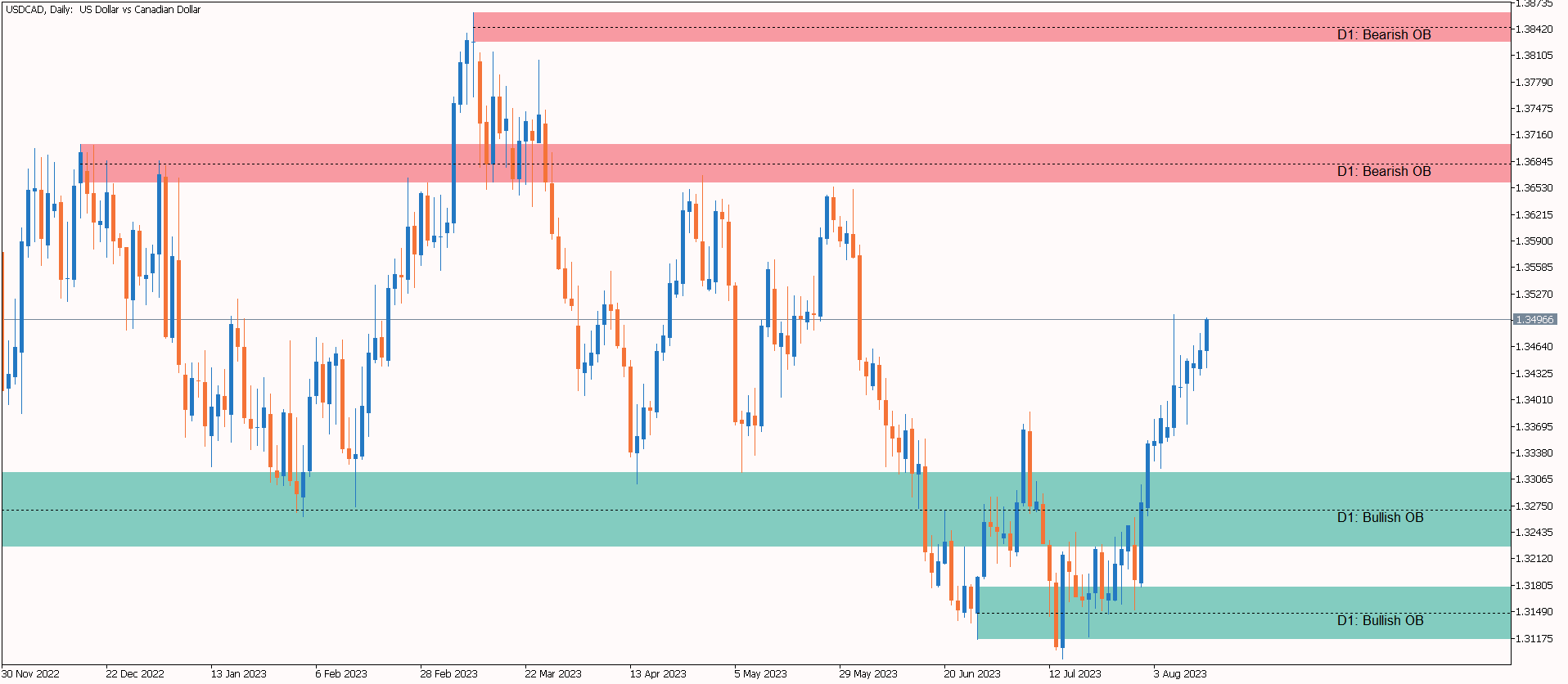
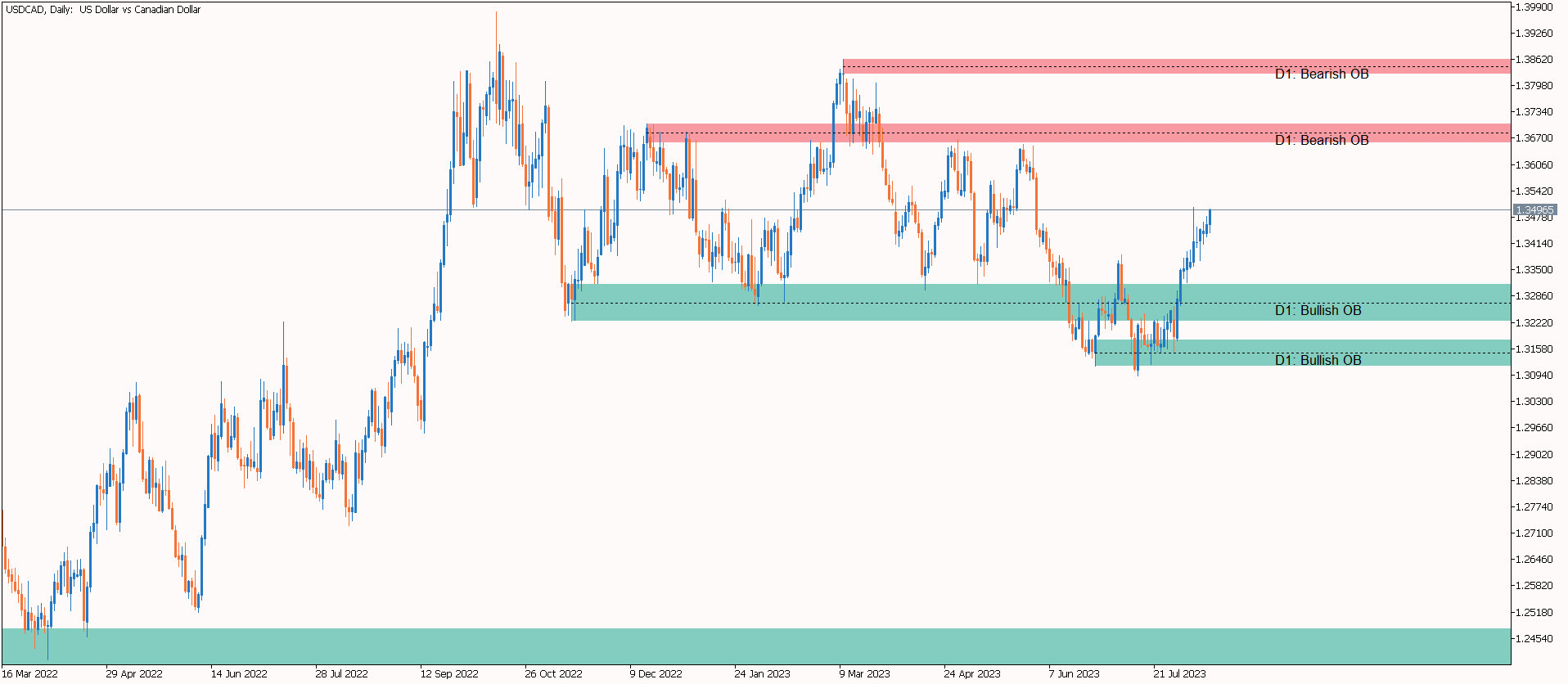
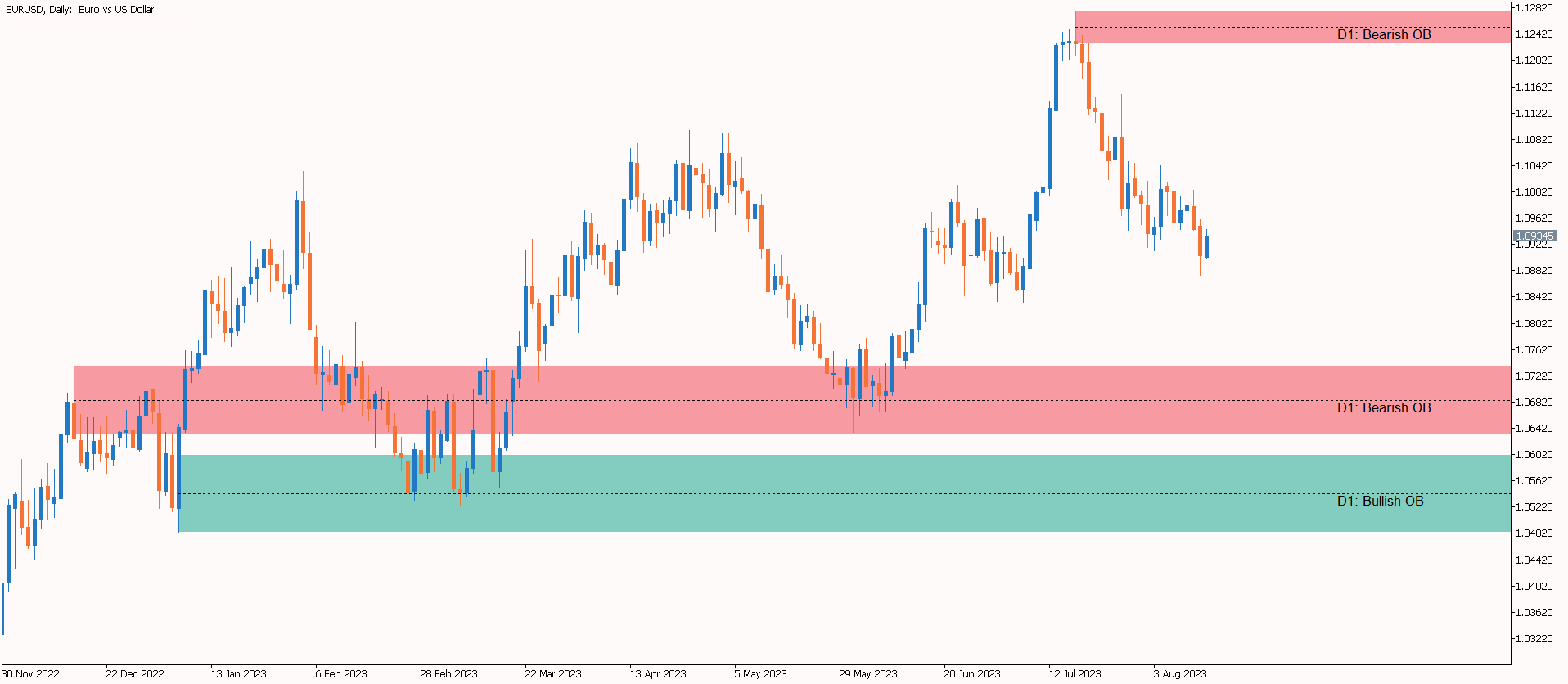
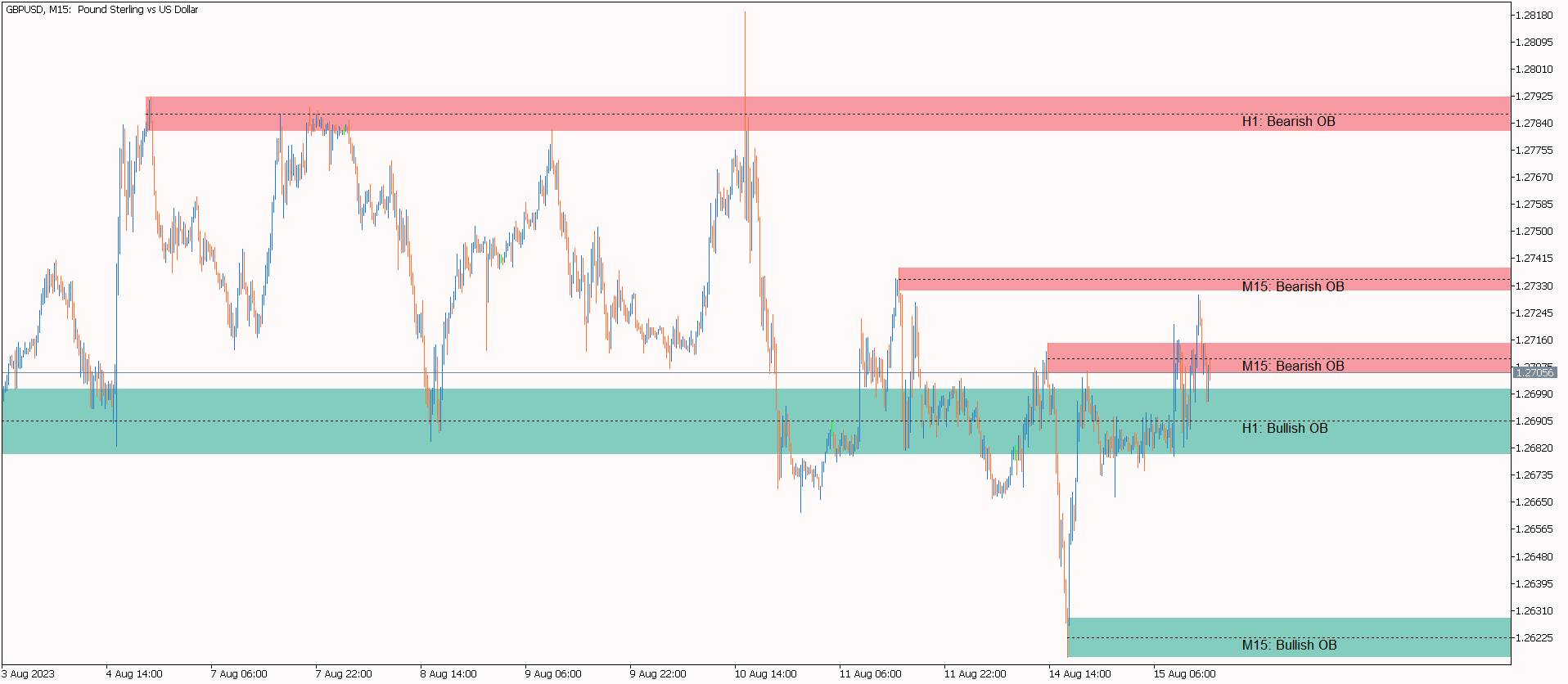
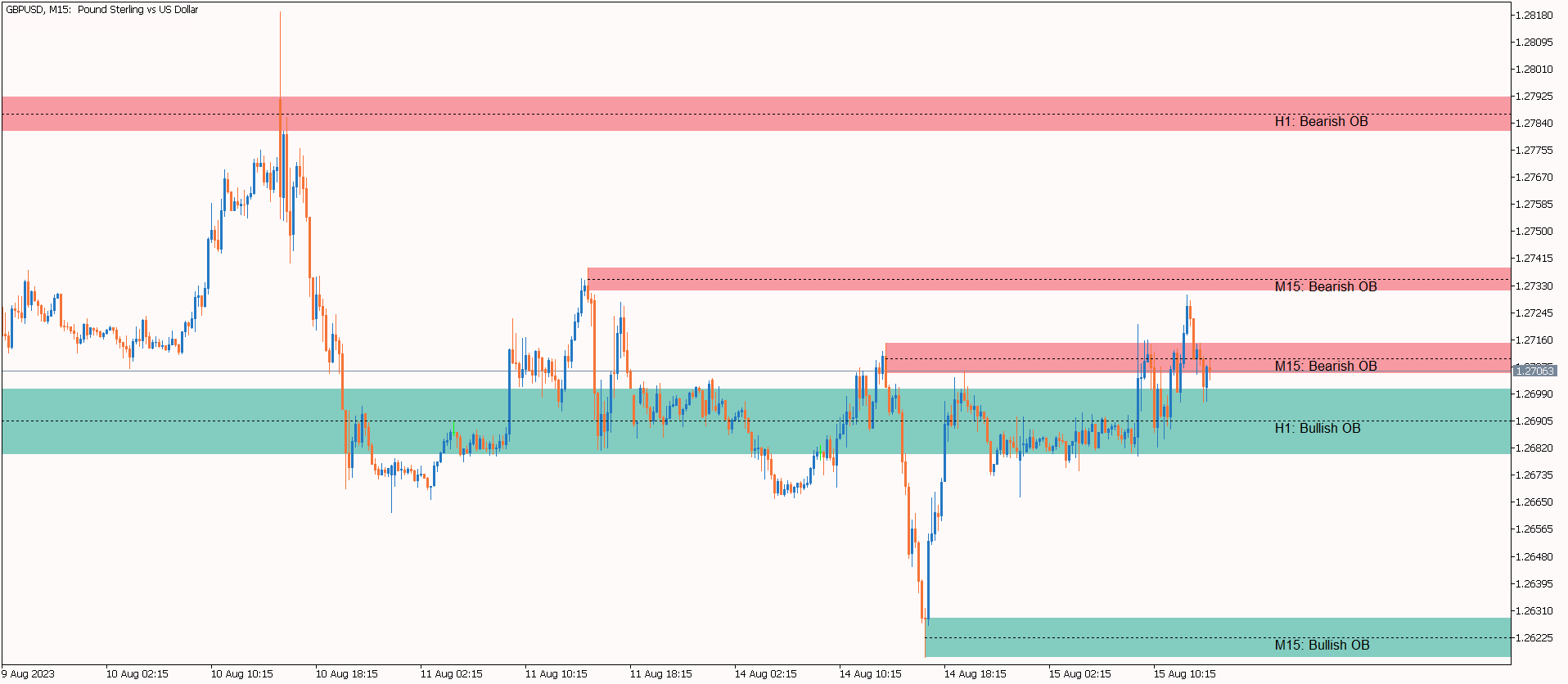
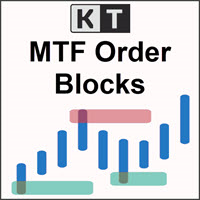
KT MTF Order Blocks automatically plots bullish and bearish order-block zones from the chart timeframe and up to two additional timeframes on the same chart. Instead of switching between charts, you can see where zones from different timeframes sit in relation to the current price.
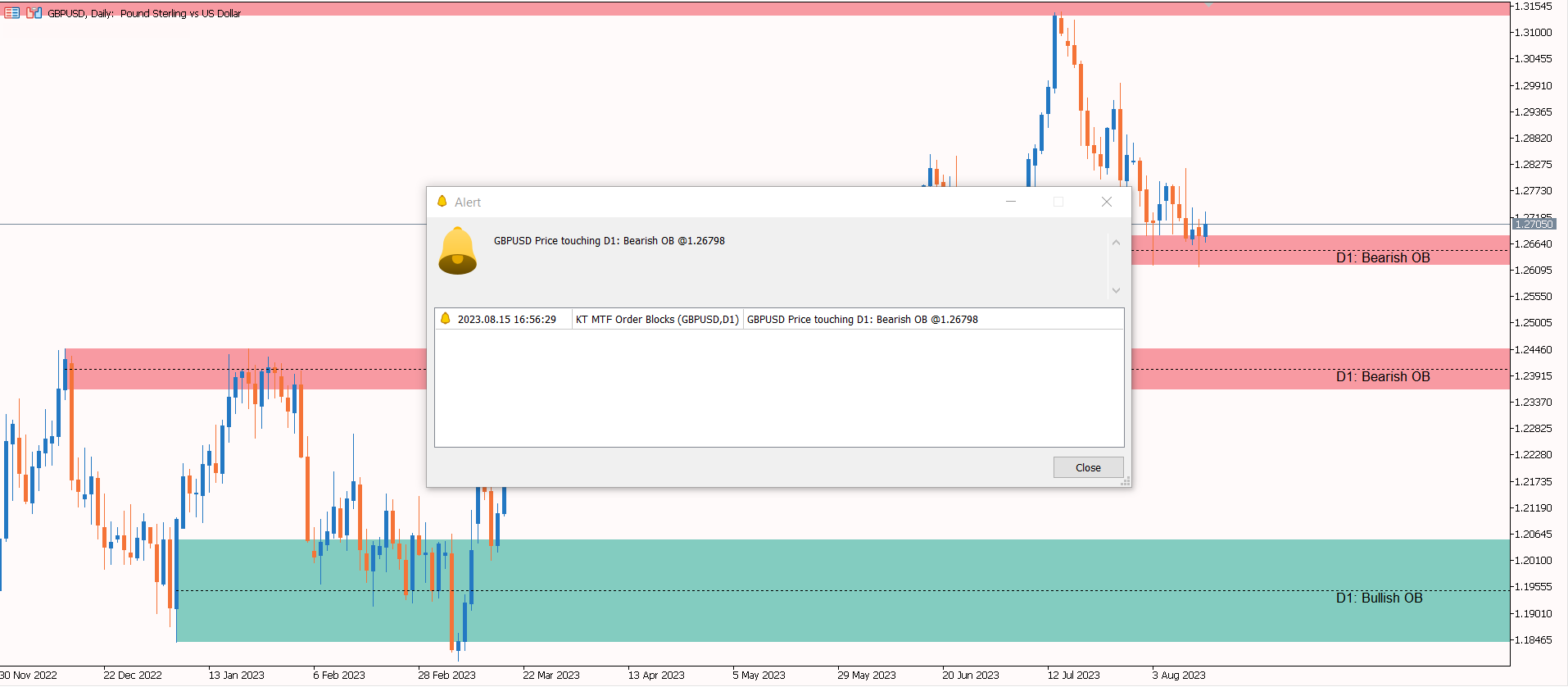
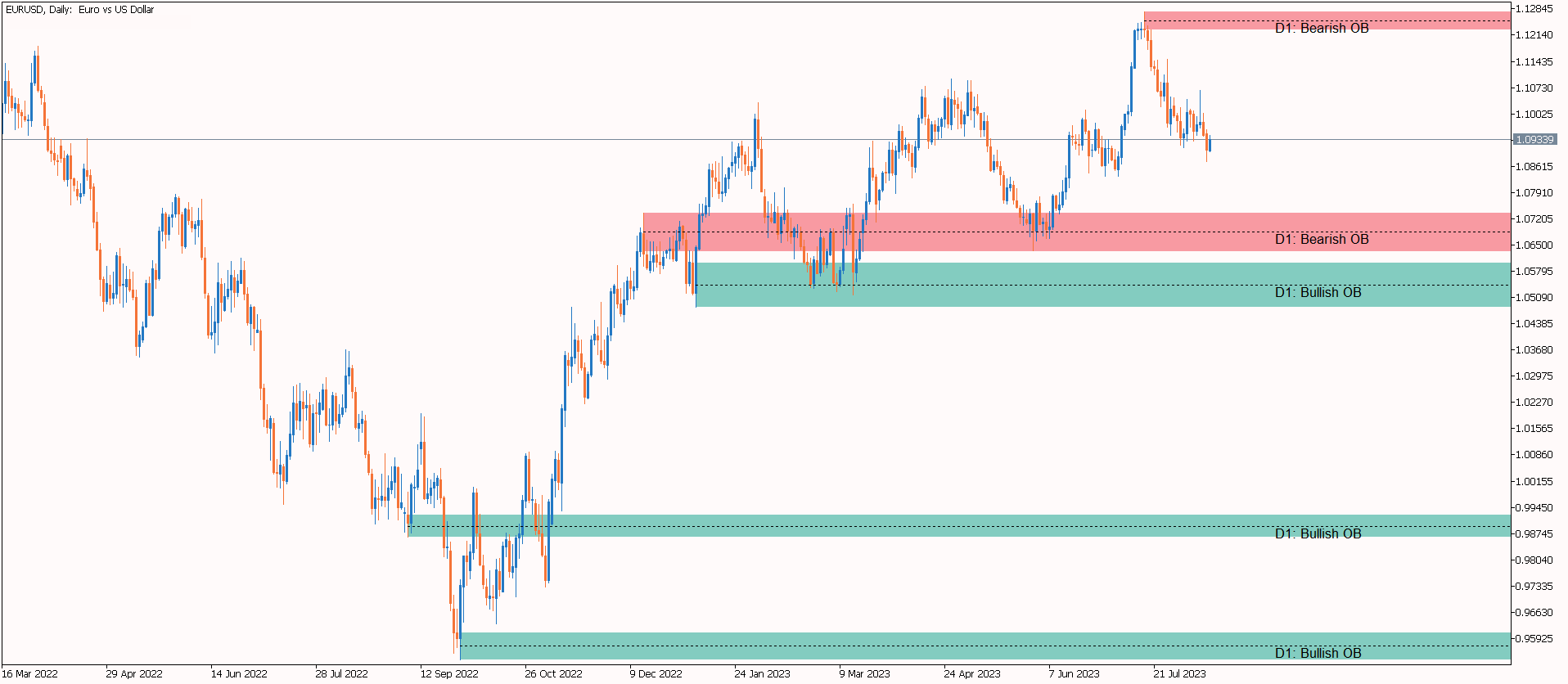
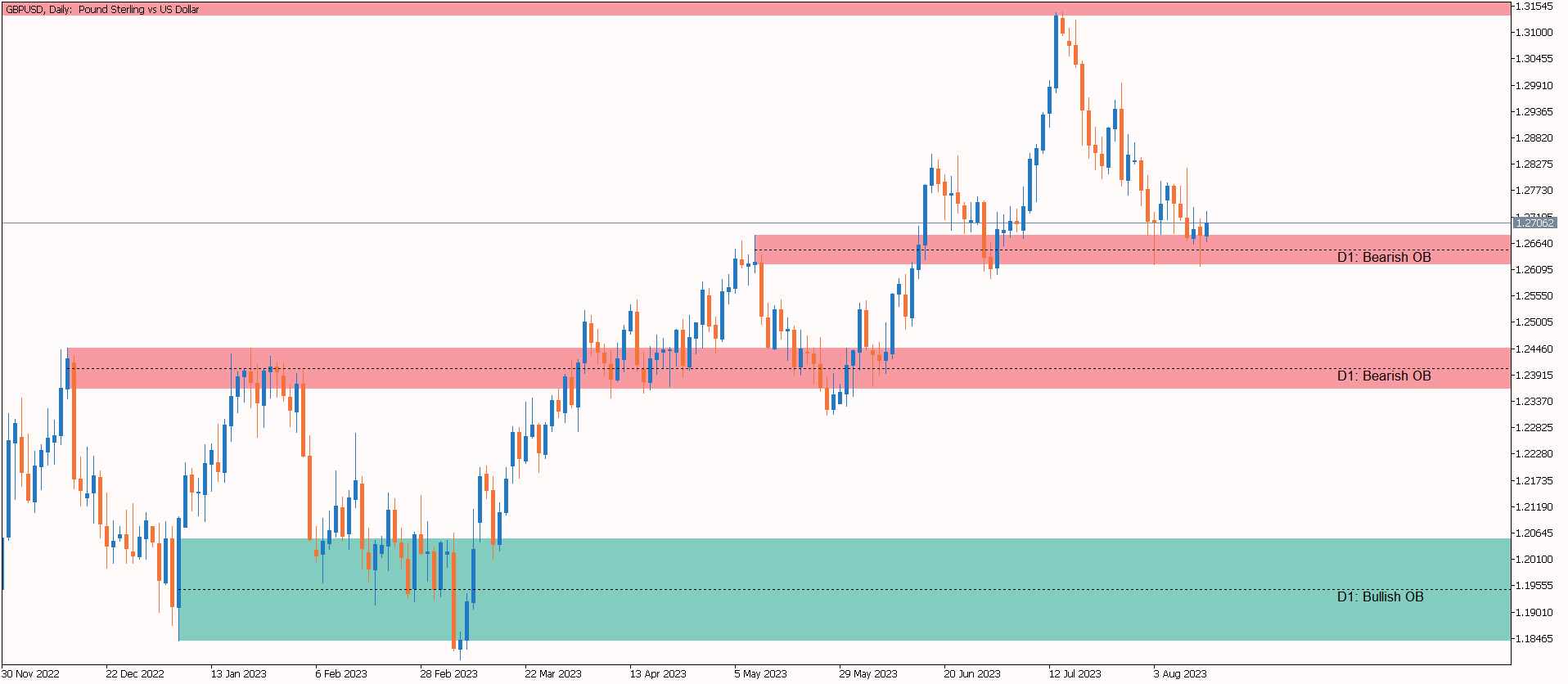
Each zone is drawn as a colored area and labeled with its source timeframe. This makes it easier to separate a nearby lower-timeframe zone from a broader higher-timeframe area.
Read the zones on the chart
The indicator marks areas where its order-block conditions were detected. When price returns, the zone gives you a defined area to watch for reaction, continuation, or failure using your normal confirmation method.
- Bullish order blocks are shown as demand-side zones below or around price.
- Bearish order blocks are shown as supply-side zones above or around price.
- The optional 50% line marks the midpoint of each zone, while the label identifies its timeframe.
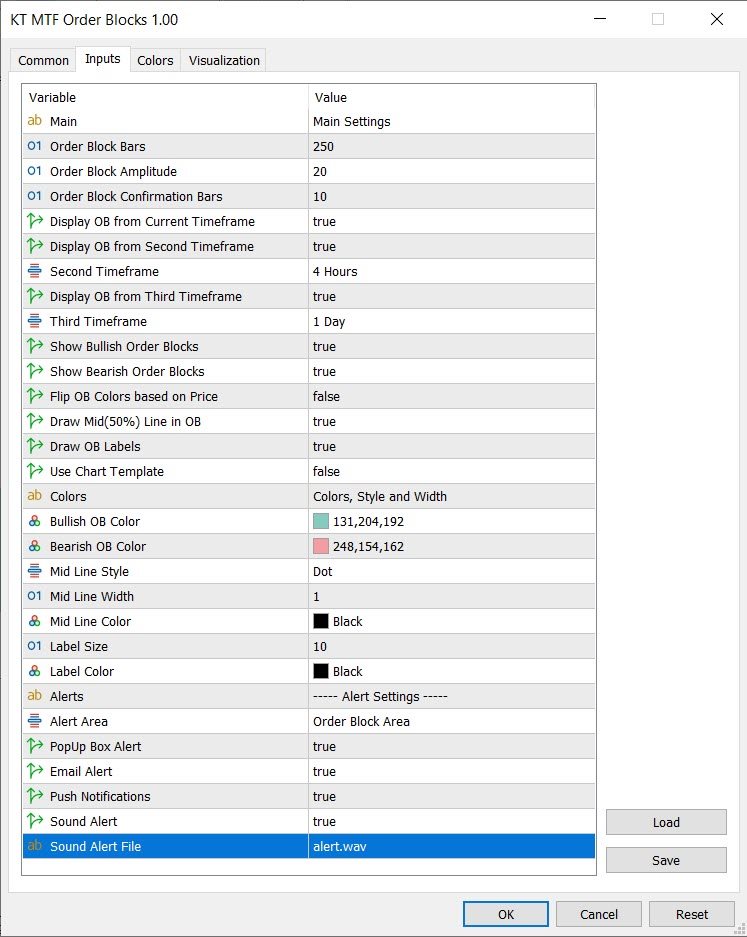
Zone colors, labels, and the midpoint line can be adjusted to suit your chart. You can display bullish or bearish zones separately, and the included chart template can be enabled when you want to use the prepared visual setup.
Build a multi-timeframe map
Enable zones from the current chart timeframe, then select a second and third timeframe when you want more context. For example, an M15 chart can show M15 zones alongside H1 zones, while a daily chart can also display weekly zones. Every area remains labeled, so its timeframe is always visible.
Flip OB Colors based on Price changes the bullish and bearish colors as price moves through a zone. Enable it if you prefer colors to reflect the zone's current position relative to price, or leave it disabled for fixed bullish and bearish colors.
Control sensitivity and chart depth
Order Block Bars controls how many historical bars are used in the search. Order Block Amplitude changes detection sensitivity; a higher value generally draws fewer zones, while a lower value draws more. Order Block Confirmation Bars controls how many bars are used to confirm the detected structure.
These settings have the most direct effect on the number and location of zones. Start with the defaults, then adjust them gradually for the symbol and timeframe you trade instead of changing several inputs at once.
Receive an alert when price reaches a zone
The indicator can notify you when price touches an order-block area. Popup, email, push, and sound alerts are available, so you can enable only the channels that fit your trading routine.
A practical setup is to keep higher-timeframe zones visible for context, use current-timeframe zones for closer structure, and apply your usual confirmation method when price returns to an area.