Stratiora Signal Engine MT5
- Utilities
-
Duc Hoan Nguyen
 I develop practical trading tools for MetaTrader 4/5, with a focus on indicator integration, Multi-Timeframe analysis, market scanning, and automated trading solutions.
My work mainly includes:
• Indicator-to-EA Solutions - Version: 1.1
- Updated: 26 September 2026
- Activations: 5
Keep the indicator you trust.
Automate the work around it.
Already have an MT5 indicator you rely on, but still need to watch the chart, wait for a signal, calculate the lot, place the order and manage every position by hand?
Stratiora Signal Engine MT5 was built to close that gap. It can turn compatible Buy and Sell buffer signals into a complete automated workflow: entry, volume calculation, Stop Loss, Take Profit, filters, position management and account protection.
Instead of ordering a different EA every time you change an indicator or trading idea, you can keep one flexible engine and decide how each signal should be traded.
Your signal. Your rules. Your execution.
Launch offer
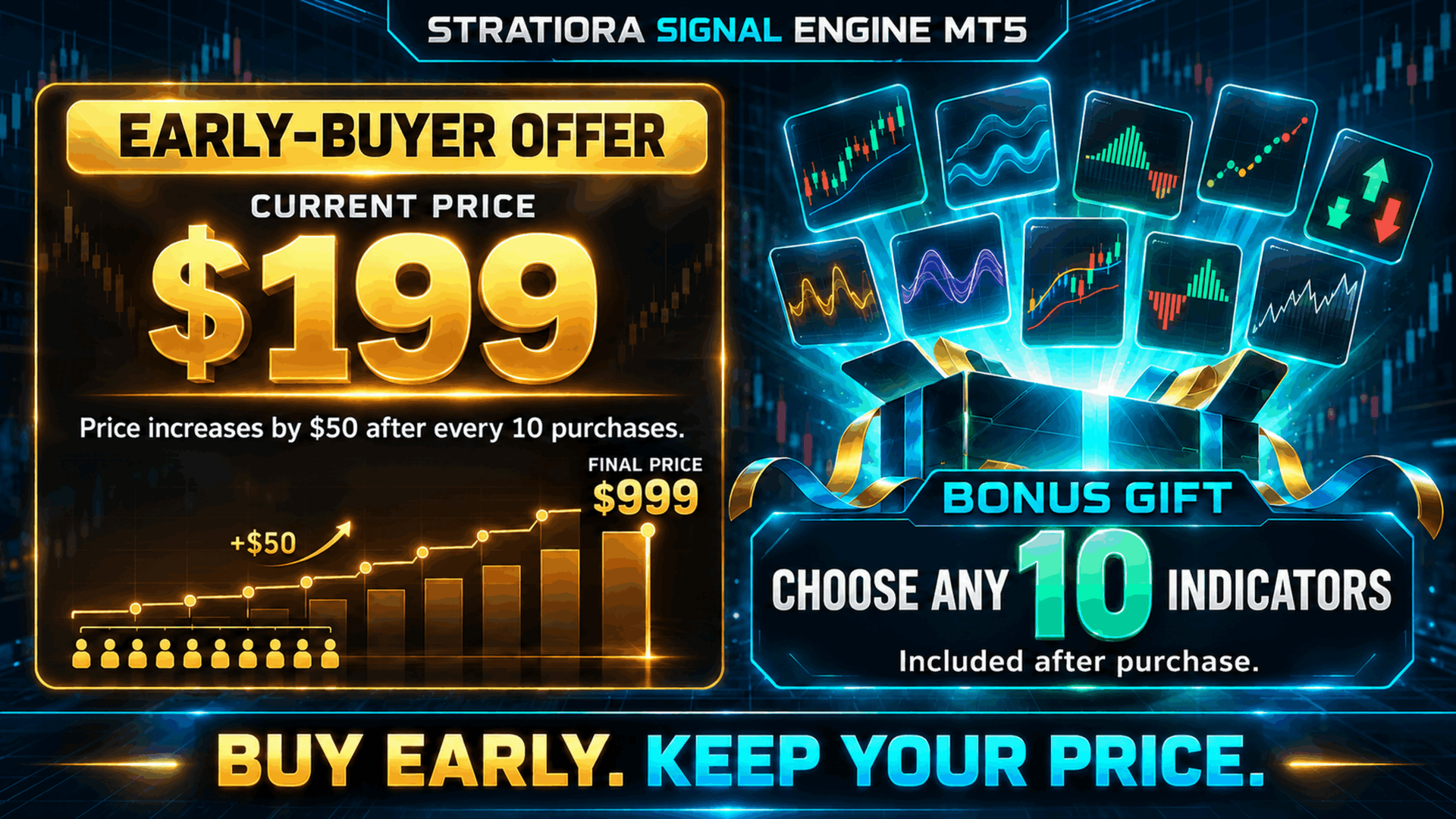
Current price: USD 199.
After purchasing Stratiora Signal Engine MT5, you will receive 10 complimentary indicators.
The price is planned to increase by USD 50 after every 10 purchases until it reaches USD 999. The price displayed on the Market page when an order is placed is the applicable price.
Why Stratiora was created
Many traders already have an indicator they understand and trust, but still need to watch the chart, wait for a signal, calculate the lot, place the order and manage the position manually.
Stratiora was created to connect those steps.
The indicator remains responsible for the trading signal. Stratiora is responsible for applying your execution and management rules consistently. You choose when the signal is read, how the volume is calculated, where protection is placed, which filters must agree and how the trade should be managed after entry.
Stratiora does not change the logic or quality of the source indicator. This is important: the result of the EA depends on the indicator signal, its settings and the complete EA configuration. Understanding the indicator is therefore just as important as understanding the EA.
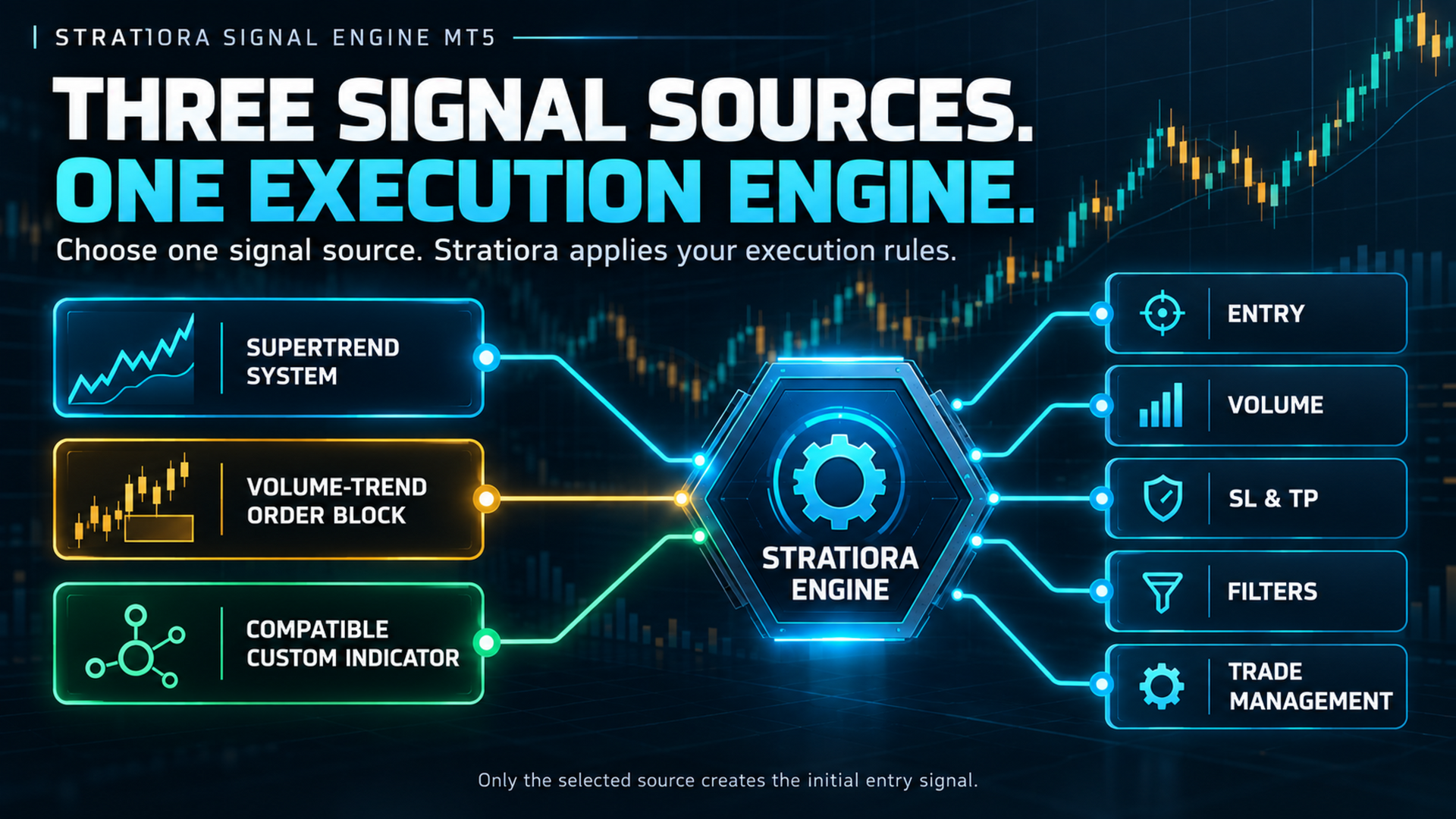
Three ways to start
1. SuperTrend System
Use the integrated SuperTrend System as the entry source. Its trend logic and related settings are available directly inside the EA.
2. Volume-Trend Order Block
Use the integrated Volume-Trend Order Block source for signals based on its trend, pivot and order-block logic.
3. Your own Custom Indicator
Connect a compatible MT5 indicator and let Stratiora read its Buy and Sell buffers. The indicator can be located in the standard Indicators folder or in the Market folder.
Only the selected source creates the initial entry decision. The other sources remain inactive until you choose them.
Turn a Custom Indicator into an automated workflow
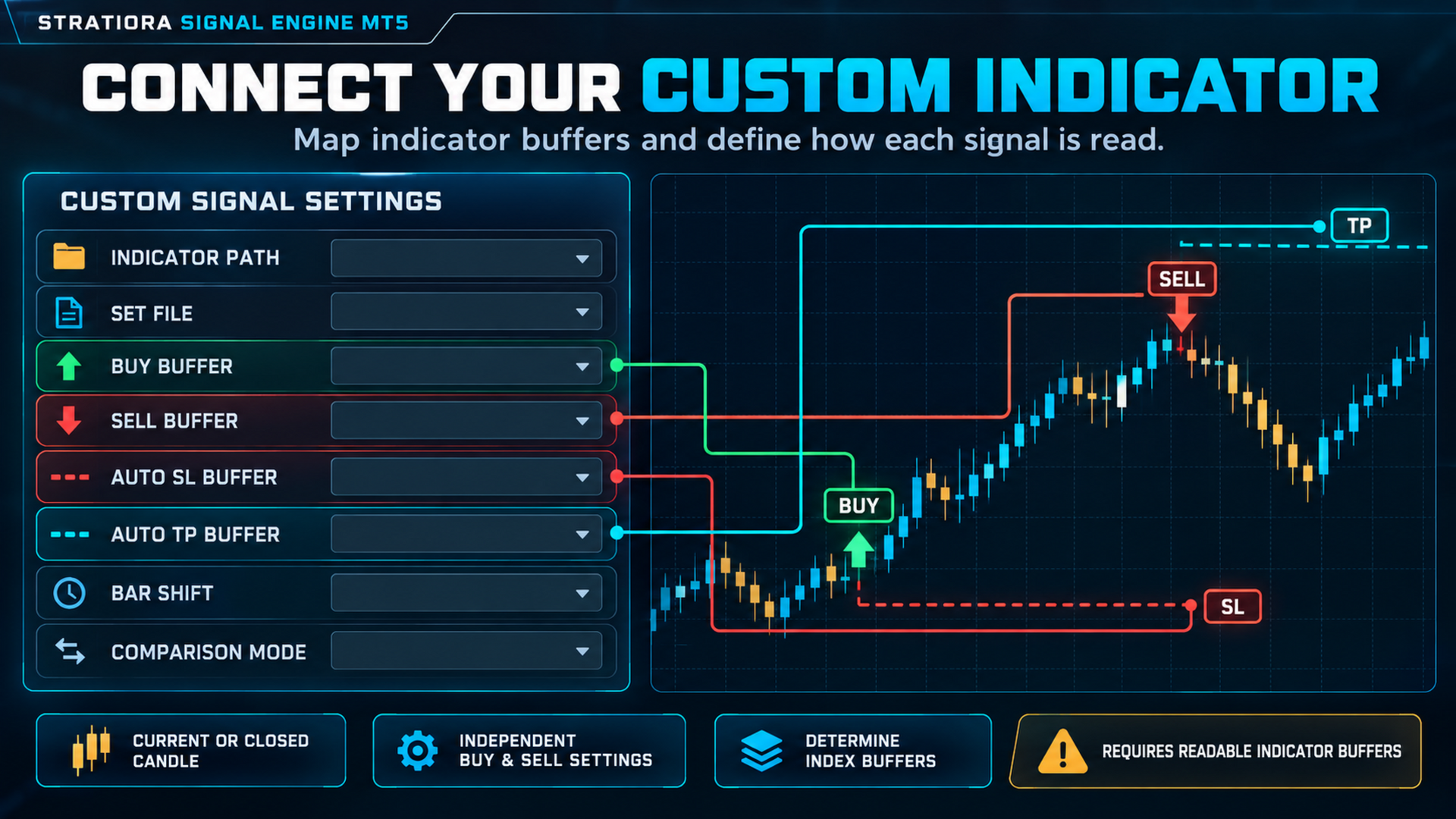
Custom Indicator mode gives you control over how each direction is read:
- Indicator path and timeframe.
- Optional indicator set file.
- Separate Buy and Sell signal buffer indexes.
- Separate automatic Stop Loss and Take Profit buffer indexes.
- Signal comparison type and inactive value.
- Current-candle or closed-candle reading.
- Diagnostic output for checking the loaded indicator settings.
For a confirmed-candle strategy, use the last closed candle. If you choose the current candle, Stratiora reacts to the live buffer value, which may change before the candle closes when the indicator recalculates.
The included workflow supports the Custom Indicator Buffer Analyzer tool. This tool helps identify the data channels used by an indicator for Buy, Sell, Stop Loss and Take Profit. Compare the detected values with several visible signals before allowing the EA to trade them.
Compatibility note: An indicator must expose usable data buffers. An indicator that draws only arrows, labels or other chart objects without readable buffers may not be compatible. Stratiora automates indicator data; it does not convert or modify the indicator source code.
Use the indicator settings you actually want
Stratiora can load an optional indicator set file from the MQL5 Files folder. This allows the custom signal to use the same parameters you prepared on the indicator itself.
For lighter operation, unnecessary dashboards, scanners, timeframe selectors and chart objects should be disabled in the indicator set file whenever they are not required.
Build the trade around the signal
Receiving a signal is only the first step. Stratiora lets you define the complete behavior that follows it.
Volume calculation
Choose between:
- Fixed lot.
- Balance allocated per base or minimum lot.
- Risk amount in the trading account currency.
- Percentage of account balance.
Money-based values follow the deposit currency of the account, not only USD. The calculated volume is checked against broker minimum lot, maximum lot, lot step, directional volume limit, pending volume in the same direction and available free margin.
Stop Loss choices
- No Stop Loss.
- Fixed points.
- ATR distance.
- Amount in account currency.
- Percentage of balance.
- Automatic level supplied by the signal source.
Take Profit choices
- No Take Profit.
- Fixed points.
- ATR distance.
- Amount in account currency.
- Percentage of balance.
- Automatic level supplied by the signal source.
- Reward-to-Risk multiple based on the Stop Loss.
Automatic Stop Loss and Take Profit can be used with every signal-source mode when that source provides valid price levels. With a Custom Indicator, the correct price buffers must be selected.
Physical or virtual protection
Stop Loss and Take Profit can be sent to the broker or managed virtually inside the EA.
Virtual protection: Virtual protection keeps the levels away from the broker, but it also requires MetaTrader 5, the EA, AutoTrading, market quotes and the connection to remain active. A stable VPS is recommended when virtual levels are used.
Manage the position after entry
Stratiora includes flexible post-entry management:
- Trailing Stop for individual positions.
- Basket trailing based on aggregate breakeven.
- Activation and trailing distances in points, account currency or Take Profit multiples.
- Tick-by-tick updates or new-candle updates.
- Basket Stop Loss and Basket Take Profit.
- Closing by signal.
- Display of aggregate breakeven and basket protection levels.
Commission settings can be included in breakeven, basket and Recovery calculations. Final execution may still differ because of spread, slippage, swap, gaps, partial fills and broker charging methods.
Use a simple setup or build an advanced one
Stratiora does not force every user into the same management style.
A simple configuration can use one signal, fixed volume, individual Stop Loss and Take Profit, and a small number of filters.
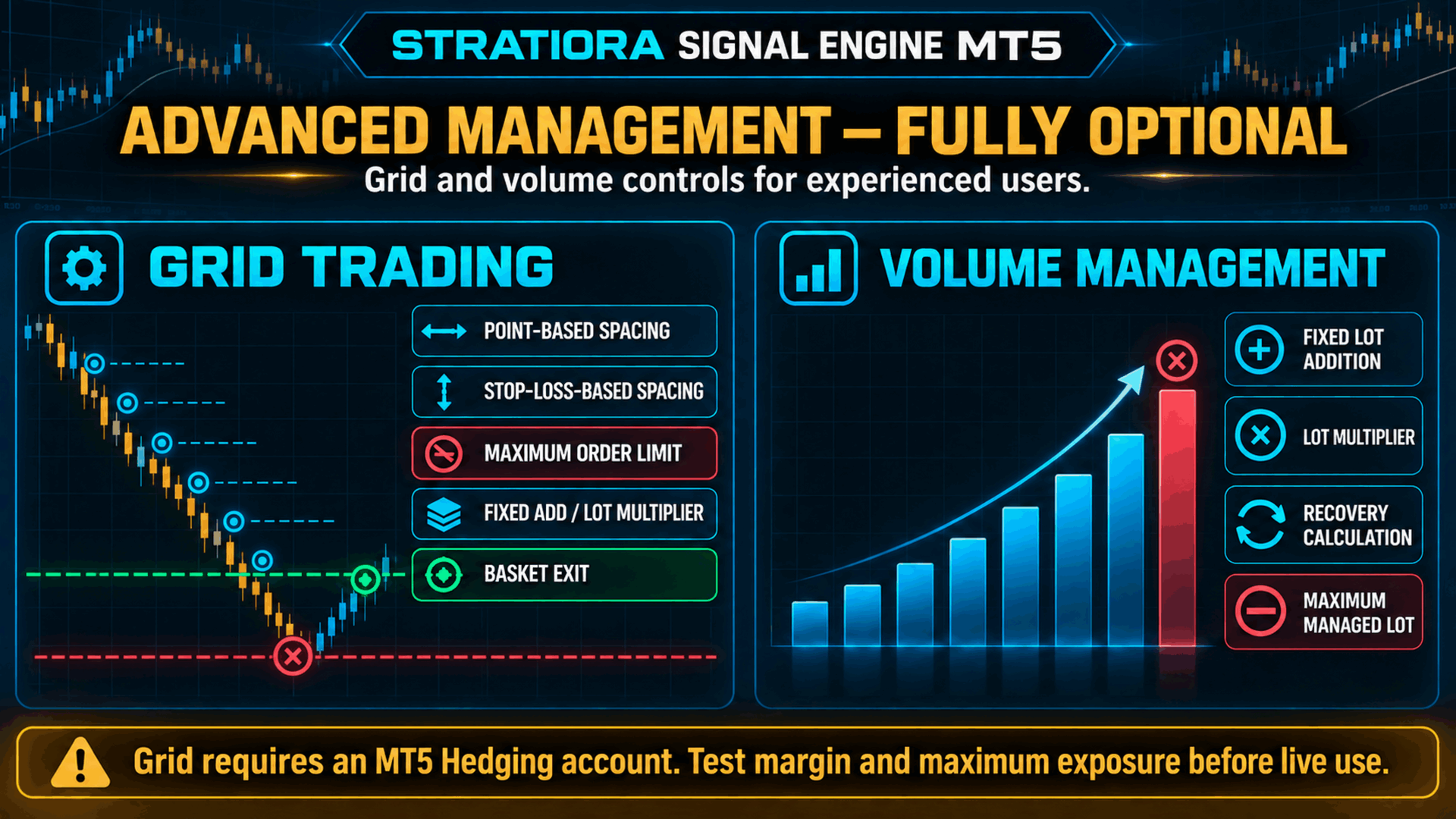
An advanced configuration can add Trailing Stop, basket exits, volume progression, Recovery or Grid. These modes are optional and should be enabled only when their behavior and exposure are fully understood.
Volume Management and Recovery
Later trades can use:
- No volume progression.
- Fixed lot addition.
- Lot multiplier.
- Recovery calculation.
A maximum managed lot can limit the calculated volume.
Recovery is designed for a specific setup with one initial position, a valid individual Take Profit and compatible closing rules. It should not be combined with Grid or conflicting basket and signal exits.
Recovery, Add and Multiplier can increase exposure after a losing sequence. They cannot guarantee that previous losses will be recovered. Before live use, test commission, swap, required margin, consecutive losses and the highest possible volume.
Grid Trading
Grid mode can add positions according to the selected spacing and lot progression. It supports:
- One active grid at a time.
- A maximum number of orders, including the first position.
- Separate Buy and Sell spacing in points.
- Spacing based on a multiple of the initial Stop Loss distance.
- Fixed lot addition or lot multiplication.
- Basket exits and basket trailing.
Grid requires an MT5 Hedging account. It should be used with a deliberate maximum order count, maximum open-position limit and valid basket exit. If spacing is based on Stop Loss, the selected Stop Loss method must create a valid distance.
Filter the signal before it becomes a trade
A signal does not have to be traded immediately. Stratiora can require confirmation from one or more filters:
- Moving Average.
- RSI.
- Stochastic.
- ADX.
- MACD.
- SuperTrend.
- Economic News.
- A separate Custom Indicator filter.
Every enabled filter must accept the direction. One rejecting filter is enough to prevent the entry. Filters confirm an existing signal; they do not create an entry by themselves.
The Custom Indicator filter can use a second indicator, or the same indicator used for the signal, with independent Buy and Sell buffers, comparison rules and candle shifts.
Trade when you want
Stratiora includes four configurable sessions:
- Sydney.
- Tokyo.
- London.
- New York.
Each session has its own server-time schedule and allowed direction. You can also control weekdays, define an annual holiday period, limit spread, restrict entries per candle, set the maximum number of open positions and choose whether signals are checked on every tick or only at the opening of a new candle.
News awareness
The News Filter can use the MetaTrader 5 economic calendar or ForexFactory data. You can choose:
- Impact levels.
- Relevant currencies.
- Speeches and holidays.
- Included or excluded title keywords.
- Blocking time before and after an event.
- Fail-closed behavior when the calendar cannot be verified.
When ForexFactory is selected, the required data address must be added to the MetaTrader 5 WebRequest allow list. The complete setup is explained in the user guide.
Strategy Tester limitation: The News Filter and News Panel do not operate in Strategy Tester with either source. Backtests therefore do not reproduce news-based entry blocking. Test all news functions on a Demo account.
Daily Drawdown control
Daily drawdown can be measured in account currency or as a percentage. You select the broker-server hour that starts a new drawdown day and the action taken when the limit is reached.
The measured value can remain visible even when the protection action is disabled. This allows the panel to keep reporting daily performance without forcing a drawdown action.
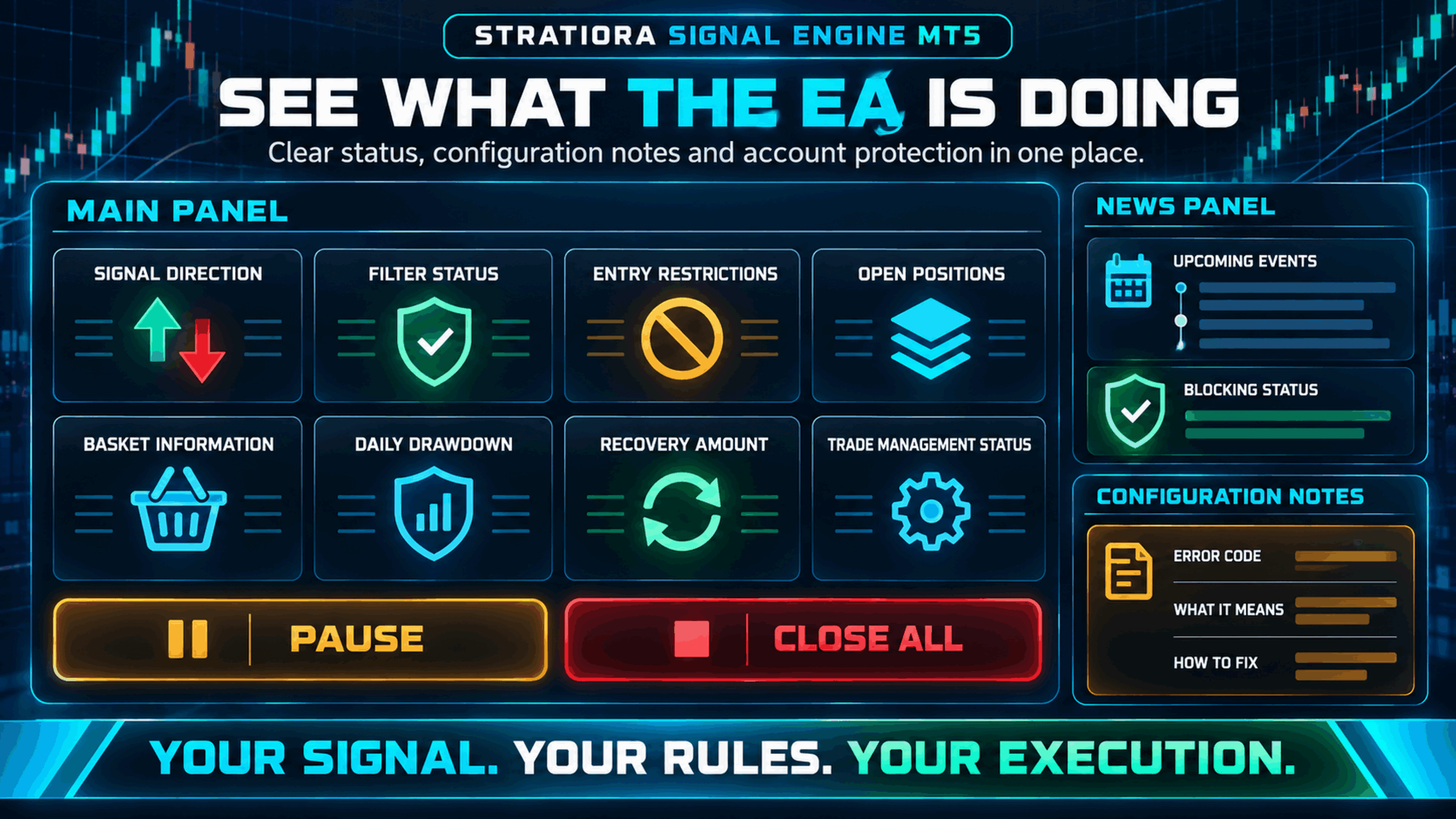
See what the EA is doing
The Main Panel brings together the information needed to understand the current state of the system:
- Signal and filter direction.
- Entry restrictions.
- Position and basket information.
- Daily drawdown.
- Recovery amount.
- Trade-management status.
- Pause and Close All controls.
The separate News Panel displays economic events on Demo and Live charts. Panel size, position, colors and font can be adjusted for different screens and VPS resolutions.
Stratiora also checks the configuration and displays notes or error codes when it finds missing paths, invalid periods, incompatible modes, invalid volume settings or another condition that should be corrected.
Strategy Tester and set files
Supported functions can be evaluated in MetaTrader 5 Strategy Tester. When a Custom Indicator is used, the indicator and all of its dependencies must be installed.
For the current testing workflow, a signal set file must use this exact location and name:
MQL5/Files/Tester/signal_set_file.set
The Custom Indicator filter uses:
MQL5/Files/Tester/filter_set_file.set
News functions are not available in Strategy Tester and must be checked separately on Demo.
A clear setup path
- Install Stratiora Signal Engine MT5 and the indicators you want to use.
- Attach the EA to the chosen symbol and timeframe.
- Select SuperTrend System, Volume-Trend Order Block or Custom Indicator.
- For a Custom Indicator, confirm its path, set file, buffers, comparison values and candle shifts.
- Choose volume, Stop Loss and Take Profit methods.
- Set lot, position, spread and daily drawdown limits.
- Enable only the filters and management modes required by your strategy.
- Correct every required configuration note displayed by the EA.
- Test supported functions in Strategy Tester.
- Test the complete workflow on a Demo account before live operation.
Symbols, timeframes and account size
Stratiora is not restricted to one market or timeframe. Compatibility depends on the indicator, the broker's symbol specifications and the chosen settings. Use a separate chart and a unique Magic Number for every configuration that must be managed independently.
There is no universal minimum deposit. Required capital depends on the symbol, contract size, leverage, Stop Loss, volume method, number of simultaneous positions and whether Grid, Add, Multiplier or Recovery is enabled. A small account requires correspondingly small exposure and may not support every symbol or broker minimum volume.
Is Stratiora right for you?
Stratiora is designed for traders who already have an indicator or trading idea and want a reusable execution engine around it.
It is especially useful if you want to:
- Automate a compatible indicator without ordering a separate EA for every setup.
- Combine one signal with several independent confirmations.
- Choose how volume, protection and exits are handled.
- Compare simple and advanced management approaches.
- Keep control of the indicator, settings and risk.
It is not a ready-made setting that guarantees a particular result. Stratiora provides the automation and management framework; the signal source and configuration determine how that framework behaves.
Risk notice
Risk warning: Trading Forex, metals, indices, cryptocurrencies and CFDs involves substantial risk. Losing trades, drawdown, price gaps, spread expansion, slippage and broker rejection are possible. Stop Loss, virtual protection, filters and drawdown controls cannot guarantee an exact maximum loss under every market and technical condition.
Historical testing does not guarantee future results. Use realistic broker conditions, begin with Demo, select conservative exposure and trade only with capital you can afford to risk.
Support
A complete user guide is provided to explain installation, signal buffers, set files, filters, trade management, error codes and feature compatibility.
If you need help with setup, Custom Indicator Buffer Analyzer, indicator compatibility or a configuration note, contact me through MQL5 private messages or the product comments section. Never publish account passwords or other private information.