Alpha Chart Customizer MT4
- Utilities
- Version: 3.100
- Activations: 5

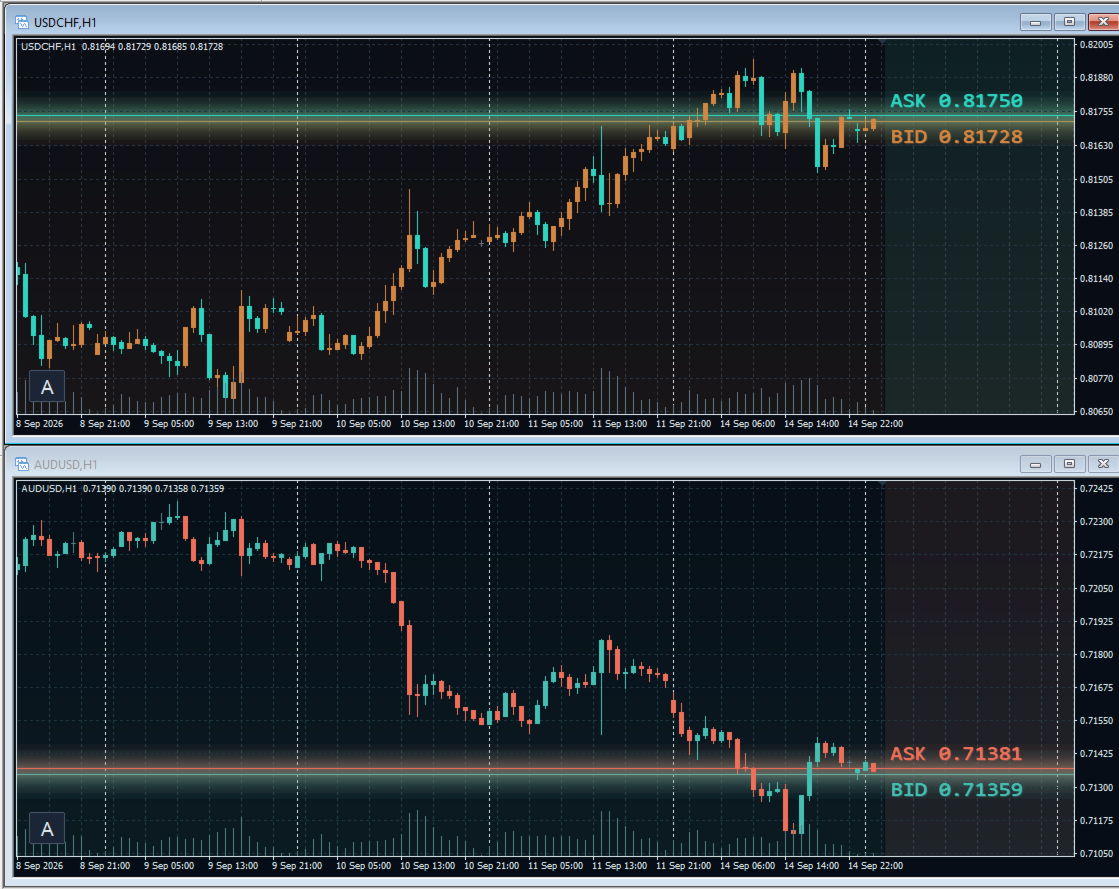
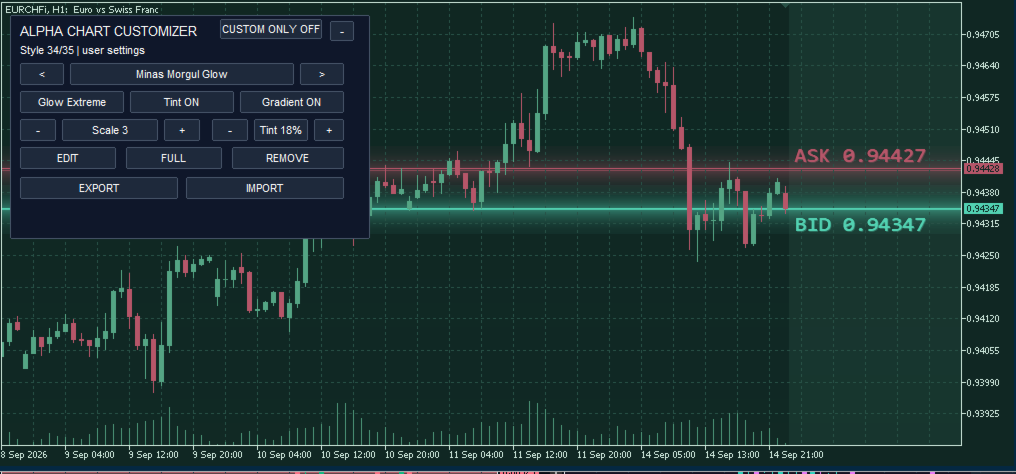
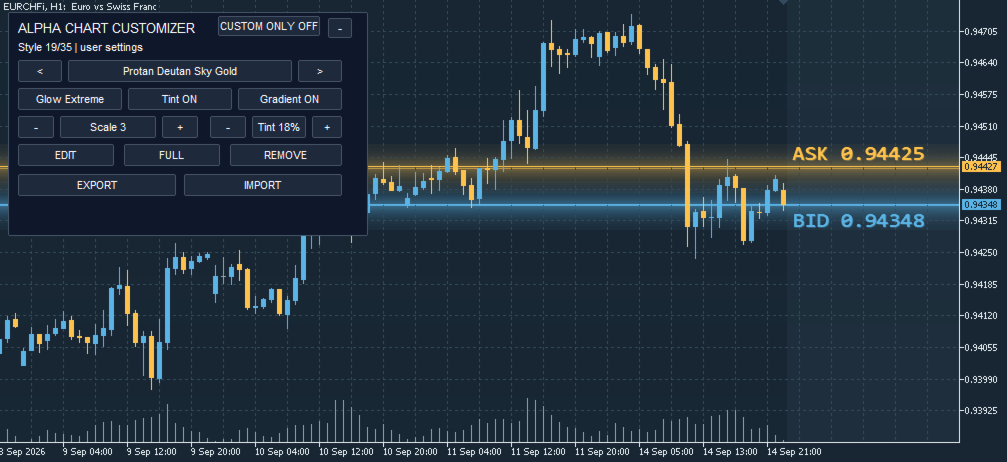
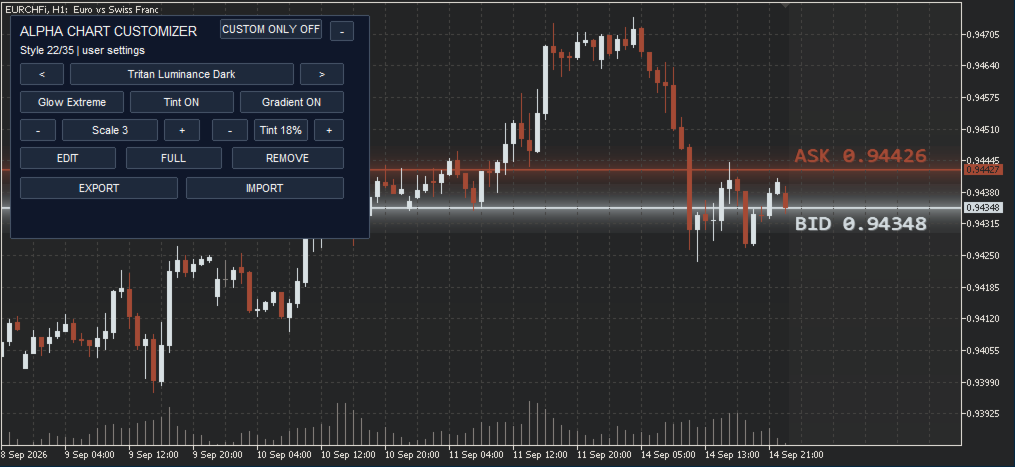
Alpha Chart Customizer transforms the appearance of your current MetaTrader chart and adds refined visual effects. Ready-made styles can be switched at any time, while your own styles can be created, saved as collections, and shared with other traders.
It is a great choice for anyone who appreciates good design and wants their trading workspace to feel personal rather than generic. Your chart is where you spend your trading day: create a look that is recognizably yours, give it a name, save it, and share it with your team, community, or friends.
The high-performance rendering module can draw at up to 2,000 frames per second and automatically adapts to the highest refresh rate available on your display.
First launch
1. Attach the indicator to any chart.
2. A compact button marked with α appears in the lower-left corner of the chart. This is the settings button. Click it to open the panel.
Control panel
Selecting a style
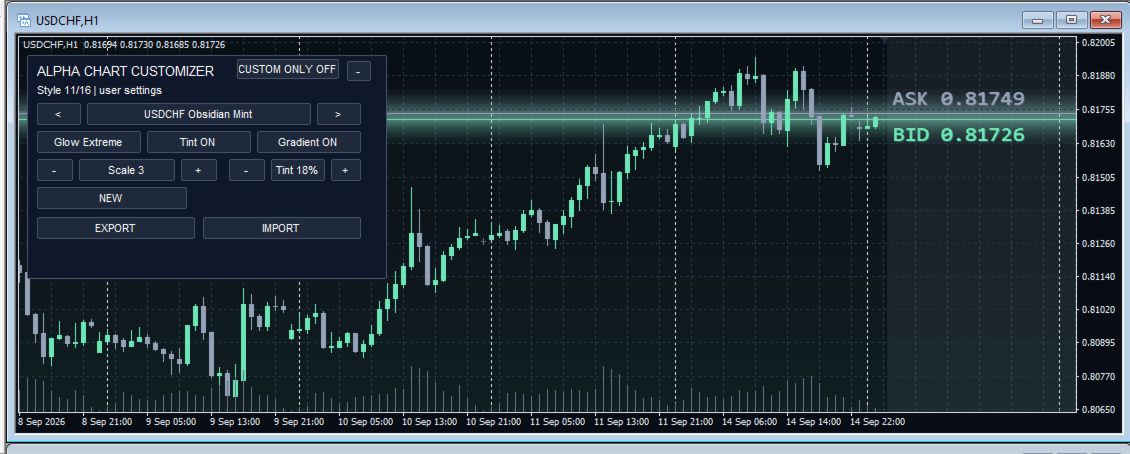
- The < and > buttons switch styles.
- The centre field shows the active style name.
- The Style 05/16 line shows the position of the current style and the number of styles available in the list.
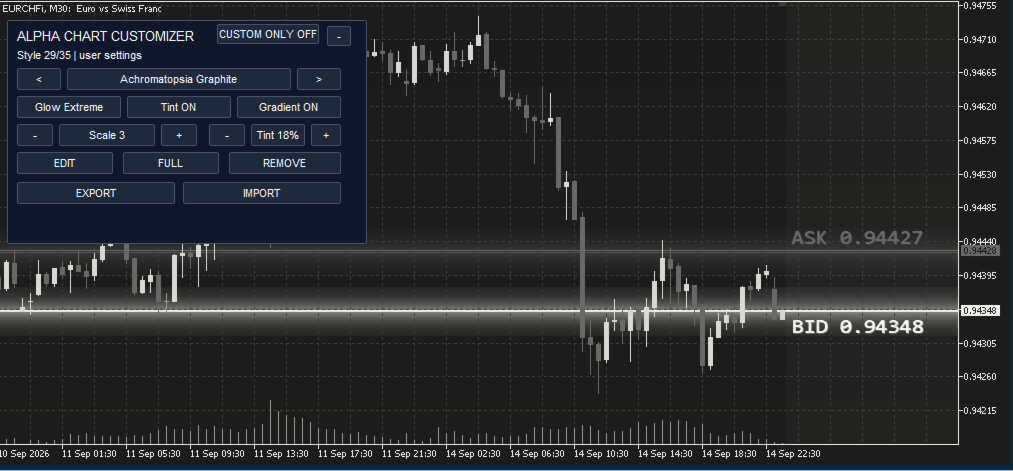
System styles are included with the product and, by default, apply to the chart where the indicator is attached. The standard collection includes 12 custom styles developed for the main currency pairs, one general style for other symbols, and two high-contrast styles for improved accessibility. Your own styles appear in the same list under the names you assign to them, for example User Defined #2.
CUSTOM ONLY ON / OFF
This button filters the style selector.
- OFF - system and custom styles are available.
- ON - only your custom styles remain in the selector.
This does not delete the built-in styles; it only hides them from the current list.
Collapse the panel
The - button in the upper-right corner collapses the panel into the α button in the lower-left corner. Click α again to restore the panel.
Visual effects
Effects change the chart presentation and are saved as interface settings.
- Glow - adds glow to Bid/Ask lines and visual accents. Repeated clicks cycle through Off, Normal, Strong, and Extreme.
- Tint - adds a coloured area to the right side of the chart. When enabled, it also sets the chart's right-side offset.
- Gradient - adds a subtle colour gradient over the background.
- Scale -/+ - changes the native MetaTrader chart scale from 0 to 5.
- Tint % -/+ - changes the width of the right-side tint and matching chart offset, from 10% to 40%.
Create your own theme
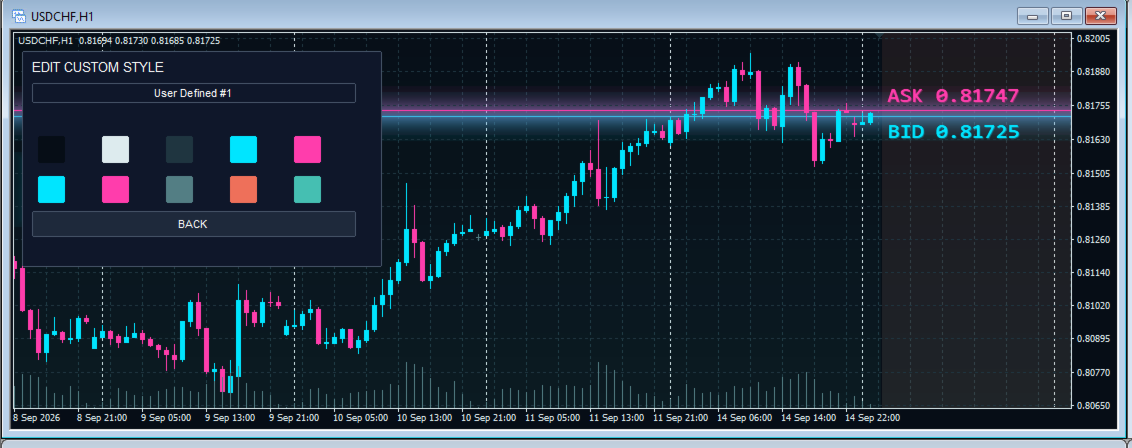
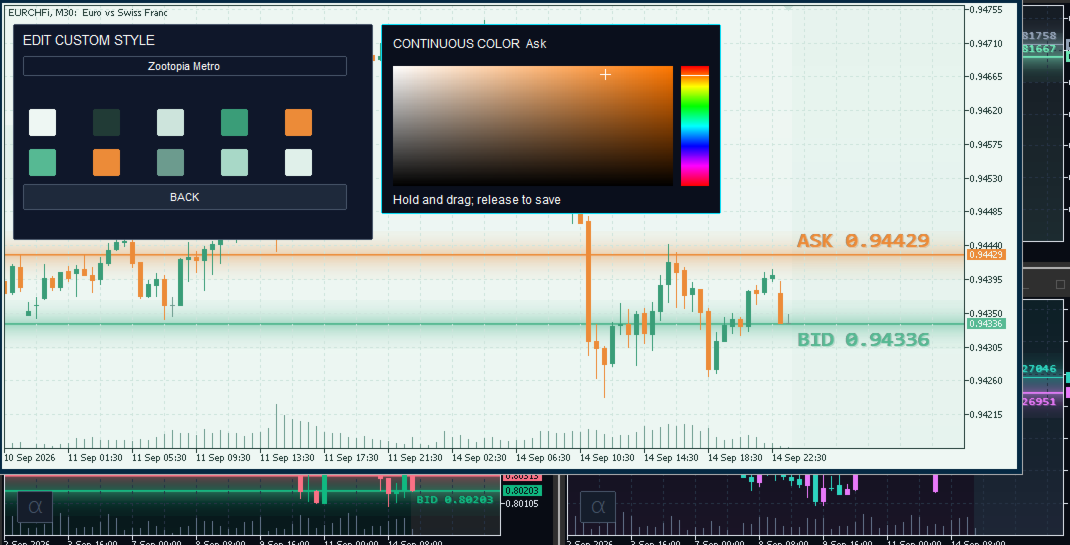
1. Click NEW. A new custom theme is created and the editor opens immediately.
2. Enter a theme name in the field at the top.
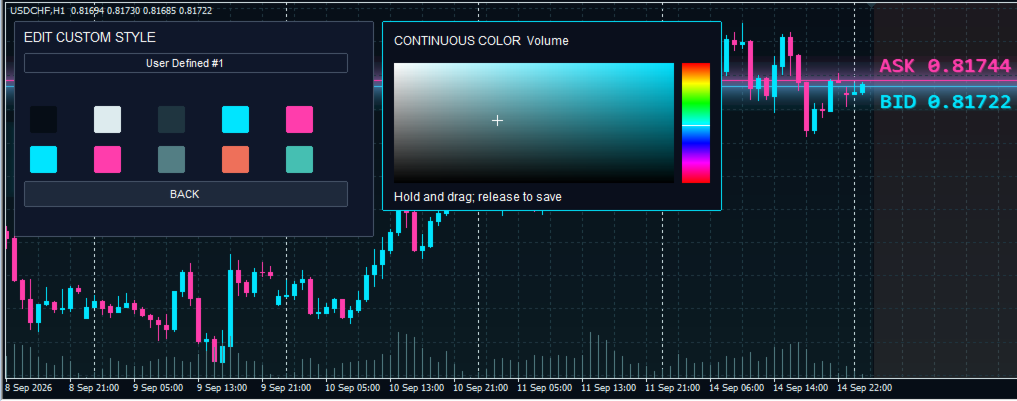
3. Click the colour swatch you want to edit.
4. In the colour picker, use the vertical rainbow strip to choose a hue and the large field to choose saturation and brightness.
5. Hold and drag the pointer; release it to save the selected colour.
6. Click BACK to return to the panel. Your theme name and colours are saved.
Changes appear on the chart immediately, so you can fine-tune a palette before leaving the editor. This makes it easy to create a high-contrast workspace, a quieter low-light theme, or a distinctive visual identity that is yours alone.
What the ten colour swatches mean
The swatches run left to right, first across the top row and then across the bottom row:
Background, text and scales, grid, bullish candle, bearish candle |
Bid line, Ask line, volumes, Tint, Gradient |
For readability, the indicator prevents bullish and bearish candles from being assigned the same colour.
Managing custom themes
When a custom theme is selected, additional controls are available:
- EDIT - open the editor for the selected theme;
- REMOVE - delete the selected custom theme;
- NEW - create the next custom theme.
You can keep up to 20 custom themes. When all slots are used, FULL appears instead of NEW. Remove an unneeded custom theme to free a slot.
Use it as a backup, move your visual workspace to another computer, or send it to someone else. Sharing a theme collection is a quick way to give a team or trading community a consistent visual language while still letting every trader make it their own.
Clicking YES replaces every custom theme with the themes from the selected file. Built-in styles are not affected. Click NO to cancel.
A practical workflow
1. Choose a ready-made style as a starting point.
2. Adjust Glow, Tint, Gradient, chart scale, and Tint width.
3. Click NEW and create your own variation in the editor.
4. Check it at your preferred scale and under both light and dark conditions.
- The indicator changes only the charts to which it is attached.
- It cannot change the appearance of Market Watch, Navigator, or Toolbox windows; this is a MetaTrader limitation.
- If the α button is not visible, make sure the indicator is running on the chart and that the panel is not covered by another window.
Import and export
EXPORT - enter a file name in the built-in indicator window, then click SAVE. The archive is created in Common\Files\ProjectA\AlphaChartCustomizer3\Themes.
IMPORT - confirm the replacement, enter the archive file name, then click LOAD. Place an external archive in Common\Files\ProjectA\AlphaChartCustomizer3\Themes before loading it.
Use the same steps to load a high-contrast or colour-vision profile.