ApexForge Trade Risk Manager
- Utilities
-
Po-hsiung Huang
 Founder and developer of ApexForge.
I develop practical trading tools for MetaTrader 5, focusing on usability, efficiency, stability, and low system resource usage. - Version: 1.34
- Updated: 14 September 2026
- Activations: 10
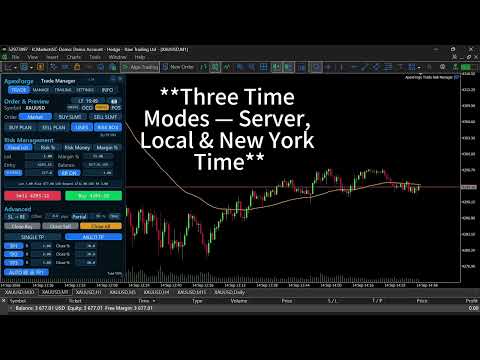
MT5 Trade Manager + Risk Manager + Visual Trade Planner + Order Manager + Position Manager
A visual trading workspace designed specifically for MetaTrader 5 manual traders.
From:
Trade Planning → Risk Calculation → Order Execution → Position Navigation → Partial Exits → Position Management → Final Close
Everything is integrated into one trading interface.
ApexForge does not provide trading signals, nor does it decide whether you should Buy or Sell.
The trader decides the direction.
ApexForge helps you execute your trading plan faster, understand your risk more clearly, and manage your positions more efficiently.
◆ PLAN — Plan First, Then Decide How to EnterAfter creating a BUY PLAN / SELL PLAN, you can visually plan directly on the chart:
Entry / SL / TP / Lot / Risk / Reward / RR
Without placing a real order, you can already see:
How much risk the trade would carry, the potential Reward, the RR, and whether the current setup complies with your own risk rules.
Entry Has Not Been Manually Moved
PLAN remains a Market Order.
Even if the market moves away from the original price while you are waiting, ApexForge will not automatically convert the plan into a Pending Order.
Entry Is Manually Moved by the Trader
ApexForge automatically determines the appropriate order type according to the Entry position relative to the current market price:
-
BUY: Buy Limit / Buy Stop
-
SELL: Sell Limit / Sell Stop
Originally planning to wait for a pullback, but later decide to trade a breakout instead?
Simply drag the Entry across the current market price.
There is no need to cancel the PLAN, manually select another pending order type, or configure SL / TP again.
◆ Smart Entry Bar — Trading Information Moves with the PricePLAN, SLMT, OCO, and position management use visual Entry Bars.
The Bar displays important trading information and operation buttons directly on the chart, automatically adjusting its length according to the displayed content.
To prevent the Entry Bar from covering the currently forming price action:
All Entry Bars are positioned by default so that the right edge of the longest Bar stays approximately 10 candles to the right of the current price.
Therefore, even if the Bar becomes longer because of Lot, price, or P/L information, it will not simply expand from its left edge and cover the active market area.
🔒 / 🔓 Entry Bar Lock
🔒 Locked
The Entry Bar remains fixed at the default 10-Bar visual position.
🔓 Unlocked
The Entry Bar can be freely dragged horizontally to match your preferred chart layout.
PLAN, SLMT, and OCO all use the same visual interaction logic.
◆ Visual Risk Box — Drag Entry / SL / TP DirectlyRisk Box turns trade setup from manual price entry into true chart-based interaction.
You can directly drag:
Entry / Stop Loss / Take Profit
Risk and Reward areas are displayed simultaneously.
Lot, Risk USD, Reward USD, RR, and other information are recalculated as the trade structure changes.
There is no need to return to the MT5 order window and re-enter prices every time you make an adjustment.
◆ Points SL / Structure SLStop Loss supports two primary methods.
POINTS
Set the Stop Loss using a fixed distance.
After changing SL Points, the trade structure and risk information are immediately recalculated according to the new setting.
STRUCTURE
Automatically build the Stop Loss according to recent market structure:
BUY → Nearest Valid Structure Low
SELL → Nearest Valid Structure High
A custom Structure Buffer can also be added.
Structure data is built during EA initialization and whenever the Symbol / Timeframe changes. After that, ApexForge mainly maintains newly formed structures instead of rescanning the entire chart every time the function is used.
◆ Four Independent Risk ProfilesApexForge provides four independent Risk Profiles:
Fixed Lot / Risk % / Risk Money / Margin %
Each mode stores its own settings, so switching between Risk Modes does not mean reconfiguring the entire trading panel.
Fixed Lot
Lot size is completely controlled by the trader.
ApexForge does not automatically change your Lot because of the calculated risk.
Instead, it tells you:
With this Lot and this SL, how much Risk are you actually taking?
Even when the SL/TP Risk Box is disabled, Fixed Lot can still be used as the most direct manual trading mode.
Risk %
This is not an Auto Lot Calculator.
For example:
Risk Limit = 5%
ApexForge calculates:
Current Open Position SL Risk + Estimated Risk of the New Trade
If adding the new trade would reach or exceed the configured limit, the new order is blocked.
You still decide the Lot. Risk Guard prevents you from exceeding the risk limit you defined.
Risk Money
The same concept as Risk %, but expressed directly as a monetary amount.
For example:
Risk Money Limit = USD 500
If current position risk + estimated new trade risk reaches or exceeds USD 500, the new trade is blocked.
Margin %
Controls the maximum total Margin usage of the account.
ApexForge calculates both the current Margin and the estimated Margin required by the new trade.
If the configured limit would be exceeded, the order is blocked.
This is also one of the key differences of the original Risk Guard concept:
ApexForge does not automatically increase your Lot until the available risk capacity is fully used. You decide the Lot, and the system protects the limit.
◆ Real-Time Risk StatusWhenever Lot, Entry, SL, TP, RR, or Risk Mode settings change, the risk status is recalculated accordingly.
If the current setup does not allow the trade:
The Lot field turns red immediately.
The information area also displays the reason why the trade is blocked, such as:
Risk Limit, Margin Limit, Broker Volume Restriction, Invalid SL, Multi TP Volume, and more.
It does not simply tell you that the order cannot be placed.
ApexForge tells you why.
◆ NATIVE Mode — One Click Back to Native Manual Tradingv1.34 introduces NATIVE Mode.
When you need completely manual operation, there is no need to disable Risk Box, RR, Structure, Multi TP, or other functions one by one.
When NATIVE is enabled:
ApexForge temporarily disables advanced risk control and automated trade-management interfaces while keeping the essential manual trading functions available.
You can still use:
Lot Settings, Market Buy / Sell, Close Buy / Close Sell / Close All, Compact Close, Time, Camera, and Main Page Navigation.
Advanced controls such as Risk / PLAN / SLMT / OCO / TP / BE / Trailing are temporarily disabled.
Turn NATIVE off again to return to the complete ApexForge workflow.
Use ApexForge when you want complete management.
Switch to Native with one click when you want pure manual control.
◆ Visual Stop Limit — SLMTSupports:
BUY SLMT / SELL SLMT
The Stop Trigger and Limit Entry can be dragged directly on the chart.
The SLMT Entry Bar also supports:
Default 10-Bar Positioning + 🔒 Locked / 🔓 Free Move
After configuration is complete, use Send to place the order.
Once the order has been sent, the interface automatically returns to Market Mode.
◆ Visual OCO — One Cancels the OtherPlan directly on the chart:
OCO Buy Entry + OCO Sell Entry
Both Entry levels can be visually dragged and use the same Entry Bar positioning and locking logic.
When one side is executed, ApexForge manages the cancellation of the pending order on the opposite side.
If Broker or network latency prevents the other leg from being cancelled immediately, OCO management enters a retry process.
The checking frequency is temporarily increased only when cancellation needs to be handled. Once completed, management returns to its normal low-frequency state.
◆ Single TP / Multi TP — TP1 / TP2 / TP3Single TP
Traditional single Take Profit.
Multi TP
Supports:
TP1 / TP2 / TP3
For example:
TP1 = 30%
TP2 = 30%
TP3 = 40%
Multi TP uses Virtual TP Management.
The next stage becomes active only after the current stage has been completed:
TP1 → TP2 → TP3
The chart does not need to display three separate sets of actively managed TP Bars at the same time.
After TP1 is completed, management switches to TP2. After TP2 is completed, it switches to TP3.
◆ Multi-Position TP ManagementWhen only one Position exists within the current management scope:
Multi TP performs partial exits based on that individual Position.
When multiple matching Positions exist:
ApexForge treats them as one combined position for management purposes.
TP1 / TP2 / TP3 do not create three duplicated target sets for every individual Position.
Instead, all matching Positions are managed under one combined Multi TP plan.
This allows traders using multiple entries to maintain one clear exit structure:
TP1 → TP2 → TP3
◆ AUTO BE @ TP1Multi TP can be combined with:
AUTO BE @ TP1
After TP1 is completed, the remaining Position can automatically enter Break Even management.
This creates a complete staged exit process:
TP1 Partial Profit → BE Protection → TP2 → TP3
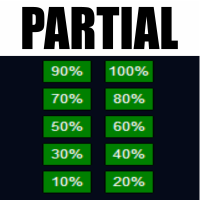
◆ Partial Close — Single Position / Combined Multi-Position ManagementIn v1.34, Partial Close determines how to execute according to the current position structure.
Only One Position
The Position is partially closed directly according to the configured percentage.
Multiple Positions
ApexForge no longer applies the percentage separately to every Position.
Instead, it first calculates:
The total volume of all matching Positions
Then calculates the total Lot to be closed according to the configured Partial %.
For example:
0.10 + 0.20 + 0.30 = 0.60 Lot
Partial = 50%
→ Total volume closed this time = 0.30 Lot
Instead of closing 50% of each of the three Positions individually.
Broker Minimum Volume and Volume Step are also taken into account to avoid invalid partial-close volumes or invalid remaining position sizes.
◆ POS — Position NavigatorPLAN manages trades that have not entered the market yet.
POS manages trades that are already open.
Open POS to select a current Position.
Once selected, ApexForge reads the trade's:
Entry / SL / TP
and links the information with the Risk Box.
Even if the SL or TP is outside the currently visible chart range, ApexForge can retrieve the actual trade structure that needs to be managed.
After locating the Position, SL / TP can be modified directly from the chart.
The original product concept remains unchanged:
PLAN manages trades before entry. POS manages trades after entry.
◆ Break Even / Partial / TrailingAfter execution, you can continue managing the trade with:
Break Even
BE Offset
Partial Close
Trailing Stop
Trailing Distance
Trailing Step
Trailing Stop submits a new SL modification only when the new SL actually satisfies the configured Step condition, avoiding unnecessary trade modifications caused by every minor price movement.
◆ Close Buy / Close Sell / Close AllQuick position exit controls are provided:
Close Buy — BUY Positions
Close Sell — SELL Positions
Close All — All Positions within the current management scope
When there are no Positions in the corresponding direction, the button remains in a low-visibility state.
The corresponding directional state is displayed only when matching Positions exist.
◆ Compact ModeThe full panel can be minimized with one click.
Core trading functions remain available in Compact Mode, so you do not need to reopen the entire panel just for quick entries or exits.
Expand the panel again whenever you need PLAN, Risk, Multi TP, SLMT, OCO, or complete settings.
The interface gets smaller. Your trading efficiency does not.
◆ Event-Driven / Lightweight DesignApexForge is designed to remain attached to trading charts for extended periods, so background performance is an important part of its architecture.
The UI and trading state are designed around:
Cache / Dirty Flag / In-place Update / Trade Event
Calculations and UI elements are updated only when values or states actually change.
Structure data is mainly built during initialization and when the Symbol / Timeframe changes, after which newly formed data is maintained incrementally.
OCO temporarily increases its checking frequency only when the sibling order needs to be cancelled.
Update only when an update is needed.
Use high-frequency checking only when high-frequency checking is temporarily required.
◆ Settings and Trade State PersistenceApexForge saves settings and trade-management data that need to survive restarts, including:
Four Risk Profiles, Trading Parameters, Mode Settings, Multi TP Plans, OCO Management State, and more.
After MT5 / EA restarts, ApexForge can reload the management state required to continue managing active trades.
Multi TP also retains the original Persistence Safety design:
Plans that require continued management are saved. If a temporary file-writing problem occurs, existing in-memory management will not immediately stop simply because persistence failed.
◆ Market Means MarketThe primary ApexForge:
BUY / SELL
buttons always mean:
Market Buy / Market Sell
PLAN has its own Send button.
SLMT has its own Send button.
OCO has its own Send button.
The purpose of the main BUY / SELL buttons does not suddenly change just because another trading mode is currently active.
Market means Market.
Who Is ApexForge For?ApexForge is designed for manual traders who already have their own trading logic but want to improve their execution workflow.
If you want to:
-
Drag Entry / SL / TP directly on the chart
-
Quickly switch a trading plan between Market / Limit / Stop
-
Know Risk / Reward / RR / Margin before placing an order
-
Decide your own Lot while enforcing account Risk / Margin limits
-
Use Structure Stop Loss
-
Use Stop Limit / OCO
-
Use TP1 / TP2 / TP3 for staged exits
-
Manage Partial Close / Multi TP across multiple Positions as a combined position
-
Automatically move to BE after TP1
-
Quickly locate existing Positions and modify SL / TP directly
-
Manage positions with Partial / BE / Trailing
-
Switch back to pure manual trading with NATIVE Mode whenever needed
-
Quickly Close Buy / Sell / All
This is the workflow ApexForge Trade Risk Manager is built for.
Important InformationApexForge Trade Risk Manager is designed for MetaTrader 5 and provides corresponding management logic for both Netting / Hedging Accounts.
Actual availability and behavior of Order Types, Minimum Volume, Volume Step, Stop Level, Freeze Level, Filling Mode, Tick Size, Tick Value, Margin Requirement, and other trading specifications depend on the Broker, Account, and Symbol Specification.
Spread, Slippage, actual execution price, and execution speed are determined by market conditions, the Broker, and the trading-server environment.
EA-managed functions such as Virtual TP / Multi TP / OCO require MT5, the EA, and the network connection to remain operational for continued management.
Native Pending Orders, SL, and TP that have already been submitted to the Broker Server are executed according to the Broker / MT5 Server's native rules.
This is consistent with the compatibility and risk disclosures of the original product design.
Before using ApexForge on a Live Account, it is recommended to test the required functions and Broker compatibility on a Demo Account first.
ApexForge is a trade execution, risk control, and position management tool.
It does not provide trading signals, investment advice, or profit guarantees.
ApexForge Trade Risk Manager
Visual Planning · Risk First · Direct Dragging · Fast Execution
PLAN — Plan your next trade
Risk Guard — Protect your account risk limits
NATIVE — Return to pure manual trading with one click
POS — Locate and manage existing Positions
Multi TP — Manage staged exits
Partial — Single-position partial close or combined multi-position management
Manage the entire process — from “Where do I want to enter?” to “Where do I finally exit?”