VibeFox Trend Color
- Indicators
- Version: 1.10
- Updated: 2 July 2026
- Activations: 5

VibeFox Trend Color — candle recolor trend indicator with Color Flip entry signals
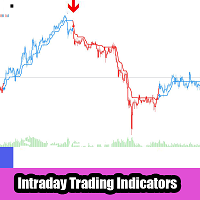
VibeFox Trend Color is a MetaTrader 5 indicator that recolors every price candle in real time according to the current trend direction and marks the exact bar where the trend reverses. Instead of overlaying a separate line you are not sure how to read, you see the market story written in the candles themselves: each bar carries a clear bullish or bearish color that updates tick by tick, and a marker appears the moment the color changes.
How Trend Color recolors candles
The algorithm is built around a single comparison. For each bar it calculates the simple moving average of the midpoint (hl2) over the last CompareBars bars and compares the current close against that reference. When the close is above the SMA reference, the candle is painted the bullish color; when it falls below, the candle is painted the bearish color. The midpoint average smooths out short-term noise so brief wicks do not flip the color on their own — only a decisive close beyond the SMA line changes the verdict.
The result is a continuous color histogram of the trend: stretches of one color mean the price is holding its direction, while an isolated candle of the opposite color often signals a stall or an early reversal. No secondary subwindow is needed because the trend label is embedded in the candle itself.
CompareBars vs SMA period
The CompareBars parameter is both the look-back for the reference average and the sensitivity control of the indicator. A smaller value reacts quickly and produces more frequent color flips; a larger value smooths the signal and keeps the color stable through minor corrections. The default value of 6 balances responsiveness and noise resistance on most timeframes and liquid symbols.
Entry points — Color Flip
The primary entry signal is the Color Flip: the first candle that carries a different color than the previous bar. When the candle turns bullish after one or more bearish bars, a BUY marker is placed at the low. When the candle turns bearish after bullish bars, a SELL marker is placed at the high. The Color Flip toggle on the panel enables or disables this layer independently of the candle recoloring itself, so you can study the color pattern first and add the markers only when you are ready to act on them.
Multi-timeframe support is built in: setting the TF parameter to a higher timeframe makes the indicator compute trend direction on that timeframe and paint the chart-timeframe candles with the result. You can trade the fast chart while filtering by the higher-timeframe bias.
Visual
All colors are freely adjustable. The Bull picker sets the color of bullish candles and the Bear picker sets bearish candles — any combination works, from a classic blue-and-red scheme to a subtle grayscale. The Buy and Sell marker colors are set independently and default to the same hues as the candles so the markers feel part of the same visual language. Marker Size scales the entry arrow from 1 to 5 pixels to suit chart density and resolution.
Interactive on-chart panel
Every parameter is accessible from the panel without reopening the Inputs dialog. The panel is a canvas-based overlay that sits directly on the chart window. It holds trend parameters, visual controls and the entry block in compact rows, and opens the Settings section for panel appearance and notification channels with one icon click.
Power — toggles all drawing on and off without removing the indicator from the chart, so you can blank the picture between sessions and resume with the same settings.
Settings (gear) — opens and closes the settings section where panel appearance, notification channels and bar count are configured.
Updown (arrows) — moves the panel between the main chart window and a subwindow. The recolored candles always stay on the chart regardless of where the panel is docked.
Close (cross) — removes the indicator from the chart cleanly.
Resizable — drag the bottom-right corner to widen or narrow the panel.
Collapsible — double-click the header to fold the panel into a compact strip that stays out of the way; double-click again to restore it.
Mouse wheel — hover the cursor over any numeric input field and scroll to change the value immediately without using the keyboard.
Right-click a tab — where tab controls are present, right-clicking toggles the active state.
Settings and personalization
The Settings section, opened from the gear icon, adjusts the panel itself rather than the indicator logic. Choose a Theme — Auto follows the chart background, Dark and Light are fixed. Set the panel Width and the Row height to fit your screen. Header size, Font size, Hide Footer and Mini Header let you trim the panel to a minimal footprint on small screens. Close outside collapses the panel automatically when you click anywhere on the chart, which is convenient if you use the chart for manual entry. The Bars counter sets how many historical bars are recolored on each pass, and Refresh sets an automatic recalculation interval in seconds for situations where tick flow is sparse.
Entry notifications
Each Color Flip signal can fire one or more notification channels enabled independently on the panel.
Alert — a pop-up message inside the terminal at the moment the signal appears.
Push — a mobile push notification to the MetaTrader app on your phone.
Email — a letter sent through the terminal's mail settings.
Telegram — the signal text together with a chart screenshot delivered to your Telegram chat. Set the bot token and chat id in the Inputs tab.
Visual history — HTML report
Enable the Html channel and every Color Flip signal is written to an HTML file together with a screenshot of the chart at the moment the signal fired. Open the file in any browser to review the full visual history of what the indicator detected. A trash icon on the panel clears the report and its screenshots folder when you want to start a fresh log.
The report is saved to MQL5/Files/VibeFox_TrendColor/result.html inside the terminal data folder.
Built-in multilingual help
A full help page is built into the Settings section of the panel, available in 10 languages: English, Russian, German, French, Spanish, Italian, Portuguese, Chinese, Japanese and Korean. Click the language button to display the help text directly on the chart as a Comment overlay; click the same button again to hide it.
Parameters (Inputs tab)
Most settings can be changed live on the panel — the input parameters only set the starting values at startup.
Trend
CompareBars — length of the SMA(hl2) reference used for candle recoloring, range 1..200. Default: 6.
MTF Timeframe — timeframe for the trend calculation; Current means the chart timeframe. Default: Current.
Visual
Bull color — color of bullish (uptrend) candles. Default: DodgerBlue.
Bear color — color of bearish (downtrend) candles. Default: Tomato.
Entry Points
Entry on Color Flip — enables Color Flip entry markers; bullish flip = BUY, bearish flip = SELL. Default: off.
Marker Size (1-5) — size of the entry marker arrow on the chart. Default: 2.
Buy Marker Color — color of the BUY entry marker. Default: DodgerBlue.
Sell Marker Color — color of the SELL entry marker. Default: Tomato.
Notifications
Push Notification — push notification to the mobile MetaTrader terminal. Default: off.
Alert Popup — Alert pop-up inside the terminal. Default: off.
Email — email through the terminal's mail settings. Default: off.
Html — saves each signal with a chart screenshot to MQL5/Files/VibeFox_TrendColor/result.html. Default: off.
Telegram — sends each signal to your Telegram chat via the HTML report opened in a browser. Default: off.
Telegram bot token — token of your Telegram bot.
Telegram chat id — id of the Telegram chat that receives signals.
Panel / Settings
Panel width, px — panel width in pixels, range 300..800. Default: 800.
Header size — header size, range 1..6. Default: 1.
Theme — color theme: Auto (follows chart background), Dark or Light. Default: Auto.
Row height (px) — panel row height in pixels. Default: 34.
Font size — panel font size. Default: 8.
Hide Footer — hide the panel footer bar. Default: off.
Mini Header on collapse — show a compact header when the panel is collapsed. Default: off.
Close on click outside — collapse the panel when clicking outside it. Default: off.
Instance — indicator copy number; set a unique value per copy to run multiple instances on one chart. Default: 1.