VibeFox Half Trend
- Indicators
- Version: 1.10
- Updated: 2 July 2026
- Activations: 5

VibeFox HalfTrend
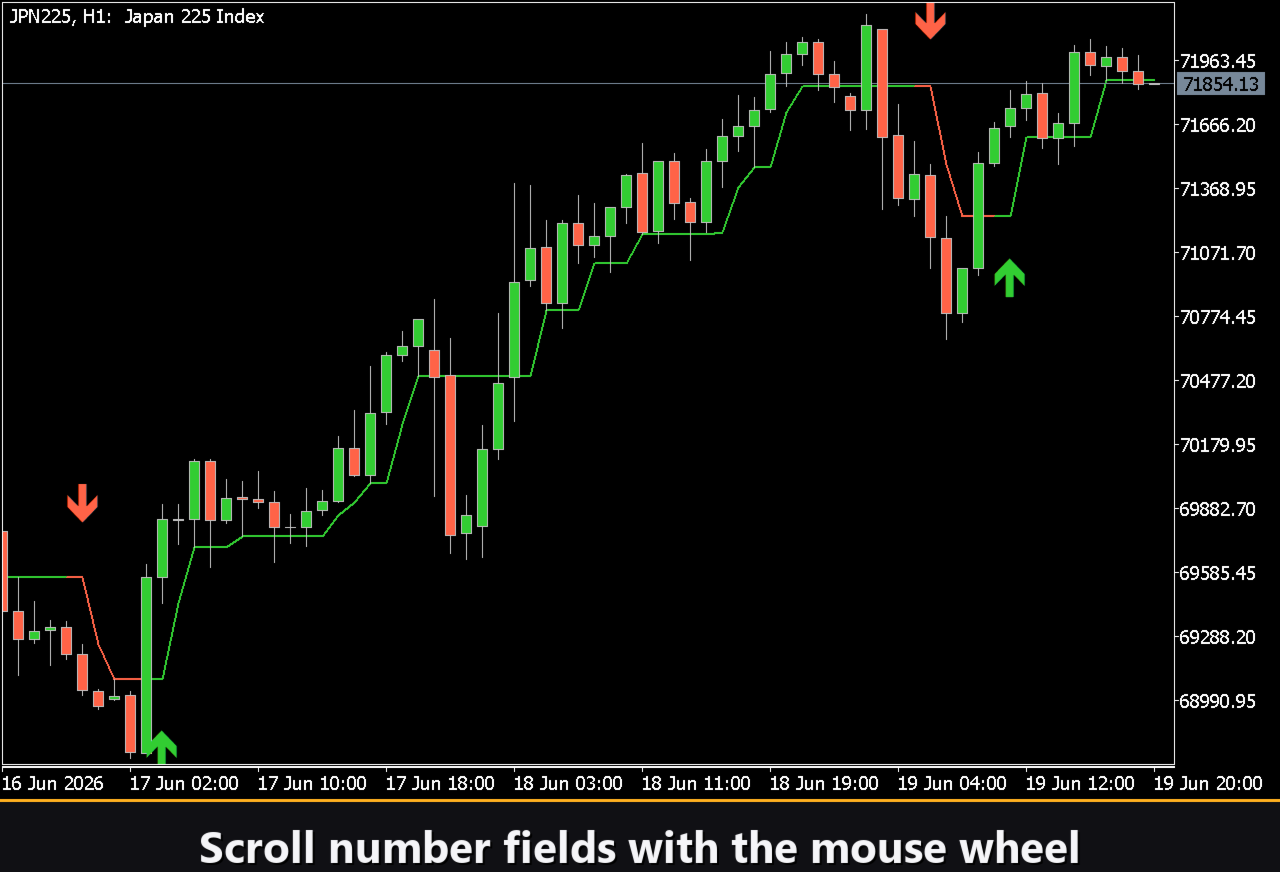
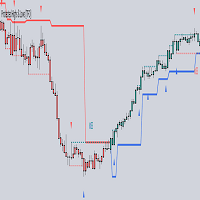
VibeFox HalfTrend is a trend-following overlay indicator for MetaTrader 5. It draws a stepped trend line directly on the price chart, switches color when the trend flips, and places a clear arrow marker at each reversal point. An optional ATR channel shows the current volatility envelope. All controls are gathered into an interactive canvas panel that stays on the chart while you work.
How It Works
The HalfTrend algorithm computes the highest high and the lowest low over the Amplitude period and tracks a stepped reference level. As soon as price closes clearly above or below this reference level, the trend direction flips. An ATR value with a configurable ATR Channel Deviation multiplier defines an upper and a lower band — the line must break through the band before a flip is confirmed, which filters out small choppy moves.
The result is a stable stepped line that hugs price during a trend and flips only when the move has real momentum. Because the calculation uses only price-based math and a fixed ATR period, the line reacts quickly on lower timeframes but gives its cleanest signals on H4 and above.
A multi-timeframe mode (MTF Timeframe) lets you compute the HalfTrend on a higher period and display it on the current chart, so you can trade a lower timeframe while following the structure of the higher one.
Visual Elements
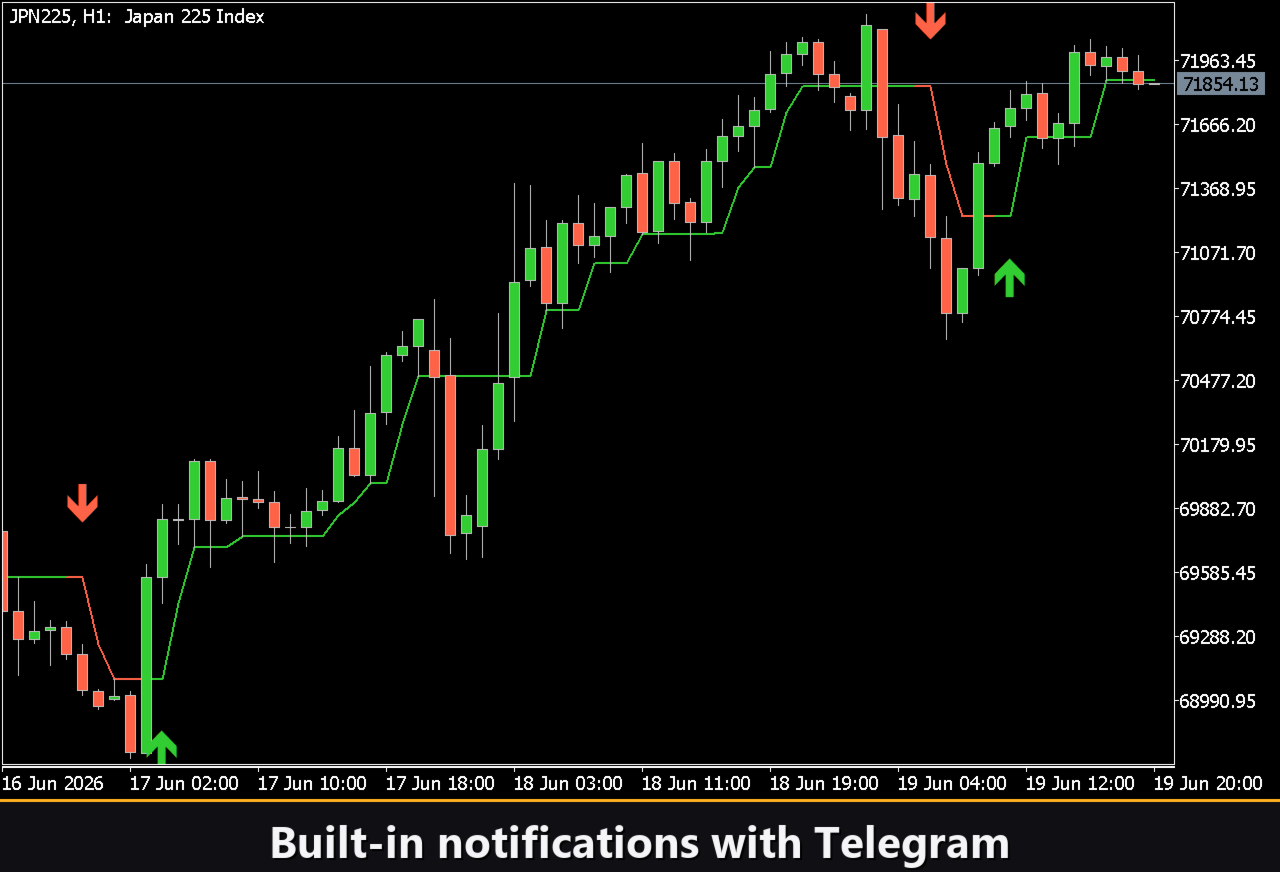
The main element is the HalfTrend stepped line drawn directly on the price chart. It uses one color for an up trend and another for a down trend, each with an independent transparency setting. The line thickness is adjustable.
Reversal arrows appear at the bar where the trend changes, giving a clear visual reference for each flip. They are optional and can be hidden via the Reversal arrows toggle.
The optional ATR channel draws two bands around the line — one above and one below — to show the volatility envelope used internally in the trend calculation. Toggling Show Channel reveals or hides both bands at once.
Entry Points
Trend Flip Signal
Enable Entry on Trend Change to mark every trend flip with a BUY or SELL arrow on the price chart. A BUY marker appears when HalfTrend flips from down to up; a SELL marker appears when it flips from up to down. The marker color, size and position are all configurable.
Recommended Timeframes
The signal quality improves significantly on higher timeframes. On H4 and higher the line flips less frequently but with stronger confirmation, making it well suited for swing trading and position trading. On lower timeframes additional filtering is advisable.
Interactive Panel
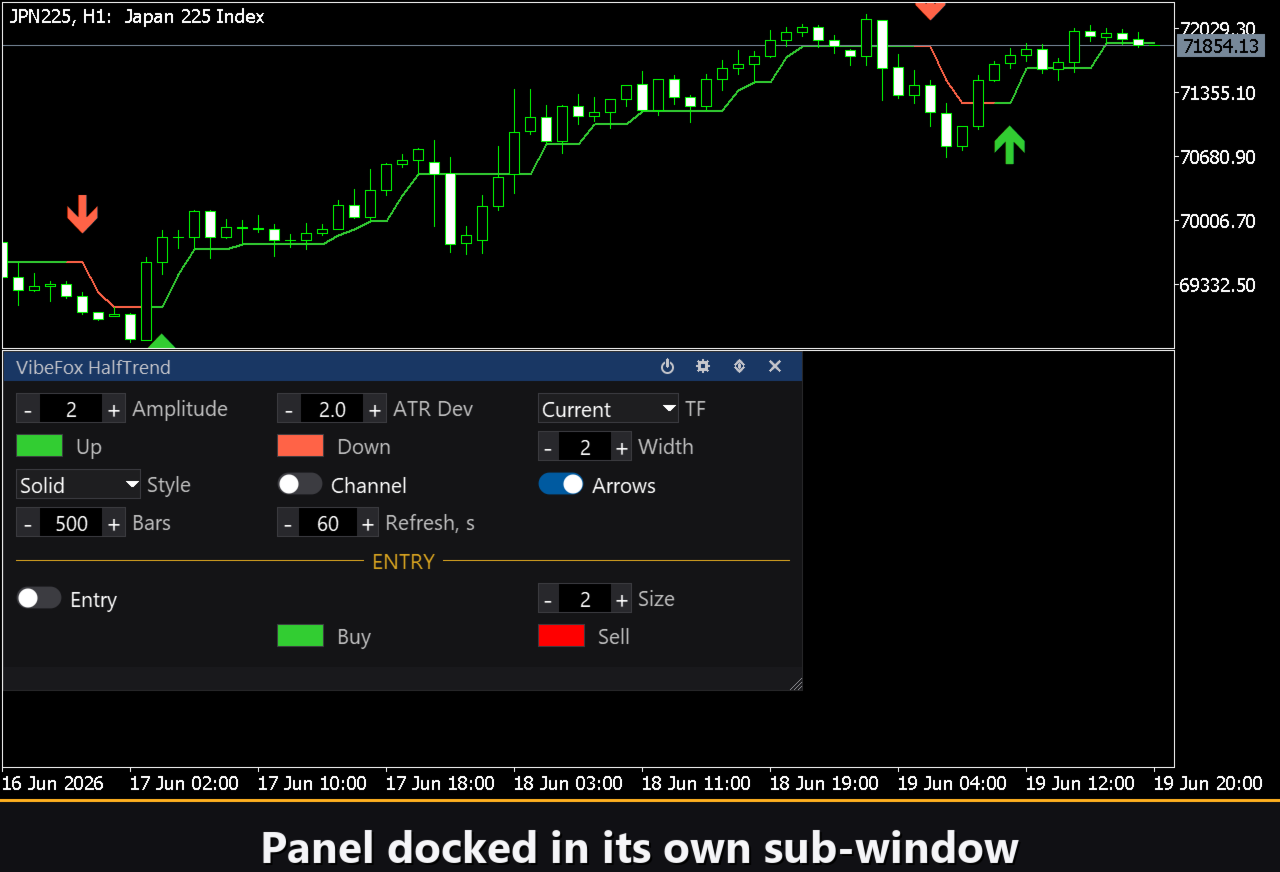
The entire interface is a smooth canvas-based panel that overlays the chart. All parameters are organized into compact rows in the main view. The Settings section (gear icon) opens an additional scrollable section where every parameter can be changed live without reopening the inputs dialog.
Power — toggles drawing on and off without removing the indicator from the chart.
Settings (gear) — opens and closes the settings section.
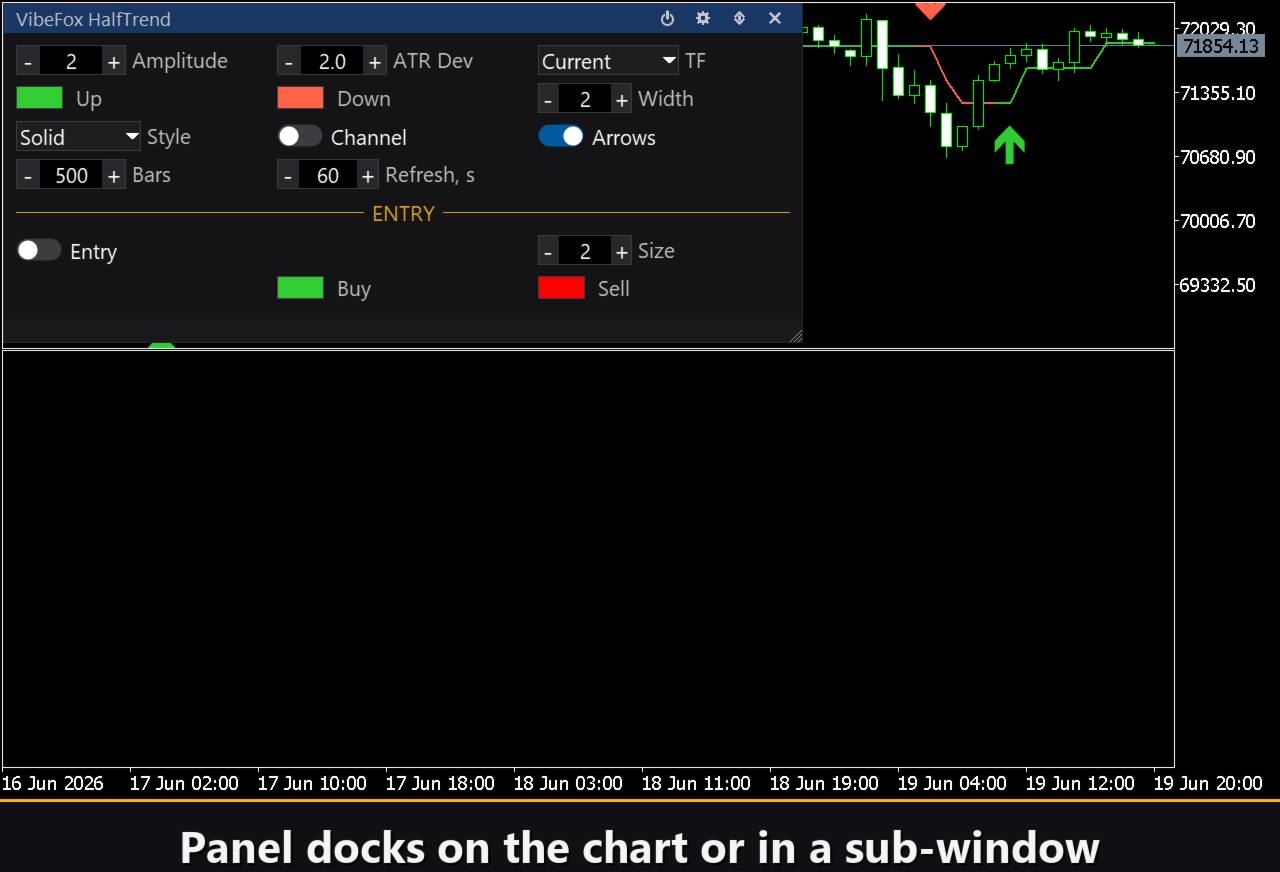
Arrows (up/down) — moves the panel between the separate subwindow and the main chart area.
Close (X) — removes the indicator from the chart.
Resizable — drag the right or bottom edge to scale the panel to any size.
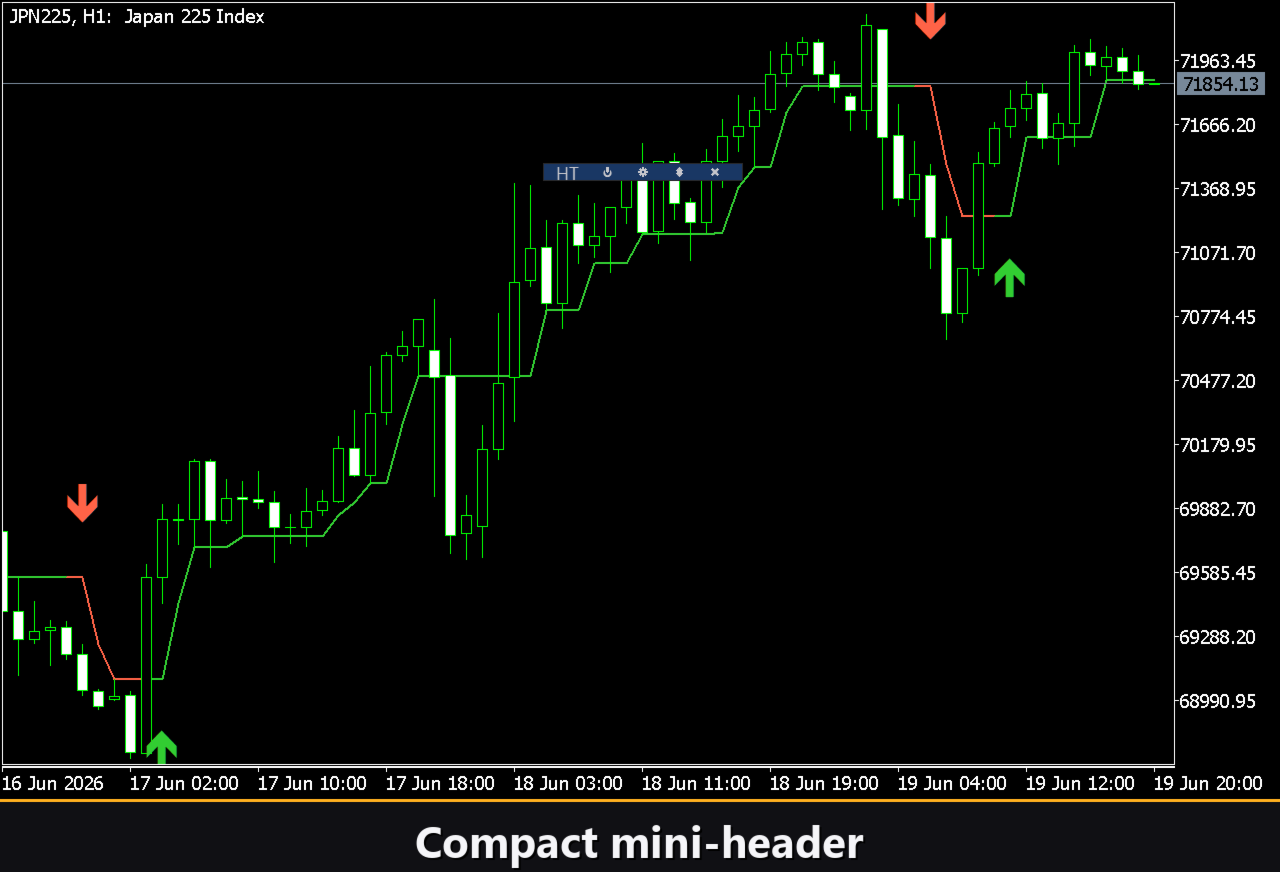
Collapsible — a double-click on the header collapses the panel into a compact strip. Double-click again to expand.
Mouse wheel — hover over any numeric field and scroll to change the value without using the keyboard.
Settings and Personalization
Opening the Settings section exposes the full parameter set. The panel style — light, dark or auto — adjusts automatically to your chart theme when set to Auto. You can tune the panel width, header size, row height and font size to fit your workspace. Hide Footer removes the status bar, and Mini Header shrinks the title strip when the panel is collapsed. Close on click outside collapses the panel automatically when you click elsewhere on the chart.
Multiple independent instances can run on the same chart simultaneously. Give each copy a different Instance number to avoid name conflicts.
Notifications
Every entry signal can be delivered through several channels that are enabled independently directly from the panel, without reopening the inputs dialog.
Alert — a pop-up message window inside the MetaTrader terminal.
Push — a mobile push notification to the MetaTrader app on your phone.
Email — a letter sent through the terminal's built-in mail settings.
All three channels fire at the moment the signal bar closes. You can enable any combination at once.
Result HTML
Enable the Html channel and every entry signal is written to an HTML report together with a screenshot of the chart at the moment the signal appeared. The report is stored in the MetaTrader Files folder inside the VibeFox_HalfTrend directory and opens in any web browser. A trash icon on the panel clears the report and its screenshots folder when you want to start a fresh log.
Telegram Alerts
Signals can be delivered to your Telegram chat — the alert text together with a chart screenshot. Enable the Telegram channel and set your bot token and chat id in the input parameters. Delivery is performed by the HTML report opened in a browser, so enabling Telegram also keeps the Html channel active. No MetaTrader URL whitelist is required because the browser handles the sending.
Built-in Help in 10 Languages
A full help page is embedded in the panel and available in 10 languages — English, Russian, German, French, Spanish, Italian, Portuguese, Chinese, Japanese and Korean. Click the language button in the Settings section to display the help text directly on the chart.
Full Input Reference
Trend
Amplitude — ATR period for the HalfTrend trend calculation. Controls how many bars are used for the highest-high and lowest-low reference. Default: 2. Range: 1-50.
ATR Channel Deviation — multiplier applied to the ATR value to define the channel band width. A higher value requires a larger price move to confirm a trend flip. Default: 2.0. Range: 0.1-10.0.
Show Channel — show or hide the upper and lower ATR channel bands on the price chart. Default: off.
MTF Timeframe — compute HalfTrend on this timeframe and display the result on the current chart. Set to Current to follow the chart timeframe. Default: Current.
Visual
Up Color — color of the HalfTrend stepped line during an up trend. Default: LimeGreen.
Up Transparency % — transparency of the up-trend line, 0 = fully opaque, 100 = invisible. Default: 0.
Down Color — color of the HalfTrend stepped line during a down trend. Default: Tomato.
Down Transparency % — transparency of the down-trend line, 0 = fully opaque. Default: 0.
Line Width (1-10) — thickness of the HalfTrend line in pixels. Default: 2.
Reversal arrows — show or hide the directional arrow at each trend flip point. Default: on.
Entry Points
Entry on Trend Change (flip up=BUY, down=SELL) — place a BUY or SELL marker on the price chart at every HalfTrend flip. Default: off.
Marker Size (1-5) — size of the entry arrow drawn on the chart. Default: 2.
Buy Marker Color — color of the BUY entry marker arrow. Default: LimeGreen.
Sell Marker Color — color of the SELL entry marker arrow. Default: Red.
Notifications
Push Notification — send a push notification to the MetaTrader mobile app on each entry signal. Default: off.
Alert Popup — show an Alert dialog inside the terminal on each entry signal. Default: off.
Email — send an email via the terminal's mail settings on each entry signal. Default: off.
Html — save each signal with a chart screenshot to the HTML report. Default: off.
Telegram (send from result.html via JS) — forward each signal with a screenshot to your Telegram chat. Requires Html to be on. Default: off.
Telegram - bot token — the token of your Telegram bot used for sending messages.
Telegram - chat id — the id of the Telegram chat that receives the signals.
Panel / Settings
Panel width, px (300..800) — width of the panel in pixels. Default: 800.
Header size (1..6) — height of the panel header bar. Default: 1.
Theme — color theme: Auto (follows chart background), Dark or Light. Default: Auto.
Row height (px) — height of each row in the panel in pixels. Default: 34.
Font size — font size used throughout the panel. Default: 8.
Hide Footer — hide the status bar at the bottom of the panel. Default: off.
Mini Header on collapse — show a compact header strip when the panel is collapsed. Default: off.
Close on click outside — automatically collapse the panel when you click outside it. Default: off.
Instance (unique per copy: 1,2,3...) — unique number for each indicator copy on the same chart. Prevents naming conflicts when running multiple instances. Default: 1.
Panel Start Window — where the panel appears at startup: Subwindow (the indicator's own subwindow) or Chart (the main price chart). Default: Subwindow.