VibeFox Smart M
- Indicators
- Version: 1.20
- Updated: 2 July 2026
- Activations: 10

VibeFox SmartMoney — Smart Money Concepts Toolkit
VibeFox SmartMoney is a real-time Smart Money Concepts indicator for MetaTrader 5. It reads market structure the way institutional price-action traders do and draws everything that matters directly on your chart through a modern, interactive panel. Instead of hunting for swings, gaps and zones by hand, you see structure breaks, order blocks, imbalances, liquidity and ready-to-watch entry zones the moment they form.
Everything is built around one idea: turn the full SMC workflow into a single, configurable tool that stays in sync with the live market on any symbol and any timeframe.
Market Structure — BOS and CHoCH
The core of any Smart Money read is structure, and VibeFox SmartMoney maps it automatically.
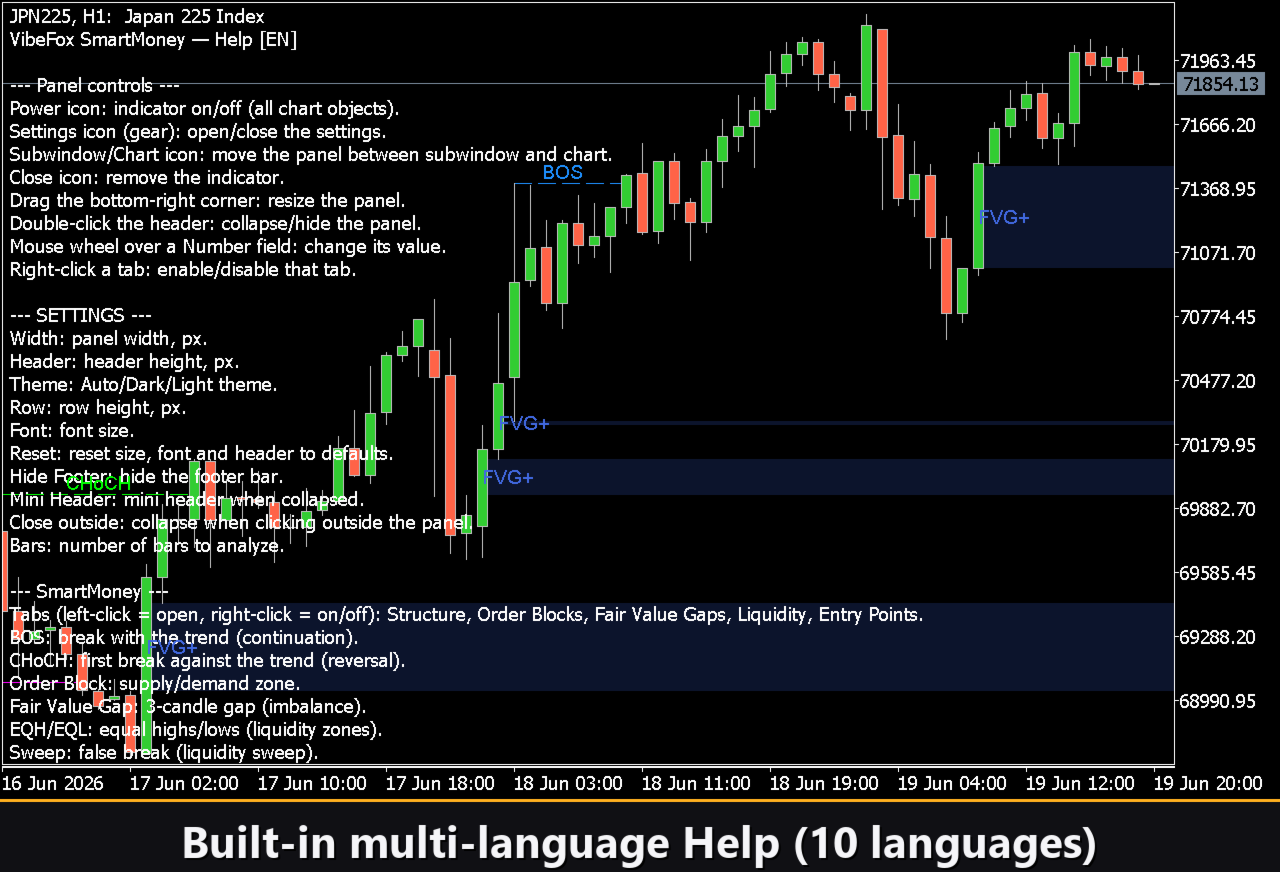
BOS (Break of Structure) marks a break that continues the prevailing trend — confirmation that momentum is still in control.
CHoCH (Change of Character) marks the first break against the current trend — the early structural hint that a reversal may be underway.
Swing detection is fully tunable through the Swing Period setting, the number of bars on each side required to confirm a swing point. Lower it for fast intraday structure, raise it to filter noise on higher timeframes. Bull and bear breaks carry their own colors and transparency so trend and counter-trend events are instantly distinguishable.
Order Blocks
The indicator locates bullish and bearish Order Blocks — the supply and demand zones where institutional orders are likely resting — and draws them as clean zones on the chart. You control how many of the most recent blocks stay visible, and bull and bear zones keep independent colors and transparency.
The Hide Mitigated option automatically removes Order Blocks once price has traded through them, so your chart always shows only the zones that are still in play rather than a clutter of spent levels.
Fair Value Gaps
VibeFox SmartMoney detects bullish and bearish Fair Value Gaps — the three-candle imbalances that price so often returns to fill. Each FVG is plotted as a shaded zone, with separate colors and transparency for bullish and bearish gaps and a configurable limit on how many recent gaps remain on screen.
As with Order Blocks, a Hide Mitigated switch clears any FVG that price has already filled, keeping your focus on the imbalances that still represent unfinished business.
Liquidity — Equal Highs, Equal Lows and Sweeps
Liquidity is where Smart Money operates, and this module exposes it directly.
Equal Highs (EQH) and Equal Lows (EQL) highlight clusters of matching highs and lows where stops and pending orders tend to pool. A Threshold in pips defines how close levels must be to count as equal, so you can tune sensitivity to the symbol you trade.
Liquidity Sweeps flag the false breaks that run those levels and snap back — the classic stop-hunt that often precedes a real move. EQH, EQL and Sweep markers each carry their own color so the picture stays readable.
Entry Points with SL and TP
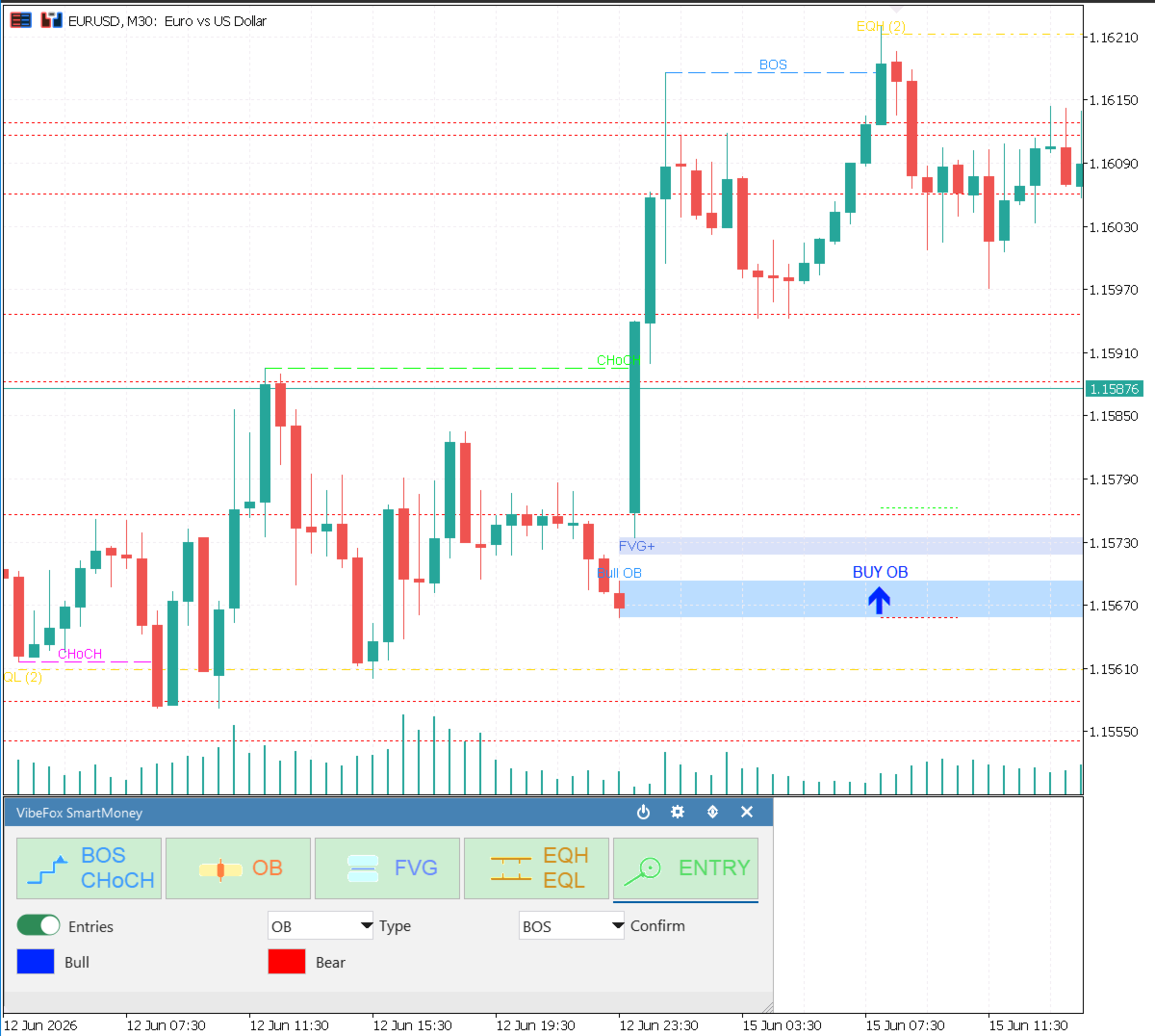
VibeFox SmartMoney brings the concepts together into actionable Entry Points. When enabled, it marks BUY and SELL zones complete with suggested SL and TP levels, so the structural read translates into a concrete area to watch.
You decide what defines a valid entry. The Entry Type selects the zone the setup is built on — OB, FVG or OB+FVG for setups where both align. The Confirmation setting then requires a structural trigger before a signal is valid — BOS, CHoCH, or both. This lets you go from loose, frequent entries to strict, fully confirmed setups with a couple of clicks. Bullish and bearish entries are colored independently.
Notifications
Every fresh entry signal can reach you instantly through several channels, each switched on or off independently so you receive only what you need.
Alert — pop-up message inside the terminal.
Push — mobile notification to the MetaTrader 5 app on your phone.
Email — message sent through the terminal mail settings.
Telegram — the alert text together with a chart screenshot, sent straight to your Telegram chat.
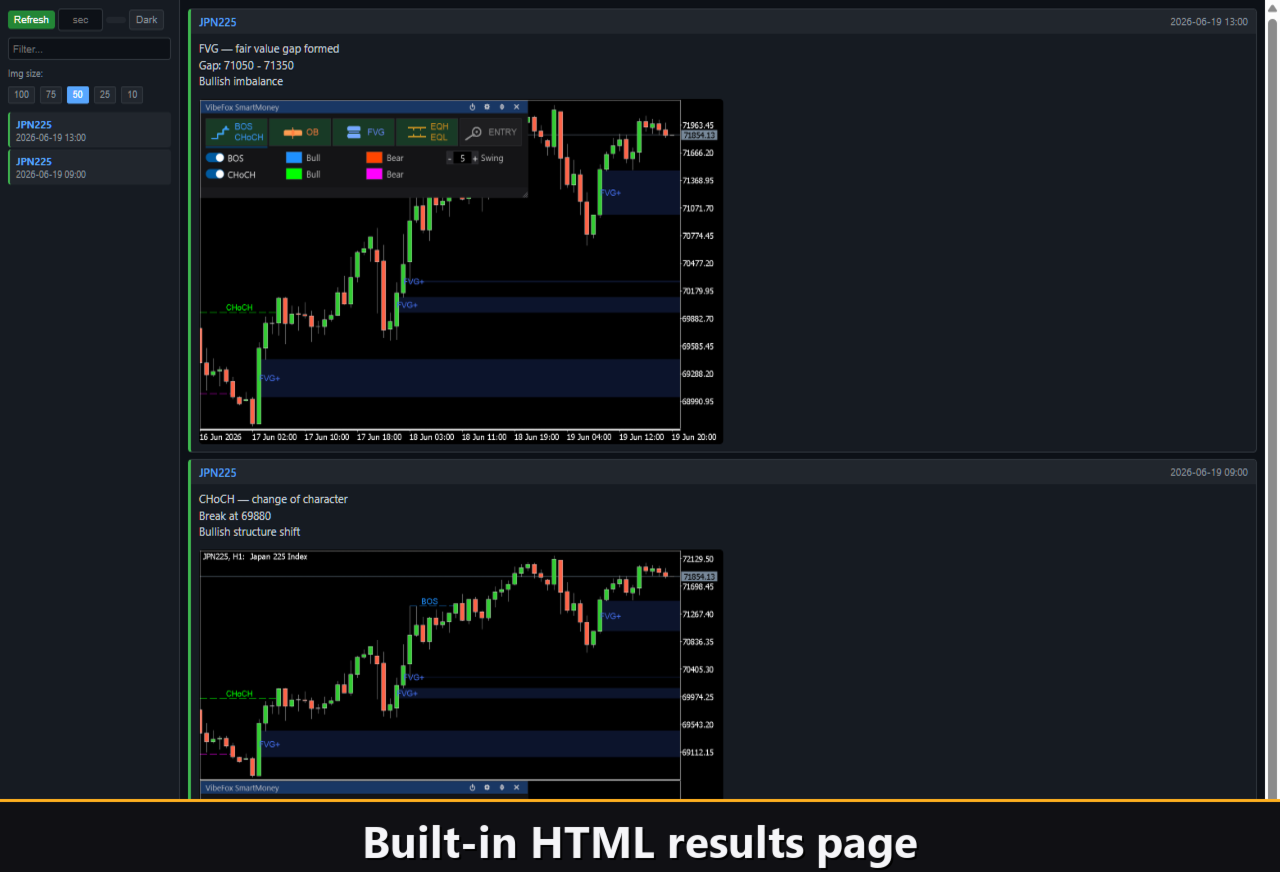
Html — every signal logged into a visual HTML report.
Visual History (HTML Report)
With the Html channel enabled, each entry signal is saved into an HTML report together with a screenshot of the chart at the moment of detection. The report lives in the terminal Files folder and opens in any browser, giving you a complete visual journal of every setup the indicator found — ideal for review, study and refining your own rules. A one-click trash button clears the report and its screenshots whenever you want a fresh start.
Telegram Alerts
Signals can also be delivered straight to your Telegram chat — the alert text together with a screenshot of the chart at the moment of detection. Turn on the Telegram channel and enter your bot token and chat id in the inputs.
Delivery rides on the HTML report: each new signal is written into the report, and the report — opened in a browser — forwards it to your Telegram chat on its own. For this reason, enabling Telegram automatically keeps the Html report on, and the two channels work together.
Interactive On-Chart Panel
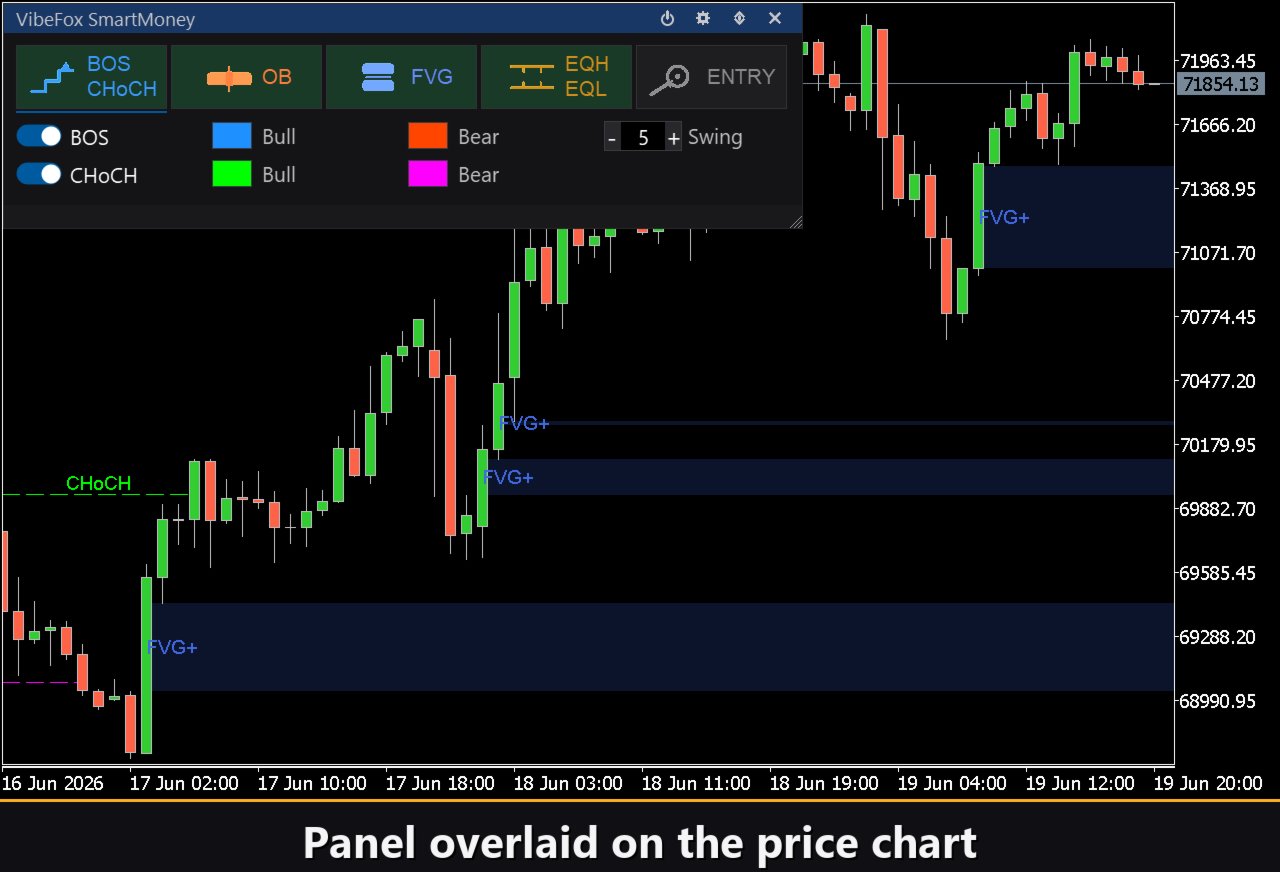
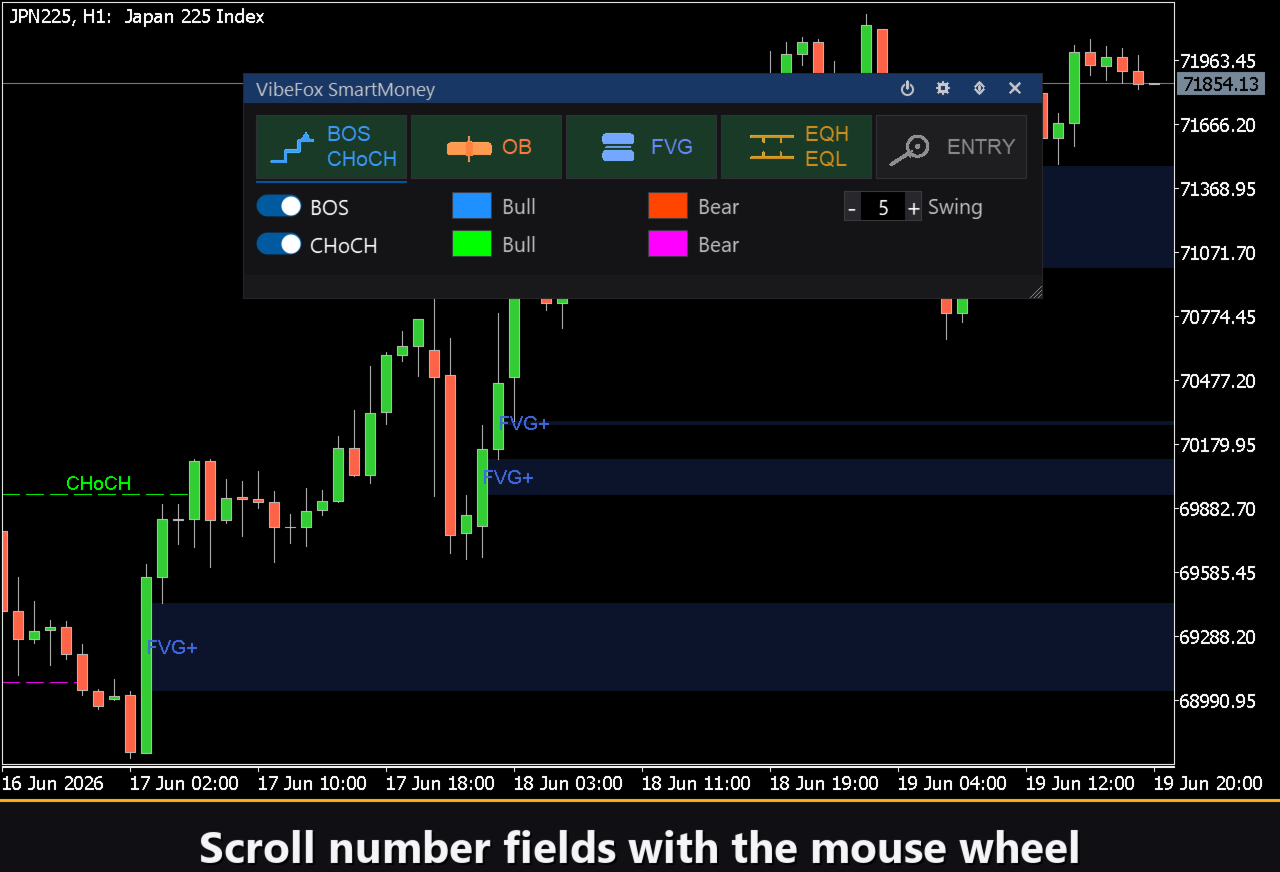
The entire interface is a smooth, canvas-based panel built for fast, mouse-driven control. Each Smart Money module has its own tab, so the whole toolkit stays organized and one click away.
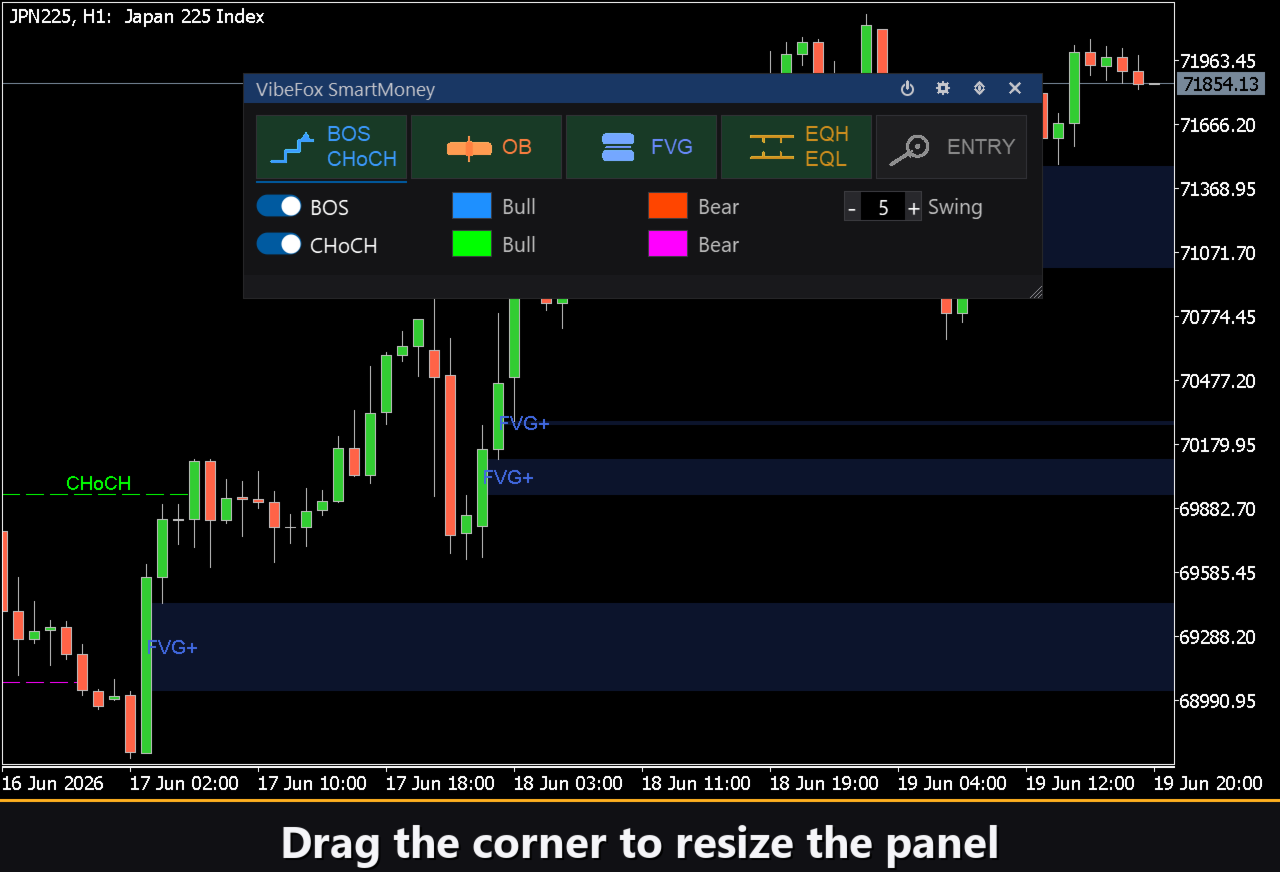
Resizable — drag the lower-right corner to scale the panel to your layout.
Movable — switch the panel between a separate subwindow and the main chart.
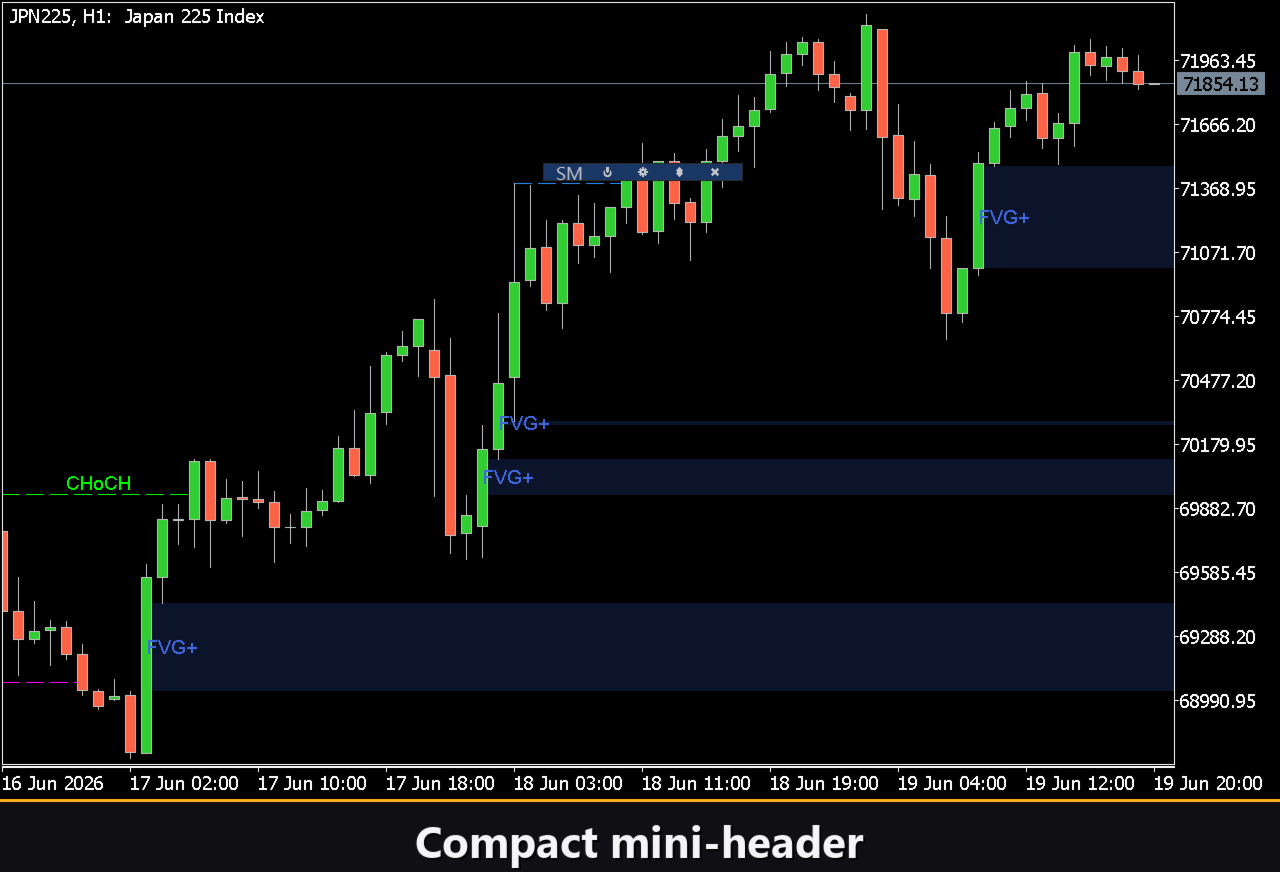
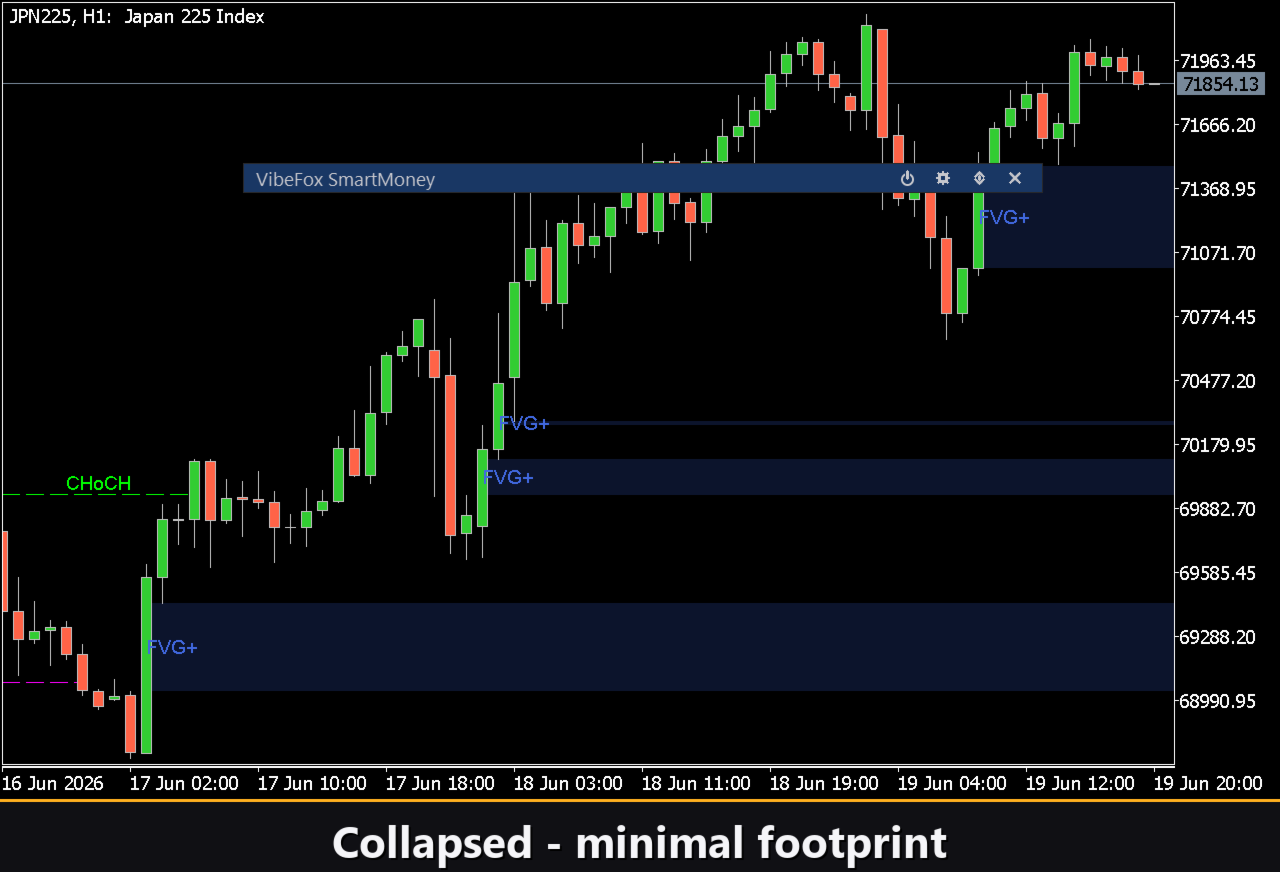
Collapsible — double-click the header to fold the panel into a compact bar.
Quick toggles — left-click a module tab to open its settings, right-click to switch that module on or off instantly.
Mouse wheel — hover any number field and scroll to change its value.
Personalization
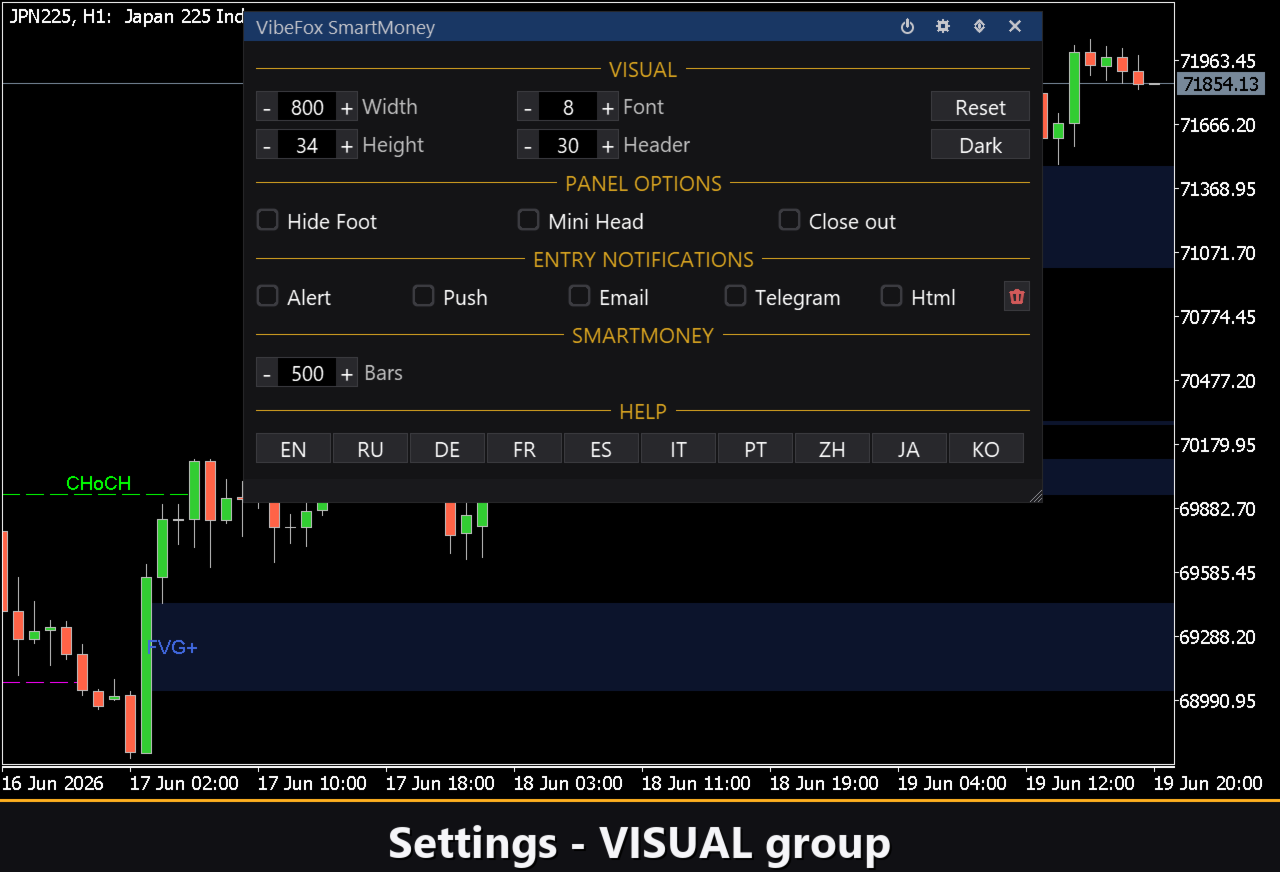
You adapt the look and behavior to your workspace: light, dark or automatic theme, adjustable panel width, header size, row height and font size. You set the scan depth in bars to balance detail against speed, and you can run several independent copies on the same chart using a unique instance number — for example one tuned to a higher timeframe and another to an intraday read.
Built-in Multilingual Help
A complete help page is built into the panel and available in 10 languages, so every control is explained right where you use it.
Parameters (Inputs tab)
Most settings can also be changed live right on the panel (the Settings button and presets) — the input parameters only set the initial values at startup.
General
Lookback Bars — number of bars to scan for structure, range 50..2000. Default: 500.
Structure
Show BOS — display Break of Structure markers. Default: on.
Show CHoCH — display Change of Character markers. Default: on.
Swing Period — bars on each side required to confirm a swing point, range 1..50. Default: 5.
BOS Bull Color — color of bullish BOS markers. Default: DodgerBlue.
BOS Bull Transparency % — transparency of bullish BOS markers. Default: 0.
BOS Bear Color — color of bearish BOS markers. Default: OrangeRed.
BOS Bear Transparency % — transparency of bearish BOS markers. Default: 0.
CHoCH Bull Color — color of bullish CHoCH markers. Default: Lime.
CHoCH Bull Transparency % — transparency of bullish CHoCH markers. Default: 0.
CHoCH Bear Color — color of bearish CHoCH markers. Default: Magenta.
CHoCH Bear Transparency % — transparency of bearish CHoCH markers. Default: 0.
Order Blocks
Show Bull OB — display bullish Order Blocks. Default: on.
Show Bear OB — display bearish Order Blocks. Default: on.
OB Count — maximum number of recent Order Blocks shown, range 1..50. Default: 10.
Hide Mitigated — automatically hide Order Blocks once price has traded through them. Default: on.
Bull OB Color — color of bullish Order Block zones. Default: DodgerBlue.
Bull OB Transparency % — transparency of bullish Order Block zones. Default: 70.
Bear OB Color — color of bearish Order Block zones. Default: OrangeRed.
Bear OB Transparency % — transparency of bearish Order Block zones. Default: 70.
Fair Value Gaps
Show Bull FVG — display bullish Fair Value Gaps. Default: on.
Show Bear FVG — display bearish Fair Value Gaps. Default: on.
FVG Count — maximum number of recent Fair Value Gaps shown, range 1..50. Default: 10.
Hide Mitigated — automatically hide a Fair Value Gap once price has filled it. Default: on.
Bull FVG Color — color of bullish FVG zones. Default: RoyalBlue.
Bull FVG Transparency % — transparency of bullish FVG zones. Default: 80.
Bear FVG Color — color of bearish FVG zones. Default: Crimson.
Bear FVG Transparency % — transparency of bearish FVG zones. Default: 80.
Liquidity
Show Equal Highs — display Equal Highs (EQH) clusters. Default: on.
Show Equal Lows — display Equal Lows (EQL) clusters. Default: on.
Show Liquidity Sweeps — display liquidity sweep markers. Default: on.
Threshold (pips) — how close levels must be, in pips, to count as equal. Default: 5.0.
EQH Color — color of Equal Highs markers. Default: Gold.
EQH Transparency % — transparency of Equal Highs markers. Default: 0.
EQL Color — color of Equal Lows markers. Default: Gold.
EQL Transparency % — transparency of Equal Lows markers. Default: 0.
Sweep Color — color of liquidity sweep markers. Default: Red.
Sweep Transparency % — transparency of liquidity sweep markers. Default: 0.
Entry Points
Show Entry Points — display BUY/SELL entry zones with suggested SL and TP. Default: off.
Entry Type — zone the setup is built on: OB, FVG or OB+FVG. Default: OB.
Confirmation — structural trigger required to validate a signal: BOS, CHoCH or both. Default: BOS.
Bull Entry Color — color of bullish entry zones. Default: Lime.
Bull Entry Transparency % — transparency of bullish entry zones. Default: 0.
Bear Entry Color — color of bearish entry zones. Default: Red.
Bear Entry Transparency % — transparency of bearish entry zones. Default: 0.
Notifications
Alert Popup — pop-up Alert window inside the terminal. Default: off.
Push Notification — push notification to the MetaTrader mobile terminal. Default: off.
Email — email through the terminal mail settings. Default: off.
Html — saves every signal with a screenshot into an HTML report (Files folder), opens in any browser. Default: off.
Telegram — send each signal to your Telegram chat (alert text plus a chart screenshot) through the HTML report. Default: off.
Telegram bot token — the token of your Telegram bot, used to send the messages.
Telegram chat id — the id of the Telegram chat that receives the signals.
Debug
Debug — debug mode: verbose logging to the Experts journal. Not needed for normal use. Default: off.
Panel / Settings
Instance — copy number of the indicator; lets you keep several independent copies on the same chart. Default: 1.
Panel width, px — panel width in pixels, range 300..800. Default: 800.
Row height (px) — panel row height in pixels. Default: 34.
Header size — header bar size, 1..6. Default: 1.
Theme — color theme: Auto (follows the chart), Dark or Light. Default: Auto.
Font size — panel font size. Default: 8.
Hide Footer — hide the panel footer bar. Default: off.
Mini Header on collapse — show a mini header when the panel is collapsed. Default: off.
Close on click outside — collapse the panel when you click outside it. Default: off.
Panel Start Window — where the panel opens at startup: Subwindow or Chart. Default: Subwindow.
Who It Is For
VibeFox SmartMoney is made for discretionary and systematic traders who follow Smart Money Concepts and institutional price action. It runs on any symbol and any timeframe and fits both fast intraday work and higher-timeframe structural analysis, keeping the full SMC picture — structure, order blocks, imbalances, liquidity and entries — on one clean, interactive chart.