VibeFox Aroon
- Indicators
- Version: 1.10
- Updated: 2 July 2026
- Activations: 5

VibeFox Aroon — catch every trend the moment it starts
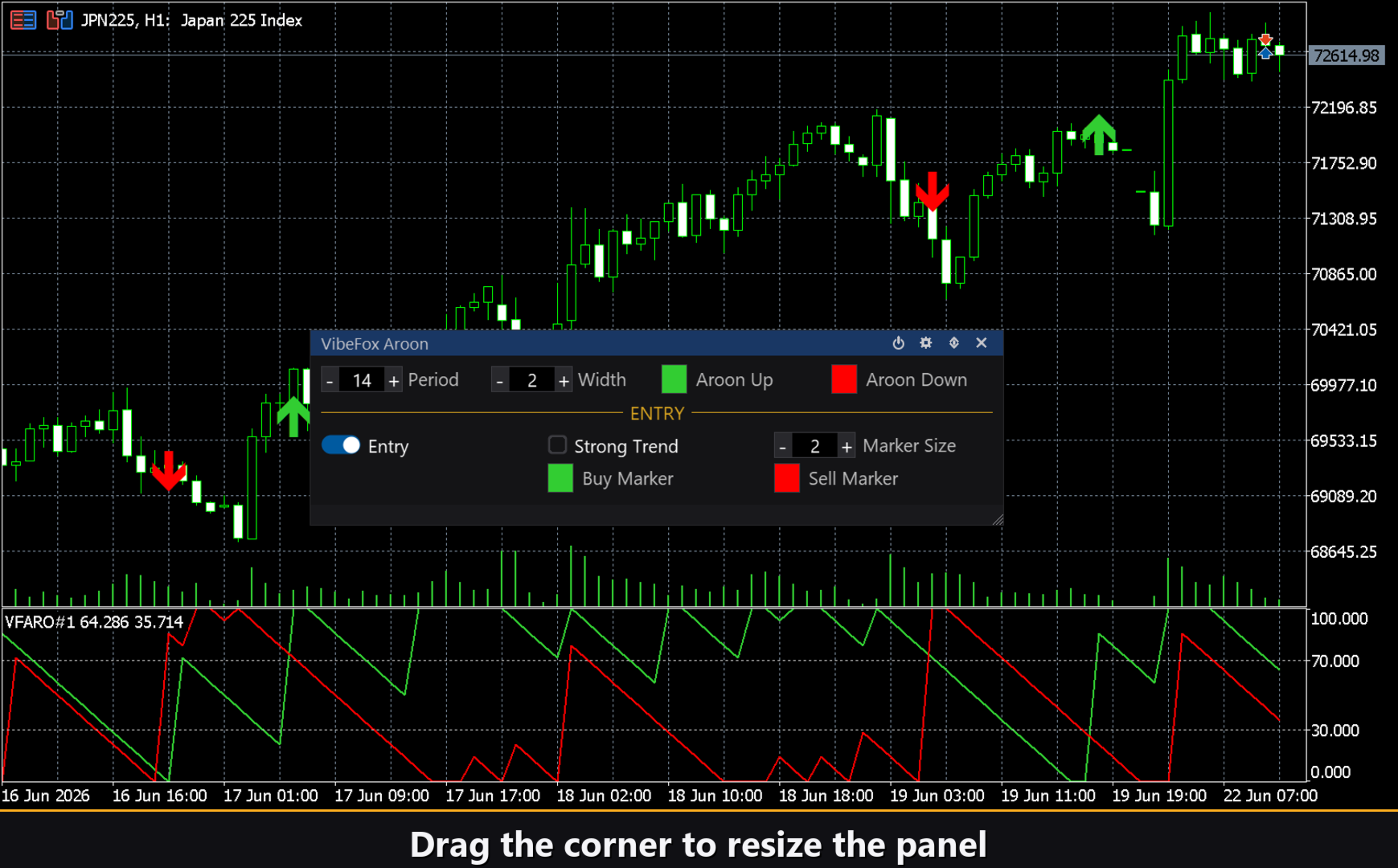
VibeFox Aroon is a real-time Aroon indicator for MetaTrader 5. It draws the classic Aroon Up and Aroon Down lines in a separate subwindow, places precise entry markers on the price chart the moment a signal forms, and collects everything into a modern interactive panel. Instead of staring at two lines and wondering whether the trend is real, you see the signal and the direction the instant the closed bar confirms it.
What Aroon measures
The Aroon system, developed by Tushar Chande, answers one precise question: how recently did price set a new high or a new low relative to the lookback period? The closer the most recent high is to the current bar, the higher Aroon Up rises toward 100. The closer the most recent low is to the current bar, the higher Aroon Down rises toward 100. Both lines are always bounded between 0 and 100, so the scale never changes regardless of instrument or timeframe.
The formula is straightforward: Aroon Up = 100 × (Period − barsSinceHigh) / Period and Aroon Down = 100 × (Period − barsSinceLow) / Period. When Aroon Up hugs the top of the scale and Aroon Down sits near zero, buyers are consistently setting new highs — the uptrend is fresh. When the positions reverse, sellers are in control. When both lines hover in the middle, the market is drifting without direction.
The 70 and 30 levels
Two dotted horizontal reference lines at 70 and 30 are drawn automatically in the subwindow. These are the classic Aroon thresholds: a reading above 70 signals a strong, healthy trend in that direction, while a reading below 30 signals weakness. The indicator uses these exact thresholds in its Strong Trend signal logic, so the lines on the chart are not decorative — they mark the boundaries where a signal can fire.
Entry points
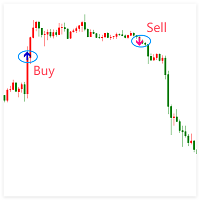
The defining feature of VibeFox Aroon is its automatic entry detection: the indicator scans every closed bar, evaluates the conditions, and stamps a clear arrow marker directly on the price chart. There are two independent signal types, each with its own on/off toggle. They can run alone or simultaneously.
Entry = Aroon Cross (default ON)
The primary signal triggers whenever Aroon Up crosses Aroon Down. When Aroon Up rises above Aroon Down, buyers are setting highs more recently than sellers are setting lows — the indicator places a BUY marker. When Aroon Down rises above Aroon Up, sellers take over and a SELL marker appears. The cross is detected on closed bars only, eliminating false triggers from intra-bar noise. This is the default entry type and works across all timeframes and instruments.
Strong Trend (default OFF)
The second signal looks for a regime change rather than a line cross. A BUY marker fires the moment the indicator transitions into the strong-uptrend zone — that is, when Aroon Up climbs above 70 while Aroon Down drops below 30 simultaneously. A SELL marker fires on the mirror transition: Aroon Down above 70 with Aroon Up below 30. This signal does not repeat while the market stays inside the zone; it fires only on the entry into that zone, making it a clean breakout-confirmation tool.
Both signal types share the same set of visual controls: Marker Size scales the arrows from 1 to 5 to suit any chart density, and the Buy Marker Color and Sell Marker Color inputs let you color-code direction at a glance.
Full visual control
The two Aroon lines are fully customizable. Aroon Up Color and Aroon Down Color set the line colors independently, and the shared Line Width slider adjusts thickness from 1 to 5 pixels. Whether you prefer a clean minimal look or bold high-contrast lines on a dark background, the display adapts in seconds.
Interactive on-chart panel
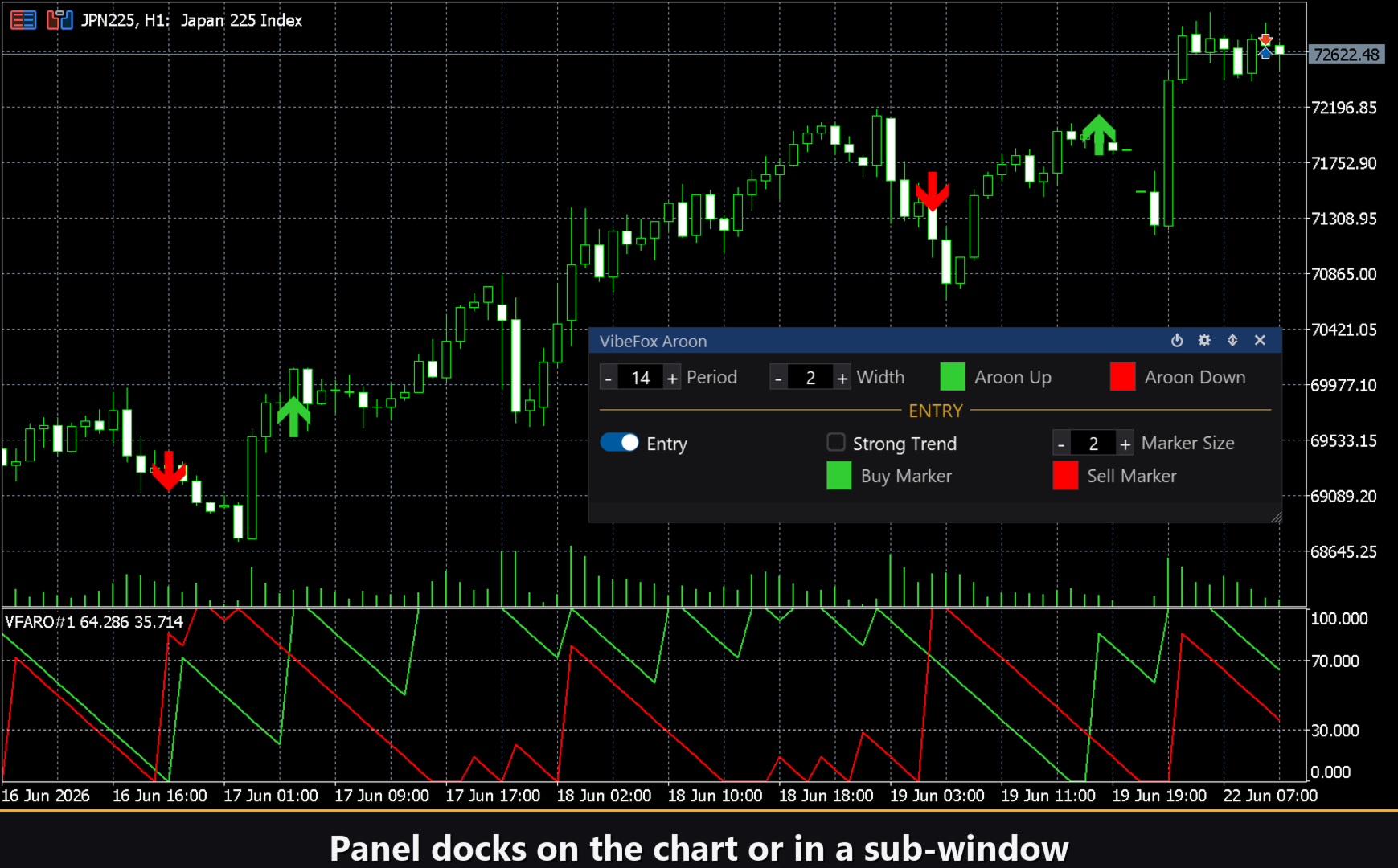
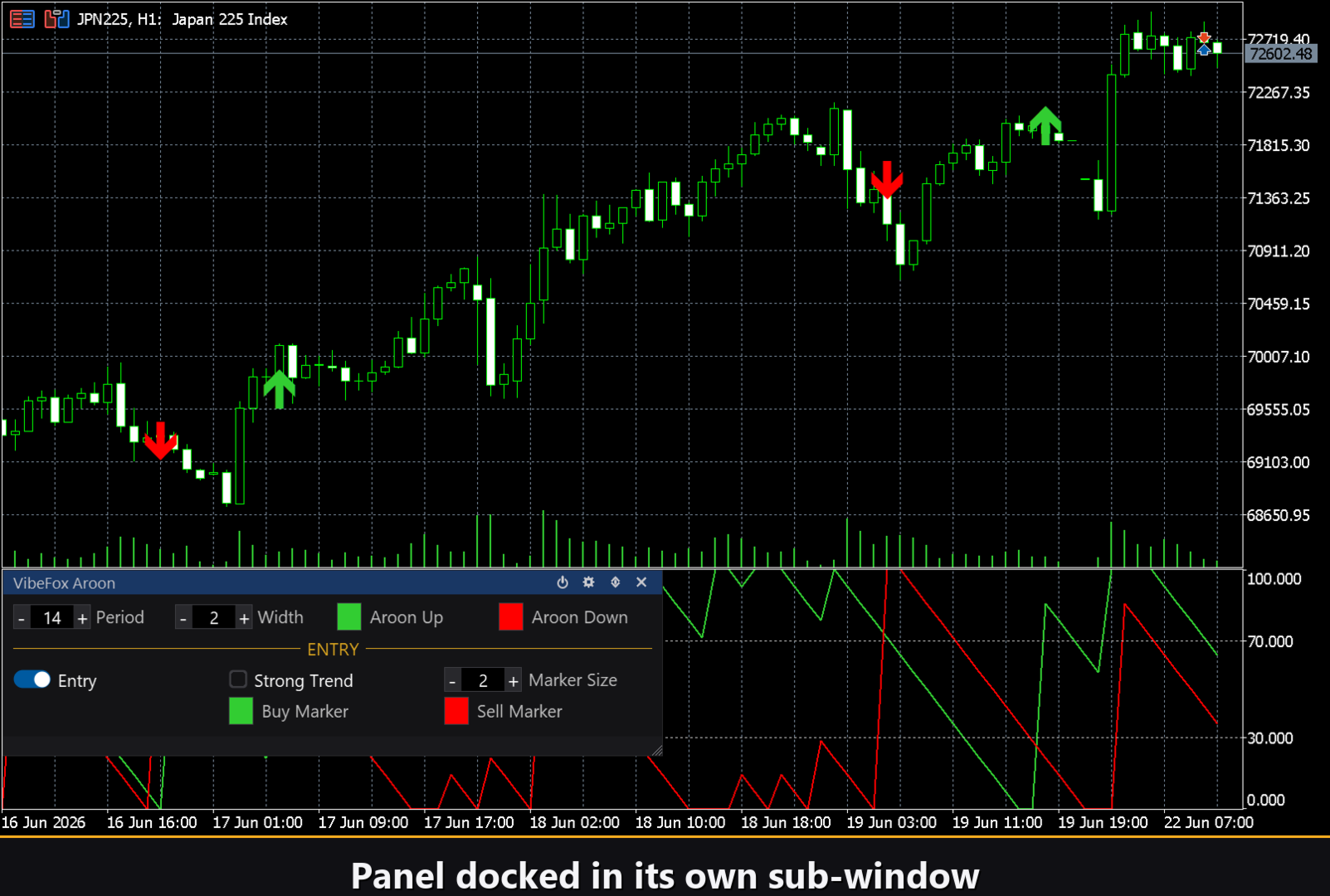
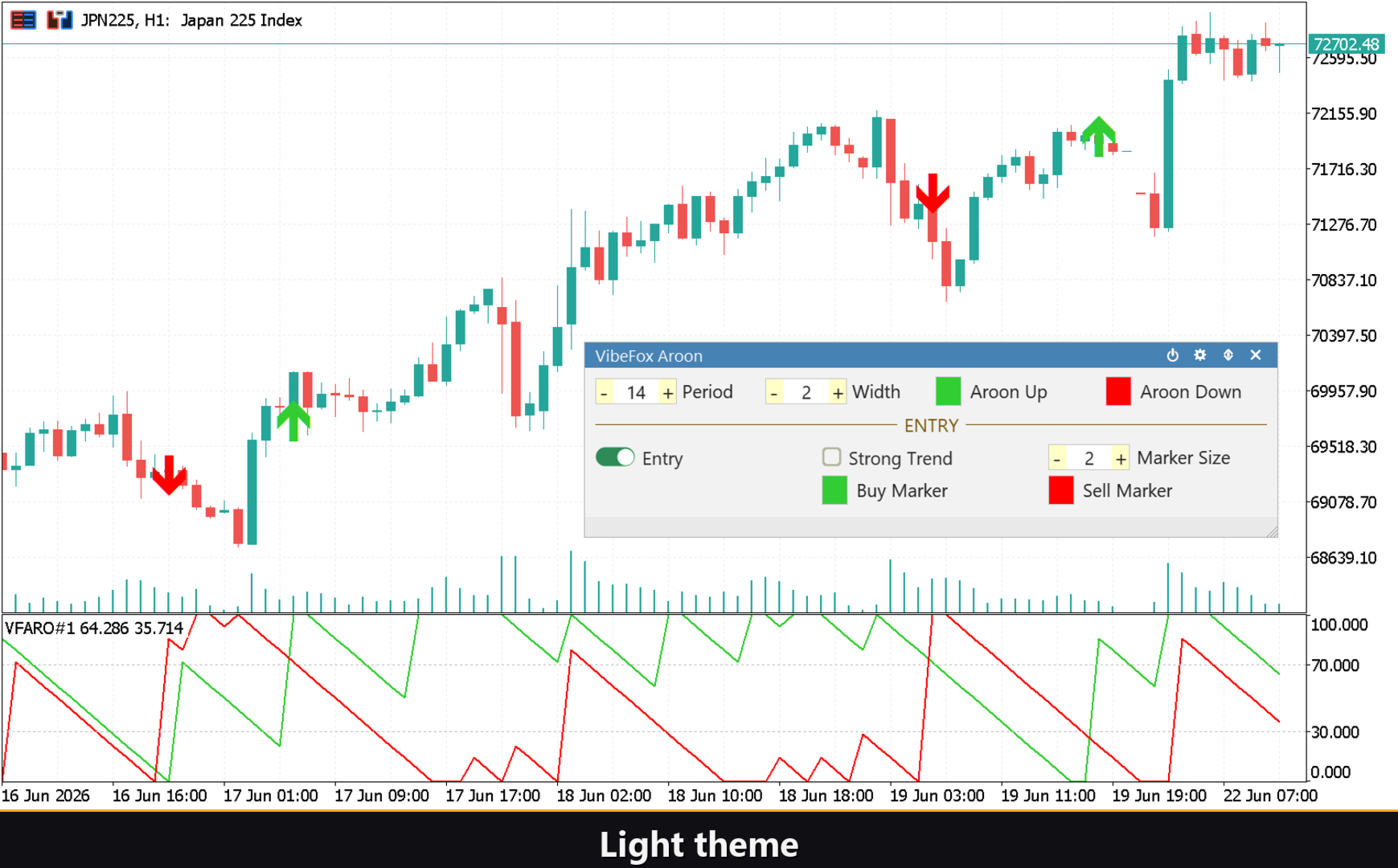
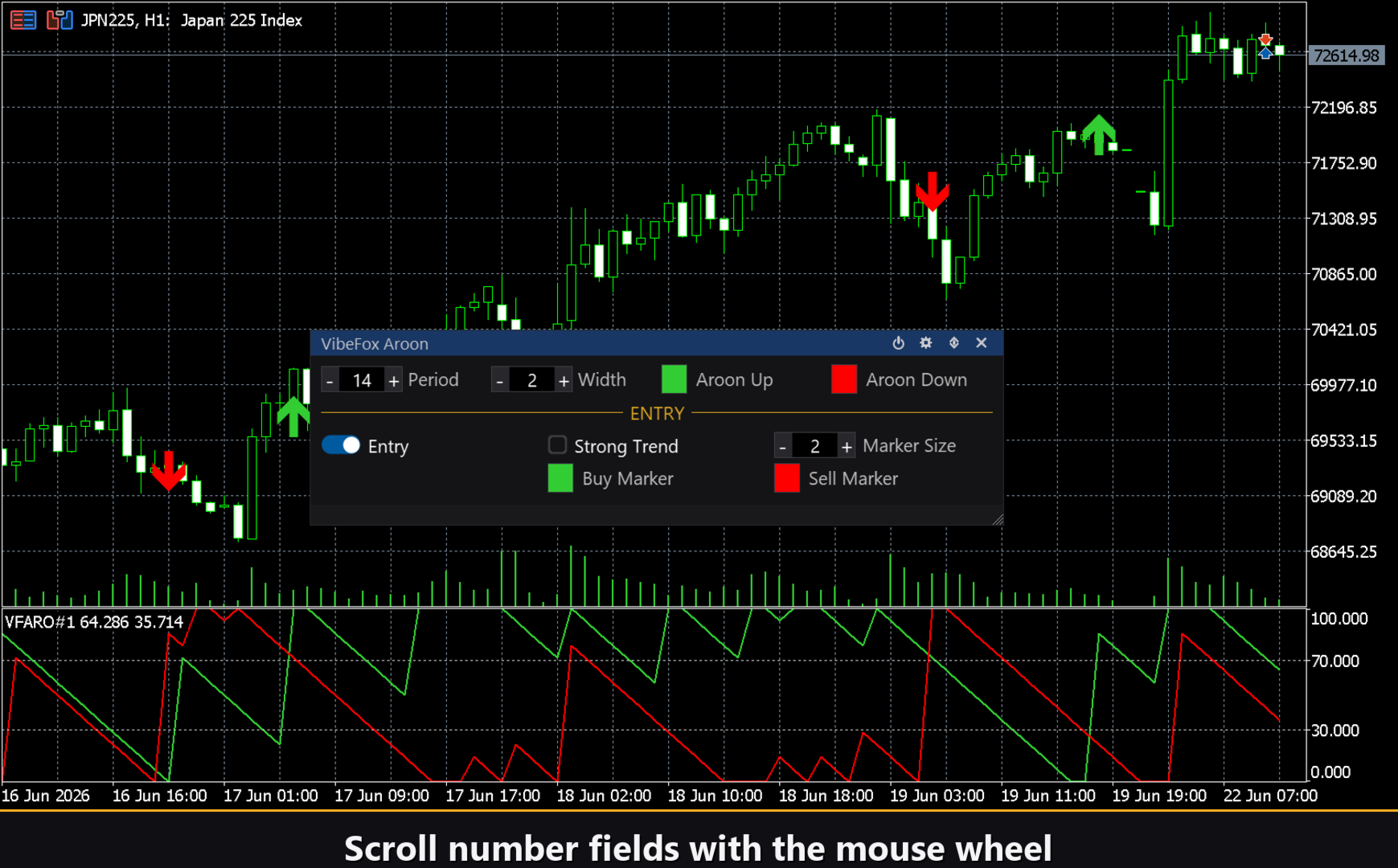
All controls live in a smooth canvas-based panel that docks directly in the subwindow or floats over the main chart — your choice at startup. Parameters are arranged in tidy three-column rows, with the entry-signal controls grouped under a dedicated ENTRY header so signal settings never mix with display settings. The panel header houses four quick-action icons.
Power — toggles the drawing of lines and markers on and off without removing the indicator from the chart.
Settings (gear) — opens and closes the Settings configuration panel.
Updown (arrows) — moves the panel between the subwindow and the main chart.
Close (X) — removes the indicator from the chart.
Resizable — drag the bottom-right corner to resize the panel to any width.
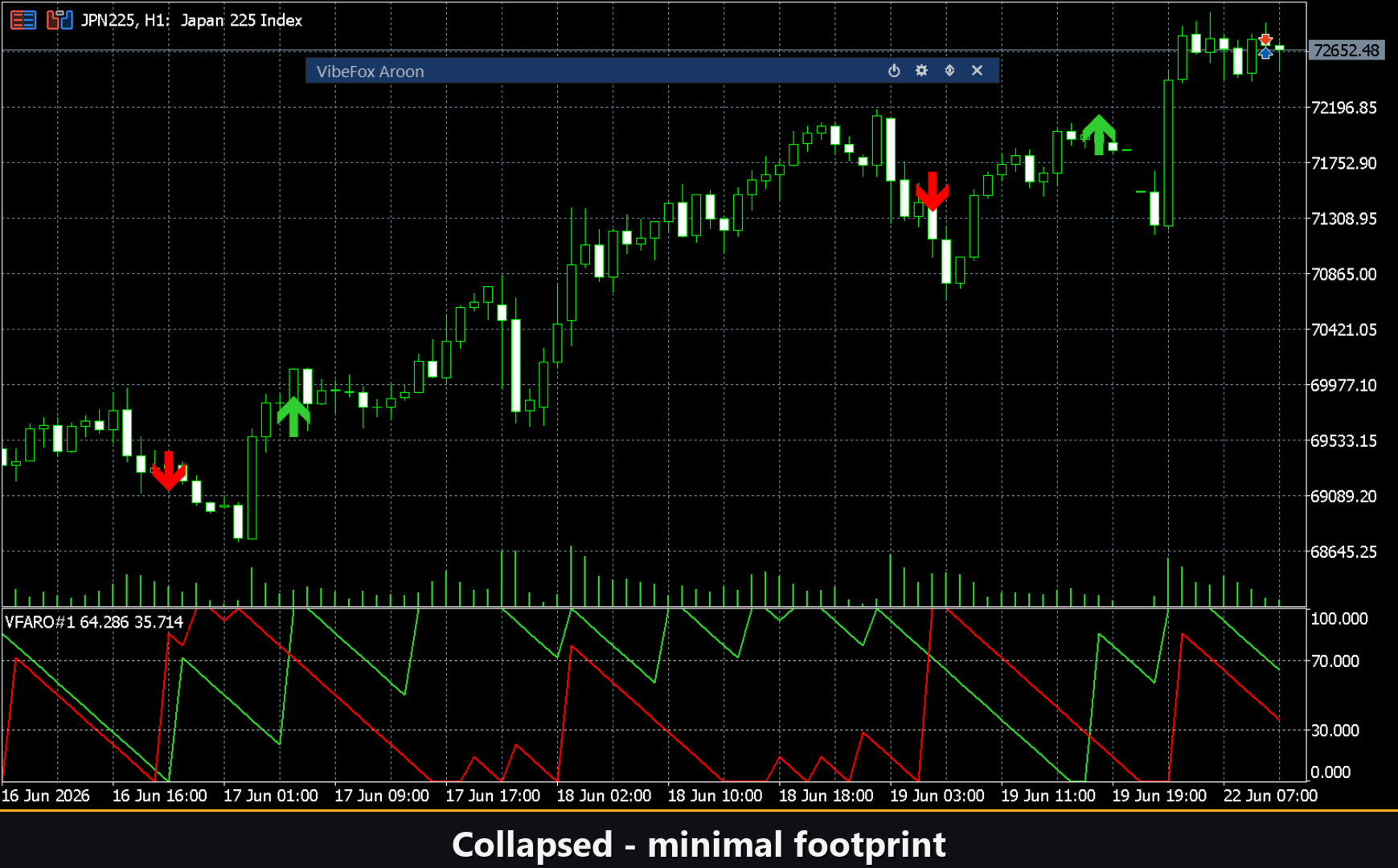
Collapsible — double-click the header to collapse the panel into a compact title bar, freeing chart space.
Mouse wheel — hover over any numeric field and scroll to increment or decrement the value instantly, no keyboard needed.
Settings and personalization
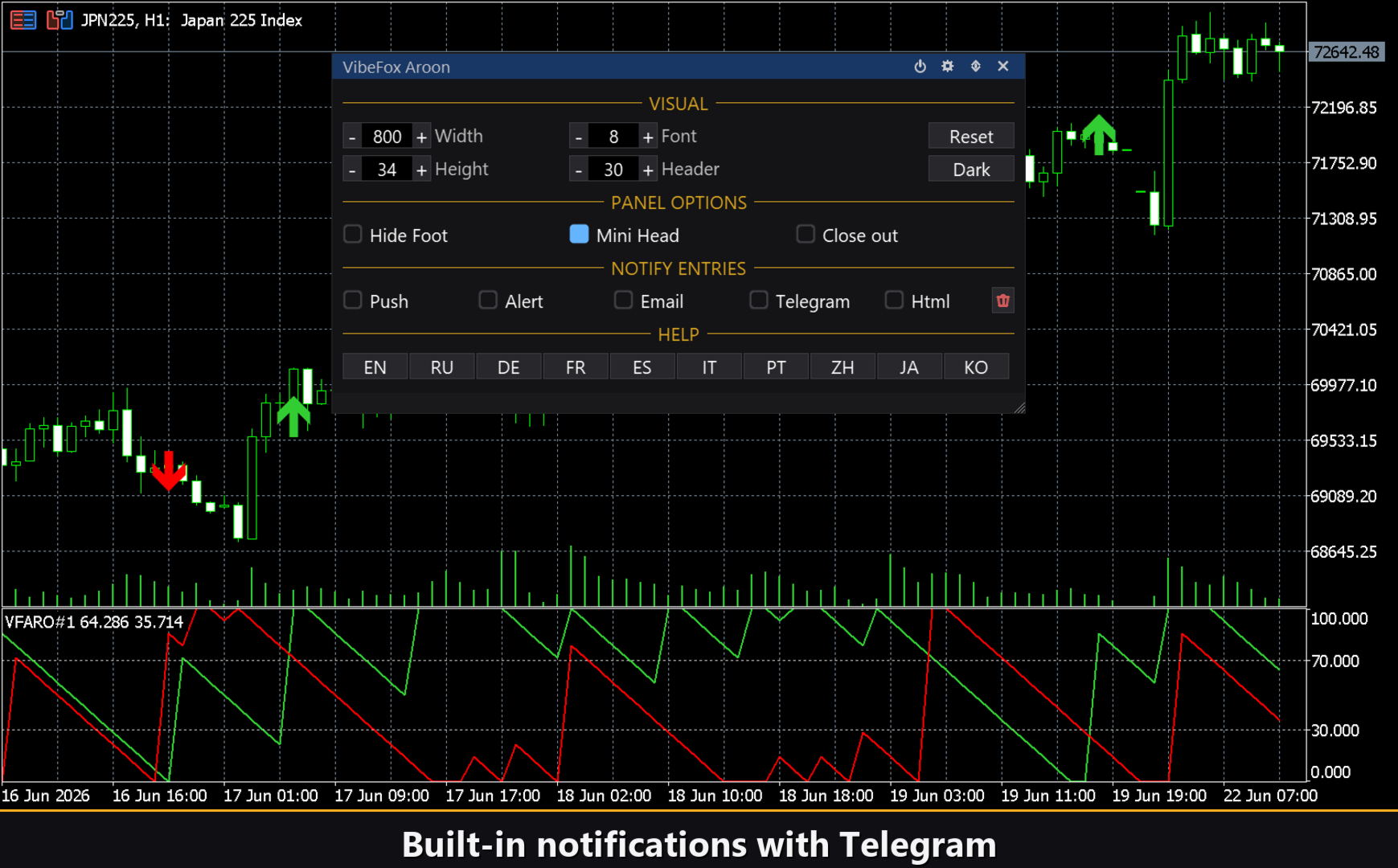
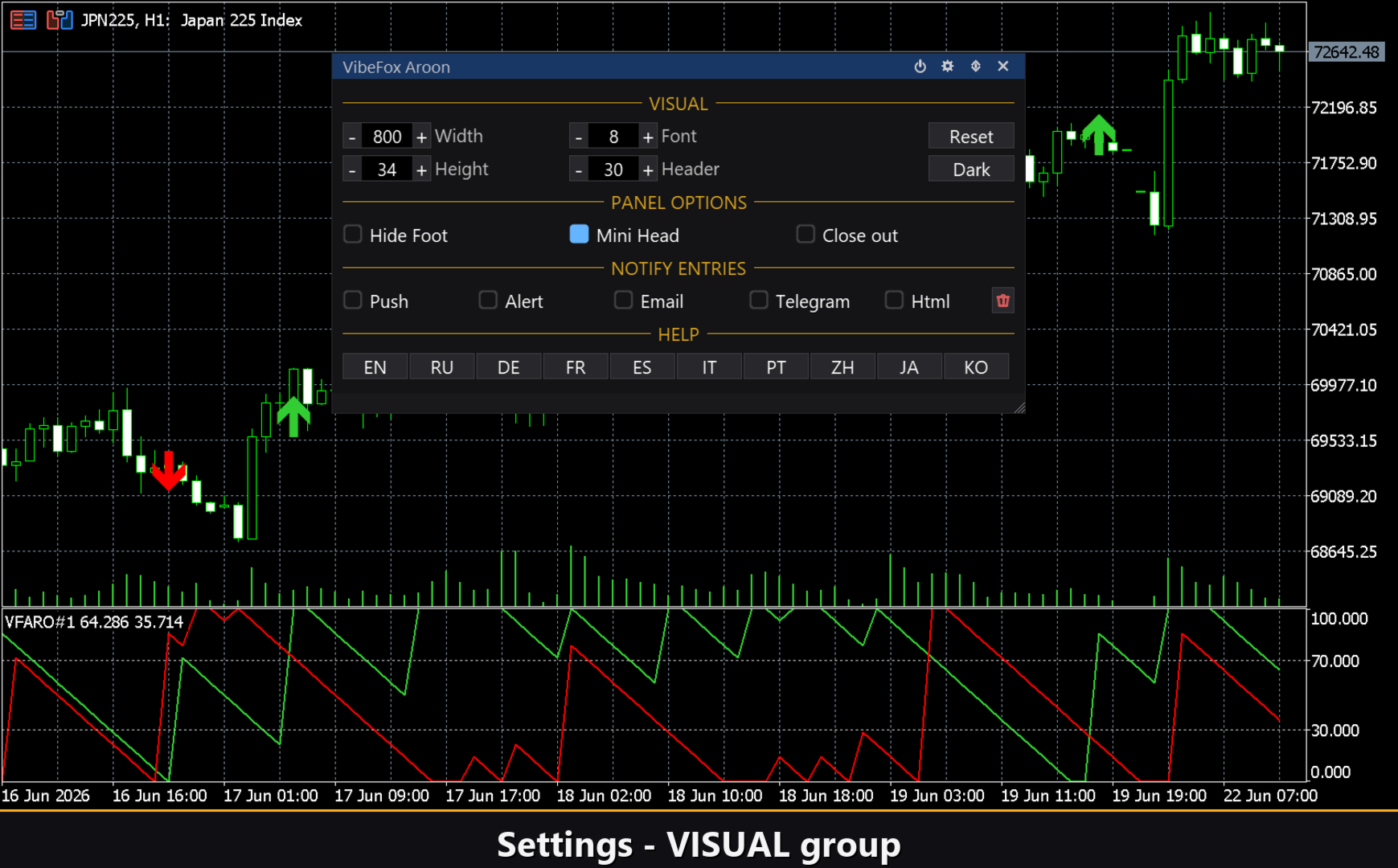
The Settings section lets you tailor the panel to your workspace. Choose Theme Auto (follows the chart background), Dark, or Light. Adjust panel width, header size, row height, and font size to match your monitor resolution and trading style. Hide Footer removes the bottom status strip for a cleaner look. Mini Header on collapse keeps a slim title visible when the panel is folded. Close on click outside automatically collapses the panel whenever you click away. Nearly every parameter is editable live on the panel itself — the Inputs tab in the indicator dialog sets only the startup defaults. You can also run multiple independent copies on the same chart by assigning each a unique Instance number, letting you compare different Aroon periods or timeframes side by side.
Notifications
You do not need to watch the chart to catch a signal. Every entry can be broadcast over multiple notification channels, each enabled independently from the panel.
Alert — a pop-up dialog inside the MetaTrader 5 terminal the moment a signal fires.
Push — a mobile push notification to the MetaTrader app on your phone or tablet.
Email — a message sent through the email settings configured in your terminal.
Telegram — the alert text together with a chart screenshot, sent straight to your Telegram chat.
Activate only the channels you need and the indicator will alert you the instant a new entry appears on the symbol and timeframe you are monitoring.
Visual history — Html report
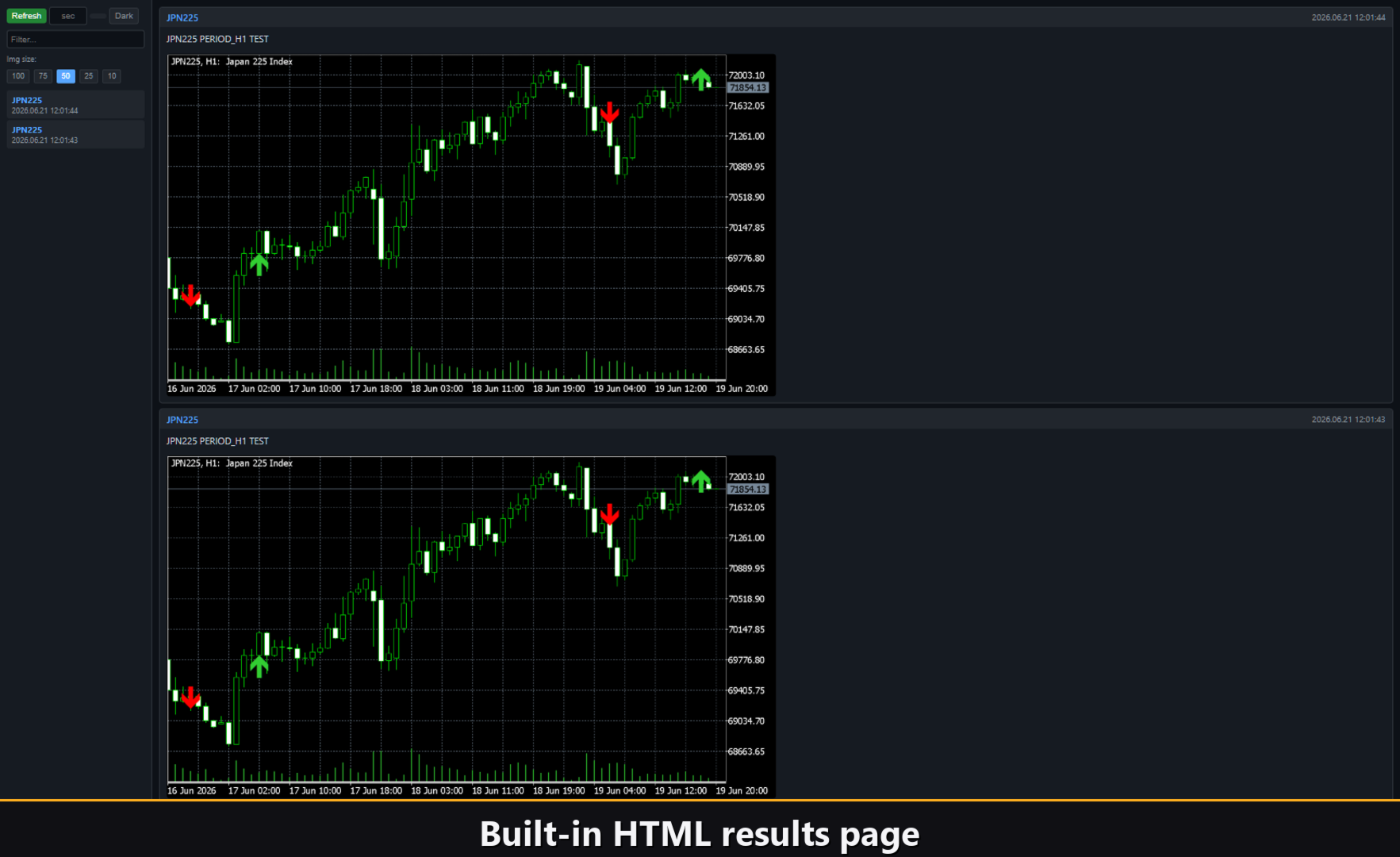
Enable the Html channel and every entry signal is saved to an HTML report file together with a screenshot of the chart at the moment the signal fired. The report is stored in the terminal's Files folder under VibeFox_Aroon\result.html and opens in any browser — giving you a browsable visual log of every signal the indicator has found. A trash-bin button inside the panel clears the report and its screenshots in a single click whenever you want to start fresh.
Telegram Alerts
Signals can also be delivered straight to your Telegram chat — the alert text together with a screenshot of the chart at the moment of detection. Turn on the Telegram channel and enter your bot token and chat id in the inputs.
Delivery rides on the HTML report: each new signal is written into the report, and the report — opened in a browser — forwards it to your Telegram chat on its own. For this reason, enabling Telegram automatically keeps the Html report on, and the two channels work together.
Built-in multilingual help
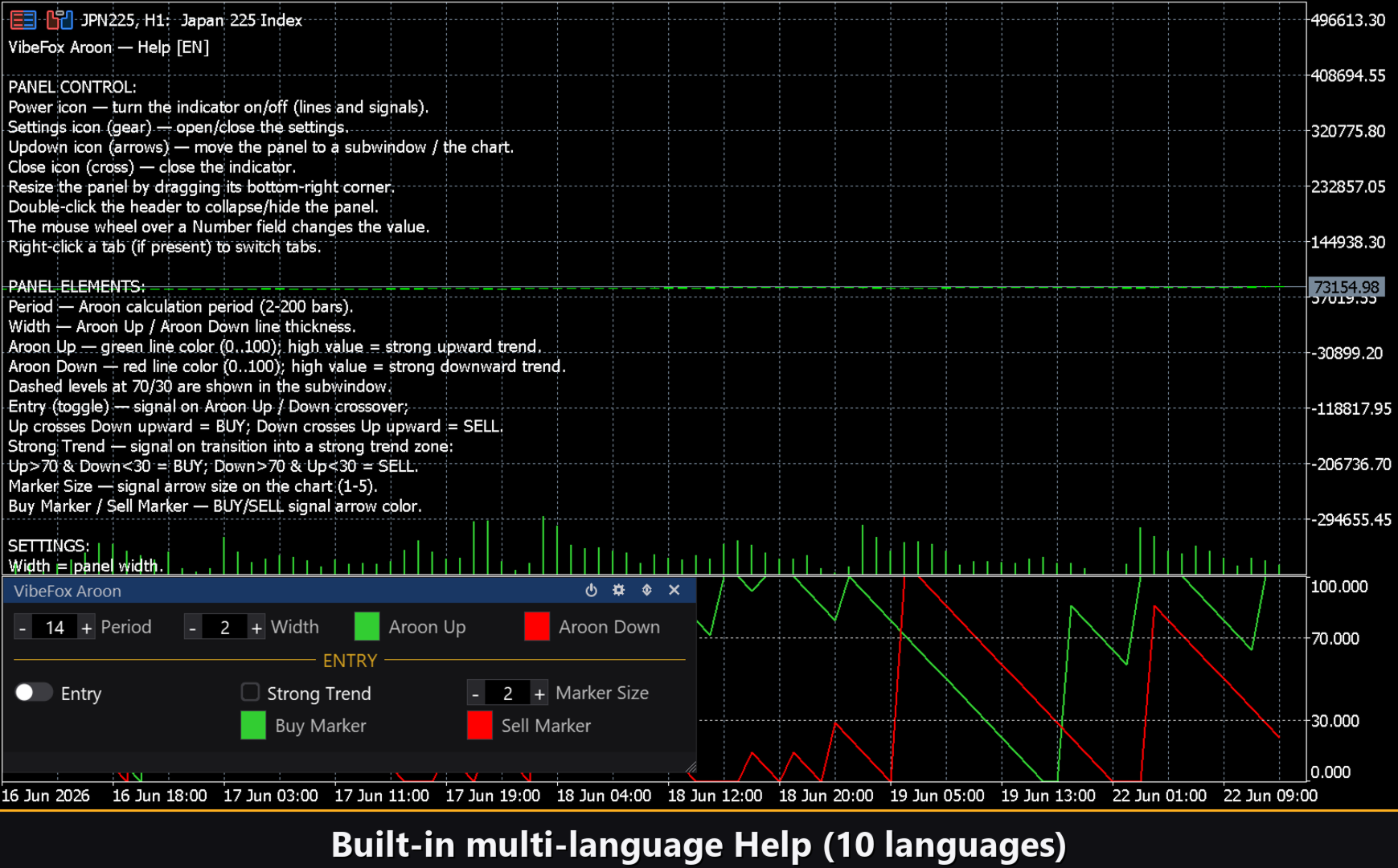
A complete help page is built directly into the panel and is available in 10 languages, so every control is explained exactly where you use it, without leaving the chart.
Parameters (Inputs tab)
Most settings can also be changed live on the panel at any time. The input fields below set the initial values when the indicator is first applied to the chart.
Aroon
Aroon Period — lookback period in bars used for the Aroon calculation. Range 2..200. Default: 14.
Aroon Up Color — color of the Aroon Up line in the subwindow. Default: LimeGreen.
Aroon Down Color — color of the Aroon Down line in the subwindow. Default: Red.
Line Width (1-5) — thickness of both Aroon lines in pixels. Default: 2.
Entry Points
Entry = Aroon Cross — signal on the crossover of Aroon Up and Aroon Down; Up crosses above Down = BUY, Down crosses above Up = SELL. Default: on.
Strong Trend — signal when the indicator transitions into the strong-trend zone (Up>70 & Down<30 = BUY; Down>70 & Up<30 = SELL). Default: off.
Marker Size (1-5) — size of the entry arrow on the price chart. Default: 2.
Buy Marker Color — color of the BUY arrow marker. Default: LimeGreen.
Sell Marker Color — color of the SELL arrow marker. Default: Red.
Notifications
Push Notification — send a push notification to the MetaTrader mobile app on each entry signal. Default: off.
Alert Popup — show a pop-up Alert dialog inside the terminal on each entry signal. Default: off.
Email — send an email via terminal email settings on each entry signal. Default: off.
Html Report — save each entry signal with a chart screenshot to an HTML report file (Files\VibeFox_Aroon\result.html). Default: off.
Telegram — send each signal to your Telegram chat (alert text plus a chart screenshot) through the HTML report. Default: off.
Telegram bot token — the token of your Telegram bot, used to send the messages.
Telegram chat id — the id of the Telegram chat that receives the signals.
Panel / Settings
Panel width, px — width of the panel in pixels. Range 300..800. Default: 800.
Header size — height scale of the panel header. Range 1..6. Default: 1.
Theme — color scheme: Auto (follows chart background), Dark, or Light. Default: Auto.
Row height (px) — height of each parameter row on the panel in pixels. Default: 34.
Font size — font size used inside the panel. Default: 8.
Hide Footer — hide the bottom strip of the panel. Default: off.
Mini Header on collapse — show a slim header when the panel is collapsed. Default: off.
Close on click outside — collapse the panel automatically when clicking outside it. Default: off.
Instance — unique identifier for this copy of the indicator; allows multiple independent copies on the same chart. Default: 1.
Panel Start Window — where the panel opens on launch: Subwindow (inside the indicator's own subwindow) or Chart (floating over the main price chart). Default: Subwindow.