NEXA Volume Filter Pullback
- Experts
-
Park Seongcheon
 Hello,
My name is Park Sung Chan, a developer specializing in MetaTrader 5 algorithmic trading systems.
I design and research long-term, reliable automated trading models based on the structural characteristics and statistical patterns of financial markets. - Version: 1.0
- Activations: 5
NEXA Volume Filter Pullback User Manual
Product Introduction
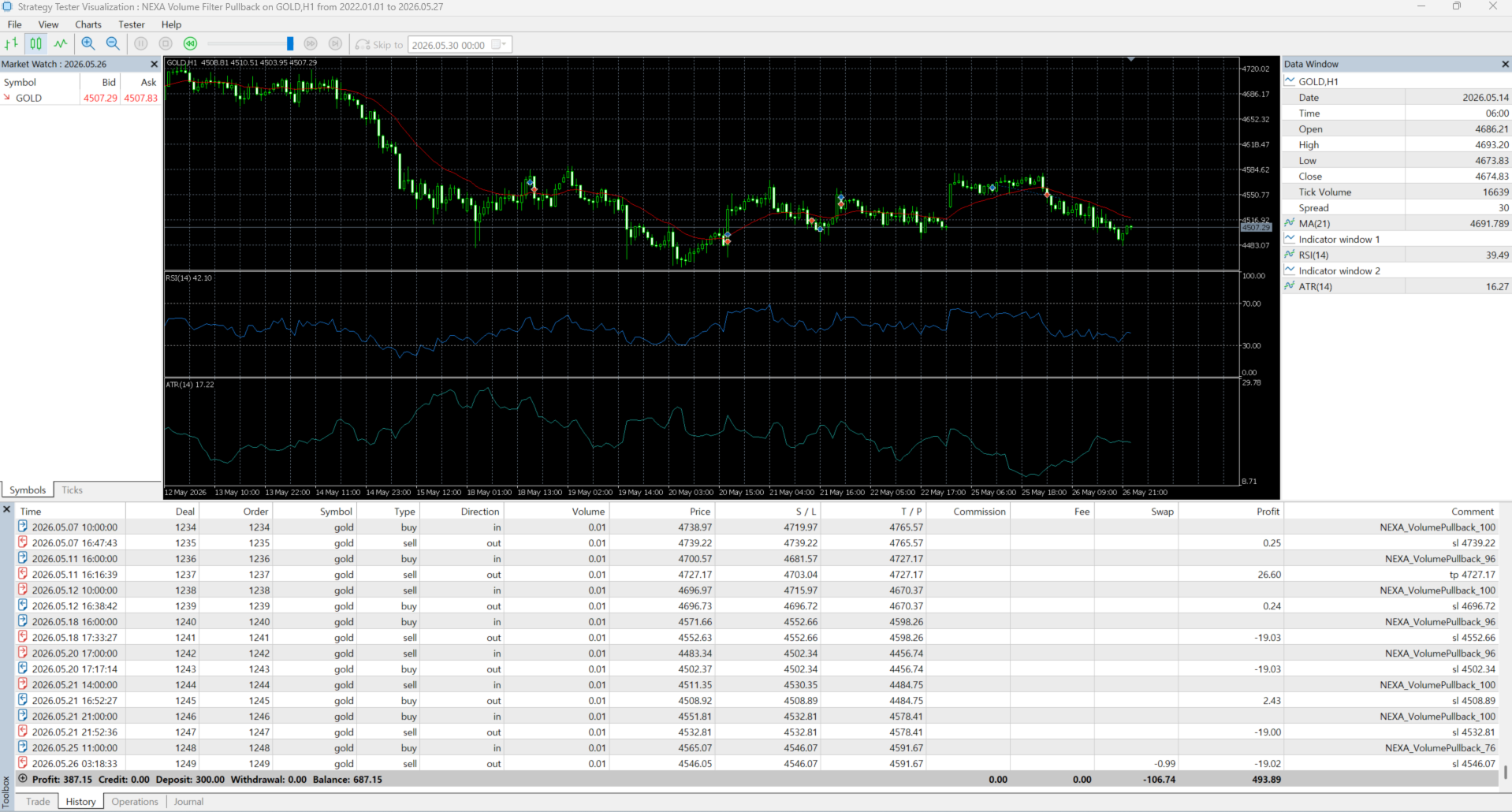
NEXA Volume Filter Pullback is an H1-based automated trading EA for MetaTrader 5.
This product checks pullback areas that occur during an existing trend and evaluates entry conditions by combining volume behavior and price reaction. Instead of simply entering when price crosses a moving average, the EA focuses on situations where volume decreases during a pullback and then increases again as price attempts to continue in the trend direction.
The main purpose of the strategy is to reduce unnecessary entries in the middle of a trend and to identify areas where price may be recovering its directional movement.
Strategy Method
This EA uses EMA21 as the basic market direction reference.
When price is moving above EMA21 and the RSI direction supports upward momentum, the EA evaluates BUY conditions. When price is moving below EMA21 and the RSI direction supports downward momentum, the EA evaluates SELL conditions.
The entry decision uses the following elements.
EMA21 is used to check the basic trend direction.
Volume is used to check whether volume decreases during the pullback and increases again near the re-entry area.
RSI is used to confirm entry direction and momentum.
ATR is used to calculate stop loss distance and volatility-based conditions.
Candle Pattern is used as an additional condition to check breakout or reversal behavior.
This structure focuses on separating weak-volume pullback areas from re-entry areas where volume starts to return.
Main Features
NEXA Volume Filter Pullback includes automatic entry, stop loss, take profit, and position management functions.
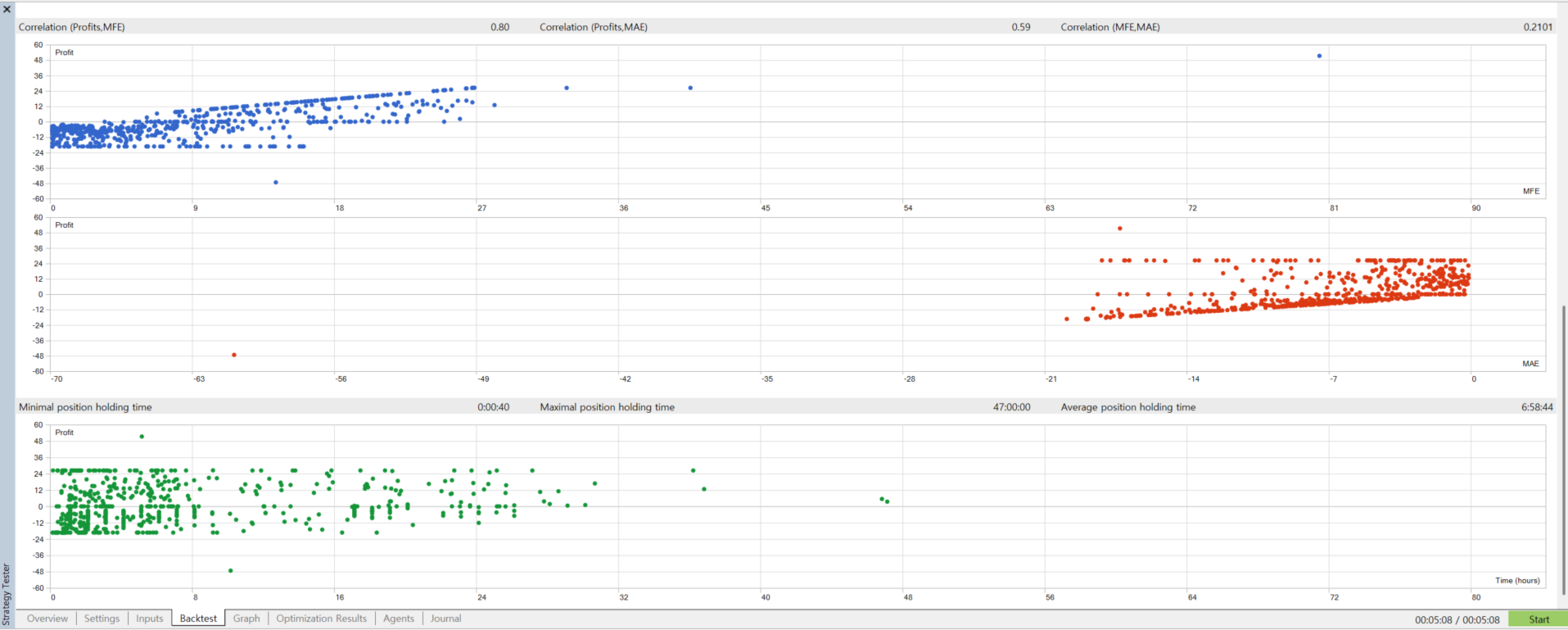
After entry, Break Even and Trailing Stop functions can operate depending on the selected settings. The EA also includes a maximum holding time function that can close positions that do not move into a favorable state within a specified period.
If the original signal becomes invalid, the EA can re-check EMA and RSI conditions and close the position early.
Risk Management
This EA supports both fixed lot trading and risk percentage-based lot calculation.
The default setting uses fixed lot trading. Users can adjust the lot size according to their account size and trading environment.
The risk management structure includes the following functions.
Daily Loss Limit sets the daily loss restriction.
Max Trades Per Day limits the maximum number of trades per day.
Max Consecutive Loss temporarily restricts trading after consecutive losses.
Cooldown Bars limits re-entry for a certain number of H1 bars after a loss.
Post Close Delay restricts re-entry for a certain period after a position is closed.
Spread Filter blocks entries when the spread is too wide.
Max SL Points limits excessively large stop loss distances.
These functions are designed to reduce excessive entries and to restrict trading automatically in abnormal market conditions.
Input Parameters
General Settings
InpSymbol
Sets the trading symbol. If left empty, the EA uses the current chart symbol.
InpMagicNumber
Sets the unique magic number used to identify EA orders.
InpDeviationPoints
Sets the allowed price deviation for order execution.
Direction
InpAllowBuy
Enables or disables BUY trades.
InpAllowSell
Enables or disables SELL trades.
Trading Time Filter
InpUseTimeFilter
Enables or disables the trading time filter.
InpTradeStartHour
Sets the trading start hour.
InpTradeEndHour
Sets the trading end hour.
Day-of-week settings can also be used to restrict trading on specific days.
Risk Settings
InpUseRiskPercent
If true, the EA uses risk percentage-based lot calculation. If false, the EA uses fixed lot trading.
InpFixedLots
Sets the fixed lot size used for trading.
InpRiskPercent
Sets the risk percentage used for risk-based lot calculation.
InpMaxTradesPerDay
Limits the maximum number of trades per day.
InpDailyLossLimitPct
Sets the daily loss limit percentage.
InpMaxConsecutiveLoss
Sets the temporary pause condition after consecutive losses.
InpCooldownBars
Sets how many H1 bars must pass before re-entry is allowed after a loss.
SL/TP Settings
InpATRPeriod
Sets the ATR calculation period.
InpATRSLMult
Sets the ATR multiplier used to calculate stop loss distance.
InpBaseRR
Sets the basic Risk Reward ratio.
InpSwingLookback
Sets the number of bars used to check structural highs or lows.
InpMinSLPoints
Sets the minimum stop loss distance.
InpMaxSLPoints
Sets the maximum allowed stop loss distance.
Signal Settings
InpEMAPeriod
Sets the EMA calculation period.
InpRSIPeriod
Sets the RSI calculation period.
InpVolumeSpikeMult
Sets the multiplier used to judge volume increase conditions.
InpMinSignalScore
Sets the minimum signal score required for entry.
InpAllowGradeC
Allows or blocks lower-grade signals.
InpRequireRealVolumePattern
Sets whether the volume decrease and re-increase pattern is required.
InpRequireBreakoutConfirm
Sets whether breakout confirmation is required.
InpBlockedSellHours
Sets the hours during which SELL entries are restricted.
BE & Trailing
InpUseBreakEven
Enables or disables the Break Even function.
InpBETriggerR
Sets how many R of profit must be reached before Break Even is applied.
InpUseTrailingStop
Enables or disables the Trailing Stop function.
InpTrailStartR
Sets how many R of profit must be reached before Trailing Stop starts.
InpTrailATRMult
Sets the ATR multiplier used for Trailing Stop distance.
Exit Management
InpUseMaxHoldingExit
Enables or disables the maximum holding time exit function.
InpMaxHoldingHours
Sets the maximum holding time for a position.
InpUseSignalInvalidationExit
Sets whether the EA closes a position early when EMA and RSI conditions turn against the entry direction.
InpUseMFEProtection
Enables or disables the pullback protection function after the position has moved into profit.
How to Use
-
Open an H1 chart in MetaTrader 5.
-
Attach NEXA Volume Filter Pullback EA to the chart.
-
Check the trading symbol and lot settings.
-
Make sure automated trading is allowed.
-
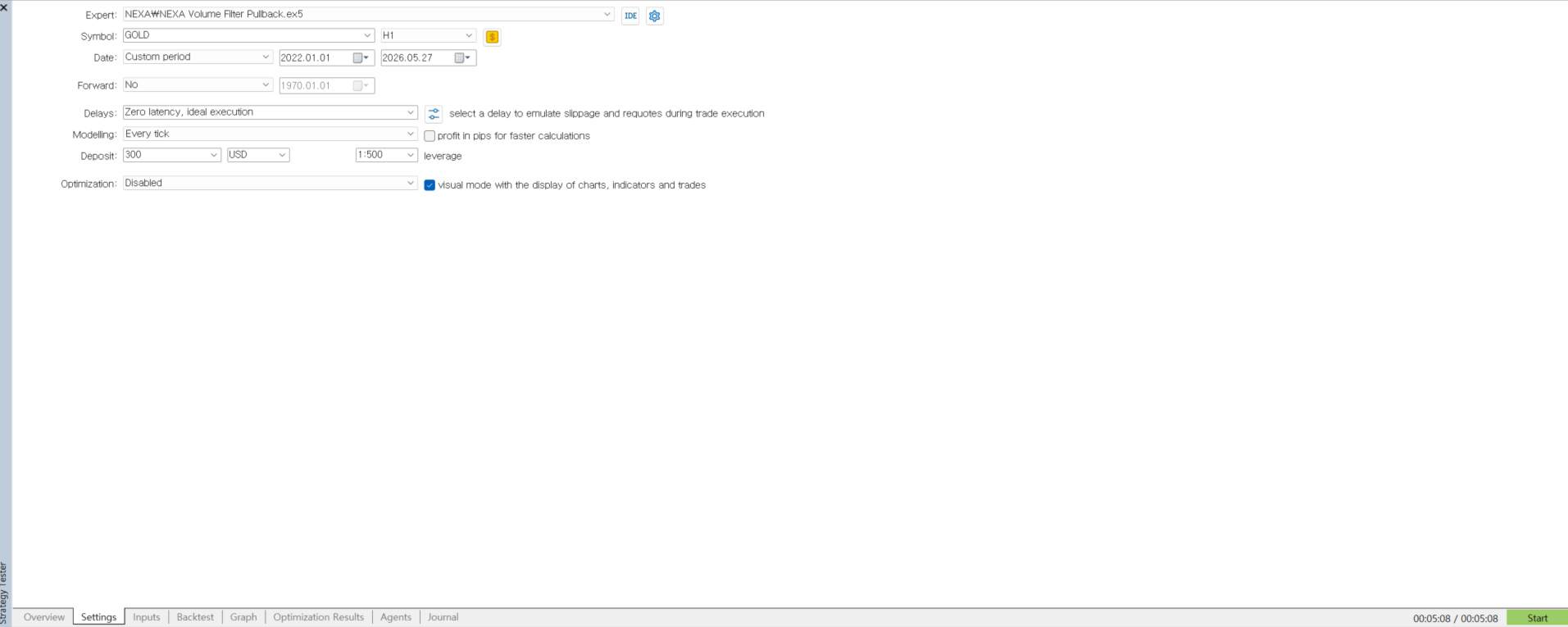
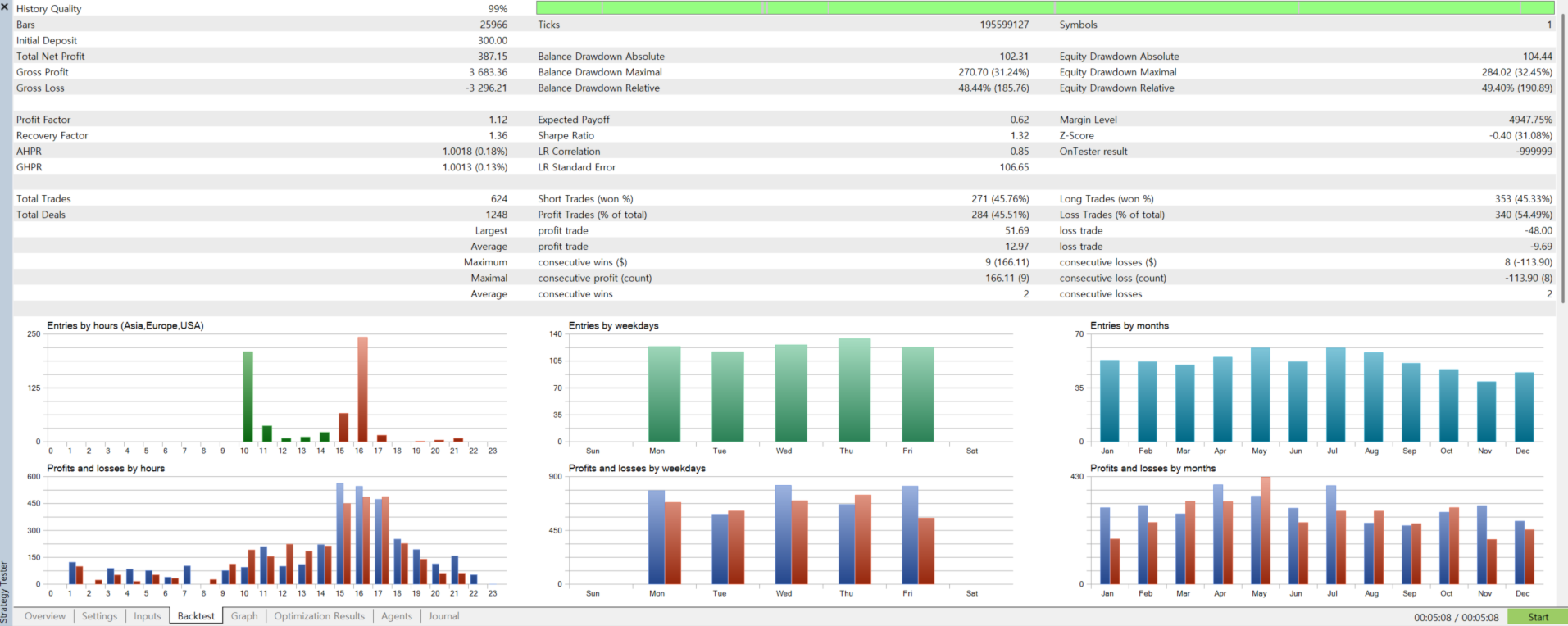
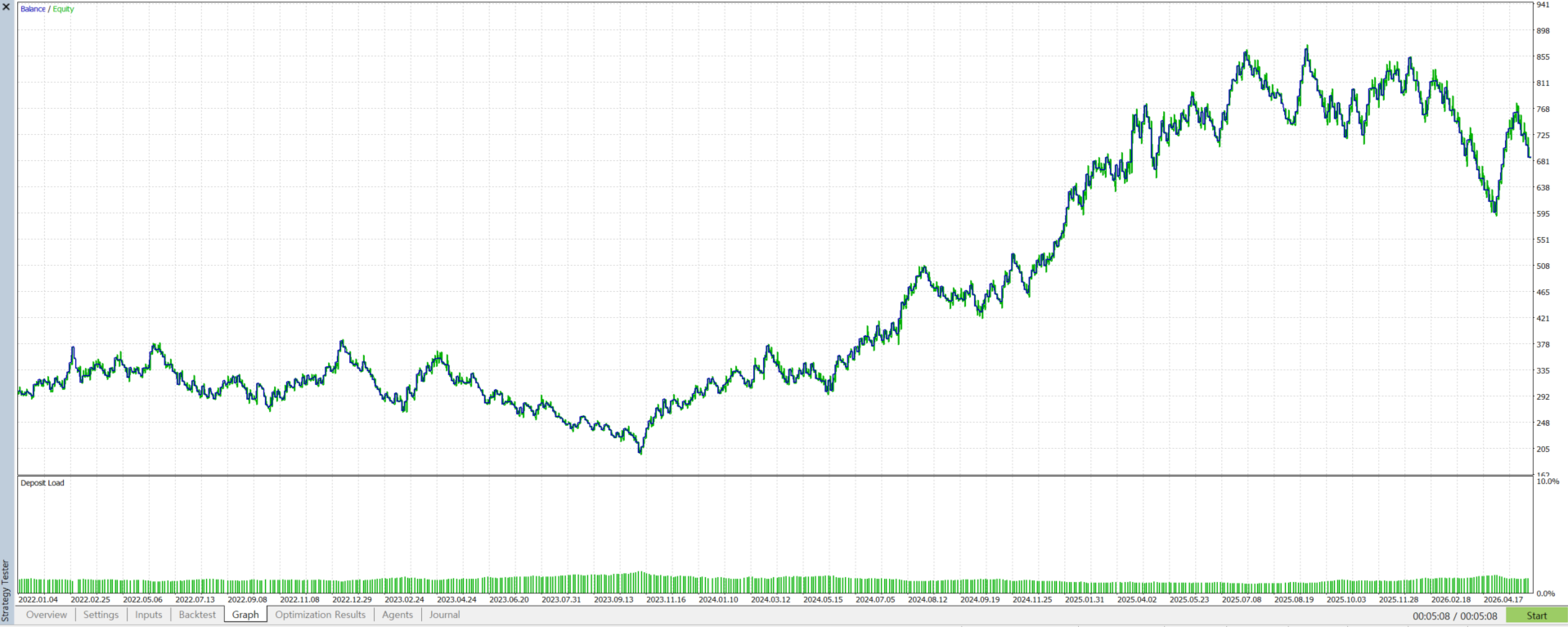
Before using the EA on a real account, review it sufficiently in the Strategy Tester and on a demo account.
-
Adjust input values according to broker spread, contract size, and server time.
Important Notes
This product is an automated trading program, and all trading results may vary depending on market conditions and user settings.
Past test results do not guarantee future results.
Users should adjust settings according to their account size, risk tolerance, and trading environment.
Entry frequency and trading results may vary in environments with wide spreads or low liquidity.
Before using automated trading on a real account, it is recommended to check the EA behavior through the Strategy Tester and a demo account.