Trade Studio MT5
- Utilities
- Version: 3.0
- Updated: 25 March 2026
- Activations: 20

What is this program about?
This is your personal trading combine — one panel that has everything you need for work. It includes fast trading, trade management, and trailing stop. Everything in one place.
The program consists of three main sections:
-
TRADE — opening trades (manually or with the mouse)
-
CLOSURE — closing positions and deleting orders
-
TRAILING — automatic trailing stop
1. TRADE Section
Here you open trades. There are two ways:
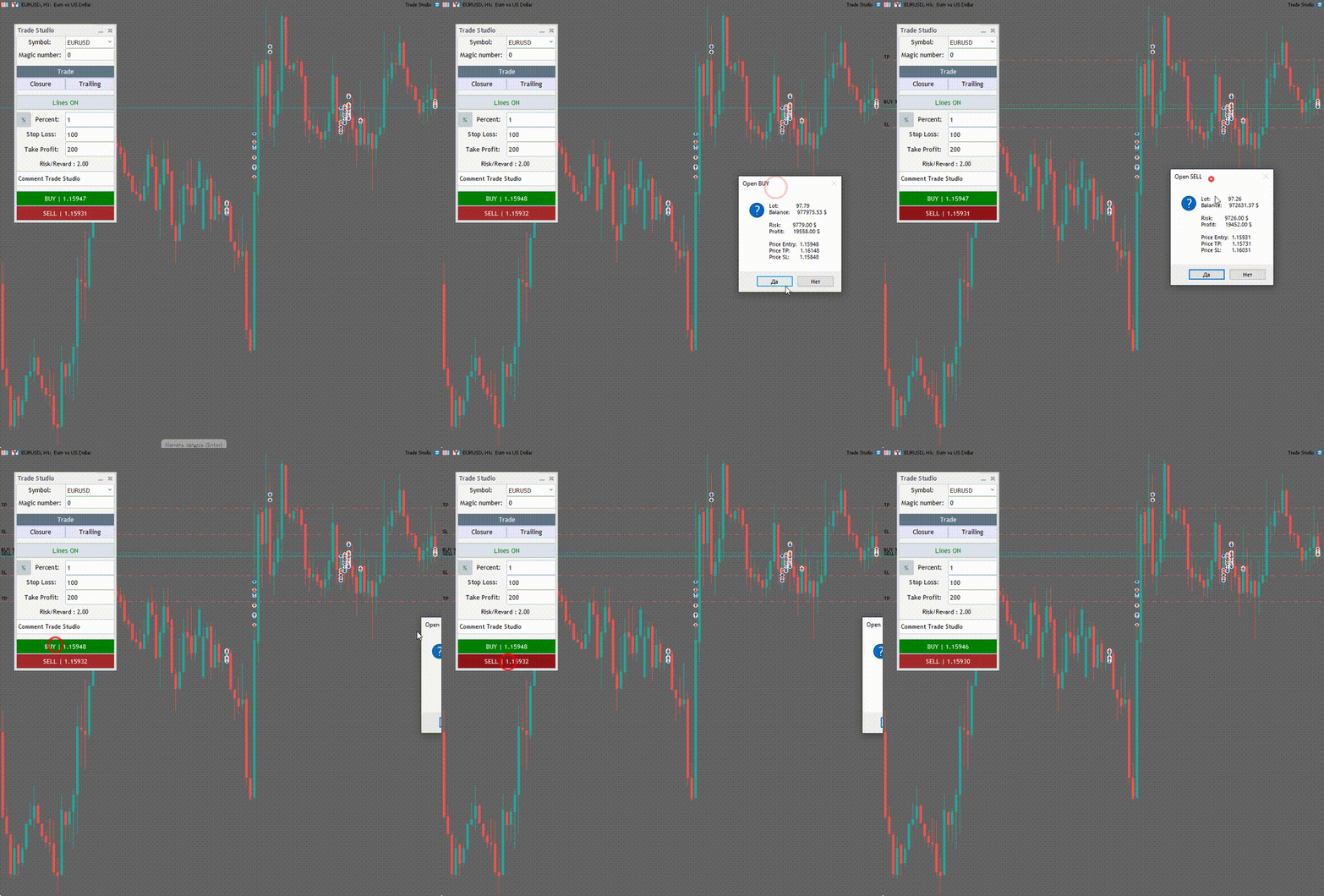
Method 1 — Manual
-
Select the lot size (can be as a percentage of your deposit)
-
Enter Stop Loss and Take Profit in pips
-
Press BUY or SELL
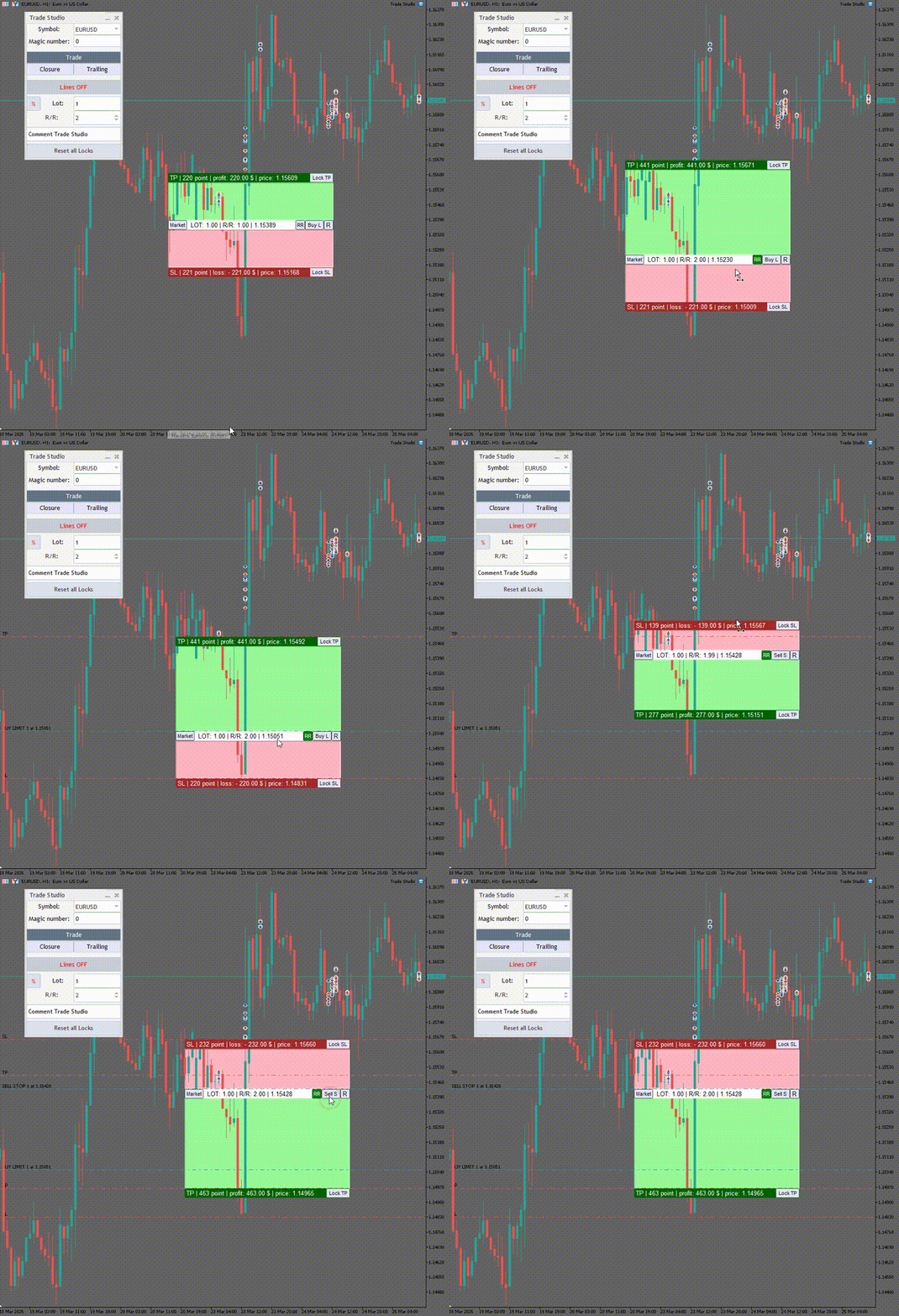
Method 2 — Mouse (Visual Constructor)
-
Press Lines ON
-
Three colored blocks appear on the chart:
-
Green — where you take profit (TP)
-
Gray — where you enter the trade (PEN)
-
Red — where you limit your loss (SL)
-
-
Drag the blocks with your mouse to set up your trade
-
Press the open button
Additional buttons in the visual constructor:
-
Market — locks the entry point to the current price (opens a market position)
-
RR — automatically adjusts levels according to the risk/reward ratio (2 to 1 or whatever you set)
-
R — swaps TP and SL (quick flip)
-
Lock TP / Lock SL — locks a level so you don't accidentally move it
-
Reset all Locks — unlocks both levels
2. CLOSURE Section
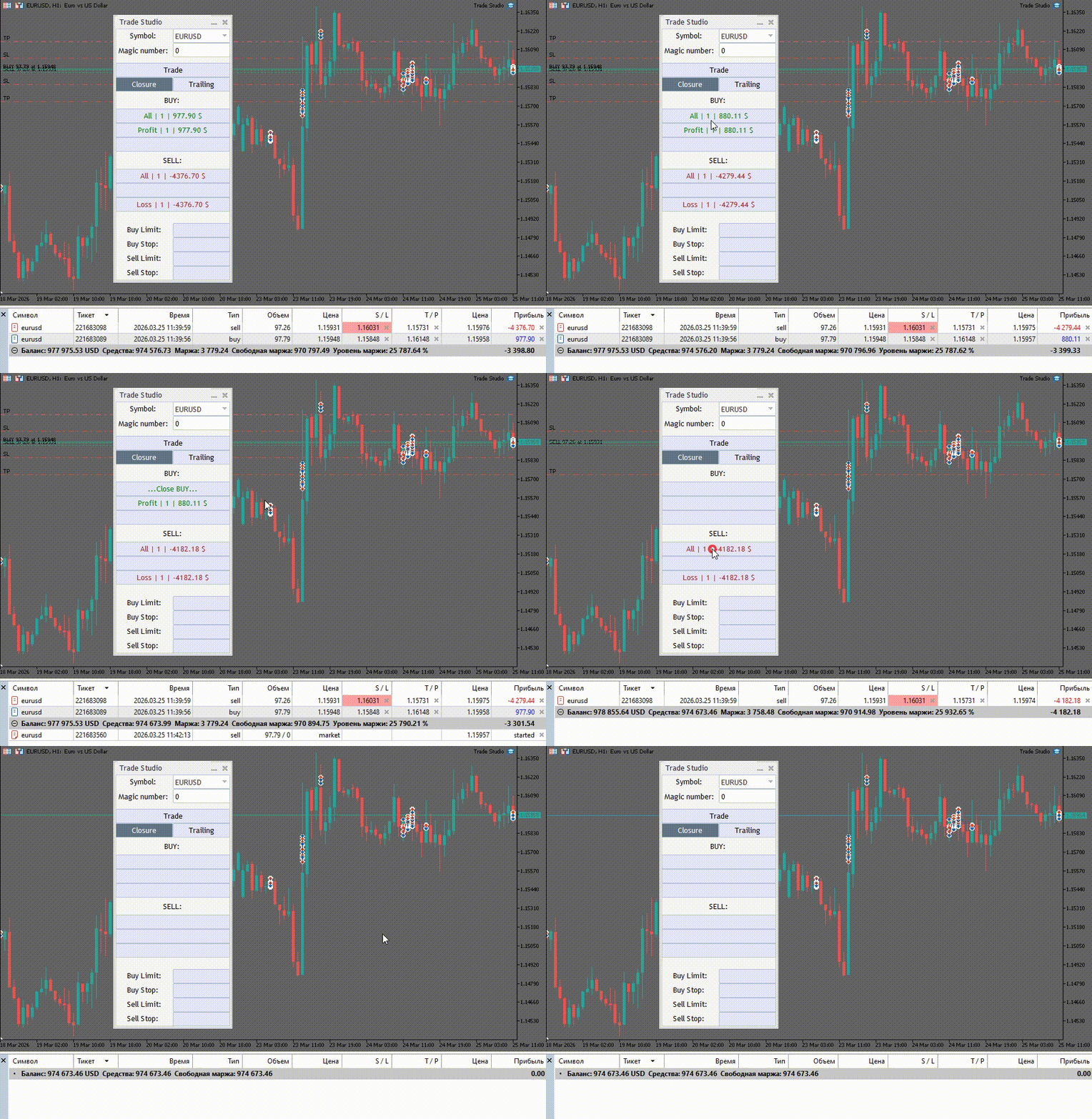
Here you manage open positions and pending orders.
For market positions:
-
All BUY / All SELL — close all positions
-
Profit BUY / Profit SELL — close only profitable ones
-
Loss BUY / Loss SELL — close only losing ones
For pending orders:
-
Buy Limit / Buy Stop — delete all pending buy orders
-
Sell Limit / Sell Stop — delete all pending sell orders
All buttons show the number of positions/orders and their total profit. Button colors change:
-
Green — there is profit
-
Red — there is a loss
-
Blue — there are pending orders
3. TRAILING Section
Automatically moves the Stop Loss as the price moves.
-
Set the trailing distance in pips (e.g., 1000)
-
Press BUY or SELL
-
The program automatically finds all profitable positions in that direction and activates trailing
The buttons show the number of profitable positions. If such positions exist, the buttons light up green or red.
General Settings (on the main panel)
-
Symbol — select the currency pair (you can change it directly from the panel)
-
Magic number — a unique number for identifying trades (useful if you have multiple experts on the chart)
-
Confirmation messages — you can enable or disable the warning before a trade (configurable in the input parameters)