Drag Orders MT5
- Utilities
- Version: 3.0
- Updated: 25 March 2026

This is a simple panel that lets you draw your order directly on the chart using your mouse.
You no longer need to manually calculate levels or type in numbers. Just grab and move three colored blocks:
-
Green block — where you take profit (Take Profit)
-
Gray block — where you enter the trade (entry point)
-
Red block — where you limit your loss (Stop Loss)
The program will automatically set the prices and place the correct pending order.
What can it do?
-
Mouse Control
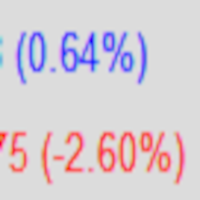
Move the blocks — the program immediately shows how many pips to the target and how much money you will earn or lose. It’s all visual. -
Smart Calculation (RR button)
Press the RR button, and the program automatically adjusts the levels so that the risk-to-reward ratio is 2 to 1 (or whatever you set). For example: if you risk $100, the target will be $200. -
Locking Levels (Lock TP / Lock SL buttons)
Want to lock a level so you don’t accidentally move it? Press Lock TP — the green block is locked. When you move the gray block (entry), the red block (stop) will recalculate itself, but the green one stays put. Handy when you’ve already decided on your target. -
Quick Flip (R button)
Press R — the green and red blocks swap places. This is for when you change your mind and want to trade in the opposite direction. -
Two Reset Buttons
-
Reset all Locks — unlocks both levels (TP and SL).
-
Reset Visual — if you’ve made a mess, press this and all blocks return to their starting positions like when you first launched it.
-
-
Detailed Information on the Blocks
Each block shows:-
How many pips to the target/stop
-
How much that is in dollars
-
The price level
-
How to use it?
-
Launch the program on the chart.
-
In the small panel at the top, select the lot size (e.g., 0.1) and the R/R ratio (e.g., 2).
-
Press Lines ON — three colored blocks appear.
-
Drag them with your mouse to set up your trade.
-
Press the Buy or Sell button (the program will automatically determine the correct order type).
-
The order is placed!