

Chart Tools (Easy Position Manager and Easy Trade Deck)
This guide covers two chart tools. Easy Position Manager is the pills on existing trades. Easy Trade Deck is the three-line opener. They are not one control.
Two things are worth knowing before you read further, because they are the reason this guide exists:
The Easy Position Manager also manages trades FxTools did not open. Your own manual trades and trades from other EAs can get a marker, a trailing stop, a breakeven, or a partial close.
Stop loss and take profit can be kept off the broker. The EA holds the levels and closes the trade itself, so nothing sits on the server for anyone to see.
Turn the chart tools on
Use this when you attach FxTools and see no markers on your open trades.
Easy Position Manager and Easy Trade Deck are separate. They do not share one master switch.
Easy Position Manager (pills)
1. Open the EA properties (right-click the chart, then Expert Advisors, then Properties, or press F7).
2. On the Inputs tab find Show Easy Position Manager.
3. Set it to true and click OK.
That input gates EPM only. With it off there are no pills, level handles, or the EPM panel. The Easy Trade Deck does not read this input.
Easy Trade Deck
Open it from the Open tab Levels on chart button, or from the shortcut bar / minimized bar levels button. Click again to close. Neither path uses Show Easy Position Manager.
💡 Note: EPM and Deck do not initialize in the Strategy Tester. Test them on a demo account instead.
Easy Position Manager (EPM)
The marker on your trade
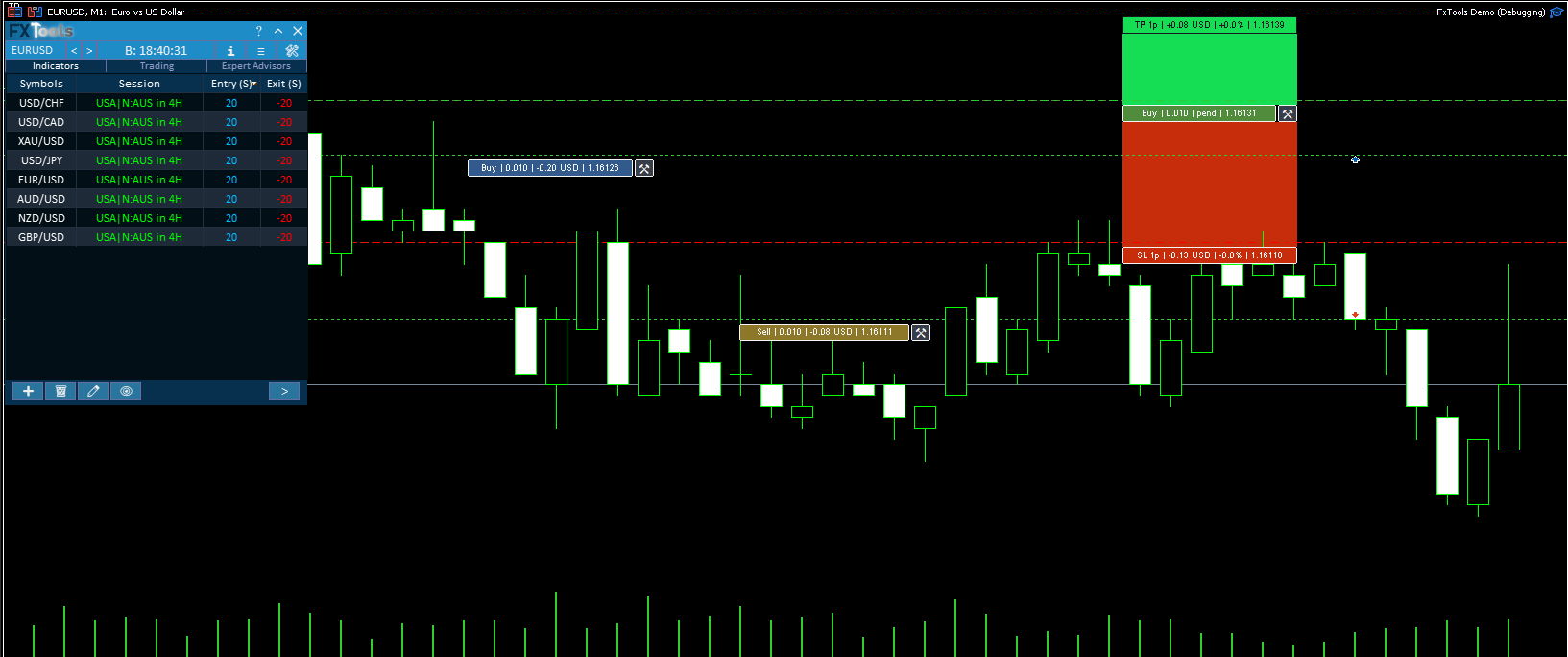
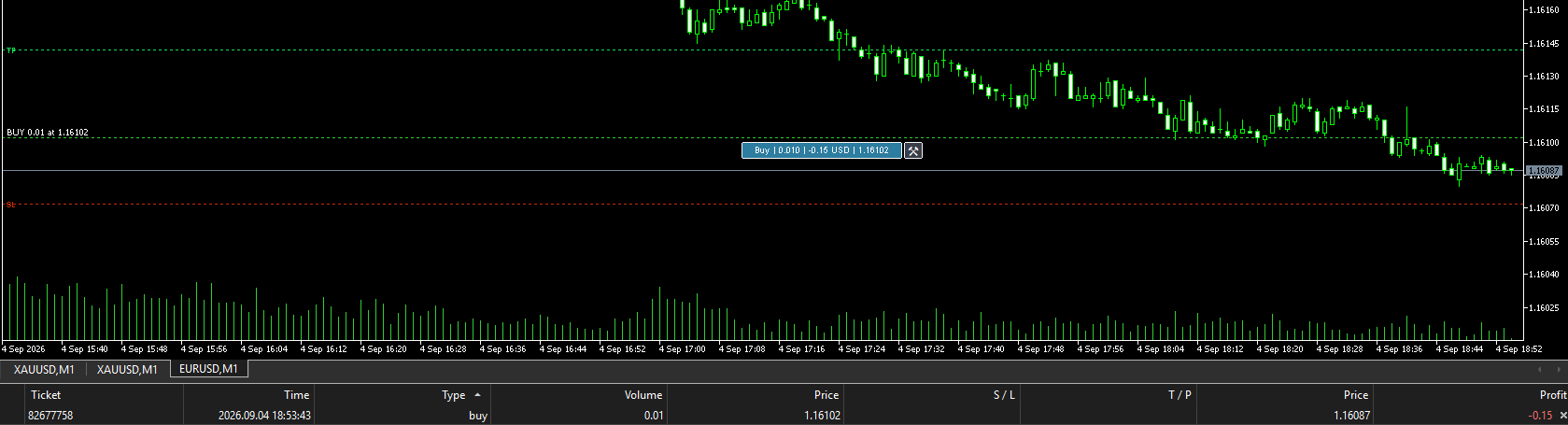
Every trade on the current chart symbol that matches EPM Pill Scope gets a horizontal line at its open price and a small coloured marker sitting on that line. The marker is usually called a pill.
The pill has two halves:
| Part | What it does |
|---|---|
| The coloured body | Click it to show the stop loss and take profit handles for that trade. Click again to hide them. |
| The small tools icon on the right | Click it to open the management panel for that trade. |
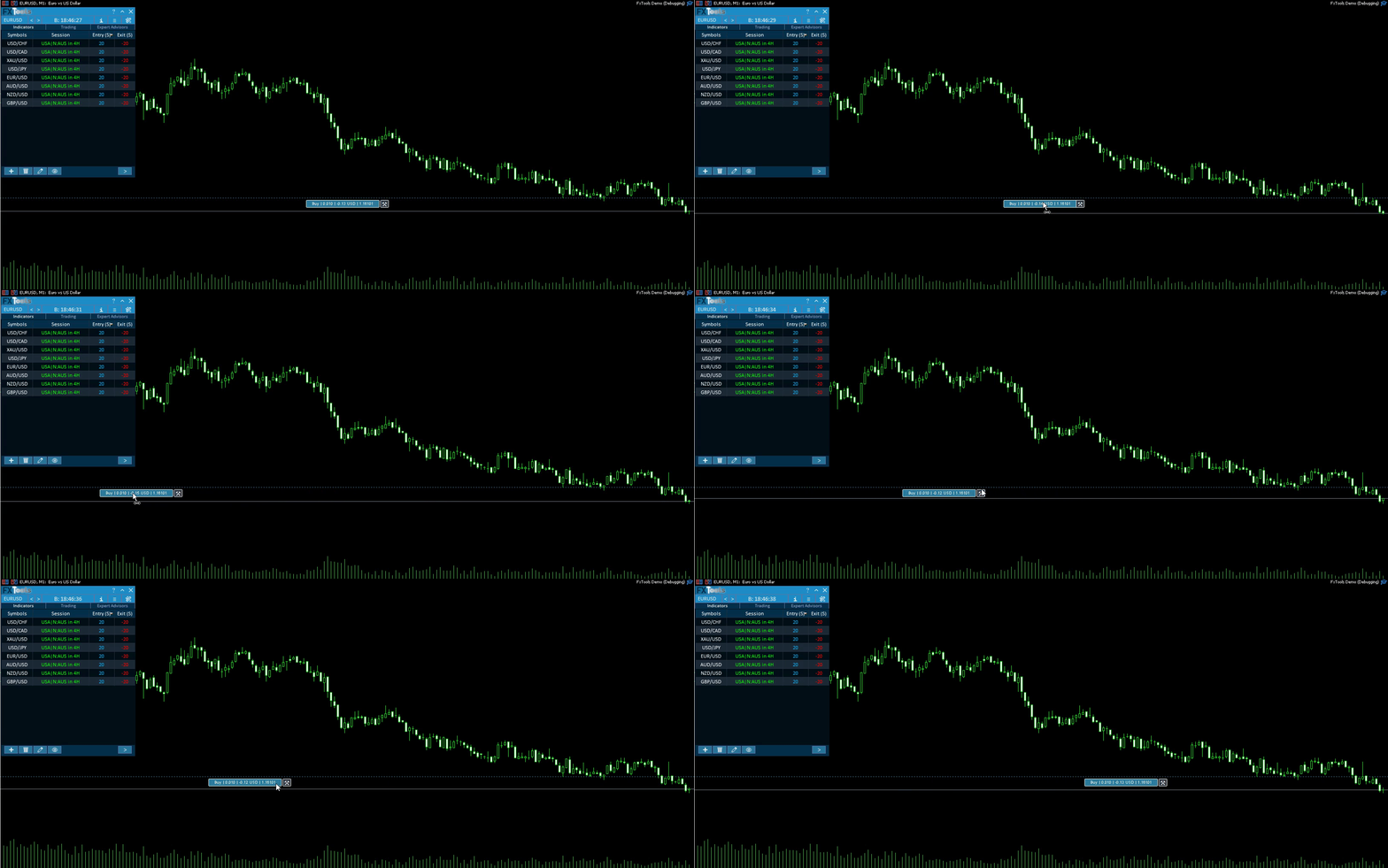
Hovering a pill shows Position #ticket SYMBOL — click for SL/TP, drag to slide (pending orders use Pending #…). The tools chip tooltip is Manage.
Dragging the pill body slides it left and right along its own price line. This only moves the marker, never the trade. Use it when several pills overlap and you cannot read them.
Setting SL and TP by dragging
Use this when you want to move a stop or a target without typing a price anywhere.
Do this
1. Click the body of the pill. Two more pills appear, one for SL and one for TP.
2. A coloured box is drawn between the open price and each level, so you can see the risk area and the reward area at a glance.
3. Drag the SL pill or the TP pill up or down. The new level is sent when you release the mouse.
4. Click the trade pill again to hide the handles and the boxes.
A level pill that is dimmed means that level is not set yet. Drag it once and it becomes active.
The trade panel
Use this when you want to do anything more than move a level.
Click the small tools icon on a pill. A dark panel opens next to it, titled with the ticket, the side, the lot size and the symbol. The trade comment is shown in small text at the bottom.
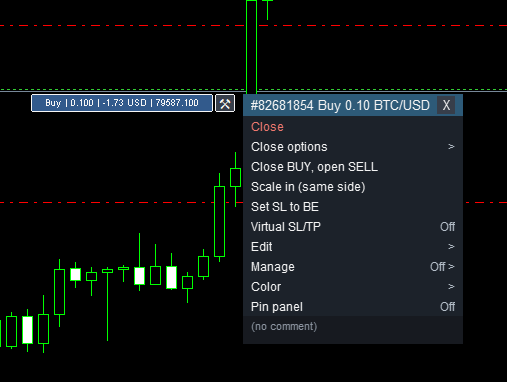
For an open position the panel has these rows:
| Row | What it does |
|---|---|
| Close | Closes the whole position at market, immediately. |
| Close options | Opens the partial and bulk closing choices. See below. |
| Close BUY, open SELL (or Close SELL, open BUY) | Reverses the trade in one click: closes what you hold and opens the same size the other way. |
| Scale in (same side) | Adds another trade in the same direction. |
| Set SL to BE | Moves the stop loss to the open price right now, once. This is a one-off action, not the automatic Breakeven feature. |
| Virtual SL/TP On / Off | Hides the levels from the broker and lets the EA hold them. See its own section below. |
| Edit | Type exact Stop Loss and Take Profit values instead of dragging. |
| Manage On / Off | The list of automatic methods for this one trade. See below. |
| Color | Gives this trade's pill and line your own colour, so you can tell your setups apart. |
| Pin panel On / Off | Keeps the panel in one place on the chart instead of following the pill. |
For a pending order the panel is much shorter, with only Delete and Color. Everything else needs a live position.
The X in the panel header closes the panel. It does not touch the trade.
Managing trades FxTools did not open
Use this when you have a trade you placed by hand, or a trade from another EA, and you want FxTools to trail it, move it to breakeven, or close it in parts.
By default only trades opened by FxTools get a pill. You widen that in the settings.
Do this
1. Open the dashboard Settings window.
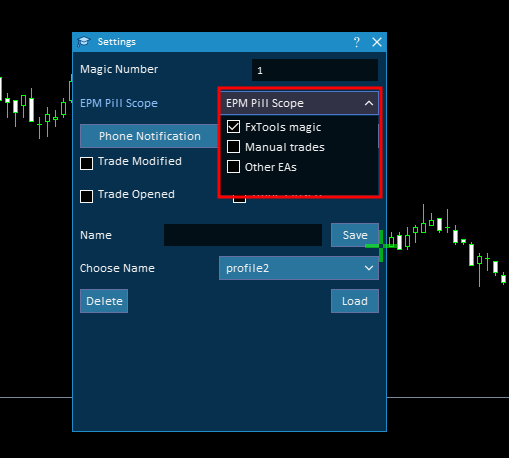
2. Find EPM Pill Scope. It is a checklist, so you can tick more than one. Default is FxTools magic.
3. Tick the groups you want:
| Option | Which trades it covers |
|---|---|
| FxTools magic | Trades opened by this dashboard, using the magic number set in Settings. |
| Manual trades | Trades with no magic number: everything you opened by hand, from the terminal or from your phone. |
| Other EAs | Trades carrying any other magic number, so anything another robot opened on this account. |
Example
You run a signal EA that opens trades with no trailing stop of its own. Tick Other EAs, click the pill on one of its trades, open Manage, and switch on a trailing stop for it. FxTools now trails a trade it never opened.
If nothing happens
Pills are drawn for the chart symbol only. A EURUSD trade never appears on a GBPUSD chart. Switch the chart to that symbol.
If you ticked FxTools magic but see nothing, check that the magic number in Settings still matches the trades you are looking for.
Virtual SL/TP: keep your levels off the broker
Use this when you do not want your stop loss and take profit sitting on the broker's server.
With Virtual SL/TP switched on, FxTools removes the levels from the order and remembers them itself. When price reaches one, the EA closes the trade at market.
Do this
1. Click the small tools icon on the pill to open the panel.
2. Click the Virtual SL/TP row so it reads On.
3. The SL and TP fields on the broker side are cleared, and the levels are redrawn on the chart as dotted lines labelled SL and TP.
Dotted lines mean virtual. Solid broker levels are gone. That is the quickest way to confirm it worked.
Example
You are trading a news release and you do not want a visible stop to be picked off by a spread spike. Set the stop where you want it, switch Virtual SL/TP to On, and the order goes to the server with no stop attached while FxTools keeps watching your level.
⚠️ Important: a virtual level only exists while the EA is running. If you close MetaTrader, remove the EA, or lose your connection, nothing is protecting the trade on the broker side. Do not use virtual levels on a trade you intend to leave unattended overnight.
Other surfaces
Virtual SL/TP lives on this EPM row for a live ticket. There is no Hide SL/TP checkbox on Instant Open in the current build.
Manage: automatic methods on one trade
Use this when you want a trailing stop, a breakeven, a partial close, a martingale, a grid, or a recovery zone on this trade only, without arming it for everything else.
Click Manage in the panel. The list shows every method with its state for this trade:
Trailing Stop On / Off
Break Even On / Off
Partial Close On / Off
Martingale On / Off
Grid On / Off
Recovery On / Off
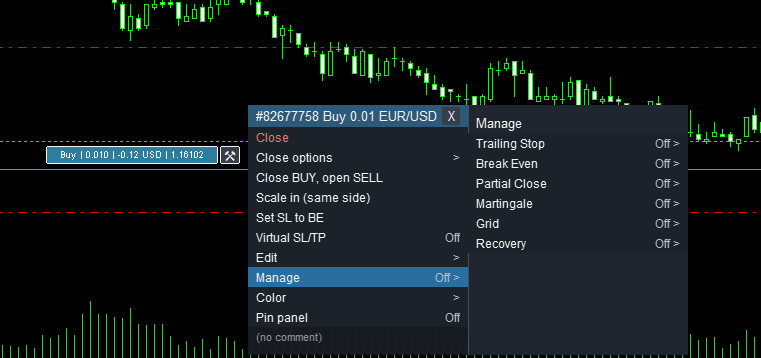
Click any of them to open its settings for this trade. Trail and Break Even may both be On. Grid, Martingale, and Recovery are exclusive of each other and of Trail, Break Even, and Partial.
Enable on Apply: the one thing people get wrong
Changing a setting in the panel does not start the method. Nothing happens until you click Apply.
Three different words are used on purpose, and they mean three different things:
| What you see | Where | What it means |
|---|---|---|
| Enabled / Disabled | Dashboard Manage tab | The dashboard is ready to apply this method to trades that match its symbol and magic filters. |
| On / Off | EPM Manage list | This one trade is actually running the method right now. |
| Enable on Apply | Checkbox inside a method's settings | A draft. You want it on, but it is not on yet. |
While a draft differs from what is live, the panel shows Pending Apply. A status line at the bottom of the settings tells you the truth about the trade itself: Enabled for this trade or Not enabled.
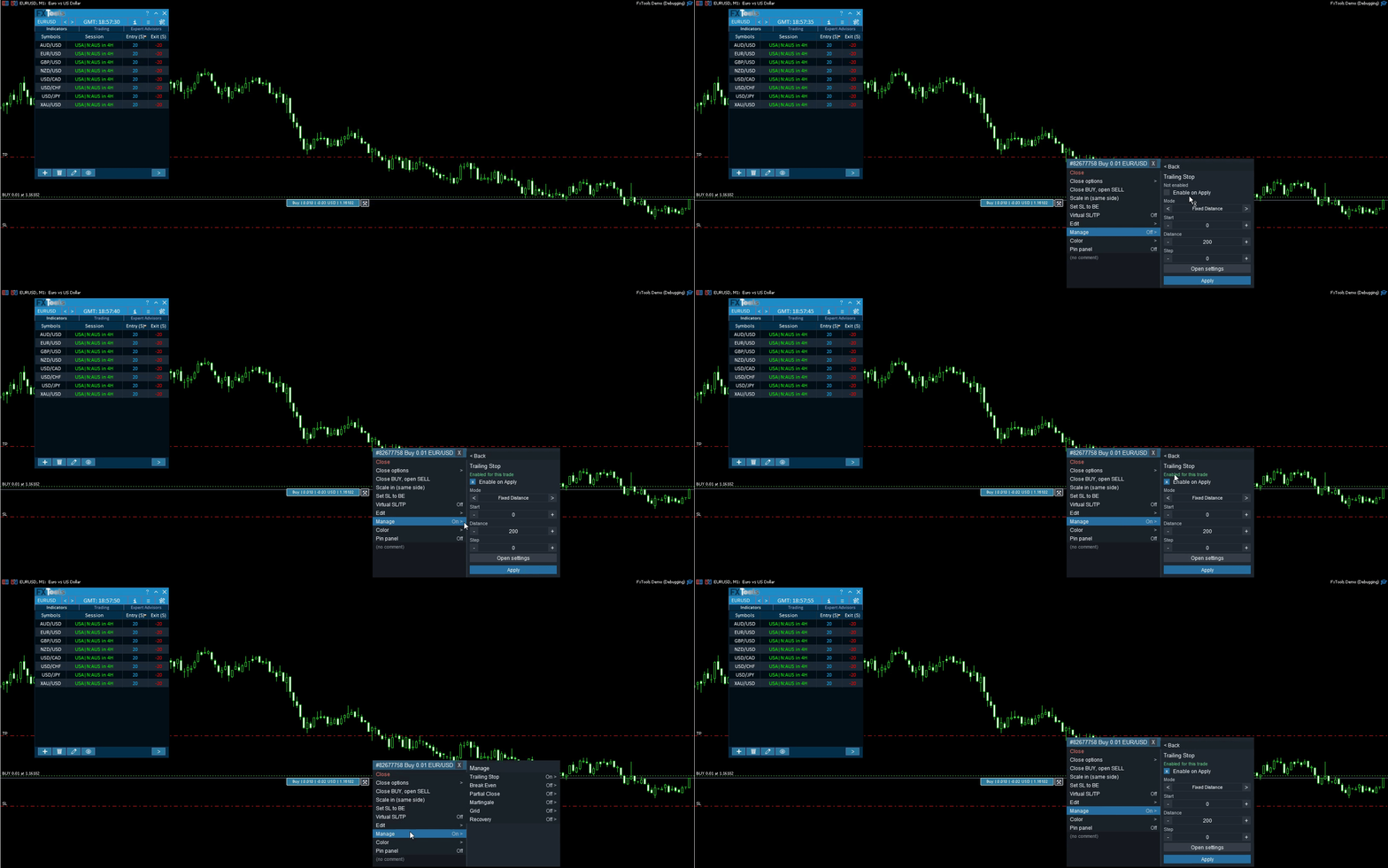
Do this
1. Open Manage, then the method you want, for example Trailing Stop.
2. Tick Enable on Apply.
3. Set the Mode and its values. Trailing offers Fixed Distance, ATR, MA, Parabolic SAR, Candles High/Low, and By Profit, each with its own fields.
4. Click Apply.
5. Check that the status line now reads Enabled for this trade and the Manage row reads On.
Some modes say Use Open settings for this mode instead of showing fields. That mode takes its distances from the dashboard rather than from the panel. The Open settings button below jumps you there.
Other surfaces
These are the same engines as the dashboard Manage tabs, aimed at one ticket. Distance modes for Grid / Martingale / Recovery are in the Trail guide; each method has its own topic guide linked at the end.
Closing from the chart
Use this when you need out of a trade, or part of one, faster than you can find it in the terminal list.
The panel row Close closes the whole position at once. Close options opens the rest:
| Option | What it does |
|---|---|
| Close position % | Closes part of the trade. Pick one of the quick percentages or set your own with Custom %. |
| Close opposite | Closes the trades running the other way on this symbol. |
| Close all on symbol | Closes every position on this symbol. |
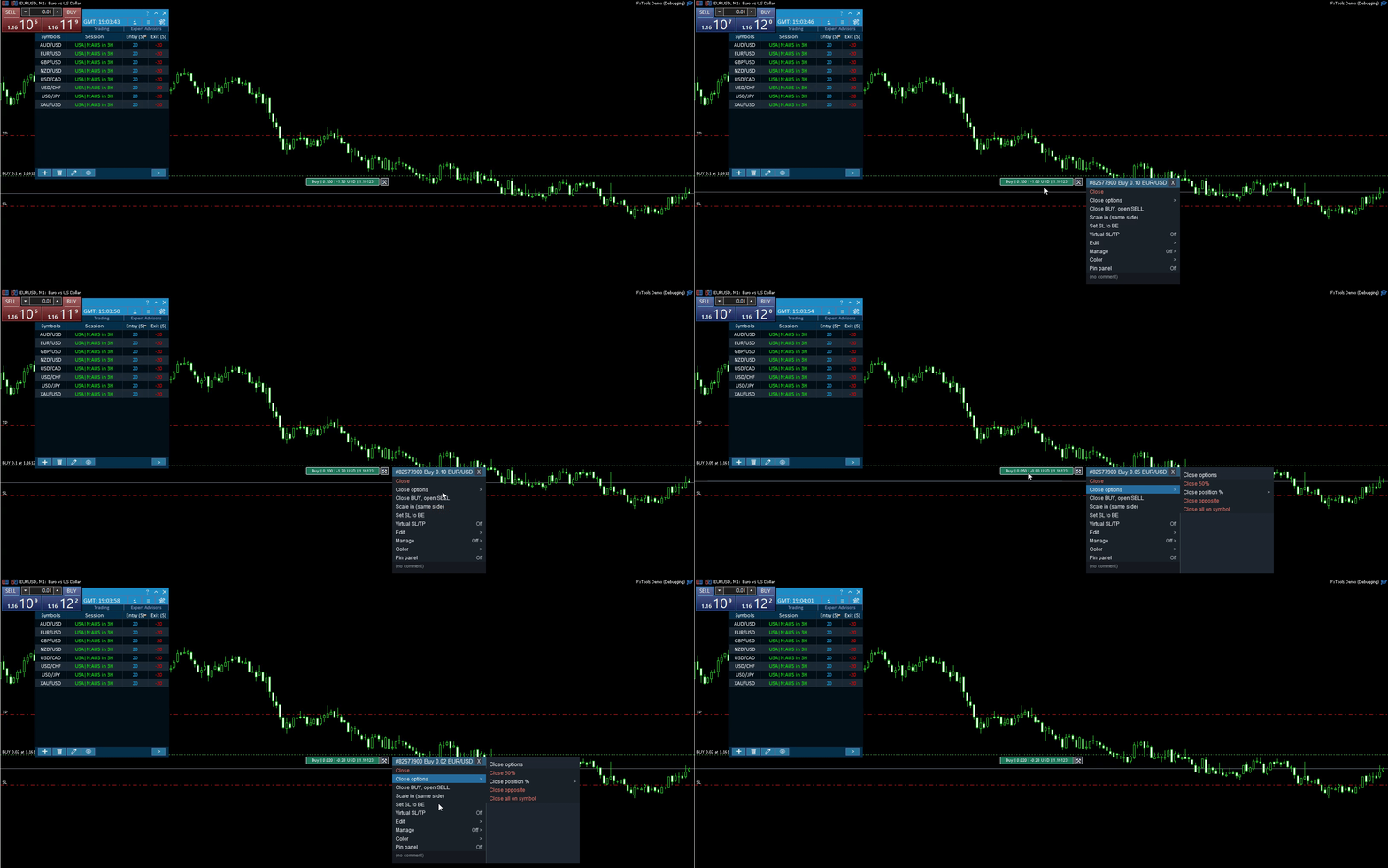
💡 Note: a partial close here is a one-off action. If you want the trade to close itself in parts as it moves into profit, use Partial Close in the Manage list instead.
Easy Trade Deck: opening a trade by pointing at the chart
Use this when you can see on the chart where your entry, stop and target belong, and you would rather place them there than convert them into numbers first.
Opening the deck
1. Go to the dashboard Open tab and click Levels on chart, or click the levels button on the shortcut bar (or the minimized bar).
2. Three draggable lines appear: the entry line in the middle, the take profit line, and the stop loss line, each with an information box.
3. Click the same control again to put the deck away.
The deck does not use the Show Easy Position Manager input. That input is EPM only.
Drag any of the three lines. As you drag, the matching field on the Open tab updates in step, so the deck and the dashboard never disagree. Whether you see pips or a price depends on the Pips / Price toggle on the Open tab.
If the R/R button on the Open tab is active, dragging the take profit moves the stop loss with it, keeping your risk-to-reward ratio.
The deck toolbar
| Button | What it does |
|---|---|
| TP lock (L) | Freezes the take profit line so it cannot be dragged by accident while you move the others. |
| SL lock (L) | Freezes the stop loss line the same way. |
| Market lock (M) | Sticks the entry line to the live market price. The trade becomes a market order instead of a pending one, and the entry follows the price until you unlock it. |
| S | Opens the deck risk / settings strip. |
| Place | Places the trade using the three lines as they stand. |
| X | Closes the deck. It does not close any trade. |
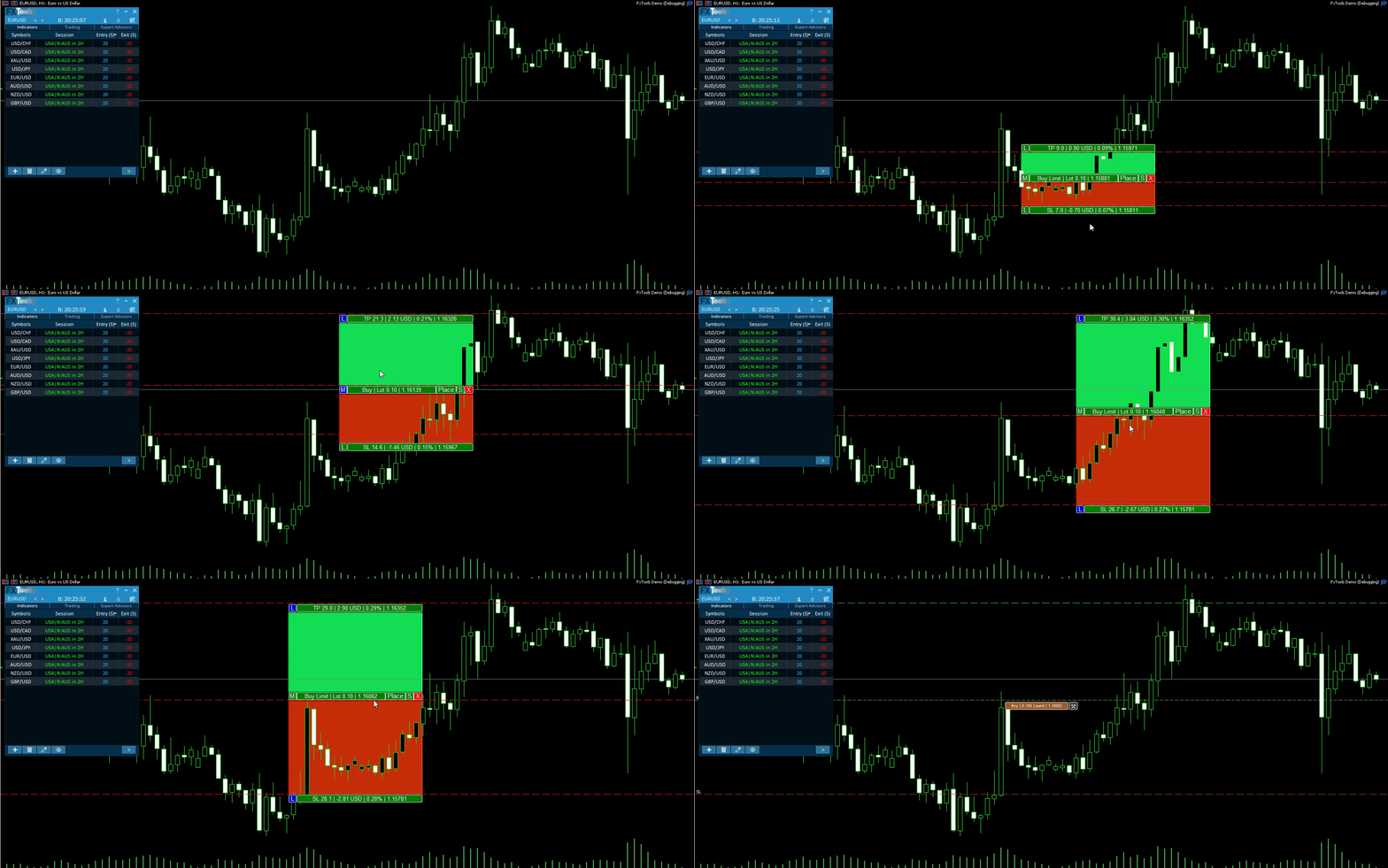
Example
Price is approaching a level you want to buy at. Open the deck, drag the entry line onto the level, drag the stop below the swing low, drag the target at the previous high, then click Place. FxTools places a buy limit with exactly those levels, sized by whatever lot method you set on the Open tab.
If instead you want in right now, click Market lock (M) first. The entry line jumps to the market price and Place gives you a market order.
💡 Note: the deck decides buy or sell from the lines themselves. If the take profit is above the entry it is a buy, if it is below it is a sell. Dragging the target through the entry flips the trade around.
Other surfaces
Lot size, risk percentage, and the stop and target defaults all come from the Open tab. The deck is a way of setting prices, not EPM and not a second set of trading rules. Open-tab lot methods are in the Open guide.
If something is missing
| What you see | Why |
|---|---|
| No pills on any trade | Show Easy Position Manager is off, or you are in the Strategy Tester. (Deck is a different control.) |
| Deck does not open | You are in the Strategy Tester, or you have not clicked Levels on chart / the shortcut-bar levels button. Show Easy Position Manager does not control the deck. |
| Pills on some trades only | Settings EPM Pill Scope does not include that group, or the trade belongs to another symbol. |
| A method says Off after you set it up | You did not click Apply. A ticked Enable on Apply is only a draft. |
| Dashboard says Enabled but the trade says Off | These are different layers. The dashboard arms the method for matching trades, the panel reports this one trade. Apply it on the trade. |
| SL and TP look gone in the terminal | Virtual SL/TP is On for that trade. Look for the dotted lines on the chart. |
| A deck line will not move | That deck line is locked (L on TP or SL). Unlock it on the deck toolbar. EPM level pills are a different object. |
Links
- Part 0 Overall Guide — four work places (dashboard, shortcut bar, overlays, chart)
- Part 1 Shortcut bar — shortcut bar and min mode
- Part 2 Overlays — Info and Settings
- Part 3 Indicators — watch table and add indicator
- Part 4 Open — Instant, Pending, By Time (coming soon)
- Part 5 Close — Manual, Auto, Partial
- Part 6 Filters — News, Prop firm, Time
- Part 7 Trail — TrailStop and shared distance modes
- Part 8 Grid — same-direction legs after price moves in favor
- Part 9 Martingale — extra legs as the trade moves into loss
- Part 10 Recovery — Recovery Zone hedge channel
- Part 11 Breakeven — move SL toward the open once in profit
- Part 12 Chart — Easy Position Manager and Easy Trade Deck
- Part 13 Expert Advisors — strategy cards by magic, live vs backtest




