

Expert Advisors (main tab)
This is the desk for every robot and every manual book you care about — one main-strip tab labelled Expert Advisors, sitting with Indicators and Trading. It is not a Trading sub-tab, not Easy Position Manager, and not a list of charts with EAs attached.
Use this when you want one card per robot or manual strategy, matched by magic (or magic 0 for hand trades). Live results sit next to an imported tester report, and you can apply Trail / Grid / Martingale / Recovery / Breakeven to matching open positions from this tab — without hunting through charts.
Add / Edit and the detail window open beside the dashboard, so the cards stay in view. They are not inside Trading.
⚠️ Important: this tab watches results. It is not the MT5 Navigator. It does not list charts, attach an .ex5, remove another expert, or read another EA’s inputs. It does not find magic numbers for you. 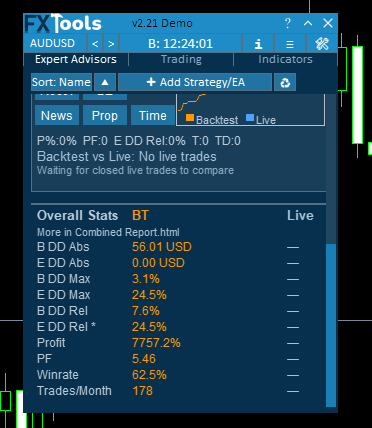 You type the magic (or leave 0 for manual) yourself.
What a card is
Each card is one strategy on the desk: name, type line, magic/symbols, a mini balance graph, live stats, and alignment text — enough to see whether live still looks like the backtest. Chip rows: Trail Grid Martin / Recov BE / News FTMO Time. Icons left to right: delete, bell, edit, info.
No cards yet? Click Add Strategy and start one. A new record starts monitor-only: every manage and filter chip is off until you Enable and Apply, so nothing is stamped onto positions by accident.

Add / Edit
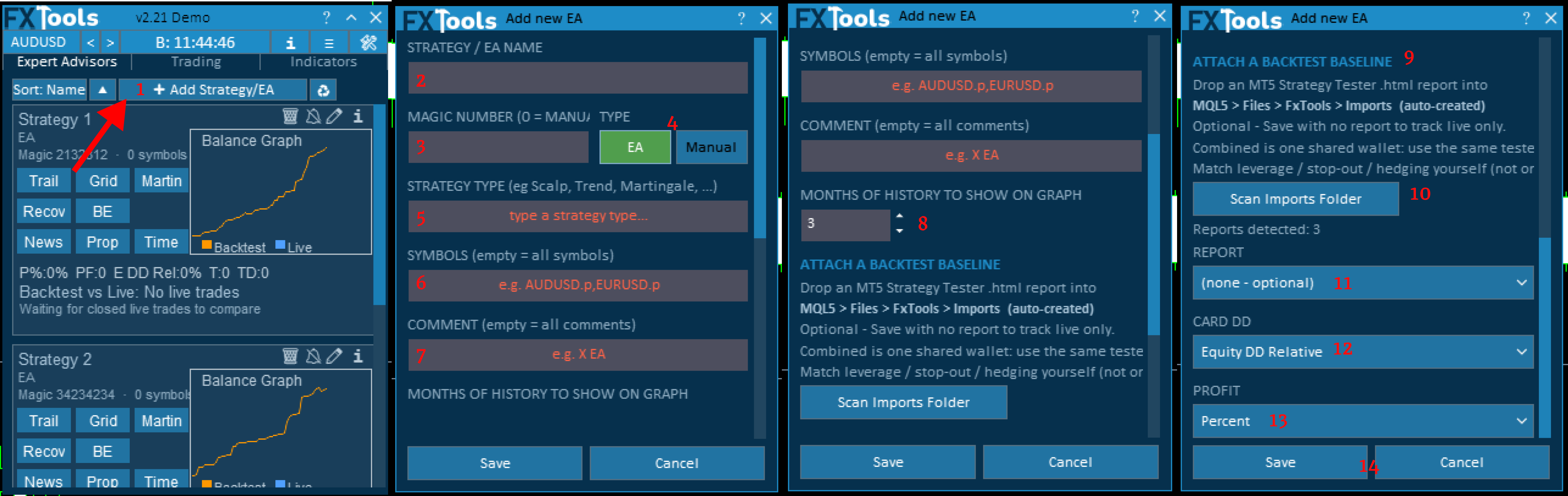
Use this when you need a new card, or you need to change how live deals match an existing one — the same form either way.
1. Add Strategy
Click it to open Add new EA and fill a card. The pencil icon opens the same fields under Edit Strategy.
2. STRATEGY / EA NAME
Give the card a name you will recognize on the strip. Default New Strategy. Required. Empty name shows Strategy / EA name cannot be empty.
3. MAGIC NUMBER (0 = MANUAL)
This is how live deals find the card. Type the robot’s magic so its trades land here. Default 0. If TYPE is Manual, or the number is 0, the record is manual and magic is forced to 0.
4. TYPE
Buttons EA and Manual. Manual means magic 0 (hand trades and anything else with no magic). New Add dialog: magic starts at 0 and EA is selected; Save still treats magic 0 as manual (Manual pressed, or magic is 0). Type a non-zero magic if you want the card to stay an EA.
5. STRATEGY TYPE (eg Scalp, Trend, Martingale, ...)
A label you will recognize on the strip — free text, for example Scalp · EA. It does not change matching or management.
6. SYMBOLS (empty = all symbols)
Optional narrowing when one magic trades several pairs and you want this card on a subset. Comma-separated list, for example AUDUSD.p,EURUSD.p. Empty = every symbol. A listed symbol matches the full name or the name before the dot.
7. COMMENT (empty = all comments)
Optional extra filter when comments distinguish systems that share a magic. Example hint X EA. If set, the text must appear somewhere in the deal or position comment. Empty = every comment.
8. MONTHS OF HISTORY TO SHOW ON GRAPH
Focus the imported Balance line on the stretch you care about. Default 3, limited to 1–48. Cuts the imported backtest Balance line to the last N months. The live curve is the full matching history (not cut to N). N also sets how much of the card graph width is Backtest vs Live. Imported whole-report metrics (P%, PF, DD, trades) stay unchanged.
9. ATTACH A BACKTEST BASELINE
Use this when you have an MT5 Strategy Tester report and you want live vs backtest on the same card and in detail — the reason this tab is so useful. Same Add/Edit dialog; the block title is ATTACH A BACKTEST BASELINE.
Drop an MT5 Strategy Tester .htm or .html report into
MQL5 > Files > FxTools > Imports (auto-created)
Optional - Save with no report to track live only.
10. Scan Imports Folder
Click when the file is in the folder and you want it on the list. Rescans that local folder (MQL5\Files\FxTools\Imports, not Common Files). The label Reports detected: shows the count. Both .htm and .html files are listed.
11. REPORT
Pick the tester file that belongs to this strategy. Dropdown of files found. Placeholder (none - optional). Pick a report to attach whole-report tester metrics as the baseline. Save still works with none selected (live-only card).
12. CARD DD
Which tester drawdown this card treats as its DD. Six choices: Balance or Equity, each Absolute, Maximal, or Relative. Absolute is money. Maximal and Relative are percent. Default Equity DD Relative. The card, alignment, and Sort: DD use this pick. The detail table still lists all six.
13. PROFIT
Percent or Currency on the card. Percent shows P%. Currency shows P: and the amount. The detail table always shows both Profit% and Profit.
14. Save / Cancel
Save writes the card onto the desk. Cancel closes without saving that edit.
You stay in control of matching. There is no allocated-capital field on this dialog. Importing a report stores the tester deposit and uses it for live P%. With no report, live P% uses the account balance.
Choosing a report does not fill magic, comment, or symbols from the HTML. You still type those.
Reading a card
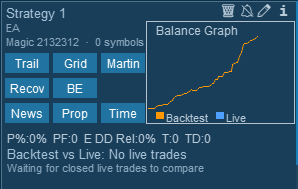
You can read a card in two seconds: name at the top, then whether it is still tracking the backtest, then the chips if you want to stamp management.
Top line: the strategy name.
Type line: {strategy type} · EA or … · Manual.
Under that, for an EA: Magic n · then the symbols filter, or n symbols when the filter is empty (count from closed live trades; 1 symbol when the count is one). Manual cards skip the Magic prefix.
Icons top-right, left to right: delete, bell, edit, info.
Chip rows on the card: Trail Grid Martin / Recov BE / News FTMO Time.
The graph is labelled Balance Graph, with legend Backtest and Live — live money against the tester path on one picture.
Live stats on the card (closed matching deals, so you can compare like with like):
| Label | Meaning |
|---|---|
| P%: or P: | Percent mode shows P%: (net profit of matching closed deals ÷ capital). Currency mode shows P: and the amount. Capital is the tester deposit after a baseline import, otherwise the account balance. |
| PF: | Profit factor from those same closed deals. |
| DD: | The Card DD you picked on Add/Edit (not a generic max DD%). Alignment’s +5% live-DD step uses this same pick. |
| T: | Trade count from closed deals only (including close-by). New opens do not add to T. |
| TD: | Trading days, also from those closed deals only. |
Alignment is the plain-language check: is live still in the same neighbourhood as the tester? A line appears when there is something to show:
| What you see | When |
|---|---|
| Backtest vs Live: Matched / Similar / Attention / Warning | Baseline imported and at least one matching closed live trade. A second line shows Δ for DD, PF, and P%/mo. |
| Backtest vs Live: No live trades | No matching closed deals yet. With a baseline, a second line: Waiting for closed live trades to compare. |
| No baseline | Live trades exist but no report is attached. Hint: Import a backtest to compare. |
The four words are a rounded mix of drawdown, profit factor, and P% per month (when comparable):
Drawdown: each extra +5% of live DD versus baseline steps the DD score (Matched → Similar → Attention → Warning).
Profit factor: each −0.25 of live PF versus baseline steps the PF score the same way.
P% per month: each −5% of live P%/mo versus baseline steps that score.
Overall word is the rounded average of those three scores.
Sort
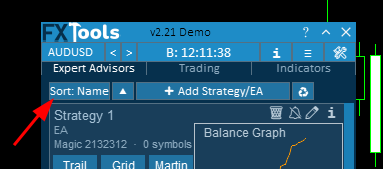
Tap sort when you want the best (or the worst) card at the top of the desk. The button cycles, always descending on that key:
Sort: name → Sort: P% → Sort: PF → Sort: DD → Sort: T → Sort: TD
Sort: DD uses each card’s Card DD and puts the smaller drawdown first (least DD at the top).
The triangle button at the side of the sort button is used for ascending and descending order. The recycle icon beside it is Rewrite Combined HTML (see Overall Stats).
Detail window
Tap the info icon when you want the numbers side by side. It opens {name} detail (strategy name plus the word detail). Section label Baseline vs Live. Headers: Metric, Baseline, Live, Δ. Drag the left, right, or bottom edge to resize. Close dismisses it. The size of the window is adjustable, you can adjust to your liking.
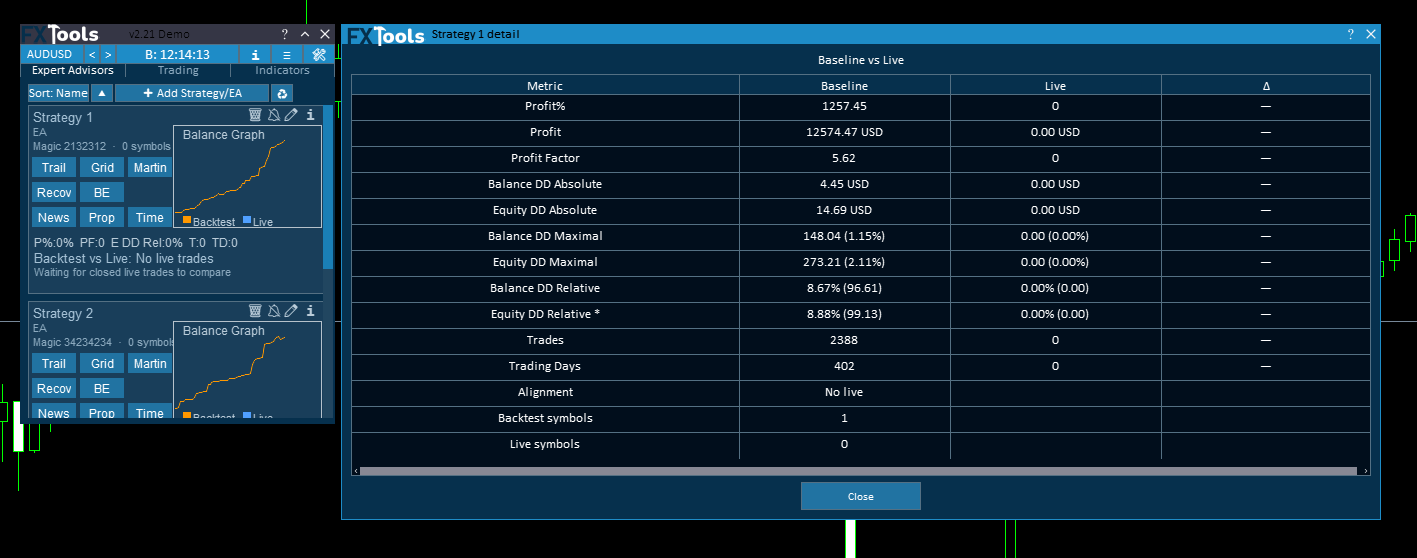
With a baseline the rows are tester, live, and the gap. There is no single DD% row. Profit% and Profit both stay. Then Profit Factor, then the six drawdowns, then Trades, Trading Days, Alignment, Backtest symbols, and Live symbols.
| Metric | Baseline / Live / Δ |
|---|---|
| Profit% | Tester P% / live P% / Δ, or — if no live trades |
| Profit | Tester profit amount / live profit amount / Δ, or — if no live trades |
| Profit Factor | Tester PF / live PF / Δ (or — if no live trades) |
| Balance DD Absolute | Money. A star on the name means this card’s Card DD. Δ is filled only on that starred row. |
| Equity DD Absolute | Money. Same star rule. |
| Balance DD Maximal | Percent. Same star rule. |
| Equity DD Maximal | Percent. Same star rule. |
| Balance DD Relative | Percent. Same star rule. |
| Equity DD Relative | Percent. Default Card DD, so this row is starred until you pick another. |
| Trades | Counts; Δ stays — |
| Trading Days | Counts; Δ stays — |
| Alignment | The overall word, or No live if there are no closed live trades. Live and Δ stay empty on this row. |
| Backtest symbols | Count of symbols found in the report |
| Live symbols | Count from closed live trades (0 if none) |
Without a baseline the same Profit%, Profit, Profit Factor, and six drawdown rows stay, with Baseline and Δ as —. A Note row has Baseline No baseline imported. Trades, Trading Days, and Alignment are omitted. Backtest symbols and Live symbols still follow.
Bell and delete
Turn the bell on when you want a nudge if live drifts from the tester. It toggles alerts for that card. The icon colour does not change when alerts are on or off.
An alert fires only when all of these are true:
Bell is on.
A baseline is imported.
Overall alignment is Attention or worse (default threshold; no control on the card to change it).
The overall level has just crossed into or beyond that threshold (not a repeat of the same level).
Settings checkbox Management Modified is on. Drift alerts use that gate. If you tick that checkbox off, the message is suppressed.
Message shape: EA 'name' drifted to WORD — ΔDD … ΔPF … ΔP%/mo …
Delete is two steps so a card is not lost on a miss-click. The icon shows confirm text Delete? Y / N. Press Y to remove the card. N or Esc cancels. Clicking delete again while confirm is up also cancels.
Manage chips
Use the first two chip rows when you want Trail, Grid, Martingale, Recovery, or Breakeven on every open that matches the card — including fills that arrive later. Chips: Trail Grid Martin / Recov BE.
A chip opens a flyout titled Trail, Grid, Martingale, Recovery, or Breakeven. Footer: Apply and Enable / Disable. The header back icon closes the flyout.
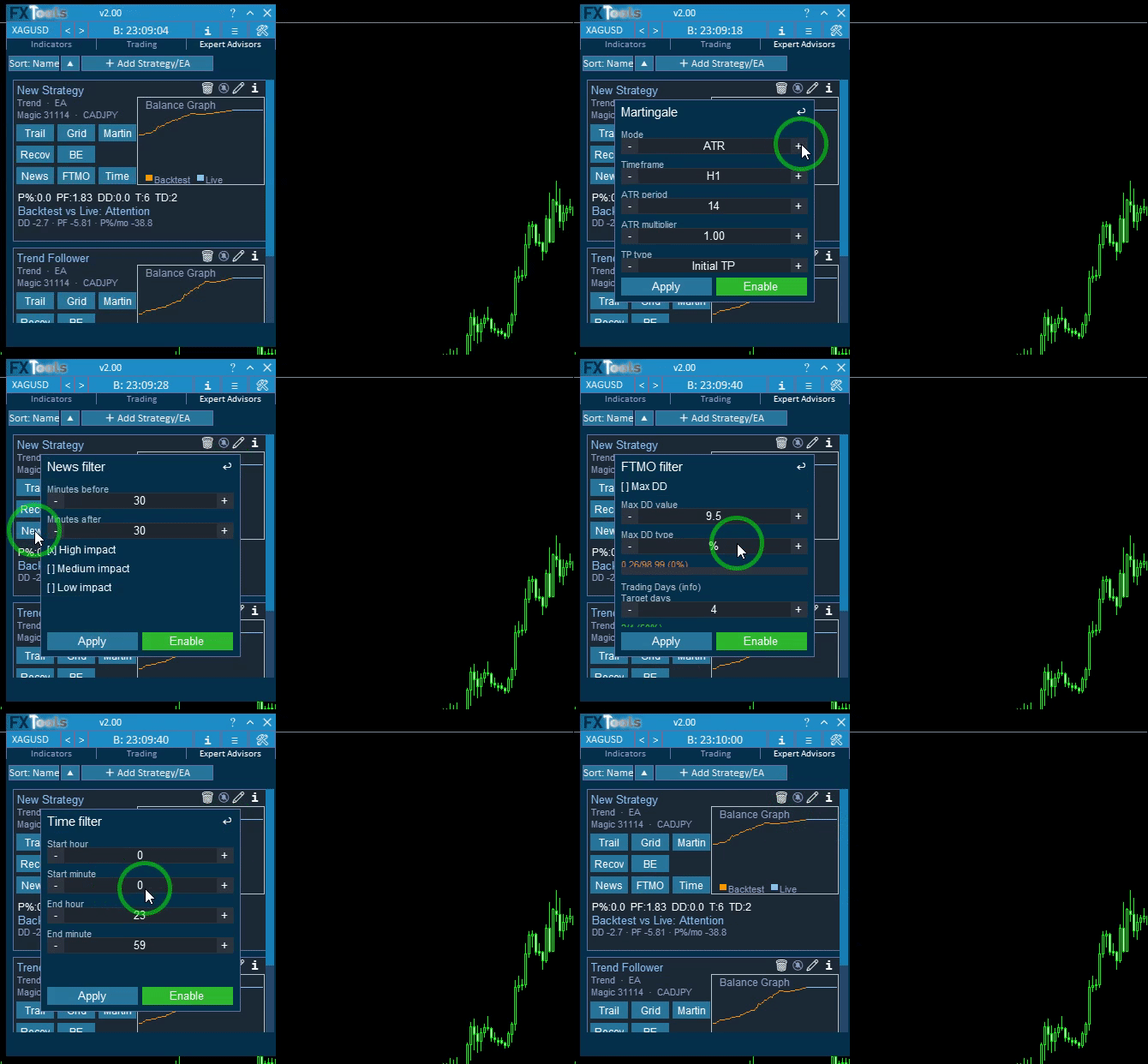
Enable plus Apply applies that method to matching open positions (same matching rules as the card). When a new market fill / new open arrives, enabled manage features sync onto the new matching ticket.
Trail and BE can share. Grid, Martingale, and Recovery cannot run together, and cannot run with Trail/BE (same Manage compatibility as the dashboard). A new strategy has every chip off.
Field lists live in the method guides. This tab is where you apply them, not a second manual:
Part 12 Chart — Easy Position Manager Apply / On-Off for one ticket
Filter chips (honesty)
The third chip row remembers News, FTMO, and Time on this card so the strategy’s intended filters stay with it. Chips: News FTMO Time.
Flyout titles: News filter, FTMO filter, Time filter. Same Apply / Enable / Disable / back icon.
FTMO block same / block opposite on this card cannot mix with Grid / Martingale / Recovery. Trail and BE are not in that rule.
How matching works
A card only sees what you typed — magic, then optional symbols and comment. That is how one robot stays on its own card.
| Field | Match |
|---|---|
| MAGIC NUMBER (0 = MANUAL) or TYPE Manual | Deal/position magic must be 0. |
| Any other magic | Exact magic only. No "all bots" option on this tab. |
| SYMBOLS (empty = all symbols) | Empty = all. Otherwise exact symbol or base name before the dot. |
| COMMENT (empty = all comments) | Empty = all. If set, the comment must contain that text. |
Overall Stats
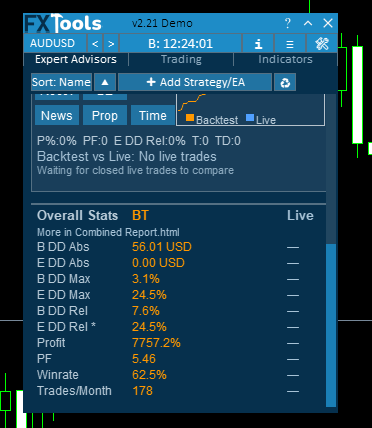
The footer under the cards is Overall Stats. The toolbar above the cards is Add, sort, and the recycle icon (tooltip Rewrite Combined HTML). Each footer row shows BT and Live. A dash means that side has no data yet.
Backtest numbers come from one shared M1 walk of the imported deals, not a sum of each card’s max DD. Live stays summed or averaged. A star on a footer row means some card uses that drawdown as its Card DD.
The rows, in order:
B DD Abs, E DD Abs, B DD Max, E DD Max, B DD Rel, E DD Rel — Balance and Equity, each Absolute (money), Maximal (percent), and Relative (percent).
Profit, PF, Winrate, Trades/Month.
The recycle icon rewrites FxTools Combined Report.html from the last M1 walk plus current live stats. It does not walk again. The Experts journal prints a file:/// link. Copy it, drop the time and the source, and paste it in a browser. The walk itself runs when a card is added, edited, or deleted. Settings, General, Combined HTML refreshes the page on an interval (default 1 min).
Where it is stored
Cards come back with the account. The file is FxTools\experts_{login}.experts (account login in the file name). A change is written about one second later. With Save files in Common folder off (the default), that file is in this terminal’s MQL5\Files. On: Common Files.
The Combined report is FxTools\FxTools Combined Report.html in the same place as the cards file.
Baseline .htm / .html reports are read from the local terminal folder MQL5\Files\FxTools\Imports. Imports do not follow Save files in Common folder.
Links
- Part 0 Overall Guide — four work places (dashboard, shortcut bar, overlays, chart)
- Part 1 Shortcut bar — shortcut bar and min mode
- Part 2 Overlays — Info and Settings
- Part 3 Indicators — watch table and add indicator
- Part 4 Open — Instant, Pending, By Time (coming soon)
- Part 5 Close — Manual, Auto, Partial
- Part 6 Filters — News, Prop firm, Time
- Part 7 Trail — TrailStop and shared distance modes
- Part 8 Grid — same-direction legs after price moves in favor
- Part 9 Martingale — extra legs as the trade moves into loss
- Part 10 Recovery — Recovery Zone hedge channel
- Part 11 Breakeven — move SL toward the open once in profit
- Part 12 Chart — Easy Position Manager and Easy Trade Deck
- Part 13 Expert Advisors — strategy cards by magic, live vs backtest




