

Shortcut bar (full dashboard)
There is an always-on shortcut bar: Help, window buttons, symbol, clock, Info, Levels on chart, and Settings. The Indicators and Trading tabs are in their own guides.
Each numbered element in the image corresponds to a functional control described below.
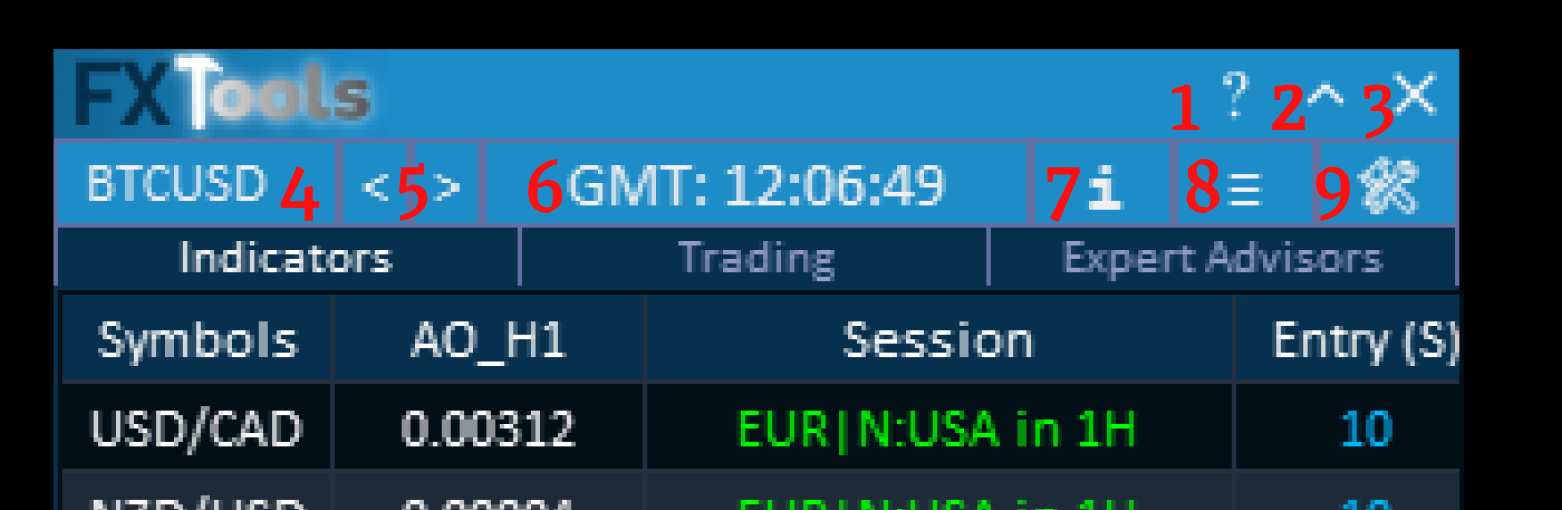
Window buttons
________________________________________
Clicking the question mark icon activates help mode.
Once enabled, hovering over any dashboard element will display a tooltip explaining its function.
________________________________________
2. Minimize Dashboard
This button minimizes the dashboard into a compact quick-access panel.
Only essential trading buttons remain visible.
For details on the minimized layout and its functions, refer to the minimized dashboard section.
________________________________________
3. Close Dashboard
Closes the dashboard window on the chart.
________________________________________
Symbol and clock
4. Current Symbol Selector
Displays the symbol of the chart where the dashboard is running.
Clicking it opens the Market Watch list so you can switch instruments instantly.
________________________________________
The left (<) and right (>) arrows let you move sequentially through symbols.
When changed, the chart updates automatically.
________________________________________
6. Market Clock
Clicking the clock cycles through three time displays:
1. Broker server time
2. Your local computer time
3. Candle countdown, showing how long remains until the current candle closes
This helps with precise timing for entries and exits.
________________________________________
Overlay buttons
7. Information Window
The (i) button opens the information panel containing:
• Account statistics
• Account status details
• Symbol trading specifications
________________________________________
8. Levels on chart (Easy Trade Deck)
Opens or closes Easy Trade Deck (drag entry, Stop Loss, and Take Profit on the chart). Same control as Open → Levels on chart. See the Open guide and the Chart guide.
________________________________________
9. General Settings
Opens the dashboard settings panel where you can configure:
• Magic number
• EPM pill scope• Notifications
• Saved dashboard profiles
Zoom, alerts, and position-manager scope are in the Overlays (Settings) guide.
________________________________________
Minimized Dashboard View – Quick Access Panel

When the dashboard is minimized, it transforms into a compact control panel that still provides access to essential tools for fast trading and navigation.
Even in this smaller mode, you can manage symbols, monitor time, and execute quick actions without reopening the full interface.
Below is an explanation of each element shown in the minimized view:
1. Current Symbol Selector
Displays the symbol of the chart where the dashboard is active.
Clicking it opens the full Market Watch list so you can switch instruments quickly.
________________________________________
2. Previous / Next Symbol Controls
The left (<) and right (>) arrows allow you to move through symbols sequentially.
The background chart updates automatically when the symbol changes.
________________________________________
3. Market Clock
Clicking the clock cycles between three useful time displays:
This helps with timing entries and exits more precisely.Server Time (broker time)
Local Time (your computer time)
Candle Countdown showing how long remains until the current candle closes
________________________________________
4. Quick Screenshot Button
Allows you to instantly capture a screenshot of the chart, including all indicators and the dashboard overlay.
This is useful for trade journaling, sharing analysis, or keeping records. Files are saved under Screenshots/year-month.
________________________________________
5. Levels on chart (Easy Trade Deck)
Opens or closes Easy Trade Deck (same as item 8 on the full bar).
________________________________________
6. General Settings
Opens the dashboard settings window where you can configure:
________________________________________Magic numberEPM pill scopeNotificationsProfile save/load options
7. Help & Window Controls
Includes:
________________________________________A question mark icon that enables tooltip mode. After clicking it, hovering over dashboard elements shows their explanations.
A minimize button to collapse or expand the dashboard.
8. Close Button
Closes the dashboard window on the chart.
________________________________________
Links
- Part 0 Overall Guide — four work places (dashboard, shortcut bar, overlays, chart)
- Part 1 Shortcut bar — shortcut bar and min mode
- Part 2 Overlays — Info and Settings
- Part 3 Indicators — watch table and add indicator
- Part 4 Open — Instant, Pending, By Time (coming soon)
- Part 5 Close — Manual, Auto, Partial
- Part 6 Filters — News, Prop firm, Time
- Part 7 Trail — TrailStop and shared distance modes
- Part 8 Grid — same-direction legs after price moves in favor
- Part 9 Martingale — extra legs as the trade moves into loss
- Part 10 Recovery — Recovery Zone hedge channel
- Part 11 Breakeven — move SL toward the open once in profit
- Part 12 Chart — Easy Position Manager and Easy Trade Deck
- Part 13 Expert Advisors — strategy cards by magic, live vs backtest




