
SizerX User Guide – Part 5: Account Protection, Settings, Commission and FAQ

This is Part 5 of 5 of the SizerX User Guide.
Get SizerX on the MQL5 Market – free demo included.
This part covers the tools that protect the whole account, the Settings card, commission, the Strategy Tester and the most common questions.
1. Daily loss limit
The daily loss limit stops a bad day from becoming a disaster. Switch it on in Settings → Account protection and set Max daily loss (for example 2.0%).
SizerX does not wait until the limit is fully used. By default it acts at 90% of the limit (input Close all at this % of the daily limit): with a 2.0% limit, at a 1.80% daily loss. Then it closes all positions on the account (manual trades and other symbols too), deletes the pending orders and locks trading for the rest of the day. The panel shows DAILY LIMIT HIT – LOCKED.

2. Prop firm mode
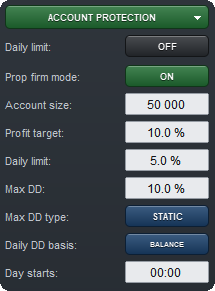
Prop firm mode follows the rules of a funded-account challenge. Switch it on in Settings → Account protection and enter your challenge’s numbers:
| Setting | Meaning |
|---|---|
| Account size | The starting size of the challenge account |
| Profit target | The target in % of the account size |
| Daily limit | The maximum daily loss in % (replaces the normal daily limit) |
| Max DD | The maximum total drawdown in % |
| Max DD type | STATIC (from the starting size), TRAILING (follows your highest balance) or OFF |
| Daily DD basis | BALANCE or HIGHER (the higher of balance and equity at the start of the day) – check your prop firm’s rules |
| Day starts | The hour when your prop firm’s trading day begins |
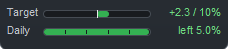
The panel shows two bars: the progress to the target and the daily loss room left.
- Daily limit or max drawdown reached: SizerX closes all positions, deletes the pending orders and locks trading for the rest of the day.
- Target reached: when the total result passes the target (plus 0.1% for safety), SizerX closes all positions and deletes the pending orders. The bar shows HIT. Trading is not locked. If the result later falls back below the target and reaches it again, SizerX closes everything again. This protects the profit while you complete the minimum number of trading days that some challenges require.
3. News watch
The bottom row of the panel shows the next important news event from the MetaTrader economic calendar, for example HIGH 16:45 USD (55m): the impact, the time, the currency and the minutes left. SizerX alerts you before the event (default 15 minutes) and tells you if you have open positions.

By default only high-impact events are shown. Switch on medium-impact events in Settings → News watch.
4. The Settings card
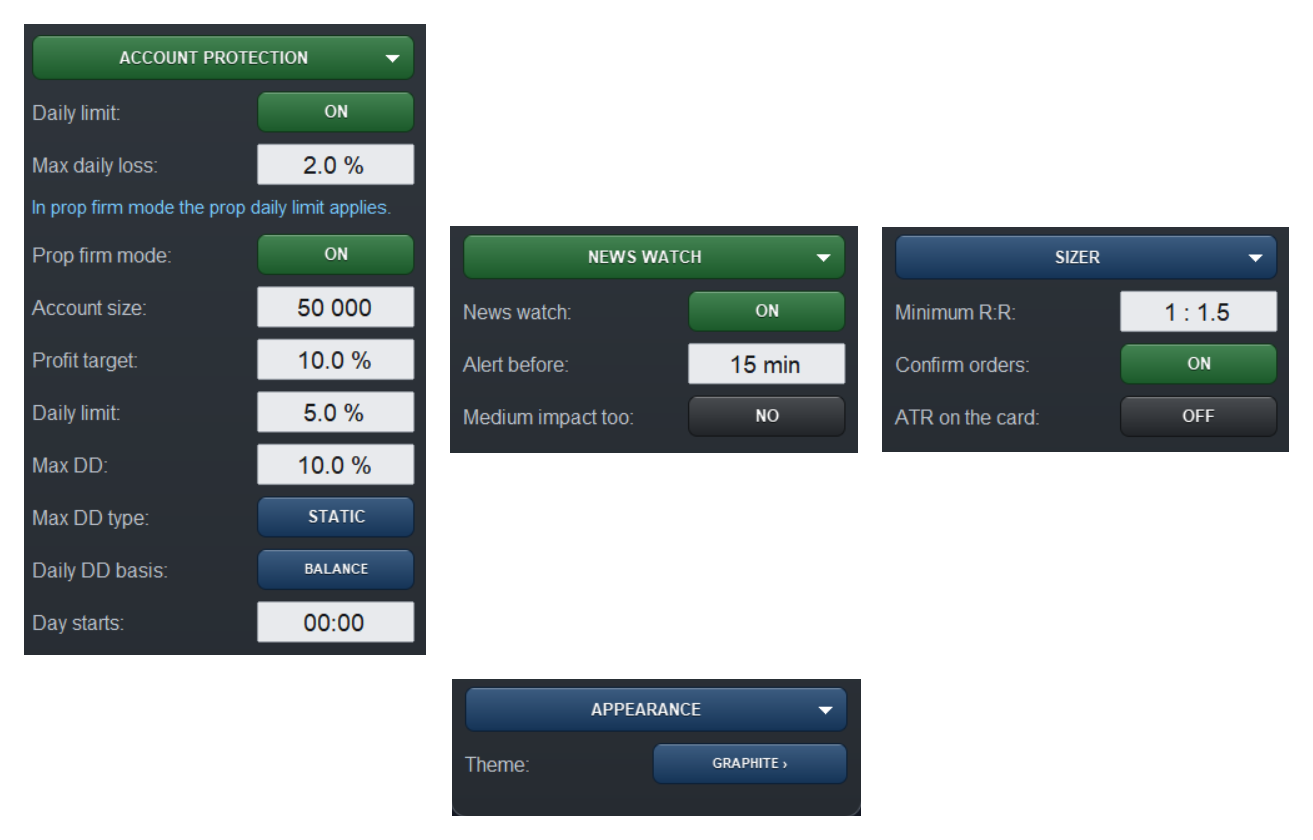
The small › tab on the side of the panel opens the Settings card. It has five sections:
- Trailing – the trailing stop settings (Part 3).
- Account protection – the daily loss limit and prop firm mode.
- News watch – on/off, the alert time, medium-impact events.
- Sizer – the minimum R:R warning, the order confirmation, the ATR distance on the card.
- Appearance – the panel theme.
5. Hotkeys
Hotkeys are off by default. Switch them on with the input Hotkeys (Shift + letter).
| Keys | Action |
|---|---|
| Shift + B | Buy (the lines flip to the buy side if needed) |
| Shift + S | Sell (the lines flip to the sell side if needed) |
| Shift + P | Partial close now |
| Shift + E | Break-even now |
| Shift + C | Close the selected position |
| Shift + X | Delete the pending order |
| Shift + V | Move the stop loss line to the mouse cursor |
Hotkeys pause while you type in a panel field, and holding a key down does not repeat the action.

6. Commission explained
Enter the commission your broker charges for opening AND closing 1 lot together. If your broker charges 3.50 USD per side, enter 7. With 0 (the default), SizerX does not count commission at all.
When you enter it, SizerX includes the commission in the lot size and in the reward-to-risk ratio, and – if the Break-even stop input is set to entry + commission – in the break-even level. Your real loss at the stop is then the risk you set (apart from swap and slippage).
The effect is biggest with tight stops. Example: a 1.5 pip (15 point) stop and 0.10% risk, with the same lines:

Without commission SizerX calculates 3.39 lots and 1 : 5.0. With 7 USD per lot it calculates 2.30 lots, because at 2.30 lots the 15-point stop costs about 35 USD and the commission about 16 USD – together the same 51 USD risk. The net ratio drops to 1 : 3.1, because the commission is paid on the profit side too. On a wide stop the difference is small; on a tight stop it is about 30% of the position size.
7. Strategy Tester
SizerX works in the visual Strategy Tester, so you can practise and try every feature on past data. This is also how the free demo on the MQL5 Market runs.
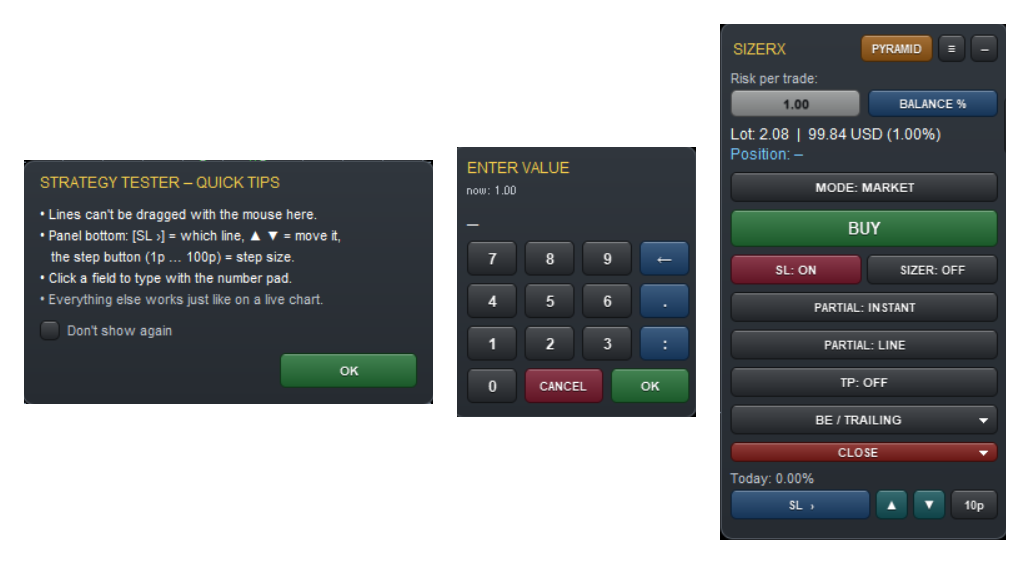
The tester does not let you drag lines with the mouse, so SizerX adds a small row at the bottom of the panel: [SL ›] chooses which line to move, ▲ ▼ move it, and the step button sets the step size (1 to 100 points). Click any panel field to type a value with the on-screen number pad. A tips card explains this the first time.
8. Safety features
- One copy per symbol and magic number – two copies cannot manage the same positions twice.
- Positions are recovered after a restart – if you restart MetaTrader or reattach SizerX, it finds its positions and their settings again.
- Minimum stop distance – a stop too close to the entry is refused (input Minimum SL distance – not the same as the pyramid’s MIN SL DIST guard).
- Correct rounding – lots are rounded to your broker’s lot step, prices to its tick size.
- Click protection – a click on the panel never reaches the chart, so you cannot open a trade by accident.
- Armed line protection – an ACTIVE line you drag goes back to PLAN (Part 2).
9. FAQ and troubleshooting
SizerX does not open a trade. Check that the Algo Trading button is green and Allow Algo Trading is ticked (Part 1). Check the Experts tab for the reason: trading may be locked by the daily limit, two positions may already be open on the chart, or the stop may be too close.
The lot size is different from another calculator’s. SizerX includes your commission (if you entered it) and rounds to your broker’s lot step. See section 6.
The R:R on the card is different from what I measure on the chart. SizerX shows the net ratio in money, commission included (Part 2, section 3).
The prop target closed my trades again. After a target hit, trading stays open. If your result falls below the target and reaches it again, SizerX closes again to protect the profit (section 2).
“Trailing distance is below the broker minimum”. The next trailing step was too close to the price for your broker. The stop stays where it is and trailing continues (Part 3).
The panel disappeared. If it is folded into one line, click +. If you changed the chart template, attach SizerX again – your settings are saved.
How do I send a log to support? Switch on the input Detailed diagnostic log (turn on only if support asks for it), repeat what went wrong, then copy the SizerX lines from Toolbox → Experts. Switch the log off again afterwards.

10. Limitations
- MetaTrader 5 only.
- The pyramid module needs a hedging account.
- Up to two managed positions per chart (pyramid layers do not count).
- Partial close, take profit and the OCO cancellation (deleting the other order) are executed by SizerX, so they need MetaTrader running. Use a VPS if you hold trades with your PC off. Break-even and trailing stop move the stop at the broker, but their triggers also need SizerX running.
- In FIXED pyramid lot mode without MAX LAYERS, layers are added until the free margin runs out.
- The news watch uses the MetaTrader economic calendar; it does not run in the Strategy Tester.
Get SizerX on the MQL5 Market – free demo included.
SizerX User Guide – all parts:
- Part 1 – Getting Started
- Part 2 – The Panel, the Lines and the Planner Card
- Part 3 – Managing the Trade
- Part 4 – Pending Orders, OCO and the Pyramid Module
- Part 5 – Account Protection, Settings, Commission and FAQ (this post)