

This is Part 3 of 5 of the SizerX User Guide.
Get SizerX on the MQL5 Market – free demo included.
Once a trade is open, SizerX manages it from lines you place on the chart. You decide the plan; SizerX carries it out, even while you are away from the screen.
1. Two positions per chart
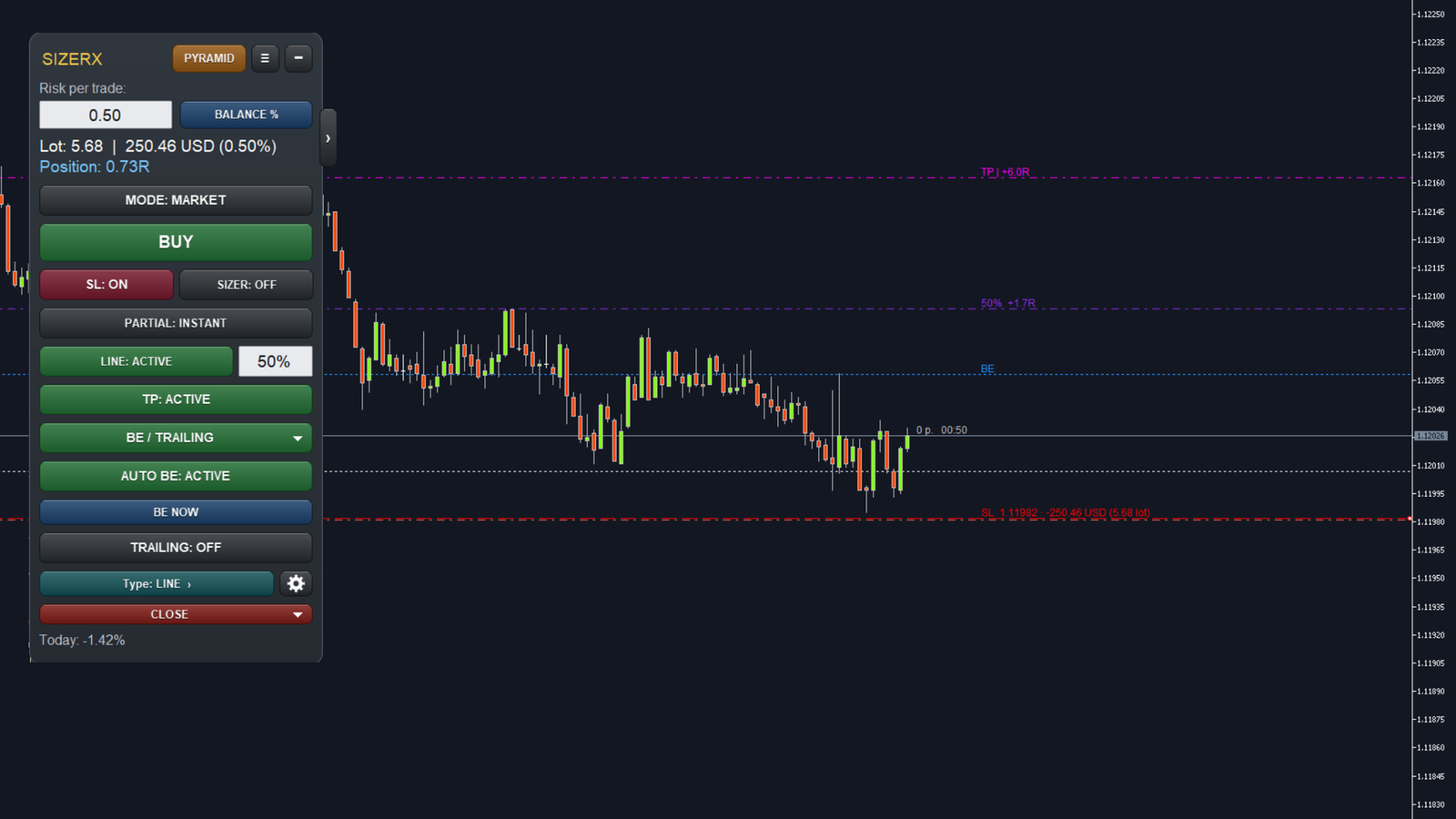
SizerX can manage two positions on the same chart. When both are open, the POS #1 and POS #2 buttons appear. The panel and the lines always belong to the selected position, and each position keeps its own break-even, partial, take profit and trailing settings.
2. Break-even
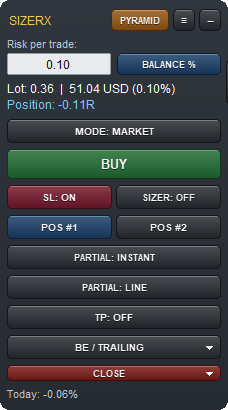
Open the BE / TRAILING menu to see the break-even tools.
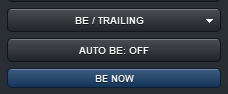
- AUTO BE: puts a blue BE line on the chart. When it is ACTIVE and the price reaches the line, SizerX moves the stop loss to the entry.
- BE NOW: moves the stop loss to the entry immediately.
The input Break-even stop decides where “break-even” is: entry + commission (the trade closes at zero after costs) or exactly at the entry. If the price is still too close to the entry for your broker, BE NOW tells you so and does nothing.

3. Partial close
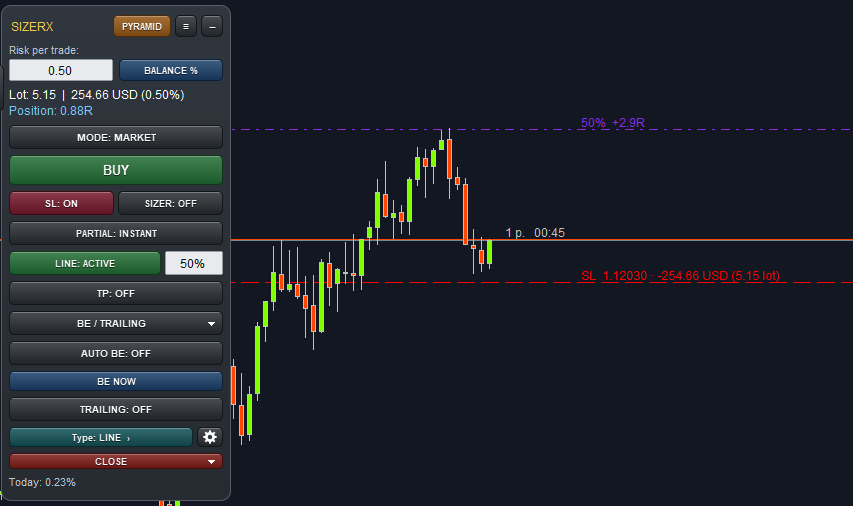
There are two ways to close part of a position. The percentage field next to the PARTIAL buttons sets how much (default 50%, input Default partial close %).
- PARTIAL: INSTANT closes now. The first click shows the percentage, the second click closes that percentage. The red OFF button cancels without closing.
- PARTIAL: LINE closes at a price. Drag the violet line where you want to take partial profit and make it ACTIVE. When the price reaches it, SizerX closes the set percentage.
The partial line label shows what it banks, for example 50% +2.9R (the closed part only, in R of your original risk).
4. Take profit
The magenta TP line closes the rest of the position when the price reaches it. If you checked TP on the planner card, the take profit is ACTIVE from the moment the trade opens. Its label shows the result of the part still open, so after a partial close the number becomes smaller.
5. Trailing stop
The trailing stop follows the price and moves your real stop loss at the broker, step by step, in your favour only. It starts when the price reaches the trigger line (by default at +1R). Choose the type with the Type button; the gear button opens its settings.
| Type | Where the stop goes |
|---|---|
| LINE | You drag two lines: the trigger and the distance line. After the trigger, the stop follows the price at that distance. |
| CANDLE | Behind the low (BUY) or high (SELL) of the last N closed candles. For SELL trades the spread is added. |
| PRICE ACTION | Behind the last finished pullback, only after the price breaks the previous high (BUY) or low (SELL). |
| ATR | At a fixed multiple of the ATR from the price. |
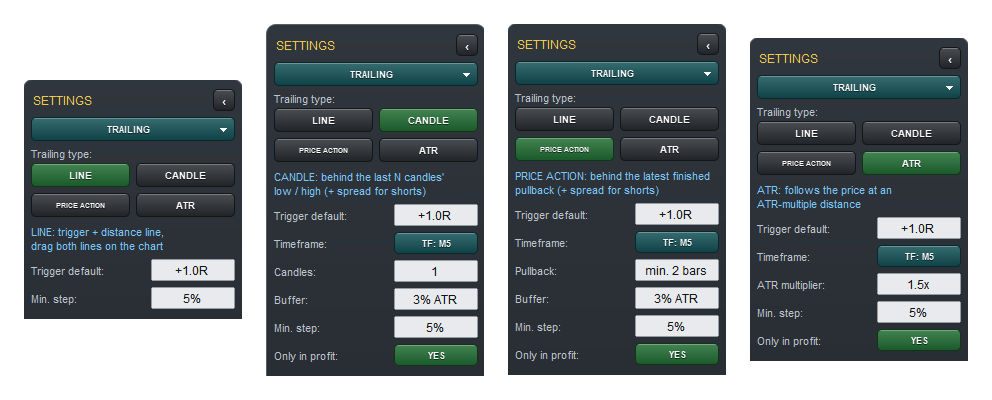
The settings:
- Trigger default: where the trigger line is placed, in R of profit.
- Timeframe: the candles used by CANDLE, PRICE ACTION and ATR. It can differ from the chart, for example M5 trailing on an M1 chart.
- Candles / Pullback / ATR multiplier: the main setting of the selected type. For PRICE ACTION, Pullback is the minimum number of opposite-colour candles (red on a BUY, green on a SELL); candles in between that stay inside the pullback are part of it but don’t count. SizerX looks back from the last closed candle and uses the most recent finished pullback that meets this.
- Buffer: extra room behind the level, in % of the ATR.
- Min. step: the stop moves only when the improvement is at least this % of the ATR, so your broker does not get a modification on every tick.
- Only in profit: YES = the stop never moves while the position is in loss.
CANDLE or PRICE ACTION? CANDLE is tight: on a BUY trade, after every closed candle with a higher low, the stop moves up, even while the price is going sideways below the last high. A wick into the previous candle’s low can close the trade, especially with 1 candle on M1. PRICE ACTION follows the structure: it waits for a pullback, and moves the stop only when the price breaks the high made before that pullback. While there is no new high, the stop does not move. For a looser CANDLE trail, use 2–3 candles, a higher timeframe or a bigger buffer.
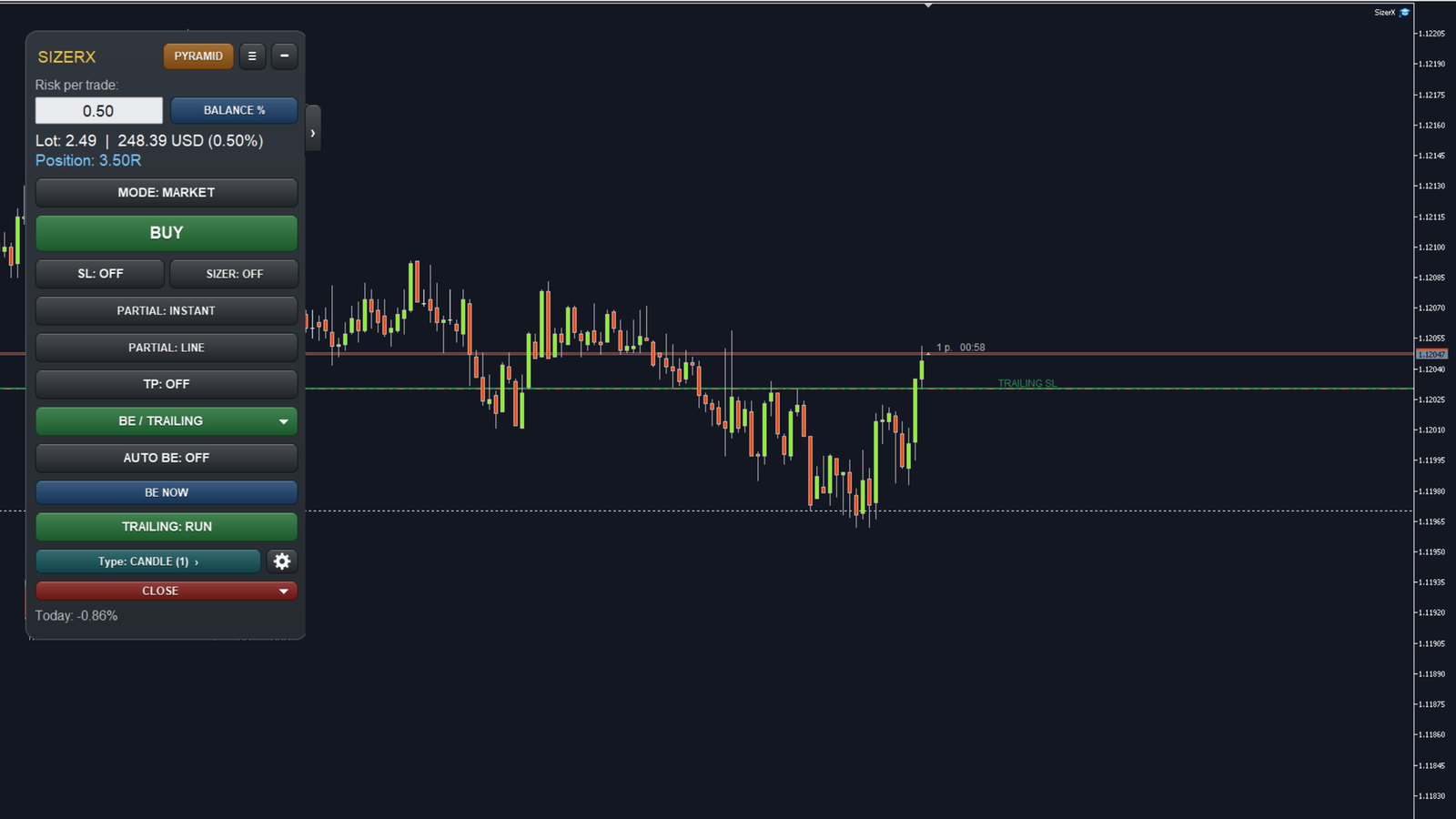
If a new stop level would be closer to the price than your broker allows, SizerX skips that step and shows once: trailing distance is below the broker minimum, cannot move the stop. This is not an error. The stop stays at its last level, and trailing continues with the next step.
Next: Part 4 – Pending Orders, OCO and the Pyramid Module
Get SizerX on the MQL5 Market – free demo included.
SizerX User Guide – all parts:
- Part 1 – Getting Started
- Part 2 – The Panel, the Lines and the Planner Card
- Part 3 – Managing the Trade (this post)
- Part 4 – Pending Orders, OCO and the Pyramid Module
- Part 5 – Account Protection, Settings, Commission and FAQ