

Two surfaces: the dashboard Breakeven sub-tab (Enabled / Disabled + Apply Settings) and the Easy Position Manager Break Even flyout (Enable on Apply, then Apply). Trail and Breakeven may both be On. Grid, Martingale, or Recovery on a ticket turns Breakeven off.
Breakeven (Manage Sub-Tab)
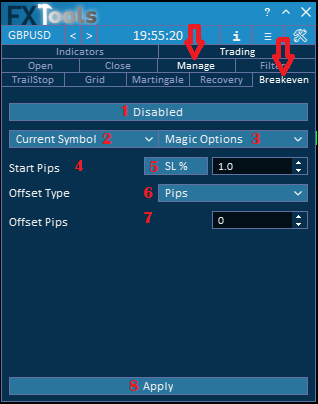
The fifth sub-tab of the Manage tab is Breakeven.
What is Breakeven?
Breakeven in this dashboard means moving the Stop Loss of an order toward the open price of that order once the trade has moved far enough in your favor. With offset 0 pips you are at the open; spread and commission can still leave a small loss unless you use offset or Comission+Spread.
How it works:
You open a trade with a Stop Loss
The price moves in your favor by the Start amount
The dashboard moves the Stop Loss to the open price plus the offset
1. Disabled / Enabled Button
Disabled – Breakeven will not work.
Enabled – The dashboard is ready to Apply Breakeven to matching trades.
________________________________________
2. Symbol Dropdown
Use this dropdown to choose which market symbols you want the Breakeven strategy to apply to.
All Symbols – Breakeven will apply to every symbol in your account.
Current Symbol – Breakeven will apply only to the symbol selected on the shortcut bar.
________________________________________
3. Magic Number Filter
This menu lets you select which Magic Numbers should be included for Breakeven.
You can select multiple options at the same time. Default is FxTools Orders.
________________________________________
4. Start Pips
How far the trade must go into profit before the Stop Loss is moved. The number is in the unit from item 5.
________________________________________
5. Start Pips Calculation Type
A button (not a dropdown) that cycles the unit for Start: Pips, SL %, TP %, Price %, then back to Pips.
________________________________________
6. Offset Type
Where the new Stop Loss sits relative to the open. Dropdown values are exactly Pips and Comission+Spread (that spelling on the control). The Offset Pips spin is shown only for Pips. When Comission+Spread is selected, Offset Pips is hidden; the engine adds spread plus commission.
________________________________________
7. Apply Settings
Click Apply Settings after you change Start, type, or offset.
Magic Number Options Table
| Option | Meaning |
|---|---|
| FxTools Orders (default) | Trades opened with this dashboard magic number |
| All Bot Orders | Trades from EAs (non-zero magics). Excludes manual (magic 0) |
| Manual Orders | Trades with magic 0 |
| All Orders | Every matching trade |
Start Pips Calculation Type Table
| Button shows | Meaning | Example |
|---|---|---|
| Pips | Fixed number of pips | 15 = activate after 15 pips of profit |
| SL % | Percentage of the original Stop Loss distance | SL = 100 pips and 5 → 5 pips |
| TP % | Percentage of the original Take Profit distance | TP = 200 pips and 10 → 20 pips |
| Price % | Percentage of the current price | Price 1.10000 and 1 → 0.01100 |
Offset Type Table
| Option | Meaning |
|---|---|
| Pips | You enter Offset Pips. The SL is placed that many pips beyond the open into profit. |
| Comission+Spread | Spread plus commission of the ticket. Offset Pips is hidden. The label on the control is Comission+Spread. |
Easy Position Manager (Per Ticket)
On the chart pill, Manage → Break Even. Tick Enable on Apply, set Start (Pips) (pips only on EPM), cycle Offset type between Pips and Comission+Spread, then click Apply. Offset (Pips) is drawn only when Offset type is Pips. Apply stamps that offset type onto the ticket. Status line: Enabled for this trade or Not enabled, plus Pending Apply while the draft differs.
A one-click Set SL to BE on the EPM panel is a one-off move, not this automatic method. That row is in the Chart guide.
Links
- Part 0 Overall Guide — four work places (dashboard, shortcut bar, overlays, chart)
- Part 1 Shortcut bar — shortcut bar and min mode
- Part 2 Overlays — Info and Settings
- Part 3 Indicators — watch table and add indicator
- Part 4 Open — Instant, Pending, By Time (coming soon)
- Part 5 Close — Manual, Auto, Partial
- Part 6 Filters — News, Prop firm, Time
- Part 7 Trail — TrailStop and shared distance modes
- Part 8 Grid — same-direction legs after price moves in favor
- Part 9 Martingale — extra legs as the trade moves into loss
- Part 10 Recovery — Recovery Zone hedge channel
- Part 11 Breakeven — move SL toward the open once in profit
- Part 12 Chart — Easy Position Manager and Easy Trade Deck
- Part 13 Expert Advisors — strategy cards by magic, live vs backtest




