

Info Window
Statistics Tab Overview
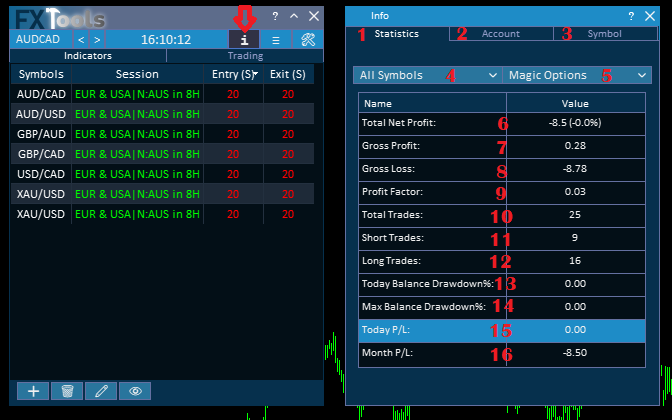
This section explains the first tab of the Info window, which displays detailed account statistics. Each numbered area in the image represents a specific data block or control, described below:
________________________________________
1. Statistics Tab
This is the main statistics tab of the Info window. It provides an overview of your trading account performance, including profit, losses, trade distribution, and drawdown metrics. All fields shown here are explained below.
2–3. Account Tab & Symbol Tab
These buttons allow you to switch between different information views.
Their functionality will be explained later together with their dedicated screenshots.
________________________________________
4. Symbol Selection Dropdown
This dropdown allows you to filter statistics by market symbol.
- If All Symbols is selected, the dashboard shows performance across your entire account.
- If a specific symbol is selected, statistics will reflect only trades from that instrument.
This helps traders analyze performance per market.
________________________________________
This menu lets you filter trades based on how they were opened.
Options include:
- All Magics (Default) – Includes every trade: manual trades, all Expert Advisors, and dashboard trades.
- FXTools Orders – Shows only trades opened using the FXTools dashboard.
- All Bots Orders – Displays only trades opened by automated systems (Expert Advisors), excluding manual trades.
- Manual Orders – Shows only trades opened manually by the trader.
You can select multiple options simultaneously to customize the data view.
________________________________________
Performance Metrics Explained
6. Total Net Profit
Shows the overall profit or loss of the account balance.
It is calculated as total profits minus total losses.
7. Gross Profit
Displays the sum of profits from all winning trades.
8. Gross Loss
Displays the sum of losses from all losing trades.
9. Profit Factor
This value equals gross profit divided by gross loss.
It is commonly used to evaluate the effectiveness of a trading strategy.
10. Total Trades
Shows the total number of executed trades in the selected filters.
________________________________________
Trade Direction Statistics
11. Short Trades
Total number of sell trades opened.
12. Long Trades
Total number of buy trades opened.
________________________________________
Drawdown & Period Performance
13. Today Balance Drawdown
Shows the drawdown experienced today only, based on account balance.
14. Maximum Balance Drawdown
Displays the largest drawdown recorded in the account's history.
15. Today P/L
Shows the total profit or loss generated today.
16. Month P/L
Shows the total profit or loss for the current month.
Account Tab Overview
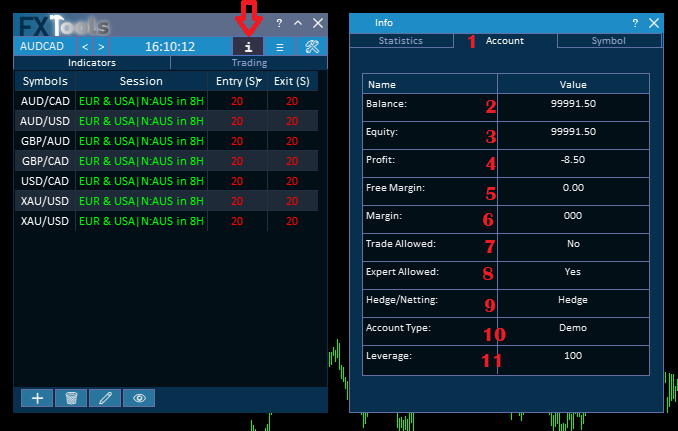
This section explains the second tab of the Info window, which displays key information about your trading account provided by the broker.
________________________________________
1. Account Tab
This tab presents the main account status and trading permissions, helping you monitor available funds, margin usage, and trading permissions.
2. Balance
Shows the current account balance, excluding floating profits or losses from open trades.
3. Equity
Displays the real-time account equity, which equals balance plus the floating profit or loss of open trades.
4. Profit
Shows the current floating profit or loss from open positions.
5. Free Margin
Indicates how much capital is still available to open new trades.
6. Margin
Shows the amount of funds currently locked as collateral for open trades.
________________________________________
7. Trade Allowed
This field shows whether trading is permitted on the account.
Some brokers may temporarily restrict trading activity due to account limits, verification issues, or market conditions.
________________________________________
8. Expert Allowed
If this option is disabled, automated tools cannot execute trades.
To allow the FXTools dashboard to open and close trades, two settings must be enabled:
Step 1: Activate the Algo Trading button in the MetaTrader terminal toolbar.
Step 2: When attaching the FXTools dashboard, open the Common tab (next to Inputs) and check Allow Algo Trading.
Both permissions must be enabled for the dashboard to operate correctly.
________________________________________
9. Hedge / Netting Mode
This indicates the account's position system:
• Hedging Mode: Allows multiple trades on the same symbol, including opposite directions (buy and sell simultaneously).
• Netting Mode: Only one combined position per symbol is allowed.
________________________________________
10. Account Type
Shows whether the account is Real or Demo.
11. Leverage
Displays the trading leverage provided by the broker, which determines how much exposure you can control relative to your balance.

Symbol Tab Overview

This section explains the third tab of the Info window, which displays trading specifications of the symbol attached to the current chart.
________________________________________
1. Symbol Tab
This tab provides the technical trading parameters for the current instrument.
2. Symbol
Displays the name of the instrument currently opened on the chart.
3. Trade Mode
Indicates whether trading this symbol is allowed.
Some brokers provide multiple versions of the same instrument, but only certain ones may be tradable.
4. Spread
Shows the current difference between the Bid and Ask price of the symbol.
5. Minimum Volume
Displays the smallest allowed trade size (lot) for this instrument.
6. Maximum Volume
Shows the largest allowed trade size.
7. Volume Step
Defines the minimum increment by which trade size can be increased or decreased.
8. Tick Value
Represents the monetary value of one tick movement in the account currency.
9. Stop Levels
Shows the minimum allowed distance between the current price and Stop Loss or Take Profit levels.
10. Swap Long
Displays the overnight swap value applied to buy positions held after rollover.
11. Swap Short
Displays the overnight swap value applied to sell positions held after rollover.
Dashboard Settings Window Overview
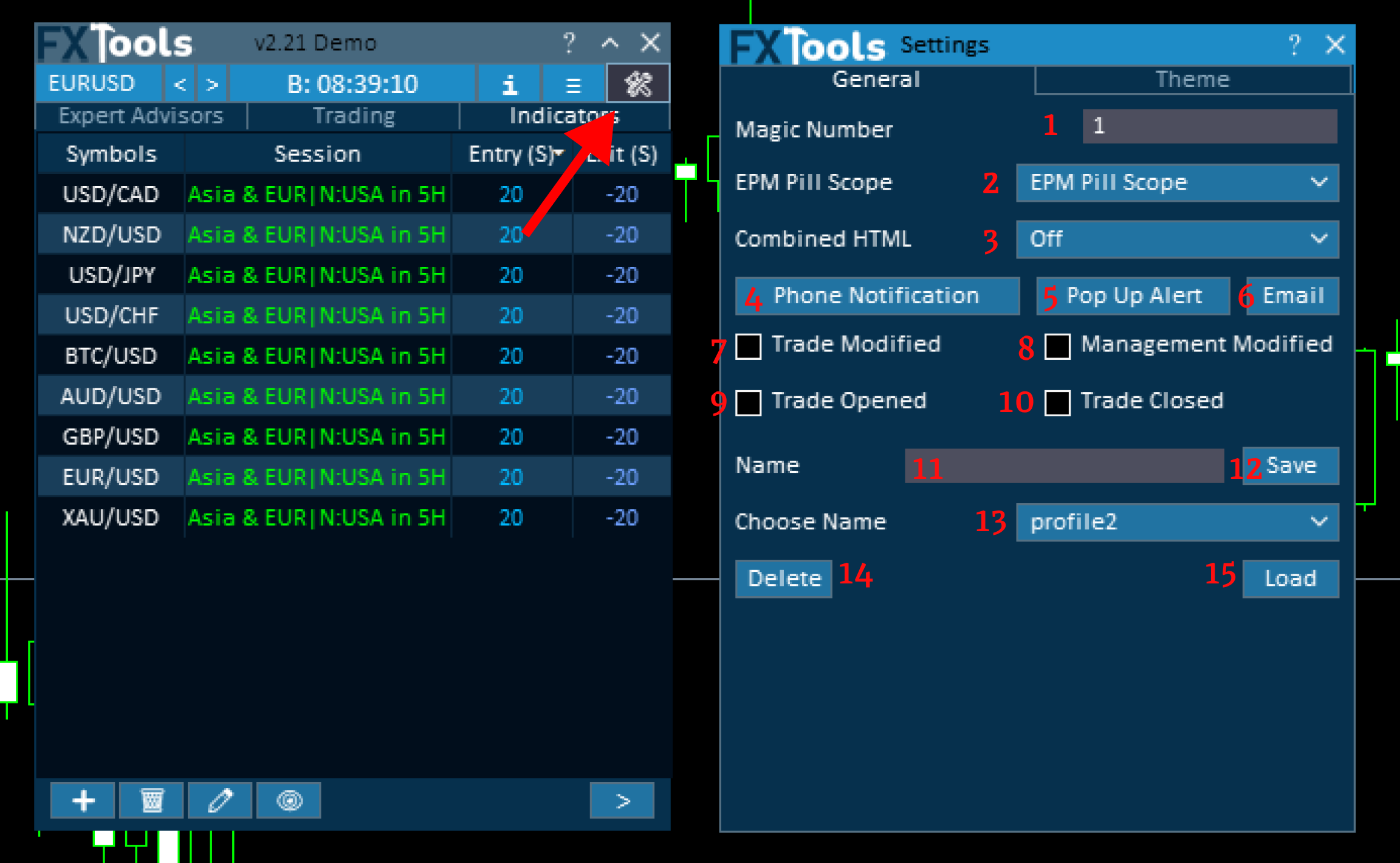
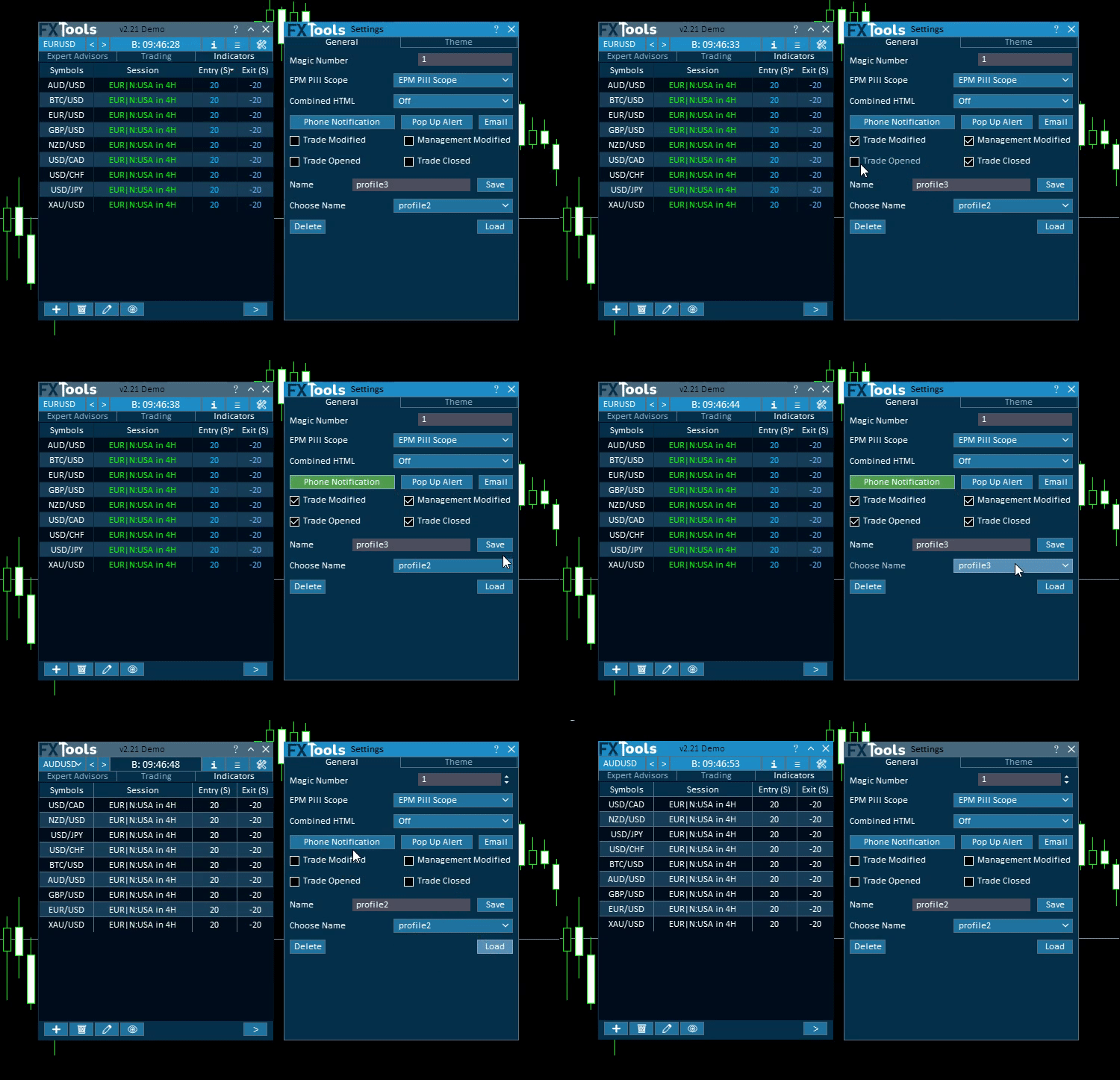
This window has two tabs. General is magic, Easy Position Manager scope, notifications, and saved profiles. Theme is the dashboard palette. The numbered controls below are General.
________________________________________
1. Magic Number
This field defines the magic number assigned to all trades opened by the dashboard.
Magic numbers help distinguish dashboard trades from manual trades or other Expert Advisors.
________________________________________
2. Easy Position Manager Scope
This input provides you with this option to apply the EPM on different trades,checklist of which trades get Easy Position Manager pills: FxTools magic, Manual trades, Other EAs. Default is FxTools magic. How pills behave is in the Chart guide.
. or any combination.
________________________________________
3. Phone Notifications
If you use the MetaTrader 5 mobile app, you can receive dashboard alerts directly on your phone.
To enable this:
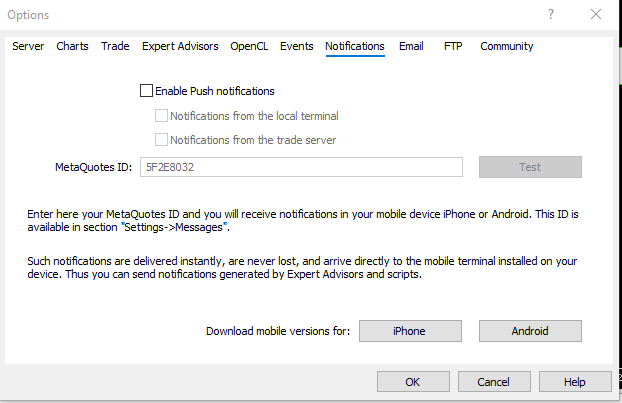
1. Open MetaTrader terminal Options (Ctrl+O).
2. Go to the Notifications tab.
3. Enable Push Notifications.
4. Enter your MetaQuotes ID (MQID) from your mobile app.
Once configured, enabling phone notifications in the dashboard will send alerts whenever dashboard activity changes.
________________________________________
4. Pop-Up Alerts
When enabled, any dashboard activity or trade event will appear as a pop-up alert on your chart.
________________________________________
5. Email Notifications
If your email is configured in Options → Email tab, enabling this option allows the dashboard to send trading notifications via email.
________________________________________
Trade Event Notification Options
These settings let you choose which events should trigger alerts.
6. Trade Modified
Sends a notification when a trade is changed, such as:
• Stop Loss modified
• Take Profit changed
• Pending order price adjusted
________________________________________
7. Auto-Management Changes
If enabled, you will receive alerts when trade values are modified automatically by the dashboard's management system.
________________________________________
8. Trade Opened
Notifies you whenever a new trade is executed.
9. Trade Closed
Notifies you whenever a trade is closed.
________________________________________
Saving and Loading Dashboard Profiles
The dashboard allows you to store multiple configuration profiles for quick switching. Profiles stay on General. (showed in video)
10. Name Field
Enter a custom name to save the current dashboard layout and settings.
11. Save
Click Save to store the current configuration under the entered name.
12. Choose Name
Previously saved profiles will appear in a dropdown list so you can select one.
13. Load
Loads the selected saved profile instantly.
14. Delete
Removes the selected saved profile from the list.
Theme
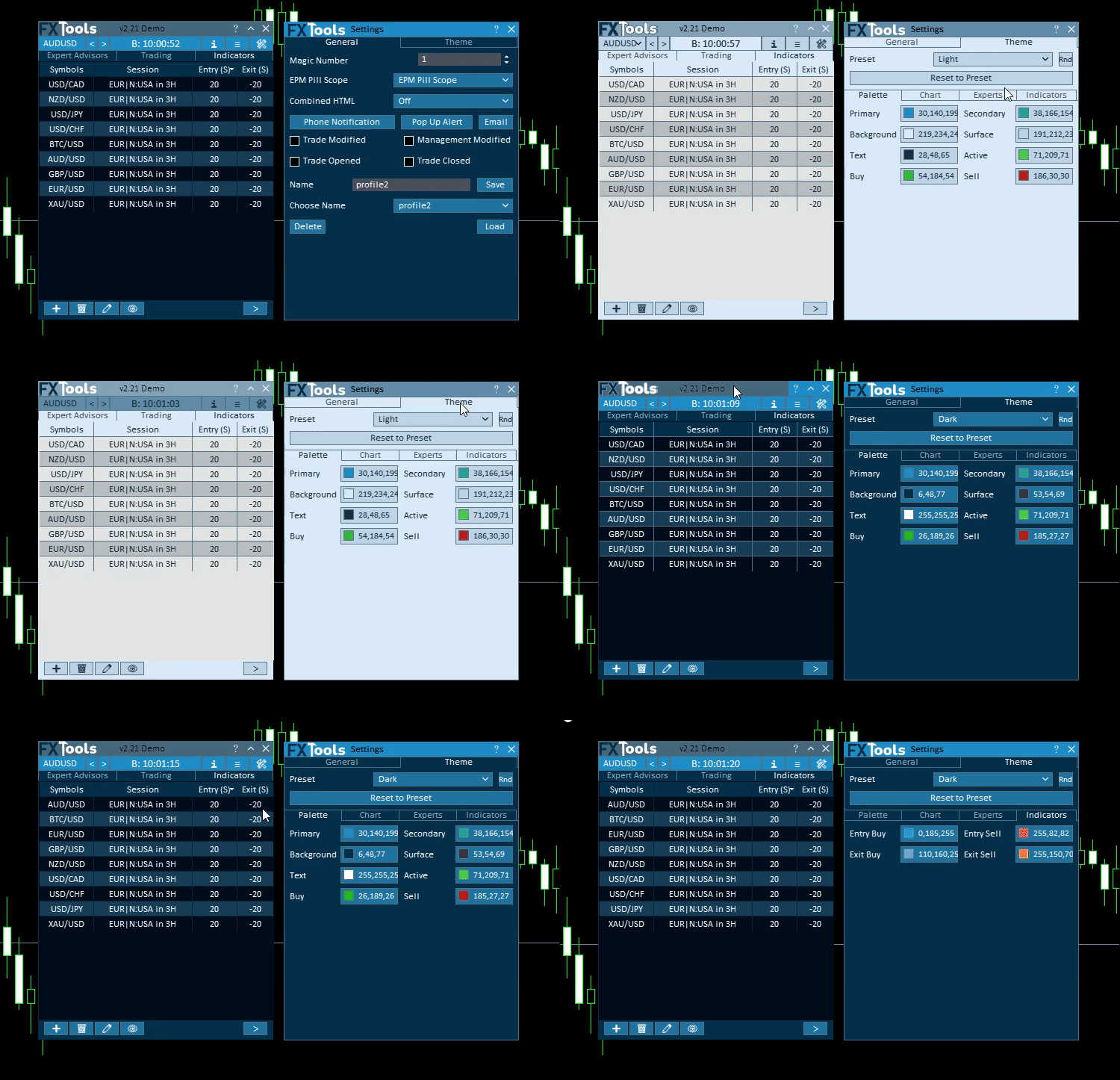
Open Theme on the Settings window. Preset is Dark, Light, or Custom. A color change selects Custom and repaints live, including help, minimize, and close. The palette is saved and applied the next time the dashboard is built.
Rnd sits beside Preset. It builds a contrast-safe palette and saves it as Custom. Reset to Preset restores the last Dark or Light. The graph, indicator marks, and card text go back to their built-in colors. It does not keep a Custom palette.
Four color groups sit under Preset:
Palette — Primary, Secondary, Background, Surface, Text, Active, Buy, Sell.
Chart — Easy Position Manager pills (EPM Buy, EPM Sell, SL, TP), Easy Trade Deck buttons (ETD Buy, ETD Sell, ETD Close, ETD Lock), and the Entry, TP Line, and SL Line.
Experts — Backtest and Live strokes on the card graph, plus Main and Muted card text. Main is the graph words, stat figures, and footer labels. Muted is the strategy line, the magic line, and the smaller notes.
Indicators — Entry Buy, Entry Sell, Exit Buy, Exit Sell.
Links
- Part 0 Overall Guide — four work places (dashboard, shortcut bar, overlays, chart)
- Part 1 Shortcut bar — shortcut bar and min mode
- Part 2 Overlays — Info and Settings
- Part 3 Indicators — watch table and add indicator
- Part 4 Open — Instant, Pending, By Time (coming soon)
- Part 5 Close — Manual, Auto, Partial
- Part 6 Filters — News, Prop firm, Time
- Part 7 Trail — TrailStop and shared distance modes
- Part 8 Grid — same-direction legs after price moves in favor
- Part 9 Martingale — extra legs as the trade moves into loss
- Part 10 Recovery — Recovery Zone hedge channel
- Part 11 Breakeven — move SL toward the open once in profit
- Part 12 Chart — Easy Position Manager and Easy Trade Deck
- Part 13 Expert Advisors — strategy cards by magic, live vs backtest




