

Open (Trading tab)

The Open sub-tab of Trading is for market and pending orders. Close and Filters are separate topic guides.
1. Open Sub-Tab
The first sub-tab of the Trading tab is Open.
(This section explains only this sub-tab. Others will be explained separately.)
This sub-tab allows you to open market orders or pending orders.
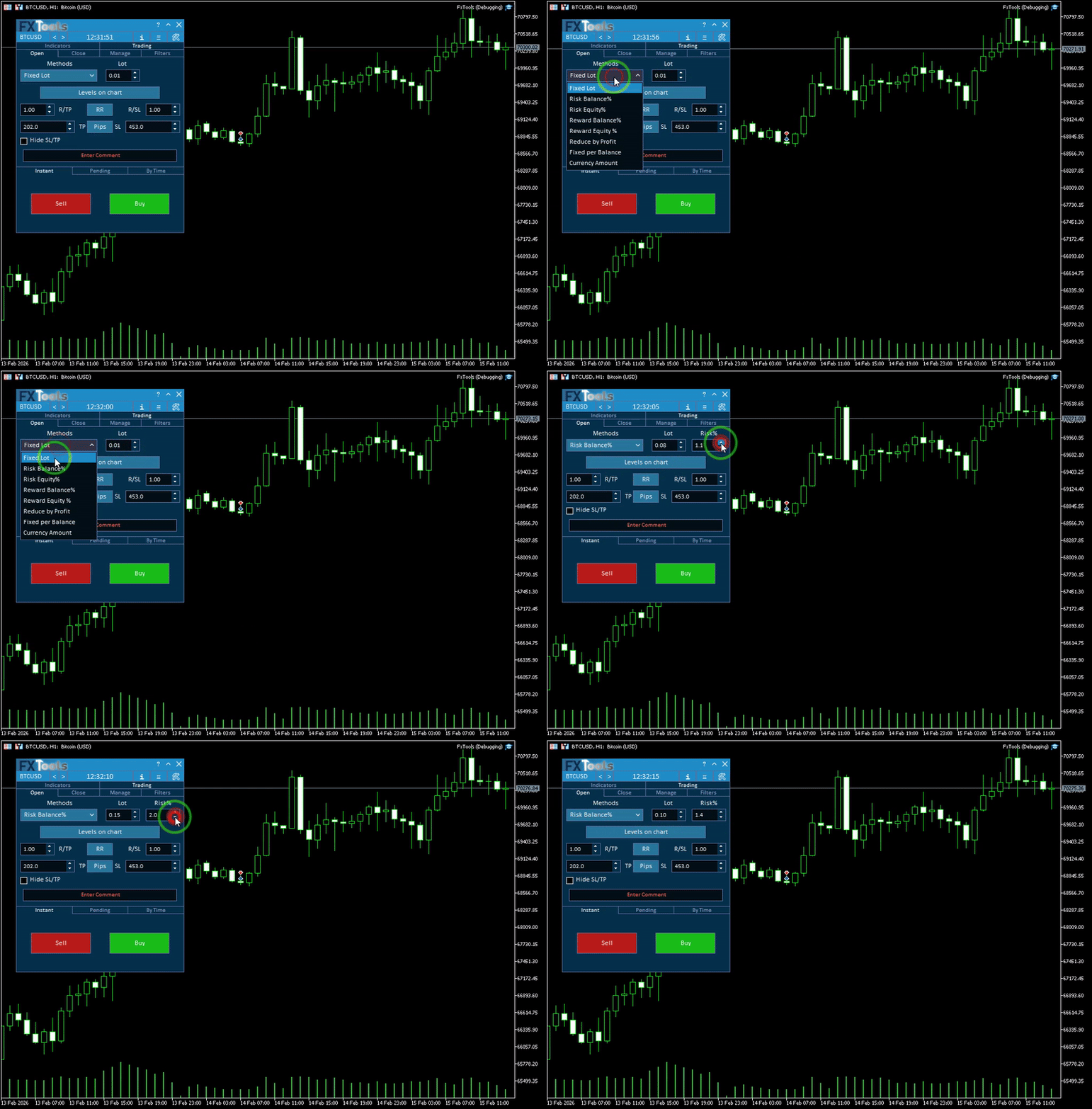
2. Lot Calculation Method
• Here you select how the trade volume (Lot size) should be calculated.
• Available options:
| (1) Fixed Lot (default) | The value entered in the lot box will be used for all trades and will not change automatically. |
| (2) Risk Balance% | When selected, a Risk% box appears. If you enter a value such as 1, each trade will risk 1% of the account balance when Stop Loss is hit. For this option to work, you must set a Stop Loss. Once both SL and Risk% are set, the calculated lot size will appear automatically in the Lot box. |
| (3) Risk Equity% | Same as Risk Balance%, but calculation is based on equity instead of balance. |
| (4) Reward Balance% | Lot size is calculated based on Take Profit distance instead of Stop Loss. |
| (5) Reward Equity % | Same as Reward Balance but uses equity. |
| (6) Reduce by Profit | When selected, a Reduce% box appears. If you set it to 1, then for each 1% of account profit, the lot size is reduced by half of that amount (0.5% in this example). |
| (7) Fixed per Balance | Two boxes appear: • Lot/Balance → lot size per balance unit • Per Balance → balance amount to base the calculation on Example: If Per Balance = 500 and Lot/Balance = 0.01 and your balance is 2000, the system will set the lot to 0.04. |
| (8) Currency Amount | You set how much money (in account currency) you are willing to lose if Stop Loss is hit. The system calculates the lot automatically and displays it in the lot box. |
________________________________________
3. Lot Box
• Displays the final calculated lot size based on the selected method.
________________________________________
4. Levels on Chart
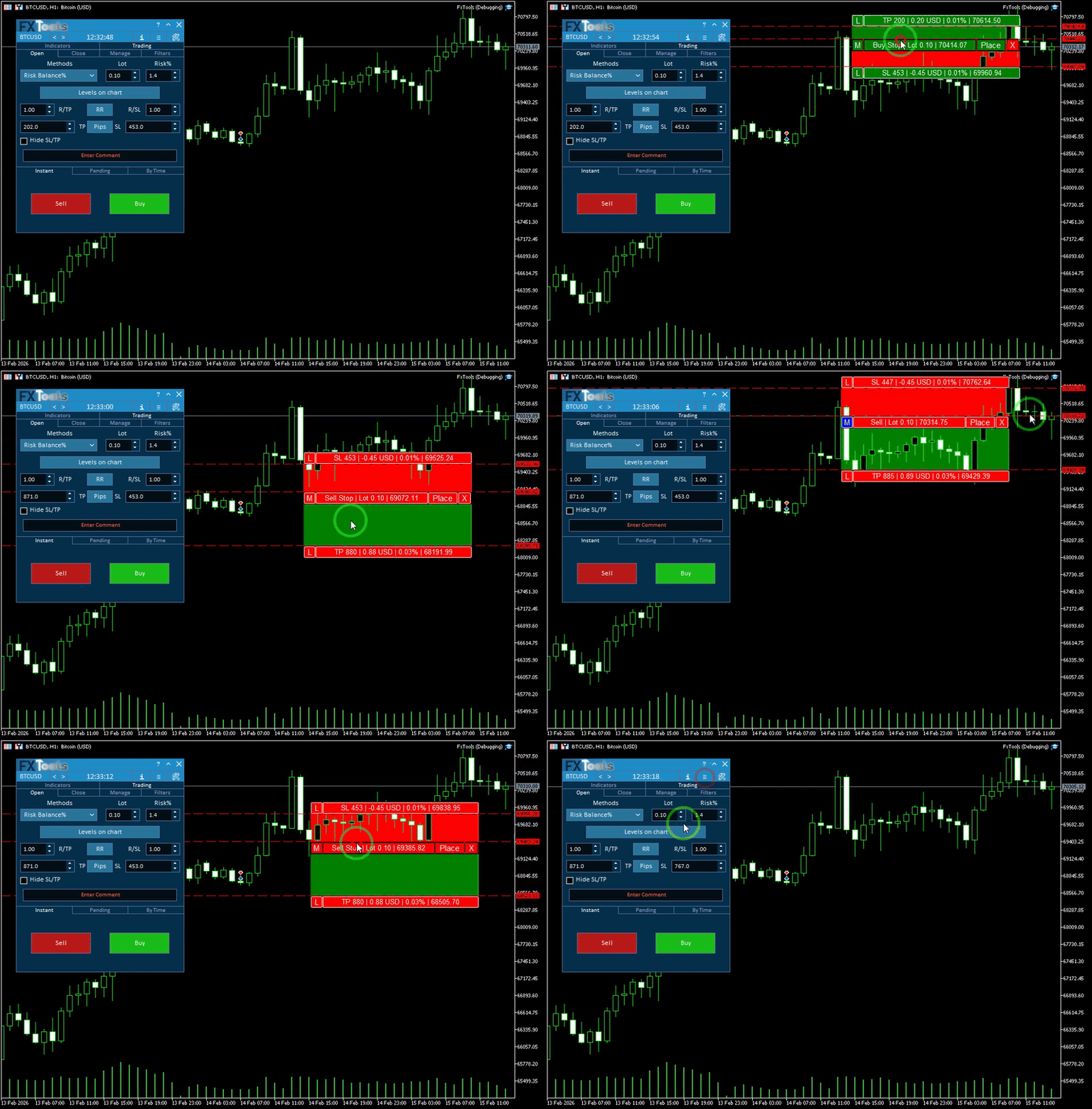
• Button label: Levels on chart. Opens Easy Trade Deck (the chart-level panel below). More detail is in the Chart guide. Not the same as Easy Position Manager pills.

________________________________________
Chart level panel
18. L – Lock TP position so it does not move when price or SL is adjusted
19. Displays TP distance in points and updates when levels are moved
20. Amount USD | % – TP profit shown in money and balance percentage
21. Shows the TP price you are setting
22. M (Market) – When enabled, entry price sticks to current market price for instant execution. If the level differs from market price, the order becomes pending automatically.
23. Displays order type (Buy, Sell, Buy Stop, Sell Stop, etc.)
24. Shows lot size based on current settings
25. Displays entry price
26. Place Order – Executes the order immediately when clicked
27. Close – Closes the quick-trade panel
28. L – Lock for SL level
29. SL Points – Shows Stop Loss distance
30. Amount USD | % – SL risk shown in money and percent
31. Price – Displays SL price level
5, 6, 7. Risk Ratio Controls
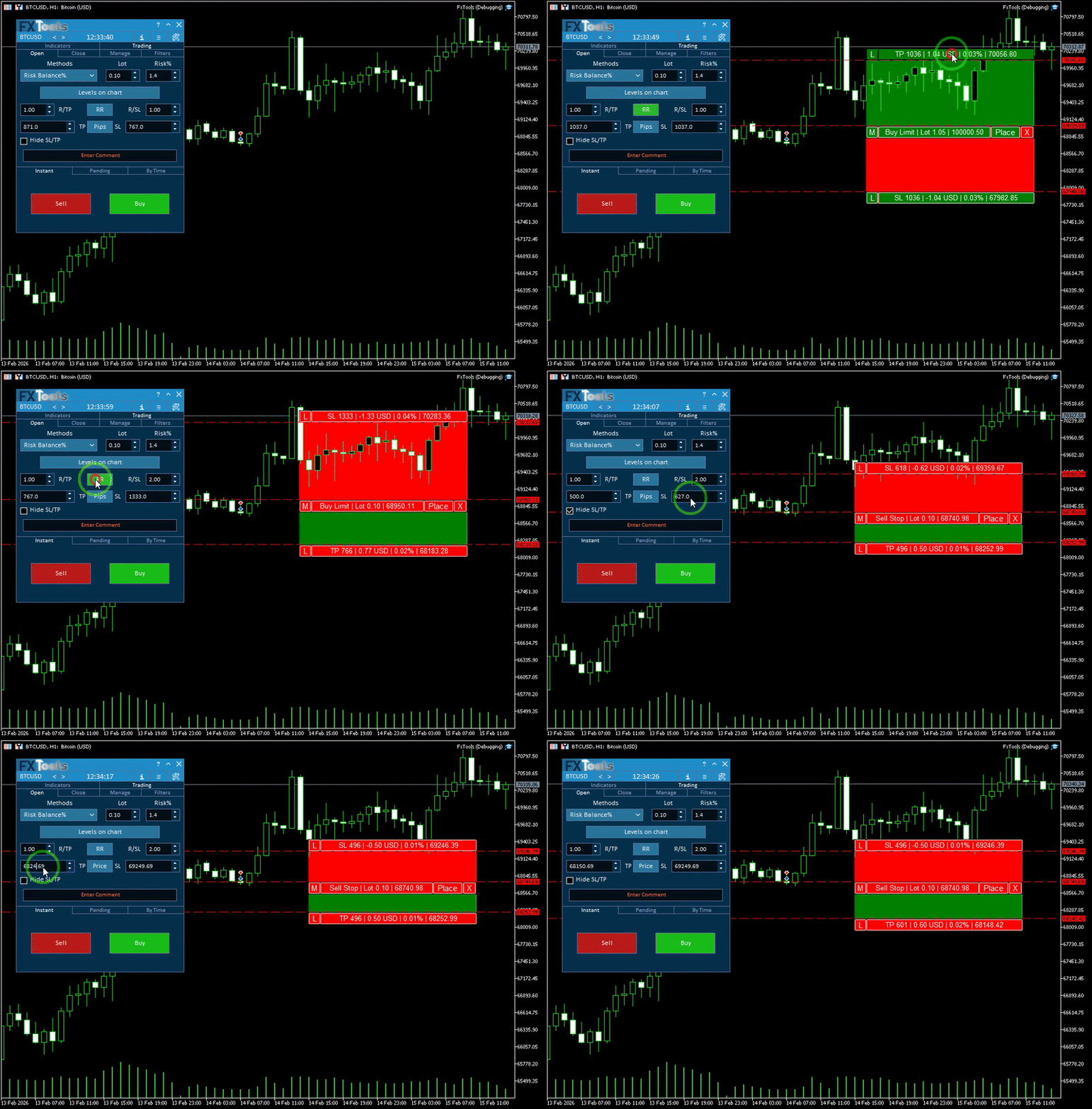
On the left is R/TP (5) and on the right R/SL (6).
If you enable the RR button (7) between them, TP and SL maintain a ratio.
Example:
If R/TP = 1 and R/SL = 2, then setting TP to 100 points automatically sets SL to 200 points.
Instant
8, 9, 10. TP / SL Values
8. TP – Displays Take Profit distance
9. SL – Displays Stop Loss distance
If RR is enabled, changing one adjusts the other automatically.
10. Pips button – switches between pip distance and price value display.
________________________________________
11. Hide SL/TP
The Instant Open checkbox is not on the dashboard (its create call is commented out). Virtual levels on an already-open trade are Virtual SL/TP on Easy Position Manager — Chart guide.
________________________________________
12. Enter Comment
• Allows you to set the trade comment before opening the order.
• 13, 14, 15. Order Opening Modes
• 13. Instant – Opens buy or sell immediately at market price
• 14. Pending – Opens pending orders
• 15. By Time – coming soon. Leaf shows an overlay, not a working calendar.
________________________________________
16. Sell
• In the Instant tab, clicking Sell opens a sell order if parameters are valid.
________________________________________
17. Buy
• Opens a buy order instantly.
________________________________________
Pending

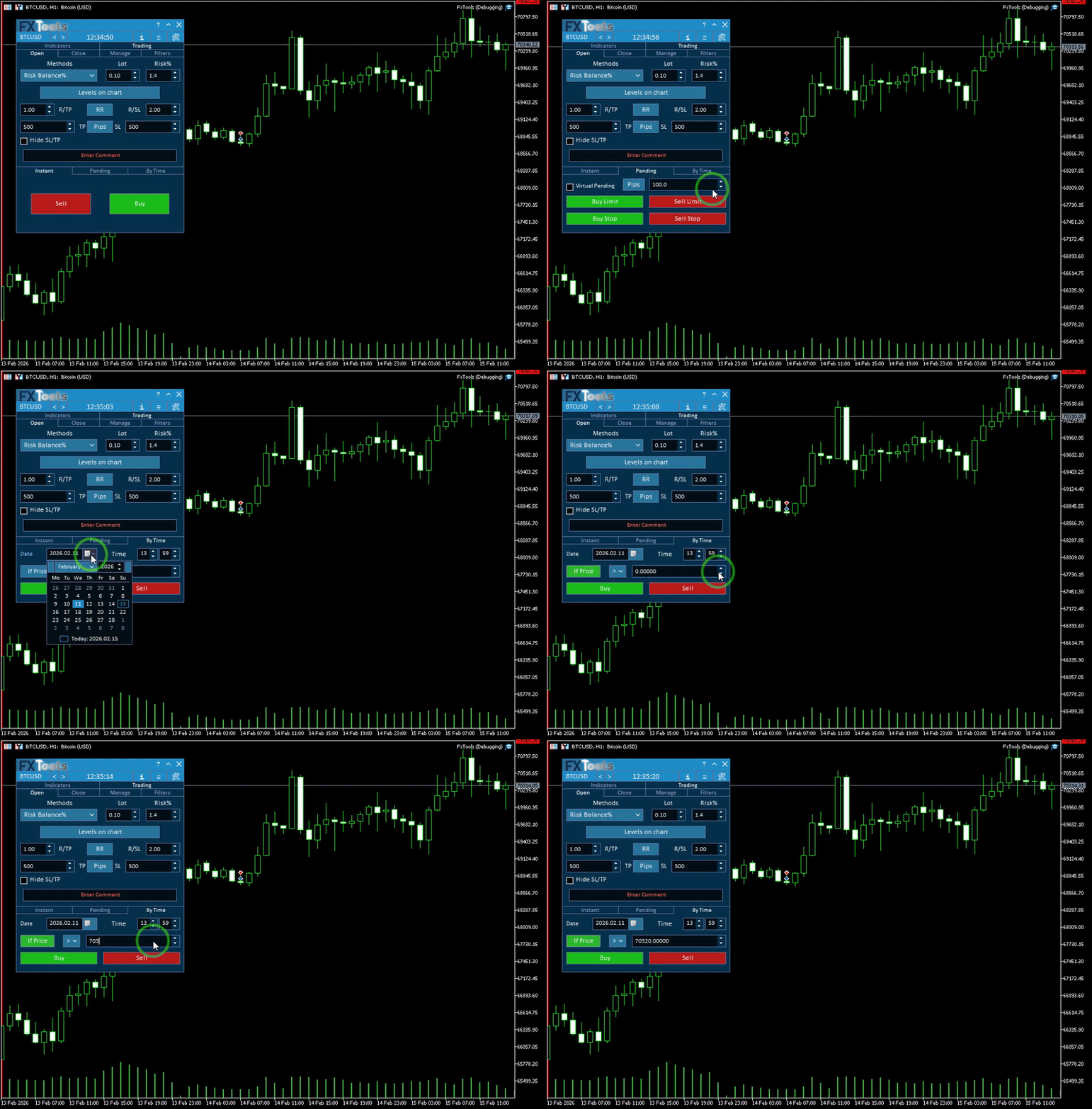
Shows pending distance in pips. Clicking it switches to price mode for exact price entry.
32. Virtual Pending
• Not a visible Pending-tab checkbox (the control is never created). Engine code for virtual pendings exists; do not look for this box on Instant/Pending.
________________________________________
33. Pips Button
• Shows pending distance in pips.
Clicking it switches to price mode for exact price entry.________________________________________
34. Distance / Price Field
• You can enter either:
- pip distance from current price, or
- exact price value (depending on button mode)
________________________________________
35. Buy Limit
• Places a Buy Limit pending order.
________________________________________
36. Sell Limit
• Places a Sell Limit pending order.
________________________________________
37. Buy Stop
• Places a Buy Stop pending order.
________________________________________
38. Sell Stop
• Places a Sell Stop pending order.
________________________________________
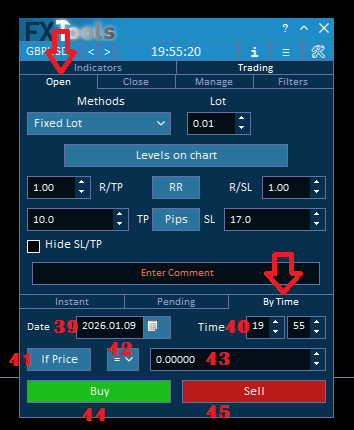
By Time (coming soon)
Not shipped. The By Time leaf shows a “Comming soon...” overlay. Items 39–45 are placeholders from the old post, not a working calendar.
39. By Time Order (This option will be available in the next update)
• Allows scheduling a trade to open at a chosen date.
You can type the date or select it from the calendar.________________________________________
40. Time (This option will be available in the next update)
• Sets the time of day for the order execution.
________________________________________
41. If Price Filter (This option will be available in the next update)
• When enabled, the order opens only if price meets a condition.
• Example:
Open tomorrow at 10:00 only if price is above 1.222.
________________________________________
42. Condition Type (This option will be available in the next update)
• Choose comparison type such as greater than, equal to, or less than a price.
________________________________________
43. Price Field (This option will be available in the next update)
• Enter the required price condition.
________________________________________
44. Buy (This option will be available in the next update)
• Adds a scheduled Buy order to the execution list.
________________________________________
45. Sell (This option will be available in the next update)
• Adds a scheduled Sell order to the execution list.
________________________________________

Links
- Part 0 Overall Guide — four work places (dashboard, shortcut bar, overlays, chart)
- Part 1 Shortcut bar — shortcut bar and min mode
- Part 2 Overlays — Info and Settings
- Part 3 Indicators — watch table and add indicator
- Part 4 Open — Instant, Pending, By Time (coming soon)
- Part 5 Close — Manual, Auto, Partial
- Part 6 Filters — News, Prop firm, Time
- Part 7 Trail — TrailStop and shared distance modes
- Part 8 Grid — same-direction legs after price moves in favor
- Part 9 Martingale — extra legs as the trade moves into loss
- Part 10 Recovery — Recovery Zone hedge channel
- Part 11 Breakeven — move SL toward the open once in profit
- Part 12 Chart — Easy Position Manager and Easy Trade Deck
- Part 13 Expert Advisors — strategy cards by magic, live vs backtest




