

This is Part 1 of 5 of the SizerX User Guide.
Get SizerX on the MQL5 Market – free demo included.
SizerX calculates your lot size from the risk you choose, lets you plan the trade with lines on the chart, and then manages the open position for you. This first part takes you from installation to your first trade in about two minutes.

The SizerX panel (left) and the planner card with the risk and reward zones (right).
1. What SizerX does
SizerX does three jobs, in the order you trade:
- It sizes every trade from your risk. You choose how much to risk (for example 1% of your balance) and drag the stop loss line. SizerX calculates the exact lot size, rounded to what your broker accepts.
- It lets you plan with lines. Stop loss, entry and target are lines on the chart. Before you open, the planner card shows the lot size, the risk in money and the net reward-to-risk ratio.
- It manages the open trade. Break-even, partial close, take profit and trailing stop run automatically from lines you place on the chart.
On top of this, SizerX has a pyramid module, a daily loss limit, a prop firm mode and a news watch. They are covered in Parts 4 and 5.
2. Installation
- Buy or download SizerX from the MQL5 Market. MetaTrader 5 installs it automatically. You can find it in the Navigator window under Expert Advisors → Market → SizerX.
- Drag SizerX onto the chart you want to trade.
- A settings window opens. On the Common tab, tick Allow Algo Trading, then click OK.
- Check that the Algo Trading button on the top toolbar is green.
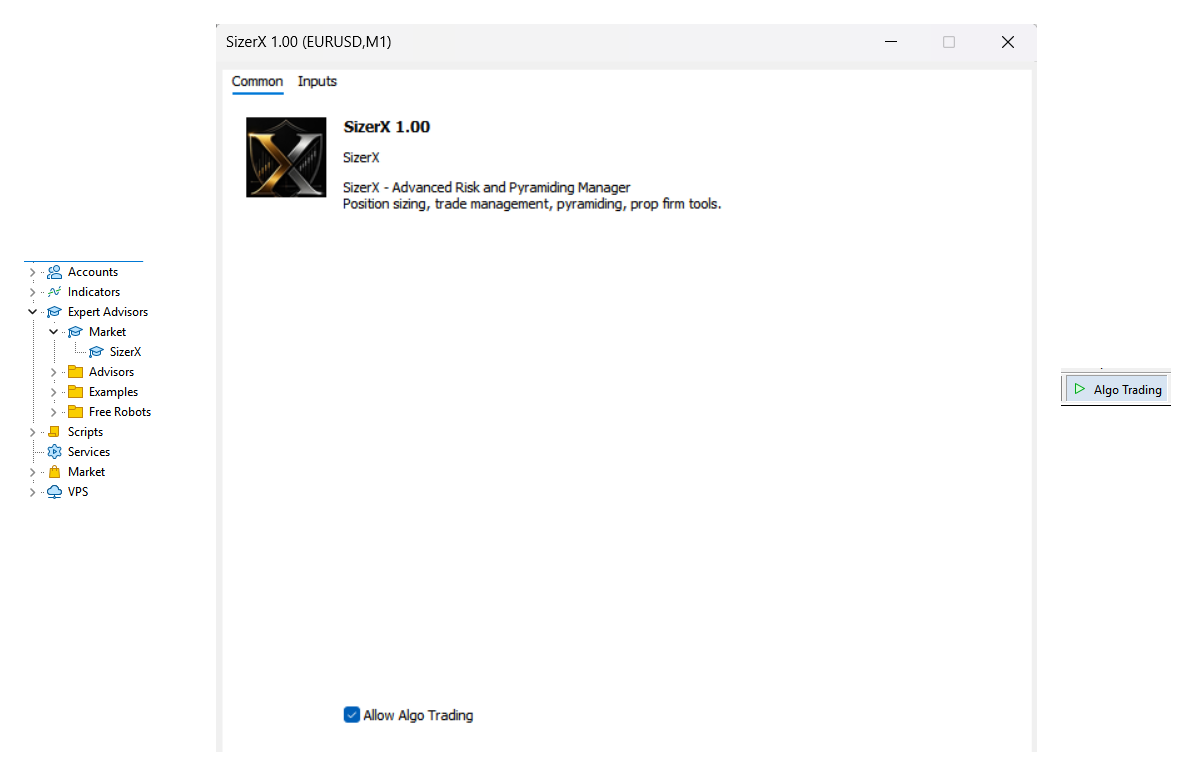
Important: if the Algo Trading button is not green, SizerX can still show the panel and plan your trade, but it cannot open, modify or close positions.
3. The inputs to check first
SizerX works with its default settings. Before your first trade, check only these six inputs on the Inputs tab:
| Input | What it does | Suggested value |
|---|---|---|
| Default risk (% or amount) | Your starting risk per trade. You can change it on the panel at any time. | 0.5 to 1.0 |
| Risk as % of balance | true = the risk is a percentage of your balance. false = a fixed amount in your account currency. | true |
| Magic number | The ID that SizerX puts on its own trades. | Keep the default, unless another EA on the account uses the same number |
| Commission per lot, round trip | What your broker charges for opening AND closing 1 lot. 0 = not counted. | Your broker’s value (see Part 5) |
| Theme | The colours of the panel. There are six themes. | Your choice |
| Panel size % | The size of the panel. SizerX already adjusts to your screen resolution; raise this only if the panel still looks too small. | 100 (150 on a 4K screen) |
The inputs are only the starting values. Risk and risk mode can be changed later directly on the panel (EQUITY % is available there too), and the theme on the Settings card, without reopening the inputs.
4. Your first trade
- Type your risk into the Risk per trade field, for example 1.00. The button next to it switches between BALANCE %, EQUITY % and AMOUNT $.
- Make sure the SL button shows SL: ON. A red stop loss line appears on the chart. Drag it to where your stop belongs.
- Read the lot size under the risk field, for example Lot: 4.21 | 510.50 USD (1.00%). It updates while you drag the line.
- Click the big trade button. It shows BUY when the stop loss line is below the price and SELL when it is above.
- A confirmation window shows the lot, the risk and the stop distance. Click OPEN (or press Enter). CANCEL (or Esc) closes it without a trade.
- Done. The position is open with the exact lot size, and its stop loss is set at your broker.

Tip: you can switch the confirmation off with Don’t ask again, or later in the settings. For a planned trade with a target and a reward-to-risk ratio, use the planner card (SIZER: ON), explained in Part 2.
5. One SizerX per chart
SizerX manages only the trades on its own chart’s symbol. You can run it on several charts at the same time, each with its own panel, for example EURUSD, GBPUSD and NAS100 side by side.
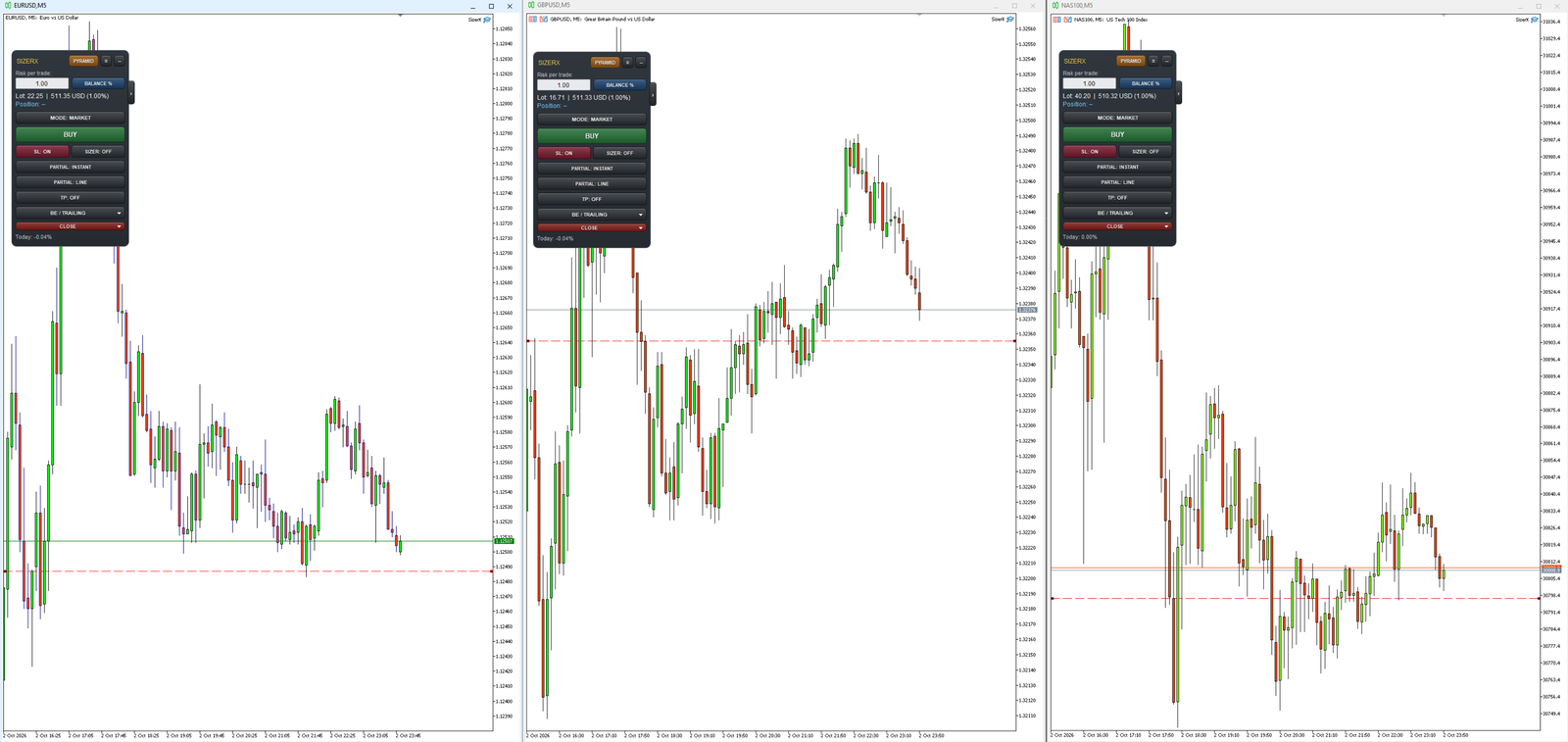
Two rules keep your positions safe:
- One copy per symbol and magic number. If SizerX is already running on EURUSD, a second copy on another EURUSD chart with the same magic number does not start, and an alert tells you why. Two copies would manage the same positions twice.
- Up to two managed positions per chart. SizerX manages up to two positions on a chart at the same time (pyramid layers do not count). A third trade is refused with a message, so a position never runs without management.
Next: Part 2 – The Panel, the Lines and the Planner Card
Get SizerX on the MQL5 Market – free demo included.
SizerX User Guide – all parts:
- Part 1 – Getting Started (this post)
- Part 2 – The Panel, the Lines and the Planner Card
- Part 3 – Managing the Trade
- Part 4 – Pending Orders, OCO and the Pyramid Module
- Part 5 – Account Protection, Settings, Commission and FAQ




