

This is Part 4 of 5 of the SizerX User Guide.
Get SizerX on the MQL5 Market – free demo included.
Pending orders let you enter at a planned price. OCO places two orders and keeps only the one that fills. The pyramid module adds new layers to a winning trade while a common stop protects the whole position.
1. Pending orders
Switch MODE to PENDING ORDER. A white entry line appears. Drag it to your entry price, and the stop loss line to your stop. SizerX calculates the lot from the entry to the stop and chooses the order type for you: limit or stop, depending on where the entry is compared with the current price.
- EXPIRY: ON deletes the order automatically after the set number of minutes (input Expiry (minutes), default 10).
- Planned tools carry over: break-even, partial and take profit lines you prepare for the pending order become the rules of the position when the order fills.
- CANCEL PENDING deletes the order.

2. OCO – one cancels the other
With OCO: ON (in pending mode), SizerX places your order and by default a mirror order on the other side of the price, at the same distance and with the same lot. When one of them fills, SizerX deletes the other. Before you place them, dotted lines show where the second order will go. You can drag these lines to any price: the second order is then placed exactly there, and its lot is calculated from its own stop distance, so both sides risk the same amount. If its stop is on the wrong side, the line label turns red and nothing is sent. Switch OCO off and on to return to the mirror position.

Only the selected order has labels on the right side; the other one shows its lines only.
Important: the other order is deleted by SizerX, not by the broker. If MetaTrader is closed when one side fills, the other side stays live. Keep MetaTrader running, or use a VPS.
3. The pyramid – the idea
A pyramid adds new positions (layers) to a trade that is already in profit. Each new layer moves one common stop loss for the whole pyramid, so that the result at that stop stays where you set it – at break-even by default. You add size only while you are winning, and your original risk does not grow.
To start, open a normal position, then click PYRAMID on the panel. Layer 1 is your open position.
Requirements: the pyramid works only on a hedging account (each layer is a separate position). On a netting account SizerX shows a notice at start. The layers use their own magic number (input Magic number of add-on layers), which must differ from the main one.
4. BANDS mode and AUTO mode
BANDS – you place orange band lines where new layers should open. The Lines field sets how many bands (1–10), + LINE / − LINE add or remove one. Click BANDS: PLAN to make the bands ACTIVE.
- Type: EA – SizerX opens the layer at market when the price reaches the band.
- Type: PENDING – a real stop order waits at the next band with the common stop attached. It fills even if your PC is off.

The label of the next band shows the plan: BAND → 2. layer | 1.76 lot | CSL 1.12081 (CSL = where the common stop loss goes after that layer). If a layer cannot open there, the label says why:
| Label | Meaning |
|---|---|
| CSL TOO CLOSE (MIN SL DIST) | The new common stop would be closer to the price than the MIN SL DIST guard allows |
| CSL TOO CLOSE (BROKER MIN.) | The new common stop would be inside your broker’s minimum stop distance |
| NO MARGIN | Not enough free margin for this layer |
| MAX LAYERS | The MAX LAYERS guard is reached |
| below min. lot | The layer would be smaller than your broker’s minimum lot |
| TRADING OFF | Algo Trading is off, or the market does not allow trading now |
Move the band further away, or change the guard, until the label shows a CSL price again.
AUTO – you place one line (the gate). When the price reaches it, AUTO starts and checks every new closed candle on the selected timeframe:
- CANDLE: a candle that closes in the direction of the pyramid (dojis do not count) opens the next layer.
- BREAKOUT: after a pullback with at least N opposite-colour candles (red on a BUY, green on a SELL; candles in between that don’t close beyond the high are part of it but don’t count), a close beyond the high (BUY) or low (SELL) made before the pullback opens the next layer. It is the same pullback that PRICE ACTION trailing uses: there a wick ends it, here a close opens the layer.
5. Lot modes
| Mode | Size of each new layer |
|---|---|
| PYRAMID | Smaller than the previous one by the set % (default −25%: 1.00 → 0.75 → 0.56 …) |
| FIXED | A fixed % of layer 1 (default 100% = the same lot every time) |
| RISK | Sized from the profit already locked in: the new common stop goes behind the new entry by the set multiple of your original stop distance |

Important – FIXED mode: every layer has the same size, so the pyramid grows fast. If MAX LAYERS is switched off, SizerX keeps adding layers until your free margin runs out. Keep MAX LAYERS on in FIXED mode.
In RISK mode, the message no profit to risk yet means the pyramid is not yet far enough in profit for even a minimum-lot layer.
6. Common stop loss, results and guards
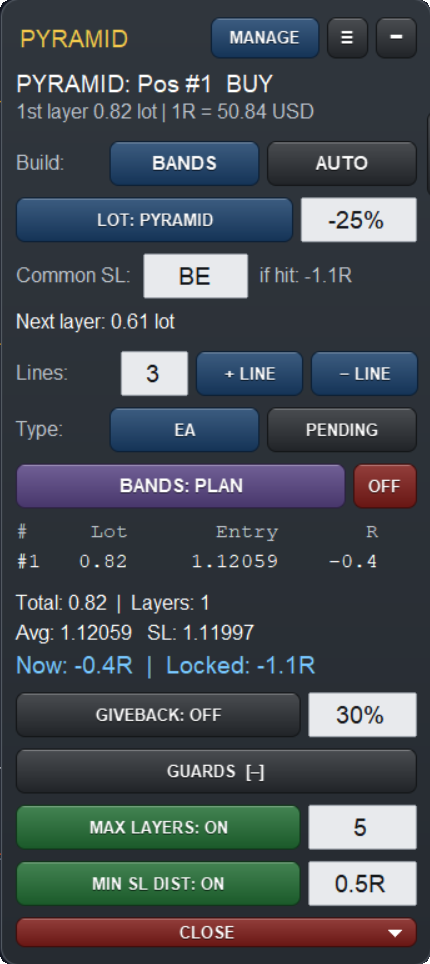
- Common SL: where the common stop goes, as the result of the WHOLE pyramid in R: BE, −1R, +0.5R and so on. It only moves forward. The if hit shows the result if the common stop were hit now.
- The layer table: lot, entry and R of each layer.
- Now / Locked: the result now, and the result already protected by the common stop. Both include the real commission and swap your broker charged, so Locked can be a little lower than what the stop distance alone would give (for example −1.1R instead of −1.0R).
- GIVEBACK: closes the whole pyramid if it gives back the set % of its best result (default 30%). It can be switched on only while the pyramid is in profit; the panel then shows the peak and the closing level.
- GUARDS: MAX LAYERS (default 5, layer 1 included) and MIN SL DIST (the new common stop must stay at least this multiple of your original stop distance from the price; default 0.5R).
- CLOSE → PYRAMID closes every layer, CLOSE → ADD-ONS closes the added layers and keeps layer 1.

Tip: switch on the input Pyramid layer markers on the chart (Small or Detailed) to see where each layer opened, with its lot and result.
Next: Part 5 – Account Protection, Settings, Commission and FAQ
Get SizerX on the MQL5 Market – free demo included.
SizerX User Guide – all parts:
- Part 1 – Getting Started
- Part 2 – The Panel, the Lines and the Planner Card
- Part 3 – Managing the Trade
- Part 4 – Pending Orders, OCO and the Pyramid Module (this post)
- Part 5 – Account Protection, Settings, Commission and FAQ