

Close (Trading tab)
The second sub-tab of the Trading tab is Close.
This dashboard sub-tab closes orders manually, automatically, or partially, filtered by order type, symbol, magic, or profit/loss. Easy Position Manager has its own close and partial-close controls on the ticket (Chart guide). Do not mix the two surfaces.
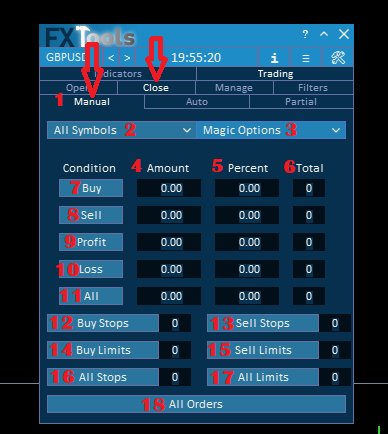
1. Manual Close Section
• Rows show live counts and P/L. The row button is what closes or deletes that group. Use the Symbol and Magic filters first.
_______________________________________
2. Symbol Dropdown
• Label: Symbol. Options:
- All Symbols (default on this tab) – every symbol on the account.
- Current Symbol – the chart the dashboard is attached to. There is no per-symbol picker beyond these two.
________________________________________
3. Magic Number Filter
• Label: Magic. Checkbox list; you can tick more than one.
• Exact options in the list:
• (1) FxTools Orders – this dashboard’s magic.
• (2) All Bot Orders – any trade with magic > 0 (this EA and other EAs).
• (3) Manual Orders – magic 0 / manual.
• (4) All Orders (default on Manual and Auto) – every trade. There is no “All Magics” label.
________________________________________
4. Amount Column
• Header: Amount. Profit or loss in account currency.
________________________________________
5. Percent Column
• Header: Percent. Same P/L divided by account balance (two decimals; not multiplied by 100).
________________________________________
6. Total Column
• Header: Total. Trade (or pending) count for that row — not a separate total row at the bottom.
________________________________________
7. Buy Row
• Button: Buy. Open buy positions in the current filter.
• ⚠️ Warning: The button closes those buy positions.
________________________________________
8. Sell Row
• Button: Sell.
• ⚠️ Warning: Closes those sell positions.
________________________________________
9. Profit Row
• Button: Profit. Positions currently in profit.
• ⚠️ Warning: Closes those profitable positions.
________________________________________
10. Loss Row
• Button: Loss.
• ⚠️ Warning: Closes those losing positions.
________________________________________
11. All Row
• Button: All. All open market positions in the filter (buy and sell).
• ⚠️ Warning: Closes every matching market position.
________________________________________
12. Buy Stops Row
• Button: Buy Stops.
• ⚠️ Warning: Deletes matching Buy Stop pending orders.
________________________________________
13. Sell Stops Row
• Button: Sell Stops.
• ⚠️ Warning: Deletes matching Sell Stop pending orders.
________________________________________
14. Buy Limits Row
• Button: Buy Limits.
• ⚠️ Warning: Deletes matching Buy Limit pending orders.
________________________________________
15. Sell Limits Row
• Button: Sell Limits.
• ⚠️ Warning: Deletes matching Sell Limit pending orders.
________________________________________
16. All Stops Row
• Button: All Stops.
• ⚠️ Warning: Deletes every matching Stop pending order.
________________________________________
17. All Limits Row
• Button: All Limits.
• ⚠️ Warning: Deletes every matching Limit pending order.
________________________________________
18. All Orders Row
• Button: All Orders. Matching market positions and pending orders.
• ⚠️ DANGER: Closes matching market positions and deletes matching pending orders in one click.
________________________________________

Auto Close Sub-Tab
The second sub-tab of Close is Auto.
Each row is an automatic bulk-close rule. Turn the row button on; when the Type/value (or date+time) is met, matching positions close without another click. Auto Close is dashboard-only (not an EPM flyout).
1. What is Auto Close?
• You arm one or more rows. When that row’s condition is true, the dashboard closes the matching group.
________________________________________
2. Symbol Dropdown
• Same as Manual: Current Symbol or All Symbols (default All Symbols).
________________________________________
3. Magic Number Filter
• Same four labels as Manual. Default ticked: All Orders.
________________________________________
4. Type – Choose the Condition Unit
• Header: Type. Each row has its own dropdown. Items are exactly $, %, and ⌚.
• $ – account-currency amount in that row’s amount box.
• % – percent of account balance (converted to currency before the check).
• ⌚ – a date (drop calendar) plus a time (hours/minutes). Not a clock-only field.
________________________________________
5. Condition – Enable or Disable
• Header: Condition. Each row’s two-state button arms that rule. Labels: If Buy >=, If Sell >=, If Profit >=, If Loss >=, If All >=.
________________________________________
6. Value Input – Setting the Threshold
• For $ or %, the matching spin box is the threshold. For ⌚, use the date calendar and time edit on that row (no numeric “value” in that mode).
________________________________________
7. Row 1 – Buy Orders
• Button If Buy >=: close buy market positions when the $/% target is reached, or at the date+time.
________________________________________
8. Row 2 – Sell Orders
• Button If Sell >=. Same idea for sells.
________________________________________
9. Row 3 – Profit Orders
• Button If Profit >=: close positions that are in profit when the rule fires.
________________________________________
10. Row 4 – Loss Orders
• Button If Loss >=: close positions that are in loss when the rule fires.
________________________________________
11. Row 5 – All Orders
• Button If All >=: close every matching open market position (buy and sell).
• ⚠️ Warning: This row can flatten the filtered book.
________________________________________
Type Options Table
| Type | What the Value Means |
|---|---|
| $ | Currency amount from that row’s amount box. |
| % | Percent of account balance, converted to currency, then compared. |
| ⌚ | Date from the drop calendar plus hours/minutes from the time edit. Closes at that timestamp regardless of P/L. |

Partial Close Sub-Tab
The third sub-tab of Close is Partial.
This dashboard tab sets TP/SL parts for filtered positions (lot method + distance method, then Apply Settings). EPM has a separate Partial Close flyout on the ticket (Chart guide).
1. TP Levels (Disabled / Enabled)
• Button starts as TP Levels Disabled (two-state). On = partial closes on the TP rows you arm.
________________________________________
2. Show / Hide
• Eye button between the TP and SL masters. Shows or hides those partial levels on the chart.
________________________________________
3. SL Levels (Disabled / Enabled)
• Button starts as SL Levels Disabled. Same idea for Stop Loss parts.
________________________________________
4. Symbol Dropdown
• Current Symbol or All Symbols (default All Symbols).
________________________________________
5. Magic Number Filter
• Same four Magic labels. Default ticked on this tab: FxTools Orders.
________________________________________
6. Lot Calculation Method for Partial Close
• Dropdown items: Initial Lot%, Remaining Lot%, Fixed Lot value. The Lot column uses that method.
________________________________________
7. Distance Calculation Method
• Dropdown items: Auto Split Distance, Distance in Pips, Price of level, Distance in TP%, Distance in SL%.
________________________________________
8. Lot Column (TP Levels)
• Header: Lot above the TP side. Enter the close size using the method from item 6.
________________________________________
9. Distance Column (TP Levels)
• Header: Distance on the TP side. Uses the method from item 7. Auto Split Distance disables these edits.
________________________________________
10. Lot Column (SL Levels)
• Header: Lot on the SL side. Same lot method as TP.
________________________________________
11. Distance Column (SL Levels)
• Header: Distance on the SL side. Disabled under Auto Split Distance.
________________________________________
12. TP1, TP2, TP3 ... TP8 (Take Profit Level Rows)
• Buttons TP 1 … TP 8 (two-state). The tab creates eight TP rows. Arm a row, then Apply Settings.
________________________________________
13. SL1, SL2, SL3 ... SL8 (Stop Loss Level Rows)
• Buttons SL 1 … SL 8. Same eight-row layout as TP.
________________________________________
• Button label: Apply Settings (full width at the bottom). Change lots/distances/armed rows, then click Apply Settings.
________________________________________
Lot Calculation Methods Table
| Method | Meaning |
|---|---|
| (1) Initial Lot% | Percent of the original lot. |
| (2) Remaining Lot% | Percent of the lot still open when the level is hit. |
| (3) Fixed Lot value | A fixed volume, not a percent. |
Distance Calculation Methods Table
| Method | Meaning |
|---|---|
| (1) Auto Split Distance | Distance edits off. Splits the main TP (or SL) distance across armed levels. |
| (2) Distance in Pips | Distance from open price, in pips. |
| (3) Price of level | Exact price for that level. |
| (4) Distance in TP% | Percent of the main TP distance from open. |
| (5) Distance in SL% | Percent of the main SL distance from open. |
Links
- Part 0 Overall Guide — four work places (dashboard, shortcut bar, overlays, chart)
- Part 1 Shortcut bar — shortcut bar and min mode
- Part 2 Overlays — Info and Settings
- Part 3 Indicators — watch table and add indicator
- Part 4 Open — Instant, Pending, By Time (coming soon)
- Part 5 Close — Manual, Auto, Partial
- Part 6 Filters — News, Prop firm, Time
- Part 7 Trail — TrailStop and shared distance modes
- Part 8 Grid — same-direction legs after price moves in favor
- Part 9 Martingale — extra legs as the trade moves into loss
- Part 10 Recovery — Recovery Zone hedge channel
- Part 11 Breakeven — move SL toward the open once in profit
- Part 12 Chart — Easy Position Manager and Easy Trade Deck
- Part 13 Expert Advisors — strategy cards by magic, live vs backtest




