

This is Part 2 of 5 of the SizerX User Guide.
Get SizerX on the MQL5 Market – free demo included.
The panel is where you set your risk and switch the features on and off. The lines on the chart are where you plan. The planner card shows every number before you open a trade.
1. The panel, from top to bottom
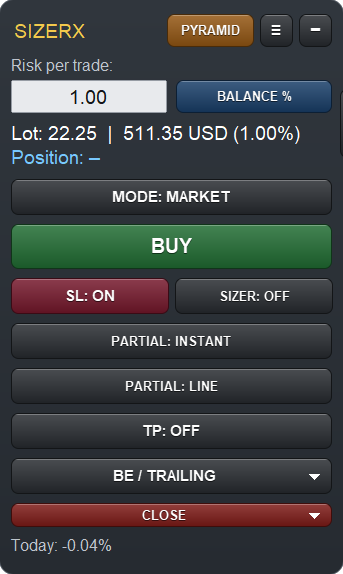
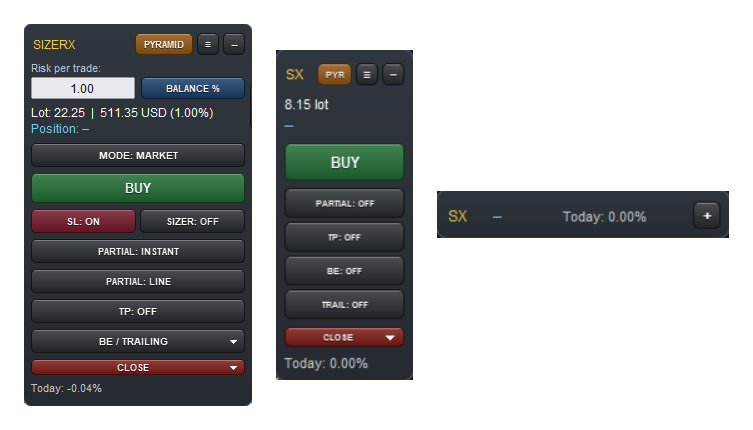
- Header: PYRAMID opens the pyramid panel (Part 4). ≡ switches between the full and the narrow view. − folds the panel into one line (mini view); + opens it again. The small › tab on the side opens the Settings card (Part 5).
- Risk per trade: type your risk here. The button next to it changes the risk mode: BALANCE %, EQUITY % or AMOUNT $ (a fixed amount in your account currency).
- Lot line: the lot size and the risk in money for the current stop loss line, for example Lot: 22.25 | 511.35 USD (1.00%).
- Position: the result of the open position in R (explained in section 3).
- MODE: MARKET opens at the current price, PENDING ORDER places a limit or stop order (Part 4).
- BUY / SELL: opens the trade. The direction follows the stop loss line: below the price = BUY, above the price = SELL.
- SL: ON / OFF shows or hides the stop loss line. SIZER: ON / OFF shows or hides the planner card (section 5).
- PARTIAL, TP, BE / TRAILING: the trade management tools (Part 3).
- CLOSE menu: CURRENT closes the selected position, ALL closes every SizerX position on this chart, pyramid layers included.
- Today: your result for the day in %. The daily loss limit (Part 5) uses this number.

2. Views and themes
The panel has three views. Use the full view while you learn, and the narrow or mini view when you need more room on the chart. All functions keep running in every view.
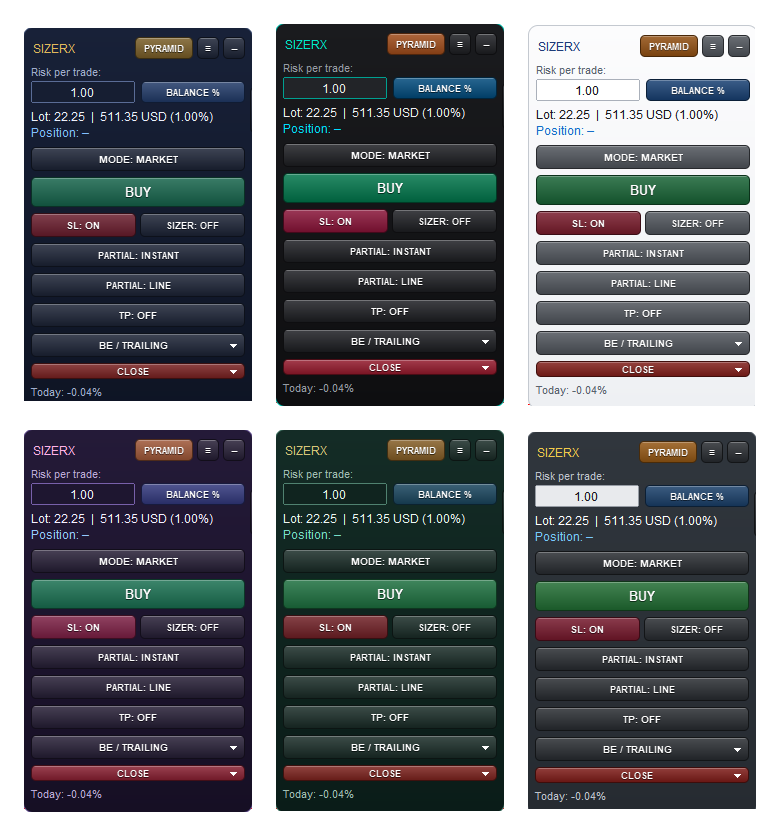
There are six colour themes: Graphite (default), Navy & Gold, Carbon & Neon, Daylight, Midnight Purple and Emerald. Change the theme in Settings → Appearance. Daylight is made for light chart backgrounds.
3. What “R” means in SizerX
R is always money, not price distance. 1R is the amount you lose if the stop loss is hit, commission included. Example: 1% risk on a 50,000 USD account = 500 USD = 1R. Every R number in SizerX compares money with this amount: the Position line, the line labels and the reward-to-risk ratio on the planner card.
This has two practical effects:
- 1R does not change after a partial close. Say you risked 200 USD and closed half of the position when the price was twice your stop distance in profit. The closed half banked 200 USD (+1.0R), and the open half is worth another +1.0R. The panel shows Position: +1.0R (total: +2.0R): first the open part, then the total including what you already banked. In the narrow view it reads +1.0/+2.0R.
- The reward-to-risk ratio is net. If you enter your commission (Part 5), SizerX counts it on both sides. The same lines can show 1 : 5.0 without commission and 1 : 3.1 with it. The ratio you measure on the chart in pips can therefore differ from the ratio SizerX shows, because SizerX shows what you really win or lose.
4. The lines and their three states
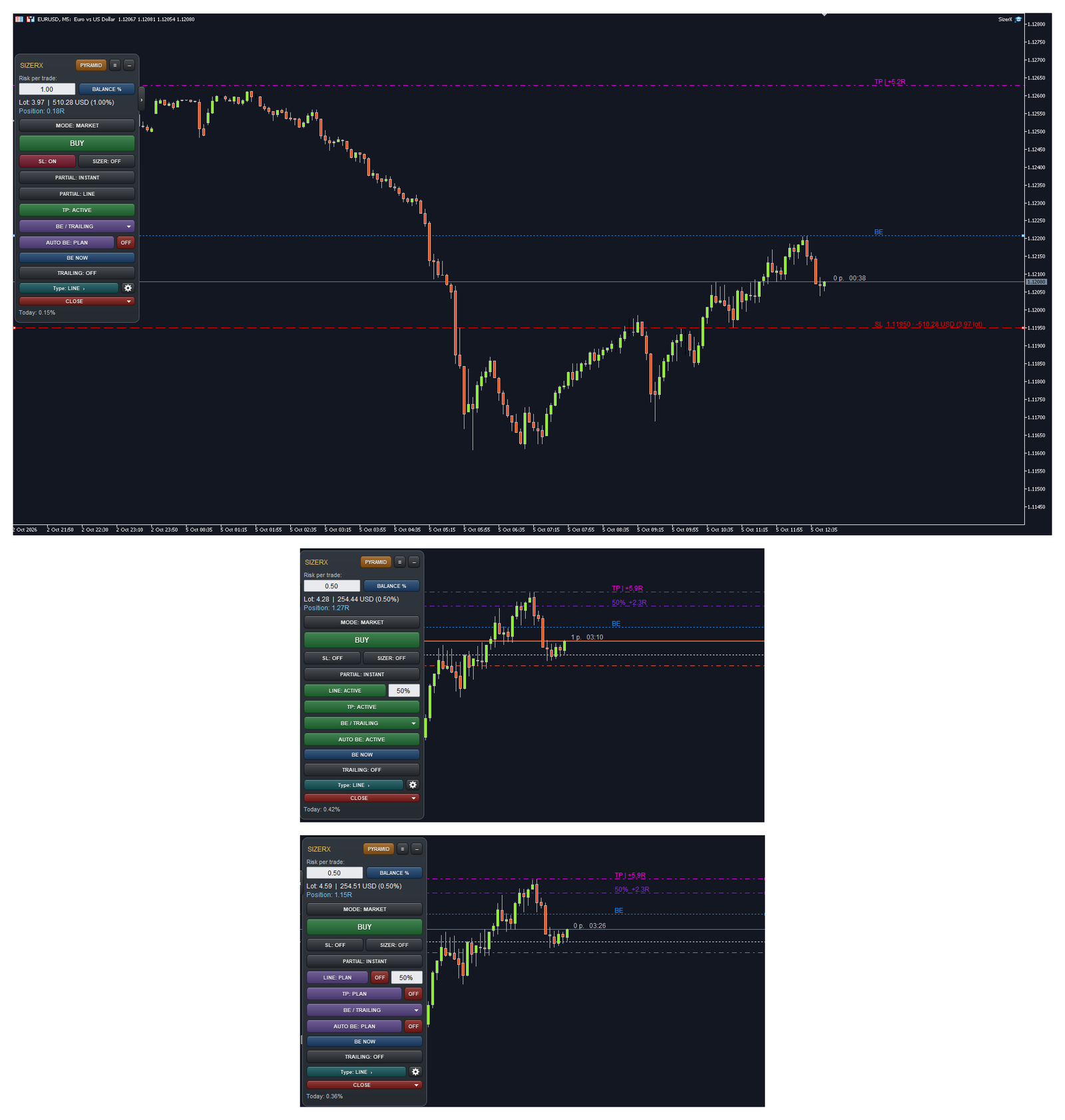
Every tool works with a line on the chart: stop loss (red), break-even (blue), partial close (violet), take profit (magenta), plus the entry and target lines of the planner. Each line has three states:
| State | On the chart | What it does |
|---|---|---|
| OFF | Not shown | Nothing |
| PLAN | Shown and already selected, so you can drag it at once | Nothing yet – you are planning |
| ACTIVE | Shown, the button is green | Armed: SizerX acts when the price reaches the line |
Click the button to go from OFF to PLAN, and again to make it ACTIVE. The small red OFF button next to a PLAN button switches the tool off.
Two safety rules:
- Moving an ACTIVE line sends it back to PLAN. A line you drag by accident cannot trigger. Check the new position and click the button again to re-arm it.
- A line on the wrong side cannot be armed. For example, a break-even line between your stop and the current price would trigger at once, so SizerX refuses to arm it and tells you why.
Important – who executes what: break-even and trailing stop move the real stop loss at your broker. Once moved, the stop stays at your broker and protects you even if MetaTrader is closed – but the break-even trigger and each new trailing step need SizerX running. Partial close and take profit lines are executed by SizerX itself, so they work only while MetaTrader is running. If you hold trades while your PC is off, use a VPS.
The line labels show what each line means in money:
- TP | +5.9R – the result of the part still open if the take profit is hit.
- 50% +2.3R – what the partial close banks (the closed part only).
- SL 1.12030 · -254.66 USD (5.15 lot) – with the planner card off, the stop loss label shows its price, the risk and the lot size.

5. The planner card (SIZER)
Click SIZER (so it shows SIZER: ON) to plan a trade with a target. The card and the red/green zones show everything before you open.

- Risk field (top right): the risk for this trade. You can change it here.
- Lot: the calculated lot size.
- Entry: the market price, or the entry line in pending mode.
- SL: the stop loss price and its distance in points.
- Target: the money result at the target line. The ratio above the green zone (for example 1 : 3.2) is the net reward-to-risk.
- TP checkbox: when it is checked, the target becomes the take profit of the trade, armed from the moment it opens.
- MARKET / PENDING: switches the order type. When you switch to pending, the entry line moves to the current price and your stop loss and target stay where they are.
- BUY / SELL (or BUY LIMIT, SELL STOP …): opens the trade.
When the card opens, the target is placed at 2R automatically (input: Target R:R when the sizer opens).

If the target is too close, the card shows a warning, for example R:R below the minimum (1:1.5) – info only. It does not block the trade. Set the minimum in Settings → Sizer.
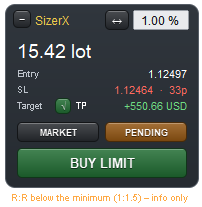
The − button folds the card into one line that shows only the lot size, so it does not cover the chart. The ↔︎ button shows the planner lines across the whole chart (by default they are short segments inside the zone).
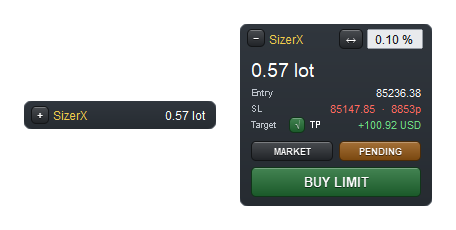
You can also plan a second trade while one position is open. After the trade opens, the card switches off by itself.
Next: Part 3 – Managing the Trade
Get SizerX on the MQL5 Market – free demo included.
SizerX User Guide – all parts:
- Part 1 – Getting Started
- Part 2 – The Panel, the Lines and the Planner Card (this post)
- Part 3 – Managing the Trade
- Part 4 – Pending Orders, OCO and the Pyramid Module
- Part 5 – Account Protection, Settings, Commission and FAQ




