VibeFox Gann
- Indicators
- Version: 1.0
- Activations: 5

VibeFox Gann — Gann fan from auto swing pivots with 1x1 crossover entry points
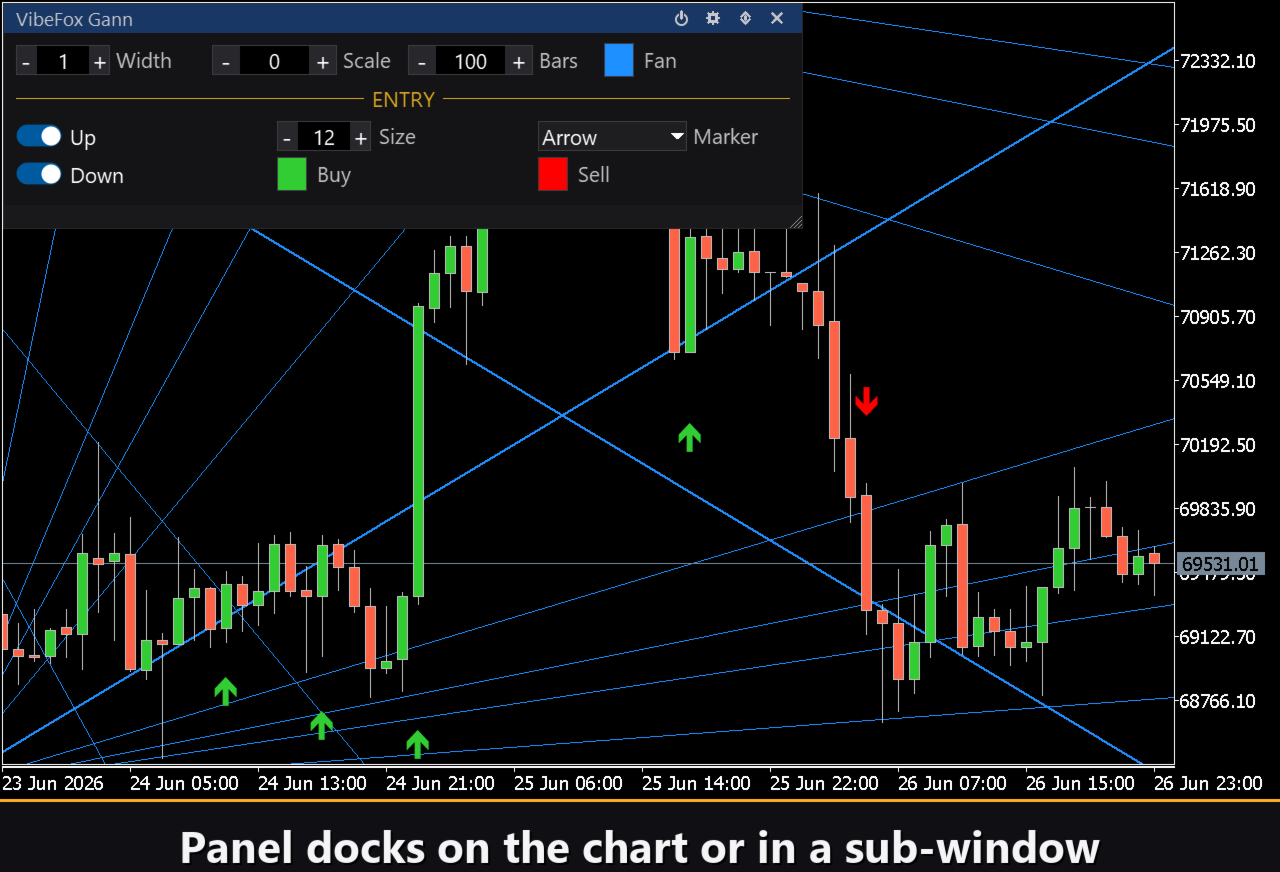
VibeFox Gann is a real-time Gann-angle indicator for MetaTrader 5. It finds the significant swing pivots on its own, draws the classic Gann fan from them, marks the moment a 1x1 crossover entry signal appears right on the price chart, and gathers every control into one modern interactive panel. Instead of dropping the fan by hand and watching the 1x1 line, you see the geometry and the entry point at the very moment they form.
How the indicator works
A Gann fan is a set of straight rays drawn from a single pivot at fixed price/time ratios. The central ray, the 1x1, advances one unit of price for one unit of time — the line of balance (the 45° angle on a properly scaled chart). Above and below it sit the steeper and flatter rays at the classic ratios 1x8, 1x4, 1x3, 1x2, 1x1, 2x1, 3x1, 4x1 and 8x1. As long as price stays above the 1x1 the trend is considered up; a break of the 1x1 hands control to the other side.
VibeFox Gann builds the fan automatically. Over the last Bars (the lookback window) it locates the swing anchors: the lowest low becomes the anchor of the rising up fan, and the highest high becomes the anchor of the falling down fan. The steepness of the 1x1 is derived from the price range of the window divided by its length, so the angle is meaningful on any symbol and any price scale. The Scale control multiplies that automatic slope: 0 means auto (1x), 2 makes the 1x1 twice as steep, and so on.
The fans are drawn directly on the price chart as trend-ray objects, while the indicator itself lives in its own subwindow, where the control panel sits. A larger Bars value reaches further back for the swing anchors; a smaller one keeps the fan local to recent price action.
Entry points
The main value of VibeFox Gann is its automatic entry points: the indicator watches how price interacts with the 1x1 balance line and places a clear marker right on the price chart. Two independent signal types are available, each with its own toggle.
Entry — Up (1x1 cross up)
The up fan is anchored at the swing low and its 1x1 rises to the right. When a bar closes back above the up-fan 1x1 after having been below it, a BUY marker is placed below the bar — price has reclaimed the line of balance and momentum is turning up.
Entry — Down (1x1 cross down)
The down fan is anchored at the swing high and its 1x1 falls to the right. When a bar closes back below the down-fan 1x1 after having been above it, a SELL marker appears above the bar — price has lost the line of balance and momentum is turning down.
Buy and sell markers are colored separately with the Buy and Sell color settings, so direction is read instantly. The Marker selector switches the glyph between a plain cross (+), filled triangles, or arrows with a tail, while the Size control scales the marker in pixels (6 to 40) to fit any chart density.
Full visual control
The fan color is set with the Fan color picker and the thickness with Width from 1 to 5 pixels (the 1x1 ray is drawn one pixel thicker so it stands out). The fan lines and both entry markers each support a transparency setting (0-100%) in the color picker popup, so you can blend them softly into the chart background. Markers on the price chart are sized and colored independently, so entries stand out clearly against any background.
Interactive on-chart panel
The whole interface is a smooth canvas-based panel built for fast mouse control. The Gann parameters are gathered into tidy rows, and the entry block is set apart with its own gold ENTRY heading, so signal settings do not get mixed up with fan settings. The panel header holds the control icons.
Power — turns the drawing of entry markers on and off without removing the indicator from the chart.
Settings (gear) — opens and closes the settings section.
Updown (arrows) — moves the panel between its subwindow and the main chart.
Close (cross) — closes the indicator.
Resizable — drag the bottom-right corner to scale the panel.
Collapsible — a double click on the header collapses the panel into a compact strip.
Mouse wheel — hover over any numeric field (Width, Scale, Bars, Size) and scroll the wheel to change the value without opening the keyboard.
Settings and personalization
The Settings button opens a section where the panel is fitted to your workspace: a light, dark or automatic Theme, an adjustable panel width, header size, row height and font size. Extra touches let you hide the bottom bar via Hide Footer, shrink the header when collapsed with Mini Header, and automatically collapse the panel on a click outside it. Almost every parameter changes live right on the panel — the input fields on the Inputs tab only set the starting values. You can also run several independent copies on one chart by giving each a unique Instance, to compare different Gann settings side by side.
Entry notifications
You do not need to sit and guard the chart waiting for a signal. Each entry can be sent through several notification channels that are enabled independently right on the panel.
Alert — a pop-up message inside the terminal.
Push — a mobile notification to the MetaTrader app on your phone.
Email — a letter sent through the terminal's mail settings.
Telegram — the alert text together with a chart screenshot, sent straight to your Telegram chat.
Enable only the channels you need, and you will be notified the moment a new entry appears on the symbol and timeframe you are working with.
Visual history (HTML report)
Enable the Html channel, and every entry signal is saved to an HTML report together with a screenshot of the chart at the moment it fired. The report is stored in the terminal's Files folder, in the VibeFox_Gann directory (MQL5/Files/VibeFox_Gann/result.html), and opens in any browser — you get a visual log of all the entries the indicator found. A one-click trash button clears the report and its screenshots whenever you want to start over.
Telegram Alerts
Signals can also be delivered straight to your Telegram chat — the alert text together with a screenshot of the chart at the moment of detection. Turn on the Telegram channel and enter your bot token and chat id in the inputs.
Delivery rides on the HTML report: each new signal is written into the report, and the report — opened in a browser — forwards it to your Telegram chat on its own. For this reason, enabling Telegram automatically keeps the Html report on, and the two channels work together.
Built-in multilingual help
A full help page is built into the panel, available in multiple languages, so every control is explained right where you use it.
Parameters (Inputs tab)
Most settings can also be changed live right on the panel (the Settings button) — the input parameters only set the initial values at startup.
Gann
Lookback (bars to find the swing anchors) — how many recent bars are scanned for the swing low and swing high that anchor the fans (10..2000). Default: 100.
Scale, points/bar for 1x1 (0 = Auto) — the steepness of the 1x1 line as a multiple of the auto slope; 0 means automatic (range / lookback). Default: 0.
Fan Line Color — the color of the Gann fan rays on the price chart. Default: DodgerBlue.
Fan Line Transparency — fan line transparency in percent, 0-100. Default: 0.
Fan Line Width — the thickness of the fan lines in pixels, 1..5 (the 1x1 ray is one pixel thicker). Default: 1.
Entry Points
Up Fan (from swing low) — draws the up fan and enables BUY markers on a 1x1 cross up. Default: on.
Down Fan (from swing high) — draws the down fan and enables SELL markers on a 1x1 cross down. Default: on.
Marker Font Size — the size of the entry markers in pixels, 6..40. Default: 12.
Entry Marker — the marker glyph: Cross (+), Triangle, or Arrow. Default: Arrow.
Buy Color — the color of the BUY marker. Default: LimeGreen.
Buy Transparency — buy marker transparency in percent, 0-100. Default: 0.
Sell Color — the color of the SELL marker. Default: Red.
Sell Transparency — sell marker transparency in percent, 0-100. Default: 0.
Notifications
Push Notification — enables push alerts to the MetaTrader mobile app. Default: off.
Alert Popup — enables pop-up alerts inside the terminal. Default: off.
Email — enables email alerts through the terminal's mail settings. Default: off.
Html Report — saves each signal with a chart screenshot to Files/VibeFox_Gann/result.html. Default: off.
Telegram — forwards signals with chart screenshots to a Telegram chat via the HTML report. Default: off.
Telegram - bot token — the token of the Telegram bot used for delivery. Default: empty.
Telegram - chat id — the target Telegram chat identifier. Default: empty.
Panel / Settings
Panel width, px — the width of the on-chart panel in pixels, 300..800. Default: 800.
Header size — the height of the panel header, 1..6. Default: 1.
Theme — the color theme of the panel: Light, Dark, or Auto. Default: Auto.
Row height (px) — the height of each parameter row in pixels. Default: 34.
Font size — the font size used inside the panel. Default: 8.
Hide Footer — hides the bottom bar of the panel. Default: off.
Mini Header on collapse — shows a compact header strip when the panel is collapsed. Default: off.
Close on click outside — automatically collapses the panel when clicking outside it. Default: off.
Instance — a unique number for each copy of the indicator on the same chart, allows running multiple instances side by side. Default: 1.
Panel Start Window — sets the initial position of the panel: main chart or subwindow. Default: Subwindow.