BirdsEyeView
- Indicators
-
Hadi Pourkerman
Market Atlas Labs
@MarketAtlasLabs
Welcome to Market Atlas Labs. We develop High-performance MT5 tools for Gold & All Indices.
High-performance MT5 Trading Frameworks. Specializing in Multi-Timeframe (MTF) Context & Adaptive Momentum for Gold (XAUUSD) and US100. 🏛️ - Version: 1.1
- Updated: 11 March 2026
- Activations: 5
BirdsEyeView Indicator MT5
See the market from above.
have you ever wished you had more screens to track other timeframes at once? even you have that sometimes you get slowing down and can not focus on all the charts at once but!
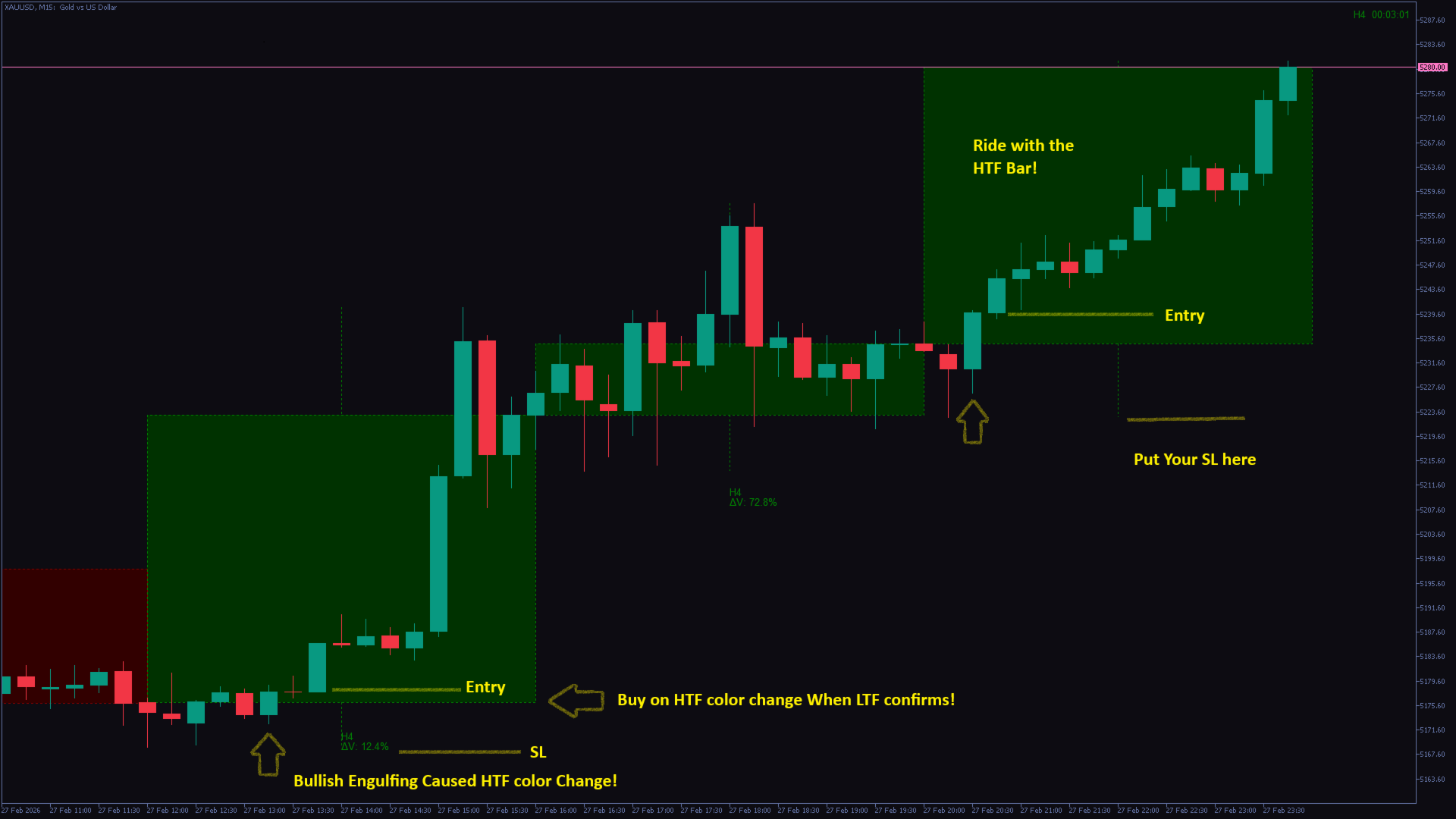
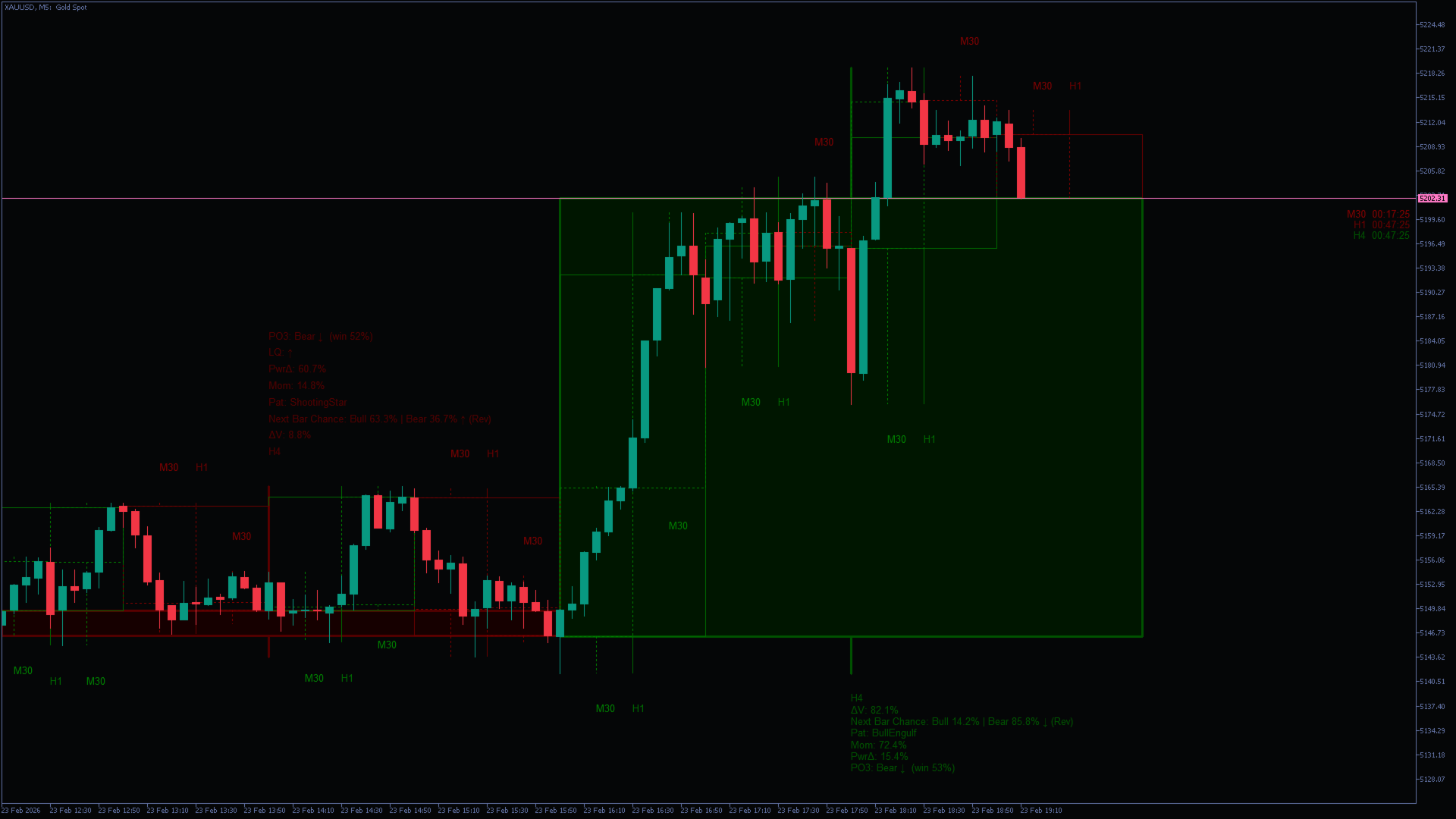
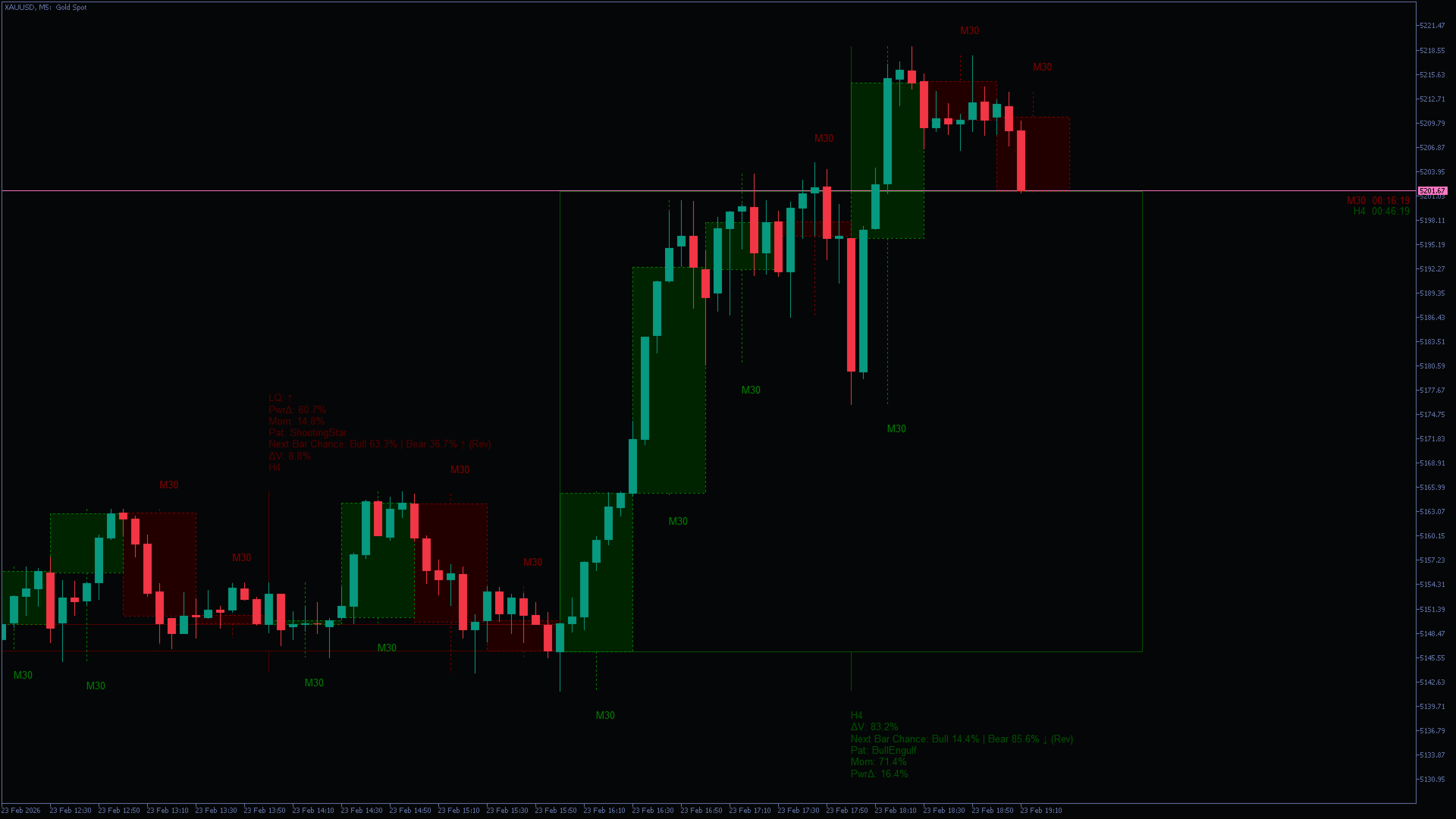
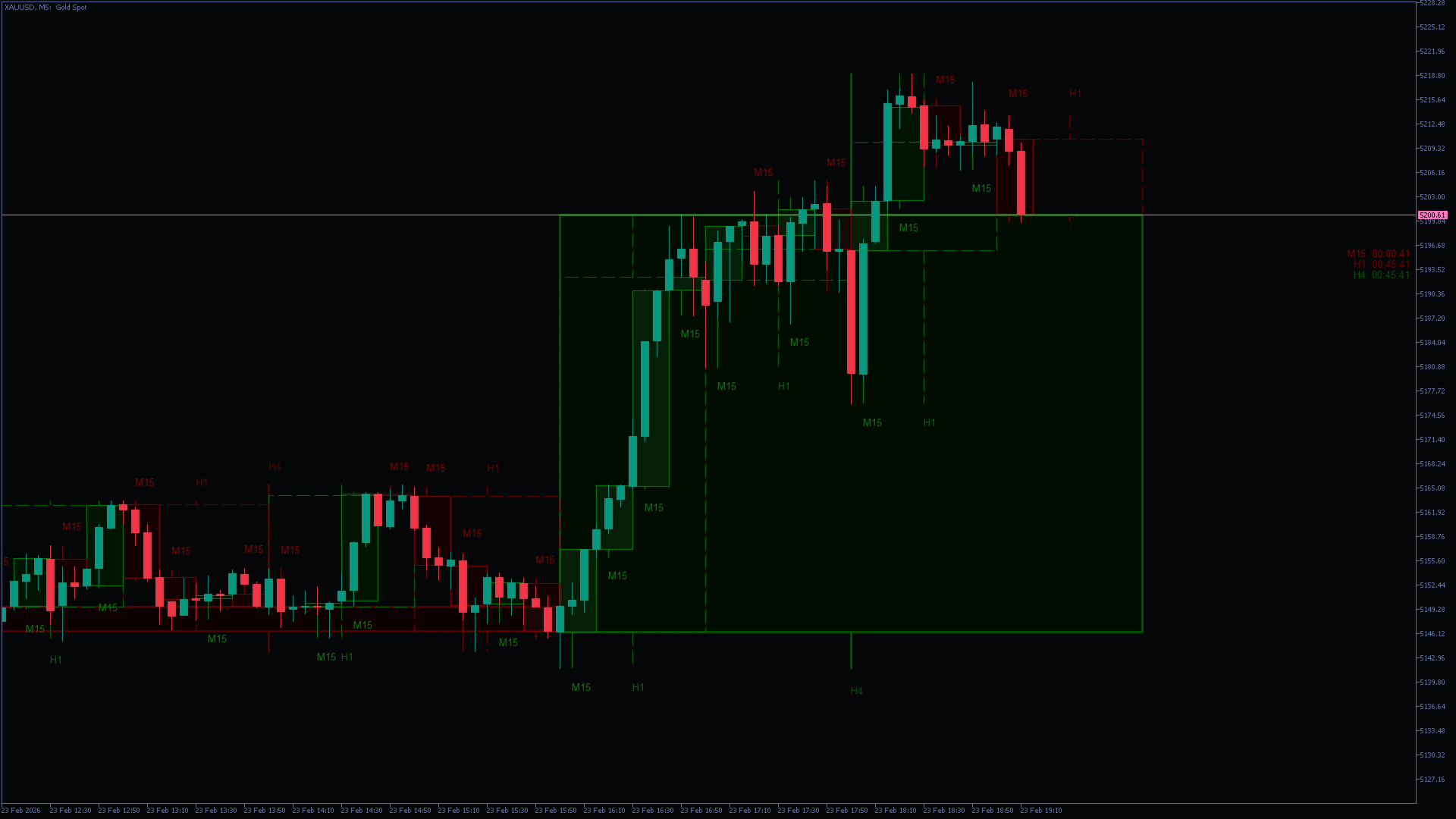
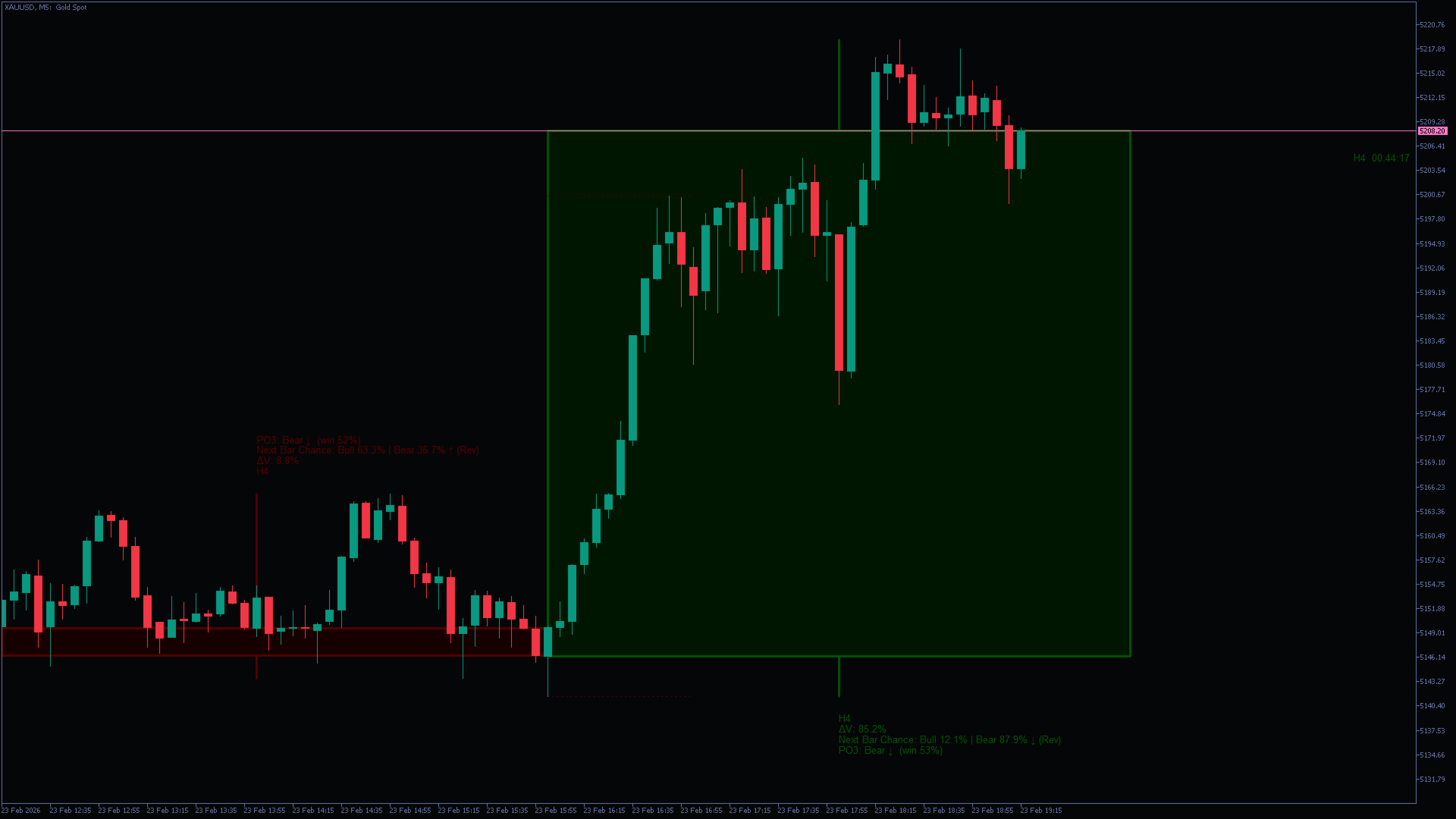
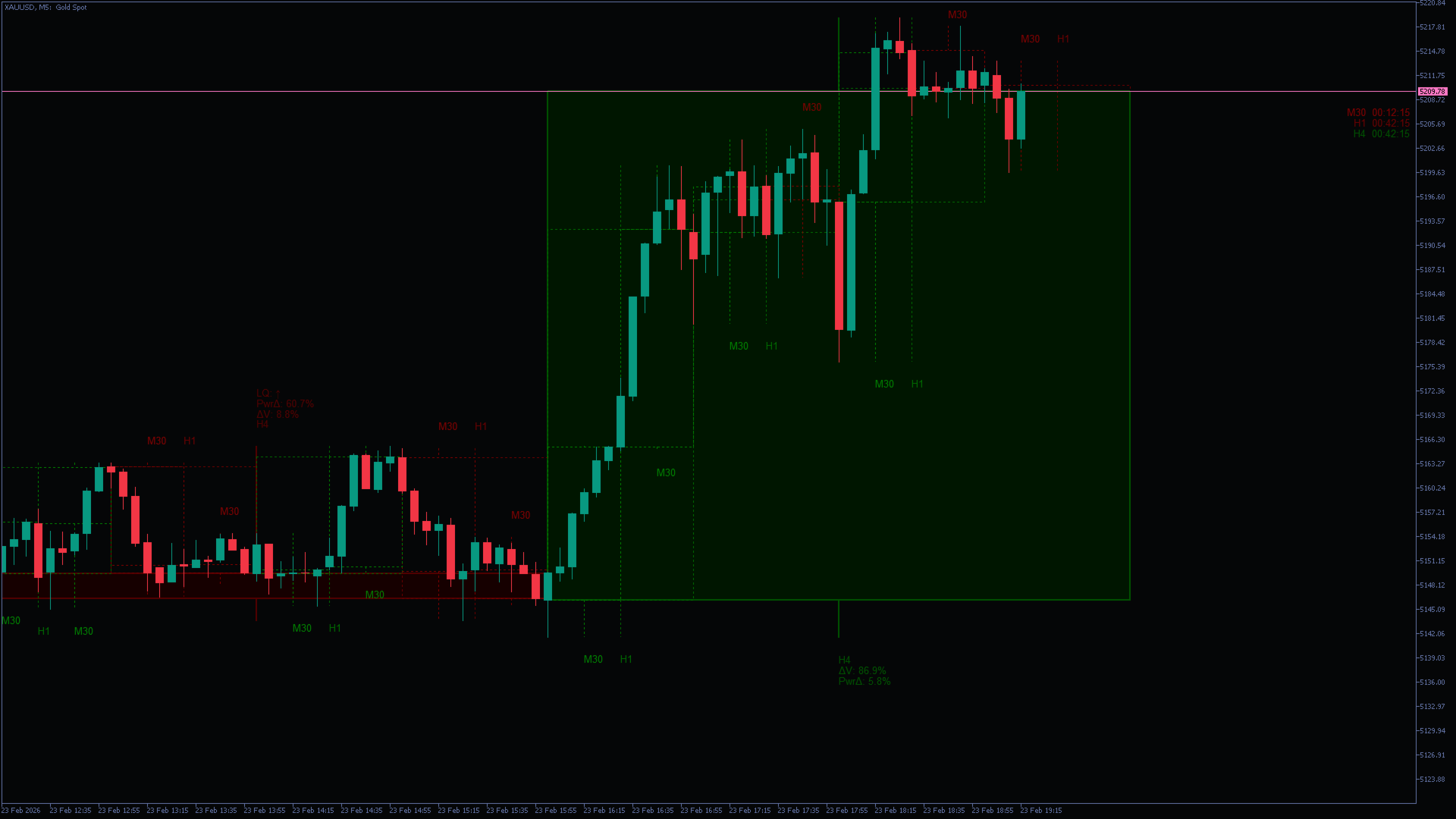
BirdsEyeView overlays 3 more higher-timeframe structures on your current chart — so you can spot direction, context, and “what’s next” at a glance. It urns higher-TF candles into a clear overlay with readable stats and optional FVG/PO3 and many more advance tools.
Overlay higher-TF candles, track time remaining, and read next-bar chance — without switching charts.
Works well on any chart specially on:
Gold / XAUUSD
NASDAQ / US100
All others, Also
Scalping / Trend / Breakout
Non-repaint
MT5 / MetaTrader 5
What this indicator does
BirdsEyeView overlays bars up to 3 higher timeframes on your current chart with:
-
Clean HTF candle bodies + centered wicks
-
Optional fills
-
Per-TF labels: volume change, Next Bar Chance, patterns, momentum, power delta, liquidity hints
-
Optional FVG boxes + midline with mitigation stopping
-
Optional PO3 projection (highest TF only)
-
Optional timers for each selected timeframe
Quick Start (recommended)
-
Turn Show Timers ON (optional but helpful).
-
Choose timeframes:
-
If you want automatic: Auto 3 Higher TF = ON
-
If manual: set TF1 / TF2 / TF3
-
-
For clean look:
-
TF1: keep Show Info/Data OFF, Show Next Probability ON (optional)
-
TF3: Fill TF3 Bars ON, Show Info/Data ON, Draw FVGs ON
-
-
If chart feels crowded:
-
Reduce Lookback Up to N Bars Drawing Limit
-
Keep Fit To Visible Auto limit ON
-
How to read “Next Bar Chance”
You’ll see something like:
Next Bar Chance: Bull XX% | Bear YY% ↑/↓/↔ (Cont/Rev)
-
Bull / Bear %: estimated probability of next HTF bar direction
-
↑ / ↓ / ↔: which side is favored (or neutral)
-
(Cont) means the favored next direction matches current candle direction
-
(Rev) means the favored next direction is opposite current candle direction
-
If AUTO inverted Next% if needed is ON, the model can auto-flip per timeframe when historical accuracy improves.
Tip: treat it as a context signal, not a standalone trade trigger.
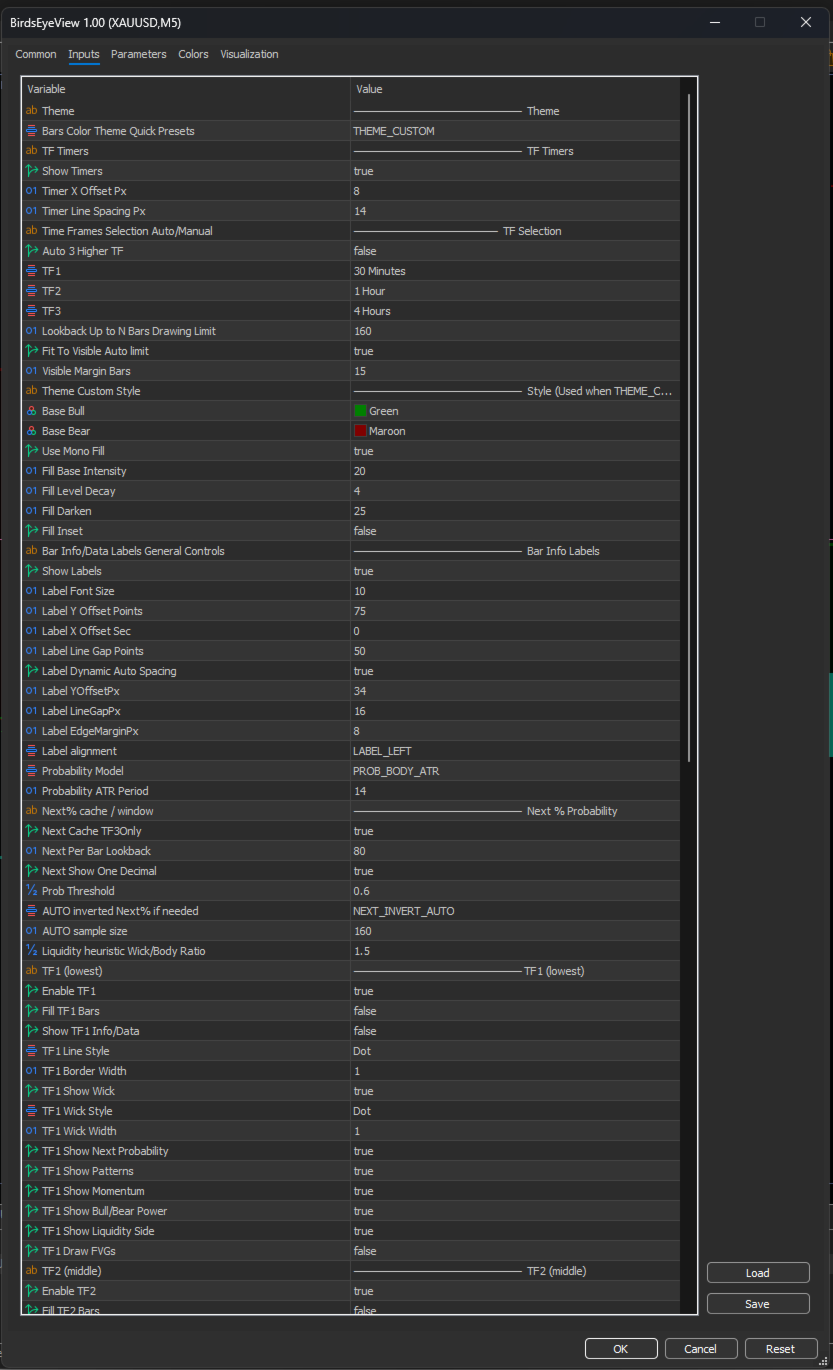
Inputs explained (by section)
Theme
-
Bars Color Theme Quick Presets
Picks a ready color theme for bull/bear visuals. Use Custom if you want manual colors. -
Base Bull / Base Bear (Used when Custom)
Base bull/bear colors used to derive TF shading. -
Use Mono Fill
Uses a simplified green/red fill style. -
Fill Base Intensity / Fill Level Decay / Fill Darken
Controls fill brightness and how it fades across TF layers.
TF Timers
-
Show Timers
Displays countdown time remaining for each selected timeframe candle. -
Timer X Offset Px
Moves timers left/right from the chart edge. -
Timer Line Spacing Px
Vertical spacing between timer lines.
TF Selection
-
Auto 3 Higher TF
Automatically chooses the next 3 higher timeframes above the current chart. -
TF1 / TF2 / TF3
Manual selection for the 3 overlay timeframes (TF1 lowest, TF3 highest). -
Lookback Up to N Bars Drawing Limit
Maximum number of HTF candles drawn per TF (cap for performance). -
Fit To Visible Auto limit
Automatically adapts how many candles to draw based on what’s visible. -
Visible Margin Bars
Extra candles beyond visible range to avoid edge pop-in.
Bar Info Labels
-
Show Labels
Turns on/off all on-chart multi-line labels. -
Label Font Size
Font size for label text. -
Label Y Offset Points / Label Line Gap Points
Vertical offset from candle and spacing between label lines (points-based). -
Label X Offset Sec
Shifts label time position (seconds).
Label Dynamic Auto Spacing
-
Label Dynamic Auto Spacing
Keeps label spacing readable across zoom levels using pixel-based spacing. -

Label YOffsetPx / Label LineGapPx / Label EdgeMarginPx
Pixel-based label spacing + edge margin.
Label alignment
-
Label alignment
Left / Center / Right anchor of the label.
Probability (general)
-
Probability Model
Chooses the probability logic (Simple or Body-vs-ATR based). -
Probability ATR Period
ATR period used by the probability logic.
Next % Probability
-
Next Cache TF3Only
If ON: caches Next Bar calculations only for TF3 (performance-friendly). -
Next Per Bar Lookback
How far back the model looks to estimate probabilities. -
Next Show One Decimal
Shows 1 decimal in percentages. -
Prob Threshold
Currently not used for filtering in v1.00 (reserved for future logic). -
AUTO inverted Next% if needed
Off / Auto / On — auto can invert per TF if it improves historical prediction accuracy. -
AUTO sample size
How many bars are used to decide whether inversion helps.
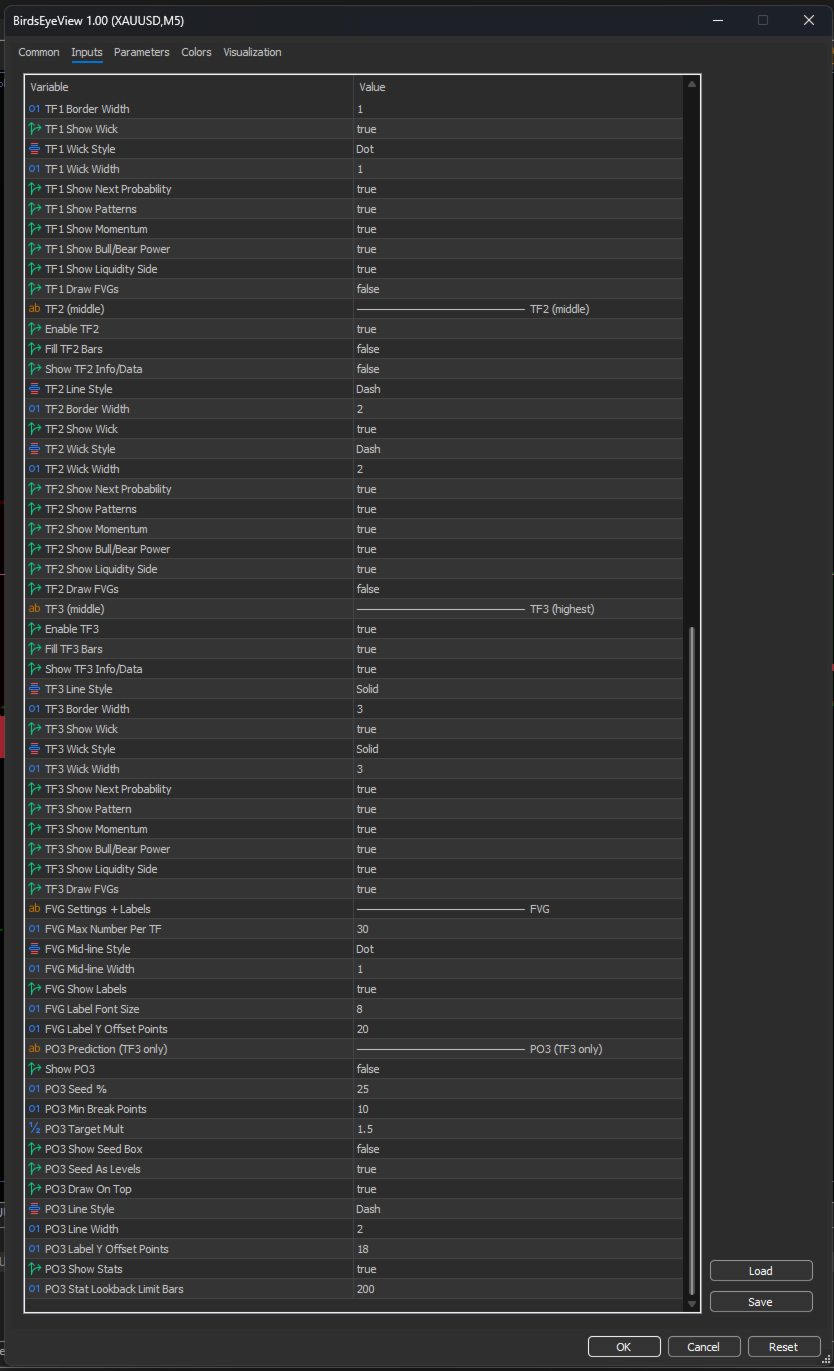
TF1 / TF2 / TF3 (each has the same options)
-
Enable TFx
Master enable/disable for that timeframe overlay. -
Fill TFx Bars
Draws filled candle bodies for that TF. -
Show TFx Info/Data
Shows multi-line labels (volume change, Next, patterns, etc.). -
TFx Line Style / TFx Border Width
Candle border style and thickness. -
TFx Show Wick / TFx Wick Style / TFx Wick Width
Wick visibility and styling. -
TFx Show Next Probability
Displays Next Bar Chance lines in labels. -
TFx Show Patterns
Prints detected candlestick patterns (Doji, Engulfing, etc.). -
TFx Show Momentum
Momentum estimate based on body/range ratio. -
TFx Show Bull/Bear Power
“Power delta” based on wick imbalance (upper vs lower). -
TFx Show Liquidity Side
Flags liquidity sweeps when wick/body ratio exceeds the threshold. -
TFx Draw FVGs
Enables FVG drawing for that TF.
FVG
-
FVG Max Number Per TF
Limits how many FVGs are tracked/drawn. -
FVG Mid-line Style / FVG Mid-line Width
Midline appearance. -
FVG Show Labels
Adds text label (“Bullish FVG TFx” / “Bearish FVG TFx”). -
FVG Label Font Size / FVG Label Y Offset Points
Label formatting and offset.
PO3 (TF3 only)
-
Show PO3
Enables PO3 logic on the highest timeframe. -
PO3 Seed % / PO3 Min Break Points
Seed window and breakout threshold. -
PO3 Target Mult
Target distance multiplier based on seed range. -
PO3 Show Seed Box / PO3 Seed As Levels
Draw seed as a box or as two level lines. -
PO3 Draw On Top
Controls z-order drawing. -
PO3 Line Style / PO3 Line Width
Target line style. -
PO3 Label Y Offset Points
Label offset from target. -
PO3 Show Stats / PO3 Stat Lookback Limit Bars
Shows win-rate stats based on historical occurrences.
BONUS Materials:
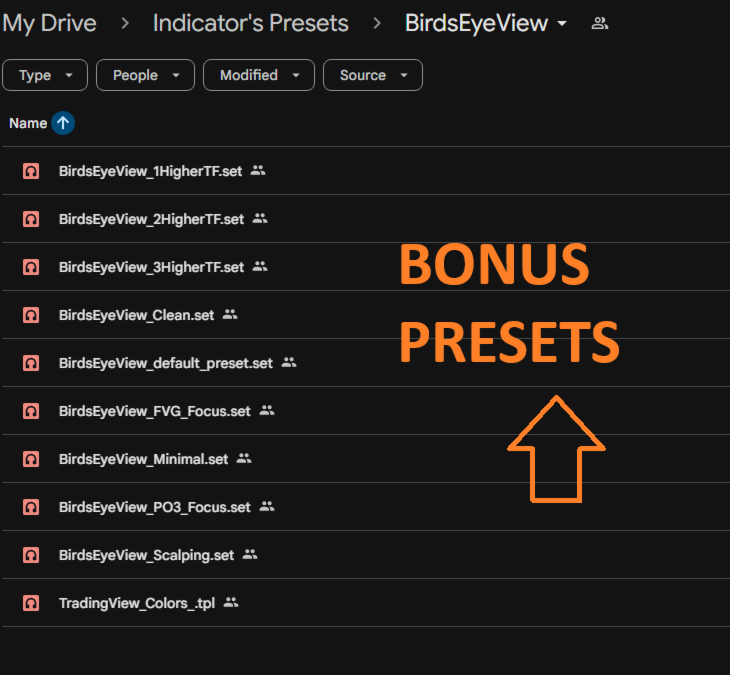
Download it from here for Free: Presets + My Trading view Color TemplateBonus Presets (.set) + TradingView Colors Template (.tpl) — Quick Guide
1) Indicator Presets (.set)
Use presets to instantly switch between layouts like 1 Higher TF, Clean, Scalping, FVG Focus, PO3 Focus, etc.
How to load a preset
-
Add BirdsEyeView to your chart (Insert → Indicators → Custom → BirdsEyeView).
-
In the indicator settings window, click Load…
-
Select the preset .set file and press Open.
-
Click OK to apply.
Optional (recommended): keep presets permanently in MT5
-
File → Open Data Folder
-
Put the .set files here:
MQL5\Presets\
2) TradingView-Style Colors Template (.tpl)
This template changes your chart colors to a TradingView-like look.
How to install + apply
-
File → Open Data Folder
-
Copy TradingView_Colors_.tpl into:
MQL5\Profiles\Templates\ -
Back in MT5, right-click your chart → Templates → Load Template → choose TradingView_Colors_.
Tip: Apply the template first, then load a BirdsEyeView preset so everything looks consistent.
-