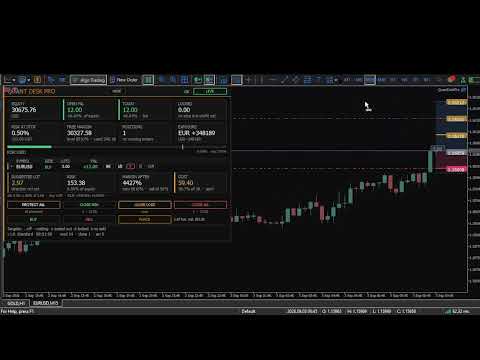
Quant Desk Pro
- Utilities
- Version: 1.0
- Activations: 15

Quant Desk Pro
An R-native trade manager for MetaTrader 5. It manages the trades you have already opened: it measures what each one is really risking, protects it, scales out of it on a plan you set, trails what is left, and stops the whole book when the day has gone far enough wrong.
Read this first. Quant Desk Pro does not open trades and has no signal. And it ships in VIEW ONLY: it will not send a single order until you set I understand the risks to true in the inputs. Until you do, everything else works - the panel measures, the chart draws, the journal records - so you can run it on your own account for a session before it is allowed to touch anything.
What this is
Quant Desk Pro manages trades that are ALREADY OPEN. It does not look for entries, it has no signal, and it will not decide when you should be in the market. What it does is everything that happens after that decision: it measures what each position is really risking, protects it, scales out of it on a plan you set, trails the remainder, and stops the whole book when the day has gone far enough wrong.
It does not care where a trade came from. A position opened by hand on the desktop terminal, from the MetaTrader phone app, from the web terminal, or by another expert advisor is picked up on the next cycle and managed like any other.
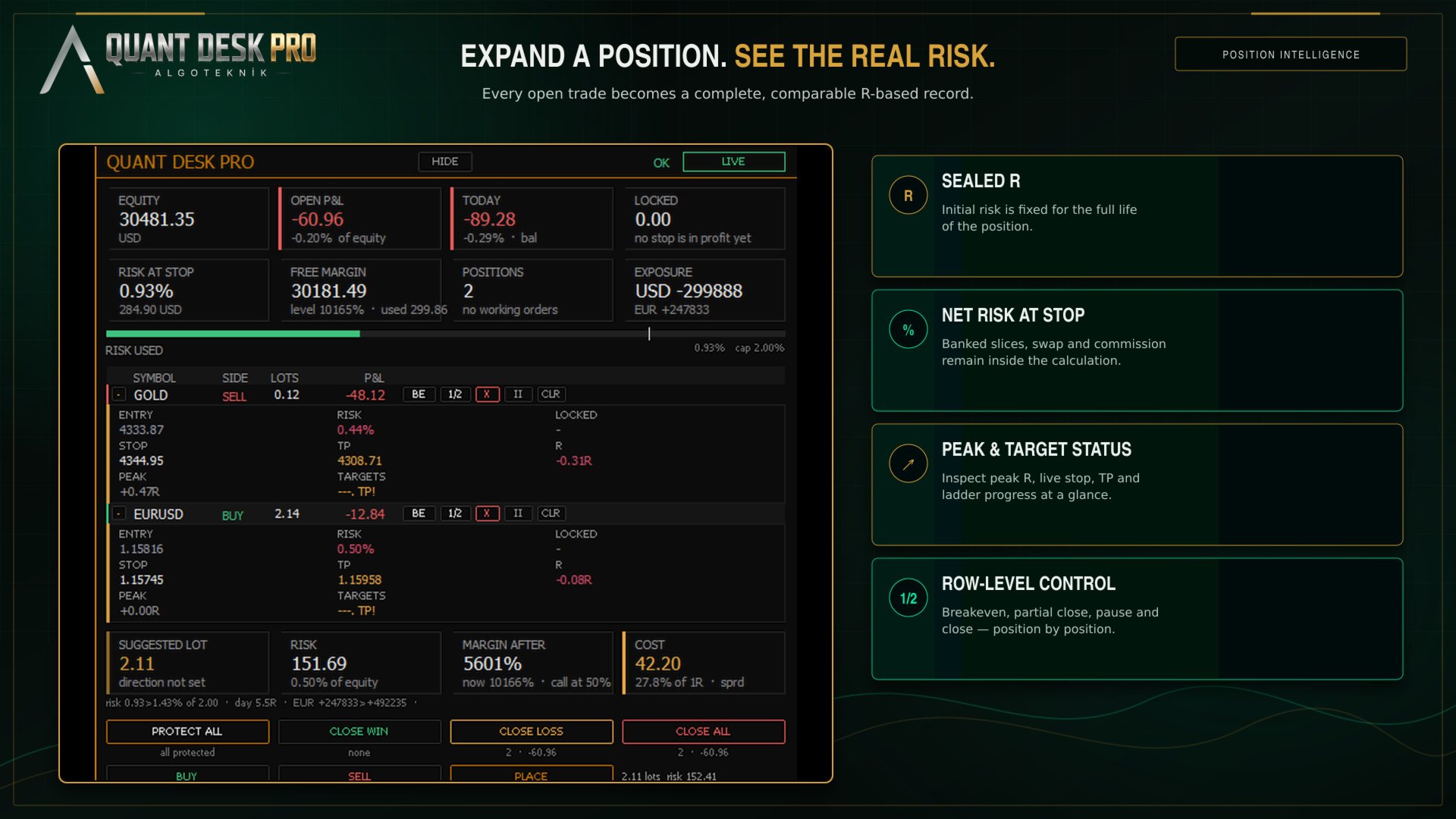
The one idea underneath all of it is R - the money a position would lose if its stop were hit. Quant Desk Pro measures that once, at the moment it first sees the trade, and then keeps it fixed for the life of the position. Every number the product shows you is a multiple of that one number, which is what makes a two-hundred-dollar loss on gold and a forty-dollar loss on EURUSD comparable at a glance.
What it will never do
This matters as much as the feature list, so it comes second rather than last.
- No grid. It will never open a position to average down a losing one.
- No martingale. It will never increase size after a loss.
- No hidden entries. With the entry tools off - which is how it ships - the product sends no order that you did not press a button for, except the protective stop described in Protection.
- No loosening. A stop this desk has moved into profit is never moved back down. Only you can do that, by hand, in the terminal.
- No touching your take profit, unless you ask. The desk reads it, warns you when it sits in front of one of your targets, and leaves it exactly where you put it.
- No third-party server. Nothing leaves your terminal. There is no licence call, no telemetry and no web request of any kind.
Hedging accounts only. On a netting account the product runs in MONITOR ONLY: it measures and displays everything and sends no orders at all, because a netting account has one position per symbol and per-position management is not possible on it.
Before you start
- MetaTrader 5, build 3800 or newer.
- A HEDGING account. Check it in Tools - Options - Trade, or on the terminal's account information: it must say Hedging.
- Algo Trading enabled in the terminal toolbar.
- Allow Algo Trading ticked in the expert's own Common tab.
The product runs on one chart and manages whatever its scope tells it to. One chart is enough for the whole account; you do not need a copy per symbol.
Five minutes to running
Read this section even if you never read another one.
- Drag Quant Desk Pro onto any chart. The panel appears in the top-left corner and can be dragged anywhere with the mouse.
- Look at the chip in the top right of the panel. It will say VIEW ONLY.
- THE PRODUCT SHIPS IN VIEW ONLY AND WILL NOT SEND A SINGLE ORDER UNTIL YOU CHANGE THAT. This is deliberate. A tool that can close your positions should not be able to do it because you dragged it onto the wrong chart.
- Press F7, find I understand the risks in the first group, and set it to true. The chip turns green and reads LIVE.
- Choose a preset in the second group. Standard is a sensible starting point and is described in Presets.
- Open a trade, or let the desk find one you already have. Watch the panel fill in.
Until you set that consent input, everything works except sending orders: the panel measures, the chart draws, the journal records. It is a full dry run of the product on your own account, and it is worth spending a session in it.
The one idea: sealed R
One R is what the position loses if its stop is hit. Quant Desk Pro seals that number the first time it sees the trade and never recalculates it.
An example. You buy 0.20 lots of EURUSD at 1.09500 with a stop at 1.09200. Thirty points on 0.20 lots is sixty dollars, so one R is sixty dollars for this trade, for as long as it lives. At +120 dollars the panel reads +2.00R. If you later move the stop up to breakeven, the trade is still measured in sixty-dollar units - because that is what you actually risked to get here.
This is the part most trade managers get wrong. If R were recalculated from the CURRENT stop, then every time the stop moved up the same profit would suddenly be worth more R, and a trade that had gone nowhere would appear to be winning. A sealed R is the only version of the number that can be compared between trades, between symbols and between weeks.
The figure the panel shows is NET. Anything an earlier target already banked, plus swap, plus commission, is inside it. +1.00R means the position has actually delivered one R into the account, not that price has travelled one R.
If a position arrives without a stop, there is nothing to measure. The desk then estimates R from an ATR multiple so that the rest of the product has something to work with - see InpFallbackRiskATR - and the moment a real stop exists the position is protected at that estimated level. Set that input to 0 if you would rather the desk simply refuse to manage a stopless trade.
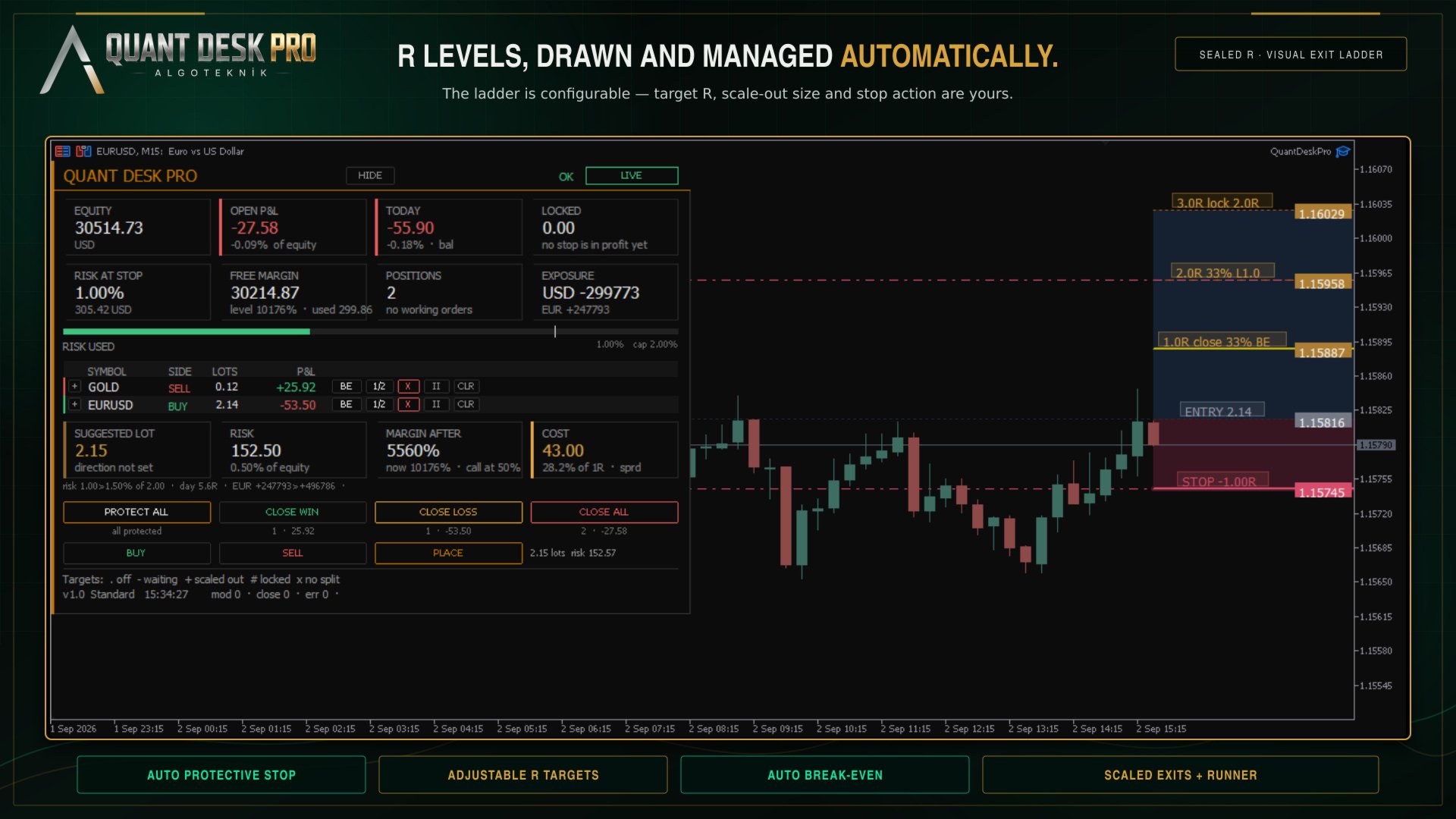
Reading the panel
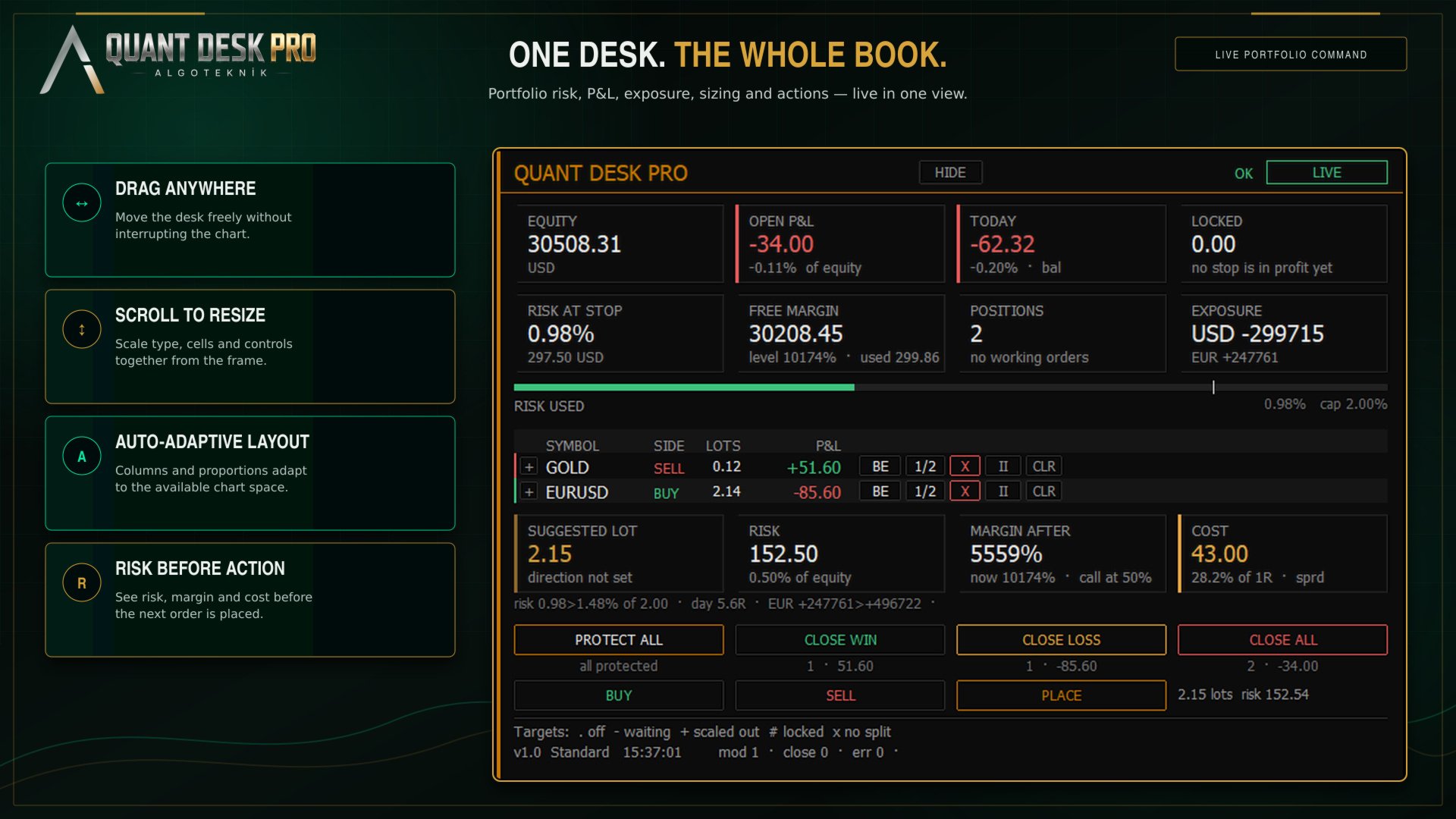
The panel is in three tiers. Small grey capitals name a thing; the large figure under them is the thing; the small line under that is its context. Nothing else on the panel is decoration.
The Money Row
- EQUITY — Account equity, refreshed every cycle.
- OPEN P&L — Every managed position added up, net of swap and commission, with its share of equity underneath.
- TODAY — Today's result: realised plus floating, with deposits and withdrawals removed. The tag says which basis the daily limits use - bal for the day-start balance, eq for day-start equity, eq~ when the desk attached mid-day and had to take equity as found. Ln counts losing trades in a row.
- LOCKED — What the stops have already secured. If every stop that sits in profit were hit right now, this is what the account would keep.
The Limits Row
- RISK AT STOP — What the account would lose if every stop were hit at once, as a share of equity. Positions with NO stop are not counted into it - their loss is not bounded by anything, and averaging a measured risk with an unmeasurable one would be the most dangerous thing this panel could say. They are named beside the figure instead: 2 UNPROTECTED, in red.
- FREE MARGIN — Margin still available, with the margin level and margin in use underneath. Amber inside twice your broker's own margin call level, which is read off the account rather than guessed.
- POSITIONS — How many open positions pass the scope and ownership filters, and how many working orders are waiting.
- SPREAD — The current spread on this chart's symbol. With the R layer on, this cell shows net currency exposure instead.
The Risk Bar
Under the cells is a single bar: open risk against the cap you set. The white tick is the cap, and it sits at four fifths of the bar's length rather than at the end - so being over the cap looks like being over the cap, instead of like a bar that has been full since some point you cannot identify.
The Position Table
- SYMBOL — The symbol. A two-pixel edge down the left of the row carries the direction in colour, so the shape of the book reads before any word does.
- SIDE — Buy or sell.
- LOTS — Volume still open, after any partial closes.
- ENTRY — The price the position was opened at.
- P&L — What this position is worth right now, net.
- RISK — What hitting THIS position's stop would cost the account, as a share of equity - banked slices and swap counted. 0.00% means the stop is far enough into profit that nothing is at risk. A dash means there is no stop, and then the loss is not zero, it is unknown.
- LOCKED — The mirror of RISK: what hitting the stop would BANK, when the stop sits in profit.
- STOP — Where the stop actually sits. Green once it locks a profit, white while it still costs money, red when there is none.
- TP — Your own take profit, as the broker holds it. Amber when it sits in front of one of your targets and will end the trade before the plan finishes.
- R — The same result in R. Off by default - see The R layer.
- PEAK — The best R this position has reached. Off by default.
- TARGETS — One character per exit target. Off by default. See The exit ladder.
The Row Buttons
- BE — Move this position's stop to its entry price, plus the breakeven buffer. Nothing is closed.
- 1/2 — Close half of what is STILL OPEN, at market. Note the difference from a target: a target closes a share of the position's ORIGINAL size, this button closes a share of what is left.
- X — Close this position completely. Click once to arm, again within six seconds to send.
- II — Take this position off the desk. No targets, no trailing, no automatic stop moves - it is still measured and still shown. The button becomes GO to hand it back. The setting survives a restart.
- TP — Put a take profit on the broker's server. Press it on a position that already has one and it CLEARS it. See The size calculator.
The Desk Buttons
Four buttons act on the whole managed book, and each carries its own consequence underneath it before you press: how many positions, and what they are worth.
- PROTECT ALL — Put a stop on every managed position that has none, at the price its R was sealed from.
- CLOSE WIN — Close every managed position in profit. Profit here is net.
- CLOSE LOSS — Close every managed position that is losing, net.
- CLOSE ALL — Close the whole managed book at market.
The three closing buttons ask twice by default. Every button on the panel has a tooltip: hover for a second and it explains itself in plain sentences.
The R layer
Out of the box the panel speaks money. R, PEAK, the target glyphs, the R-denominated open risk and the currency legs are hidden behind one switch: InpShowRLayer.
This is not a crippled default. It is the recognition that a trader who has never sized a position in R cannot read those columns on day one, and that three columns of money they can read are worth more than three columns of R they cannot. Turn the layer on when R has stopped being a foreign word - most people do it within a week, and then never turn it off.
InpValueUnit is a separate choice and applies to both the panel and the chart: money, R, percent of equity, or R and money together.
Protection
A managed position with no stop is the one case where this product acts on its own without being asked, and it is worth understanding exactly what it does.
With InpAutoProtect on - which is the default - any managed position that has no stop is given one, at the price its R was sealed from. Not when it goes into profit; immediately, on the first cycle that sees it. The trade that runs straight against you is the one that needs a stop most, and it is exactly the trade that a profit-triggered mechanism never reaches.
If you would rather place your own stops, switch it off. The panel still counts what is unprotected and the PROTECT ALL button still does the same job on demand.
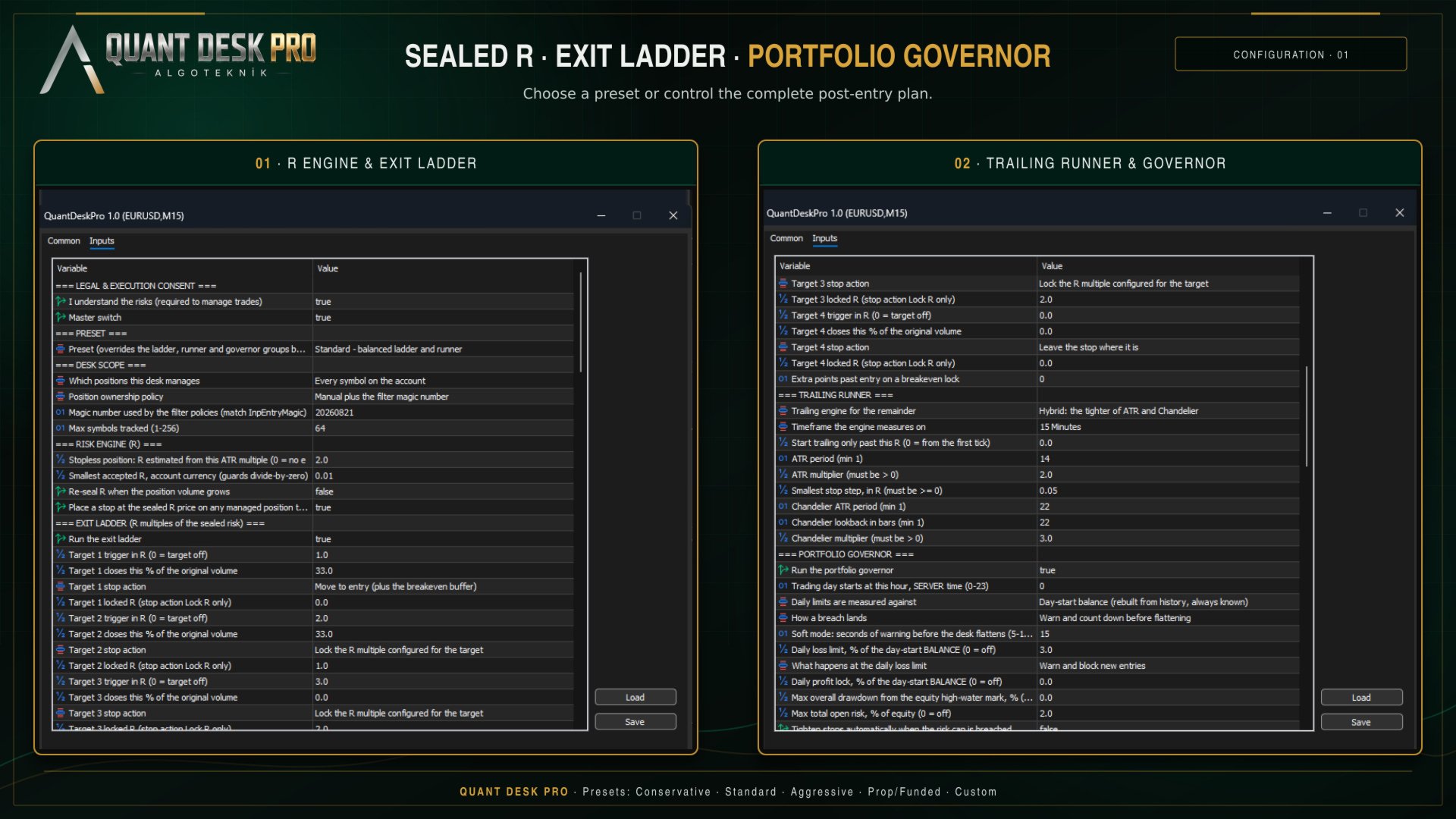
The exit ladder
The ladder is a list of up to four TARGETS. Each one is a level in R, and when the trade reaches it two things can happen: a share of the position is closed, and the stop is moved.
The default ladder:
- +1.0R — 33% of the original volume — to breakeven - the trade is now free
- +2.0R — 33% of the original volume — to +1.0R - one R is banked and locked
- +3.0R — nothing — to +2.0R - the remainder runs with two R secured
- - — target 4 is off
Note what the third target does NOT do. It closes nothing. The point of a ladder is that something is still running when the move keeps going, and a target that closes the last of the position is the end of the trade, not the top of the plan.
The percentage is always a share of the ORIGINAL volume, not of what is left. Two 33% targets take two thirds of the trade, not 33% and then 33% of the remaining 67%.
The TARGETS column shows one character per target, in order:
- . — the target is switched off
- - — armed and waiting - price has not reached it
- + — half done: either the slice closed or the stop landed, not both
- # — done
- x — this position is too small to split, so this target can never fire
- TP! — your own take profit sits in front of a target and will end the trade first
The x is worth reading carefully. If your position is 0.01 lots and your broker's minimum is 0.01, a 33% slice cannot be sent. The desk says so on the row rather than failing quietly every time price crosses the level, and it tells you at start-up which of your targets will never fire at the minimum lot for your symbols.
The trailing runner
Whatever the ladder has not closed is trailed. Four engines are available:
- Off — no trailing; only the ladder moves stops
- ATR — a multiple of ATR behind price
- Chandelier — a multiple of ATR below the highest high since entry, or above the lowest low
- Hybrid — whichever of the two is further into profit, which is the default
Two guards apply to all of them. A stop is never moved backwards, and it is never moved by less than InpMinMoveR - a stop that creeps a tenth of a point every tick generates server traffic and achieves nothing.
InpTrailStartR delays trailing until the trade is far enough along. Left at 0 the runner engages from the first tick.
The portfolio governor
Everything above works on one position. The governor works on all of them, and on the day.
- Daily loss — the day's result against the day-start balance
- Daily profit — the same, upward - lock the day in when it has gone well
- Max drawdown — equity against its own all-time high on this account
- Open risk cap — everything at stake across the book at once
- Losing streak — consecutive losing trades closed today
- Currency leg — net exposure to one currency across every symbol - long EURUSD and long GBPUSD are two trades but one bet against the dollar
A breach can block new entries, or flatten the book, or both. In SOFT mode the desk warns for a configurable number of seconds first, so that a spike through the limit and back does not close your day for you.
The trading day starts at InpDayResetHour in SERVER time. On a funded account this matters: your programme's day probably starts at 17:00 or 00:00 New York, which is rarely your broker's midnight. Set it to the hour you are actually graded on, and the anchor, the day's P&L and every daily limit move with it.
Presets
A preset overrides the ladder, runner and governor groups in one choice, and prints exactly what it applied to the journal when it starts.
- Conservative — Scales out early and locks in fast. Tight daily loss limit.
- Standard — The ladder described in The exit ladder. A reasonable place to begin.
- Aggressive — Later targets, looser trailing, more room to run.
- Prop / funded — Built around a daily loss limit and a drawdown ceiling, because that is what the account is graded on.
- Custom — Nothing is overridden. Every input below is yours.
Choose a preset first and read what it did in the journal. Then, if you want to change one thing, switch to Custom and change it - a preset ignores individual edits by design, so that half-applied configurations cannot happen.
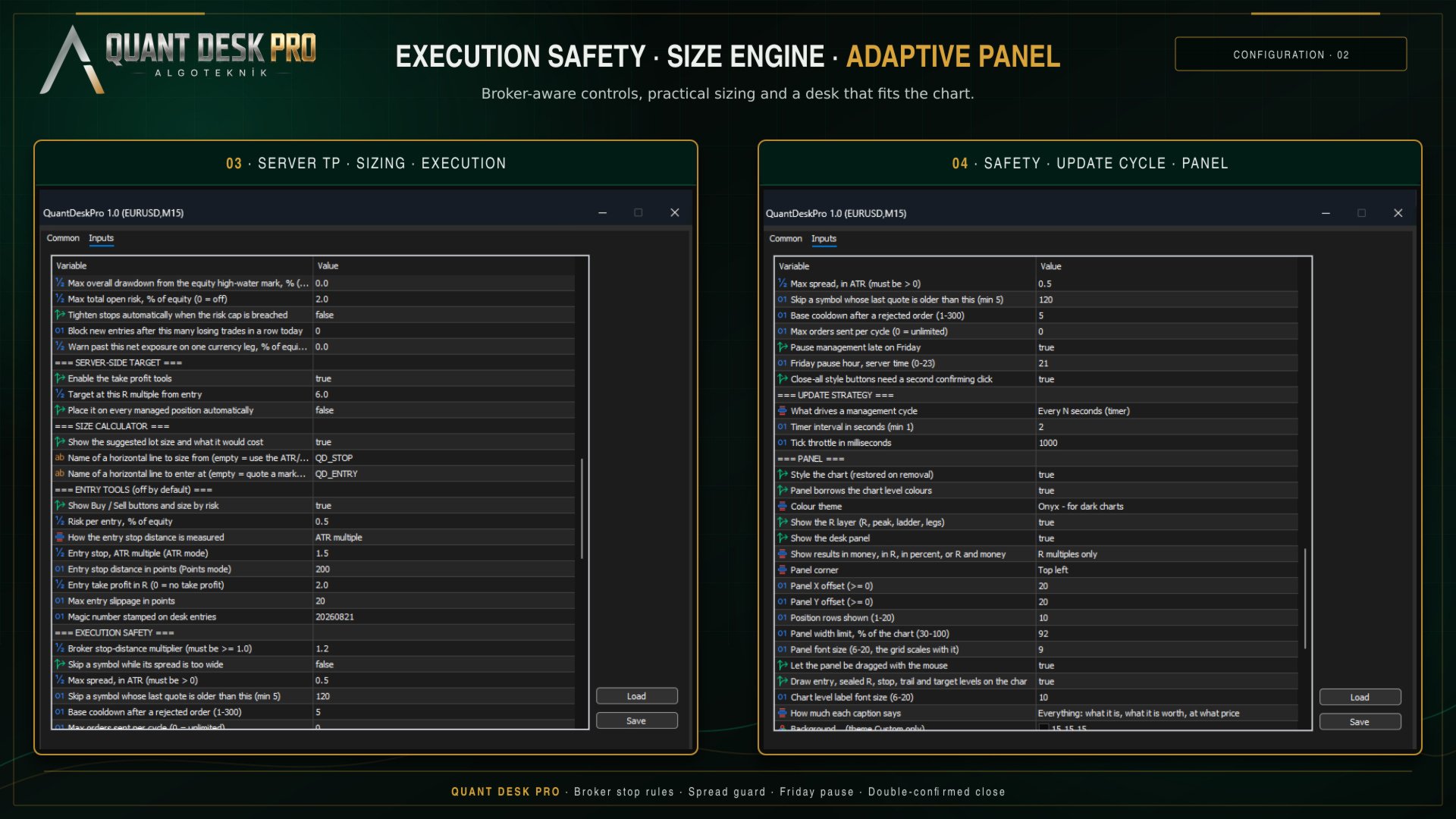
The size calculator
Under the table is a block that answers one question: how big, at my risk setting, on this account, right now.
- SUGGESTED LOT — The volume that makes the distance from entry to stop cost the risk percentage in your inputs. Lot step and the broker minimum are honoured, so it is a volume that can actually be sent.
- RISK — What that volume ACTUALLY risks - not the budget it was sized from. The volume is floored to the lot step, so the tradeable size always risks a little less than you asked for, and the cell says both when the gap is worth seeing.
- MARGIN AFTER — The margin level once this trade is on. The current level is in the FREE MARGIN cell above. Amber inside twice your broker's margin call level, red at or below it.
- COST — What the trade costs before price has moved at all: the spread at that volume, plus commission averaged from what THIS account has actually paid on THIS symbol over the last month. And what share of one R that adds up to, which is the number that matters.
The line underneath is headroom: what the trade would leave of every limit that could refuse it. If a limit is already in force it says so in red, first, before anything else makes the trade look available.
By default the stop distance comes from an ATR multiple and the block says so - with no line on the chart there is nothing to take a direction from, and the cell reads 'direction not set' rather than inventing one. Draw a horizontal line, name it QD_STOP, and the block sizes from YOUR stop and takes the direction from which side of price the line sits on. Add a second line named QD_ENTRY and it quotes a working order instead.
The server-side target
Every exit in this product needs the terminal open, the chart loaded and the expert running. The targets, the trailing stop, the governor's flatten - all of them. A take profit needs none of that: it lives on the broker's server and fires whether or not anything of yours is running.
That is what this is for. It is not a rival to the ladder, and the default sits at 6R - clearly beyond a three-target plan - because a take profit at your highest target does not complete the ladder, it truncates it. If you set it inside the plan, the product tells you at start-up and does it anyway; it is your trade.
The TP button is a toggle. On a position with no target it places one; on a position that has one it CLEARS it. The desk never overwrites a take profit you set yourself.
Two terminals, one account
If you run Quant Desk Pro on two charts, or on two terminals against the same account, only one of them manages. The others read the same account and show the same numbers, and their state chip says STANDBY.
The claim is written to the shared terminal folder and refreshed while the owner lives. If that terminal closes, another takes over within a minute. You never have two desks moving the same stop.
In the Strategy Tester
Quant Desk Pro runs in the tester and the panel works there, but understand what you are testing.
This product does not open trades, so a tester run with nothing to manage produces nothing - correctly. To see it work, switch the entry tools on (InpEnableEntryTools) so that the tester has positions to manage, or run it in visual mode and open trades by hand from the panel.
The consent gate is bypassed in the tester, so you do not have to set it to run a test.
What a tester run will NOT tell you is whether this product is any good, because it manages YOUR trades. Its result is a function of your entries. The honest way to evaluate it is forward, on a demo account, on the trades you would have taken anyway.
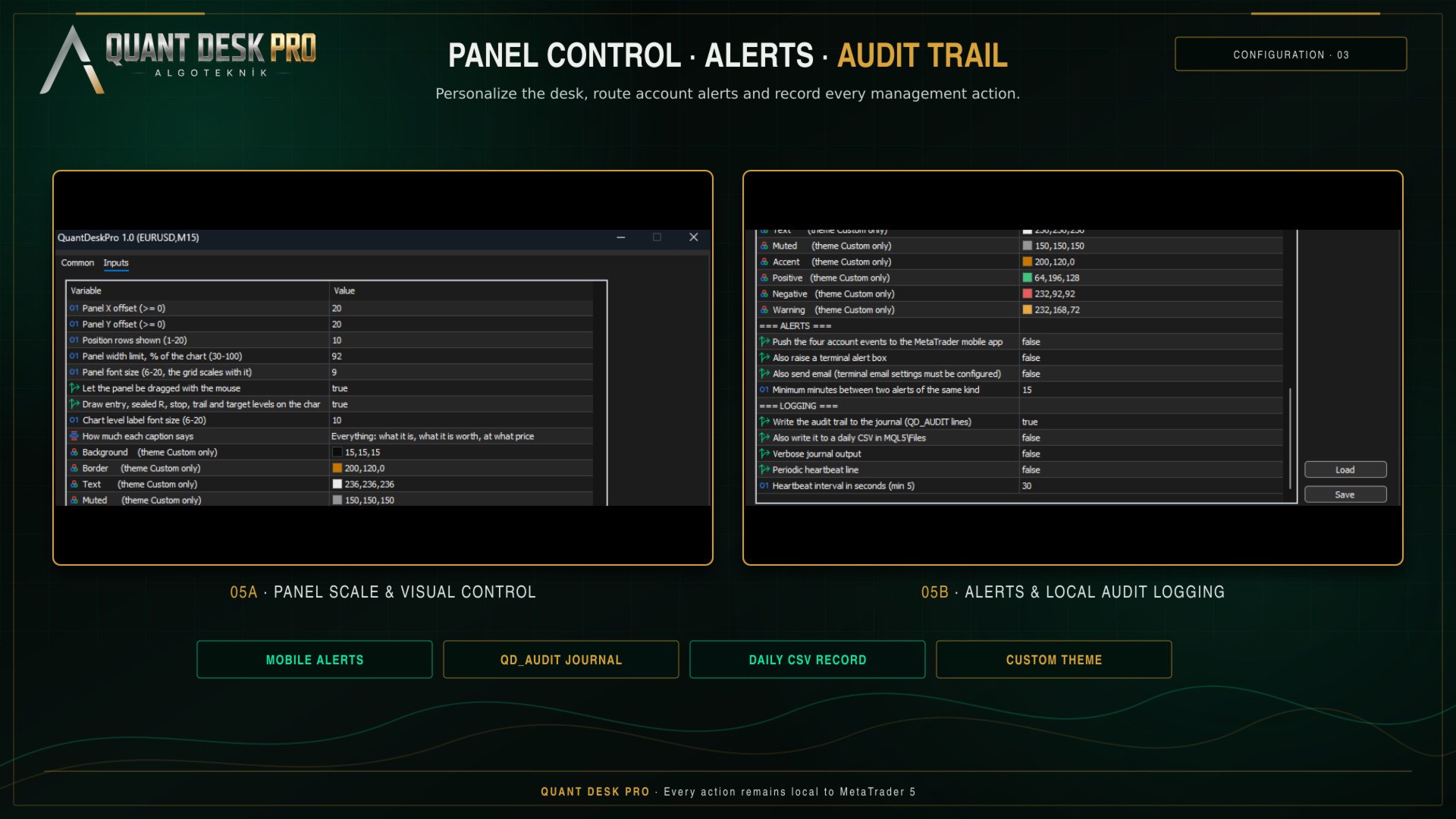
The record
Everything the desk does is written to the Experts journal as QD_AUDIT lines: what was sent, on what, at what price, why, and what R it was measured against.
The same lines go to a daily CSV in MQL5\Files, semicolon separated, which opens directly in a spreadsheet. When a position closes, one POSITION_CLOSED record carries the whole life of the trade: net R, gross R, what it cost in commission and swap, the peak it reached, which basis its R came from, which targets fired, whether the stop was moved by hand, and how it ended.
That record is the point. A month of it answers questions no backtest can - whether your winners are actually reaching the second target, whether the trailing stop is taking you out of trades that then continue, whether your average loss is really one R.
If something does not happen
- VIEW ONLY — Consent was never given. F7, first group, I understand the risks - set it to true.
- MONITOR ONLY — This is a netting account. The desk will measure but never send. Nothing to fix; it is not the account type this product manages.
- BLOCKED — The terminal or the account is refusing trades. Check the Algo Trading button in the toolbar and the expert's own Common tab.
- STANDBY — Another Quant Desk Pro already owns this account. See Two terminals, one account.
- PAUSED — The Friday cut-off is in force. InpPauseFridayLate.
- OFF — The master switch. InpEnabled.
- GOVERNOR - ... — A portfolio limit is in force. The message names which one.
R shows n/a on a row. The position's R could not be sealed - it has no stop and InpFallbackRiskATR is 0, or the priced risk is below InpMinR0Currency. Give the trade a stop, or press PROTECT ALL.
A target shows x. The position is too small to split at your broker's minimum lot. Nothing is broken; that target cannot fire on that trade.
The panel is too wide, or too narrow. The table is fitted to the chart, not to the screen: it is given a share of the chart's width - InpPanelMaxWidthPct, 92% out of the box - and if the columns do not fit inside it they are given up in a fixed order until they do. SIDE goes first, because the coloured edge down the left of every row already carries the direction and carries it better; then PEAK, ENTRY, TP, LOCKED, LOTS, and the R columns. SYMBOL, P&L and STOP are never dropped - what it is, what it is worth and where the protection sits are the table. Set the limit to 45 for a panel that stays out of the way of the chart, or to 92 to see everything that fits. It names what it dropped in the journal.
The panel is smaller than the font size you asked for. The size in the inputs is a ceiling, not an instruction: the panel measures itself against the WIDTH it is allowed and comes down a point at a time until it fits, saying so once in the journal. It never goes below 7 - past that it gives up columns instead, because a font that cannot be read is not a smaller panel, it is no panel. Height never shrinks the font: a panel taller than its chart scrolls under the mouse wheel while the cursor is over it, and HIDE collapses it to the title bar.
The panel looks different on another monitor. It is the same panel in a different shape. The account block, the size block and the desk buttons go two across on a chart with height to spare, and four across on a wide one that has none - four across costs width and gives back roughly a third of the panel's height, which is what a 1920 by 600 window needs and what a tall one does not. The desk measures the chart it is on and picks, preferring the narrow shape whenever it fits, because the panel is not the product and the price behind it is. Nothing is added or taken away in either shape. It says which one it chose, and why, in the journal.
To overrule it, resize the panel by its own frame. Put the cursor on any edge - the edge lights up when it is in reach - and either roll the mouse wheel or hold the left button and drag toward the opposite side. The far edge stays anchored, so the panel grows and shrinks toward you, and everything on it scales together: type size, cells, buttons and spacing. The top edge is worth knowing about, because it is on screen whatever the panel's height is doing - pulling it down is always available as the way out of a panel that overflows a short chart.
Type size steps in whole points, so one notch of the wheel is one point and the panel settles on sizes rather than following the mouse continuously. It ranges from 6 to 20 by hand; left to itself the desk will not go below 7, because past that the small lines stop being legible and that is not a decision a tool should make for you. Click the frame without dragging to hand the size back to the desk. What you choose is remembered per symbol and survives a restart.
The status line at the bottom of the panel is the one place that answers 'why did nothing happen'. Read it before anything else. The footer beside it counts what this session has done - stops moved, positions closed, orders refused - and why any action was skipped this cycle.
Every input
Every setting, in its group, with its default and what it does, is documented in the manual. It is generated from the product’s own source, so it cannot describe a setting that is not there. A Market product may carry one file, so the manual is published on the channel linked at the foot of this page rather than packed with the EX5.
algoteknik
Support, updates and every other product: mql5.com/en/users/bugraky123
Product channel: mql5.com/en/channels/trendtower
Quant Desk Pro version 1.0