Quant Desk Pro

Quant Desk Pro

An R-native trade manager for MetaTrader 5. It manages the trades you have already opened: it measures what each one is really risking, protects it, scales out of it on a plan you set, trails what is left, and stops the whole book when the day has gone far enough wrong.

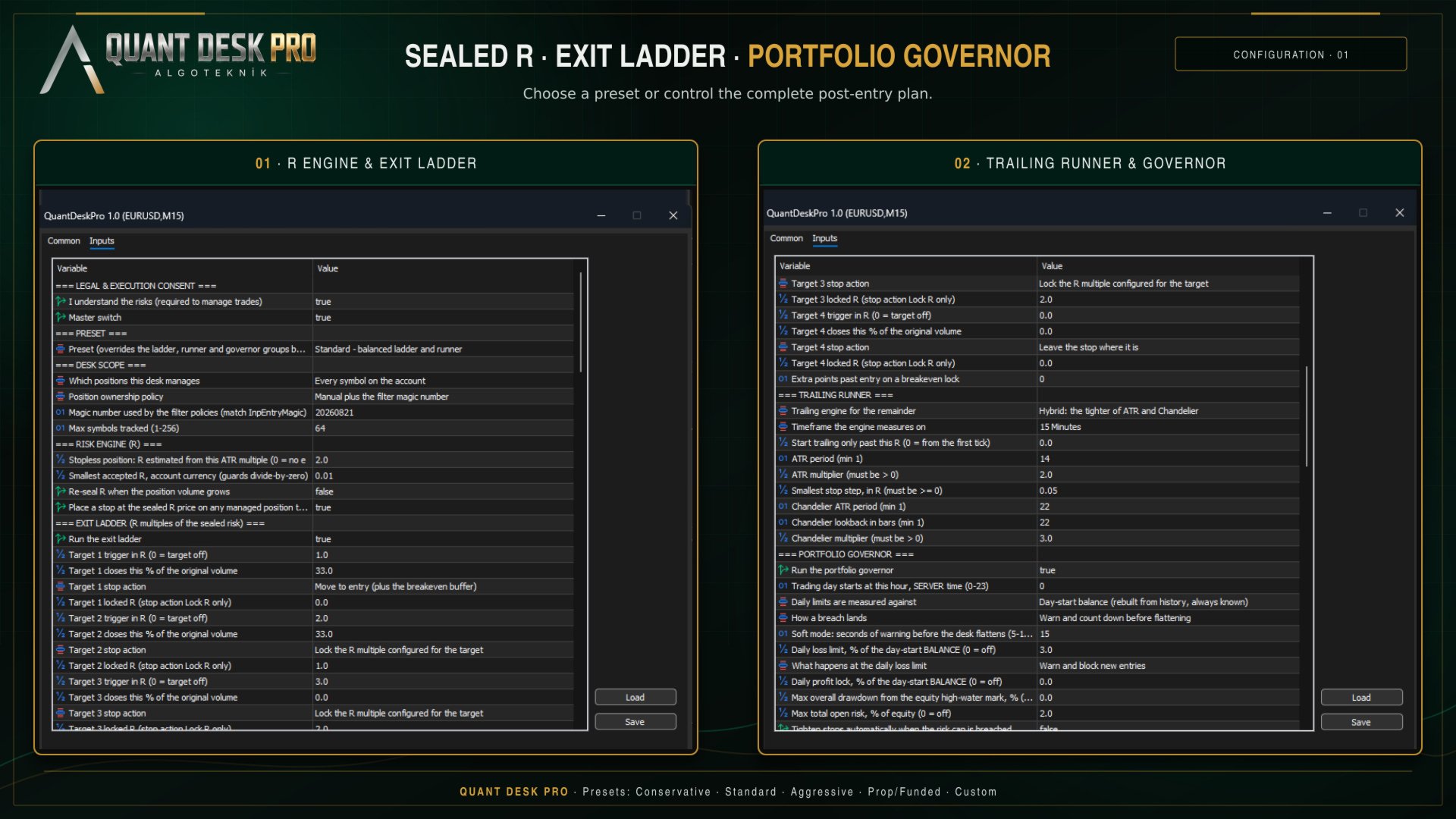
Read this first. Quant Desk Pro does not open trades and has no signal. And it ships in VIEW ONLY: it will not send a single order until you set  I understand the risks  to true in the inputs. Until you do, everything else works - the panel measures, the chart draws, the journal records - so you can run it on your own account for a session before it is allowed to touch anything.

What this is

Quant Desk Pro manages trades that are ALREADY OPEN. It does not look for entries, it has no signal, and it will not decide when you should be in the market. What it does is everything that happens after that decision: it measures what each position is really risking, protects it, scales out of it on a plan you set, trails the remainder, and stops the whole book when the day has gone far enough wrong.

It does not care where a trade came from. A position opened by hand on the desktop terminal, from the MetaTrader phone app, from the web terminal, or by another expert advisor is picked up on the next cycle and managed like any other.

The one idea underneath all of it is R - the money a position would lose if its stop were hit. Quant Desk Pro measures that once, at the moment it first sees the trade, and then keeps it fixed for the life of the position. Every number the product shows you is a multiple of that one number, which is what makes a two-hundred-dollar loss on gold and a forty-dollar loss on EURUSD comparable at a glance.

What it will never do

This matters as much as the feature list, so it comes second rather than last.

  • No grid. It will never open a position to average down a losing one.
  • No martingale. It will never increase size after a loss.
  • No hidden entries. With the entry tools off - which is how it ships - the product sends no order that you did not press a button for, except the protective stop described in Protection.
  • No loosening. A stop this desk has moved into profit is never moved back down. Only you can do that, by hand, in the terminal.
  • No touching your take profit, unless you ask. The desk reads it, warns you when it sits in front of one of your targets, and leaves it exactly where you put it.
  • No third-party server. Nothing leaves your terminal. There is no licence call, no telemetry and no web request of any kind.

Hedging accounts only. On a netting account the product runs in MONITOR ONLY: it measures and displays everything and sends no orders at all, because a netting account has one position per symbol and per-position management is not possible on it.

Before you start

  • MetaTrader 5, build 3800 or newer.
  • A HEDGING account. Check it in Tools - Options - Trade, or on the terminal's account information: it must say Hedging.
  • Algo Trading enabled in the terminal toolbar.
  • Allow Algo Trading ticked in the expert's own Common tab.

The product runs on one chart and manages whatever its scope tells it to. One chart is enough for the whole account; you do not need a copy per symbol.

Five minutes to running

Read this section even if you never read another one.

  • Drag Quant Desk Pro onto any chart. The panel appears in the top-left corner and can be dragged anywhere with the mouse.
  • Look at the chip in the top right of the panel. It will say VIEW ONLY.
  • THE PRODUCT SHIPS IN VIEW ONLY AND WILL NOT SEND A SINGLE ORDER UNTIL YOU CHANGE THAT. This is deliberate. A tool that can close your positions should not be able to do it because you dragged it onto the wrong chart.
  • Press F7, find I understand the risks in the first group, and set it to true. The chip turns green and reads LIVE.
  • Choose a preset in the second group. Standard is a sensible starting point and is described in Presets.
  • Open a trade, or let the desk find one you already have. Watch the panel fill in.

Until you set that consent input, everything works except sending orders: the panel measures, the chart draws, the journal records. It is a full dry run of the product on your own account, and it is worth spending a session in it.

The one idea: sealed R

One R is what the position loses if its stop is hit. Quant Desk Pro seals that number the first time it sees the trade and never recalculates it.

An example. You buy 0.20 lots of EURUSD at 1.09500 with a stop at 1.09200. Thirty points on 0.20 lots is sixty dollars, so one R is sixty dollars for this trade, for as long as it lives. At +120 dollars the panel reads +2.00R. If you later move the stop up to breakeven, the trade is still measured in sixty-dollar units - because that is what you actually risked to get here.

This is the part most trade managers get wrong. If R were recalculated from the CURRENT stop, then every time the stop moved up the same profit would suddenly be worth more R, and a trade that had gone nowhere would appear to be winning. A sealed R is the only version of the number that can be compared between trades, between symbols and between weeks.

The figure the panel shows is NET. Anything an earlier target already banked, plus swap, plus commission, is inside it. +1.00R means the position has actually delivered one R into the account, not that price has travelled one R.

If a position arrives without a stop, there is nothing to measure. The desk then estimates R from an ATR multiple so that the rest of the product has something to work with - see InpFallbackRiskATR - and the moment a real stop exists the position is protected at that estimated level. Set that input to 0 if you would rather the desk simply refuse to manage a stopless trade.

Reading the panel

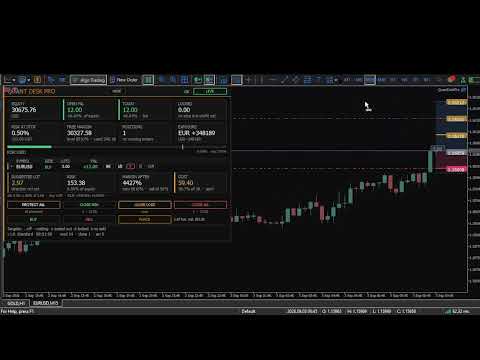
The panel is in three tiers. Small grey capitals name a thing; the large figure under them is the thing; the small line under that is its context. Nothing else on the panel is decoration.

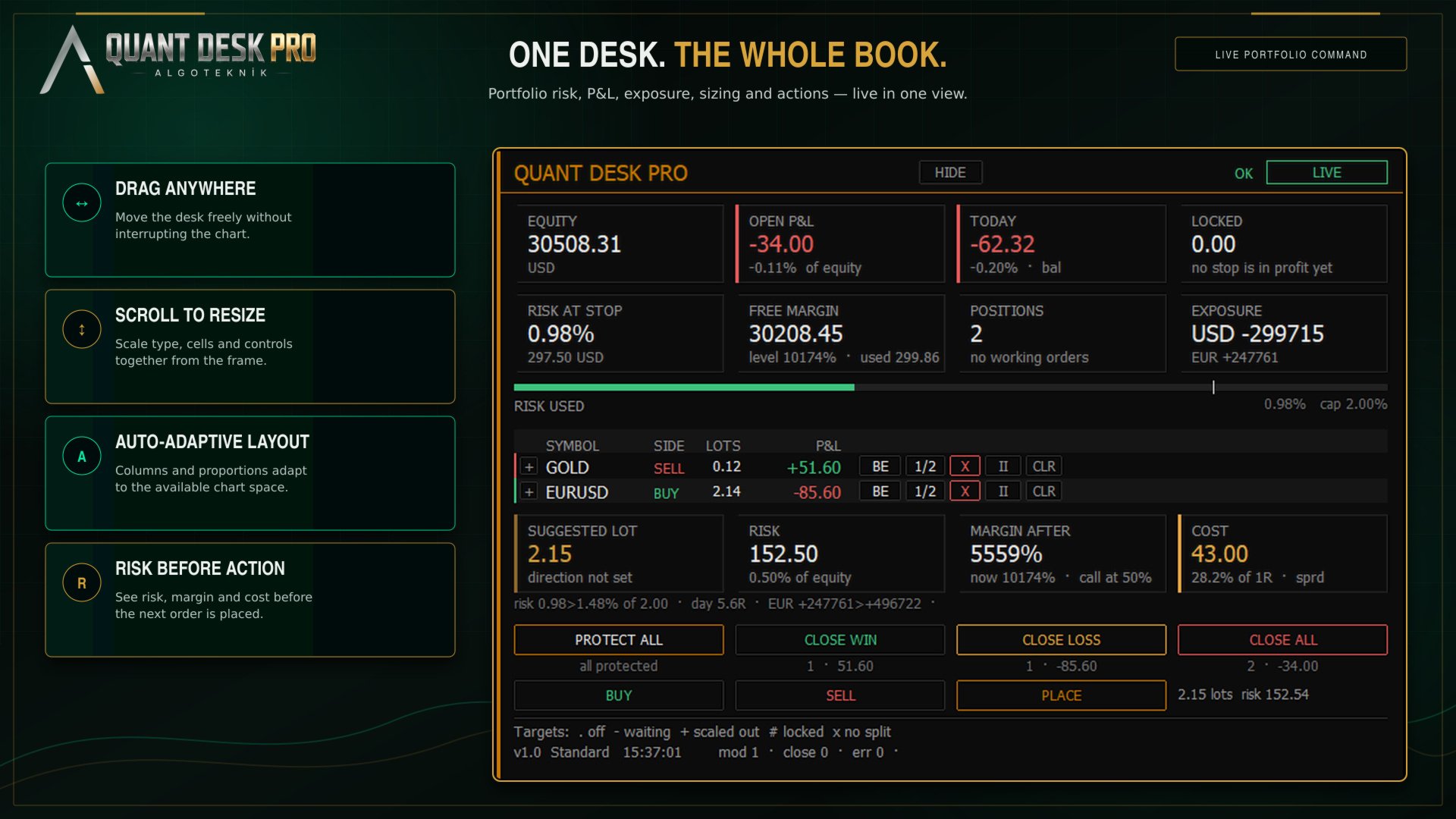
The Money Row

  • EQUITY — Account equity, refreshed every cycle.
  • OPEN P&L — Every managed position added up, net of swap and commission, with its share of equity underneath.
  • TODAY — Today's result: realised plus floating, with deposits and withdrawals removed. The tag says which basis the daily limits use - bal for the day-start balance, eq for day-start equity, eq~ when the desk attached mid-day and had to take equity as found. Ln counts losing trades in a row.
  • LOCKED — What the stops have already secured. If every stop that sits in profit were hit right now, this is what the account would keep.

The Limits Row

  • RISK AT STOP — What the account would lose if every stop were hit at once, as a share of equity. Positions with NO stop are not counted into it - their loss is not bounded by anything, and averaging a measured risk with an unmeasurable one would be the most dangerous thing this panel could say. They are named beside the figure instead: 2 UNPROTECTED, in red.
  • FREE MARGIN — Margin still available, with the margin level and margin in use underneath. Amber inside twice your broker's own margin call level, which is read off the account rather than guessed.
  • POSITIONS — How many open positions pass the scope and ownership filters, and how many working orders are waiting.
  • SPREAD — The current spread on this chart's symbol. With the R layer on, this cell shows net currency exposure instead.

The Risk Bar

Under the cells is a single bar: open risk against the cap you set. The white tick is the cap, and it sits at four fifths of the bar's length rather than at the end - so being over the cap looks like being over the cap, instead of like a bar that has been full since some point you cannot identify.

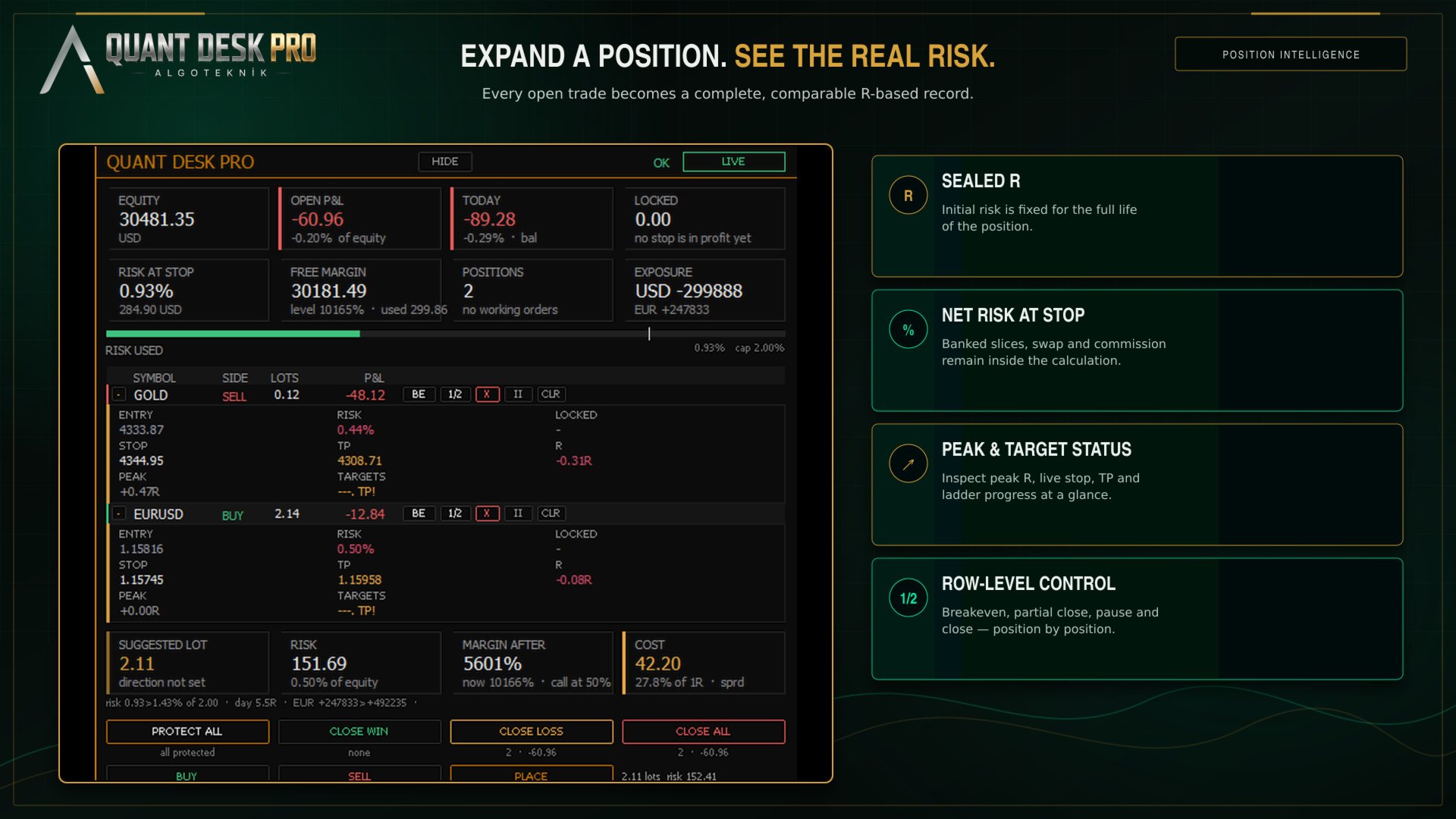
The Position Table

  • SYMBOL — The symbol. A two-pixel edge down the left of the row carries the direction in colour, so the shape of the book reads before any word does.
  • SIDE — Buy or sell.
  • LOTS — Volume still open, after any partial closes.
  • ENTRY — The price the position was opened at.
  • P&L — What this position is worth right now, net.
  • RISK — What hitting THIS position's stop would cost the account, as a share of equity - banked slices and swap counted. 0.00% means the stop is far enough into profit that nothing is at risk. A dash means there is no stop, and then the loss is not zero, it is unknown.
  • LOCKED — The mirror of RISK: what hitting the stop would BANK, when the stop sits in profit.
  • STOP — Where the stop actually sits. Green once it locks a profit, white while it still costs money, red when there is none.
  • TP — Your own take profit, as the broker holds it. Amber when it sits in front of one of your targets and will end the trade before the plan finishes.
  • R — The same result in R. Off by default - see The R layer.
  • PEAK — The best R this position has reached. Off by default.
  • TARGETS — One character per exit target. Off by default. See The exit ladder.

The Row Buttons

  • BE — Move this position's stop to its entry price, plus the breakeven buffer. Nothing is closed.
  • 1/2 — Close half of what is STILL OPEN, at market. Note the difference from a target: a target closes a share of the position's ORIGINAL size, this button closes a share of what is left.
  • X — Close this position completely. Click once to arm, again within six seconds to send.
  • II — Take this position off the desk. No targets, no trailing, no automatic stop moves - it is still measured and still shown. The button becomes GO to hand it back. The setting survives a restart.
  • TP — Put a take profit on the broker's server. Press it on a position that already has one and it CLEARS it. See The size calculator.

The Desk Buttons

Four buttons act on the whole managed book, and each carries its own consequence underneath it before you press: how many positions, and what they are worth.

  • PROTECT ALL — Put a stop on every managed position that has none, at the price its R was sealed from.
  • CLOSE WIN — Close every managed position in profit. Profit here is net.
  • CLOSE LOSS — Close every managed position that is losing, net.
  • CLOSE ALL — Close the whole managed book at market.

The three closing buttons ask twice by default. Every button on the panel has a tooltip: hover for a second and it explains itself in plain sentences.

The R layer

Out of the box the panel speaks money. R, PEAK, the target glyphs, the R-denominated open risk and the currency legs are hidden behind one switch: InpShowRLayer.

This is not a crippled default. It is the recognition that a trader who has never sized a position in R cannot read those columns on day one, and that three columns of money they can read are worth more than three columns of R they cannot. Turn the layer on when R has stopped being a foreign word - most people do it within a week, and then never turn it off.

InpValueUnit is a separate choice and applies to both the panel and the chart: money, R, percent of equity, or R and money together.

Protection

A managed position with no stop is the one case where this product acts on its own without being asked, and it is worth understanding exactly what it does.

With InpAutoProtect on - which is the default - any managed position that has no stop is given one, at the price its R was sealed from. Not when it goes into profit; immediately, on the first cycle that sees it. The trade that runs straight against you is the one that needs a stop most, and it is exactly the trade that a profit-triggered mechanism never reaches.

If you would rather place your own stops, switch it off. The panel still counts what is unprotected and the PROTECT ALL button still does the same job on demand.

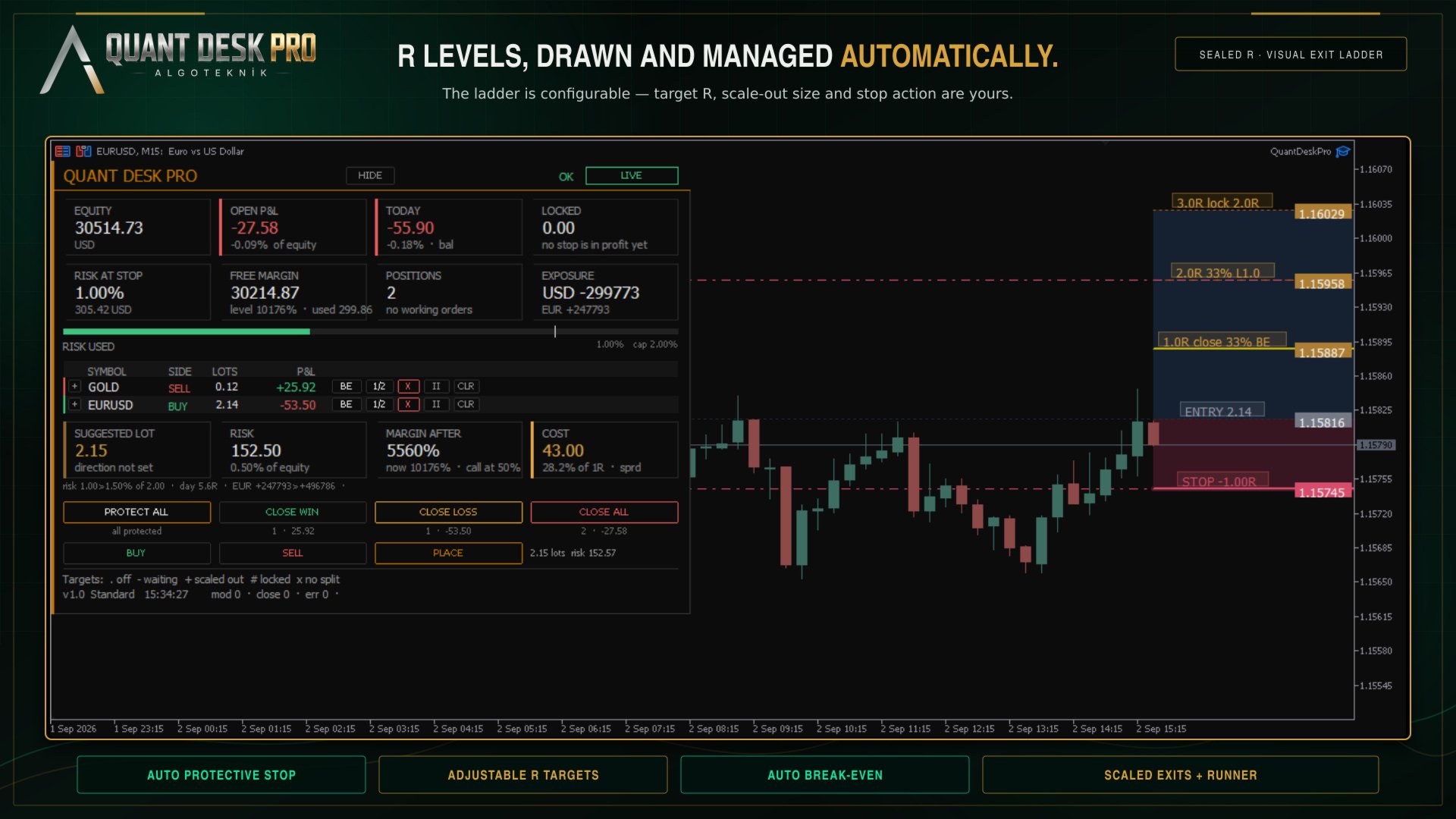
The exit ladder

The ladder is a list of up to four TARGETS. Each one is a level in R, and when the trade reaches it two things can happen: a share of the position is closed, and the stop is moved.

The default ladder:

  • +1.0R — 33% of the original volume — to breakeven - the trade is now free
  • +2.0R — 33% of the original volume — to +1.0R - one R is banked and locked
  • +3.0R — nothing — to +2.0R - the remainder runs with two R secured
  • - — target 4 is off

Note what the third target does NOT do. It closes nothing. The point of a ladder is that something is still running when the move keeps going, and a target that closes the last of the position is the end of the trade, not the top of the plan.

The percentage is always a share of the ORIGINAL volume, not of what is left. Two 33% targets take two thirds of the trade, not 33% and then 33% of the remaining 67%.

The TARGETS column shows one character per target, in order:

  • . — the target is switched off
  • - — armed and waiting - price has not reached it
  • + — half done: either the slice closed or the stop landed, not both
  • # — done
  • x — this position is too small to split, so this target can never fire
  • TP! — your own take profit sits in front of a target and will end the trade first

The x is worth reading carefully. If your position is 0.01 lots and your broker's minimum is 0.01, a 33% slice cannot be sent. The desk says so on the row rather than failing quietly every time price crosses the level, and it tells you at start-up which of your targets will never fire at the minimum lot for your symbols.

The trailing runner

Whatever the ladder has not closed is trailed. Four engines are available:

  • Off — no trailing; only the ladder moves stops
  • ATR — a multiple of ATR behind price
  • Chandelier — a multiple of ATR below the highest high since entry, or above the lowest low
  • Hybrid — whichever of the two is further into profit, which is the default

Two guards apply to all of them. A stop is never moved backwards, and it is never moved by less than InpMinMoveR - a stop that creeps a tenth of a point every tick generates server traffic and achieves nothing.

InpTrailStartR delays trailing until the trade is far enough along. Left at 0 the runner engages from the first tick.

The portfolio governor

Everything above works on one position. The governor works on all of them, and on the day.

  • Daily loss — the day's result against the day-start balance
  • Daily profit — the same, upward - lock the day in when it has gone well
  • Max drawdown — equity against its own all-time high on this account
  • Open risk cap — everything at stake across the book at once
  • Losing streak — consecutive losing trades closed today
  • Currency leg — net exposure to one currency across every symbol - long EURUSD and long GBPUSD are two trades but one bet against the dollar

A breach can block new entries, or flatten the book, or both. In SOFT mode the desk warns for a configurable number of seconds first, so that a spike through the limit and back does not close your day for you.

The trading day starts at InpDayResetHour in SERVER time. On a funded account this matters: your programme's day probably starts at 17:00 or 00:00 New York, which is rarely your broker's midnight. Set it to the hour you are actually graded on, and the anchor, the day's P&L and every daily limit move with it.

Presets

A preset overrides the ladder, runner and governor groups in one choice, and prints exactly what it applied to the journal when it starts.

  • Conservative — Scales out early and locks in fast. Tight daily loss limit.
  • Standard — The ladder described in The exit ladder. A reasonable place to begin.
  • Aggressive — Later targets, looser trailing, more room to run.
  • Prop / funded — Built around a daily loss limit and a drawdown ceiling, because that is what the account is graded on.
  • Custom — Nothing is overridden. Every input below is yours.

Choose a preset first and read what it did in the journal. Then, if you want to change one thing, switch to Custom and change it - a preset ignores individual edits by design, so that half-applied configurations cannot happen.

The size calculator

Under the table is a block that answers one question: how big, at my risk setting, on this account, right now.

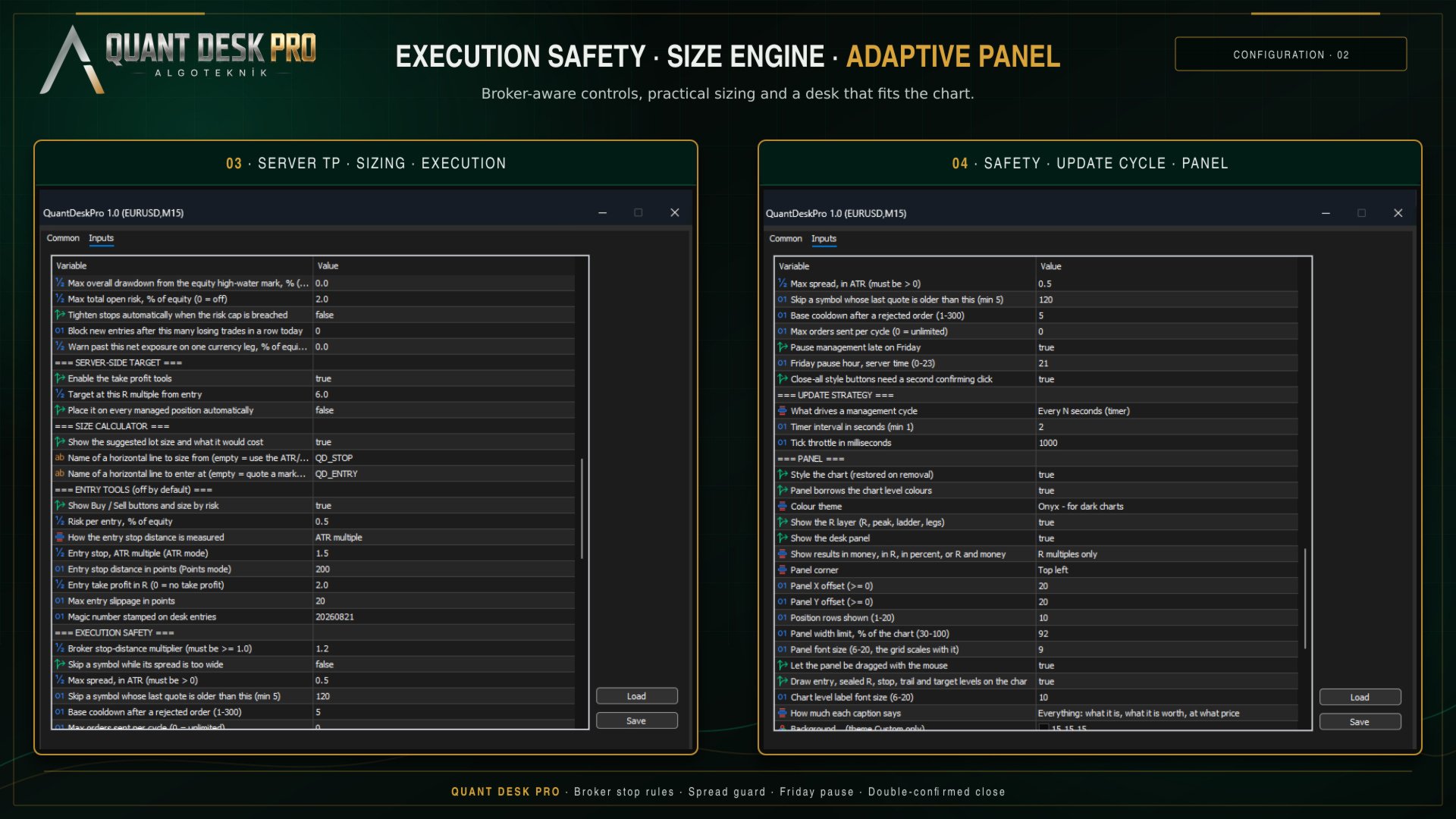
  • SUGGESTED LOT — The volume that makes the distance from entry to stop cost the risk percentage in your inputs. Lot step and the broker minimum are honoured, so it is a volume that can actually be sent.
  • RISK — What that volume ACTUALLY risks - not the budget it was sized from. The volume is floored to the lot step, so the tradeable size always risks a little less than you asked for, and the cell says both when the gap is worth seeing.
  • MARGIN AFTER — The margin level once this trade is on. The current level is in the FREE MARGIN cell above. Amber inside twice your broker's margin call level, red at or below it.
  • COST — What the trade costs before price has moved at all: the spread at that volume, plus commission averaged from what THIS account has actually paid on THIS symbol over the last month. And what share of one R that adds up to, which is the number that matters.

The line underneath is headroom: what the trade would leave of every limit that could refuse it. If a limit is already in force it says so in red, first, before anything else makes the trade look available.

By default the stop distance comes from an ATR multiple and the block says so - with no line on the chart there is nothing to take a direction from, and the cell reads 'direction not set' rather than inventing one. Draw a horizontal line, name it QD_STOP, and the block sizes from YOUR stop and takes the direction from which side of price the line sits on. Add a second line named QD_ENTRY and it quotes a working order instead.

The server-side target

Every exit in this product needs the terminal open, the chart loaded and the expert running. The targets, the trailing stop, the governor's flatten - all of them. A take profit needs none of that: it lives on the broker's server and fires whether or not anything of yours is running.

That is what this is for. It is not a rival to the ladder, and the default sits at 6R - clearly beyond a three-target plan - because a take profit at your highest target does not complete the ladder, it truncates it. If you set it inside the plan, the product tells you at start-up and does it anyway; it is your trade.

The TP button is a toggle. On a position with no target it places one; on a position that has one it CLEARS it. The desk never overwrites a take profit you set yourself.

Two terminals, one account

If you run Quant Desk Pro on two charts, or on two terminals against the same account, only one of them manages. The others read the same account and show the same numbers, and their state chip says STANDBY.

The claim is written to the shared terminal folder and refreshed while the owner lives. If that terminal closes, another takes over within a minute. You never have two desks moving the same stop.

In the Strategy Tester

Quant Desk Pro runs in the tester and the panel works there, but understand what you are testing.

This product does not open trades, so a tester run with nothing to manage produces nothing - correctly. To see it work, switch the entry tools on (InpEnableEntryTools) so that the tester has positions to manage, or run it in visual mode and open trades by hand from the panel.

The consent gate is bypassed in the tester, so you do not have to set it to run a test.

What a tester run will NOT tell you is whether this product is any good, because it manages YOUR trades. Its result is a function of your entries. The honest way to evaluate it is forward, on a demo account, on the trades you would have taken anyway.

The record

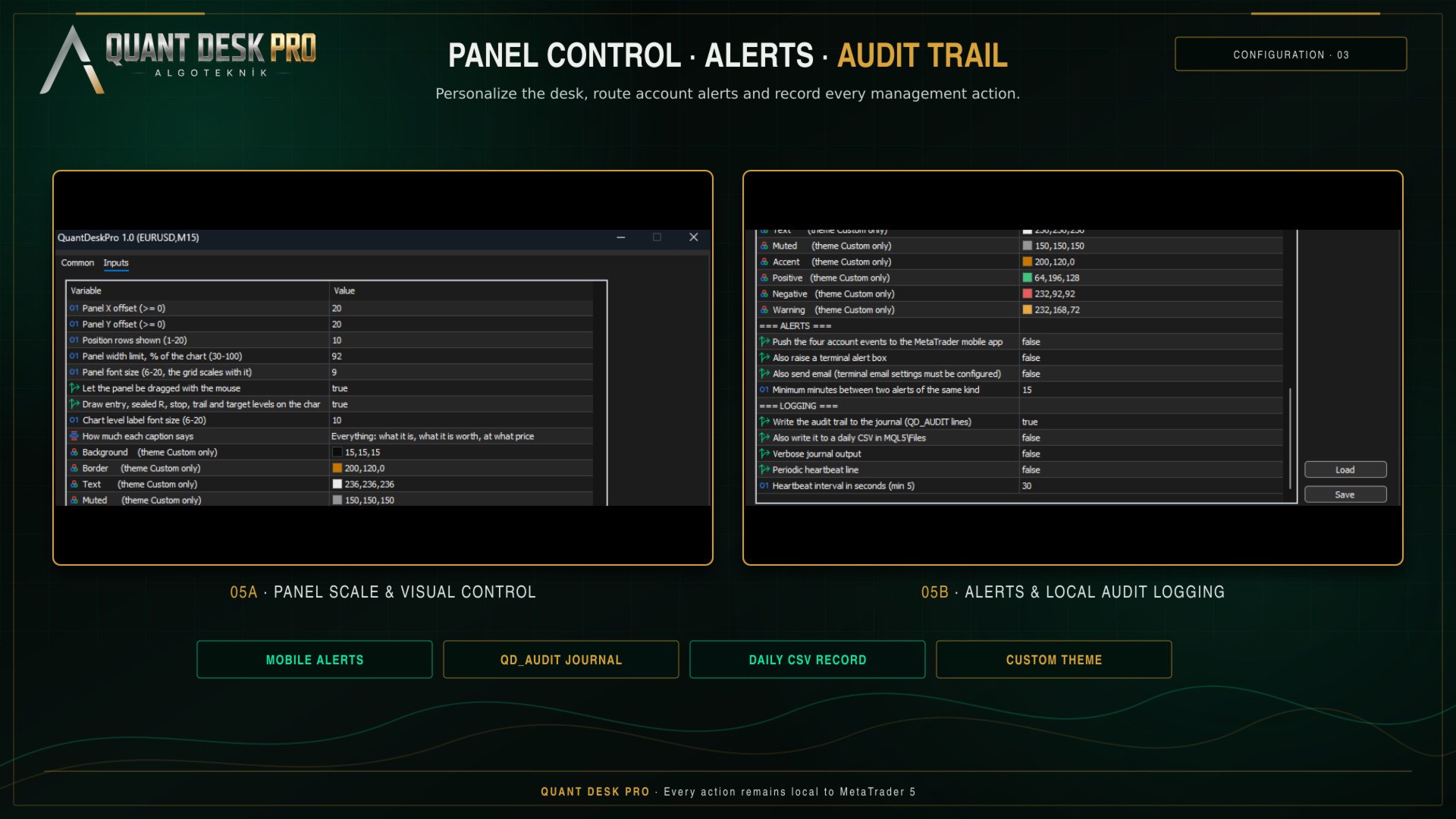
Everything the desk does is written to the Experts journal as QD_AUDIT lines: what was sent, on what, at what price, why, and what R it was measured against.

The same lines go to a daily CSV in MQL5\Files, semicolon separated, which opens directly in a spreadsheet. When a position closes, one POSITION_CLOSED record carries the whole life of the trade: net R, gross R, what it cost in commission and swap, the peak it reached, which basis its R came from, which targets fired, whether the stop was moved by hand, and how it ended.

That record is the point. A month of it answers questions no backtest can - whether your winners are actually reaching the second target, whether the trailing stop is taking you out of trades that then continue, whether your average loss is really one R.

If something does not happen

  • VIEW ONLY — Consent was never given. F7, first group, I understand the risks - set it to true.
  • MONITOR ONLY — This is a netting account. The desk will measure but never send. Nothing to fix; it is not the account type this product manages.
  • BLOCKED — The terminal or the account is refusing trades. Check the Algo Trading button in the toolbar and the expert's own Common tab.
  • STANDBY — Another Quant Desk Pro already owns this account. See Two terminals, one account.
  • PAUSED — The Friday cut-off is in force. InpPauseFridayLate.
  • OFF — The master switch. InpEnabled.
  • GOVERNOR - ... — A portfolio limit is in force. The message names which one.

R shows n/a on a row. The position's R could not be sealed - it has no stop and InpFallbackRiskATR is 0, or the priced risk is below InpMinR0Currency. Give the trade a stop, or press PROTECT ALL.

A target shows x. The position is too small to split at your broker's minimum lot. Nothing is broken; that target cannot fire on that trade.

The panel is too wide, or too narrow. The table is fitted to the chart, not to the screen: it is given a share of the chart's width - InpPanelMaxWidthPct, 92% out of the box - and if the columns do not fit inside it they are given up in a fixed order until they do. SIDE goes first, because the coloured edge down the left of every row already carries the direction and carries it better; then PEAK, ENTRY, TP, LOCKED, LOTS, and the R columns. SYMBOL, P&L and STOP are never dropped - what it is, what it is worth and where the protection sits are the table. Set the limit to 45 for a panel that stays out of the way of the chart, or to 92 to see everything that fits. It names what it dropped in the journal.

The panel is smaller than the font size you asked for. The size in the inputs is a ceiling, not an instruction: the panel measures itself against the WIDTH it is allowed and comes down a point at a time until it fits, saying so once in the journal. It never goes below 7 - past that it gives up columns instead, because a font that cannot be read is not a smaller panel, it is no panel. Height never shrinks the font: a panel taller than its chart scrolls under the mouse wheel while the cursor is over it, and HIDE collapses it to the title bar.

The panel looks different on another monitor. It is the same panel in a different shape. The account block, the size block and the desk buttons go two across on a chart with height to spare, and four across on a wide one that has none - four across costs width and gives back roughly a third of the panel's height, which is what a 1920 by 600 window needs and what a tall one does not. The desk measures the chart it is on and picks, preferring the narrow shape whenever it fits, because the panel is not the product and the price behind it is. Nothing is added or taken away in either shape. It says which one it chose, and why, in the journal.

To overrule it, resize the panel by its own frame. Put the cursor on any edge - the edge lights up when it is in reach - and either roll the mouse wheel or hold the left button and drag toward the opposite side. The far edge stays anchored, so the panel grows and shrinks toward you, and everything on it scales together: type size, cells, buttons and spacing. The top edge is worth knowing about, because it is on screen whatever the panel's height is doing - pulling it down is always available as the way out of a panel that overflows a short chart.

Type size steps in whole points, so one notch of the wheel is one point and the panel settles on sizes rather than following the mouse continuously. It ranges from 6 to 20 by hand; left to itself the desk will not go below 7, because past that the small lines stop being legible and that is not a decision a tool should make for you. Click the frame without dragging to hand the size back to the desk. What you choose is remembered per symbol and survives a restart.

The status line at the bottom of the panel is the one place that answers 'why did nothing happen'. Read it before anything else. The footer beside it counts what this session has done - stops moved, positions closed, orders refused - and why any action was skipped this cycle.

Every input

Every setting, in its group, with its default and what it does, is documented in the manual. It is generated from the product’s own source, so it cannot describe a setting that is not there. A Market product may carry one file, so the manual is published on the channel linked at the foot of this page rather than packed with the EX5.

algoteknik

Support, updates and every other product: mql5.com/en/users/bugraky123
Product channel: mql5.com/en/channels/trendtower

Quant Desk Pro version 1.0

おすすめのプロダクト
TRADE PANEL MASTER — Know Your Risk Before You Click Open your chart. See your panel. Trade with confidence. Before you click Buy or Sell, Trade Panel Master shows you  exactly what you risk, what you gain, and your R:R ratio —  in real time. No mental math. No surprises. FEATURES - Lot sizing with real-time margin display - SL & TP in 3 modes: Points / Money / Price - Au
FREE
Truvana Trend Campaign Manager EA (TCM) Advanced Basket Management & Profit Locking Tool for Trend Traders Short Description Turn strong trends into managed campaigns. Truvana TCM is a professional trade management EA designed for traders who already know how to identify trends and execute entries. The EA automatically manages basket expansion, validates risk before adding positions, and locks profits using a broker-side Basket Stop Price (BSP). No martingale. No grid recovery. No signal genera
Local Copy Trader Utility - Professional Copy Trading System Overview Local Copy Trader Utility is the complete solution for mirroring trades between MetaTrader 5 accounts. With both Master and Slave functionality in one powerful Expert Advisor, it delivers reliable, lightning-fast trade copying with zero external dependencies. Perfect for managing multiple accounts, following trading signals, or transferring trades between brokers, this system ensures your positions stay perfectly synchronized
TP SL Bot MT5
Ruslan Brezovskiy
5 (1)
TP SL Bot is a utility that automatically sets Stop Loss and Take Profit for newly opened orders in several ways. There is also a function for calculating the volume that you need to open the trade to get the desired amount with the specified Stop Loss / Take Profit size. There are several options for calculating the size and setting parameters: 1. Setting based on the amount specified by the user as a percentage of the current deposit balance. 2. Setting as the amount entered by the user. 3. Se
GGP Trade Copier  EA is an automatic trading bot that can help traders automatically replicate the trading strategies and operations from one trading terminal to others by experiencing exceptionally fast trade copying system. Its easy-to-use setup allows you to copy trades between multiple MetaTrader terminals on the same Windows computer or Windows VPS with lightning-fast copying speeds of under 0.5 seconds. The software supports multiple trading varieties, including Forex, commodities, stocks
Equity Tracker MT5 Equity Tracker MT5 は、MetaTrader 5 用のモニタリング型エキスパートアドバイザーで、取引活動、口座状況、および技術的な状態を通知メッセージとして報告します。 このエキスパートアドバイザーは取引ロジックとは独立して動作し、注文の執行や取引管理には一切影響しません。 本製品は取引の新規発注、変更、決済を行いません。 監視および通知機能のみを提供します。 目的 Equity Tracker MT5 は、取引ターミナルを常に監視することなく、取引口座の状況を把握したいトレーダー向けに設計されています。あらゆる取引戦略や他のエキスパートアドバイザーと併用できます。 口座レベルのモニタリング 取引活動の通知 技術的状態の把握 口座およびリスク状況のモニタリング エキスパートアドバイザーは口座パラメータを継続的に評価し、事前に定義された条件が満たされた場合に変更を通知します。 有効証拠金(Equity)およびドローダウン水準の通知 証拠金維持率のモニタリング ユーザー定義のアラート閾値 ハートビート機能とターミナルの状態 ハートビー
Grid Trading EA is a semi-automated one-click trading EA for both Normal Trading and Grid/Martingale Trading . Normal Trading Simply click Buy or Sell directly from the chart. The EA will automatically manage trades by: Setting Stop Loss and Take Profit Managing Trailing Stop Grid / Martingale Trading (For Hedging Account Type Only) When Grid Trading mode is enabled, the EA will automatically open additional grid orders at specified distances while increasing the lot size based on your settings.
PropWin EA
Nasimul Haque Choudhury
PropWin EA is an advanced automated trading system designed specifically for prop firm traders. It employs a sophisticated hedging strategy that protects your investment by trading simultaneously on your funded prop account AND your personal live account. The result? Even if you don't pass the challenge, your live account profits offset the challenge fee—ensuring you never truly lose money on the attempt. Key Features Automatic Trade Hedging Lightning-fast 100ms scan interval for near-instant
User Manual Buy Trading Utility, Get 1 indicator FREE ! After purchase contact me for your " one indicator GIFT (Any one you want) ", adding you in group. Trading Utility MT5 The manual trader's cockpit. Size every trade by risk, place it from the chart, and manage it without ever opening the order dialog. Eight tabs, seven trailing engines, and every stop and target draggable with one click. One panel between you and the order window. Risk-sized entries, draggable stops, seven trailing modes,
Opening EA - Start Edition Is a tool to trade the OpeningStrategy! The Opening EA is a semi-automated EA for MetaTrader 5! This means that the trader must actively start the EA using the Start button and stop it using the Stop button. This EA pursues an opening strategy which, at the start of trading, e.g. on the DAX or Nasdaq, etc., opens a trading channel with predefined TP's (TakeProfit). Two pending orders with the same lot size are set at the beginning. As soon as one of the pending order
FREE
SL Risk Manager Auto SL System SL Risk Manager Auto SL System is a practical and easy-to-use tool designed to help you manage your Stop Loss levels before and after opening a trade . With this tool, you can set your Stop Loss level before entering a position . Especially when trading Gold (XAU), you can easily define your Stop Loss based on a specific dollar amount , giving you better control over the risk of each trade. You can also use the panel to automatically open trades according to the ra
MT5 Trade Copier Master - Free Trade Broadcaster Require Slave EA: https://www.mql5.com/en/market/product/178686 This Master EA broadcasts trades but CANNOT copy them by itself. You MUST purchase and install the SyncTrade Copier Slave EA on a second MT5 terminal to copy trades. Without the Slave EA, this product does nothing useful on its own. Both MT5 terminals must be installed on the SAME computer for file sharing to work. They cannot be on different computers or VPS instances. What This Ma
FREE
CosmiCLab SMC FIBO CosmiCLab SMC FIBO is a professional trading indicator designed for traders who use Smart Money Concepts (SMC), market structure analysis and Fibonacci retracement levels. The indicator automatically detects market swings and builds Fibonacci levels based on the latest impulse movement. It also identifies market structure changes such as BOS (Break of Structure) and CHOCH (Change of Character), helping traders understand the current market direction. CosmiCLab SMC FIBO also pr
Key Benefits at a Glance: Lorentzian ML signal generation Majority voting across 3 timeframes Automatic market regime detection Smart equity recovery with group profit targets 1% risk‑based adaptive lot sizing ATR‑based dynamic SL/TP & trailing Emergency drawdown cut Live on‑chart info panel Hybrid Lorentzian Gold ML EA v2.0 – Intelligent Adaptive Trading for XAUUSD Next‑Gen Machine Learning Core A Lorentzian KNN classifier analyzes 5 normalized features (RSI, WaveTren
FREE
「セットして忘れるだけ」の多通貨対応リスク管理マネージャー ️ トレードを無防備なままにしないでください。 Auto Stop Loss (MT5 Manager) は、安全性を最優先するトレーダーのための究極のバックグラウンド・ユーティリティです。通常のパネルとは異なり、このツールは舞台裏で絶え間なく動作し、エントリーしたすべてのトレードを即座に保護します。裁量トレードでも、他のEAによるトレードでも、このマネージャーはすべてのポジションに即座にハードストップロス (Stop Loss)、テイクプロフィット (Take Profit)、および動的トレーリングストップ (Trailing Stop) を適用します。 ゲームチェンジャー: たった 1つのチャート からポートフォリオ全体を管理します。10個ものウィンドウを開いてPCを重くする必要はありません。お気に入りの通貨ペアをリストアップするだけで、このマネージャーがそれらすべてを同時に監視します。 [   Get the MT4 Version Here   ] 主な機能 マルチシンボル管理 (CPU節約) : EURU
Trading Utility for Forex Currency Pairs Only not for Gold  Functions Auto Lot Calculation based on Risk Auto stoploss  Auto TakeProfit Breakeven Auto Close Half % Close in percentage with respect to the PIPs Pending Orders BuyLimit Sell Limit with distances BuyStop Sell Stop    with distances Trading Informations Risk in percentage For Multiple trades Combine Takeprofit and Combine Stoplosses
King Trade Copier
Mohammed Maher Al-sayed Mohammed Ahmed Saleh
KingCopier – Lightning-Fast Local Trade Copier for MetaTrader (Master + Slave) KingCopier is a professional local trade copier that mirrors every trading action from one Master account to unlimited Slave accounts on the same PC or VPS — with an internal copy latency of just a few milliseconds. It was built by a real trader for daily real-money use, with one goal: whatever happens on the Master must happen on the Slave, instantly and without exceptions. Watch the demo video to see the real cop
Tired of fumbling with lot size calculations and manually managing every trade? The Visual Risk Manager (VRM) is a professional-grade trading panel designed to streamline your trading and enforce discipline. This Expert Advisor is not a strategy; it's a powerful utility that allows you to manage your risk and execute trades with unparalleled speed and precision, directly from your chart. Why You Need the Visual Risk Manager Stop letting emotions and guesswork control your trading. VRM ensures t
Ind5 Extra Report Pad
Vladislav Andruschenko
4.77 (35)
これはMetaTrader 5のためのあなたの取引口座の分析を提供する統計パネルです。 分析結果はリアルタイムでチャートに表示されます。 多通貨取引は非常に人気があります。 MT4のバージョン 完全な説明 購入する方法 インストールする方法     ログファイルの取得方法     テストと最適化の方法     Expforex のすべての製品 しかし、取引量が多ければ多いほど、それぞれの取引の収益性を分析するのは難しくなる。 月ごとに取引を分析し、各取引ごとに統計を計算することは、さらに困難な作業です。 取引システムのパフォーマンスを包括的に理解したい場合、この目標を達成するのに役立つツールが複数あります。 これらのツールには、レポート、統計、myfxbook、取引ジャーナル、口座分析、パフォーマンス統計、分析、革新的なダッシュボードなどがあります。 これらのツールを活用することで、取引システムのパフォーマンスを詳細に分析し、得意分野や潜在的な弱点に関する貴重な洞察を得ることができます。 パフォーマンス向上を目指す新規トレーダーであれ、取引戦略の最適化を目指す経験豊富なトレーダ
FREE
数列の一つに「森林火災数列」があります。これは、最も美しい新しいシーケンスの 1 つとして認識されています。その主な特徴は、このシーケンスが線形トレンドを回避することです。最短のものであってもです。この指標の基礎を形成したのはこのプロパティです。 財務時系列を分析する場合、この指標は可能なすべての傾向オプションを拒否しようとします。そして失敗した場合にのみ、トレンドの存在を認識し、適切なシグナルを発します。このアプローチにより、新しいトレンドの始まりの瞬間を正しく判断できます。ただし、偽陽性の可能性もあります。それらの数を減らすために、このインジケーターに追加のフィルターが追加されました。新しいバーが開くとシグナルが生成されます。いずれの場合も再描画は発生しません。 指標パラメータ: Applied Price   - 適用価格定数; Period Main   - インディケータのメイン期間、その有効な値は 5 ~ 60 です。 Period Additional   - 追加の期間。このパラメーターの有効な値は 5 ~ 40 です。 Signal Filter   - 追加の信号
Trendline EA MT5
Carlos Oliveira
4.8 (15)
Trendline EA MT5 Trendline EA MT5 は、ユーザーが描画したトレンドラインに基づいて取引アクションの実行やアラートの通知を行う、MetaTrader 5 用の半自動エキスパートアドバイザー(EA)です。 MetaTrader 5 には、トレンドラインから直接取引を発注または管理するための標準機能は備わっていません。本エキスパートアドバイザーは、ユーザー定義のトレンドラインを監視し、価格がそれらと相互作用した際に事前に定義されたアクションを実行することで、プラットフォームの標準動作を拡張します。 本エキスパートアドバイザーは、いかなる取引戦略も定義または適用しません。すべての取引ロジックおよび意思決定は、完全にユーザーの管理下にあります。 追加資料 ユーザーガイドおよびドキュメント MT4 バージョン 機能概要 トレンドラインに基づく取引実行 価格がトレンドラインにタッチ、ブレイク、またはプルバックした際に買いまたは売りのアクションを実行 トレンドラインごとにストップロス、テイクプロフィット、ロット数を設定可能 ローソク足の確定、または価格とトレンドラインの
購入前に実際の市場でお試しください :  この商品には 無料の試用版   が含まれており、直接ダウンロードして デモ口座 で使用できます。購入前に実際の市場環境ですべての機能をお試しください。ダウンロードリンクは、この商品の最初のコメントにあります。 Prop Firm Trade Assistant は、明確なルール、管理されたリスク、適切な執行によって プロップファームの口座審査に合格し、口座を守りたい トレーダーのために設計されたプロフェッショナルなチャートパネルです。 この商品はあなたに適していますか? この商品は、より簡単に、より速く、よりスマートに取引したい裁量トレーダーに適しています。このアシスタントは、 余計な損失や心理的なミスを避ける のに役立ちます。 価格 : 最初の100人の購入者には50$の価格で提供し、その後は本商品の適正価格として100$に値上げします。 Prop Firm Trade Assistant は prop firm取引 向けに特別設計されたプロのトレードアシスタントです。prop口座を定義し、会社ルールをパネルに記憶させ、リスクを常に管理しな
Inverted_Chart_EA Utility Expert Advisor Inverted_Chart_EA creates and maintains a mirror-inverted chart of any symbol and timeframe. It automatically generates a custom instrument (e.g. US30_INV ) and keeps its price history updated in real time, with bars mirrored around a chosen pivot. This utility gives traders a new way to analyze the market from a different perspective by flipping the chart upside down. Why use an inverted chart? Highlight hidden patterns – price formations that look ordin
価格でTPとSLを設定 – MT5用自動オーダーモディファイア すべての取引で正確なTPおよびSL価格を自動設定 ️ すべての通貨ペアとEAに対応、シンボルまたはマジックナンバーでフィルタリング可能 このエキスパートアドバイザーは、直接の価格値(例:EURUSDの1.12345)を使用して、取引に正確なテイクプロフィット(TP)とストップロス(SL)レベルを設定および適用します。ポイントもピップスも不要。すべての注文またはシンボル・マジックナンバー別に、シンプルで正確なトレード管理を実現します。 主な機能: 価格を指定して即座にTPおよびSLを変更 すべての注文、現在のシンボル、または特定のマジックナンバーに適用 ️ 0を入力してTPまたはSLを削除 任意のチャートにアタッチすると完全自動で動作 すべての取引商品に対応 おすすめ対象: 素早くTP/SLをコントロールしたい手動トレーダー デフォルトの終了ロジックを上書きしたいEAユーザー 複数のポジションを管理するトレーダー 質問や機能のアイデアはありますか?
Guardian Yield Keeper is a utility Expert Advisor for traders who want real-time exit management and profit protection for open positions on the current symbol. This EA does not open new trades and does not generate entry signals. Its job is simple: monitor existing positions and close them when your profit or risk conditions are met . It is especially suitable for traders using DCA, Grid, Martingale, or basket trading systems and looking for a dedicated management layer that is more flexible th
PropArmor — 有効証拠金保護シールド (Equity Protection Shield) ワンクリックで、破滅的なドローダウンから取引口座を保護します。 PropArmorは、口座の有効証拠金(エクイティ)をリアルタイムで監視し、有効証拠金が指定した保護レベルに低下したときに、すべてのポジションと待機注文を自動的に決済します。 プロップファームのトレーダー、資金提供口座のチャレンジ、および口座に信頼できるセーフティネットを求めるすべての人のために設計されています。 仕組み 1. 入力設定で「Equity Protect」レベルを設定します(例:10,000ドルの口座で9,900ドルに設定) 2. ダッシュボードの「Start Protect」をクリックします 3. PropArmorは500ミリ秒ごとに有効証拠金を継続的に監視します 4. 有効証拠金が保護レベルに達した場合 → すべてのポジションが即座に決済されます
FREE
Capital Management EA – Smart Risk Management & Profit Optimization for MT5 Take control of your trading capital with smart, automated strategies — fully optimized for MetaTrader 5 (MT5). Looking to protect your capital and maximize profits through automated money management strategies ? Capital Management EA is the all-in-one Expert Advisor for MetaTrader 5 (MT5) that helps you trade smarter, not harder. Core Features: 5-in-1 Capital Management Strategies – Built-in versatility Gr
Intelligent Trade Copier with Missed Trade Recovery Require Free Master EA:  https://www.mql5.com/en/market/product/178682 This Slave EA REQUIRES the FREE SyncTrade Copier Master EA to function. Without the Master EA installed and running on a second MT5 terminal, this product will not copy any trades. Download the FREE Master EA from the MQL5 Market before or after purchasing this Slave EA. Both EAs must be running simultaneously. Both MT5 terminals must be installed on the SAME computer for fi
GridZone Alpha: The Ultimate Semi-Automated Grid & Zone Manager GridZone Alpha is an advanced, interactive trading panel designed for the modern manual trader. Stop staring at the charts waiting for the perfect entry, and stop relying on rigid, fully automated bots that cannot read market context. With GridZone Alpha, you provide the human analysis by identifying your support, resistance, or supply/demand zones. Once confirmed, the Limit Order Engine takes over, instantly deploying a precision,
Price Magnet — Price Density and Attraction Levels Indicator Price Magnet is a professional analytical tool designed to identify key support and resistance levels based on statistical Price Density. The indicator analyzes a specified historical period and detects price levels where the market spent the most time. These zones act as “magnets,” attracting price action or forming a structural base for potential reversals. Unlike traditional Volume Profile tools, Price Magnet focuses on price-time d
このプロダクトを購入した人は以下も購入しています
Trade Assistant MT5
Evgeniy Kravchenko
4.41 (216)
取引 ごとのリスクの 計算、新規注文 の 簡単 な 設置、部分的 な 決済機能 を 持 つ 注文管理、 7 種類 のトレーリングストップなど 、便利 な 機能 を 備 えています 。 追加の資料と説明書 インストール手順   -   アプリケーションの手順   -   デモアカウント用アプリケーションの試用版 ライン機能 チャート上にオープニングライン、ストップロス、テイクプロフィットを表示します。この機能により、新規注文を簡単に設定することができ、注文を出す前にその特徴を確認することができます。   リスク計算 リスク計算機能は、設定されたリスクとストップロス注文のサイズを考慮して、新規注文のボリュームを計算します。ストップロスの大きさを自由に設定できると同時に、設定したリスクを守ることができます。 Lot calc ボタン - リスク 計算 を 有効 / 無効 にします 。 Risk フィールドでは 、必要 なリスクの 値 を 0 から 100 までのパーセンテージまたは 預金通貨 で 設定 します 。 設定」 タブで 、 リスク 計算 の 種類 を 選択 します :「 $ 通
Trade Manager EAへようこそ。これは、取引をより直感的、正確、そして効率的にするために設計された究極の リスク管理ツール です。これは単なるオーダー実行ツールではなく、包括的な取引計画、ポジション管理、リスク管理のためのソリューションです。初心者から上級者、迅速な実行を必要とするスキャルパーまで、Trade Manager EAはあらゆるニーズに対応し、為替、指数、商品、暗号通貨などさまざまな市場で柔軟に対応します。 Trade Manager EAを使用すると、複雑な計算が過去のものになります。市場を分析し、エントリーポイント、ストップロス、テイクプロフィットのレベルをチャート上のラインでマークし、リスクを設定するだけで、Trade Managerが最適なポジションサイズを即座に計算し、SLとTPをピップ、ポイント、口座通貨でリアルタイムに表示します。すべての取引が簡単かつ効果的に管理されます。 主な機能: ポジションサイズ計算機 :定義されたリスクに基づいて取引サイズを瞬時に決定します。 簡単な取引計画 :エントリー、ストップロス、テイクプロフィットを設定するためのド
================================================================================ POC BREAKOUT - V20.72. Full Professional Grade Toolkit ================================================================================ POC Breakout is a full MetaTrader 5 trading dashboard for discretionary traders who want breakout signals, Point of Control (POC) context, volume profiles, order flow, market structure, news, alerts, and advanced trade planning in one professional workspace. Attached directly to you
TradePanel MT5
Alfiya Fazylova
4.88 (167)
Trade Panelは多機能なトレーディングアシスタントです。アプリには手動取引用の50以上のトレーディング機能が搭載されており、ほとんどの取引作業を自動化することができます。 アプリの説明書+ビデオガイド: https://www.mql5.com/en/blogs/post/756482 デモ口座用アプリの試用版: https://www.mql5.com/en/blogs/post/750865 アプリのインストール方法: https://www.mql5.com/en/blogs/post/756239 アプリをビジュアルモードでテストする方法: https://www.mql5.com/en/blogs/post/770277 VPSのMetaTraderにアプリをインストールする方法: https://www.mql5.com/en/blogs/post/770190 取引。 ワンクリックで取引操作を行うことができます: リスクを自動計算して指値注文やポジションを開く。 複数の注文やポジションをワンクリックで開く。 注文のグリッドを開く。 保留中の注文やポジションをグルー
ベータリリース Telegram to MT5 Signal Trader はまもなく正式なアルファ版をリリースします。いくつかの機能はまだ開発中で、小さな不具合に遭遇する可能性があります。問題が発生した場合はぜひご報告ください。皆さまのフィードバックがソフトウェア改善に役立ちます。 Telegram to MT5 Signal Trader は、 Telegram のチャンネルやグループからの取引シグナルを自動的に MetaTrader 5 にコピーする強力なツールです。 パブリックおよびプライベートの両方のチャネルに対応し、複数のシグナル提供元を複数のMT5口座に接続可能です。ソフトウェアは高速で安定し、すべての取引を細かく制御できます。 インターフェースは直感的で、ダッシュボードとチャートは見やすく設計されており、リアルタイムで動作状況をモニターできます。 必要環境 MQL の制限により、EA は Telegram と通信するためのデスクトップアプリが必要です。 インストーラーは公式の インストールガイド にあります。 主な機能 マルチプロバイダー: 複数の Telegram
That backtest looks great. But will it still be making money tomorrow, next week, next month? EA Overfitter re-runs your EA on 100 price histories it has never seen. One score tells you if the edge is real. A backtest tells you what an EA did on one price history — the one that happened to occur. What you cannot tell from it is how much of that result was the strategy and how much was the particular path. EA Overfitter answers that. It builds up to 100 synthetic price histories your EA has n
Telegram to MT5 Multi-Channel Copier   は、Telegram チャンネルのトレードシグナルを MetaTrader 5 へ自動コピーします。ボット不要、ブラウザ拡張不要、手動コピー不要。Telegram にシグナルが届くと、EA が数秒であなたのターミナルに注文を出します。 製品は 2 つのコンポーネントで構成されます:Telegram チャンネルを監視する Windows アプリと、MT5 ターミナルでシグナルを執行する本 EA です。MT4 版もあります   こちら . セットアップガイドとアプリのダウンロード: https://www.mql5.com/en/blogs/post/768988 仕組み Windows アプリは、ボットではなくあなた自身の API 認証情報で Telegram に接続します。そのため、プライベートや VIP を含む、購読中のあらゆるチャンネル・グループ・トピックを読めます。あなたに直接メッセージを送るシグナルボット、個人チャット、さらには自分の「保存済みメッセージ」もソースとして使えます。シグナルを検出すると解
Farmed Hedge Yield Farming | All Markets (Manual - Hybrid - Semi/Automated EA) VERIFIED TRADING RESULTS - Farmed Hedge Yield Axi Copy:  https://www.mql5.com/en/signals/2356376 - Farmed Hedge Yield Exn Copy:   https://www.mql5.com/en/signals/2356404 - Farmed Hedge Yield V Copy:  https://www.mql5.com/en/signals/2357156 * Before purchasing, please feel free to send me a message if you have any questions about the product or setup. ** After purchase , access the Setup Guide and Advanced Setup G
25% discount on the release of the tool: only for the next 3 buyers Send a message to receive a demo version. AstroTrade Trading Assistant AstroTrade is a comprehensive multi-functional trading utility developed for the MetaTrader 5 platform. It integrates essential tools for trade execution, risk management, and technical monitoring into a single unified interface. The application is designed to assist traders in managing their daily operations through a visual and structured environment. Vi
Exp COPYLOT CLIENT for MT5
Vladislav Andruschenko
3.97 (35)
MetaTrader 5 用のプロフェッショナル取引コピー機 MetaTrader 向けの高速・高性能・信頼性の高い 取引コピー機 です。 COPYLOT は、MT4 と MT5 のターミナル間で Forex 取引をコピーでき、 Hedge 口座と Netting 口座の両方に対応しています。 COPYLOT MT5 版の対応構成: - MT5 Hedge → MT5 Hedge - MT5 Hedge → MT5 Netting - MT5 Netting → MT5 Hedge - MT5 Netting → MT5 Netting - MT4 → MT5 Hedge - MT4 → MT5 Netting MT4 版 完全な説明 + DEMO + PDF 購入方法 インストール方法 ログファイルの取得方法 テストと最適化の方法 Expforex のすべての製品 MT4 ターミナルへのコピーも可能です(MT4 → MT4、MT5 → MT4): COPYLOT CLIENT for MT4 COPYLOT は、2台、3台、さらには10台のターミナル間で同時に動作できる、プロフェッ
HINN MAGIC ENTRY – the ultimate tool for entry and position management! SIMPLE. FASTEST. INTUITIVE. MAX AUTOMATED. Place orders by selecting a level directly on the chart! full description   ::  demo-version  :: 60-sec-video-description Key features: - Market, limit, and pending orders - Automatic lot size calculation - Automatic spread and commission accounting - Unlimited partitial take-profits  - Breakeven and trailing stop-loss and take-profit  functions - Invalidation leves - Intuitive, a
Premium Trade Manager - コーチ内蔵型トレードパネル Premium Trade Manager は、AIトレーディングコーチをあなたのチャートの中に置き、その下に完全な執行エンジンを備えたツールです。いつも通りにトレードをセットアップし、あなた専任のAIトレーディングコーチ Max にそのセットアップをそのまま読み取らせて、発注前に率直な見解を伝えてもらいましょう。ストップの幅が規律あるアプローチに合っているか、リスクサイズは適切か、高影響のニュースイベントが数分後に迫っていないか、プロップファームの制限に近づいていないか。その下には、クリックの後をすべて処理するエンジンが備わっています。ワンクリックのリスクサイズ計算による発注、チャート上でドラッグして組み立て、発注後も動かせるプラン、最大4段階の分割利確、7種類のトレール方式、リアルタイムのプロップファームコンプライアンス、ニュースガード、そしてコストを自ら採点するスプレッド機能。判断はあなたが下す。Max がもう一度確認する。後のことはすべてパネルが担う。 購入前に実際に触れて試せます。 ブラウザ上でライブ
Trade Dashboard simplifies how you open, manage, and control your trades, with built-in lot size calculation. It allows you to execute trades, manage risk, and control positions directly on the chart, with tools such as partial close, breakeven, and trailing stop. Designed to reduce manual work and help you stay focused on your trading decisions. A demo version is available for testing. Detailed explanations of features are provided within the MQL5 platform. Installation instructions are include
Anchor: The EA Manager Your EAs cannot see each other, but Anchor can. Anchor gives you one place to coordinate your EAs, manage risk, and decide when trading is allowed. It works alongside the trading bots you already use without any changes to them. The Problem One EA opens a trade. Then another starts trading. The next thing you know, you wake up to multiple grids built across your account. Each EA may be doing exactly what it was designed to do, but together they can place far more risk on y
Ultimate Extractor - Professional Trading Analytics for MT5 *****this is the local HTML version of Ultimate Extractor. !!!!!it is not compatible with Cloud!!!! For the online version please reach out to me directly****** Ultimate EA manager also now available when you use cloud pro and above for free!! Ultimate Extractor transforms your MetaTrader 5 trading history into actionable insights with comprehensive analytics, interactive charts, and real-time performance tracking. What It Does Automa
Timeless Charts
Samuel Manoel De Souza
5 (8)
Timeless Charts is an all-in-one trading utility for professional traders. It combines custom chart types such as Seconds Charts and Renko with advanced order flow analysis using Footprints , Clusters , Volume Profiles , VWAP studies, and anchored analysis tools for deeper market insight. Trading and position management are handled directly from the chart through an integrated trade management panel , while Market Replay and Virtual Accounts provide environments for practicing trading skills and
FUTURES ORDERFLOW FOOTPRINT CHART Professional OrderFlow EA for MetaTrader 5 Version 1.01| Professional tool for real traders | Institutional-Grade Visualization STRATEGY TESTER USERS - PLEASE SELECT EVERY REAL TICK WHEN TESTING AND YOU HAVE DOWNLOADED HISTORICAL DATA. IF YOU SEE A WAITING SCREEN AND IT IS NOT DOWNLOADING, IT MEANS YOU HAVE LOW HISTORICAL DATA. TRY 1 MIN AND 5 MIN FIRST ON 1 DAY DATA. ONE DAY DATA SHOULD BE THE NEWEST AND MOST CURRENT DATE. PLEASE WAIT UNTIL THE MARKET HAS ROL
The product will copy all telegram signal to MT5 ( which you are member) , also it can work as remote copier.  Easy to set up, copy order instant, can work with almost signal formats, image signal,  s upport to translate other language to English Work with all type of channel or group, even channel have "Restrict Saving Content", work with  multi channel, multi MT5 Work as remote copier: with signal have ticket number, it will copy exactly via ticket number. Support to backtest signal. How to s
Power Candles Strategy Scanner - 自動最適化型マルチシンボル設定ファインダー パワーキャンドル・ストラテジー・スキャナーは 、パワーキャンドル・インジケーターを駆動するのと全く同じ自己最適化エンジンを、マーケットウォッチに登録されているすべての銘柄に対して並行して実行します。1つのパネルで、現在統計的に取引可能な銘柄、各銘柄で勝率の高い戦略、最適なストップロス/テイクプロフィットの組み合わせが表示され、新たなシグナルが発生した瞬間に通知が届きます。 このツールは、Stein Investmentsのエコシステムの一部です。  18種類以上のツールをすべて閲覧し、AIを活用したセットアップの推奨を受け取り、  https://stein.investments でコミュニティに参加しましょう 市場動向を網羅。銘柄ごとに3,000件以上の自動最適化。2種類のアラート。ワンクリックでチャートを切り替えて即座にアクション。 なぜこれが必要なのか 多くのマルチ銘柄スキャナーは、 価格の動き (ボラティリティ、変動率、銘柄ごとのRSI)を表示するだけです。それ
MT5 to Telegram Signal Provider は、Telegramのチャット、チャンネル、またはグループに 指定された シグナルを送信することができる、完全にカスタマイズ可能な簡単なユーティリティです。これにより、あなたのアカウントは シグナルプロバイダー になります。 競合する製品とは異なり、DLLのインポートは使用していません。 [ デモ ] [ マニュアル ] [ MT4版 ] [ Discord版 ] [ Telegramチャンネル ]  New: [ Telegram To MT5 ] セットアップ ステップバイステップの ユーザーガイド が利用可能です。 Telegram APIの知識は必要ありません。必要な全ては開発者から提供されます。 主な特長 購読者に送信する注文の詳細をカスタマイズする機能 例えば、Bronze、Silver、Goldといった階層型のサブスクリプションモデルを作成できます。Goldサブスクリプションでは、すべてのシグナルが提供されます。 id、シンボル、またはコメントによって注文をフィルターできます 注文が実行されたチャート
YuClusters
Yury Kulikov
4.93 (43)
Attention: You can view the program operation in the free version  YuClusters DEMO .  YuClusters is a professional market analysis system. The trader has unique opportunities to analyze the flow of orders, trade volumes, price movements using various charts, profiles, indicators, and graphical objects. YuClusters operates on data based on Time&Sales or ticks information, depending on what is available in the quotes of a financial instrument. YuClusters allows you to build graphs by combining da
Prop Firm Os
Gayathiri Gopalakrishnan
5 (1)
PROP FIRM OS Structured Trading Assistant for MetaTrader 5 PROP FIRM OS is a structured trading assistant designed for MetaTrader 5 users who prefer rule-based market analysis and organized trading workflows. The Expert Advisor combines market analysis tools, scanner functions, dashboard monitoring, alerts, risk-control settings, and trade management features inside one system. PROP FIRM OS is designed to help traders follow selected rules, filters, and monitoring conditions during trading activ
News Filter EA: Advanced Algo Trading Assistant News Filter EA is an advanced algo trading assistant designed to enhance your trading experience. By using the News Filter EA , you can integrate a Forex economic news filter into your existing expert advisor, even if you do not have access to its source code. In addition to the news filter, you can also specify trading days and hours for your expert. The News Filter EA also includes risk management  and equity protection features. MT4 Version Ma
EA Auditor
Stephen J Martret
5 (5)
EA Auditor is an independent analysis tool for traders evaluating Expert Advisors and trading signals on MetaTrader 5. It audits backtest reports, reviews posted developer signals, and cross-verifies the two against each other to help traders assess strategies before committing capital. The MQL5 market offers a wide range of Expert Advisors from many developers, with varying approaches, quality, and transparency. EA Auditor provides a consistent, data-driven framework for reviewing them, answer
Quant AI Agents are independent trading Expert Advisors. Instead of trading using a fixed strategy like other conventional EAs, Quant AI Agents   is a   multi-agent AI trading framework   that turns natural-language strategy prompts into live.  WANT THE SAME RESULTS AS MY LIVE SIGNAL?   Use the exact same brokers I do:   IC MARKETS , IC TRADING   .  Unlike the centralized stock market, Forex has no single, unified price feed.  Every broker sources liquidity from different providers, creating un
Trade Copier Ultimate
Janitha Sandaruwan Amaradasa Wickramasingha Arachchilage
5 (5)
Trade Copier Ultimate - Telegram to MT5 Signal Copier Trade Copier Ultimate automatically copies Telegram trading signals into MetaTrader 5. The EA can read signal messages, detect the symbol, order type, entry price, Stop Loss, Take Profit levels and selected update commands, then execute or manage the trade in MT5 using your lot and risk settings. It is more than a basic Telegram to MT5 copier. TCU also supports Bot API and user-account Bridge workflows, Discord signal routing, local MT5 to MT
この製品は、ニュースタイム中にすべてのエキスパートアドバイザーと手動チャートをフィルタリングするため、急激な価格変動によるマニュアルトレードのセットアップの破壊や他のエキスパートアドバイザーによって入力された取引について心配する必要はありません。この製品には、ニュースのリリース前にオープンポジションとペンディングオーダーを処理できる完全な注文管理システムも付属しています。 The News Filter  を購入すると、将来のエキスパートアドバイザーのためにビルトインのニュースフィルターに頼る必要はなく、今後はすべてのエキスパートアドバイザーをここからフィルタリングできます。 ニュース選択 ニュースソースは、Forex Factoryの経済カレンダーから取得されます。 USD、EUR、GBP、JPY、AUD、CAD、CHF、NZD、CNYなど、任意の通貨数に基づいて選択できます。 Non-Farm(NFP)、FOMC、CPIなどのキーワード識別に基づいて選択することもできます。 影響レベルによってフィルタリングするニュースを選択することができ、低、中、高の影響範囲から選択できます。
This is exactly what the name says. Visual strategy builder . One of a kind. Turn your trading strategies and ideas into Expert Advisors without writing single line of code. Generate mql source code files with a few clicks and get your fully functional Expert Advisors, which are ready for live execution, strategy tester and cloud optimization. There are very few options for those who have no programming skills and can not create their trading solutions in the MQL language. Now, with Bots Builde
MetaTrader 5 用トレーディングパネル — チャートとキーボードから行うプロフェッショナルなワンクリック取引 アクティブトレーダーのために設計された高機能 Trading Panel。標準の MetaTrader 操作よりも、はるかに速く、直感的に、そして効率的に取引を実行できます。 本パネルは、ポジション管理、未決注文管理、利益コントロール、執行スピードをひとつのプロフェッショナルなワークスペースに集約した実践的なソリューションです。 これは単なる補助ツールではありません。MetaTrader 5 のための本格的な trading cockpit です。チャートから直接操作し、キーボードで素早くコマンドを実行し、自動計算や視覚的なガイドを活用することで、手動トレードをより速く、より明確に、より快適にします。 このパネルを使えば、チャート上からワンクリックで注文を実行でき、標準の MetaTrader コントロールと比べて最大 30 倍速く取引操作を行うことができます。 新しいプレミアム版が利用可能です: VirtualTradePad PRO SE で取引ワークフローを強
Signal TradingView to MT5 Pro Automator TradingViewとMetaTrader 5間の即時プロフェッショナル実行 TradingViewのシグナル(アラート)とMT5での実際の約定を繋ぐ、最も強固なコミュニケーションブリッジで、取引戦略を自動化します。スピード、柔軟性、そして完璧なリスク管理を求めるトレーダー向けに設計されたこのExpert Advisorは、あらゆるアラートメッセージを正確な成行または指値注文に変換します。 強みと利点 ユニバーサルパーシングエンジン(独自技術): あらゆるアラート形式からデータを自動的に認識し、抽出できる高度なテクノロジー。単一の固定フォーマットに制限されることはありません。システムはシンボル(銘柄)、アクション、価格、SL(ストップロス)、TP(テイクプロフィット)を自動的に理解します。 リアルタイム実行: レイテンシ(遅延)を最小限に抑えるよう最適化された、1秒未満の超高速ポーリング技術。シグナルを受信してから数ミリ秒以内に注文が実行されます。 機関投資家レベルのリスク管理: 以下に基づく自動かつ正確
作者のその他のプロダクト
Smart Chandelier Exit Smart Chandelier Exit is an adaptive trailing-stop and trend-direction indicator. It plots a multi-layer ratchet stop line that follows price: green below price in an uptrend, red above price in a downtrend. The line only ever ratchets in the trend's favor, never against it, so it doubles as a mechanical trailing stop and a clear trend-state signal. What makes it smart is the built-in Pearson R trend-quality filter. A raw stop line tells you where the stop is; the Pearson R
FREE
Smart Exit EA — Ride the Trend, Skip the Chop Smart Exit EA follows a trend with an adaptive ATR trailing line and stays in the move until the trend really turns. It is built for two problems every trend trader knows: getting shaken out of a good trade too early, and getting chopped up in a sideways market. Release notes, chart examples and new product announcements are posted on the TrendTower channel:   https://www.mql5.com/en/channels/trendtower What It Does Rides trends longer.   The trailin
FREE
Refine OBV  Refine OBV measures cumulative volume flow read against its own adaptive signal line with a color-coded spread and non-repainting divergence detection. Raw On Balance Volume answers one question: is volume being credited to the buyers or the sellers? While useful, raw OBV is a single wandering line with no reference point. Refine OBV adds an adaptive EMA of the flow itself as a reference line. The distance between the flow and its signal line (the spread) is rendered as a color-coded
FREE
Trix Trend algoteknik · MetaTrader 5 Indicator Manual Overview Trix Trend is a momentum oscillator based on TRIX — the rate of change of a triple-smoothed exponential moving average of price. Triple smoothing removes most of the short-term noise, so the oscillator reacts to the underlying momentum of the move rather than to every small wiggle, while staying more responsive than a simple long moving average. The indicator draws a slope-colored TRIX line, a weighted signal line, a zero line, and t
FREE
SVS Assistant SVS Assistant is the execution half of Smart Volatility Squeeze MT5. It carries out the orders you request from that indicator's 1-Click Trading Desk, applies your risk rules to them, and manages the resulting positions. It is published free of charge. Please read this before downloading: it does not analyse the market and it produces no signals of its own. Without the Smart Volatility Squeeze indicator running on the same chart there is nothing for it to listen to, and it will do
FREE
Smart Volatility Squeeze MT5 Smart Volatility Squeeze MT5 is a volatility compression and momentum expansion indicator for MetaTrader 5. It builds on John Carter's Volatility Squeeze framework and extends the usual single-tier squeeze into three compression tiers, so you can see not only whether the market is compressed but how tightly it is compressed before it expands. The indicator opens in a separate window and draws two elements: a linear regression momentum histogram and a row of coloured
Quant Key Levels, version 1.0. The reference levels a discretionary trader actually works from, on one chart and in one visual language. Eleven families, each on its own switch, and nothing on the chart that a level does not earn. What separates it from a pivot pack is not the number of families. It is that the things most level tools assume, this one measures. How far your broker's clock sits from UTC, measured out of your own terminal rather than typed into a box. Where an exchange actually op
フィルタ:
レビューなし
レビューに返信