Boleta MD Legacy Group
- Utilities
-
Maycon Douglas Ferreira Paiva
 I've been a trader for 12 years. I started studying the financial market right after graduating high school in 2010.
Due to a lack of information at the time, it took me four long years of study before I placed my first order in the national market in 2014. - Version: 7.5
- Activations: 5
📘 Complete MD Legacy Panel Trading Order Guide
🎯 Overview
The MD Legacy Panel is a professional multi-broker trading order with 6 tabs organized in 2 rows, a language system (Portuguese/English), and a dark/light theme. Ideal for traders seeking agility, risk control, and performance analysis in a single tool.
📋 Tab Structure
12
TAB 1 — MAIN
This is the quick operation tab. Everything you need to open, manage, and close orders is here.
Configuration Fields
Field
Function
Use %
Activates SL/TP calculation as a percentage (instead of a fixed price)
SL
Sets the Stop Loss (price or %)
TP
Sets the Take Profit (price or %)
Price
Shows the current asset price (editable in Setup Mode)
Lot
Sets the trade volume
Final Vol.
Shows the automatically calculated financial volume
Spread
Displays the current spread in points and dollars
🎛️ Setup Mode (Pending)
When disabled: operates in the spot market (market orders)
When enabled: allows setting a custom price for pending orders (Buy Limit, Buy Stop, Sell Limit, Sell Stop)
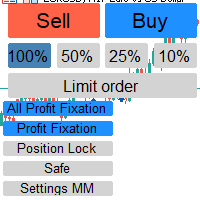
⚡ Operation Buttons
Button
Color
Function
C Market / B Market
🟢 Green
Opens a BUY market position
V Market / S Market
🔴 Red
Opens a SELL market position
Agr Gains
Blue
Applies the TP defined in all open positions
Agr Stops
🔵 Blue
Applies the defined SL to all open positions
Partial Exit
🟢 Green
Closes part of the position according to the defined lot size
Cancel
🟠 Orange
Cancels all pending orders
Cancel + Zero
🔴 Red
Cancels pending orders and closes all positions
Quick Summary
Open Positions: number of active trades at the moment
Today's Result: accumulated profit or loss for the day
🔒 Toggle SL/TP
ON: orders will be sent with configured SL and TP
OFF: orders will be sent without protection
Trading Status
Indicates whether AutoTrading is enabled in the terminal (green = enabled, orange = disabled)
⌨️ Keyboard Shortcuts
Shift + Click on the chart: creates a pending BUY order at the clicked price
Ctrl + Click on the chart: creates a pending SELL order at the Price clicked
🟦 TAB 2 — INFO (Information)
Displays a detailed account dashboard with real-time metrics.
Information Cards
Card
What it shows
RESULT
Current profit/loss in $ and % of balance
POSITIONS
Number of open positions
MARGIN
Margin value used
RISK
Value at risk of open positions
📋 Technical Details
Current asset price
Total open volume
Average entry price (calculated automatically)
Min/Step: minimum lot and step of the asset
TAB 3 — POSITIONS (Open Positions)
Visual and individual management of all open positions.
📋 Position Table
Column
Information
X
Red button to close that specific position
Symbol
Asset name (e.g., EURUSD, BTCUSD)
Type
Type of operation (BUY/SELL) in green or red
Vol
Position volume
Price
Opening price
Profit
Current profit/loss in real time
📊 Bottom Summary
Total: number of open positions
Profit: sum of winning positions
Loss: sum of losing positions
💡 How to use
Click the red X next to each position to close it individually
The list updates automatically every second
Profiting positions appear in green, losing positions in red
🟦 TAB 4 — RISK (Risk Management)
Complete capital protection system with automatic limits.
🎛️ Activation
ON/OFF button to activate/deactivate all protection
Checkbox "Close positions when limit is reached" — when checked, the order form automatically resets everything when any limit is hit
📅 Daily Limits
Limit
Function
Maximum Daily Loss
Maximum acceptable daily loss value
Daily Gain Target
Target daily profit value
Total Limits (of the account)
Limit
Function
Target Target
Target accumulated profit (since the beginning)
Maximum Total Loss
Maximum acceptable drawdown on the peak balance
📊 Real-Time Monitoring
4 progress bars show:
Daily Loss: how much you have lost today vs. the limit
Daily Gain: how much you have profited today vs. the target
Total Target: progress towards the accumulated target
Total Loss: current drawdown vs. the maximum limit
Each bar changes color as it approaches the limit:
🟢 Green = within the limit Normal
🟡 Yellow = 80% of the limit (attention)
🔴 Red = 100% of the limit (blocked)
🚦 Status
✅ Within Limits — normal operation
⚠️ ATTENTION - Near the Limit — be careful, it's close
🚫 BLOCKED — trading automatically locked
💾 Persistence
Reset Alerts: resets the day's triggers (useful in case of false blocking)
Save: saves the settings in the terminal's global variables (persist between sessions)
🟦 TAB 5 — TRAIL (Trailing Stop)
Automatic trailing stop management to protect profits.
🎛️ Activation
ON/OFF button to activate trailing
⚙️ Stop Type
Type
How it works
Financial ($)
Distance in dollars from the current price
Percentage (%)
Distance in % from the current price
Pips
Distance in points/pips
📝 Parameters
Field
Function
Gain/trigger
Minimum profit required to activate trailing (0 = sema